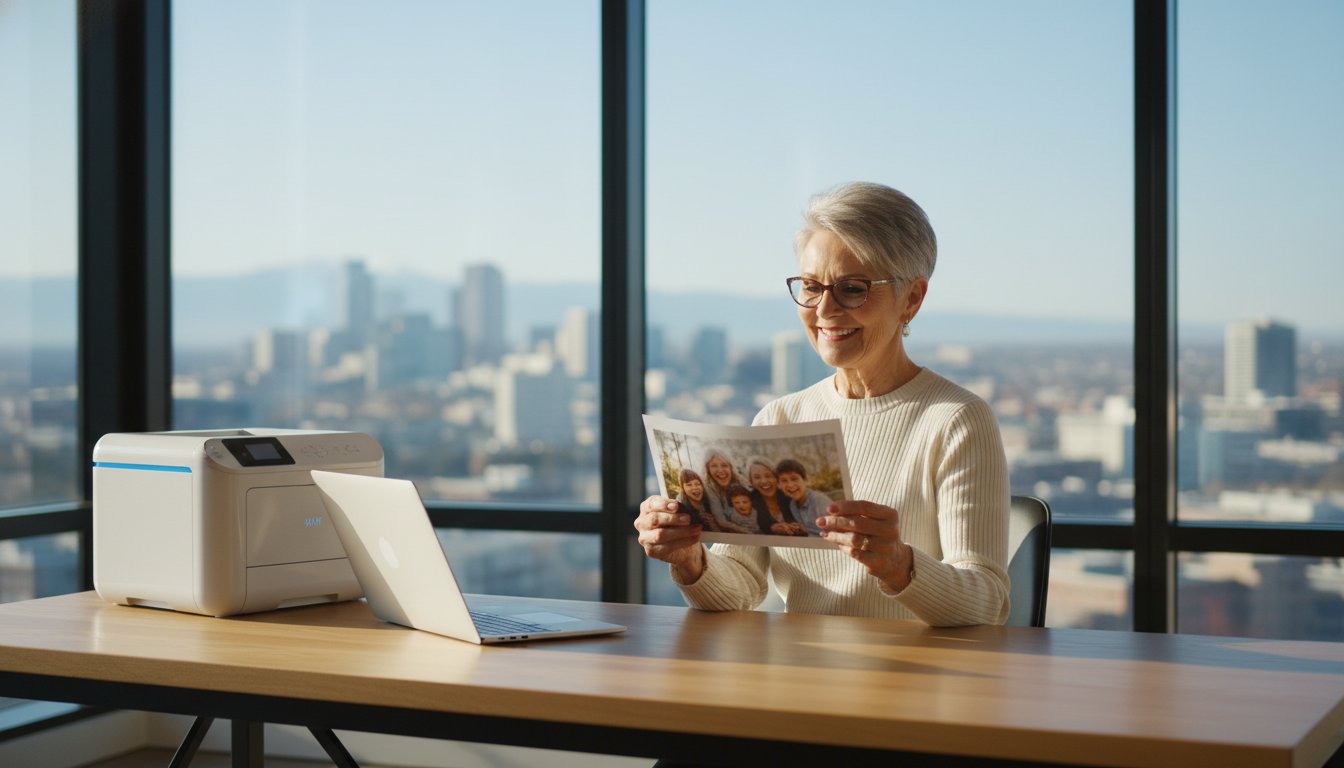
Last Tuesday, Mary sat at her desk with a brand new printer and a stack of digital photos she wanted to mail to her grandkids. Instead of a beautiful 4-cent print, she found herself staring at a confusing "Printer Offline" message and a tangle of USB-C cords. If you've ever felt frustrated by a wireless connection or a forgotten password, you aren't alone. It's completely normal to feel overwhelmed when new gadgets seem to speak a different language. Technology moves fast, but your printer setup doesn't have to be a source of stress.
We believe that technology should serve you, not the other way around. This guide provides the patient, step-by-step support you need to feel a genuine sense of digital accomplishment. We'll show you how to connect to your home network using the latest Wi-Fi 7 standards and explain why those new refillable ink tanks are a great choice for your budget in 2026. You'll learn how to configure your device with confidence so you can get back to printing boarding passes, tax forms, and family memories entirely on your own.
Key Takeaways
- Learn why a simple USB cord remains a reliable alternative to wireless connections for a frustration-free experience.
- Discover how to find hidden shipping materials and choose the perfect spot for your device to ensure a smooth printer setup.
- Follow a calm, guided process to navigate setup menus and introduce your computer to your printer correctly the first time.
- Master simple checks to solve "Printer Offline" messages and restore your connection without feeling overwhelmed.
- Gain the confidence to print photos and tax forms independently or know exactly when to call for friendly, patient guidance.
Understanding Modern Printer Setup: Wired vs. Wireless
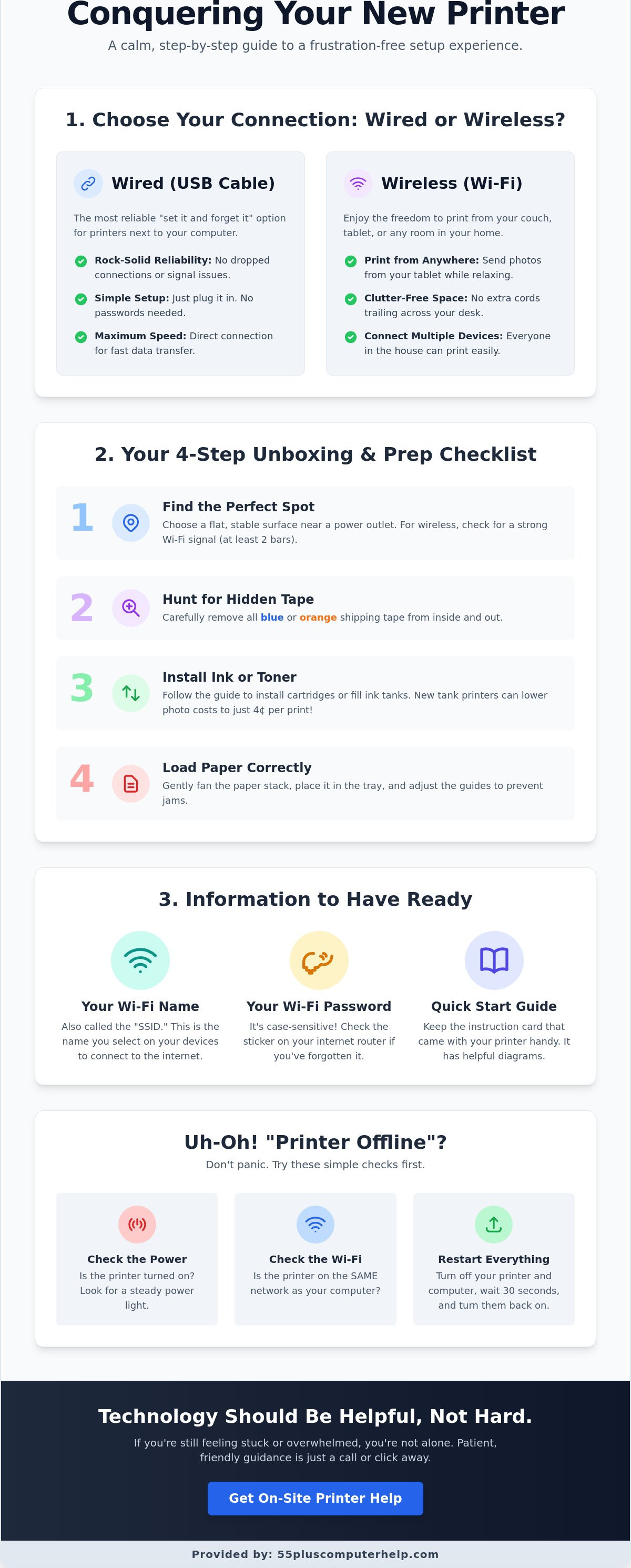
Printer setup is simply the process of introducing your computer to your printer. Think of it like a first handshake between two neighbors. Once they know each other, they can work together to get your documents and photos onto paper. In 2026, you have two main ways to make this introduction happen. You can use a physical cord or your home Wi-Fi network. While you might see many different types of printers in the store, they all generally use one of these two connection methods to get the job done.
Many modern manufacturers now ask you to download a specific "App" on your smartphone or tablet to start the installation. Companies like HP and Epson use these apps to guide you through the process with pictures and simple prompts. It might feel like an extra step, but it helps the printer find your home network more quickly. These apps also let you check your ink levels or order more paper right from your phone. Even with these new tools, the basic goal remains the same. You're just making sure your devices can talk to each other clearly.
Is a Wired Connection Right for You?
A wired connection is often the most reliable way to handle your printer setup. This method is perfect if your printer sits right next to your computer. You don't need to worry about signal strength or remembering complex Wi-Fi passwords. A USB A-to-B cable has one flat, rectangular end for your computer and one square end for your printer. This simple cord creates a dedicated path for your information. It's a great "set it and forget it" solution that avoids common connection glitches.
The Benefits of a Wireless Home Printer
Wireless printing offers a sense of freedom that many seniors enjoy. You can sit on your couch with a tablet and send a photo to the printer in the next room. This setup removes the clutter of extra cords trailing across your desk. In 2026, most homes use Wi-Fi 7 technology, which is very fast and reliable. You just need to make sure your printer has a strong signal. If you see at least two bars on your smartphone while standing near the printer, your wireless connection should stay stable.
Preparing Your Space for a Successful Installation
A successful printer setup starts long before you click a button on your computer screen. It begins with finding the right home for your new device. You want a flat, stable surface near a grounded power outlet. If you chose a wireless model, ensure the spot is within range of your router. Most modern routers in 2026 use Wi-Fi 7 technology. This provides a strong signal, but thick walls or large furniture can still cause interference. Taking a moment to plan your space now prevents technical headaches later.
Manufacturers often secure moving parts with bright blue or orange tape. This "Hidden Tape" hunt is a vital step. You might find strips inside the paper tray, under the scanner lid, or even deep inside the ink carriage area. If you miss a single piece, the printer might make a loud grinding noise or show an error. Once the tape is gone, you can install your ink. Many seniors now prefer ink tank printers like the Epson EcoTank. These models use refillable bottles instead of small cartridges. It's a cleaner process that can bring your photo printing costs down to about 4 cents per 4x6 print according to Epson's May 2026 data.
Loading paper correctly is the final physical step. Fan the stack of paper gently before placing it in the tray. This simple trick prevents pages from sticking together. Adjust the plastic guides so they snuggle against the paper without bending it. This prevents the dreaded "Paper Jam" message that can ruin a busy afternoon. If the physical part feels tricky, our team offers friendly on-site printer setup to handle the heavy lifting for you.
Your Pre-Setup Checklist
Before you plug anything in, gather your information. You'll need your Wi-Fi network name and the password. This is often printed on a sticker on the side of your internet router. Make sure your computer is already online and connected to that same network. Keeping your "Quick Start" card nearby is also helpful. It usually has large, clear diagrams that show exactly where the cords go.
Unboxing Tips for Seniors
New printers can be surprisingly heavy. Don't hesitate to ask a friend or neighbor for help lifting the box onto your table. This prevents unnecessary physical strain. Keep the original box and all the foam inserts for at least 30 days. If the device has a defect, having the original packaging makes the return process much easier. Finally, separate your cords immediately. Your power cord will have a standard wall plug, while a data cord for connecting your wireless printer often uses a USB-C connection in 2026.
Step-by-Step Guide to Connecting Your Printer
Now that your device is unpacked and the tape is removed, you're ready for the digital part of the printer setup. Press the power button to turn the machine on. You'll likely hear several minutes of whirring, clicking, and internal movement. This is the initial warm-up cycle. The printer is busy checking its internal parts and aligning the print heads to ensure your photos look sharp. Don't worry if it sounds a bit loud at first. This is a normal part of the process for every new machine.
Most modern printers feature a small touch screen on the front panel. Use your finger to scroll through the options until you find the 'Setup Wizard' or 'Network' menu. This built-in assistant is designed to be your primary guide. It will ask you to select your home Wi-Fi network from a list. Once you find your network name, you'll need to enter your password. This is often the most challenging step for many people. Pay close attention to capital letters, symbols, and numbers. If you find this step confusing, HP offers a comprehensive guide to printer setup that provides extra tips for different models.
After you enter the password, the printer will attempt to join your network. Watch the Wi-Fi light on the front of the machine. It will usually blink while it's "thinking" and searching for the signal. When the light turns a solid blue, you've succeeded. Your printer is now officially part of your home network and ready to receive instructions from your other devices. This solid blue light is your signal that the hardest part is over.
Connecting on a Windows Computer
Once the printer is on the network, you need to tell your Windows computer where to find it. Click the 'Start' button and select the gear icon for 'Settings'. From there, navigate to 'Bluetooth & devices' and then click on 'Printers & Scanners'. You'll see a button that says 'Add device'. Click it and wait. Your computer will scan your home for the new printer. This search can take up to 60 seconds, so please be patient. When your specific model name appears in the list, click 'Add device' to finish the connection.
Connecting on an Apple Mac
If you use a Mac, the process is slightly different but just as simple. Click the Apple icon in the top-left corner of your screen and select 'System Settings'. Scroll down the left-hand menu until you find the 'Printers & Scanners' icon. Click the '+' button located near the bottom of the printer list. A new window will appear showing all available printers on your Wi-Fi. Select your new printer and click the 'Add' button. Apple's macOS software is designed to install the necessary drivers automatically so you don't have to search for extra files.
Solving Common Printer Setup Frustrations
Technology can be temperamental even when you follow every instruction. The most common mystery is the "Printer Offline" message on your computer screen. This usually means the two devices have stopped talking to each other. First, check that the printer is actually turned on. Sometimes the power cord isn't pushed in all the way at the back of the machine. Next, look at the blue Wi-Fi light. If it's blinking, your printer has lost its connection to the router. A quick restart of both devices often solves the problem immediately.
You might see a "Low Ink" warning right after your first few pages. This is frustrating but often normal. Most manufacturers include "starter" cartridges with very low page yields. For example, a budget printer in the $50 to $100 range might only print a handful of pages before needing a refill. If you're tired of running out of ink, you might consider an HP Instant Ink subscription. These plans start with a free tier for 15 pages per month and go up to $24.99 for 700 pages as of May 2026. This service sends ink to your door before you even know you're low.
Once everything seems connected, print a "Test Page." You can find this option in your computer's printer settings. Watching that first page slide out perfectly is a great way to build your confidence. It proves that your printer setup is complete and working correctly. If the test page looks blurry, the printer might just need a quick "Print Head Alignment." You can start this process from the printer's own touch screen. If you're still seeing error messages that won't go away, don't let it ruin your day. We provide expert printer setup assistance to get you back to printing your photos and forms without the stress.
Troubleshooting Wi-Fi Connection Issues
- Restart your router and printer to refresh the digital handshake.
- Move the printer closer to the router if you only see one bar of signal.
- Check if your computer is on a "Guest" network by mistake. Devices on a guest network often cannot "see" each other for security reasons.
Handling Software and Driver Prompts
A "Driver" is simply a translator for your computer. It tells the computer how to use the specific features of your printer. Most modern systems install these automatically. However, some manufacturers try to include "bloatware" or extra programs you don't actually need. Only install the basic software required to print and scan. When your computer asks to perform a software update, it's usually best to say "Yes." These updates often include security fixes that keep your home network safe from hackers.
Getting Patient Help When Technology Feels Overwhelming
It's easy to lose an entire afternoon to a stubborn piece of technology. You might start a simple printer setup at lunch and still be staring at a blinking light by dinner time. When a task steals your peace of mind, reaching out for assistance is a sign of wisdom, not weakness. A patient mentor can transform a stressful day into an empowering educational experience by explaining the 'why' behind the buttons. This approach helps you feel more in control of your digital world.
Professional support does more than just clear a paper jam. It ensures your device remains a reliable part of your home for years to come. Once the initial connection is stable, you can focus on the rewarding parts of owning a modern device. You might want to digitize a box of old family letters to preserve them for the next generation. You could also learn to share high-resolution photos with your children through email without any blurry results. Moving beyond basic maintenance allows you to enjoy your digital independence. Having an expert show you these specific shortcuts makes the whole process feel much less intimidating.
Why In-Home Support is Often Best
A friendly technician can see exactly how your home is arranged. They can identify Wi-Fi dead zones that might be hiding behind thick walls or kitchen appliances. This local knowledge is something a phone support agent simply can't see through a screen. During an in-home visit, you receive hands-on training that builds your muscle memory. You get to navigate the menus while an expert provides calm encouragement. This personalized approach also ensures your private information and home network remain secure from the start.
How 55 Plus Computer Help LLC Can Support You
Our team specializes in helping the senior community navigate the digital world with confidence. We believe technology should be a tool for connection, not a source of anxiety. We take the time to answer every question, ensuring you feel prepared to handle your device on your own. We don't just fix the software; we provide the guidance you need to feel secure. This means you won't have to wait for a family member to visit just to print a simple document. Whether you need help with a new printer setup or a tricky wireless connection, we're here to provide reliable and neighborly assistance. Let us help you get your printer running smoothly today!
Take the Next Step Toward Digital Independence
You now have the knowledge to transform a complex box of parts into a helpful tool for your home. By choosing the right location and following a methodical connection process, you've already handled the most important steps. A successful printer setup is more than just a technical task. It's the key to printing those precious family photos and managing your important tax forms without relying on anyone else. You've learned that patience and a clear plan are your best allies when things feel tricky.
If you'd prefer to have a friendly expert by your side, we're here to assist you. We have spent over 10 years providing specialized support for the 55+ community with a calm, jargon-free teaching style. We don't just fix the problem; we make sure you feel confident using your equipment long after we leave. Schedule a patient, in-home printer setup session today to get started. You've worked hard to stay connected. You deserve to enjoy every bit of your digital world with a sense of pride and security.
Frequently Asked Questions
Why does my printer say 'Offline' when it is turned on?
Your printer says offline because the communication link between your devices is broken. This often happens if your Wi-Fi signal drops momentarily or if the printer enters a deep sleep mode. Check the Wi-Fi light on the front panel to ensure it stays solid. If it blinks, restart your router and wait 60 seconds before trying again. This simple step usually restores the connection immediately.
Do I really need to install the app that came with my printer?
You generally need the app to complete a modern printer setup in 2026. Manufacturers like HP and Epson use these apps to verify your security settings and install the correct drivers. These tools make the process more visual and less technical for you. Once the setup is finished, you can usually print from your computer or phone without having to interact with the app daily.
Can I set up a wireless printer without a computer?
You can absolutely set up a wireless printer using only a smartphone or tablet. Modern devices use a technology called Bluetooth LE to find the printer the moment you plug it in. You follow the prompts on your screen to share your Wi-Fi settings with the printer. This method is often faster than using a computer and is perfect for seniors who primarily use an iPad.
How do I find my Wi-Fi password for the printer setup?
Your Wi-Fi password is usually printed on a white or silver sticker on the side of your internet router. It is often labeled as "Security Key" or "WPA2 Password." It's important to type it exactly as shown, noting that a capital "O" and the number "0" can look very similar. If you have a guest network, make sure you use the password for your main home network instead during the printer setup.
Is it better to use a USB cable or Wi-Fi for my home printer?
A USB cable is the most reliable choice if your printer stays in one spot next to your computer. It removes the need for passwords and prevents wireless interference. However, Wi-Fi is the better option if you want to print from your tablet while sitting in a different room. In 2026, Wi-Fi 7 provides a very stable connection that rivals a physical cord for most home uses.
What should I do if my printer is connected but won't print?
First, check your computer's print queue to see if an old document is blocking the new ones. You can clear these stuck jobs by clicking "Cancel All Documents" in your printer settings. If the queue is empty, ensure the printer isn't showing an error light for paper or ink. Sometimes, simply unplugging the printer's power cord for 30 seconds clears the internal memory and allows it to start fresh.
Can I print from my iPad or iPhone once the printer is set up?
You can print from your mobile devices easily using built-in tools like Apple AirPrint or Mopria for Android. There is no need to plug in any cables once your printer is on the Wi-Fi. Just open the photo or email you want to keep, tap the share button, and select your printer from the list. It is a wonderful way to print grandkid photos the moment you receive them.
Why is my new printer not recognizing the ink cartridges?
New printers often fail to recognize cartridges if the protective plastic film is still attached to the copper chips. Take the cartridge out and look for a small orange or clear tab that needs to be pulled. If the tab is gone, the cartridge might not be clicked in all the way. Push it firmly until you hear a distinct click, which ensures the printer can read the ink levels correctly.


