
Last Tuesday, a grandmother named Martha sat before her laptop, wanting to see her new grandson on a video call. She hesitated because she didn't want to click a dangerous link or feel like a burden to her family again. Many seniors on computers feel this same sense of anxiety when faced with confusing icons and technical jargon. It is perfectly normal to worry about being scammed or feel frustrated when technology doesn't seem to work the way you expect.
This guide will show you how to confidently navigate your computer and stay safe online. You will learn to identify safe versus unsafe emails and manage your digital photos all by yourself. We will walk through simple steps to help you video call your grandkids without needing to ask for help. We are going to transform your digital frustration into a sense of accomplishment and security. This article provides a clear, patient path to mastering your technology with ease.
Key Takeaways
- Learn how to use "Undo" and "Restart" as safety nets so you never have to worry about breaking your device.
- Discover how to adjust your screen and keyboard settings to make reading and typing much more comfortable for your eyes and hands.
- Master the "Slow Down" rule to spot red flags in suspicious emails and keep your personal information safe while seniors on computers explore the internet.
- Follow simple steps to start video calls and organize family photos without needing to ask your children for help.
- Understand why working with a patient mentor can help you gain digital confidence faster than struggling with a complex instruction manual.
Getting Started as a Senior on Computers: Overcoming the Tech Gap
Computer literacy for seniors isn't about memorizing code or understanding complex hardware. It simply means using digital tools to make your life easier and more enjoyable. Think of your computer like a microwave or a car. You don't need to be an engineer to cook a meal or a mechanic to drive to the grocery store. Similarly, you don't need to be a technician to enjoy the benefits of being online. According to a 2021 report from the AARP, about 82% of adults over age 50 rely on technology to stay connected with friends and family. This connection is the true heart of digital literacy.
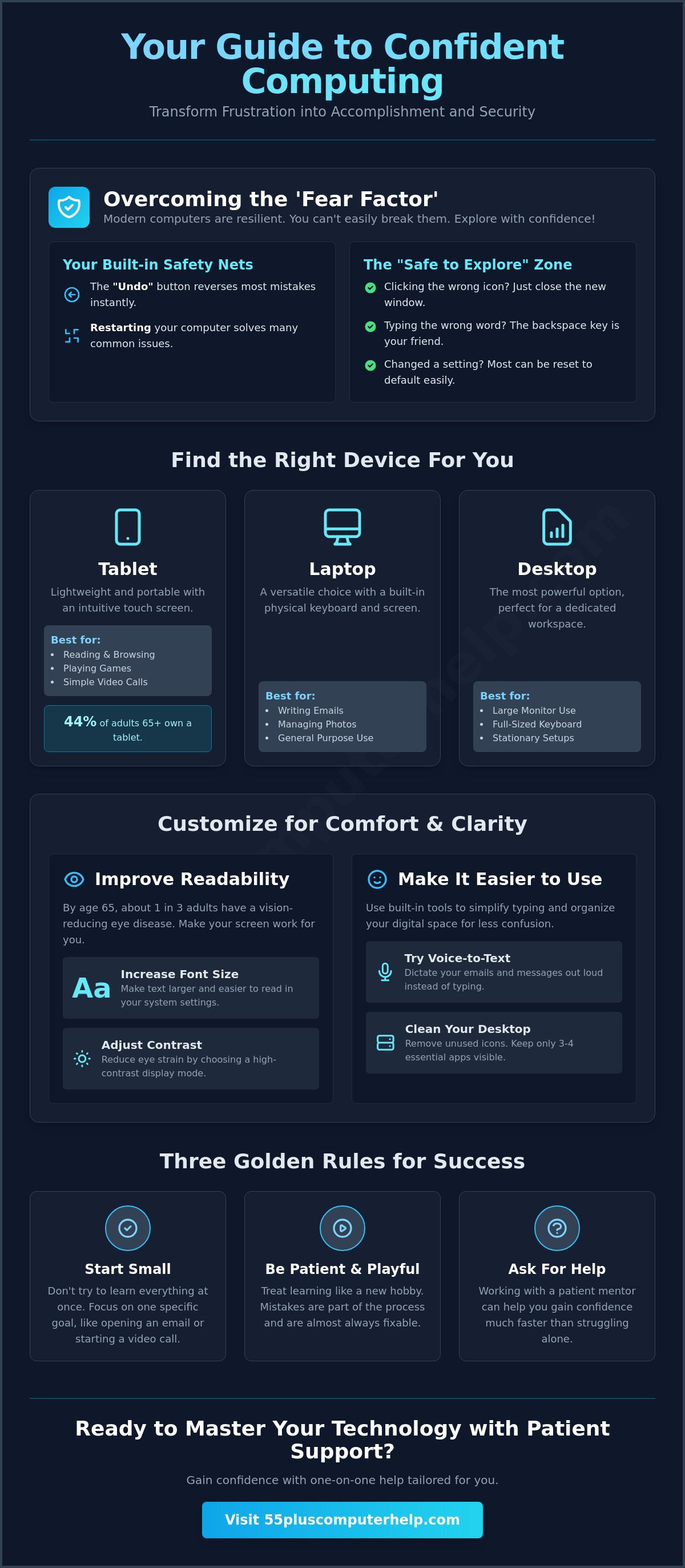
Many people hesitate to explore because they fear they might break the machine. This fear is one of the biggest hurdles for seniors on computers. Modern devices are actually quite resilient. They are designed with safety nets like the Undo button and the Restart function. These features ensure that most mistakes are temporary and easily fixed. Technology is built to be user-friendly, even if the icons and menus feel unfamiliar right now. Being online helps you manage your health through patient portals, join social groups, and access lifelong learning materials from your living room.
The 'Fear Factor' and How to Beat It
The best way to learn is to adopt a playful mindset. Treat your computer like a new hobby where mistakes are just part of the process. If you click the wrong thing, you can almost always go back. Most technical issues disappear completely after you turn the computer off and back on again. To help you feel more secure, here is a Safe Zone checklist of things you cannot accidentally break:
- Clicking the wrong icon: You can simply close the window that opens.
- Typing the wrong word: The backspace key or Undo command fixes this instantly.
- Changing settings: Most settings can be reset to Default with one click.
- Exploring the desktop: Looking around won't delete your files or damage the screen.
Setting Realistic Goals for Your Tech Journey
Don't try to learn everything at once. This leads to burnout and frustration. Instead, focus on just-in-time learning. This means you only learn a skill when you actually need to use it. If you want to see a photo of your grandson, focus only on opening your email. You don't need to learn how to organize folders until you have files to save. The goal of computer use for seniors is connection and convenience, not technical perfection. Start with one small, specific win each day to build your confidence slowly.
Building Your Senior-Friendly Digital Workspace: A Step-by-Step Guide
Creating a comfortable digital environment is the first step toward building your confidence. Many seniors on computers struggle simply because their workspace isn't tailored to their physical needs. A cluttered screen or a tiny font can make even simple tasks feel exhausting. By following a few logical steps, you can transform your device into a tool that works for you rather than against you.
Choosing the Right Device for Your Needs
The best device is the one that feels most comfortable in your hands. Tablets are lightweight and use touch screens, making them perfect for reading or playing games in a favorite chair. Laptops offer a physical keyboard, which is often better for those who enjoy writing long emails. If you have limited mobility, a desktop computer might be the best choice. It stays in one place and allows for a much larger monitor and a full-sized keyboard. Research from the Pew Research Center in 2022 shows that tablet ownership among those 65 and older has grown to 44%, proving that many prefer the simplicity of a touch interface.
Customizing for Sight and Sound
You don't have to settle for the factory settings on your device. Since about one third of adults have a vision-reducing eye disease by age 65, adjusting your display is essential. You can easily increase the font size in your system settings so every word is crisp and clear. Changing the screen contrast can also reduce eye strain during long sessions. For better audio, consider using external speakers or comfortable headphones. These tools make a significant difference when you want to hear every word during a family video call. If typing feels like a chore, try the "Voice to Text" feature. This allows you to dictate your messages out loud, and the computer will type them for you.
After you choose your device and adjust the settings, follow these steps to finish your setup:
- Clean your desktop: Remove any icons you don't use daily. Keep only three or four essential apps visible to avoid confusion.
- Check your Wi-Fi: Place your router in the same room as your computer. A strong signal prevents frustrating delays and dropped calls.
- Set up a backup: Use a simple cloud service to save your files automatically. This ensures your family photos are safe even if your computer has a problem.
If you find these technical steps confusing, you can always ask for friendly guidance to get your workspace configured properly. Setting up your computer the right way from the start saves time and prevents future headaches. Once your digital home is organized, you can focus on the fun parts of being online.
Navigating the Internet Safely: How to Spot Scams and Protect Your Data
Staying safe online is a top concern for many seniors on computers. Scammers often use fear and urgency to make you act quickly. They might send an email saying your bank account is locked or your computer has a virus. The best defense is the "Slow Down" rule. If a message makes you feel panicked, take a deep breath and stop. According to the Federal Trade Commission, adults over age 60 reported 3.4 billion dollars in fraud losses in 2023. Most of these scams succeed because the person felt pressured to react immediately. By taking your time, you can spot the tricks before they cause any harm.
The Anatomy of a Typical Online Scam
Phishing is a common trick where a scammer pretends to be a company you trust. They might use an email that looks exactly like one from your bank, your utility company, or the IRS. Look for red flags like "Urgent Action Required" or "Your Account Will Be Deleted." These messages often have spelling mistakes or use a generic greeting like "Dear Valued Member" instead of your name. Legitimate companies will never ask for your password or Social Security number through an email link. A legitimate organization will always allow you to call them back through a verified phone number found on your official statement.
Tools for Digital Self-Defense
You don't have to defend your computer all by yourself. Antivirus software acts like a digital shield for seniors on computers. It checks every file and website for hidden dangers before they can cause trouble. Keeping your software updated is another easy way to stay safe. Technology companies release updates to fix security holes, so clicking "Install Update" is a simple way to protect your personal data. These updates are like changing the locks on your front door to keep intruders out.
Managing passwords is often the hardest part of being online. You should use a unique password for every important site, especially for banking and health portals. If you find it hard to remember them, a physical "Password Notebook" kept in a safe place at home is a reliable solution. You can also use a password manager, which is a secure digital vault that stores your login details for you. This prevents the frustration of being locked out of your favorite accounts.
Always check for "Safe Sites" before entering any personal information. Look for a small padlock icon in the address bar at the very top of your screen. The website address should also start with "https" instead of just "http." The "s" stands for secure. If you don't see these signs, it's best to leave the site immediately. Learning these safety markers will help you explore the internet with a sense of accomplishment and security.
Staying Connected: A How-To for Email, Video Calls, and Family Photos
Connecting with loved ones is the primary reason many seniors on computers decide to embrace technology. Email remains a reliable way to exchange long messages and letters. You can think of your inbox as a digital mailbox. To stay organized, try creating folders for different family members. This makes it much easier to find a specific message from months ago. If you receive an attachment, it is usually a document or a photo. Be sure to use the safety rules you learned earlier before clicking any unexpected links. As of 2024, email continues to be the most common way for families to share important documents and long-form updates.
Social media platforms like Facebook allow you to see daily updates and school photos without needing to call every day. You can follow your children and grandchildren to see what they are up to in real time. Remember to keep your profile private to ensure only friends and family can see your posts. This keeps your experience safe and focused on the people you care about most. It is a great way to feel involved in the lives of your relatives, even if they live many miles away.
Mastering the Art of the Video Call
Video calling brings you face-to-face with people across the world. Platforms like Zoom, FaceTime, and Skype are very popular tools for these virtual visits. To look your best, place your computer near a window so natural light hits your face. Avoid having a bright light directly behind you, as this makes you look like a dark shadow. The most common hurdle is the Mute button. It usually looks like a small microphone icon. If people cannot hear you, check to see if there is a red line through that icon. You can build your confidence by setting up a "Test Call" with a friend or a mentor before a big family event.
Organizing and Sharing Your Digital Photo Library
Digital photos are wonderful, but they can quickly become a cluttered mess. When someone sends you a photo in an email, look for a Download or Save button. Once you save the image, move it into a specific folder on your computer. Label these folders clearly, such as "Birthday Party 2025" or "Summer Vacation." This simple habit keeps your memories easy to find. If you have a large group of photos to share, avoid sending them all in one email. This can clog up an inbox. Instead, use a shared digital album which allows everyone to view the pictures at their own pace.
If you feel overwhelmed by these steps, you can get personalized assistance with video calls and photos to make sure you stay connected. Learning these skills ensures you never miss a moment of your family's lives. With a little practice, these tools will become a natural part of your daily routine. You don't have to struggle alone when help is just a phone call away.
Mastering Your Computer with Patient, One-on-One Support
Many people find that professional help often beats asking family members for assistance. While children and grandchildren mean well, they usually move too fast through the steps. They might click through several screens before you have a chance to see what happened. This can lead to frustration for everyone involved and leave you feeling like a burden. Choosing a dedicated service for seniors on computers removes this emotional pressure. It turns a stressful family moment into a calm, successful learning experience where you are the priority. You can ask the same question as many times as you need without any judgment.
Why a Professional Mentor Makes the Difference
A professional mentor speaks your language instead of using technical jargon. They act as a patient guide who understands that everyone learns at a different pace. This customized approach ensures you only spend time on the tasks you actually want to master. You won't be forced to sit through lessons on topics that don't interest you. Instead, you build a relationship with a trusted expert who focuses on your specific goals. This one-on-one attention helps you gain the digital confidence needed to explore the internet with a sense of security.
Taking the First Step Toward Confidence
It is helpful to know when you need a quick fix versus a learning session. A quick fix gets your printer working or restores a lost file today. A learning session gives you the practical skills to handle those situations yourself next time. Having a go-to person for these needs provides immense peace of mind. Personalized support is available for $55 per half hour, providing a transparent way to get the help you need. This clear pricing ensures you always know what to expect before a session begins. You can receive this assistance in your own comfortable environment where you feel most at ease. Learn more about our personalized technology training fees.
Taking the first step toward digital independence is a gift to yourself. You don't have to struggle with confusing manuals or wait for a busy relative to find time in their schedule. By working with a friendly mentor, you transform your device from a source of anxiety into a tool for connection. You deserve to feel empowered and capable every time you sit down at your desk. Start your journey today and discover how simple technology can be with the right person by your side.
Take the Next Step Toward Digital Independence
You now have the tools to turn tech anxiety into digital confidence. Remember that mistakes are just part of the learning process. You can always use the "Undo" button or restart your machine to fix a small error. By using the "Slow Down" rule, you can explore the internet safely and avoid common scams. These simple steps help seniors on computers stay connected with the people they love most without feeling overwhelmed. You have learned how to set up a comfortable workspace and how to manage your family photos with ease.
Since 2014, our team has specialized in empowering adults over age 55 with friendly guidance. We provide patient, one-on-one sessions that focus only on what you want to learn. You don't have to struggle with complex jargon or feel frustrated with fast-paced instructions. We are here to support your journey every step of the way. Get Patient, Friendly Computer Help Today and start using your technology with total peace of mind. You are closer to digital independence than you think. Your digital world is waiting for you to explore it.
Frequently Asked Questions
Is it ever too late to learn how to use a computer?
It's never too late to start your digital journey. A 2013 study from the University of Texas found that seniors who learned complex skills like digital photography showed significant improvements in memory. Your brain is capable of learning at any age. Starting today will help you stay mentally active and connected to the modern world.
What is the easiest computer for a senior to use?
Tablets are often the most intuitive choice for seniors on computers. They use a touch screen instead of a complex mouse and keyboard. Devices like the iPad have very high satisfaction ratings because the icons are large and easy to understand. If you prefer typing long letters, a laptop with a large screen is also a great option.
How can I tell if an email is a scam or a real message?
Check the actual email address of the sender by clicking on their name. If the address looks like a string of random letters or doesn't match the company name, it's likely a fake. Real companies won't ask you to click a link to "verify your identity" or provide a password. If you aren't sure, call the company directly using a number from your paper statement.
Do I really need antivirus software if I only check email?
You absolutely need a digital shield even for basic tasks. The 2023 Verizon Data Breach Investigations Report found that 94% of all malware is delivered through email. Antivirus software acts as a guard that stops these threats before they can damage your files. It's a simple way to give yourself peace of mind while you explore the internet.
What happens if I click the wrong button and my screen goes blank?
Usually, your screen has just gone into "Sleep Mode" to save power. Try tapping the spacebar or moving your mouse to wake it up. If that doesn't work, check the power cable to make sure it hasn't come loose. Most of the time, your computer is fine and just needs a quick nudge to turn the display back on.
How can I see photos of my grandkids without having to join Facebook?
You can view photos through private shared albums. Ask your family to use services like Google Photos or iCloud to send you a direct link. When you click the link in your email, you can see all the pictures in a private gallery. This lets you enjoy family memories without having to create a social media profile or share your own data.
Why is my computer running so slowly all of a sudden?
Computers often slow down because too many programs are running in the background. If you have multiple windows open, your machine has to work much harder. Restarting your computer can clear these temporary files and speed things up. If your device is more than 5 years old, it might also need a simple storage cleanup to run better.
Can I get help with my printer and Wi-Fi at home?
Yes, getting help in your own home is the best way to solve hardware issues. A local expert can visit to make sure your printer is talking to your computer correctly. They can also check your Wi-Fi signal to prevent your video calls from dropping. This personalized support helps seniors on computers feel much more confident using all their home technology.


