
Did you know that the average person spends over 60 hours every year just searching for missing files on their computer? It's completely normal to feel a bit of anxiety when you look at a cluttered desktop or a "Downloads" folder that feels like a bottomless pit. You might worry that moving a document will make it disappear forever, or that one wrong click could delete your precious family photos or important tax records. Learning how to organize files and folders on a computer doesn't have to be a technical headache or a source of stress.
We understand that you want your computer to be a tool for connection, not a cause of frustration. This guide offers a simple, stress-free way to tidy your digital life so you can find specific photos of your grandkids in seconds. We'll walk through a calm, methodical approach using a "5-Folder System" that gives you total confidence in naming and moving your files safely. You'll learn how to turn that digital clutter into a clean, organized space that feels peaceful to look at every time you turn on your screen.
Key Takeaways
- Think of your computer folders like physical manila folders to make your digital space feel familiar and safe.
- Master how to organize files and folders on a computer by using a simple 5-folder system that clears your desktop immediately.
- Learn how to avoid the "Downloads" folder trap and use the Recycle Bin as a reliable 30-day safety net for your files.
- Gain the confidence to find precious family photos and important records in seconds rather than minutes.
- Discover how patient, one-on-one training can replace technology frustration with a lasting sense of accomplishment.
The Filing Cabinet Secret: Why Folders Matter
Looking at a computer screen filled with scattered icons can feel exactly like looking at a physical desk buried under a mountain of loose papers. It's overwhelming. You might feel a small jolt of panic when you can't find a specific letter or a tax form. The good news is that learning how to organize files and folders on a computer is much easier than it looks. It's not about being a technical expert. It's simply about using a system that makes sense to you.
Many people worry that moving a file from one place to another might "break" the computer or make the file disappear forever. This is a very common fear. You can rest easy. Moving a file is just like picking up a piece of paper and putting it into a drawer. It doesn't damage the document, and it certainly doesn't hurt the computer. Organizing is about making sure you can find your things later, not just hiding them away. When you know where things live, the computer stops being a source of stress and starts being a helpful tool.
Your Digital Filing Cabinet
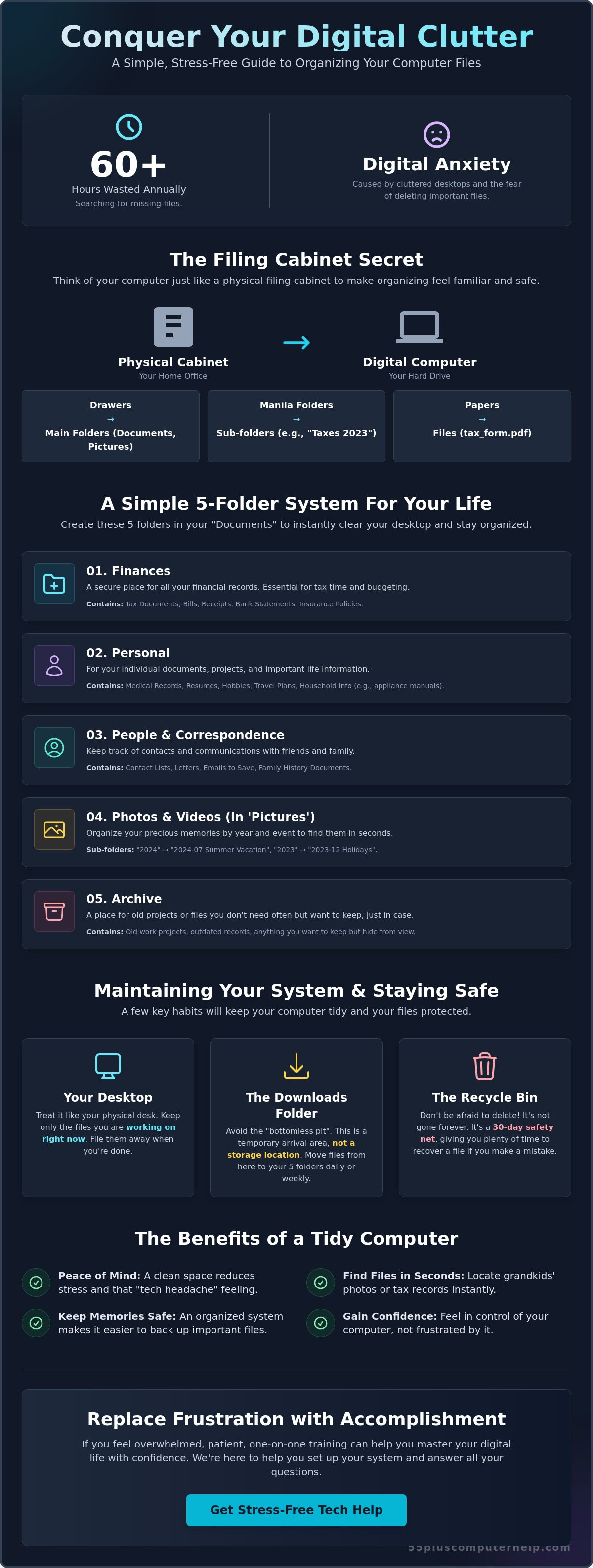
Think of your computer's hard drive as a sturdy metal filing cabinet sitting in your home office. Inside that cabinet, you have drawers. Inside those drawers, you use manila folders to keep different topics separate. On a computer, you use a software tool called a file manager to look inside these digital drawers. This tool lets you create as many folders as you need for things like "Household," "Photos," or "Health."
Subfolders are like the little dividers you might use within a single drawer to keep "Gas Bills" separate from "Electric Bills." Your computer "Desktop"—the main screen you see when you turn it on—should be treated like the top of your physical desk. It's a great place to put things you are working on right now. You don't want to store every single document there, or you'll quickly run out of room to work. A clear desktop helps you focus on the task at hand.
The Benefits of a Tidy Computer
A tidy computer does more than just look nice. It gives you a sense of control and peace of mind. When you have a logical system, you can find your medical records or tax documents in seconds during an emergency. You won't have to spend an hour clicking through random folders while feeling frustrated. Instead, you'll know exactly where to go.
This organization also keeps your precious memories safe. When your photos are neatly filed, it's much easier to ensure they are backed up and protected. You'll know exactly where the pictures of your grandkids are stored. Reducing the clutter on your screen helps lower your stress and removes that "tech-headache" that often comes with using a messy computer. You deserve a digital space that feels calm, helpful, and easy to use.
Files vs. Folders: Learning the Building Blocks
To master how to organize files and folders on a computer, you first need to know what you are looking at. Think of a "File" as a specific item. It might be a single photograph of your garden, a letter to a friend, or a digital copy of a utility bill. Every piece of information on your computer is stored as a file. These are the actual "things" you want to keep and find later.
A "Folder" is different. It is a container used to group those files together. If a file is a single sheet of paper, a folder is the manila envelope that keeps several sheets from getting mixed up. You can even put folders inside other folders. This helps you keep your "2026 Taxes" folder separate from your "Holiday Recipes" folder. Learning how to organize files and folders on a computer starts with recognizing these basic building blocks.
Your computer uses icons to help you identify these items. A folder usually looks like a small yellow office folder. Files have different icons based on what they are. A photo file might look like a tiny landscape, while a text document might look like a piece of lined paper. If you ever feel stuck or overwhelmed by all the icons, a patient mentor can help you with Computer Setup and show you exactly where everything lives.
Identifying Common File Types
When you look at a file's name, you might see a few letters at the end like .jpg or .pdf. These are like labels on a jar. A .jpg or .png is almost always a photo of family or friends. A .pdf is usually a document that looks exactly like a printed page, such as a medical form or a bill. A .docx is a file you can type in, like a letter or a journal entry. Sometimes you might see a "Shortcut." These have a tiny blue arrow in the corner. A shortcut is just a pointer. It isn't the real file, but a quick way to reach it from your desktop.
Navigating Your Computer Windows
To see your files, you use a program called File Explorer on Windows or Finder on a Mac. This window is your map. On the left side, you'll see a sidebar. This sidebar has links to your most important places, like "Documents" or "Pictures." It's a fast way to jump between rooms in your digital house. At the top of the window, you'll see a row of words separated by arrows. These are "Breadcrumbs." They show you the path you took to get where you are. If your photos look too small to see, look for the "View" tab at the top. Changing your view to "Large Icons" will turn those tiny files into clear pictures you can recognize instantly.
A Simple 5-Folder System for Your Life
Cleaning up your computer doesn't have to happen all at once. You can start by creating a "To Sort" folder right on your desktop. Think of this as the basket on your kitchen counter where you put mail before you open it. By moving everything into this one folder, your screen instantly becomes clear and calm. This is a great first step in learning how to organize files and folders on a computer without feeling rushed or overwhelmed by a messy screen.
Once your desktop is clear, you can set up four other main folders to hold your life's work. A "Family & Photos" folder is the perfect home for pictures of grandkids and holiday gatherings. Next, a "Financial & Medical" folder keeps your bank statements and doctor's notes in one safe place. For your interests, a "Hobbies & Travel" folder can hold vacation plans or knitting patterns. Finally, use an "Archive" folder for old documents you don't need to see every day but aren't ready to delete yet. Using this simple system makes it much easier to understand how to organize files and folders on a computer effectively.
Naming Your Files So You Can Find Them
When you save a file, give it a name that tells a story. Instead of a name like "IMG_456," try "Grandkids-Christmas-2025." This makes it easy to find using the search bar later. It's also helpful to use a specific date format like 2026-05-15. Computers sort things alphabetically, so putting the year first keeps your files in a perfect timeline. Try to avoid using special characters like slashes (/) or stars (*). These symbols can sometimes confuse the computer and make it hard to save your work correctly.
The "Right-Click" Method for Creating Folders
Creating a new folder is a simple three-step process. First, find a blank space in your window and click the right button on your mouse. A small menu will pop up. Second, move your mouse over the word "New" and then click on "Folder." A new folder will appear with the name highlighted in blue. Third, just start typing the name you want, like "2026 Tax Documents," and press the Enter key on your keyboard. If you make a typo, don't worry. You can right-click the folder again and choose "Rename" to fix it. It's a safe way to practice at your own pace.
Maintaining Your System and Staying Safe
Once you have a system in place, the real secret is keeping it that way. Most people struggle with the "Downloads" folder. This is a digital lobby where every file from your email or the internet arrives. It can quickly become a bottomless pit if you don't move things to their proper homes. When you learn how to organize files and folders on a computer, you realize that the Downloads folder is just a temporary stopping point. It's not a permanent storage closet.
You might feel a bit of fear when it's time to delete a file. That's perfectly okay. Your computer has a built-in safety net called the Recycle Bin or the Trash. When you delete a file, it isn't gone forever right away. It usually sits in that bin for 30 days. You can easily reach in and pull it back out if you realize you made a mistake. This safety net gives you the freedom to tidy up without worrying about losing something precious. If you ever feel truly lost, remember the "Search" bar. It's like having a personal assistant who can find a needle in a haystack just by typing a single word from the file's name.
Weekly Tidy-Up Habits
You don't need to spend hours every day cleaning your computer. A simple 10-minute habit every Sunday can make a world of difference. Start by clearing any stray files off your Desktop. Next, look at your Downloads folder and move anything important into your 5-Folder System. To keep the clutter from growing, try the "One-In, One-Out" rule. For every new document you save, try to delete or archive one old file you no longer need. These small steps keep your digital life feeling calm and manageable.
Safety First: Backing Up Your Hard Work
Organizing your files makes them much easier to protect. When your documents are in one clear system, you can easily copy them to an external drive or a cloud service. This ensures that even if your computer has a problem, your photos and records stay safe. It's helpful to know the difference between "Moving" and "Copying." Moving a file takes it from one place and puts it in another. Copying a file creates a duplicate, so the file exists in two places at once. If you're nervous about this process, our patient experts can help you backup your data so you never have to worry about losing a single memory. Being consistent with your organization is much more important than being perfect. Every little bit of order helps you feel more confident and independent.
How Professional Tech Help Simplifies Organizing
Sometimes, even with a clear guide, the thought of sorting through years of digital memories feels overwhelming. You might still feel a knot of anxiety when you look at a screen full of mystery icons. This is where a patient mentor can step in and break the cycle of tech frustration once and for all. Instead of guessing how to organize files and folders on a computer, you can have a friendly expert sit with you and show you the way. A professional understands that your computer is unique to you. They can help you sift through large amounts of old data and move it into your new system safely. This support transforms the process from a stressful chore into a moment of genuine accomplishment.
The goal of professional help isn't just to fix a messy desktop. It's to give you the tools to stay organized on your own. When you work with someone who specializes in helping seniors, the conversation stays simple and grounded in everyday language. You'll learn that you aren't "bad with technology." You simply needed a logical system and a bit of encouragement. This journey helps you move from saying "I can't do this" to saying "I am in total control of my computer."
Personalized Training for Your Skill Level
The best way to master a new skill is to learn at your own pace. You should never feel rushed or judged when you ask a question. Personalized training focuses only on the specific tasks you need for your daily life. You don't need to learn complex industry jargon to enjoy your machine. Personalized computer lessons are designed to build your long-term confidence. You can focus on learning how to organize files and folders on a computer until it feels like second nature. This individualized approach ensures you feel comfortable and secure every step of the way.
Onsite or Remote Support: You Choose
Every person has a different learning style and different needs. You might prefer hands-on help in the comfort of your own home. Onsite support allows you to learn in your own environment using your own keyboard and mouse. It's a neighborly way to get the help you need without leaving your house. If you have a quick question or get stuck while sorting your photos, remote assistance is a wonderful option. A technician can securely view your screen and guide you through a solution while you watch from your desk. 55 Plus Computer Help specializes in the unique needs of seniors. We provide a warm, supportive environment that values your independence and your peace of mind.
Take Control of Your Digital Life Today
A clean and organized computer screen is within your reach. By using the 5-folder system and understanding the difference between files and folders, you can turn your machine into a helpful tool rather than a source of stress. You've learned that your Recycle Bin is a safe place for mistakes and that a logical naming system makes searching for photos a breeze. Learning how to organize files and folders on a computer is a wonderful way to protect your memories and gain new independence.
If you still feel a bit nervous about moving your important documents, you don't have to do it alone. Since 2014, we've provided patient, expert care specifically for seniors. We offer tailored one-on-one training that focuses on your unique needs and specialized expertise in data safety and virus removal. Our goal is to make technology feel easy and welcoming in your own home. Get Patient, In-Home Help Organizing Your Computer Today. You have the power to master your digital world, and we're here to support you every step of the way.
Frequently Asked Questions
Is it safe to move files from the "Documents" folder to a new folder I created?
Yes, it is perfectly safe to move your documents. Your computer is designed to let you rearrange your things whenever you like. Moving a file doesn't damage the information or the machine. It's just like moving a physical file from one drawer to another in your home office. This helps you keep your most important records exactly where you want them.
Why do all my files keep appearing on my Desktop screen?
Files often appear on your Desktop because it is the default "landing spot" for many programs. When you save a new document or download a photo, the computer puts it there so you can see it right away. While this is helpful for things you are working on today, it can quickly lead to a messy screen. You can simply drag those files into your new folder system to clear the view.
How do I delete a folder without losing the files inside it?
To keep your files while getting rid of a folder, you need to move the items out first. Open the folder you want to remove and drag the files inside to a different location, like your desktop or another folder. Once the folder is empty, you can safely right-click it and choose "Delete." If you delete the folder while files are still inside, they will all go to the Recycle Bin together.
What is the best way to name my digital photos so I can find them later?
The best way to name photos is to use a date followed by a short description. A name like "2026-07-04-Family-Barbecue" is much more helpful than a random number like "IMG_987." This method keeps your photos in chronological order automatically. It also allows you to use the search tool to find specific events or people in just a few seconds without clicking through every folder.
Can I organize my files on a tablet the same way I do on a computer?
Yes, you can use these same organizational skills on your tablet. Most tablets have a "Files" app that works almost exactly like the windows on your computer. You can create folders, rename documents, and move photos into categories. Learning how to organize files and folders on a computer provides a wonderful foundation for managing all your digital devices, including your smartphone and tablet.
What should I do if I accidentally delete an important file?
Don't panic if you delete something by mistake. Your computer has a safety net called the Recycle Bin or Trash. Open this icon on your desktop to see a list of everything you've recently removed. Most computers keep these files for 30 days. If you see your missing file, right-click it and select "Restore." The file will jump right back to its original home as if it never left.
How often should I organize my computer files to keep them tidy?
A short, weekly session is the best way to keep your computer tidy. Spending just ten minutes every Sunday clearing your "Downloads" folder and your Desktop prevents clutter from building up. If you wait months to organize, the task can feel overwhelming. By doing a little bit each week, you ensure that your computer remains a calm and helpful space that is always easy to navigate.
Is it better to use "Cloud" storage or keep files on my actual computer?
Using a combination of both is the most reliable way to stay safe. Keeping files on your computer allows you to access them quickly even without an internet connection. However, using Cloud storage provides a vital backup if your hardware ever fails. Understanding how to organize files and folders on a computer and the cloud ensures your precious photos and medical records are protected in two places at once.


