Last Tuesday, Margaret sat at her kitchen table with her brand-new smartphone, feeling more like she had inherited a complex puzzle than a helpful tool. She wanted to see the latest photos of her grandkids, but the screen was filled with confusing prompts about setting up email on a new phone and requests for passwords she hadn't used in years. It's completely normal to feel this sense of worry when you get a device that feels unfamiliar. It's frustrating to feel locked out of your own conversations just because the icons look small or the settings seem hidden.
We believe technology should be a bridge to your loved ones, not a barrier. You deserve to feel confident and independent every time you pick up your device. This guide will show you that connecting your accounts doesn't have to be a struggle. We've created a clear, jargon-free path to help you get started safely and easily. We'll walk you through each step, from finding the right app to making sure your private information stays secure, so you can get back to what matters most.
Key Takeaways
- Gather your account details and connect to a reliable Wi-Fi network to ensure your setup begins without any hiccups.
- Learn how the automatic process for setting up email on a new phone works, allowing your device to do most of the hard work for you.
- Master simple troubleshooting steps to handle "Unable to Verify" messages so you can stay calm and in control of your technology.
- Protect your privacy by learning to spot the difference between legitimate messages and common security scams.
- Build your confidence to use your new smartphone independently while knowing exactly how to get friendly, expert help when you need it.
Preparing Your New Phone for a Smooth Email Setup
Taking a few minutes to prepare will help you feel much more relaxed. You don't have to rush. By setting everything up before you start, you'll avoid the frustration of hunting for details halfway through the process. Setting up email on a new phone is much easier when you have your tools ready and a clear plan in place.
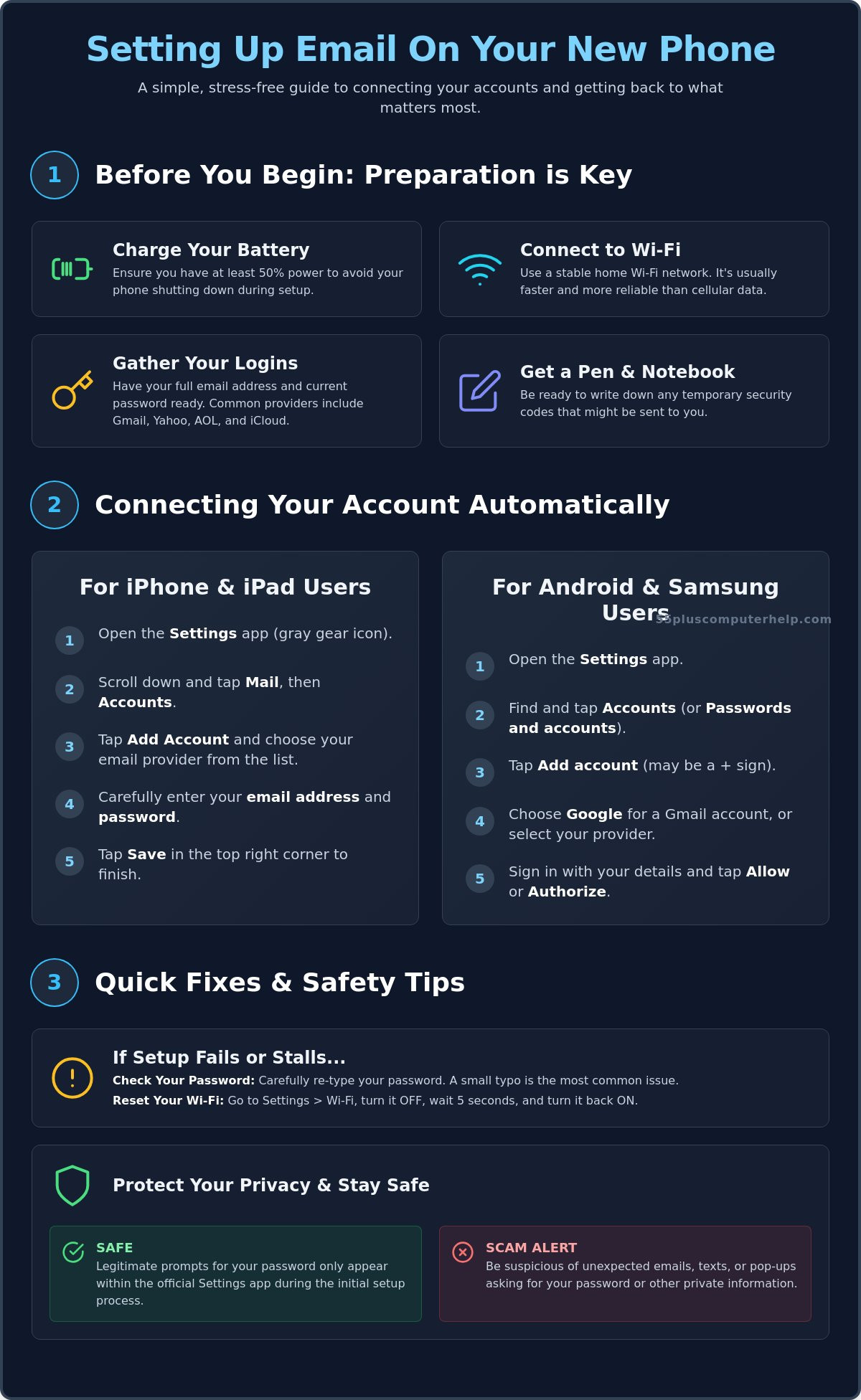
Start by checking your battery level. We recommend having at least 50% power before you begin. If your battery is low, simply plug the phone into a wall outlet. You want a bright, steady screen while you work. Next, find a comfortable spot with good lighting. Have a physical notebook and a pen ready on the table. Sometimes, your email provider will send you a one-time security code to prove it's really you. Writing these numbers down immediately helps you stay organized and reduces any tech-related stress.
Gathering Your Important Login Information
Before you touch the screen, you need to know who provides your email service. Most people use services like Gmail, Yahoo, AOL, or iCloud. Your email address usually ends with one of these names. If you aren't sure of your current password, try to log in on a different device first, like a tablet or a computer. This confirms you have the right information before you start the process on your new mobile device.
When you use an app to check your messages, you're using what's known as a "client." If you're curious about the technical side, you can read more about what is an email client? and how it works. Once you have your details, you might consider using a password manager in the future. A password manager is a secure digital tool that stores and remembers all your different passwords for you so you don't have to write them on scraps of paper.
Checking Your Internet Connection
A steady internet connection is the secret to a smooth experience. It's best to use your home Wi-Fi instead of your cellular data. Wi-Fi is usually faster and more reliable for downloading your messages and updating your settings. A strong signal prevents the phone from "timing out" or showing an error message that can be confusing.
You can check your connection by looking at the very top of your screen. A small icon that looks like a spreading fan or a slice of pie represents Wi-Fi. If you see vertical bars instead, you're likely using cellular data. If the setup seems to stall or the screen stops moving, try these simple steps:
- Open your phone's "Settings" menu.
- Tap on the "Wi-Fi" or "Connections" option.
- Switch the toggle to "Off," wait five seconds, and then switch it back to "On."
This small reset often clears up minor connection issues. Having a strong signal ensures that setting up email on a new phone goes exactly as planned, keeping you connected to the people you love.
Connecting Your Account Automatically on iPhone and Android
Modern technology is designed to be much more helpful than it used to be. For most people, setting up email on a new phone takes just a few moments because the device handles the heavy lifting for you. If you use a popular provider like Gmail, Yahoo, or Outlook, the phone already knows the complicated technical settings. You simply provide your login details, and the software takes care of the rest. This automatic process is the easiest way to get connected without needing to learn any complex computer terms.
As you move through these steps, remember to read each screen carefully. The phone will guide you with clear prompts. There is no reason to rush. Take a deep breath and tap the buttons one at a time. This patient approach ensures that your account is linked correctly the first time, giving you the confidence to use your new device independently.
Steps for iPhone and iPad Users
If you have an Apple device, start by finding the "Settings" app on your home screen. It looks like a small gray gear. Scroll down the list until you see "Mail" and tap it. Inside the Mail menu, look for "Accounts" and then tap "Add Account." You'll see a list of colorful icons for different email providers. Tap the one that matches your email service. A box will appear asking for your email address and password. Once you enter them, the phone will verify the details. If everything is correct, tap "Save" in the top right corner to finish the process.
Steps for Samsung and Android Users
Android phones, such as those made by Samsung, follow a very similar path. Open your "Settings" app and look for a section titled "Passwords and Accounts" or sometimes just "Accounts." Tap on "Add Account" or the plus (+) sign. If you have a Gmail address, choose the "Google" option. For other types of email, you might choose "Personal." The phone will then ask you to sign in with your credentials. After you enter your password, the phone will ask for permission to access your inbox. Tap "Allow" or "Authorize" to complete the link. If you ever feel stuck or overwhelmed during this process, our email setup and troubleshooting service is always available to walk you through it at your own pace.
Once your account is connected, the phone might ask if you want to sync your contacts and calendar. We recommend saying "Yes." This helpful feature ensures that your friends' phone numbers and your important appointments appear automatically in your new phone's other apps. While this automation is very convenient, it's also a good time to think about your digital security. Reviewing resources like Internet Safety for Seniors can help you feel more secure as you start receiving messages. By following these simple steps, you've successfully managed the most important part of setting up email on a new phone.
What to Do if the Automatic Setup Fails
Sometimes the automatic process hits a small snag. If you see a message that says "Unable to Verify" or "Account Setup Failed," please do not panic. You haven't broken your device. This simply means the phone needs a little more specific information to find your inbox. Setting up email on a new phone can occasionally require a manual touch, especially if your email address is provided by a local internet company or an older service you've used for many years.
Think of this manual step as giving the phone a more detailed map. You'll enter a few extra lines of text to show the phone exactly where your digital post office is located. It takes a bit more patience, but it's a very reliable way to get your messages flowing. Take your time and keep your notebook nearby to record these settings for the future.
Understanding IMAP vs. POP Settings
When you set up an account manually, the phone will ask you to choose between two systems: IMAP or POP. These are just sets of instructions for how the phone talks to your email provider. For most people, IMAP is the best choice. It works like a library. You can look at your emails on your phone, your tablet, and your computer at the same time. If you delete a message on your phone, the "library" updates, and the message disappears from your computer too. This keeps everything synchronized and tidy.
POP is an older system that works more like a bookstore. Once your phone "buys" or downloads an email, it might remove it from the main server. This means you might only be able to see that specific email on your phone and not on your computer later. Unless you have a specific reason to use POP, always try the IMAP option first. It makes life much easier when you use more than one device to stay in touch with family.
Finding Your Specific Server Information
To finish the manual setup, you'll need to enter "Incoming" and "Outgoing" server names. You can usually find these by visiting your email provider's website and searching for "Mobile Email Settings." These addresses often look like "mail.provider.com" or "imap.service.net." You might also see small numbers called "ports." Think of these as specific door numbers at the post office. Common port numbers include 993, 465, or 587. Your provider's help page will tell you exactly which ones to use.
Accuracy is the most important part of this step. Double-check every single letter and dot. A tiny typo, like writing a comma instead of a period, will prevent the connection from working. If you feel stuck, you can always call your internet service provider's help desk. They're used to helping people with these specific details. While you're working on these settings, it's also a great idea to review online safety tips for seniors to ensure your new connection remains private. Successfully setting up email on a new phone manually is a great accomplishment that proves you're in charge of your technology.
Protecting Your Privacy and Staying Safe Online
Security is the most important part of your new phone setup. It's about protecting your personal conversations and your private information. We recommend setting up a screen lock right away. You can choose a simple number code or a pattern you draw. This ensures only you can see your inbox. It keeps your digital life private if you ever misplace your device. You'll feel much better knowing your messages are for your eyes only.
While setting up email on a new phone is a big step, staying safe is a constant journey. We want you to feel secure every time you open a message. For deeper protection guidance, you can read our guide on virus and malware removal. This resource helps you understand how to keep your entire device healthy and free from outside threats. A little bit of knowledge goes a long way in building your confidence.
Identifying and Avoiding Email Scams
Scammers often try to trick people with messages called "phishing." These emails look like they come from your bank or a delivery service. They might ask you to click a link to "verify" your account or fix a problem. Never click these links if you weren't expecting them. A helpful tip is to tap on the sender's name to see the actual email address. If the name says "Official Support" but the address is a long string of random numbers, it's likely a scam. You can find more tips in our guide on email setup and troubleshooting for seniors.
Using Two-Factor Authentication Safely
You might see a screen asking for a "verification code" when setting up email on a new phone. This code usually arrives as a text message or a phone call. This system is called two-factor authentication. It's your best defense against modern security threats. Even if someone learns your password, they can't get into your account without that special code from your hand. We suggest keeping your recovery phone number updated in your settings. This ensures you can always get back into your account if you ever forget your password.
Staying safe shouldn't feel scary or overwhelming. We're here to make sure your technology works for you, not against you. If you're concerned about your current settings, our virus and malware removal service provides the peace of mind you deserve. We can help you double-check your security so you can enjoy your new phone with complete confidence.
Getting Personalized Help with Your New Device
Sometimes, reading a guide is just the first step. You might prefer having a patient person walk you through the process in real time. There's a special kind of comfort that comes from hearing a friendly voice explain a setting or a button. It removes the pressure of trying to get everything right on your own. You don't have to worry about "breaking" anything when you have an expert guiding your hands. Learning at your own pace is the most effective way to build long-term confidence with your technology.
Many of our neighbors find that setting up email on a new phone is much less stressful with a little one-on-one guidance. We can help you through remote support, which means we can help you fix issues without you ever having to leave your living room. It's a safe, quiet, and convenient way to get your questions answered. You avoid the noise and rush of a crowded retail store, and you get our undivided attention. This individualized support transforms a frustrating task into a rewarding learning experience.
One-on-One Smartphone and Tablet Training
We believe training should be tailored to what you actually want to do. Maybe you want to learn how to share photos of your grandkids after you finish setting up email on a new phone. We focus on building "muscle memory" through practice. Instead of just watching someone else do it, you'll perform the tasks yourself. This hands-on approach helps the steps stick in your mind. You'll move from feeling unsure to feeling empowered in just a few sessions. We go beyond the basics to help you truly enjoy your device.
Reliable Technical Support for Seniors
Having a professional help with your setup ensures that your important data is backed up correctly. We don't just fix a single problem; we look at the big picture of your digital health. We can ensure your contacts, photos, and messages are safe and easy to find. Think of us as a "tech mentor" you can trust. We're here to translate complex ideas into everyday language that makes sense to you. You deserve a relationship-based service that values your comfort as much as the technical solution.
Our goal is to help you feel independent and secure. We possess the technical skills and the interpersonal patience necessary to teach effectively. You don't have to navigate these changes alone. We're part of your community, and we're dedicated to helping our senior neighbors stay connected. If you're ready to master your new device and feel confident every time you pick it up, you can schedule a patient training session today to get started.
Take the Next Step Toward Digital Independence
Setting up email on a new phone is a wonderful way to reclaim your independence and stay close to your family. You now have the knowledge to prepare your device and connect your accounts with confidence. Whether the process happens automatically or requires a few manual steps, you are in control of your digital world. Remember to keep your security a priority and move at a pace that feels comfortable for you.
If you'd like a friendly guide by your side, we are here to help. Since 2014, we have specialized in providing technical support for seniors aged 55 and older. We offer patient, jargon-free instruction that focuses on your comfort and your unique goals. You don't have to navigate these technical changes alone. Get patient, one-on-one help setting up your new phone today and enjoy the peace of mind you deserve. You've already taken the first step, and we're excited to help you finish the journey with a sense of accomplishment.
Frequently Asked Questions
Why is my phone saying my email password is incorrect when I know it is right?
Your phone might say a password is wrong because of a simple typo or an accidental capital letter. Small touchscreens make it easy to hit the wrong key while you are typing. We suggest typing your password slowly into a "Note" app first so you can see the letters clearly. Once you're sure it's correct, you can copy and paste it into the setup screen.
Will I lose my old emails if I set up my account on a new phone?
You will not lose your old emails when setting up email on a new phone. Your messages are stored safely on your provider's computers rather than just on your physical device. When you log in to your new phone, it simply downloads a fresh copy of those messages for you. All your folders and saved notes will appear exactly as they were on your old device.
What is the difference between the Mail app and the Gmail app?
The Mail app is the generic program built into your phone by Apple or Samsung, while the Gmail app is a specific tool made by Google. Both allow you to read and send messages, but the Gmail app often has extra features like automatic sorting for Google users. You can use whichever one feels more comfortable to you. Many of our neighbors find the built-in Mail app simpler to navigate.
Can I have more than one email account on my new phone?
Yes, you can absolutely have more than one email account on your new device. You can add a personal account and a separate one for a hobby or club. Most apps allow you to view each inbox separately or see all your messages in one combined list. This is a great way to stay organized and keep all your conversations in one convenient place.
How do I make the text larger in my email app so it is easier to read?
You can make text larger by visiting your phone's "Settings" menu and looking for "Display" or "Accessibility." Look for an option called "Font Size" or "Text Size" and move the slider to the right. This change will make the words in your email app much bigger and easier to read. It's a helpful adjustment that reduces eye strain and makes using your phone more enjoyable.
What should I do if my email stops syncing or receiving new messages?
If your email stops receiving new messages, first check that your Wi-Fi or cellular connection is active. Sometimes a simple restart of the phone clears up the problem by refreshing the software. If that doesn't work, you might need to "Remove" and then "Add" the account again. This process resets the connection between your phone and your email provider's server to get things moving again.
Is it safe to stay logged into my email on my phone all the time?
It's safe to stay logged in as long as you have a secure screen lock on your phone. Modern phones are designed to keep you signed in so you can receive notifications about new messages instantly. As we discussed in the security section, using a passcode or pattern prevents others from accessing your inbox. This balance provides both convenience and protection for your private information.
How do I delete an email account from my phone if I no longer use it?
To remove an account you no longer use, go to your phone's "Settings" and find the "Accounts" section. Tap on the specific email address you want to remove and select the "Delete" or "Remove Account" button. This action only stops the messages from showing up on that specific device. It won't delete your actual email address or any of the messages stored on the provider's server.


