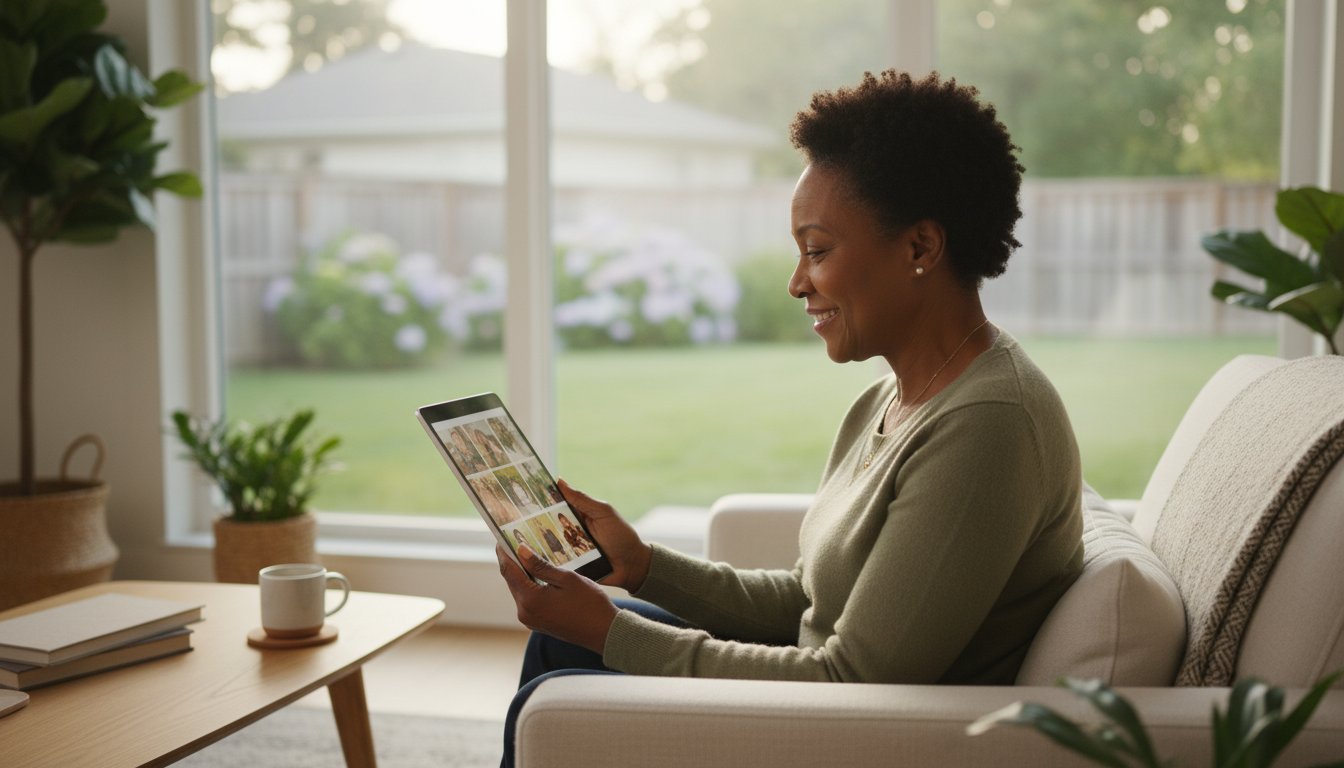
Last Tuesday, Mary discovered that her email password no longer worked on her new tablet. What started as a quick check for family photos turned into an afternoon of frustration and technical confusion. You shouldn't have to feel this way just to stay in touch with the people you love. We provide patient email setup and troubleshooting for seniors to help you overcome these common digital hurdles with ease.
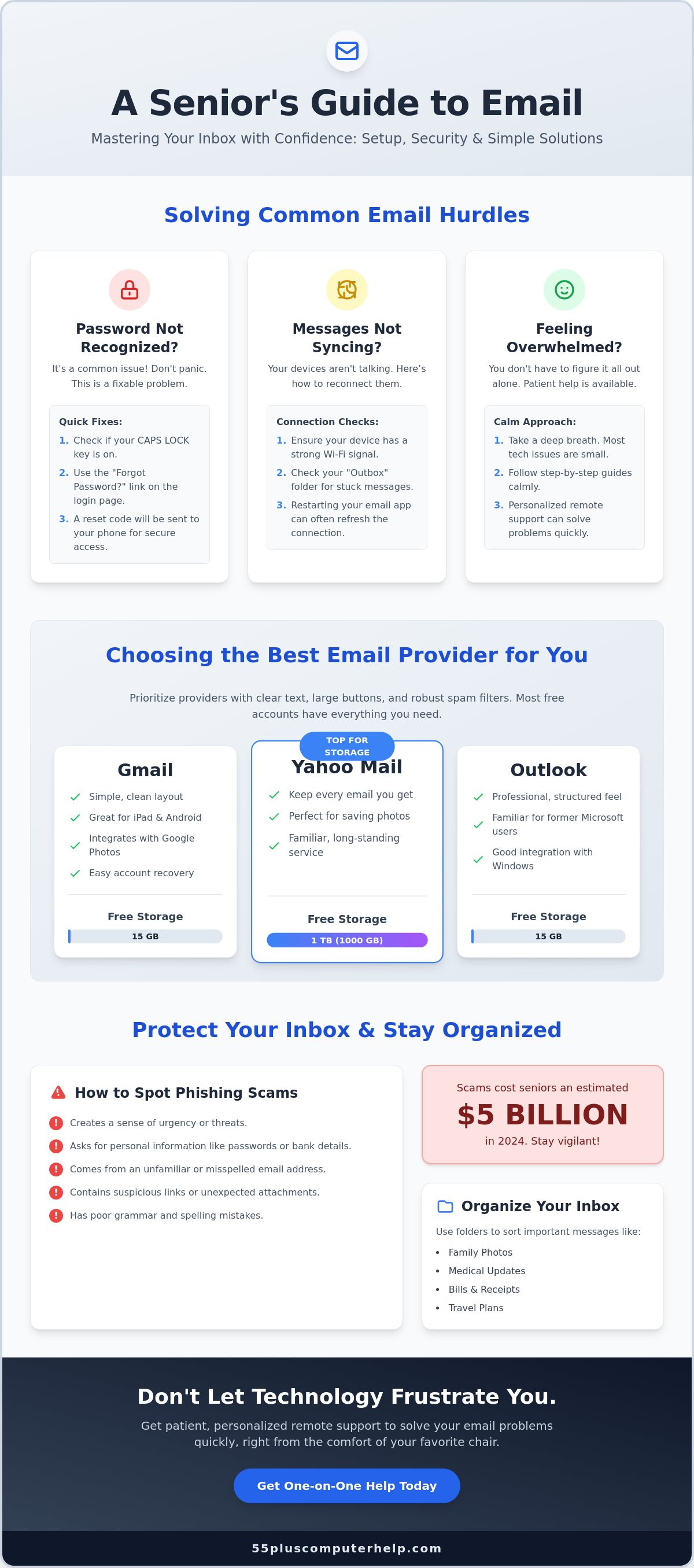
It's normal to feel a bit overwhelmed when your messages don't sync or when you're worried about clicking a suspicious link. You deserve a secure inbox that works perfectly on every device you own. This guide will teach you how to manage your settings, organize your messages, and recognize the scams that cost seniors $5 billion in 2024. We will look at storage options for Gmail and Outlook so you can send and receive photos with total confidence.
Key Takeaways
- Learn how to connect your email address to your tablet and computer to share family photos and receive important medical updates.
- Discover how to choose a provider with large buttons and clear text as part of your email setup and troubleshooting for seniors.
- Gain the confidence to fix common sync issues and reset forgotten passwords using a calm, step by step approach.
- Protect your personal information by learning how to spot phishing scams and organize your inbox with easy to use folders.
- See how personalized, remote support can help you solve technical problems quickly without leaving your favorite chair.
What is Email Setup and Why Does it Matter?
Email setup is a digital mailbox configuration for your computer or tablet. It is the process of connecting your personal address to a specific device so you can send and receive messages. When this is done correctly once, it prevents "login" and "sync" headaches in the future. You want your messages to appear the same way whether you're looking at your phone or your desktop computer.
Modern email is a powerful tool for connection. It allows you to share photos with your family, receive important medical updates, and even start video chats with friends. Research from 2025 shows that 99% of adults over age 50 now own at least one piece of technology. Having your account configured properly ensures you're part of that digital world. We provide email setup and troubleshooting for seniors to make sure your technology works for you, not against you.
Understanding Basic Email Terms
You may feel confused by terms like Webmail and Email Apps. Webmail means you use a browser like Google Chrome to visit a website to read your mail. An Email App is a specific icon on your tablet or computer screen that you click to open your messages directly. Both methods allow you to access your digital filing cabinet.
Your Inbox is where new letters arrive, while your Sent folder keeps a record of everything you've mailed. If you want to see a history of how these systems evolved, you can read more about What is Email? to understand the basics. When someone sends you a photo or a document, they use an "Attachment." This is simply a file that travels through the internet along with the text of the message.
The Importance of a Reliable Connection
A steady Wi-Fi signal is the backbone of your email experience. Your device needs a live internet connection to "fetch" new messages from the server. If your Wi-Fi drops out, your inbox won't update. You can still read old messages while offline, but you can't send anything new until you reconnect.
Sometimes a message gets "stuck" in a folder called the Outbox. This usually happens if your internet connection fails right as you click send. Checking the Outbox is a key part of email setup and troubleshooting for seniors. If you see a number next to that folder, it means your mail is waiting for a better signal to fly away to its destination.
Choosing the Best Email Provider for Seniors
Choosing the right provider is a personal decision that shapes your daily digital experience. You should prioritize services that offer high-contrast interfaces and large icons to help with visibility. Most adults over 55 find that free accounts meet every personal need without requiring a paid subscription. These platforms ensure your messages stay in sync across your computer and smartphone, making email setup and troubleshooting for seniors a much smoother process from the start.
You can find a detailed comparison of features in this guide to email for seniors. Beyond the look of the screen, consider how well the provider filters out unwanted junk. Since scammers often target older adults with sophisticated impersonation attempts, a robust spam filter acts as your first line of defense. A quality service will automatically identify and isolate suspicious messages before they ever reach your main inbox.
Gmail: The Modern Standard
Gmail is currently a top choice for those using iPads or Android tablets. Its layout is intentionally simple, which reduces the chance of clicking the wrong button. Because it integrates with Google Photos, you can view pictures of your grandchildren directly within the app. Gmail also simplifies the process of recovering your account if you ever lose your login details, providing a safety net that builds your confidence.
Outlook and Yahoo: Familiar Favorites
Yahoo Mail remains a favorite for users who want to keep every message they've ever received. They provide 1 TB of storage, which is significantly more than the 15 GB standard offered by other free services. Alternatively, Outlook offers a structured, professional environment that many find familiar if they used Microsoft products during their careers. If you aren't sure which platform fits your lifestyle, the team at 55 Plus Computer Help LLC can help you evaluate your options. We provide the patient guidance needed to transition to a new provider or optimize the one you've used for years.
Solving Common Email Problems and Sync Issues
Encountering a "Password Not Recognized" error can feel alarming. Take a deep breath and remember that this is a common part of email setup and troubleshooting for seniors. Most of the time, the solution involves a simple reset. Check your caps lock key first. If that doesn't work, use the "Forgot Password" link to receive a reset code on your smartphone. It's a secure way to get back into your account without stress.
Another common frustration is the "Cannot Connect to Server" message. This usually means your device has lost its handshake with the internet. You can often fix this in three steps. First, check if your Wi-Fi is still connected. Second, close the email app completely and reopen it. Third, restart your device. These simple actions solve the majority of minor connection glitches without needing professional help.
If you stop receiving mail entirely, your storage might be full. Gmail and Outlook provide 15 GB of free space, which is shared across your photos and documents. Yahoo offers a much larger 1 TB of storage. If you hit your limit, try clearing out your "Trash" or "Junk" folders. This often frees up enough room to keep your new messages flowing again.
The Mystery of the Missing Email
Sometimes an email seems to vanish into thin air. Before you worry, check your Spam or Junk folders. Email providers sometimes make mistakes and filter legitimate messages from friends or doctors into these folders. You can also use the "Search" bar at the top of your screen. Type in the name of the person who sent the mail to find it quickly. It is also helpful to know the difference between "Archive" and "Delete." Archiving moves a message to a hidden filing cabinet, while deleting prepares it to be thrown away forever.
Managing Multiple Devices
Many people face a "sync nightmare" where an email shows up on their phone but not their laptop. This happens because of how your account is configured. Using IMAP settings acts like a bridge that keeps all your devices in agreement. It ensures that if you read an email on your tablet, it shows as "read" on your computer too. This prevents the confusion of seeing the same notification twice. If you want to dive deeper into these topics, you can explore computer courses for seniors to master your devices and gain digital independence.
Essential Steps for a Secure and Organized Inbox
A safe inbox is the foundation of digital peace of mind. One of the most important habits you can build is checking the sender's actual email address. Scammers often use a familiar name like "Package Delivery" or "Gift Card Alert," but if you click on the name, you might see a strange address full of random characters. If the address doesn't match the company, it's a scam. This is a vital part of email setup and troubleshooting for seniors that keeps your personal data out of the wrong hands.
You can also add an extra layer of protection called Two-Factor Authentication. When you log in from a new computer, the provider sends a quick text code to your phone. This ensures that even if someone finds your password, they can't get into your mail. If you want a patient mentor to walk you through these security steps, our team at 55 Plus Computer Help LLC is ready to assist with personalized training.
Spotting Email Scams Before You Click
Scammers want you to panic and click a link without thinking. They often use language that suggests your account will be closed or a payment has failed. If you're on a computer, you can "hover" your mouse pointer over a link without clicking it. A small box will appear at the bottom of your screen showing the real website address. If that address looks suspicious, delete the email immediately. If you ever think you've clicked a bad link, disconnect your Wi-Fi and change your password right away to stop any further access.
Decluttering Your Digital Life
An organized inbox makes finding family notes much faster. Try setting up a weekly "10-minute cleanup" routine to delete old advertisements or expired coupons. You can use the "Star" or "Flag" feature to mark messages you need to answer later. This keeps them at the top of your list so they don't get buried. You can also create specific folders for topics like "Taxes" or "Travel." This acts like a digital filing cabinet, making it easy to find a flight confirmation or a receipt in just a few clicks.
Why Patient Tech Support Makes Email Easier
Technology should feel like a helpful tool, not a source of constant stress. Generic YouTube tutorials often move too fast and use complex language that leaves people behind. Professional email setup and troubleshooting for seniors provides the one on one attention you need to feel truly comfortable. We focus on your specific goals, whether that is sending photos to family or managing medical appointments. This personalized approach ensures you don't just see a problem fixed; you learn the skills to handle it yourself next time.
You have flexible options for how you receive assistance. Remote support is a popular choice because it is fast and convenient. We connect to your computer securely through the internet while you watch the process on your screen from your favorite chair. If you prefer a hands on experience, in home visits bring a friendly expert right to your door. This is especially helpful if you need help with physical tasks like setting up a new tablet or connecting to your home Wi-Fi. Our goal is to transform your frustration into a sense of accomplishment.
Overcoming Technology Anxiety
Many people feel hesitant to ask what they think are "simple" questions. We want you to know that we have heard them all before and we enjoy answering them. It is perfectly fine if you need to see a step three or four times before it clicks. Research from 2025 shows that 99% of older adults own at least one piece of technology, yet many still feel like they are "doing it wrong." A patient mentor never rushes the process. Once you master your email, you will find it much easier to learn other digital skills like video calling or online banking.
Getting Professional Assistance Today
Scheduling a session is easy and fits into your daily routine. Before your tech support appointment, try to have your device charged and any written passwords nearby. If you have lost your login details, stay calm. We can help you navigate the recovery process safely. We provide expert guidance for $55 per half hour, ensuring you get high quality help that respects your time and budget. Let us help you master your email today so you can stay confidently connected to the people who matter most.
Step into the Digital World with Confidence
Mastering your inbox is about more than just reading messages. It's about maintaining your independence and staying connected to the people you love most. You now understand how to choose the right provider and keep your personal information safe from scammers. Whether you're fixing a small sync error or organizing years of family photos, you have the tools to manage your digital life with ease.
If you ever run into a problem that feels too big to handle alone, remember that help is just a call away. We provide reliable email setup and troubleshooting for seniors to ensure your technology never stands in your way. We've been serving the senior community since 2014 with both onsite and remote support. You won't hear confusing technical jargon from us, just friendly and expert guidance tailored to your needs. Get Patient Email Support and Training Today and start using your devices with total peace of mind. You deserve to feel successful every time you sit down at your computer.
Common Email Questions Answered
Why can I receive emails but not send them?
You likely have an issue with your outgoing mail server settings or a message is stuck in your Outbox. This often happens if your internet connection drops for a few seconds while you are clicking send. Check your Outbox folder and try deleting any messages that are waiting there to clear the path for new mail.
Is it safe to open an attachment from someone I know?
It is mostly safe, but you should still be careful even if the sender is a friend. Scammers can sometimes take over a person's account to send out bad links or files. If your friend sends a file you didn't expect, call them to verify it is real before you click.
How do I change my email password if I forgot the old one?
You can reset your password by clicking the "Forgot Password" link on the login screen. The provider will send a special code to your smartphone or a backup email address you previously provided. This is a standard part of email setup and troubleshooting for seniors that helps you regain access safely.
What is the difference between CC and BCC when sending an email?
CC stands for Carbon Copy and everyone on the list can see who else received the message. BCC stands for Blind Carbon Copy and it hides the names of the recipients from each other. Use BCC if you are emailing a large group of people who don't know each other to protect their privacy.
Why does my email keep asking me to log in every time I open it?
Your device might not be remembering your credentials because the "Keep me signed in" box is not checked. Look for this small box the next time you type your password. If it is checked and you still have trouble, your browser settings might be clearing your history every time you close the window.
Can I have two different email addresses for different purposes?
You can certainly have multiple addresses for different parts of your life. Many seniors use one account for close family and a second account for online shopping or newsletters. This keeps your personal messages easy to find and prevents your main inbox from getting cluttered with advertisements.
What happens if I accidentally delete an important email?
Deleted messages are moved to a Trash or Bin folder where they usually stay for 30 days. You can open that folder and move the message back to your Inbox if you act quickly. After the 30 day period, the provider usually removes the message forever to save storage space.
How do I block someone from sending me unwanted emails?
You can stop unwanted messages by using the Block feature found in your email menu. Most providers also have a Report Spam button that teaches the system to ignore that sender in the future. This is a great way to keep your digital space quiet and secure.


