
Imagine you are sitting down with a cup of tea to look at photos of your grandkids, but suddenly, a bright box jumps onto your screen and won't go away. It is loud, it is distracting, and it might even claim your computer has a virus. With over 560,000 new malware threats identified every day in 2026, it's natural to feel a bit uneasy. You are likely searching for how to stop annoying pop-up ads so you can get back to what matters most.
It is completely normal to feel overwhelmed or worried that a simple click might lead to a security problem. We understand that you just want a peaceful experience when you go online. You deserve to feel safe and in control of your own device. Our guide is here to help you clear those frustrations away so you can enjoy your time on the internet again.
We will show you how to protect your screen with easy, step-by-step instructions. We'll explain the difference between a common ad and a real threat so you can click with confidence. You'll also learn why keeping your software updated to the latest July 2026 versions, like Chrome 150 or Firefox 152, is your best defense. Let's work together to make your computer a quiet and friendly place once more.
Key Takeaways
- Learn how to find the "Settings" menu to take back control of your internet experience.
- Understand the difference between a helpful window and a pushy ad so you can click with confidence.
- Follow easy, step-by-step instructions on how to stop annoying pop-up ads using your browser's built-in tools.
- Discover why scary warnings about viruses are usually just tricks and how to close them safely.
- Learn to spot the signs that your computer might need professional help with virus and malware removal.
Understanding Why Pop-Up Ads Appear on Your Screen
Many people feel a sense of panic when a box suddenly covers their screen. You might wonder if you clicked the wrong thing or if you broke something. Please know that seeing these boxes does not mean you made a mistake. Most of the time, these windows are just a part of how the modern internet works. To learn what is a pop-up ad?, think of it as a small window that opens automatically without your permission. Learning how to stop annoying pop-up ads starts with knowing where they come from and why they are there.
Not all pop-ups are bad. For example, when you try to sign in to your bank account, a small window might appear for you to enter a security code. This is a helpful pop-up. It only appears because you asked it to. Intrusive ads are different because they interrupt your reading. They try to grab your attention for something you didn't ask for. There are usually three reasons these boxes show up on your screen. Some come from website settings designed to show ads to pay for their content. Others come from browser notifications you might have accidentally turned on. Finally, some come from hidden software on your computer.
The Difference Between Marketing and Malware
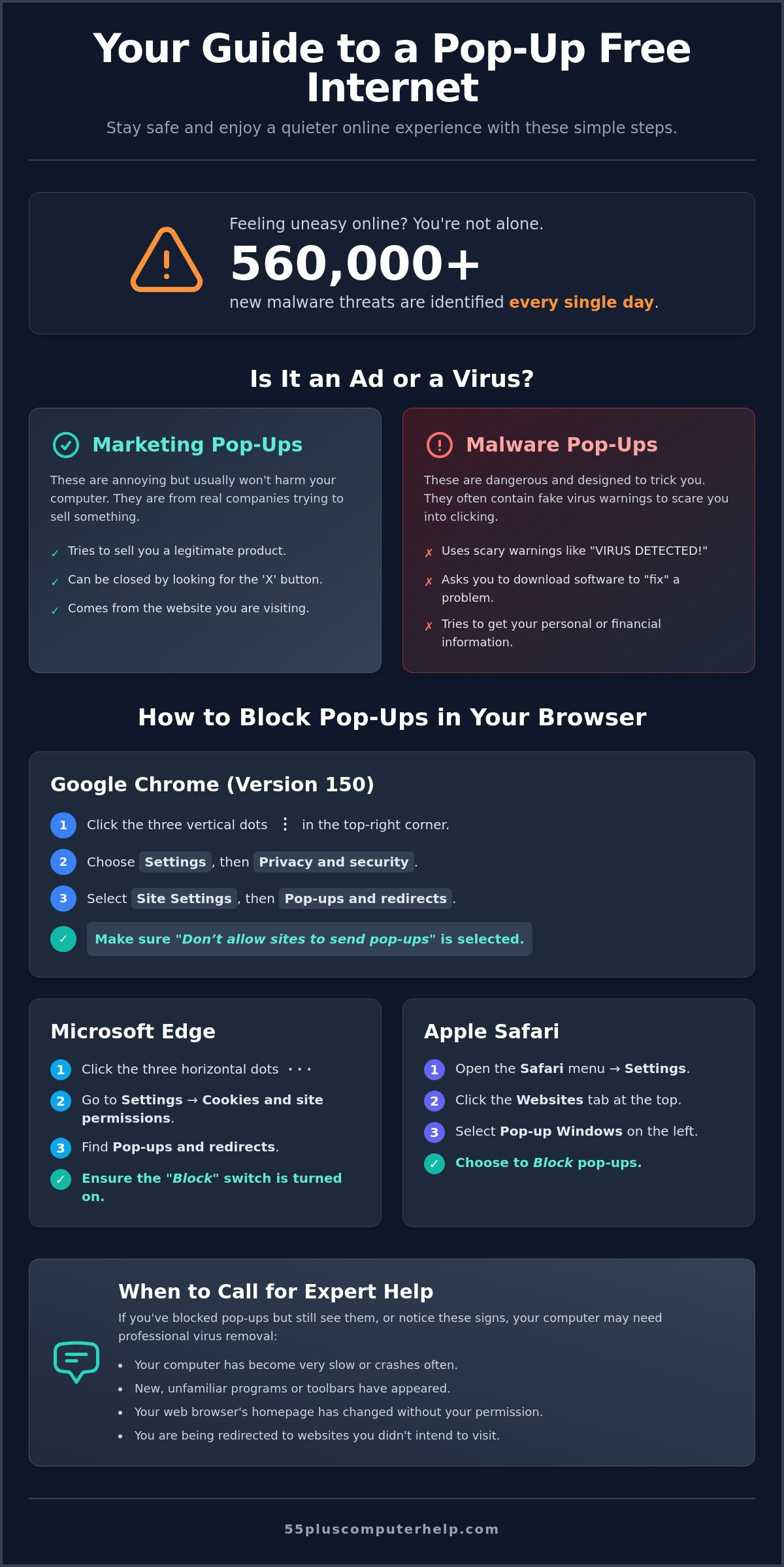
It helps to know that not every pop-up is dangerous. Some are just aggressive marketing from real companies trying to sell a product. These are annoying, but they won't hurt your computer. On the other hand, malware is much more serious. Malware is software specifically designed to disrupt, damage, or gain unauthorized access to a computer system. These ads try to trick you into clicking a link that installs bad software. We want to help you tell the difference so you can stay safe and keep your information private.
Why Your Screen Feels Cluttered
You might notice that your screen feels very busy lately. This often happens because of "notifications" that look like ads. When you visit a new website, a small box often asks if you want to "Allow" notifications. If you click that button, the website can send you messages even when you aren't looking at their page. This is a common reason why people look for how to stop annoying pop-up ads. It can feel like a flood of messages is taking over your computer. The good news is that you can turn these off easily. In the next sections, we'll show you exactly how to revoke these permissions and clear your screen for a quiet browsing experience.
How to Block Pop-Ups in Your Web Browser Settings
Most people feel a bit nervous when they open their computer's settings. It's okay to feel that way. Think of your web browser like a front door to your home. You want to keep the screen door closed to keep the bugs out. To learn how to block pop-ups, you first need to find the control panel. On almost every browser, you'll see three small dots or three horizontal lines in the very top right corner. Learning how to stop annoying pop-up ads is much easier once you know where this menu is located.
Clicking those dots will open a list of choices. Look for the word "Settings." This is the control center for your entire internet experience. Please take a deep breath and remember that you can't break your computer by looking at these menus. Every change you make is easy to undo. We recommend keeping your pop-up blocker turned "On" at all times. This is the safest choice for seniors. It acts as a friendly guard that stops unwanted interruptions before they even reach your eyes.
Stopping Pop-Ups in Google Chrome
Google Chrome is a very popular browser. As of July 2026, the latest stable version is Chrome 150. You can secure your screen by following these simple steps:
- Step 1: Click the three vertical dots in the top right corner of your window.
- Step 2: Choose "Settings" from the list and then click on "Privacy and security" on the left side.
- Step 3: Find the section called "Site Settings" and select "Pop-ups and redirects."
- Step 4: Make sure the option "Don’t allow sites to send pop-ups" is selected.
Adjusting Settings in Microsoft Edge and Safari
If you use a Windows computer, you likely use Microsoft Edge. Using these settings is a great way to learn how to stop annoying pop-up ads on different devices. First, click the three horizontal dots. Go to "Settings," then "Cookies and site permissions," and find "Pop-ups and redirects." Ensure the "Block" switch is turned on. This will keep your browsing experience quiet and focused.
For those who enjoy using a Mac or an iPad, you'll likely use Safari. Open the Safari menu at the top of your screen and choose "Settings." Click on the "Websites" tab at the top of the new window. On the left-hand side, look for the "Pop-up Windows" option. You'll see a checkbox that lets you block these windows for all websites. If you ever feel stuck during this process, our team provides friendly computer setup support to help you get everything just right.
Is It an Ad or a Virus? Identifying Dangerous Pop-Ups
It is very common to feel a jolt of worry when a box suddenly fills your screen with bright colors or warnings. You might think your computer is already broken. Please take a slow breath. Most of the time, these windows are a type of trick called "scareware." This is an ad designed to make you panic so you will click a link or call a number. Knowing the difference between a simple ad and a threat is a big part of learning how to stop annoying pop-up ads for good.
One of the biggest secrets in computer safety is that a real virus almost never tells you it is there. A virus wants to stay quiet so it can steal information without being noticed. If a window pops up and screams that you have 50 viruses, it is almost certainly a lie. Legitimate companies like Microsoft or Apple will never put a phone number in a pop-up ad for you to call. They also won't use flashing lights or loud noises to get your attention. If you see a phone number, do not call it. These are scammers trying to look like helpful technicians.
Sometimes, these ads use a "full-screen" trick. They might try to look like your actual desktop or an official security program. This is meant to confuse you. While you are looking for solutions, you might find helpful resources like Consumer Reports' guide to stopping targeted ads. This can help you understand why these companies are trying to reach you in the first place. Understanding these tactics helps you stay in control of your screen.
Common Red Flags of a Malicious Pop-Up
Scammers use several common tricks to make you act quickly. If you see any of these signs, stay calm and do not click anything inside the box:
- Flashing lights or loud siren noises coming from your speakers.
- Claims that your "subscription has expired" or your "system is infected."
- Urgent countdown timers telling you that your files will be deleted in minutes.
- Boxes that look like they are part of Windows or macOS but contain spelling errors.
The Safest Way to Close a Suspicious Box
On a normal website, clicking the "X" in the corner is how you close a window. On a bad site, that "X" can be a fake button. Clicking it might actually trigger a download or take you to another bad page. This is why learning how to stop annoying pop-up ads safely is so important. Instead of using your mouse, use your keyboard. If you use a Windows computer, hold down the Alt key and press F4. If you use a Mac, hold down Command and press W. These shortcuts tell your computer to close the active window without you having to click on the ad itself. If a pop-up refuses to go away or keeps coming back, the best thing to do is simply restart your computer.
Simple Tools to Keep Your Screen Clear and Quiet
Finding the right tools can make your time online feel like a quiet walk in a park. One of the best ways to learn how to stop annoying pop-up ads is to use a digital filter called an ad-blocker. These tools act like a screen door for your computer. They let the good information in but keep the noisy, unwanted ads out. Most of these tools are completely free and take only a minute to set up. You don't need to be a computer expert to use them.
Using these filters does more than just clear your screen. You might notice that websites load much faster. This happens because your computer no longer has to spend energy downloading large, colorful ads. This also helps your battery last longer if you are using a laptop or tablet. It is a simple way to make your device feel new and snappy again. However, please be careful. Never download a "free" tool if it appears in a pop-up ad itself. These are often tricks. Only get tools from official sources to stay safe.
Recommended Ad-Blocking Extensions
An "extension" is simply an extra feature you add to your browser to give it more power. Think of it like adding a magnifying glass to your reading desk. We recommend trusted options like "uBlock Origin" or "AdBlock." These are designed to be simple and stay out of your way. To find them, you can follow these two steps. First, open your browser's official store, such as the Chrome Web Store or Edge Add-ons. Second, type the name of the tool in the search bar and click "Add to browser." It is that easy.
The Importance of Software Updates
Keeping your computer updated is another vital step for a quiet screen. As of July 2026, the newest versions like Chrome 150 and Firefox 152.0.4 contain the latest security shields. These updates are specifically built to block the newest tricks that advertisers use. We suggest allowing your computer to run its updates overnight while you sleep. This ensures you always have the best protection ready for the next morning. If you ever feel worried that an ad has already caused a problem, you can read our guide on virus and malware removal for more help.
If you would like a friendly hand getting these tools set up correctly, our team is happy to help with professional software installation and updates so you can browse with peace of mind.
When to Call for Expert Help with Virus and Malware Removal
Sometimes, despite your best efforts with browser settings, a few boxes might still find their way onto your screen. This often happens because the source of the problem is no longer just a website but a program hidden deep inside your computer. If you notice ads popping up while you are looking at your desktop or trying to open a simple word document, you likely have a more stubborn form of adware. In these moments, understanding how to stop annoying pop-up ads means looking beyond the browser for expert assistance.
It is perfectly normal to feel a bit stuck when technology doesn't behave the way it should. You don't have to spend hours trying to figure out complex menus on your own or risk changing settings that you aren't sure about. Calling for a professional digital tune-up is a wonderful way to clear out the clutter and get your computer running like new again. This service provides a lasting sense of security and ensures that your device remains a safe place for your personal memories and daily tasks.
Professional Cleanup for a Fresh Start
A technician can look into the parts of your computer that standard settings and free tools cannot reach. They search for hidden programs that may have been bundled with other software you downloaded in the past. This deep cleaning process is vital for protecting your privacy and your sensitive information. Having a friendly expert visit your home means you can watch the process and feel confident that everything is being handled with care. It is a relief to know that your photos and files are being guarded by someone who understands your concerns.
Personalized Lessons to Stay Safe Online
We believe that tech support is most helpful when it is also an educational experience. While the technician works, you can learn how to spot these digital tricks before they cause trouble again. For instance, understanding email setup and troubleshooting is a great way to avoid clicking on bad links in your inbox that often lead to more ads. This personalized approach turns a frustrating problem into a chance to grow your skills and independence. You can ask questions at your own pace and gain the confidence to navigate the internet without fear.
You deserve a computer that is quiet, fast, and easy to use. Schedule a patient, in-home session with 55 Plus Computer Help LLC today.
Take Back Your Peace of Mind Online
You now have the tools to keep your screen clear and your information safe. Remember that your browser settings are your control center for a quiet experience. Using keyboard shortcuts like Alt + F4 or Command + W is a much safer way to close a suspicious box than clicking a tiny "X." By understanding the difference between a simple ad and a malicious threat, you're already more secure than you were this morning.
Knowing how to stop annoying pop-up ads is a great way to regain your independence on the internet. If you still feel a bit unsure or if those boxes just won't go away, you don't have to face it alone. Since 2014, we've specialized in helping seniors navigate technology with confidence. Our patient mentors speak your language and avoid confusing jargon. Whether you need trusted virus and malware removal or just a friendly lesson on settings, we are here to support you every step of the way.
Get Patient, In-Home Help to Secure Your Computer
You deserve to enjoy your time online without the noise and interruptions. We look forward to helping you feel safe and successful in your digital life.
Frequently Asked Questions
Why do I keep getting pop-ups even after I blocked them in settings?
Browser settings only block windows that a website tries to open while you are viewing it. If you still see boxes, it is often because you accidentally gave a website permission to send you "notifications." It could also mean there is hidden adware software already living on your computer. These internal sources can bypass your standard browser filters and require a deeper cleaning to stop completely.
Is it safe to click the "X" on a pop-up ad?
It is generally safer to use a keyboard shortcut than to click the "X" on a suspicious ad. Some malicious ads use a fake "X" button to trick you into clicking the ad itself. This can lead to unwanted downloads or scary websites. Instead, use Alt + F4 on a Windows computer or Command + W on a Mac to close the window without touching the ad.
What is the best free ad-blocker for seniors to use?
uBlock Origin is a wonderful free option because it is simple and does not use a lot of computer memory. It stays quiet in the background and does not ask you for money or personal information. This tool is very effective at learning how to stop annoying pop-up ads on popular browsers like Chrome and Microsoft Edge, making your internet time much more peaceful.
Can pop-up ads give my computer a virus just by appearing?
Simply seeing a pop-up ad on your screen usually won't infect your computer. The real danger comes if you click a link inside the ad or download a file it offers. However, with over 560,000 new malware threats identified every day in 2026, it is always best to stay cautious. Closing the window immediately using your keyboard is the safest way to protect your device.
How do I stop those little boxes that appear in the bottom corner of my screen?
These small boxes are usually "notifications" rather than traditional pop-up ads. You can stop them by going into your browser's "Privacy and Security" settings. Look for the "Notifications" section and choose "Don't allow sites to send notifications." This will clear those corner boxes away. It is a simple way to keep your screen tidy and prevent distracting messages from interrupting your reading.
Should I call the phone number that appears in a "Security Warning" pop-up?
You should never call a phone number that appears in a pop-up window. Real technology companies like Microsoft or Apple will never ask you to call them through an advertisement. These numbers belong to scammers who want to trick you into giving them money or access to your computer. If you see a warning with a phone number, it is a fake "scareware" trick.
What is the difference between a pop-up and a notification?
A pop-up is a separate window that opens on top of the website you are visiting. A notification is a small alert that usually slides in from the corner of your screen. Pop-ups only happen when your browser is open and you are on a specific site. Notifications can appear even when your browser is closed if you previously clicked "Allow" on a website's request.
How can I tell if my computer already has malware from a pop-up?
A common sign of malware is seeing ads appear on your desktop even when you are not using the internet. You might also notice your computer running much slower than usual or your internet homepage changing to a site you don't recognize. If your computer starts acting strangely or windows open by themselves, it is a good idea to seek professional help for virus and malware removal.


