
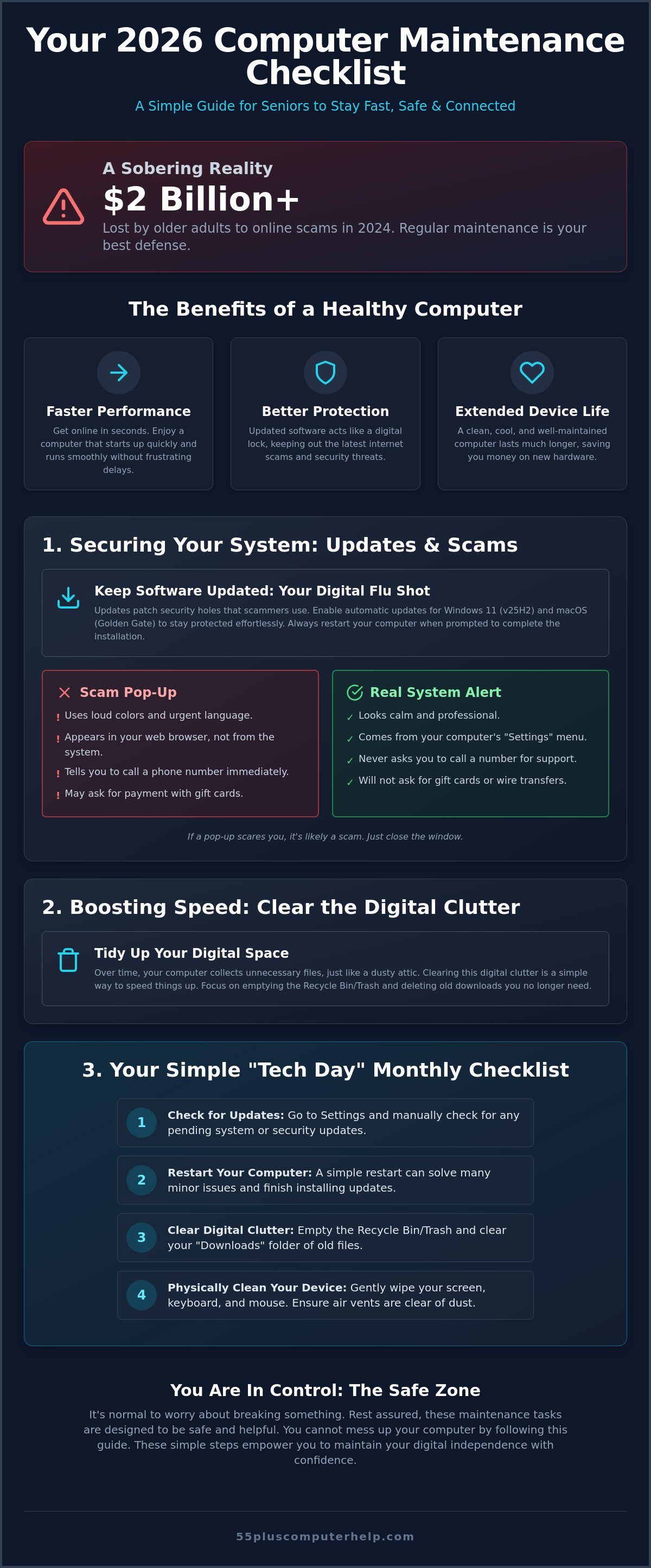
Did you know that older adults lost over $2 billion to scams in 2024? This statistic from PCMag is a sobering reminder of why digital safety matters so much today. It's frustrating when your computer slows down or starts acting up. You might feel a bit of anxiety when a confusing update message appears on your screen. You aren't alone in feeling that technology sometimes moves too fast. Using a consistent computer maintenance checklist for seniors can help you reclaim control over your device.
You can keep your computer fast, safe, and reliable with a simple routine designed specifically for your needs. You don't need to be a tech expert to enjoy a computer that starts up quickly and keeps your private information secure. This guide explores the most important steps for 2026. We will look at the latest Windows 11 and macOS Golden Gate updates. We will also cover simple security habits and easy ways to clear out the digital clutter that slows you down. You will gain the confidence to handle basic tasks and the peace of mind that comes with a healthy computer.
Key Takeaways
- Regular maintenance prevents small technical glitches from turning into major repairs and keeps you connected with loved ones.
- Use our computer maintenance checklist for seniors to set up automatic updates and protect your device from modern online scams.
- Learn how to speed up your computer by clearing out the digital clutter and unnecessary files that build up over time.
- Understand the safe way to clean your physical computer hardware without risking damage to your system or yourself.
- Establish a simple once-a-month "Tech Day" routine to ensure your computer remains fast, safe, and easy to use.
Why Regular Maintenance is Vital for Your Digital Independence
Think of your computer as a digital window. When it works well, you can see your family, manage your bank account, and stay informed. When it gets clogged with old files or outdated software, that window gets foggy. Computer maintenance is simply the act of keeping that window clear. It is about taking small, proactive steps today to avoid a costly trip to a repair shop later. You don't need to be a technical expert to keep your device in good shape.
Many people compare a computer to a car. You don't wait for the engine to smoke before you change the oil. You perform small tasks to keep the vehicle reliable. Your computer needs the same care. By following a basic essential computer maintenance routine, you ensure your machine stays ready for use whenever you need it. These simple habits prevent tiny glitches from growing into major headaches that might leave you without a way to get online.
Staying connected is the heart of digital independence. A well-maintained computer allows you to join video calls with your grandkids without the screen freezing. It ensures your emails reach your friends on time. Most importantly, it gives you the freedom to handle your daily tasks from the comfort of your home. Using a computer maintenance checklist for seniors helps you maintain this independence without needing to call for help every week. It empowers you to handle your own technology with ease.
The Benefits of a Healthy Computer
A little bit of care goes a long way. When you keep your system tidy, you will notice several immediate improvements in your daily experience:
- Faster startup times: You can get online in seconds rather than waiting for several minutes for the desktop to load.
- Better protection: Updated software acts like a digital lock on your front door. This keeps out the latest internet scams and security threats that target older systems.
- Extended device life: Computers that are kept cool and clean inside and out last much longer. This saves you money because you won't need to buy new hardware as often.
Overcoming Technology Anxiety
It's completely normal to feel a bit nervous when you see a pop-up window or a message about an update. Many of our clients worry they might break something by clicking the wrong button. We want to reassure you that you cannot break your computer by following these steps. These routines are designed to be safe and helpful.
Our computer maintenance checklist for seniors is written in everyday language. We avoid confusing jargon and technical tech-speak that makes things harder than they need to be. We focus on the Safe Zone, which includes tasks that are helpful for your computer but impossible to mess up. You are in control of your machine, and we are here to guide you through each step with patience and clarity.
Securing Your System Against Viruses and Scams
Security often feels like the most intimidating part of owning a computer. You might worry about clicking a link that lets a stranger into your files. The most effective way to stay safe is to follow a regular computer maintenance checklist for seniors. The absolute number one rule of digital safety is to keep your software updated automatically. These updates fix tiny holes that scammers use to get into your system. Think of malware as unwanted software that slows you down or steals information. It is a broad term for viruses and other digital nuisances that don't belong on your machine.
If you ever feel like your computer is already acting strange, you might need virus and malware removal. It's always better to address these issues early before they cause more frustration. One common trick involves "scam pop-ups." These are fake warnings that appear while you browse the web. They often use loud colors and urgent language to scare you into calling a phone number. A real system warning usually looks much calmer. It will come from your computer's settings menu, not your web browser. If a message tells you to call a number or pay with gift cards, it is always a scam. Just close the window and take a deep breath.
Understanding Software Updates
Updates are like digital flu shots for your device. They prepare your computer to fight off new threats before they can cause damage. In 2026, systems like Windows 11 version 25H2 and the new macOS Golden Gate handle many of these tasks for you. You can check for updates by looking in your "Settings" or "System Preferences" menu. Always remember to restart your computer when prompted. The update isn't fully finished until your machine turns off and back on again. If these settings feel confusing, we can help you with software installation and updates to ensure your computer is locked tight.
Spotting the Red Flags of a Virus
A healthy computer should feel snappy and responsive. If your machine suddenly starts freezing during simple tasks like checking email, it could be a sign of trouble. Keep an eye out for strange toolbars or new programs that you didn't install. In 2026, browser hijacking remains a common issue. This happens when a scam changes your homepage or shows you extra ads that weren't there before. If your internet search results look different than usual or you see "Search Marquis" in your address bar, your browser might be hijacked. Staying observant is a key part of your computer maintenance checklist for seniors.
Boosting Speed by Clearing Digital Clutter
Your computer can start to feel heavy over time. Just like a physical home, a digital space collects items you no longer need. When too many files and programs pile up, your machine has to work harder to find what it needs. This results in the sluggish performance that many people find so frustrating. Clearing out this digital clutter is a major part of any computer maintenance checklist for seniors. It's a simple way to make your device feel new again without spending any money.
The easiest place to start is the Recycle Bin or the Trash. When you delete a file, it doesn't actually leave your computer right away. It sits in a special folder waiting for you to empty it. Think of it like taking the kitchen trash out to the big bin at the curb. Once you empty it, you reclaim that space for new photos or documents. It's also helpful to close programs you aren't using. If you have ten different windows open, your computer is trying to give energy to all of them at once. Closing what you don't need lets your machine focus its power on the task at hand.
Organizing your files also has emotional benefits. Many of our clients have thousands of photos scattered across their desktops. By creating simple folders labeled by year or event, you make these memories much easier to find. This makes it a joy to share pictures of your life with your children and grandchildren. A tidy computer is much more enjoyable to use.
Managing Your Downloads Folder
The Downloads folder is often the biggest hiding place for digital clutter. Every time you open an email attachment or save a recipe from the internet, a copy lands here. Most people forget these files exist. You can safely delete old installers or temporary documents you've already read. If a document is important, move it to a permanent folder like "Documents" for safekeeping. This simple habit keeps your system organized and light.
Uninstalling Unused Programs
Your computer likely has programs you hasn't touched in over a year. Some of these came pre-installed when you bought the device. Others might have been downloaded for a one-time task. Removing these unused apps is a safe way to free up space. You can do this through your computer's settings menu without worrying about your personal files. If you aren't sure which programs are safe to remove, you can always ask for personalized computer lessons. We can help you identify "bloatware" that is slowing you down and teach you how to keep your system lean. Including this step in your computer maintenance checklist for seniors will ensure your machine stays as fast as possible.
Physical Upkeep and Hardware Safety for Seniors
Computer maintenance isn't just about what's happening inside the screen. The physical parts of your machine need regular attention to stay in top shape. While our team does not perform physical hardware repairs, we know that a clean computer is a happy computer. Before you start any physical cleaning, always turn off the power and unplug your device from the wall. This simple safety step protects both you and your electronics from any accidental shocks or damage.
Dust is often called the silent killer of computer fans and overall performance. Over time, tiny particles of dust settle inside your computer's vents and build up on the internal parts. This prevents the fans from doing their job of keeping the system cool. When a computer gets too hot, it has to work much harder, which leads to the slow performance many people find frustrating. To help your device breathe, always use your laptop on a stable, flat surface. Avoid using it on a bed, pillow, or lap for long periods. These soft surfaces can block the air vents and cause the machine to overheat quickly.
Cleaning Your Screen and Keyboard
Cleaning a computer screen requires a gentle touch and the right tools. You should never use harsh household chemicals, window cleaners, or paper towels. These can scratch the delicate surface or strip away protective coatings. Instead, use a dry, soft microfiber cloth to gently wipe away dust and fingerprints. If you have sticky spots, you can slightly dampen the cloth with a tiny bit of water. Just remember to never spray any liquids directly onto your device. For your keyboard, a can of compressed air works wonders. A few short bursts of air will safely blow out crumbs and dust from between the keys without you needing to take anything apart.
Cable Management and Trip Hazards
A safe workspace is a vital part of your digital independence. Take a look at the area around your desk and check your power cords. Ensure they are not frayed, pinched, or bent at sharp angles. Keeping your wires tucked away and organized is a key step in any computer maintenance checklist for seniors. This prevents accidental trips and keeps your computer from being pulled off the desk. You should also check that your Wi-Fi router has plenty of breathing room. Don't hide it in a crowded cabinet or behind a stack of books. It needs open space to stay cool and provide a strong, reliable signal for your home. If you feel overwhelmed by a mess of wires or need help with a new computer setup, our patient mentors can help you organize your tech area for maximum comfort and safety.
Your Monthly Computer Maintenance Checklist for 2026
Consistency is the secret to a stress-free digital life. You don't need to spend hours every week fiddling with settings or worrying about hidden menus. Instead, we recommend picking one specific day each month to be your official Tech Day. Many of our clients choose the 1st of the month because it's easy to remember. Marking this on your calendar transforms technology from a source of anxiety into a manageable part of your routine. This simple habit is the core of a reliable computer maintenance checklist for seniors. It ensures you stay in control of your device while maintaining your digital independence.
A monthly checkup helps you catch small issues before they become expensive problems. It's a way to keep your machine snappy and responsive for video calls, emails, and browsing. Beyond the technical steps, this routine is about peace of mind. You deserve to feel confident when you sit down at your desk. By following a steady path, you remove the guesswork and the fear of the unknown.
The 15-Minute Monthly Routine
This routine is designed to be quick and effective. It clears out the digital cobwebs and keeps your system running like new. You can finish the entire process in about 15 minutes by following these four simple steps:
- Step 1: Run all available software and security updates. This includes checking your operating system settings and any app store notifications to keep your digital "flu shots" current.
- Step 2: Empty the Recycle Bin and clear out the Downloads folder. This frees up valuable space and keeps your machine feeling light and organized.
- Step 3: Wipe down the screen and dust the keyboard area. Use a dry microfiber cloth and a bit of compressed air to keep the hardware clean and cool.
- Step 4: Restart the computer. This final step refreshes the system memory and ensures all your updates are fully installed and active.
While you're going through these steps, take a moment to back up your important files. Your photos of family and friends are precious memories that cannot be replaced. Saving a copy to a cloud service or an external drive ensures those memories are safe even if your computer has a bad day.
When to Call for Professional Help
Even with a solid routine, some issues require a more specialized touch. It's important to know when a problem is too big for a DIY checklist. If you see persistent blue screens, hear strange grinding noises, or notice that your internet speed has dropped significantly for several days, it might be time to reach out. Asking for help isn't a sign of failure. It's a smart maintenance move that protects your investment.
Our team provides patient in-home tech support to help you solve complex issues without the frustration. We can help with everything from setting up a new printer to removing stubborn malware. Knowing you have a trusted expert to call gives you the confidence to explore your computer more freely. By combining your monthly computer maintenance checklist for seniors with professional support when needed, you can enjoy a fast and safe digital experience all year long.
Take Control of Your Digital World
Keeping your technology in top shape doesn't require a degree in engineering. You've learned that simple habits like clearing digital clutter and staying on top of software updates protect your digital independence. These small steps ensure you stay connected with your loved ones without the stress of a slow or unreliable machine. Following a regular computer maintenance checklist for seniors is the best way to keep your device running smoothly for years to come.
Sometimes a little extra guidance makes all the difference. Our patient mentors have specialized in helping users aged 55 and over since 2014. We offer both in-home and remote assistance to help you feel completely at ease with your devices. You don't have to face technical hurdles alone. Get Patient, In-Home Tech Support Today and discover how simple technology can be. You have the tools to handle your tech with confidence, and we're proud to support you every step of the way.
Frequently Asked Questions
Is it okay to leave my computer on all the time?
It is best to shut down or restart your computer at least a few times a week. Restarting clears out the temporary memory and allows your system to finish installing important security updates. This simple habit keeps your machine running fast and prevents the "digital cobwebs" that cause sluggish performance.
How often should I really update my software?
You should install updates as soon as your computer notifies you that they are available. In 2026, systems like Windows 11 and macOS Golden Gate handle many of these tasks in the background. Prompt updates are a vital part of any computer maintenance checklist for seniors because they fix the security holes that scammers often use.
Do I need to pay for an expensive antivirus program?
You don't necessarily need to pay for extra protection if you use your computer carefully. Microsoft Defender is built into Windows 11 and provides excellent, free protection that stays updated automatically. It's a great way to stay safe without worrying about expensive annual renewals or confusing sales pop-ups.
What should I do if my computer starts making a loud whirring noise?
You should shut down your computer immediately if you hear a loud or grinding noise. This usually means a cooling fan is struggling with dust buildup or is beginning to fail. Since we don't perform physical hardware repairs, we recommend letting a specialist look at the internal parts to prevent any heat damage.
How can I tell if an email about a "detected virus" is a scam?
Real security software will never send you an email to tell you that your computer has a virus. If an email asks you to call a phone number, download a file, or pay for a "fix," it is a scam. Delete these messages immediately and never click on any links inside them.
Will deleting old files also delete my photos?
No, deleting old files will not affect your photos as long as you only remove items from your Downloads folder or Recycle Bin. You are always in control of what gets deleted. Including a file cleanup in your computer maintenance checklist for seniors actually makes your photos easier to find by removing the clutter around them.
Can I use a regular cloth to clean my computer screen?
You should avoid using paper towels, tissues, or regular dishcloths because they can scratch the delicate surface of your screen. A dry microfiber cloth is the safest choice for removing dust and fingerprints. Never use window cleaner or harsh household chemicals, as these can strip away the protective coating on your display.
What is the easiest way to back up my files?
The easiest method is to use a cloud storage service like OneDrive, Google Drive, or iCloud. These services save your documents and photos automatically as you work. This ensures that your precious memories are safe even if something happens to your physical computer, giving you total peace of mind.


