
Last Tuesday, Mary wanted to show her neighbor a photo of her grandson’s graduation, but she spent twenty minutes scrolling through blurry shots and duplicate sunset pictures instead. It's easy to feel overwhelmed when your phone holds thousands of memories that you can't easily find. Learning how to manage digital photos doesn't have to be a technical chore that leaves you feeling frustrated. With the right approach, you can turn that cluttered mess into a beautiful, organized library that you can enjoy every day.
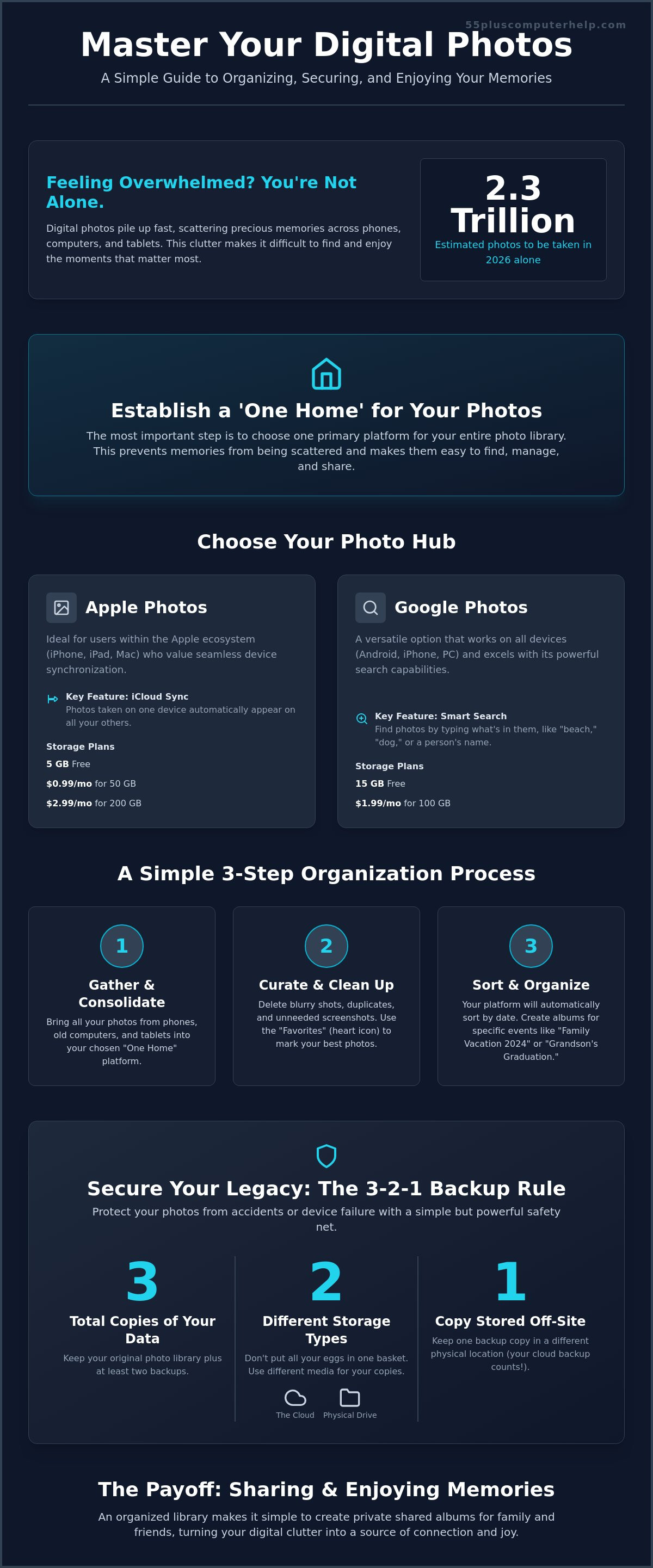
You likely feel a bit anxious about what might happen to those precious memories if your device breaks or if you accidentally click the wrong button. With an estimated 2.3 trillion photos being taken in 2026 alone, this photo bloat is a real challenge for everyone. This guide will show you how to organize, secure, and share your lifetime of photos using simple, stress-free methods. We'll clear up the confusion between the cloud and physical storage while helping you build a safe backup system so you can easily send your favorite snapshots to the grandkids.
Key Takeaways
- Learn how to pick one primary platform to act as a "One Home" for every photo you take.
- Discover a simple three-step process for how to manage digital photos by clearing out clutter and sorting memories by date.
- Understand the 3-2-1 backup rule to keep your pictures safe on both the cloud and a physical hard drive.
- Find out how to set up private shared albums to easily send photos to your family without the hassle of email.
- Gain the confidence to turn an overwhelming gallery into a neat library that protects your family legacy.
Understanding Digital Photo Management: Why It Feels Overwhelming
Digital photo management is simply the process of collecting, sorting, and protecting your images in one accessible place. It means taking all those scattered pictures and putting them where you can actually find them. Many people feel a bit lost when they think about how to manage digital photos because the sheer number of images is so high. It's okay to feel this way. We went from carefully choosing 24 shots on a roll of film to taking 24 shots of a single plate of food. This shift has created a lot of digital clutter that can feel heavy and unmanageable.
Your photos are likely scattered across several different places. You might have some on your smartphone, others on a tablet, and hundreds more tucked away on an old laptop or hidden in email attachments. When your memories are spread out like this, they are hard to enjoy. The goal isn't just to save these files. The goal is to see them. Being organized means you can find that one photo from your 40th anniversary in seconds rather than hours. It transforms your device from a storage bin into a digital treasure chest.
Storage vs. Organization: What's the Difference?
Storage is like putting your old physical photos into a large cardboard box and shoving it into the attic. You still have them, but you never look at them. Organization is like taking those photos and placing them neatly into a labeled album on a shelf. Having 50,000 photos on a hard drive is just a pile of data. Using Image organizer software helps you turn that pile into a library. Think of the cloud as a digital filing cabinet that stays with you. It allows you to see your pictures whether you are on your phone at a cafe or on your computer at home. It ensures your photos aren't just saved; they are ready to be shared and enjoyed.
Common Roadblocks for Seniors
Many seniors face specific hurdles when they start this journey. One of the biggest is the fear of the delete button. It feels risky to remove a blurry shot because you don't want to lose a memory. However, deleting the bad photos makes the good ones shine. Another challenge is managing multiple accounts. You might have an Apple ID for your iPad and a Gmail account for your computer. This can lead to confusion about where things are saved. Finally, it is hard to fix the old photos while new ones keep piling up. Learning a few simple habits will stop new clutter from forming while you work on organizing your past memories.
Choosing Your 'One Home': Comparing the Best Photo Hubs
The most important rule in learning how to manage digital photos is the "One Home" rule. You must pick one primary platform to store your entire library. If you have some pictures on your phone, some on a tablet, and others in an old email account, you will always feel disorganized. Choosing a single home prevents your memories from being scattered across different digital corners. It makes finding that specific holiday photo much easier. Most people choose their "home" based on the devices they already use every day.
Microsoft OneDrive is another popular option, especially if you are comfortable using a Windows computer. It integrates directly with the folders on your PC. This means your photos appear just like any other file on your computer. If you feel unsure about which platform fits your life, our team offers gentle smartphone and tablet training to help you get everything set up correctly.
Apple Photos for iPhone and Mac Users
If you use an iPhone or an iPad, Apple Photos is often the easiest choice. It uses a service called iCloud to keep your devices perfectly in sync. When you take a photo on your phone, it automatically appears on your iPad. You don't have to move files or click extra buttons. One of the best tools for organization is the "Favorites" heart icon. When you look at a photo, just tap the heart. This puts the picture into a special folder so you can find your best shots instantly. Apple offers 5 GB of storage for free. If you need more space, you can upgrade to 50 GB for $0.99 per month or 200 GB for $2.99 per month as of July 2026.
Google Photos: The 'Searchable' Powerhouse
Google Photos is a very versatile option. It works beautifully on both Android phones and iPhones. Its biggest strength is the search bar. You can type in "dog," "beach," or even a person's name, and Google will find those photos for you. It uses smart technology to recognize what is in your pictures. This saves you from having to scroll through thousands of images. Google provides 15 GB of storage for free with every account. If your library grows, you can move to a 100 GB plan for $1.99 per month. It is a great way to manage digital photos if you want a system that does the heavy lifting of sorting for you.
Amazon Photos is also worth considering if you are already an Amazon Prime member. Prime members receive unlimited, full-resolution photo storage at no extra cost. This is a significant benefit if you have a massive collection of high-quality images. While it is excellent for photos, keep in mind that video storage is limited to 5 GB on the basic Prime plan. Choosing the right hub is about finding the path of least resistance for your specific habits.
A Simple 3-Step Process to Organize Your Photo Library
The secret to learning how to manage digital photos is to start small. You don't need to organize your entire life in a single afternoon. In fact, trying to do so often leads to frustration. Instead, try a 15-minute daily habit. Set a timer, sit down with your favorite beverage, and work through a small batch of pictures. This steady, calm pace ensures that you stay in control without feeling overwhelmed by the thousands of images on your devices.
Step 1: The 'Gentle Cull'. This is the most important step for clearing clutter. Look for obvious duplicates, blurry shots, and accidental screenshots of your lock screen. It is okay to let go of these. By removing the "noise," you allow your beautiful, clear memories to stand out. If you have ten photos of the same sunset, pick your favorite two and delete the rest. Your library will feel much lighter immediately.
Step 2: The 'Year-Month' System. Instead of using complex tags or keywords, use time. Structure your main folders by year, such as "2025" or "2026." Inside those, create folders for each month. This simple logic mimics how we naturally remember our lives. You might not remember exactly where you were, but you usually know it was "sometime last spring."
Step 3: Creating 'Story' Albums. Once your photos are sorted by date, you can group them into special albums. These are for the big moments that tell the story of your family. Create albums with clear names like "Grandson's Graduation" or "2025 Road Trip." These albums make it easy to find and show your best memories to friends and family without scrolling through every daily snapshot.
How to Decide What to Keep
Deciding what to delete can cause a lot of anxiety. To make it easier, use the "Story Test." Ask yourself: "Does this photo tell a story I want to remember?" If it is a blurry photo of a receipt, the answer is likely no. Be careful with "Burst" photos. This happens when you hold the shutter button too long and your phone takes ten identical pictures. You only need the best one. Also, remember to check your "Downloads" and "WhatsApp" folders. These often fill up with funny pictures or memes sent by friends that don't need to be part of your permanent family legacy.
Creating a Naming Convention That Works
Computers give photos strange names like "IMG_4502." This name tells you nothing about the memory. When you move photos to a computer, try renaming the folders to something timeless. A folder named "2026-05-Birthday" is much more helpful than a random string of numbers. On a Windows PC or a Mac, you can right-click a folder to rename it easily. If you are using a smartphone, use the "Favorites" heart icon. This creates an instant "Best Of" collection that acts as your most important album, keeping your favorite faces and places just one tap away.
Securing Your Legacy: Setting Up a Safety Net
Protecting your memories is just as important as organizing them. Once you have sorted your collection, you need a plan to keep those files safe from accidents or technology failures. A great way to think about how to manage digital photos for the long term is the 3-2-1 rule. This simple strategy ensures you always have a way to recover your pictures. You should have three copies of your photos. These copies should live on two different types of media, such as your computer and a separate drive. Finally, one copy should be kept offsite, which is where your cloud storage comes in.
Many people find comfort in "Auto-Sync" features. When you turn this on, your smartphone automatically sends new pictures to your cloud account while you sleep. This means you don't have to remember to do it yourself. However, you must understand the difference between syncing and backing up. Syncing means your devices stay identical. If you delete a photo on your phone to save space, it might also disappear from your cloud account. A true backup is a separate copy that stays safe even if you make changes elsewhere. If you feel worried about losing your library, we offer specialized data backup and recovery services to give you peace of mind.
Choosing an External Hard Drive
A physical external hard drive acts like a digital safety deposit box. When choosing one, look for portability and "plug-and-play" ease. For most families, a drive with 1TB of space is plenty of room for thousands of high-quality photos. To use it, simply plug the drive into your computer and drag your organized folders onto the drive icon. An SSD is a modern, durable memory stick that has no moving parts and can hold your entire library safely for years. It is a reliable way to keep a physical copy of your legacy right in your desk drawer.
Staying Safe from Digital Threats
Keeping your photos safe also means protecting your accounts from outsiders. Always use a strong, unique password for your Apple, Google, or Microsoft accounts. You should also be careful about how you share sensitive family images. Sending photos through unsecure methods can sometimes put your privacy at risk. It is also a good idea to keep your entire system healthy. You can learn more about this in our guide on Virus and Malware Removal: A Patient Guide to Securing Your Computer. A secure computer is the best foundation for a safe photo library.
The Payoff: Sharing and Enjoying Your Memories
The real reason to learn how to manage digital photos is to bring those memories back into your daily life. An organized library is more than just a collection of files. It is a bridge to your family and friends. You no longer have to struggle with clunky email attachments that often fail or make your images look blurry. Modern sharing tools allow you to send high-quality pictures that look just as beautiful on your daughter's phone as they do on yours. This payoff makes the initial effort of organizing feel truly rewarding.
Shared albums act like a private social network for your family. You can create an album for a specific event and invite your loved ones to view it. When you add a new photo, they get a notification on their device instantly. They can even leave comments or "like" the pictures. This creates a safe, private space for connection. It avoids the privacy risks of public social media while keeping everyone in the loop. You can also use your library to fill a digital photo frame in your living room. These frames connect to your Wi-Fi and cycle through your favorite memories automatically, turning a blank wall into a rotating gallery of your life.
If you prefer something you can hold, your organized folders make it easy to create physical photo books. Many services allow you to simply select an album and have it printed into a professional hardbound book. These make wonderful gifts for birthdays or holidays. They ensure your family legacy stays on the coffee table where it can be enjoyed by every generation.
Sharing with the Grandkids
Grandkids love seeing photos, but they usually prefer receiving them through apps they already use. Using "Shared Albums" in iCloud or Google Photos is the best way to keep them updated without filling up their text message history. If you do send a photo via text, make sure to send the actual file rather than a screenshot. This keeps the image clear and sharp. If you find yourself struggling with how to send these files, you might find our guide on Email Setup and Troubleshooting for Seniors: A Complete Guide to Staying Connected helpful for mastering digital communication.
Getting Personalized Help with Your Photo Project
Sometimes a photo project feels too big to handle alone. If you have decades of memories spread across multiple old computers and phones, the task can feel daunting. A patient technology tutor can sit with you in the comfort of your home to help you sort and secure your library. This one-on-one training is designed to build your confidence. We don't just do the work for you; we teach you how to manage digital photos so you feel empowered to keep your library organized in the future. Our goal is to transform your technical frustration into a sense of accomplishment. To get started, you can Book a personalized photo management session with 55 Plus Computer Help LLC today.
Take the First Step Toward a Clearer Photo Library
You now have the tools to pick a primary photo hub and sort your memories using a simple date system. By applying the 3-2-1 backup rule, you can rest easy knowing your family legacy is protected. Learning how to manage digital photos is not just about technology; it is about making sure your favorite stories are always ready to be shared with the people you love. You have already done the hard work of capturing these moments. Now you can focus on enjoying them.
If the task still feels a bit large, you don't have to do it alone. We have provided specialized support for seniors since 2014. Our patient, neighborly mentors speak your language and are available for both onsite and remote assistance. We can help you gain the confidence to navigate your devices with ease. Schedule a Patient, One-on-One Photo Organizing Lesson Today and let us help you turn that digital clutter into a beautiful library. You have a lifetime of wonderful memories. It's time to see them clearly again.
Frequently Asked Questions
Is it better to store photos on my computer or in the cloud?
It is best to use both for maximum security. The cloud allows you to see your pictures on any device, but a local copy on your computer acts as a physical safety net. Using both methods follows the 3-2-1 rule for protecting your memories. This ensures that a single technical failure won't cause you to lose your library. It's a great way to manage digital photos while keeping your mind at ease.
How do I move photos from my old digital camera to my new iPad?
The easiest way is to use a computer as a middle step. Plug your camera into your computer and move the photos into your main library folder. Once they are on your computer, they will automatically sync to your iPad if you have your cloud service turned on. Alternatively, you can buy a small adapter that lets you plug your camera's memory card directly into your iPad's charging port.
Will deleting a photo from my phone also delete it from my backup?
Yes, if you are using a syncing service like iCloud or Google Photos. These services are designed to keep all your devices identical. If you delete a picture on your phone to save space, it will also disappear from your tablet and computer. To keep your photos safe, you should always have a true backup on an external hard drive that does not sync with your phone.
What is the easiest way to find a specific photo from five years ago?
Use the search bar or the timeline scroll bar in your photo app. Most modern apps allow you to type in a year, a location, or even a subject like "flowers" to find what you need. If you have followed a date-based folder system, you can also just scroll back to the specific year and month. This is why learning how to manage digital photos with a simple system is so helpful.
How much cloud storage do I actually need for my photos?
Most people find that a 200 GB plan is plenty for a lifetime of family memories. If you take a lot of videos, you might eventually need a 1 TB or 2 TB plan. It is usually best to start with a smaller, more affordable plan. You can always pay for more space later as your collection grows. This keeps your monthly costs low while giving you room to expand.
Can I organize my photos on a tablet, or do I need a computer?
You can do most of your daily organizing right on your tablet. Tablets are excellent for favoriting photos and creating new albums to share with family. However, a computer is still the best tool for moving large amounts of files or managing your physical backup drive. A computer screen also makes it much easier to see fine details when you are deciding which blurry shots to delete.
What happens to my digital photos after I pass away?
You should set up a "Legacy Contact" on your Apple or Google account today. This feature allows a trusted family member to request access to your photos after you are gone. Without this setting, it can be very difficult for your family to get into your account. Setting this up ensures that your hard work in organizing your library will be enjoyed by your children and grandchildren for years.
How do I get rid of thousands of duplicate photos quickly?
Use the built-in "Duplicates" tool found in the utilities section of your photo app. Both Apple and Google now have smart tools that scan your library for identical images automatically. You can review these groups and tap a single button to merge them. This keeps the highest quality version and deletes the extra copies. It is the fastest way to clear out clutter without checking every photo individually.


