
Last Monday, Arthur tried to open an email from his bowling league, but his computer suddenly froze and started making a loud beeping sound. It's a frightening moment that makes your heart race. You might feel a heavy sense of anxiety about your bank accounts or worry that you'll lose years of family memories. Please take a deep breath; you are not alone. The FBI reported that cybercrime losses exceeded $16 billion in 2024. Learning exactly what to do if you think your computer has a virus is the best way to protect your digital life and regain your peace of mind.
We understand that technical jargon can make these problems feel overwhelming. You deserve to feel safe and confident when you go online. This guide provides a gentle, step-by-step plan to help you identify signs of trouble and isolate your device. We'll walk you through using simple software and explain when it might be time for professional help, which typically costs between $75 and $200. You'll learn how to clean your system, speed up your machine, and confirm that your personal information is secure.
Key Takeaways
- Learn exactly what to do if you think your computer has a virus by following a simple 5-point "first aid" plan to protect your personal information.
- Discover how to tell the difference between a computer that is just slowing down with age and one that has a digital "cold" or "flu."
- Master a safe way to close scary pop-up messages using your keyboard instead of clicking buttons that might be traps.
- Identify the right time to call for professional assistance to avoid the high costs and stress of identity theft.
- See how personalized guidance can help you move past technical anxiety and feel secure using your device again.
Recognizing the Warning Signs: Is It a Virus or Just a Slow Day?
You might feel a bit of panic when your screen flickers or a strange window appears. That is completely normal. Most of our clients feel a sense of dread when technology acts up, but please remember that a computer problem is not a reflection of your intelligence. These "naughty" pieces of code are designed to be sneaky. If your gut tells you something is wrong, listen to it. "If it feels wrong, it might be" is a great rule to live by. Knowing what to do if you think your computer has a virus starts with trusting your instincts and staying calm.
It helps to understand the difference between a computer that is simply showing its age and one that is actually sick. An aging computer usually gets slower gradually over several months. You might notice it takes an extra few seconds to start up or load a large photo. A virus is different because the change is often overnight. One day everything is fine, and the next day your mouse is moving on its own. This distinction is vital for your peace of mind and helps you decide when to seek assistance.
Common Red Flags You Can See and Hear
Listen to your machine. Does the fan sound like a jet engine taking off even when you aren't doing much? This constant whirring often means a hidden program is working hard in the background without your permission. You should also watch for new toolbars at the top of your internet browser that you didn't install. Helpful notifications usually come from programs you recognize, like your printer or Windows. Malicious pop-ups are different. They often use bright colors and scary language to tell you that your computer is already broken. Some even play a recorded voice telling you to call a number immediately. Real security software doesn't use these high-pressure tactics.
Performance Issues That Mimic a Virus
Sudden, dramatic changes in speed are a major warning sign. If your computer was fast yesterday but takes five minutes to open a single email today, it's time to be cautious. You might also see the "blue screen of death" or experience frequent crashes that force you to restart. What is a computer virus? At its core, it's code designed to interfere with your files and your privacy. This is why you might notice desktop icons moving or documents disappearing entirely. If you're wondering what to do if you think your computer has a virus, the first step is to stop and observe these patterns without clicking on anything new.
Immediate Symptoms Checklist:
- Unexpected pop-up windows that won't close or keep reappearing.
- New icons, toolbars, or programs that you don't remember installing.
- Friends or family members receive strange emails or messages from your account.
- The computer becomes extremely hot to the touch or the fan runs constantly.
- Your internet browser takes you to strange websites instead of your usual homepage.
How Computer Viruses Work: A Simple Guide for the 55+ Community
Think of a computer virus just like a seasonal flu. It is a tiny, unwanted guest that tries to sneak into your system. These are not mysterious or magical forces. They are simply bits of "naughty" software code. People write this code to be disruptive or to make money. Most hackers have very basic goals. They want to show you annoying advertisements or steal your personal information to sell it. While this sounds stressful, modern security is very robust. It is built specifically to catch these digital germs before they cause real harm. Understanding what to do if you think your computer has a virus starts with knowing how these guests arrived in the first place.
The Most Common Ways a Virus Gets In
Most viruses don't force their way in; they trick you into letting them in. Phishing is the most common method. Think of it like a fake fishing lure. You receive an email that looks exactly like it came from your bank or a friend. It might ask you to click a link to "verify your account." In 2026, phishing and social engineering are expected to account for over 42% of all successful cyber intrusions globally. Another common path is through "free" software downloads. These often come with hidden "hitchhikers" that install themselves alongside the program you actually wanted. Finally, watch out for scareware. These are the big red warnings that pop up on your screen claiming you are already infected. They try to frighten you into clicking a button that actually installs the virus.
What a Virus Actually Does to Your Data
Once inside, a virus usually performs a specific job. Some act like a silent observer. They watch what you type to record your passwords or credit card numbers. Others are more social. They might take over your email account to send spam messages to everyone in your address book. Perhaps the most talked-about threat is ransomware. Think of this as a digital lockbox. It scrambles your files and demands a payment to unlock them. Experts predict that a ransomware attack will occur every two seconds by 2031. If you are feeling overwhelmed, remember that you can always find virus and malware removal support to clean your system and restore your confidence. Knowing what to do if you think your computer has a virus means acting quickly but calmly to stop these processes before they spread.
Immediate Steps: Your 5-Point 'First Aid' Plan for a Suspected Infection
If your computer starts acting strangely, please stay calm and follow our "First Aid" plan. The Golden Rule of computer safety is simple: never click inside a scary pop-up window. These messages often use bright red colors or loud noises to frighten you. Even clicking the small "X" in the corner can be a trap that installs more unwanted code. Instead, use your keyboard to close the window safely. Pressing Alt and F4 at the same time on a PC, or Command and W on a Mac, will shut the window without triggering a hidden download. This is the most important thing to remember when deciding what to do if you think your computer has a virus.
Creating a "Safe Space" to fix the problem is your next priority. You want to stop the virus from doing any more damage while you work. By following a methodical path, you can protect your family photos and bank details. In 2025, there was an 89% increase in attacks from AI-enabled adversaries, which makes acting quickly more important than ever. These steps help you regain control of your machine without feeling overwhelmed by technical jargon.
Step 1: Disconnect the Internet
Turning off your Wi-Fi is like closing the front door to a burglar. You can do this by clicking the fan-shaped icon in your taskbar and selecting "Disconnect," or you can simply unplug the internet cord from the back of your computer. This action cuts the lifeline between the virus and the person who sent it. It prevents your private information from being sent out to the web. Working in offline mode is the safest first step because it stops the virus from communicating with its creator or spreading to other devices in your home.
Step 2: Enter 'Safe Mode' (The Digital Hospital)
Think of Safe Mode as a digital hospital. It tells your computer to start up using only the bare essentials. On a Windows machine, you can usually reach this by holding the Shift key while you click "Restart" from the power menu. For a Mac, you generally hold the Power button or the Shift key during startup. Viruses often cannot "wake up" while your computer is in this mode. This gives you a quiet, stable environment to look for the problem without the virus fighting back.
Step 3: Use Your Built-In Security Tools
You don't need to buy expensive new software to start the cleaning process. Your computer already has built-in helpers like Microsoft Defender or Apple Security. Open your settings, find the security section, and select "Full Scan." This might take an hour or more, so it's a good time to grab a cup of tea. If the tool finds a threat, it will ask if you want to Quarantine or Delete it. Quarantine is like putting the virus in a jail cell where it can't hurt anything. Never try to fix the problem by installing a second antivirus program. Having two different security programs running at once often causes the computer to crash. Following these steps is the best way to handle what to do if you think your computer has a virus.
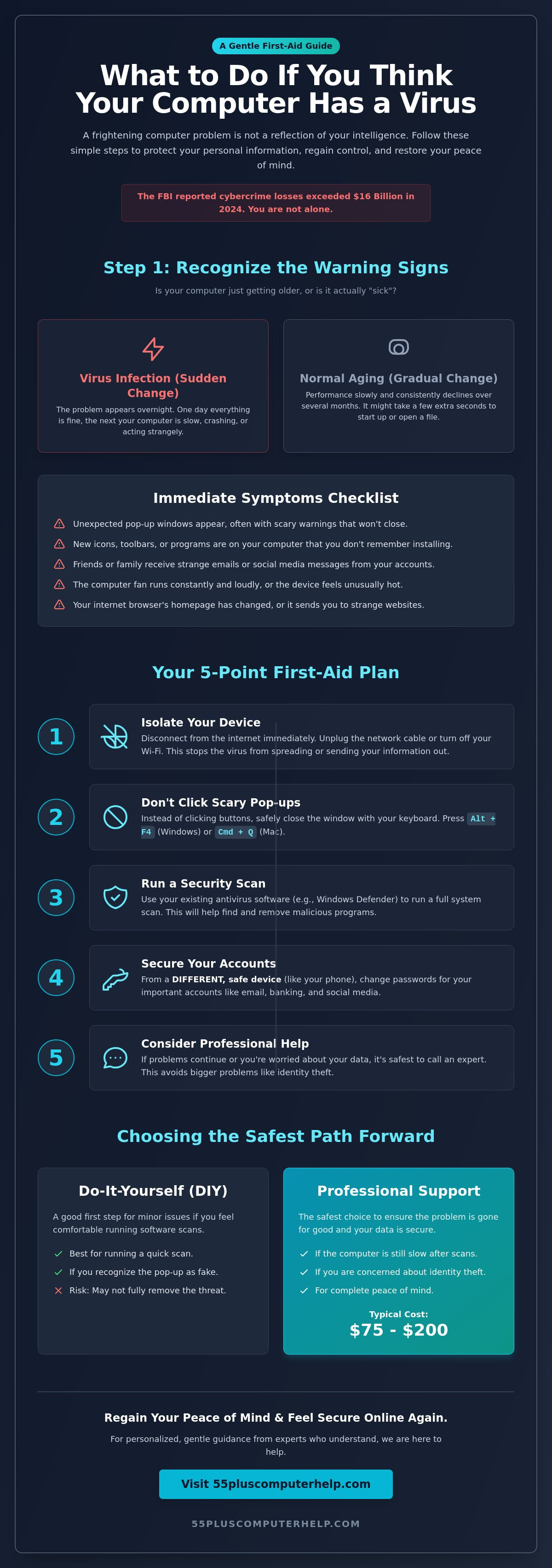
DIY Removal vs. Professional Support: Choosing the Safest Path Forward
Deciding whether to fix a computer yourself or call for help can be a stressful choice. You don't want to make the problem worse, but you also want your computer back to normal quickly. It is okay—and often much smarter—to ask for help when a situation feels out of control. Think of it like deciding whether to put a bandage on a small scrape or go to the doctor for stitches. Professional care provides a level of thoroughness that gives you true peace of mind.
Knowing what to do if you think your computer has a virus involves recognizing your own limits. While many minor issues can be fixed at home, some situations reach a "Point of No Return" where DIY becomes risky. If you feel overwhelmed, remember that a professional cleaning typically costs between $75 and $200 according to 2026 industry data. This is a small price compared to the massive financial and emotional cost of identity theft. A professional ensures every trace of the "naughty" code is gone so your personal data stays safe.
When You Can Likely Handle It Yourself
You can usually try a DIY fix if your computer still starts up normally and lets you reach your desktop. If you can open your security settings and start a scan without the computer crashing, you are in a good position. It is also important that you have a recent backup of your photos and files. While the software runs, try to stay calm and let it do its work. A full scan can take an hour or more. Once it finishes, the software will tell you if the threat is removed. You can verify this by restarting your computer and checking if the strange pop-ups or noises have stopped.
When to Call a Patient Professional
Certain red flags mean you should stop immediately and call for assistance. If you cannot get to your desktop at all, the infection is deep. You should also seek help if you accidentally entered your credit card information or social security number into a suspicious window. An in-home technician is often the best choice for seniors. They can sit with you and explain the "why" behind the fix as they work. Remote support can be risky if your internet connection is already compromised by a hacker.
When looking for help, choose a service that is "senior-friendly." Look for experts who use plain English instead of technical jargon. They should be patient mentors who value your comfort as much as the technical solution. If you need a trusted partner to secure your device, our team provides expert virus and malware removal specifically for the 55-plus community. This personalized approach helps you understand what to do if you think your computer has a virus so you can feel confident and secure every time you go online.
Restoring Your Peace of Mind: How 55 Plus Computer Help Secures Your Digital Life
Technology should be a tool for connection, not a source of constant worry. At 55 Plus Computer Help, we view ourselves as your patient mentor rather than just a repair shop. We understand that a virus scare can feel like a violation of your home. Most technical support feels cold and clinical, but our approach is warm and welcoming. We focus on reducing the tech-anxiety that often follows a digital "flu." Our goal is to transform your frustration into a sense of accomplishment and security. Knowing what to do if you think your computer has a virus is much easier when you have a trusted local expert by your side.
One of the biggest benefits of our service is the personalized in-home visit. We don't just look at your screen. We check your entire digital environment, including your Wi-Fi signal and your printer setup. This holistic approach ensures that your whole home is a safe zone. We believe in transparency, which is why we offer localized support in Denver for $55 per half hour. This clear pricing removes the guesswork and helps build a relationship based on trust. You move from feeling like a victim to becoming a confident user who understands how to maintain a healthy computer.
Beyond Just Fixing the Virus
Cleaning a computer is only the first step. We spend time teaching you how to spot the next scam before it happens. Since phishing and social engineering are expected to cause over 42% of cyber intrusions in 2026, education is your best defense. We help you set up automated backups so your precious family photos and documents are always safe, even if something goes wrong. We also ensure your software is fully updated. These updates close the "digital doors" that hackers often use to sneak into older systems. This training gives you the independence you desire to confidently navigate the web.
Your Next Steps to Digital Confidence
You don't have to wait for a crisis to get help. A regular security checkup is a proactive way to keep your machine running fast and clean. It's much like a wellness visit for your car or your own health. We offer friendly, no-pressure sessions where we can answer your common queries and simplify your digital life. Whether you need help with email setup or a full system scan, we are here to provide reliable guidance. Take a step toward total peace of mind today. Get a fresh, safe start with a professional security tune-up from 55 Plus Computer Help. You'll never have to wonder what to do if you think your computer has a virus when you have a partner dedicated to your success.
Take Control of Your Digital Safety Today
You now have the tools to handle a digital scare with confidence. Trusting your instincts when things feel "wrong" is your first line of defense. Remember to use your keyboard to close scary pop-ups and disconnect your internet to stay safe. These simple steps protect your family photos and bank details from harm. Knowing exactly what to do if you think your computer has a virus helps you stay in control of your technology. It's much easier to stay safe when you have a clear plan.
You don't have to face these challenges alone. Since 2014, our team has provided patient, jargon-free mentoring specifically for the senior community. We specialize in virus removal and data protection for those 55 and better. Our goal is to make sure you feel secure and supported every time you turn on your machine. If you want a professional to verify that your system is clean, we are here for you. Schedule a patient, in-home security checkup with 55 Plus Computer Help today. You deserve to enjoy the internet with total peace of mind. We look forward to helping you use your computer with a sense of accomplishment.
Common Questions About Computer Viruses
Can I get a virus just by opening an email?
Simply opening a text-based email is safe in almost every case. You are only at risk if you click a link or open an attachment inside that message. Hackers hide "naughty" code in files that look like harmless invoices or family photos. If you receive a message from an unknown sender, the safest choice is to delete it immediately without clicking anything inside.
Is it safe to use my computer after I think I've removed the virus?
You should only use your computer once you are certain the threat is completely gone. If you followed the steps for what to do if you think your computer has a virus and your scans show no threats, you can resume your work. It is a smart habit to run a second scan two days later. This ensures no hidden traces of the infection remained in your system.
What is the difference between a virus and malware?
Malware is a broad term for any software designed to cause harm to your device. Think of it like the word "illness." A virus is just one specific type of malware that copies itself to spread to other computers. Other types include spyware that watches your typing or ransomware that locks your files. All of them require a patient, methodical approach to remove safely.
Should I pay the 'ransom' if my files are locked?
You should never pay the ransom if your files are locked by a hacker. There is no guarantee that the criminals will actually unlock your data after they receive your money. The FBI's Internet Crime Report for 2024 advises against payment because it only encourages more attacks. Instead, use a recent backup to restore your photos and documents once the machine is clean.
Do I need to change all my passwords after a virus scare?
Yes, changing your passwords is a vital step to protect your digital life. Some infections are designed to record every key you press, which means hackers might have your login details. You should change your passwords from a different, clean device as soon as possible. Focus on your bank accounts and email first. This is a critical part of what to do if you think your computer has a virus.
Can my iPad or smartphone get a virus too?
Yes, your mobile devices can be infected, though it is less common than on a traditional computer. These gadgets are often targeted through fake text messages or "vishing" phone calls. In 2025, mobile threats in the healthcare sector rose by 224%. Keeping your device software updated is the best way to keep your tablet and phone safe from these modern threats.
How much does professional virus removal usually cost?
Professional virus removal usually costs between $75 and $200 according to 2026 market data. Basic cleanings are usually on the lower end of that scale. If the infection is very deep and requires a full system reinstall, the price might move toward the higher end. This investment is much cheaper than the financial and emotional cost of dealing with identity theft.
Is free antivirus software enough to keep me safe?
Free antivirus software provides a good basic layer of protection, but it often lacks advanced features. Paid versions, like Norton 360 Deluxe which starts at $49.99 for the first year, offer more comprehensive security. These paid tools often include identity theft monitoring and automatic backups. For many seniors, the extra peace of mind and automated help are worth the annual subscription fee.


