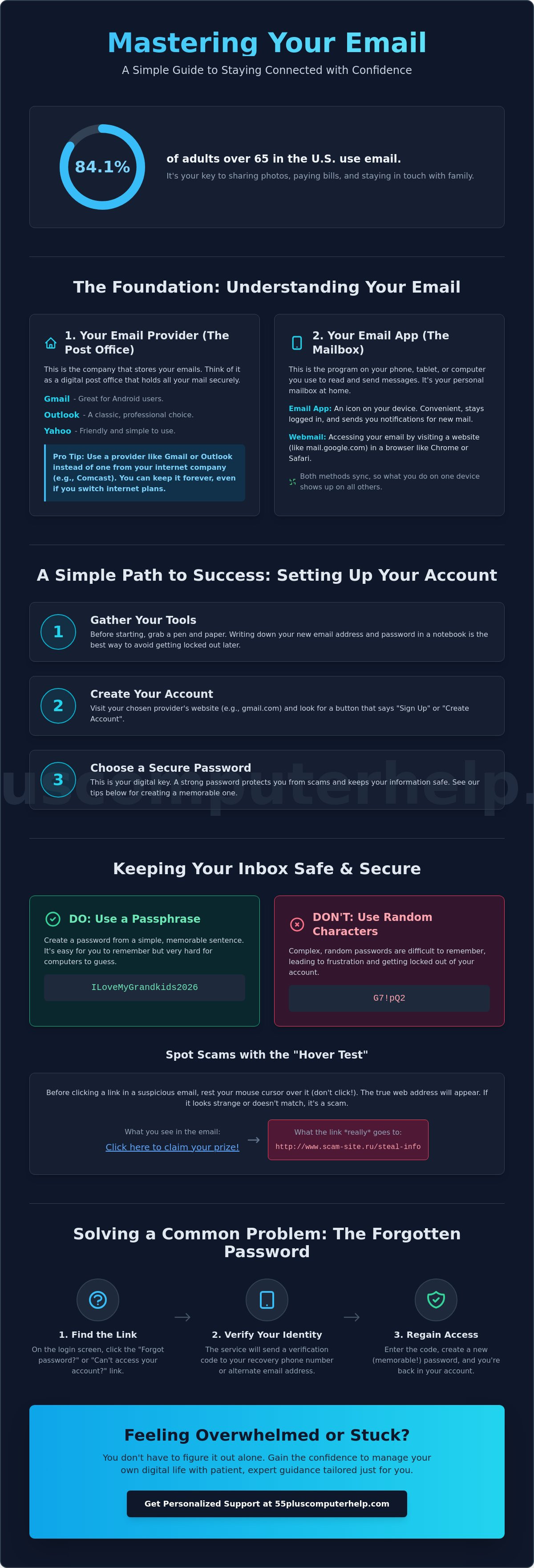
Did you know that 84.1% of adults over 65 in the U.S. now use email to stay connected? It's a wonderful way to share stories and photos with the people you love. However, it can also feel incredibly overwhelming when things don't work as they should. You might feel "locked out" of your digital life or worry that one wrong click will cause you to lose everything. We know how frustrating it is to face a forgotten password or a confusing update screen. Our goal is to make email setup and troubleshooting a simple, stress-free process that restores your confidence.
You deserve to feel comfortable every time you open your tablet or computer. In this guide, you'll learn how to set up, manage, and fix your email so you never miss a message from family or friends. We will walk through the basics of creating an account, keeping your information secure from today's latest scams, and solving common problems like missing attachments. We're here to help you move from frustration to a working inbox and true peace of mind. By following these patient steps, you'll gain the independence to enjoy your digital life once again.
Key Takeaways
- Learn why distinguishing between an email provider and an app is the first step to a smoother digital experience.
- Discover a stress-free approach to email setup and troubleshooting that keeps you connected to your family and friends.
- Master the "forgot password" process so you can regain access to your inbox without feeling stuck or overwhelmed.
- Use the "hover test" and other simple strategies to spot phishing attempts and keep your private information safe in 2026.
- Gain the confidence to manage your own digital life through patient, expert guidance tailored specifically for your needs.
Why Your Email is the Key to Staying Connected in 2026
Email is much more than just a piece of technology. It is your digital front door. It's where you receive precious photos of your grandchildren, stay updated on your monthly bills, and get important notes from your doctor. If you have ever asked, What is Email?, it is essentially a reliable system for sending and receiving letters instantly across the world. In 2026, staying connected through a screen is a vital part of daily life. When your account is working well, you feel like you're part of the conversation. When it fails, the sense of digital isolation can be very real and deeply frustrating.
Many websites and services now use your email as a primary way to prove who you are. This is often part of two-factor authentication. When you try to log into your bank or a shopping site, they may send a special code to your inbox to keep your information safe. If you aren't confident with email setup and troubleshooting, you might find yourself locked out of these essential services. A reliable setup acts as a foundation for your entire online world. It gives you the "key" to your digital life and ensures you never miss a beat.
The Difference Between Gmail, Outlook, and Yahoo
Choosing an email provider is like picking a neighborhood where you want to live. Gmail is a very popular choice because it works seamlessly with Android phones and tablets. Outlook is a classic option that many people remember using during their professional careers. Yahoo remains a friendly and simple choice for many users. We often recommend using one of these independent services rather than an email address from your internet provider, like Comcast or AT&T. If you ever decide to switch internet companies, you might lose your provider-based email address. An independent account stays with you no matter where you move or which company provides your Wi-Fi.
What is an Email App vs. Webmail?
You can check your messages in two main ways. Webmail means you open an internet browser, such as Google Chrome or Safari, and type in a website address to see your inbox. An email app is a dedicated program with its own icon on your smartphone, tablet, or computer. Apps are usually more convenient because they stay logged in and can notify you the moment a new message arrives. Both methods work together through a process called syncing. If you read an email on your tablet app, it will show as "read" when you later look at it on your computer. Understanding this connection is a big part of successful email setup and troubleshooting for the modern user.
Setting Up Your Email: A Simple Path to Success
Getting your digital mail ready doesn't have to be a chore. Simply put, email setup is the process of connecting your device to a mail server. Think of it like connecting a telephone line to your home so you can receive calls. Before you start, gather your tools. You'll need a piece of paper and a pen to write down your new email address and your password. Having these details written down physically helps prevent the frustration of forgotten logins later on.
When you create a new account, the logic is usually the same across all platforms. You'll visit the website of your chosen provider and look for a button that says "Sign Up" or "Create Account." The system will ask for your name and your preferred address. It might take a few tries to find an address that isn't already taken. If your first choice is gone, try adding a middle initial or a favorite number at the end. Once you have a name, you'll move on to the most important part: the password.
Creating a Secure and Memorable Password
A strong password is your first line of defense. We recommend using the "Passphrase" method. Instead of trying to remember random characters like "G7!pQ2", choose a simple sentence. For example, "ILoveMyGrandkids2026" is very hard for a computer to guess but very easy for you to remember. Protecting Yourself from Scams starts with these basic security habits. Keep your passwords in a safe, physical notebook at home. This ensures you always have a backup if your memory fails or if you get a new device.
Adding Email to Your Smartphone or Tablet
Most modern devices have a "Mail" or "Settings" icon that makes this process easy. On an iPad or iPhone, you can go to Settings and then tap on "Mail" to add an account. On an Android device, look for the "Accounts" section. Most of the time, you can use the "Automatic Setup" feature. You simply type in your email and password. The device does the heavy lifting to find the right settings for you. This simplifies email setup and troubleshooting significantly for new users. After it finishes, check your folders. You should see your Inbox, Sent, and Trash folders ready to go.
The final step is to send a test message. Send a short note to yourself or a friend to see if it works. If the message arrives, you're all set. If you run into any road blocks, our friendly experts provide email setup and troubleshooting to guide you through every step. We believe tech should be a tool for joy, not a source of stress.
Solving Common Problems: What to Do When Your Email Acts Up
It's a common feeling. You go to check your mail, and nothing happens. Or perhaps a screen pops up asking for a password you haven't used in months. Don't panic. These moments are part of the learning process. Effective email setup and troubleshooting often involves simple checks rather than complex technical repairs. Most issues can be solved with a bit of patience and the right steps. We're here to help you navigate these bumps in the road so you can get back to your day.
If you stop receiving new messages suddenly, check your internet connection first. Sometimes a simple restart of your tablet or computer clears the digital pipes. If your phone and computer aren't showing the same messages, you might have a sync error. This usually means one device hasn't "talked" to the mail server lately. Refreshing the app or checking your account settings usually gets them back in step. If an important message seems to have vanished, don't worry. It's often just hidden in your "Junk" or "Archive" folders. You might have accidentally swiped it away. A quick search for the sender's name usually brings it right back to the top.
Recovering a Forgotten Password Safely
Getting stuck in a password loop is stressful, but there's a clear path out. Most providers now use your smartphone to help you. They will send a short code via text message to verify it's really you. This is a very safe method as long as you keep that code to yourself. Knowing how to recognize and avoid phishing scams is vital here. Scammers sometimes call and pretend to be "tech support" to ask for that code. Never give it away to anyone on the phone. Your recovery phone number and a backup email address are your best tools for getting back into your account safely and independently.
Dealing with "Mailbox Full" Warnings
Think of your inbox like a physical mailbox. If it gets too full, the post office stops delivering. Digital mailboxes have storage limits too. High-quality photos from family or long videos are the usual culprits that take up space. You can often see how much space you've used in your account settings. To fix this, look for old newsletters or large attachments you no longer need. Deleting just a few large files can often clear enough room for new messages to start flowing again. This simple bit of email setup and troubleshooting keeps your digital home tidy and functional.
Keeping Your Inbox Safe from Scams and Unwanted Junk
Feeling safe in your inbox is just as important as knowing how to send a message. Scammers in 2026 use clever tricks to try and get your personal information. They often rely on fear or a sense of urgency. You might see a message saying your bank account is locked or that you have an unpaid invoice. These are classic red flags. A major part of email setup and troubleshooting is learning to spot these tricks before they cause trouble. Remember that your bank or the government will never ask for your password or social security number through an email.
One of the best tools you have is the "Hover Test." If an email has a button or a link, don't click it right away. Instead, move your mouse pointer over the link without clicking. On a tablet, you can long-press the link to see the address. A small box will appear showing the real website address. If the email says it's from your bank, but the link shows a long string of random letters and numbers, it's a scam. This simple check can save you from a lot of stress. In 2025, people over age 60 reported over 201,000 internet crime complaints. Taking a moment to hover helps ensure you don't become part of that statistic.
Spotting Modern Phishing Attempts
Scams today are more personalized than ever. Some even use AI to mimic the way a friend or family member writes. Always check the sender's actual email address. A scammer might use a display name like "Social Security Office," but the actual address is a mess of random characters. If you think you accidentally clicked a suspicious link, don't panic. Close your browser immediately and disconnect your Wi-Fi. It is always better to ask for a second opinion if a message feels "off." If you're worried about a potential threat, we offer expert Virus and Malware Removal to give you total peace of mind.
Unsubscribing from Junk Mail Safely
Your "Spam" or "Junk" folder is there to catch the trash. Most email providers do a good job of filtering these automatically. However, some "Marketing Newsletters" from stores you've visited might still get through. There is a big difference between these and true spam. If it's a store you know, you can safely use the "Unsubscribe" link at the very bottom of the email. If the email looks like total gibberish or a scam, do not click unsubscribe. Clicking any link in a scam email tells the sender that your account is active. Instead, use the "Block Sender" or "Report Spam" button in your email setup and troubleshooting menu. This keeps your inbox clean and ensures those messages never bother you again.
Personalized Support to Help You Master Your Email
Mastering these new skills takes practice and a bit of kindness. While this guide gives you the basic steps, you might still want someone by your side as you try them out. 55 Plus Computer Help LLC provides a patient, mentor-like experience that focuses on your specific needs. We don't believe in the cold, clinical approach of corporate tech support. Instead, we see technology as a bridge to your friends and family. Our team listens to your concerns and explains every step in plain language that makes sense to you.
Our service is built on local accountability and trust. We aren't a distant company in a far-off city. We are neighbors who care about your digital safety and independence. This personal connection is very helpful when you deal with email setup and troubleshooting. You are never just a ticket number in a system. You are a person who deserves to feel capable and secure. We maintain a calm demeanor to turn your technical anxiety into a sense of real accomplishment.
In-Home vs. Remote Email Assistance
You can choose the type of support that fits your schedule. An in-person visit is perfect for a deep dive into email setup and troubleshooting. We can physically check your equipment and ensure your printer and tablet are working together. If you have a quick question about a login screen, remote assistance is a great option. We use secure screen-sharing to guide you through the fix in real time. Having a trusted expert you can call by name makes every technical challenge feel much smaller.
Beyond Fixing: Personalized Lessons
We want to empower you to handle your inbox on your own. Our one-on-one lessons teach you how to organize your folders so you can find old messages quickly. You will learn how to safely save family photos to your device so they are never lost. We also help you set up automated backups for your most important digital memories. To learn more about keeping your computer safe, explore our guide to virus and malware removal. We are here to make sure your technology serves you well for years to come.
Take Control of Your Digital Connections
You now have the tools to navigate your inbox with confidence. We've covered how to spot modern phishing scams using the hover test and how to recover a forgotten password without the stress. Remember that email is your lifeline to family and friends. It should be a source of joy, not a cause for frustration. Having a reliable email setup and troubleshooting plan ensures you stay connected to every photo and update from the people you love.
Since 2014, we've specialized in senior-focused IT support. We understand that every learner is different. Our patient, mentor-based teaching style is designed to build your skills while protecting your peace of mind. You don't have to face technical hurdles alone or feel "locked out" of your digital life. Get patient, expert help with your email setup today! We are ready to help you master your digital world at your own pace. You've got this, and we are here to support you every step of the way.
Frequently Asked Questions
Why is my email password not working even though I am sure it is correct?
Your password might not work because of a small typing error or the "Caps Lock" key being active on your keyboard. Passwords are case-sensitive, so a single capital letter in the wrong place will cause a login failure. If you've recently updated your password on one device, you must update it on all others too. Taking a moment to type slowly can often solve this common hurdle.
How do I set up my email on a new iPhone or Android tablet?
You can set up your email by opening the "Settings" app and looking for the "Mail" or "Accounts" section. Most modern tablets offer an automatic setup feature where you simply enter your email address and password. The device then handles the technical connection for you. This is a key part of email setup and troubleshooting that makes getting a new gadget much less intimidating for everyone.
What is the difference between IMAP and POP settings, and do I need to know them?
IMAP is the modern standard that keeps your email synchronized across all your devices, while POP is an older method that often deletes messages from the server once they are downloaded. You don't usually need to memorize these terms because most apps choose the best setting for you automatically. Choosing IMAP ensures that if you read a message on your phone, it also shows as read on your computer.
Is it safe to stay logged into my email on my home computer?
It is generally safe to stay logged into your email on a private home computer that only you or trusted family members use. This convenience saves you from typing your password every single time you want to check for updates. However, you should always ensure your home Wi-Fi is protected with a strong password. If you ever use a computer at a library or a friend's house, always remember to log out completely.
How can I stop getting so much junk mail and political advertisements?
You can reduce unwanted messages by using the "Report Spam" or "Junk" button in your email app. This teaches your provider to automatically filter similar messages in the future. Avoid entering your email address on public websites or "free" contest entries, as these often sell your information to advertisers. For legitimate newsletters you no longer want, look for the small "Unsubscribe" link at the very bottom of the message.
What should I do if I think my email account has been hacked?
Change your password immediately using a different device if you suspect your account is compromised. After updating your password, check your "Sent" folder for messages you didn't write and verify that your recovery phone number is still correct. This proactive approach to email setup and troubleshooting prevents further access. If you feel overwhelmed, asking a trusted expert to review your security settings can provide much-needed peace of mind.
Can I have two different email addresses on the same computer?
You can absolutely have multiple email addresses on one computer, such as a personal account and one for a local club. Most email apps allow you to add several accounts and switch between them with a single click. This is a great way to keep your personal family photos separate from your monthly bills or community newsletters. Each account remains private and has its own separate folders for your convenience.
How do I send a large group of photos to my family via email?
The best way to send many photos is to attach them in small batches of three or four per email. Most email providers have a size limit for attachments, and sending too many at once might cause the message to fail. If you have dozens of pictures, you might consider using a "cloud" service like Google Drive or iCloud. These services allow you to share a single link that your family can click to see everything.


