Imagine sitting down to look at photos of your grandchildren, only to find your computer screen is dark and won't turn on. It's a heart-sinking feeling to think those memories might be gone forever. You've spent years saving digital keepsakes and important papers. It's completely normal to feel a bit nervous about "The Cloud" or confused by all the different cables and drives. Learning how to back up your computer for seniors doesn't have to be a technical chore or a source of stress.
We believe that protecting your legacy should be simple and straightforward. This guide will show you exactly how to keep your files safe with easy steps designed for your comfort. You will learn the difference between a physical hard drive and cloud storage so you can choose what feels right for you. We'll also explain how to set up a reliable system that works automatically. By the end, you'll have the confidence that your most important documents are secure and protected.
Key Takeaways
- Understand why a digital backup is like having a spare set of house keys for your most important files.
- Compare the benefits of tangible physical drives with the "set it and forget it" convenience of cloud storage.
- Follow our simple, step-by-step instructions on how to back up your computer for seniors using a portable hard drive.
- Identify which automatic cloud service is right for you, such as OneDrive, iCloud, or Google Drive.
- Learn a five-minute monthly habit to verify your files are secure and know exactly when to ask for extra help.
What Does it Mean to "Back Up" Your Computer?
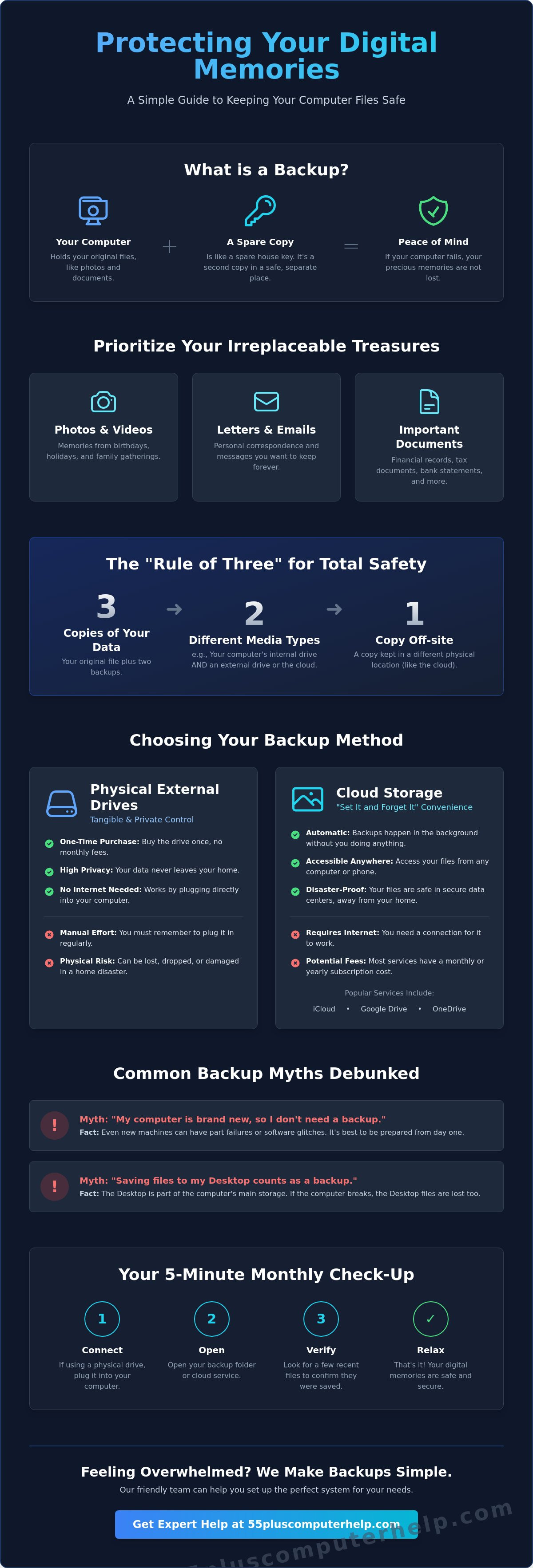
A backup is simply a second copy of your files kept in a different place. Understanding what it means to back up your computer is the first step toward digital safety. If you have a photo on your computer and an identical copy on a small plastic drive in your desk drawer, you have a backup. If you delete the photo from your computer but keep it on the drive, you no longer have a backup. You just have one copy in a new location.
Think of a backup like a spare set of house keys. You keep your main keys in your purse or pocket. You might give a second set to a neighbor or hide them in a secure box. If you lose your main keys, you aren't locked out. A digital backup provides that same safety net. Learning how to back up your computer for seniors ensures you are never "locked out" of your own memories.
You should focus on saving items that are irreplaceable. This usually includes:
- Family photos and videos from birthdays or holidays.
- Personal letters and emails you want to keep.
- Financial records like tax documents or bank statements.
Experts often talk about the "Rule of Three" for total safety. This means you should have three copies of your important files. You keep the original on your computer, one copy on a physical drive, and a third copy in a secure "cloud" storage system. This way, even if two things go wrong at once, your files remain safe.
The Peace of Mind a Backup Provides
Many people feel a quiet anxiety when they use their computers. They worry that one wrong click might erase years of family history. A proper backup system removes this "what if" stress. If you accidentally delete a folder, you can simply pull it back from your backup. A backup is a digital insurance policy for your memories. It allows you to explore your computer with confidence, knowing your files are secure.
Common Myths About Backing Up
Some people believe they don't need a backup because their computer is brand new. Unfortunately, even new machines can have parts that fail or software that glitches. It's better to be prepared from day one. Another common myth is that saving a file to your "Desktop" screen counts as a backup. Since the Desktop is still part of your computer's main brain, it will disappear if the computer breaks. Every piece of hardware eventually fails; preparation is the key to your digital independence. Learning how to back up your computer for seniors is the best way to stay in control of your digital life.
Choosing the Right Method: Physical Drives vs. The Cloud
Deciding on a backup method often comes down to what makes you feel most secure. There are two main ways to protect your files. You can use a physical device that sits on your desk, or you can use a service that saves your files over the internet. Both options have benefits. Understanding the differences helps you decide how to back up your information in a way that works for you.
External hard drives are tangible objects. They are about the size of a deck of cards and plug directly into your computer. Many people like this method because it feels private and permanent. You buy the drive once, and you own it forever. There are no monthly bills to worry about. If you want to learn how to back up your computer for seniors, starting with a physical drive is a wonderful choice because you can see the work being done. It is a simple, one-time purchase that gives you total ownership of your data.
Cloud storage is the "set it and forget it" alternative. Instead of a physical box on your desk, your files are saved in secure data centers far away. This happens automatically through your internet connection. If your computer ever stops working, you can log in from a different machine and see all your photos exactly where you left them. It provides a level of freedom because you don't have to remember to plug anything in. It simply works in the background while you write emails or browse the news.
Many seniors find that a hybrid approach is the safest path. This means using both a physical drive and a cloud service. This follows the "Rule of Three" we mentioned earlier. If a disaster happens in your home, the physical drive might be damaged, but your cloud files will be safe. If the internet goes out, your physical drive is still right there. If you find these choices a bit confusing, our team offers Data Backup and Recovery support to help you set up the perfect system for your needs.
The Pros and Cons of External Drives
External drives are excellent because they don't require an internet connection to work. They also offer a high level of privacy since your data never leaves your home. However, they do have some downsides. You must remember to plug them in regularly to keep your backup current. They can also be lost, dropped, or damaged by house floods or fires. This method is best for users with very large photo collections who want total control over their files without paying a monthly subscription.
The Pros and Cons of Cloud Storage
Cloud storage is incredibly convenient because it is entirely automatic. Once it is set up, you never have to think about it again. It also protects your files from physical disasters that might happen at home. On the other hand, it does require a steady internet connection and a small recurring fee. Plans can start as low as $1.99 per month for 100GB of storage. This is the best choice for users who want a hands-off system. Learning how to back up your computer for seniors often involves finding this balance between convenience and cost.
How to Back Up Using an External Drive (Step-by-Step)
Using a physical drive is a very reliable way to protect your files. It gives you a feeling of control because you can hold your backup in your hand. If you want to follow a guide to backing up your computer, the first step is getting the right equipment. Learning how to back up your computer for seniors often starts with choosing a simple, portable drive. A model with 1TB of storage is usually perfect for most people. This amount of space can hold thousands of photos and years of documents.
What to Look for When Buying a Drive
When you shop for a drive, look for "Portable" models. These are small and powered by your computer. You won't need to find an extra wall outlet to plug them in. You should also look for "Plug and Play" on the box. This means the drive is ready to use right away. You won't have to install any confusing extra programs. Pay attention to the plug on the end of the cable. Most older computers use a rectangular USB-A port. Many newer laptops use a smaller, oval-shaped USB-C port. Check your computer first to see which shape you need.
Once you have your drive, the process of how to back up your computer for seniors is quite simple. You can follow these basic steps to get started:
- Plug the cable into the USB port on your computer.
- Wait for a message to appear on your screen.
- Open your settings and look for "File History" if you use Windows. Look for "Time Machine" if you use a Mac.
- Select your new drive as the backup location when prompted.
- Label the drive with a piece of tape and today's date. Keep it in a safe, dry place when you aren't using it.
Starting Your First Backup
Your very first backup will take the most time. The computer has to copy every single file you own. This might take an hour or even longer if you have many videos. Don't feel like you have to watch the screen. Let it run while you have a cup of tea or some lunch. You'll know it's finished when the progress bar disappears or the status says "Backup Complete." Always remember to "Eject" the drive before you pull the cable out. On a Mac, you can drag the drive icon to the trash. On Windows, click the small arrow by your clock and select "Safely Remove Hardware." This simple habit prevents your files from getting mixed up or damaged.
Setting Up Automatic Cloud Backups for Total Security
Cloud storage sounds like a mystery. It is actually very simple. It is just a secure way to save your files on a computer owned by a trusted company. The most common services are Microsoft OneDrive, Apple iCloud, and Google Drive. These companies keep your files in massive, high-security buildings. This means your photos are safe even if something happens to your house, like a fire or a flood. Learning how to back up your computer for seniors using these tools is often the best way to get permanent peace of mind.
Setting this up usually requires only a few clicks. You sign in with your email address and password. The computer will then ask which folders you want to protect. You should check the boxes for your "Documents" and "Pictures" folders. Once you do this, the computer handles the rest. Most services give you a small amount of space for free. Google Drive provides 15GB, while others offer about 5GB. If you have thousands of high-quality photos, you might need to pay a few dollars a month for more room. This prevents those annoying "Storage Full" messages from popping up on your screen.
Is My Information Safe in the Cloud?
Many people worry about privacy when their files leave their homes. These services use "encryption" to protect you. Think of encryption as a digital lock and key. Only you have the key to open your files. Big companies spend billions of dollars every year to keep these locks strong. They are often much safer than a physical drive that could be stolen or broken. You can also help by making sure your own machine is healthy. Read our guide on Virus and Malware Removal to learn how to keep your computer clean and secure.
The "Set It and Forget It" Workflow
The best part about the cloud is that it works while you sleep. You don't have to remember to plug in a drive. You can check if it is working by looking for a small cloud icon near your clock. If the icon has a little checkmark, your files are safe. If you ever buy a new computer, you just sign in to your account. Your files will magically appear on the new machine. This makes moving to a new computer much less scary. If you want help setting this up, we offer expert Data Backup and Recovery services to get you started.
How to Verify Your Backup and When to Ask for Help
Setting up your system is a huge accomplishment. However, the most important part of learning how to back up your computer for seniors is knowing that your files are actually there. A backup you never check is not a backup you can trust. It is like having a spare tire in your trunk but never checking if it has air. We want you to feel completely certain that your cherished photos and documents are safe.
The easiest way to test your backup is to simply look at it. If you use an external drive, plug it in and open the folder. Find a single photo or a letter you saved recently. Try to open it. If the photo appears on your screen, you know your system is working perfectly. If you use a cloud service, log in to the website from your phone or a tablet. If you can see your files there, your safety net is intact. This simple test only takes a minute, but it provides a great deal of comfort.
You should also pay attention to your equipment. A physical hard drive usually makes a very quiet, steady humming sound when it is working. If you hear clicking, grinding, or if the drive feels very hot, it might be "tired." These are early warning signs that the hardware is wearing out. Catching these signs early allows you to move your files to a new drive before the old one stops working entirely. Being proactive is the best way to maintain your digital independence.
The 5-Minute Monthly Maintenance Habit
We recommend a quick check-up once a month. Pick a day that is easy to remember, like the first of the month. Plug in your drive and check the "Last Backup" date in your computer settings. It should show a very recent date. If you see a date from several months ago, your computer might have missed a scheduled run. Ensure your external drive is still making a quiet humming sound when plugged in. These small habits ensure that your protection remains active without taking up much of your time.
When to Call a Patient Professional
Sometimes, technology can be stubborn. You might see "Error" messages with long strings of numbers that don't make sense. If you feel stuck or worried, asking for help is the sign of a smart and independent tech user. It shows that you value your time and your memories. You might also want a helping hand if you are moving to a new computer. Transferring years of files can feel overwhelming; an expert can ensure nothing gets left behind.
Personalized training can turn the mystery of technology into a simple, daily routine. Instead of guessing, you can learn the exact steps that work for your specific computer. This builds your confidence and makes using your device much more enjoyable. Let us help you set up a worry-free backup system today! We are here to provide the patient, friendly support you deserve as you master how to back up your computer for seniors.
Secure Your Digital Legacy Today
You now understand that a backup is simply a safety net for your most precious digital files. Whether you prefer the tangible security of a physical drive or the automatic ease of the cloud, you've taken a vital step toward protecting your family history. Remember that a quick monthly check is all it takes to keep your system running smoothly. You don't have to worry about losing a single photo or letter ever again.
Learning how to back up your computer for seniors should be an empowering experience, not a source of frustration. Our team has provided trusted senior tech support since 2014, offering patient and jargon-free instruction tailored to your pace. We are happy to provide in-home or remote assistance to help you feel confident and secure. Get Personalized Help Protecting Your Memories today. You have spent a lifetime building these memories, and we are here to help you keep them safe for years to come.
Frequently Asked Questions
Is my data safe in the cloud, or can anyone see it?
Your data is very secure in the cloud because it is protected by high level encryption. This technology acts like a digital vault that only you can open with your specific password. While no system is perfect, companies like Apple and Microsoft spend millions on security to keep your information private from prying eyes.
How often should I back up my computer?
You should ideally have your computer set to back up automatically every single day. If you prefer to do it manually with a physical drive, aim for a weekly routine. Regular backups ensure that your most recent photos and documents are always protected from unexpected system failures or crashes.
Will backing up my computer make it run slower?
Most modern backup programs are designed to run quietly in the background without affecting your speed. You can even set your backup to run at night while you are asleep. This ensures your computer remains fast and responsive during the day when you are writing emails or browsing the web.
What is the difference between "Syncing" and "Backing Up"?
Syncing mirrors your files across different devices, while backing up creates a permanent second copy. If you delete a synced file on your tablet, it usually disappears from your computer too. A true backup keeps your files safe even if they are accidentally deleted from your main machine.
What happens if I lose my external hard drive?
If you lose your external drive, you will still have your files if you use a cloud service as well. This is why we recommend the hybrid approach of using both a physical drive and the cloud. Having multiple copies in different places is the best way to ensure total safety for your memories.
Do I need to back up my emails too?
Most modern email services like Gmail, Outlook, or Yahoo already save your messages on their own secure servers. You only need to worry about backing up emails if you use an older program that saves messages directly onto your computer's hard drive. We can help you check which system you use.
Can I back up my smartphone and computer to the same place?
Yes, you can definitely use the same cloud service for both your computer and your smartphone. Learning how to back up your computer for seniors often includes connecting all your devices to one account like iCloud or Google Drive. This makes it easy to see your photos on any screen you choose.
How much does it cost to have a professional set up my backup?
Professional setup costs depend on the complexity of your home system and the number of devices you need to protect. We offer clear and fixed rate pricing for our Data Backup and Recovery services. This ensures you know exactly what to expect without any hidden fees or surprises during the process.


