
Last Tuesday, Mary sat down to print a letter for a friend, but she was met with a confusing message on her computer screen. Even though her printer was plugged in and turned on, the screen insisted it was unavailable. It is incredibly frustrating when my printer says it's offline but it isn't, especially when the machine is sitting right there on your desk. You might worry that clicking the wrong setting will make the problem worse.
We understand that these technical errors can feel overwhelming. It is normal to feel hesitant when technology does not behave correctly. This error is usually just a communication misunderstanding between your devices, not a sign of a broken machine. You will learn how to reconnect your printer and clear these errors with our simple, senior-friendly steps.
This guide will help you clear the error message so you can print your document successfully. We will show you how to check for common issues like the "Use Printer Offline" setting and explain how recent 2026 updates to Windows 11 might be affecting your connection. You will finish this guide feeling more confident and ready to print with ease.
Key Takeaways
- Check your printer for flashing lights or paper jams before changing any computer settings. These small physical issues often cause the system to pause.
- Discover why my printer says it's offline but it isn't and how to fix this digital communication breakdown.
- Learn the simple steps to find and uncheck the "Use Printer Offline" setting that Windows sometimes turns on by mistake.
- Ensure your computer and printer are talking to each other by verifying they are both connected to the same Wi-Fi network.
- Clear stuck print queues and manage your home technology with simple, jargon-free instructions designed for your peace of mind.
Why Your Computer Thinks Your Printer is Offline
It can feel quite jarring when you are ready to work but your equipment refuses to cooperate. You see the power light glowing, yet the screen claims the device is unavailable. This situation, where my printer says it's offline but it isn't, is one of the most common tech hurdles people face. It is helpful to remember that "offline" rarely means your machine is broken. Instead, it usually means there is a digital communication breakdown. Your computer and printer are simply having trouble talking to each other.
Think of this error as a software glitch rather than a hardware failure. Your printer is likely in perfect health. Several minor things can cause this silent disconnect:
- A temporary dip in your Wi-Fi signal.
- An old print job that got "stuck" in the digital line.
- A computer update that changed a background setting without asking.
- An accidental click on a "Use Printer Offline" button.
It is very common to feel a bit of anxiety when my printer says it's offline but it isn't. You might worry that you did something wrong or that you need to buy a new machine. Please rest assured that this is almost always a simple software hiccup that we can resolve together.
The Digital Handshake Explained
To understand how this works, we can look at what a printer is in a modern home. It is no longer just a box that puts ink on paper; it is a smart device on your network. Your computer constantly sends out a tiny signal to see if the printer is ready. Imagine a telephone call where one person is speaking but the other person's handset is muted. The connection exists, but the conversation cannot happen. If the printer takes too long to answer that signal, the computer assumes it is gone. It then labels the device "offline" prematurely.
Why Physical Status Doesn't Always Match Digital Status
A common point of confusion is the difference between "On" and "Online." When you see a green light on your printer, it means electricity is flowing. The machine is awake and ready. However, "Online" means the devices are actively sharing data. A printer can be physically "on" but totally "disconnected" from your home network. Sometimes, a recent update might reset these connections. This can happen even if you haven't touched a single cable. It is a frustrating quirk of modern technology, but it is something we can fix without any stress.
Simple Physical Checks to Try First
Before we look at any menus on your computer, we should examine the printer itself. Sometimes a small physical issue tells the computer to stop sending documents. When my printer says it's offline but it isn't, the first step is to check for any warning lights. Most printers use a steady green light to show they are ready. If you see a flashing orange or red light, the printer is trying to tell you something is wrong.
A simple paper jam or a low ink warning can pause all communication. Even if there is enough ink to print one more page, some machines will stop entirely to protect themselves. Open the paper tray and make sure it is not empty. Fan the paper out to ensure the sheets are not sticking together. If you see a "Low Toner" message on the printer's small display, this might be why the computer thinks the device is unavailable. These small blocks are very common and easy to fix.
Cables can also wiggle loose over time. This happens often if you move the printer or clean around your desk. Check the power cord to ensure it is pushed firmly into the wall and the back of the machine. If you use a USB cable to connect directly to your computer, unplug it and then plug it back in. You should feel a snug fit at both ends. If you find these steps confusing, you can always ask for personalized printer setup support to ensure everything is connected correctly.
Checking for Hidden Printer Errors
Modern printers often have a small display screen. Look closely at this screen for any specific messages. It might say "Door Open" or "Replace Cartridge." These messages are very helpful. They explain why the digital handshake we discussed earlier has failed. Ensure the main "Ready" light is solid. A blinking light usually means the printer is still busy or stuck on a previous task. Waiting for a solid light is a great first step toward a fix.
The Proper Restart Sequence
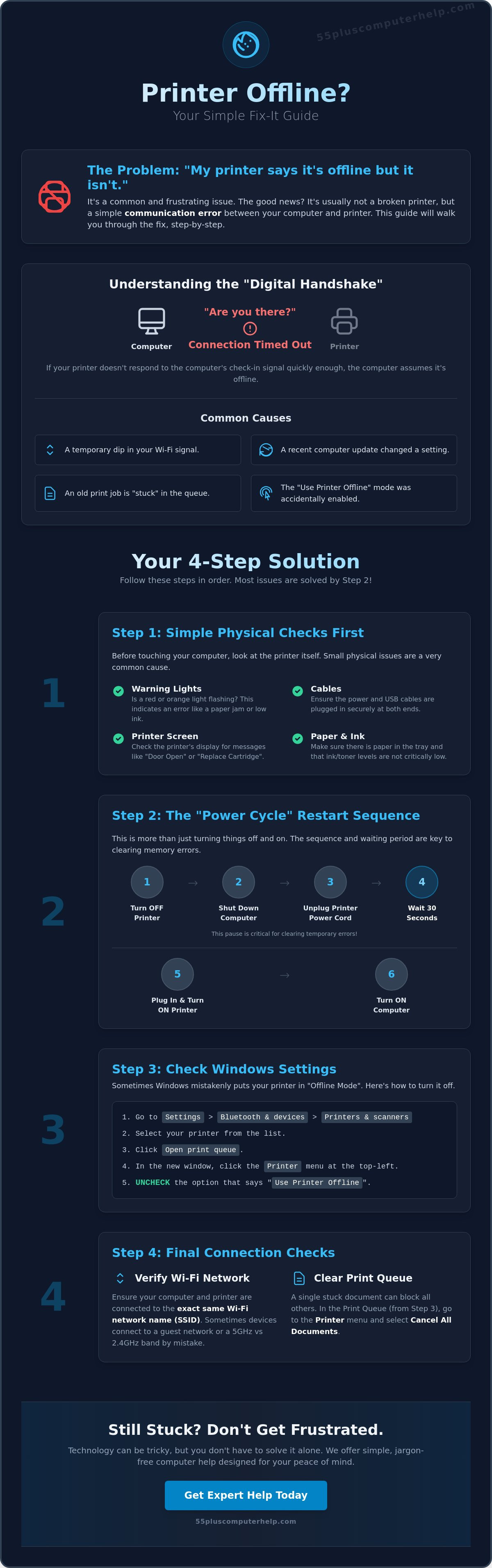
A "Power Cycle" is a fancy way of saying we are going to let the machines rest. This is often the most effective solution. First, turn off your printer using its power button. Next, shut down your computer completely. Unplug the power cord from the back of the printer. Wait for exactly 30 seconds. This short pause allows the internal memory to clear out any old errors. Plug the printer back in and turn it on. Once the Wi-Fi light stays solid, turn your computer back on. This fresh start often fixes the communication gap immediately.
How to Uncheck the 'Use Printer Offline' Setting
Windows computers have a feature that is meant to be helpful, but it often causes confusion. If your computer loses contact with the printer for even a second, it might decide to stop trying. To save time and energy, Windows checks a hidden box called "Use Printer Offline." The problem is that Windows does not always uncheck that box once the connection returns. This is a very frequent reason why my printer says it's offline but it isn't. You can see the printer sitting right there, but the software has essentially put up a "Do Not Disturb" sign. Removing this sign is a simple process that only takes a few clicks.
It is important to know that you didn't do anything wrong to cause this. Technology sometimes tries to be too smart for its own good. When my printer says it's offline but it isn't, this hidden setting is the most likely culprit. We will walk through the steps to find this menu together. You don't need to worry about breaking anything. We are simply telling the computer to start talking to the printer again.
Finding Your Printer Settings in Windows
Navigating the settings menu can feel like walking through a maze, but we will use the most direct path. Look for the magnifying glass or the white bar at the very bottom of your screen. This is the Search bar. Type the word "Printers" into that bar. A result should appear that says "Printers & Scanners." Click on that option. You will see a list of all the devices your computer knows. Look for your specific printer in this list. It might have a small note under its name that says "Offline" or "Not Connected." Click on your printer's name to see more options, then look for a button that says "Open Print Queue" or "Manage."
Clearing the 'Offline' Checkmark
Once you click "Open Print Queue," a new small window will pop up. This window usually shows a list of documents waiting to be printed. Look at the very top left corner of this window for a tab labeled "Printer." Click that word once. A drop-down menu will appear with several options. Look toward the bottom of that list for the line that says "Use Printer Offline." If you see a small checkmark next to those words, that is our problem. Click that line once with your mouse. The checkmark will disappear, and the window should update. In many cases, your printer will hum to life and start printing your documents immediately.
Checking Your Wireless Connection and Print Queue
Wireless printing is a wonderful convenience. It feels like magic to send a document from your lap to a machine across the room. However, this convenience relies on a steady digital connection. You might feel a bit of anxiety when my printer says it's offline but it isn't. This often happens because the devices are not on the same digital "channel." We need to make sure they are both using the exact same home network.
Many modern routers create two or three different Wi-Fi signals. One might be for your main use, and another might be a "Guest" network for visitors. If your printer is on the guest signal but your computer is on your private one, they will not communicate. It is like trying to mail a letter to a house that is on a different street. They are close to each other, but the delivery path is blocked. If you find these network settings confusing, our team offers expert internet and Wi-Fi troubleshooting to get your devices talking again.
The Wi-Fi Name Match Test
Your first step is to check the settings on the printer itself. Use the small screen on your printer to find the "Network" or "Wi-Fi" menu. Look for the name of the network it is using. This name is often called the SSID. Write this name down exactly as it appears. Now, look at your computer. Click the Wi-Fi icon at the bottom of your screen and see which network you are using. The names must match perfectly. If your computer accidentally connected to a neighbor's signal or a guest network, your printer will appear as "offline" to the system.
Clearing the Print Queue
Sometimes the connection is fine, but the "line" is clogged. Your computer uses a print queue to keep your documents in order. If one document has an error, it can act like a stuck car in a one-lane tunnel. No other documents can pass through. To fix this, follow these steps:
- Open your printer settings as we did in the previous section.
- Click on "Open Print Queue."
- Look for any document that says "Error" or "Paused."
- Click the "Printer" menu at the top and select "Cancel All Documents."
Wait for the list to become completely empty. This might take a minute. Once the queue is clear, your computer's "traffic controller," known as the Print Spooler, can start fresh. This simple clearing of the path often resolves the error where my printer says it's offline but it isn't. After the queue is empty, try printing just one page to see if the connection has returned.
Getting Expert Help When You Need It
Sometimes technology remains stubborn despite your best efforts. You have walked through the physical checks and adjusted the background settings, yet the connection remains broken. It is a very common experience to feel stuck when my printer says it's offline but it isn't. This is why having a patient mentor can make such a significant difference. A skilled professional can look past the surface errors to find the hidden software conflict that is causing the trouble.
Our goal is to turn these moments of frustration into meaningful learning experiences. Instead of just fixing a machine, we focus on helping you understand your system better. This approach reduces tech-related anxiety and builds your confidence for the next time a digital hiccup occurs. You deserve a supportive environment where your questions are answered with care, patience, and absolute clarity.
When to Call a Professional
You should consider reaching out if the error persists after you have cleared the print queue and verified your Wi-Fi name. In some cases, deeper system issues like virus and malware removal are necessary to restore full communication between your devices. You might also want help when setting up a brand-new printer to ensure it is configured correctly from the very first day. A professional can verify that your security settings are not accidentally blocking your devices from talking to one another.
The 55 Plus Computer Help LLC Difference
At 55 Plus Computer Help LLC, we believe in a neighborly and empathetic approach to technical support. We offer one-on-one sessions that are completely tailored to your specific pace and comfort level. We never use confusing jargon or rush you through a solution. Whether you need a quick fix through our secure remote support or an onsite visit for a more complex setup, 55 Plus Computer Help LLC is dedicated to your success. We prioritize your independence, ensuring you feel empowered to master your technology with the right guidance by your side.
Take Control of Your Home Printing
You now know that a printing error is often just a digital misunderstanding. By checking for loose cables and clearing the "Use Printer Offline" setting, you can resolve most issues on your own. It is a great feeling to solve a problem when my printer says it's offline but it isn't. You also have the skills to verify your Wi-Fi connection and clear a stuck print queue.
If these steps feel a bit much or if the error keeps coming back, we are here to help. You can Get Patient, In-Home Printer Support Today to ensure your technology works perfectly. Our team provides expert support tailored for seniors with patient, jargon-free explanations. We are available for onsite visits or remote help to get you back on track.
You don't have to face technical hurdles alone. With a bit of patience and the right mentor, you can master your home office. We look forward to helping you stay connected.
Frequently Asked Questions
Why does my printer say offline when the Wi-Fi light is on?
The Wi-Fi light means your printer has a signal, but it does not guarantee your computer can see it. Your computer and printer might be on different Wi-Fi bands, such as a 2.4GHz and a 5GHz network. It is also possible that a security setting is blocking the two devices from talking. This is a common reason why my printer says it's offline but it isn't. Ensuring both devices are on the exact same network name usually solves this.
How do I force my printer to go back online?
You can often fix this by unchecking the "Use Printer Offline" setting in your computer's printer menu. Open your "Printers & Scanners" settings and click on "Open Print Queue." Under the "Printer" tab at the top left, make sure there is no checkmark next to "Use Printer Offline." This simple step tells the computer to stop ignoring the device and try to communicate again.
Will a virus or malware make my printer stop working?
Yes, certain types of malicious software can disrupt the background services that manage your printing. Malware might slow down your home network or disable the software that helps your devices communicate. If your printer stopped working suddenly after you noticed other strange behavior on your computer, a security check is a good idea. We can help you with virus and malware removal to ensure your system is safe and your printer stays connected.
Do I need to reinstall my printer drivers to fix this?
You don't always need to reinstall them, but it is a helpful step if other fixes fail. Recent Windows 11 updates in early 2026 changed how some older printers connect to the system. Sometimes the computer just needs the newest version of the printer's "instruction manual," which is what a driver is. This ensures your computer knows exactly how to speak the printer's language after a major software update.
Can I use my printer if it is connected with a USB cable instead of Wi-Fi?
Yes, using a USB cable is a very reliable way to bypass wireless connection problems. A physical cable provides a direct path for your data and is less likely to be affected by Wi-Fi signal drops or router glitches. If my printer says it's offline but it isn't while using Wi-Fi, plugging in a cable can often get you back to work immediately without any complicated network troubleshooting.
What is a 'Print Spooler' and does it matter?
The Print Spooler is a background service that acts like a traffic controller for your documents. It holds your print jobs in a line and sends them to the printer one by one. If this service gets "stuck" or crashes, your printer will appear offline even if the hardware is fine. Restarting the spooler clears this digital traffic jam and allows your documents to reach the printer as intended.


