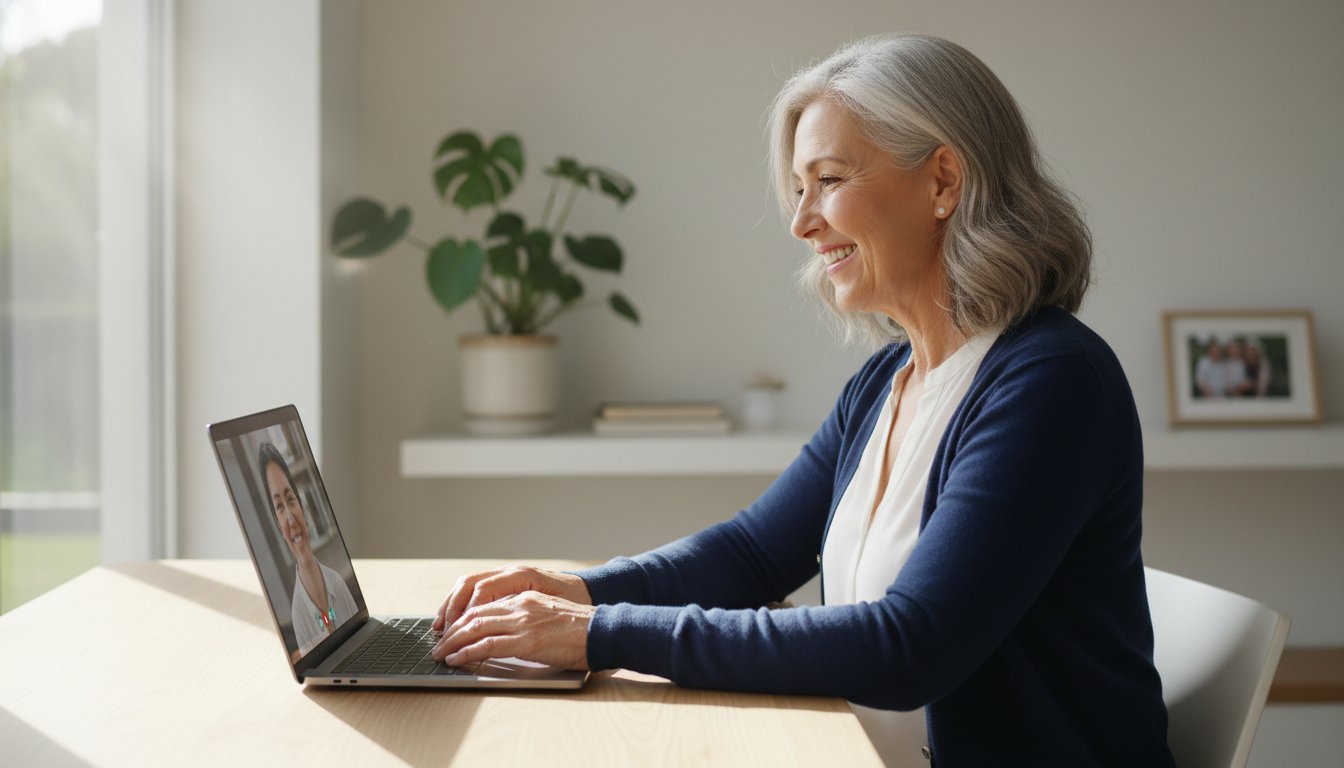
Did you know that 77% of seniors report needing someone to guide them through using a new website or social media platform? Even though 70% of adults over 50 now own a laptop, many people still feel a sense of dread when a new update appears. It's frustrating to feel like you're one wrong click away from a major mistake or a confusing error message.
We understand that technical jargon can feel like a foreign language. It's completely normal to want a safe, repeatable routine that removes the fear of the unknown. Being a senior with computer access should mean more freedom to connect with family, not more stress. This guide provides a patient, step-by-step approach to help you master your device with ease.
You'll learn how to set up your computer, protect yourself from modern scams, and navigate systems like Windows 11 or macOS 17. We'll show you how to handle email, enjoy video calls, and even troubleshoot minor issues on your own. By the end of this article, you'll have the tools and the confidence to use your technology safely and independently.
Key Takeaways
- Set up a comfortable workspace that reduces eye strain and makes your device easier to use.
- Use the "Home Base" method to navigate your screen confidently and understand what common icons mean.
- Learn how a senior with computer access can navigate the internet safely and avoid common scams.
- Understand when to use DIY troubleshooting and when to call a patient mentor for personalized help.
Getting Started: Why Every Senior with a Computer Can Succeed
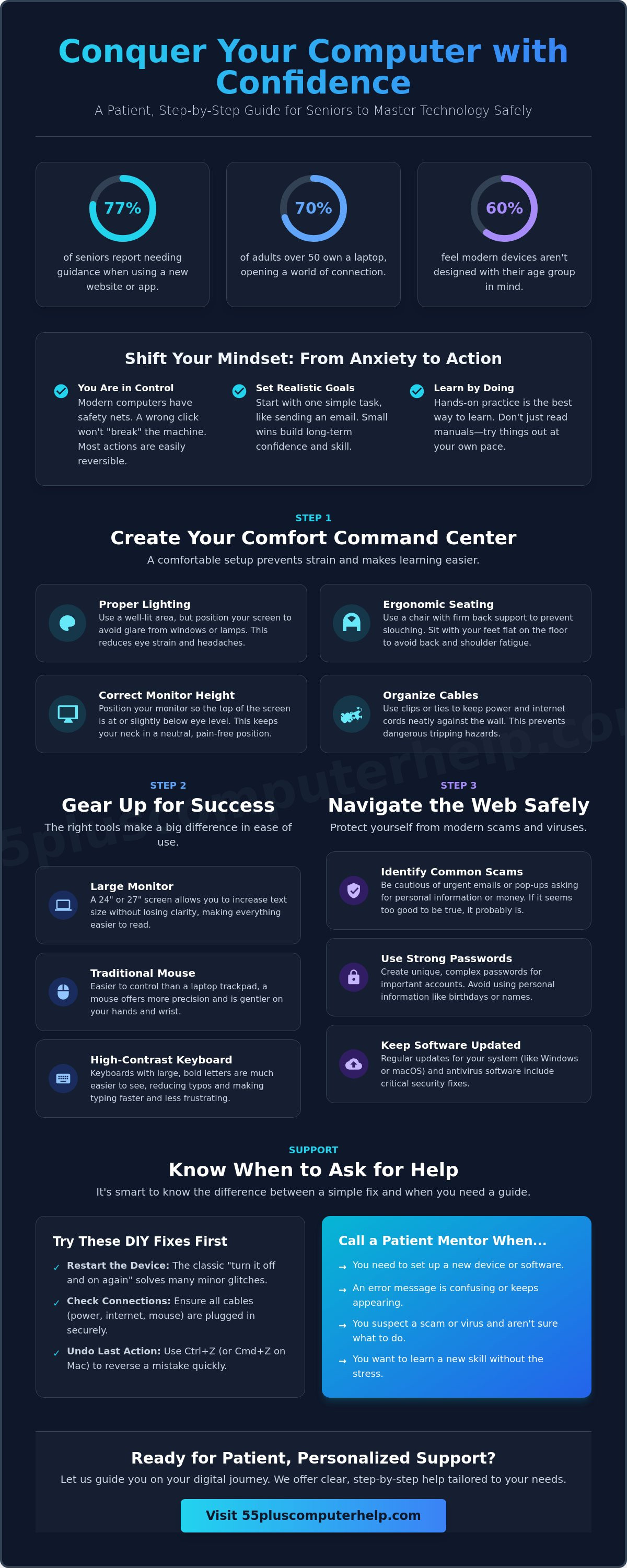
It is perfectly normal to feel a bit nervous when you first sit down at your desk. Technology changes fast, and 60% of older adults feel that modern devices aren't designed with their age group in mind. If you are a senior with computer access for the first time, or just upgrading to a new system, that feeling of being overwhelmed is a common starting point. You aren't alone; 77% of seniors report needing a little guidance when they encounter a new website or social media platform. We are here to provide that support with patience and clarity.
Many people worry that one wrong click will "break" the machine or delete every file. This is a myth. Modern computers are built with many safety nets. You won't cause a physical breakdown by clicking a button. Most mistakes are easily reversible with a simple "undo" command or by restarting the device. Think of this process like learning to drive a new car. You might need to adjust the seat and mirrors, but you'll soon be moving with confidence. The hardware is resilient, and your skills will grow with every click.
Embracing technology offers life-changing rewards that make the initial effort worthwhile. It allows you to see high-resolution photos of your grandkids instantly. You can manage your health appointments through online portals or order groceries without leaving home. This independence is the true goal. To get there, we use the "Patient Mentor" approach. This means learning at your own speed, without judgment or pressure. Understanding What is Digital Literacy? is simply about gaining the skills to live, learn, and work in a society where communication and access to information is increasingly digital.
Overcoming the Technology Anxiety Gap
Technology anxiety is a manageable hurdle that shouldn't stop you from enjoying the digital world. The best way to beat this fear is through hands-on practice rather than just reading manuals. When you feel stuck, take a deep breath and use this simple mantra: "I am in control, and I can always start over." This mindset helps every senior with computer skills grow more comfortable every day. Learning by doing builds the muscle memory you need to feel safe online.
Setting Realistic Goals for Your Digital Journey
Don't feel like you have to master every app on day one. Start with one simple task, like sending an email to a friend or looking up a recipe. Focus on that single success before moving to more complex software. Small wins are the building blocks of long-term confidence. You don't need to know how the entire internet works to be a successful user; you only need to know the parts that make your life better and easier. Celebrate each new thing you learn, no matter how small it seems.
Step 1: Creating a Comfortable and Safe Physical Workspace
Setting up your space is just as important as learning the software. Many people quit using their devices because they get a sore neck or tired eyes. A senior with computer setup that is physically comfortable will find it much easier to stay engaged. Research from 2026 shows that 48% of seniors need help setting up a new device, and physical comfort is a big part of that process. Start by choosing a well-lit area. Natural light is great, but make sure it doesn't cause a glare on your screen. Glare makes the eyes work harder and can cause headaches after just twenty minutes of use. Good lighting makes the keys easier to see and reduces eye strain during your sessions.
Your chair is your next priority. Use a chair that provides firm back support. This prevents the slouching that leads to shoulder fatigue. Position your monitor so the top of the screen is at eye level. This keeps your neck in a neutral position and prevents neck pain. Finally, look at your floor. Organize your power cables and internet cords. Use clips or ties to keep them against the wall. This prevents tripping hazards in your home office. Staying safe while you explore the benefits of technology for seniors is our top priority.
Essential Hardware for Senior Users
The right tools make a huge difference in your daily experience. While laptops are portable, their small screens can be hard to read. A large external monitor, perhaps 24 or 27 inches, allows you to increase text size without losing clarity. Many people also find a traditional mouse easier to control than a small laptop trackpad. A mouse offers more precision and is gentler on your hands. You might also consider a high-contrast keyboard. These have large-print letters that stand out, making typing much faster and less frustrating for a senior with computer goals to meet.
Connecting to the World: Wi-Fi Basics
Wi-Fi is the invisible signal that brings the internet into your home. It starts at your router, which is the small box provided by your internet company. For the best experience, place your router in a central, open area. Avoid hiding it in a cabinet or behind a heavy sofa. Thick walls and metal objects can block the signal and slow down your browsing. A stable, strong connection is the foundation of all digital activities. If you're having trouble getting connected, our Wi-Fi troubleshooting services can help you get back online quickly.
Step 2: Mastering Navigation and Staying Connected
Learning to navigate your screen is like learning the layout of a new library. Every senior with computer experience starts by finding the "Home Base." This is your desktop, the main screen you see when you turn the machine on. No matter how deep you go into a program, you can always return here to start over. It is your digital safety net. If you ever feel lost or confused, clicking the small icon in the bottom corner will usually bring you right back to this familiar starting point.
Icons are simply digital road signs designed to help you find your way. A small envelope represents your email. A gear symbol usually leads to your settings. A magnifying glass helps you search for files or information. Understanding these little pictures makes the screen feel less like a wall of text and more like a helpful map. Managing your programs is another vital skill. Think of open programs like papers on a physical desk. You can stack them, hide them (minimize), or put them away (close). If you "lose" a program, look at the taskbar at the bottom of your screen. It shows every window you currently have open.
The mouse is your primary tool for interaction, but its two buttons often cause confusion. Use this simple rule to remember the difference:
- Left-Click: This is your "do it" button. Use it to select icons, open links, or click buttons.
- Right-Click: This is your "options" button. It opens a secret menu of extra choices, like "copy," "paste," or "delete."
- Double-Click: Think of this as a "knock on the door" to open a program from your desktop.
Email Basics and Staying in Touch
Email is a wonderful way to receive long letters and high-quality photos from family. Texting is now the primary method of communication for 90% of adults aged 50 and over as of 2026, but email remains the best way to share memories. You can follow our guide on email setup and troubleshooting for seniors to ensure your inbox is organized and secure. When you receive a photo of your grandchildren, you can save it to your computer to look at anytime, even without an internet connection.
Introduction to Video Calls
Video calls bring you face-to-face with loved ones, no matter the distance. You can choose from popular services like Zoom, FaceTime, or Skype depending on what your family uses. Before you start a call, check your "Camera and Mute" settings to ensure people can see and hear you. Position yourself so a lamp or window is in front of you, not behind you. This prevents you from looking like a dark shadow. Being a senior with computer skills means you never have to miss a family gathering or a birthday celebration again.
Step 3: Protecting Your Digital Life from Scams and Viruses
Safety is often the biggest concern for any senior with computer access. It is completely normal to feel anxious about online security. The most important rule to remember is simple: never give your password to someone who calls you on the phone. Legitimate companies like your bank, Amazon, or Microsoft will never call you out of the blue to ask for your login details or personal information. If someone calls claiming there is a problem with your account, hang up and call the company back using a trusted number from your latest statement.
Scammers also use "phishing" emails to try and trick you. These messages often look like they come from your bank or a government agency. They usually create a sense of false urgency, telling you that your account will be closed unless you click a link immediately. Take a moment to look at the sender's email address. If it looks like a jumble of random letters or doesn't match the company's name exactly, it is a fake. Do not click any links or download any attachments from these messages. Simply delete the email and move on with your day.
Keeping your software updated is your best defense against digital intruders. These updates are like new, stronger locks for your digital doors. They fix security holes that hackers use to get into systems. While it might feel annoying to wait for an update to finish, it is a vital part of staying safe. You should also learn to tell the difference between a real system message and a scam. A dangerous scam pop-up often uses bright red colors and loud noises to tell you that your computer is "infected." These are almost always fake. A real security program will simply tell you it has found and blocked a threat without asking you to call a phone number.
Spotting the Signs of a Computer Virus
Even with careful browsing, your computer might occasionally pick up a virus. Watch for signs like sudden slowness, programs that crash frequently, or strange new toolbars that you didn't install. If you suspect something is wrong, you can follow our virus and malware removal guide for clear, professional steps. Remember that malware is simply software designed to be sneaky; catching a virus is a technical issue, not a personal failure on your part.
Creating Strong, Simple Passwords
You don't need a complex code that is impossible to remember. Try the "Passphrase" method by picking three random, unrelated words like "BlueDeskCloud." This is much harder for a computer to guess than a short password with symbols. You can safely keep these written down in a physical notebook stored in a secure drawer at home. This is often safer than using the same simple password for every website you visit. If you ever feel that your security has been compromised, our virus and malware removal team can help you secure your accounts and give you back your peace of mind.
Finding Patient Support: When to Call a Technology Mentor
Sometimes, even with a clear guide, you might hit a wall. It's important to recognize when a technical problem requires professional help rather than a DIY effort. If you find yourself staring at a spinning wheel for more than ten minutes or getting a message about a "system failure," it's time to call in a specialist. A professional setup does more than just turn the machine on; it prevents future headaches by ensuring your security and updates are handled correctly from day one. This proactive approach saves you from the frustration of unexpected errors later on.
A mentor who specializes in the 55-plus community is very different from a standard repair shop. Most shops focus on fixing broken screens or internal parts. A patient mentor focuses on you. This isn't about clinical technical support; it's about building your confidence through education. While community classes are a good start, they often move too fast or leave people behind in a crowded room. One-on-one training ensures that every question you have is answered at your own pace. This personalized approach is what helps a senior with computer goals truly thrive in the digital age.
The Benefits of In-Home Technology Training
Learning on your own equipment is the most effective way to retain new skills. When you are in your own environment, you don't have to worry about how to translate what you learned in a lab to your desk at home. A tech mentor can also customize your computer to fit your specific needs. This might include increasing the font size for better visibility or adjusting the sound settings to help with hearing. These small changes make a huge difference in how much you enjoy your device. By working with the same expert over time, you build a relationship with someone who understands your specific setup and your unique learning style.
Your Next Steps to Digital Independence
You've already taken a big step by reading through this guide. We encourage you to try just one new thing today. Perhaps you can send a test email to a friend or look up a local news story. Don't worry about mastering everything at once. Digital independence is a journey, and every small win counts toward your success. Remind yourself that help is always available if you get stuck or feel overwhelmed. You don't have to do this alone. Whether you need help with a printer or want to learn how to use a new tablet, the right support makes all the difference.
If you're ready to move forward with expert guidance, we are here to support you. You can Contact 55 Plus Computer Help LLC for patient, expert assistance today. We'll help you transform tech frustration into a sense of security and accomplishment.
Take Charge of Your Digital World Today
You now have a practical roadmap to transform your relationship with technology. By focusing on a safe physical setup and mastering the basics of navigation, you've moved past the most common hurdles that cause frustration. Protecting your digital life isn't about memorizing complex rules; it's about building a repeatable routine that keeps you in control of your data. Every senior with computer access has the potential to stay connected and independent with the right patient approach.
Professional guidance ensures that you never have to struggle through a technical glitch alone. Since 2014, our team has provided specialized, jargon-free support that respects your time and your specific learning style. Whether you need assistance with virus removal or setting up a new device from scratch, we focus on making the process easy and rewarding. Empower yourself with personalized technology help from 55 Plus Computer Help LLC and discover how simple staying connected can be. Your digital independence starts with a single step, and we are ready to walk beside you.
Technology is a tool meant to enhance your life, not complicate it. Take your time, celebrate your progress, and remember that expert support is always just a phone call away. You are ready to explore the digital world with confidence.
Frequently Asked Questions
Can I break my computer by clicking the wrong thing?
You cannot break your computer's hardware by simply clicking a menu or an icon. Modern software is designed to be resilient, and most mistakes are easily fixed with a restart or an "undo" command. If you are a senior with computer worries, remember that you won't cause a physical breakdown through normal use or accidental clicks.
Is it too late for me to learn how to use a computer at 70?
It is absolutely not too late to learn. Data from early 2026 shows that 61% of adults aged 65 and older already own a smartphone, and that number continues to rise. Many people start their digital journey in their 70s or 80s and successfully learn to navigate the web with a bit of patient, one-on-one guidance.
What is the easiest computer for a senior to use?
A tablet or a laptop with a large, bright screen is often the easiest choice for beginners. 58% of adults over 50 now own a tablet because these devices use simple touch gestures instead of a complex mouse. If you prefer a laptop, look for one with a 15 inch screen or larger to make reading much easier on your eyes.
How do I know if an email is a scam or a real message?
A real message from a bank or government agency will never ask you to provide your password or social security number through a link. Check the sender's email address for random letters or misspellings that don't match the company name. Federal laws passed in 2026 provide stricter penalties for scammers, but staying alert is still your best defense.
Do I need to pay for expensive antivirus software?
You don't always need to buy extra security software to stay safe online. Most modern computers come with high-quality built-in protection, such as Windows Defender, that updates automatically. These tools are very effective for daily browsing. You only need to pay for additional help if you suspect a virus has already entered your system.
What should I do if my computer screen suddenly freezes?
The best solution for a frozen screen is to perform a hard restart. Hold the physical power button down for a full 10 seconds until the screen goes black, then turn it back on normally. This simple step clears out temporary errors and solves the majority of common technical glitches without losing your permanent files.
Why is my internet so slow today?
Slow speeds are often caused by the physical location of your router in your home. Make sure your router isn't hidden behind a TV or inside a metal cabinet, as these objects block the signal. If the speed is still low, check your connection on a different device to see if the problem is with your internet provider.
How can I see my grandkids' photos on my computer?
You can view photos by opening email attachments or using social media platforms like Facebook. While texting is now the primary communication for 90% of seniors, email is still better for seeing large, clear images. Once you open a photo, a senior with computer skills can easily save it to a "Family" folder for permanent viewing.


