
Imagine the excitement of receiving an email from your granddaughter with an invitation to her birthday party, only to feel a wave of anxiety when you see a blue link and a passcode. You want to see her smiling face, but the fear of clicking the wrong button or having your audio fail can feel overwhelming. You aren't alone in this feeling. This step-by-step guide to using Zoom for beginners is designed to take that weight off your shoulders. We focus on making technology work for you, not against you.
It's completely normal to worry about looking silly on camera or accidentally muting yourself while everyone else is talking. We believe that technology should bring us closer to the people we love, not create a barrier. By following this guide, you'll learn how to join calls with confidence so you can hear every laugh and see every smile clearly. We'll walk through the "Big Three" buttons you actually need to know, how to handle those confusing links, and how to ensure your sound is perfect every time. You'll soon feel independent and ready to connect with your family whenever you like.
Key Takeaways
- Learn how Zoom makes it easy to see and hear your loved ones clearly on your computer, tablet, or smartphone.
- Follow our step-by-step guide to using Zoom for beginners to download and set up the software without any technical confusion.
- Gain the confidence to join any meeting by simply clicking the blue link in your email or text message.
- Master the most important controls so you can easily turn your camera on and manage your microphone.
- Discover how personalized training can help you practice your new skills until you feel completely tech-savvy and independent.
What is Zoom and Why is it So Popular?
Zoom is a simple computer program that lets you see and talk to people over the internet. You can think of it like a television screen that talks back to you, allowing you to see your family in real-time. It's a bridge that closes the distance between you and your loved ones. It has become the most popular choice for video conferencing because it works well even if your internet connection isn't the fastest. For a deeper look at its history and features, you can visit the Zoom (software) Wikipedia page. This tool is now a household name because it is reliable and easy to use for people of all ages.
You don't need to be a computer whiz to master this. Many people feel nervous at first, but the system is designed for everyone. It works on the devices you already own. You can use a desktop computer, a laptop, a tablet, or even a smartphone. This step-by-step guide to using Zoom for beginners will show you that the process is much simpler than it looks. Most family gatherings and local club meetings use the free version of Zoom. This version allows for group meetings up to 40 minutes long, which is usually plenty of time for a good visit. If the meeting ends, you can often just click the same link to start again. Understanding these small details helps you feel more in control. You'll soon realize that you don't need to be a "tech expert" to stay connected with the people who matter most.
The Benefits of Video Calls for Seniors
Video calls offer a special kind of connection that a regular phone call can't match. You can see your grandchildren's new outfits or watch them show off a drawing they made at school. It helps you feel like you are right there in the room with them, even if they live across the country. Beyond family, Zoom is excellent for attending doctor appointments through telehealth services. It's also great for community classes, book clubs, or religious services. You can stay socially active and involved without the stress of driving at night or finding parking. It gives you the freedom to explore new hobbies and maintain friendships from the comfort of your favorite chair.
Do You Need an Account to Use Zoom?
One of the best things about this service is its flexibility. If you are just joining a meeting that someone else organized, you don't need to create an account or sign up for anything. You can simply enter as a guest. This step-by-step guide to using Zoom for beginners is here to help you navigate that first click. You only need to create a free account if you plan on hosting your own meetings and inviting others to join you. When you join as a guest, you typically don't even need to remember a password to get into the call. Most of the time, clicking the link is the only step you need to take to see your friends on the screen.
How to Install Zoom on Your Device: A Step-by-Step Guide
Before you can see your family, you need to get the right tool onto your device. Think of this like putting a new book on your shelf or a new appliance in your kitchen. First, you must decide which device you want to use. Many people prefer a desktop or laptop because the screen is larger. Others like the portability of a tablet or a smartphone. No matter which you choose, always look for the blue square icon with a white video camera in the middle. This is the official symbol for Zoom. This step-by-step guide to using Zoom for beginners will help you get that icon onto your screen with ease.
Installing Zoom on a Desktop or Laptop
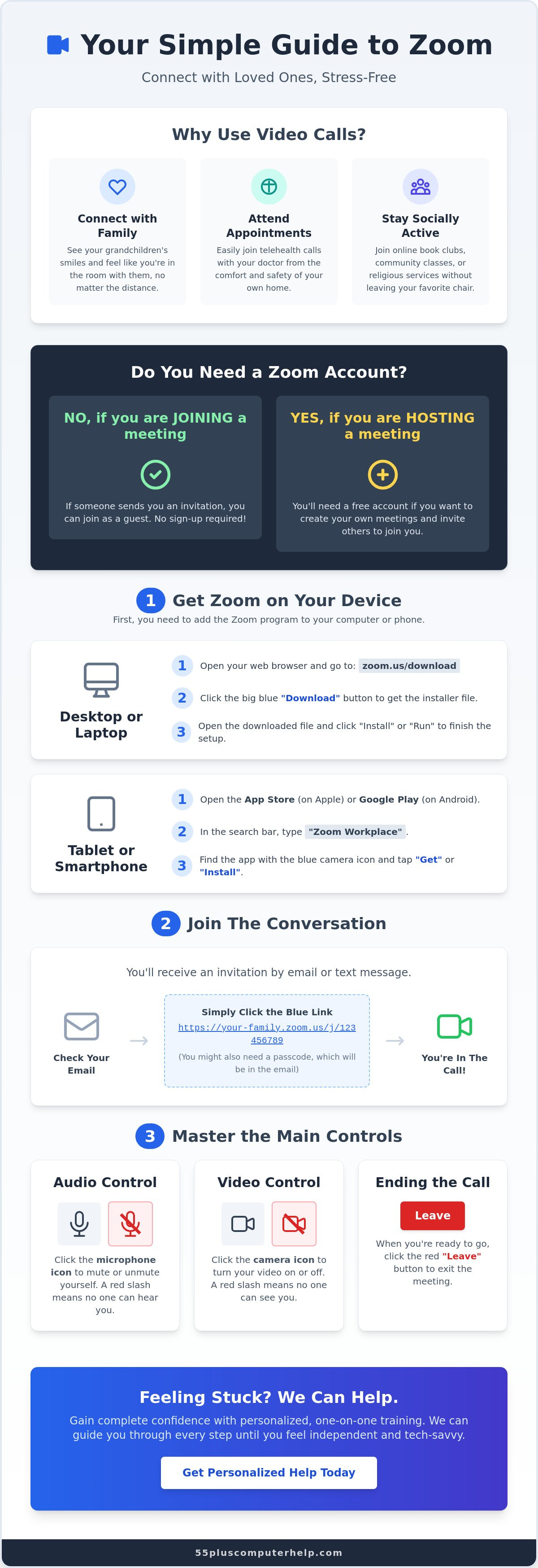
To get started on a computer, open your internet browser and go to zoom.us/download. You will see a big blue button that says "Download." Click it, and a small file will appear at the bottom or top of your screen. Open that file and follow the simple instructions that pop up. You might see words like "Install" or "Run." Just click those buttons to let the computer finish the work for you. If you want more details from the source, you can check Zoom's official getting started guide for extra clarity. If you feel stuck during this part, our team can provide software installation and updates to handle the technical setup for you.
Downloading the Zoom App on an iPad or Smartphone
If you are using a tablet or a phone, the process is slightly different. Open the place where you usually get new apps. This is the "App Store" on an iPad or "Google Play" on an Android phone. In the search bar at the top, type in "Zoom Workplace." You'll see several options, but you want the one with that familiar blue camera icon. Tap the "Get" or "Install" button. Your device will take a moment to download the app. Once it's finished, a new icon will appear on your home screen. You're now ready to join your first meeting. This step-by-step guide to using Zoom for beginners is your roadmap to making those first connections. It's a simple process that gives you a lot of independence once it's done. You won't have to do this every time; once the app is there, it's ready whenever you are.
Joining a Meeting: From the Invitation to the Waiting Room
Most invitations arrive as an email or a text message. It can look a bit cluttered with numbers and text, but you only need to focus on one specific part. Look for the blue link that starts with "https://zoom.us." This link is your digital key to the room. Along with the link, you'll see a Meeting ID and a Passcode. It's a good idea to write these down on a piece of paper just in case. You don't need to sign into an account to use these; the link does the heavy lifting for you.
Try to click your link about five minutes before the scheduled start time. This gives you a small cushion of time to settle in and make sure everything is working. This step-by-step guide to using Zoom for beginners is meant to help you feel prepared, so taking those extra few minutes can really lower your stress. You'll feel much more relaxed when the meeting begins if you aren't rushing at the last second. If the link asks for permission to open the app, just click "Allow" or "Open."
What to Do if the Link Does Not Work
Sometimes, clicking the link doesn't take you directly to the meeting. If this happens, don't worry. You can join manually. Open your Zoom app and look for the big "Join" button. When you click it, the app will ask for a Meeting ID. This is the 10-digit number from your invitation. After you type that in, it will ask for the Passcode. Be sure to type the Passcode exactly as it appears, including any capital letters. For a quick reference on these steps, you can look at the University of Texas Zoom Quick Start Guide. It provides a simple layout of these essential buttons to help you find your way.
Understanding the Waiting Room
Once you click the link or enter the ID, you might see a screen that says, "Please wait, the meeting host will let you in soon." This is called the Waiting Room. Think of it like a digital lobby or a front porch. You've successfully arrived at the right house, and now you're just waiting for the host to open the door. Many people think something is wrong when they see this screen, but it actually means you did everything correctly. You don't need to try clicking the link again.
Do not close the window or click "Leave." Just sit back and relax for a moment. The person who invited you will see that you're waiting and will click a button to bring you into the call. This feature is there for security, ensuring only invited guests can enter. This step-by-step guide to using Zoom for beginners emphasizes patience here because your connection is working exactly as it should. Once the host lets you in, the screen will change, and you'll see your friends or family appearing before you.
Mastering the Basics: Audio, Video, and Staying in Control
Once you've entered the meeting, you might feel a little overwhelmed by the different faces and buttons on your screen. Don't worry. You only need to know a few simple tools to have a great conversation. Most of the buttons you'll use are tucked away in the bottom left corner of your screen. If you don't see them, just wiggle your mouse or tap your screen once. This step-by-step guide to using Zoom for beginners focuses on these essential controls so you can stay in charge of your experience at all times.
The first icon you'll see looks like a small microphone. This button controls your voice. If there is a red line through the microphone, you are "muted," and no one can hear you. Simply click it to "unmute" when you want to speak. Right next to it is the camera icon. This works the same way. If there's a red line through the camera, your friends can't see you. Clicking it will start your video so your loved ones can see your smiling face. When the meeting is over, look for the red button in the bottom right corner that says "Leave." Clicking this safely exits the call and brings you back to your home screen.
Solving the "I Can’t Hear Anything" Problem
Many beginners face a common hurdle right when they join. A small box often pops up asking you to "Join with Computer Audio." This is a security permission that many people accidentally ignore. You must click this blue button to let Zoom use your speakers and microphone. If you skip this step, you won't hear a word anyone says. It's a very common mistake, so don't feel bad if it happens to you. If you've already clicked it and still can't hear, check the physical volume buttons on the side of your tablet or the keyboard of your computer. It's often a simple fix that gets the sound back in seconds.
How to Use the Chat Feature
Sometimes you might want to send a quick note without interrupting the person speaking. Look for the icon that looks like a speech bubble labeled "Chat." When you click it, a small window opens where you can type messages. This is very helpful if your microphone isn't working correctly or if you want to share a link or a phone number. Just remember that everyone in the meeting can usually read what you type. It's a great way to stay involved in the conversation while others are talking. If you'd like to practice these steps with a friendly expert, we offer personalized Smartphone and Tablet Training to build your confidence and make every call a success.
Getting Personalized Help to Become a Zoom Pro
Learning a new skill is a journey that is often easier with a friend by your side. It is completely normal to feel a bit nervous when you first start using new software. Having a patient mentor makes a world of difference during this process. You can ask questions as they come up without any fear of feeling silly. This type of supportive environment turns a confusing technical task into a simple, manageable activity. Before you begin joining calls regularly, it is a smart idea to make sure your computer is healthy. Expert help with virus and malware removal ensures that your device is secure and ready for the internet. This step gives you peace of mind while you focus on connecting with others.
This step-by-step guide to using Zoom for beginners gives you the basic tools to get started today. However, real confidence comes from practicing those steps in a safe place. One-on-one training allows you to test your camera and microphone without the pressure of a live family event. You don't have to worry about making a mistake in front of a large group of people. Instead, you can take your time to learn where every button is located. This practice builds a sense of digital independence that feels very rewarding. You will soon realize that you are fully capable of handling these tasks on your own. Mastering these tools is a major step toward feeling tech-savvy and self-assured in our modern world.
Why Personalized Training Beats YouTube Videos
YouTube videos are popular, but they can often move too fast for a beginner. A video cannot see your screen or know which version of the app you are using. A live instructor provides a much better experience because they can answer your specific questions in real-time. They can wait patiently while you look for a specific icon or menu. You get to practice on your own equipment in the comfort of your favorite chair at home. This tailored pace ensures that you never feel left behind or overwhelmed by too much information at once. It is a much more human way to learn technology.
Staying Connected Safely and Effectively
Mastering your email is also a vital part of staying connected through Zoom. Most invitations will come directly to your inbox, so you need to feel comfortable finding and opening them. If you ever have trouble receiving your invites, you might find our guide on email setup and troubleshooting for seniors very helpful. Learning how to manage your email and your video calls together gives you a complete set of skills. You will have the power to navigate the digital world safely and effectively. This independence allows you to stay in touch with your community and your family whenever you wish. You deserve to feel confident every time you turn on your computer or tablet.
Ready to Connect with Confidence?
Staying in touch with your family and friends should be a joy, not a source of stress. This step-by-step guide to using Zoom for beginners has shown you that you can master the most important buttons and join meetings with ease. You now know that the waiting room is a normal part of the process and that you have full control over your camera and microphone. These small steps lead to big rewards when you finally see your grandchildren's faces clearly on your screen.
If you still feel a bit unsure, we are here to help you every step of the way. We have over 10 years of experience helping seniors feel comfortable and safe with their technology. Whether you prefer in-home or remote support, we provide patient, tailored lessons for your specific smartphone, tablet, or computer. Book a patient, one-on-one technology lesson today to build your skills in a stress-free environment. You have the ability to become tech-savvy and independent, and we would be honored to show you how. You're doing a great job, and those smiling faces are just one click away.
Common Questions About Zoom
Do I have to pay to use Zoom to talk to my family?
You don't have to pay anything to join a meeting or host a short visit with your family. Zoom offers a "Forever Free" plan that allows you to talk with a group for up to 40 minutes at a time. If your meeting reaches the limit, you can simply start a new one and invite everyone back. This makes it a wonderful, cost-free way to stay connected with your grandchildren and friends.
Can people see me if my camera is turned off?
No, people cannot see you if your camera is turned off. You can always tell if your camera is active by looking at the video icon in the bottom left corner of your screen. If there's a red line through the camera symbol, your video is off. This gives you total control over your privacy. You can turn it on or off at any time during the call.
Why does my voice sound like an echo during the call?
An echo usually happens when two people in the same room are on the call at the same time. It can also occur if your volume is turned up very high and your microphone picks up the sound from your speakers. To fix this, try lowering your volume or using a pair of headphones. Moving away from other devices in the house often solves the problem instantly.
Is Zoom safe for seniors to use on their home computers?
Zoom is safe to use as long as you only click on links from people you know and trust. This step-by-step guide to using Zoom for beginners helps you recognize the correct links and icons to stay secure. It's also helpful to keep your computer software updated to ensure you have the latest security features. Following these simple habits will keep your personal information protected while you enjoy your calls.
What happens if I accidentally click the wrong button?
Nothing terrible will happen if you click the wrong button. Most buttons simply open a new menu or change your view of the other participants. If you feel lost, you can always click the red "Leave" button and join the meeting again using the same link. Technology is very resilient, and you won't break anything by exploring the different icons on your screen. Don't be afraid to experiment a little.
Do I need a special camera to use Zoom on my desktop computer?
Most modern laptops and tablets already have a camera built into the top of the screen. If you're using an older desktop computer, you might need a small external camera called a webcam. These simply plug into the back of your computer. If you're unsure if your computer has one, look for a small glass circle at the very top of your monitor. If you don't see one, a basic webcam is very affordable.
Can I use Zoom on my tablet without a computer?
Yes, you can use Zoom on your tablet without ever needing a computer. The Zoom app is designed to work perfectly on iPads and other tablets. Many people find tablets easier to use because they can carry them to a comfortable chair or the kitchen table. You just need a reliable Wi-Fi connection to enjoy clear video and sound during your family visits. It's a very convenient way to stay in touch.
What should I do if I forget the meeting passcode?
You should look back at the original email or text message invitation you received. The passcode is usually listed right under the meeting link. If you can't find it, don't hesitate to call or message the person who invited you. They can easily send the code to you again. It's a very common request, so your host will be happy to help you get into the room. Most people are glad to help you join.


