
Last Tuesday, Martha sat down to look at photos of her new grandson, but her screen suddenly went dark. She felt that familiar knot in her stomach, wondering if she'd finally "broken" the computer for good. Dealing with common computer problems for seniors can feel intimidating, especially when you're worried about making a permanent mistake. It's a stressful moment, but it doesn't have to mean your device is ruined.
We understand that technology often feels overwhelming when it's full of complex jargon and confusing updates. You deserve to feel confident and secure while you're online. This guide explains frequent technology hurdles with simple, patient steps. We'll help you move past the frustration of a slow device or a confusing error message so you can get back to what matters most.
You'll learn how to restore your computer's speed and protect yourself from tech support scams. We also cover helpful new features from the July 2026 Windows 11 update, such as screen tinting for eye strain and improved magnifier controls. By the end of this article, you'll have the tools to solve minor issues on your own and enjoy your technology with total peace of mind.
Key Takeaways
- Learn how to view technology hurdles as "digital dust" that can be easily cleaned away to keep your system running smoothly.
- Discover simple, jargon-free steps to solve common computer problems for seniors that often cause your device to slow down or freeze.
- Gain the confidence to distinguish between minor software glitches and real security concerns so you can stay safe online.
- Identify quick fixes for frustrating connectivity issues with your Wi-Fi, email, and printer to maintain your independence.
- Understand when a problem is a simple fix you can handle yourself and when it is time to call in a patient mentor.
Understanding Common Computer Problems for Seniors
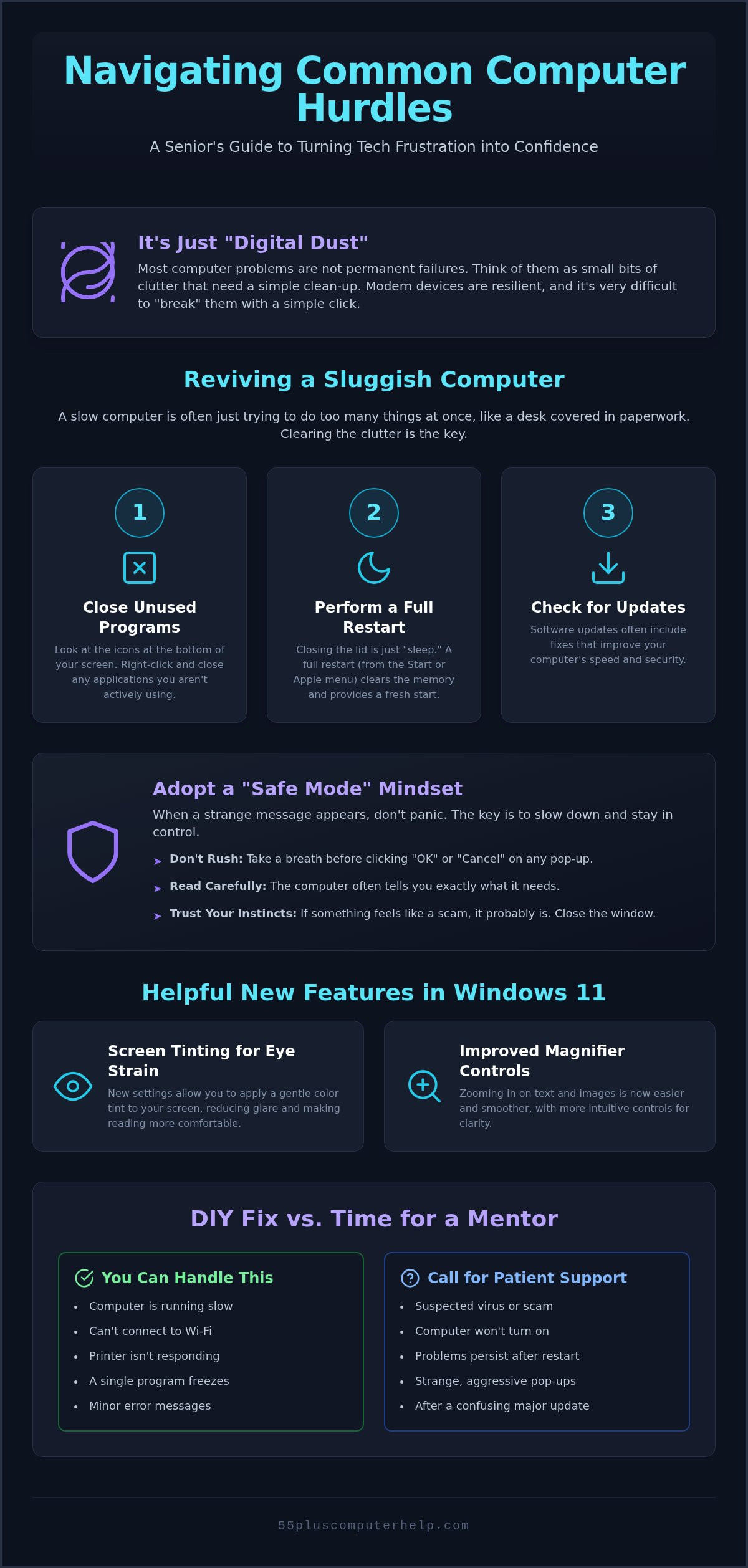
Feeling a bit lost when your screen changes suddenly is a very normal experience. Many people worry that one wrong click will ruin their computer forever. We want to reassure you that modern devices are actually quite resilient. It is very difficult to "break" a computer just by clicking a button. Most common computer problems for seniors aren't permanent failures or signs that you've done something wrong. Instead, think of these issues as "digital dust." Just like a house needs regular dusting, a computer collects small bits of software clutter that need clearing away from time to time.
When you follow basic troubleshooting steps, you are simply performing routine maintenance. Most glitches come from a software update that changed a hidden setting or a program that didn't close properly. These are not signs of a broken machine. They are just small tasks that need a patient hand. You don't need to be a scientist to keep your computer running well. You just need a little bit of guidance and the permission to explore your own device without fear.
Why Tech Feels More Complicated Now
Technology moves at a very fast pace. Software companies frequently push "forced" updates that change how your screen looks without asking you first. You might wake up to find that your favorite button has moved or an icon looks different. This can be very confusing and frustrating. Think of the "user interface" as the steering wheel and dashboard of your computer. When companies redesign this interface, it feels like someone moved the turn signal in your car while you were sleeping. It takes a moment to adjust to the new layout, but your fundamental skills are still there. These changes are usually meant to add security, even if they feel like a nuisance at first.
The 'Safe Mode' Mindset for Troubleshooting
The best way to handle a technology hiccup is to slow down. We call this a "safe mode" mindset. Don't feel rushed to click "OK" or "Cancel" when a box pops up on your screen. Take a breath and read the message carefully. Most of the time, the computer is telling you exactly what it needs to fix the issue. By taking a methodical approach, you can turn a moment of frustration into a sense of digital independence. You have the skills to explore your device safely. Our goal is to help you feel like a confident pilot rather than a worried passenger. Learning to manage common computer problems for seniors is about building your own confidence, one small step at a time.
Slow Performance and Freezing: Reviving a Sluggish Computer
A slow computer is one of the most frustrating common computer problems for seniors. It often happens because the machine is trying to do too many things at the same time. Imagine your computer is like a physical desk. When you first sit down in the morning, the desk is clean and organized. As the day goes on, you pull out letters, books, and pens. Eventually, the desk is so covered in paper that you don't have any room left to write. A computer works in a very similar way. Every program you open is like a piece of paper on that desk. If you leave too many things open, the computer runs out of "space" to think, and everything starts to crawl.
One of the biggest culprits of this sluggishness is the web browser. If you have dozens of different "tabs" or windows open at the top of your screen, your computer is working hard to keep all those pages ready for you. Closing the ones you aren't using is a quick way to clear the digital clutter. If things still feel slow, it's time for the "First Rule of Tech." A simple restart can solve a huge number of issues. Many people just close the lid of their laptop, which puts it in "Sleep" mode. This doesn't actually clear the desk. A full restart wipes the slate clean and lets the computer start fresh with a clear memory.
Simple Steps to Speed Up Your PC or Mac
- Step 1: Look at the bottom of your screen (on a PC) or the dock (on a Mac). Right-click and close any program you aren't currently using.
- Step 2: Perform a full restart. Click the "Start" or "Apple" menu and select "Restart." This is different from just turning the screen off and on.
- Step 3: Check for pending updates. Computer companies often release small fixes that improve speed and security. If you find this process confusing, a patient mentor can help you with software installation and updates to keep your device running at its best.
Managing Your Start-Up Programs
Some programs are a bit pushy. They decide to start running the very second you turn on your computer, even if you didn't ask them to. You can see these programs hiding in the "System Tray" on a Windows computer, which is the group of small icons near the clock in the bottom right corner. On a Mac, look at the "Menu Bar" at the very top of your screen. If you see icons for things you never use, they are likely slowing down your machine's start-up time. Removing these from your "Start-Up" list is a great way to make an older computer feel like new again. It frees up the computer's energy so it can focus on the tasks you actually want to do, like video calling family or browsing photos. Addressing these common computer problems for seniors is the first step toward a much more enjoyable experience.
Security Fears: Identifying Scams and Malware Safely
The fear of being scammed or catching a virus is often the biggest hurdle to enjoying technology. It's a very valid concern. In 2025, the FBI's Internet Crime Complaint Center reported that individuals aged 60 and older lost over $7.7 billion to scams. This represents a 37 percent increase from the previous year. However, you don't have to live in fear. Most security issues are actually common computer problems for seniors that you can manage with a few simple rules and a calm approach.
Many people use the word "virus" to describe anything that goes wrong. In reality, most threats today are "malware." This is software designed to trick you into giving away your personal information. It isn't a mysterious force that breaks your computer through the air. It's usually a trap that needs your permission to work. If you suspect your device has been compromised, you can follow our patient guide on Virus and Malware Removal to secure your computer.
The best tool you have is your own intuition. If a message on your screen feels scary or pushy, it's probably a scam. Scammers want you to feel like you've done something wrong. Trust your gut. If something looks strange, it likely is. You always have the power to simply close the window or turn off the machine to stop a scam in its tracks.
Common Red Flags of an Internet Scam
Scammers rely on making you feel panicked. They want you to act before you have time to think. Look out for these specific warning signs:
- Extreme Urgency: Any pop-up that says your computer is "infected" or "locked" is a lie. These are fake alerts designed to scare you into calling a fake support number.
- Requests for Personal Info: Legitimate companies will never ask for your passwords or Social Security number through an email link.
- Unsolicited Phone Calls: It's a firm rule that Microsoft and Apple will never call you out of the blue to tell you there's a problem with your computer.
Staying Secure with Regular Maintenance
Keeping your computer safe is like locking your front door at night. Good antivirus software acts as a "digital shield" that stops threats before they reach you. It works quietly in the background so you don't have to worry about it every day. You're also much safer when you keep your operating system updated. These updates include security patches that fix the holes scammers try to use. For more help with secure logins and protecting your personal messages, see our guide on Email Setup and Troubleshooting. By staying proactive, you can handle these common computer problems for seniors and browse the web with total peace of mind.
Connectivity Troubles: Fixing Wi-Fi, Email, and Printer Issues
It is incredibly frustrating when you sit down to print a recipe or check your email and nothing happens. You might see a message saying your printer is "Offline" or your internet has "dropped." These are some of the most common computer problems for seniors, but they often have very simple solutions. Before you worry about a major software failure, always check the physical parts of your setup. Sometimes, a vacuum cleaner or a curious pet might have nudged a cable just enough to break the connection. A quick look at the cords behind your computer or printer is the best place to start.
Connectivity issues also affect your communication with family. If you aren't seeing new messages from your grandkids, your email might have stopped "syncing" or updating. This doesn't mean your account is gone. It usually just means the connection between your computer and the email service needs a little nudge. If these steps feel overwhelming, our team can provide Internet and Wi-Fi troubleshooting to get you back online quickly and safely. We focus on making these connections reliable so you can stay in touch with the people you love.
The 'Unplug and Plug Back In' Method
Electronic devices have a small "brain" that can sometimes get confused. When your printer refuses to work or your Wi-Fi stops, resetting that brain is a great first step. Simply unplug the power cord from the back of the device. Wait for at least 30 seconds. This allows the electricity to fully drain away so the device can start fresh. Plug it back in and give it a minute to wake up. For printers, also check for a small orange light that might signal a paper jam or low ink. Sometimes, a printer is simply "Paused" in the settings, which you can fix with a single click.
Recovering Lost Passwords and Email Logins
Login failures are often caused by the smallest details. The "Caps Lock" key is the most frequent reason for a password error. If that key is on, your password will be wrong every time. We always recommend keeping a physical, secure "password book" in your home. Writing passwords down on paper is a safe way for you to stay independent without having to memorize dozens of complex codes. If you do get stuck, don't fear the "Forgot Password" link. It is a helpful tool designed to send a reset code to your phone or a secondary email. It is a safe and standard way to regain access to your digital life without feeling like a burden to others. Managing these common computer problems for seniors is much easier when you have a clear plan.
Mastering Your Device: When to Seek Professional Support
Solving common computer problems for seniors is often about knowing when to try a simple restart and when to call for a helping hand. Most of the issues we have discussed are software hiccups that don't involve physical damage. However, a "hardware failure" is a different story. This happens when the actual parts inside your computer stop working. While a software error can be fixed with a few clicks, a physical break requires a specialized touch to ensure your data stays safe.
If you're feeling stuck, modern technology allows for "remote support." This is a secure way for a patient mentor to look at your screen from their own office with your permission. You can sit back and watch your mouse move as they solve the issue right in front of you. It's a wonderful way to learn because you see the solution happen in real-time. 55 Plus Computer Help LLC provides this service as a warm, in-home alternative to the stressful environment of big retail stores. We don't just fix the machine; we make sure you feel comfortable using it.
Signs You Should Call a Professional
There are certain moments when it's best to step away from the keyboard and ask for expert advice. You should reach out if:
- The computer won't turn on at all, or you hear grinding or clicking noises coming from the laptop or tower.
- You've been a victim of a scam and need a professional security audit to ensure your personal accounts are fully protected.
- You want to learn a new skill, such as organizing your digital photo albums, without the stress of doing it alone.
The Benefits of Patient, Senior-Focused Training
We believe that technology should be a tool for joy, not a source of anxiety. Moving beyond simple repairs toward true digital literacy is life-changing. One-on-one lessons are designed to build your confidence at your own pace. Instead of just fixing common computer problems for seniors, we empower you to stay connected with your family and friends independently. You deserve to use your device with a sense of pride and security. If you're ready to master your computer in a supportive environment, you can schedule a patient, in-home tech session today.
Embrace Your Technology with Confidence
You now have the knowledge to address common computer problems for seniors with a calm and steady hand. Most technology hurdles are not permanent failures. They are simply small maintenance tasks that anyone can learn to manage. By remembering the "First Rule of Tech" and trusting your own intuition, you can keep your device running smoothly and securely. You deserve to enjoy your computer without the fear of making a mistake or the frustration of complex jargon.
Our team has been serving seniors since 2014 with patient, jargon-free instruction designed for your specific needs. We offer both in-home and remote support options to ensure you feel comfortable and well-informed at every step. If you're ready to move past frustration and gain true digital independence, you can get patient, in-home computer help today. Technology is a wonderful way to stay connected, and we are here to make sure it stays that way for you. You have the skills to master your device, and we are honored to help you along the way.
Frequently Asked Questions
Why is my computer suddenly so slow?
Your computer is likely slow because too many programs or browser tabs are running at the same time. Think of it like a desk covered in too much paper. Closing unused windows and performing a full restart clears the memory and allows the machine to think clearly again. This simple step often fixes sluggishness without needing expensive repairs.
Is it safe to leave my computer on all the time?
It is technically safe, but we recommend restarting your computer at least once a week. A fresh start helps clear out temporary files and ensures that important updates finish installing correctly. Developing this simple habit is an easy way to avoid many common computer problems for seniors and keeps your system running at its best speed.
What should I do if a pop-up says I have a virus?
Close the window immediately and do not click any buttons or call any phone numbers on the screen. These flashy messages are almost always fake alerts designed to trick you into paying for unneeded help. Real security software will protect you quietly in the background. It will never use scary language or demand that you call a number to "unlock" your machine.
How do I know if an email is a scam?
Look for signs of extreme urgency, generic greetings like "Dear Customer", or requests for your personal passwords. Legitimate organizations like your bank, Medicare, or the IRS will never ask for sensitive data through an email link. If an email makes you feel panicked or suspicious, it is safest to delete it or call the company directly using a trusted number.
Why does my printer say it's offline when it's plugged in?
This message often means the communication between your computer and the printer has been interrupted. Start by checking that the cables are pushed in firmly at both ends. If that doesn't work, unplug the printer's power cord for 30 seconds to reset its internal brain. This simple physical check solves most printer issues without needing to change complex software settings.
Do I really need to update my software every time it asks?
Yes, you should install updates because they contain vital security patches that protect your personal information. While the changes to your icons or menus can be frustrating, these updates are designed to fix glitches and block new scams. Staying current is one of the most effective ways to prevent common computer problems for seniors and keep your device safe.
What is the difference between a laptop and a tablet for seniors?
A laptop is a traditional computer with a physical keyboard, while a tablet is a thin, portable screen you control with your fingers. Laptops are usually better for writing long letters or storing large photo collections. Tablets are often lighter and easier to use for reading the news or video calling family while sitting in your favorite chair.
Can someone help me set up my computer in my own home?
We offer personalized, in-home support to help you set up your computer and learn how to use it at your own pace. A patient mentor will visit your home to ensure everything is connected properly and working correctly. This one-on-one training builds your confidence and ensures you have a trusted expert to answer your questions in a comfortable environment.


