
Imagine your granddaughter is blowing out her birthday candles, and you're right there on the screen, cheering her on without a single technical hiccup. It's a wonderful feeling to stay connected, but we know that getting there can feel a bit overwhelming. You might worry about clicking the wrong icon or struggle to hear the person on the other side. If you've ever felt frustrated by a screen that just won't cooperate, you're certainly not alone. We understand that technology should bring us closer together, not make us feel left behind. Learning how to use zoom for seniors is about reclaiming those moments of joy with your family.
This guide is designed to replace that frustration with a sense of accomplishment. You'll learn exactly how to join a call, how to make sure your family can hear you, and how to navigate the latest 2026 updates with ease. We'll cover everything from the basic 40-minute free group calls to simple privacy settings that keep you safe. We'll walk through the most important buttons you need to know, ensuring you feel like a pro during your next digital visit. You deserve to feel independent and confident every time you open your tablet or computer.
Key Takeaways
- Transform your computer or tablet into a virtual living room to share face-to-face moments with loved ones.
- Discover how to use zoom for seniors to join any meeting securely using just a simple link or passcode.
- Gain confidence by mastering the four essential buttons that control your sound, video, and privacy.
- Learn easy fixes for common audio and camera hurdles so you can always hear and be heard clearly.
- Understand why you don't need a paid account to stay connected with friends and family for free.
What is Zoom and Why is it Great for Seniors?
Zoom is a simple tool that lets you see and talk to people over the internet. Think of it as your virtual living room. You can invite family inside for a visit without anyone having to leave their house. Many people find that learning how to use zoom for seniors opens up a whole new world of connection. It's wonderful for seeing how much the grandkids have grown or sharing a laugh with an old friend. The basic version is free for most family visits, which makes it an easy choice for staying in touch. You can have one-on-one chats for as long as you like without spending a penny.
You aren't alone in this journey. Millions of seniors use this platform every single day. They use it for their weekly bridge clubs, Sunday church services, and family holiday gatherings. It has become a reliable way to stay active in the community from the comfort of your favorite chair. Understanding how to use zoom for seniors helps you remain independent and involved in the lives of those you love most.
The Benefits of Video Calls Over Phone Calls
Video calls offer something a standard phone call cannot. When you can see the person you're talking to, you catch their smiles and facial expressions. For those with mild hearing loss, these visual cues make it much easier to follow a conversation. You can also participate in "show and tell" moments. Maybe you want to show off a new painting, a blooming garden, or a playful new pet. These visual connections help reduce feelings of isolation and keep your social life vibrant and meaningful.
What Devices Can You Use for Zoom?
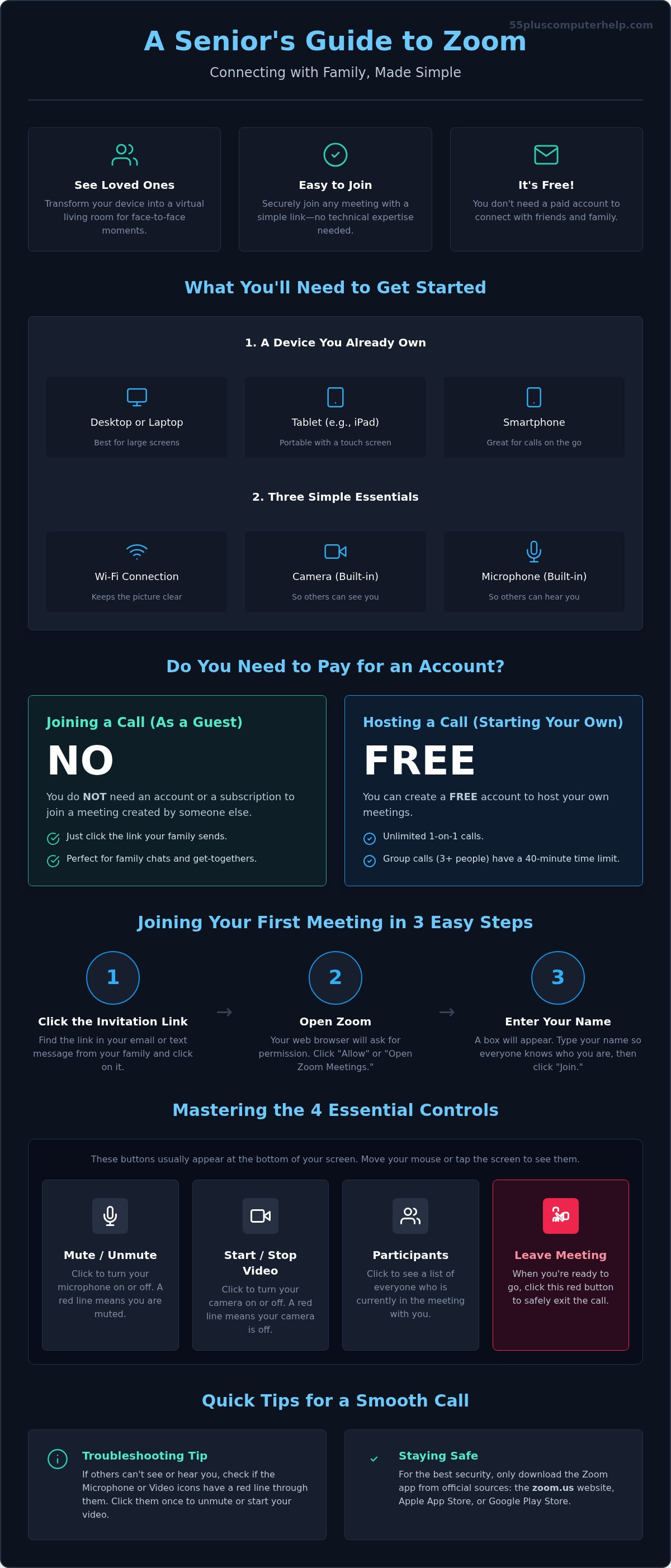
You likely already own a device that can run Zoom. You can choose the one that feels most comfortable for your eyes and hands. Here are the most common options:
- Desktop or Laptop: These offer the largest screens. This is often the best choice if you have difficulty seeing small icons or want to see many family members at once.
- Tablets (like an iPad): These are very popular because they're portable and easy to hold. They use a touch screen, which many find more intuitive than a mouse.
- Smartphones: These are great for quick calls while you're on the go, though the screen is much smaller.
If the setup feels tricky, our Smartphone and Tablet Training can help you get started. We also offer remote support as a safety net for your first few solo calls. We want you to feel empowered and secure every time you connect.
Getting Started: Do You Need an Account or the App?
Many people feel hesitant because they think they need to sign up for a monthly subscription. This is a common worry, but it isn't the case. If you are simply joining a call to see your family, you don't need a paid account. In fact, you don't need any account at all to get started. Learning how to use zoom for seniors is much easier when you realize you can just be a guest in someone else's virtual room.
It helps to understand the difference between joining and hosting. Joining means you are a guest. Someone else sends you an invitation link, and you click it to enter. Hosting means you are the person in charge of the meeting. You would only need an account if you want to be the one sending out the invitations. For most people, joining is the perfect way to begin.
Before you jump in, check these three simple things on your device:
- A steady Wi-Fi connection: This keeps the picture from freezing. If your internet feels slow, our Internet and Wi-Fi Troubleshooting can help you get a clearer signal.
- A camera: Most modern tablets and laptops have a small lens at the top of the screen.
- A microphone: This is usually built into your device so others can hear your voice.
Downloading the Zoom App Safely
You can use Zoom through your web browser, but the app usually works better. The app is often called "Zoom Workplace" or the "Zoom Client for Meetings." It provides a more stable connection and clearer video. To stay safe, only download the software from the official Zoom website at zoom.us. If you use a tablet or smartphone, look for the official Zoom app in the Apple App Store or the Google Play Store. Keeping your software updated to the latest version, such as version 7.1.5, ensures you have the best security features and the easiest experience.
Using Zoom Without an Account
When you are first exploring how to use zoom for seniors, clicking a link is the fastest way to join. When you receive an invitation link via email or text, you can simply click it. Your computer will ask if you want to open Zoom. Once you click "Allow," a box will pop up asking for your name. Type your name exactly as you want your family to see it on their screen. This simple step helps everyone know who is joining the conversation. You might decide to create a free account later if you want to start your own calls. A free Basic plan allows you to host unlimited one-on-one meetings and group calls for up to 40 minutes.
Joining Your First Meeting in 3 Easy Steps
Taking your first step into a digital visit is a big moment. It's perfectly normal to feel a little nervous about clicking the right buttons. Learning how to use zoom for seniors is a journey, and we're here to walk beside you. Once you've mastered these three steps, joining a call will feel as natural as answering the telephone. You'll move from that initial anxiety to a sense of accomplishment in no time.
Step 1: Clicking the Invitation Link
Most invitations arrive as an email or a text message from a friend or family member. Look for a blue link that begins with "https://zoom.us/j/". This link is your digital ticket to the meeting. Below the link, you'll see a lot of text and phone numbers. You can usually ignore those details. When you click the link, a box might pop up at the top of your web browser. It will ask if you want to "Open Zoom Meetings." Click the button that says "Open" or "Allow." This tells your computer to start the software you installed earlier.
Step 2: Entering the Meeting ID and Passcode
Sometimes the link doesn't work, or you might choose to type in the details manually. In these cases, you'll need the Meeting ID and the Passcode. The Meeting ID is a long string of numbers, usually 10 or 11 digits. The Passcode is a shorter code used for security. We suggest writing these numbers down on a piece of paper before you start. This makes it easier to type them in without switching back and forth between screens. Remember that passcodes are case-sensitive. If you see a capital "B" in the invitation, you must use the Shift key on your keyboard to type it correctly.
Step 3: Handling the Audio and Video Prompts
This is where many people hit a small hurdle. Before you enter the room, Zoom will ask if you want to "Join with Video." Click this button so your family can see your smiling face. Next, a very important white box will appear. It asks you to "Join with Computer Audio." You must click this button to hear others and to be heard yourself. This is the most common reason people find themselves in a silent meeting.
Your computer may also show a small security pop-up. It will ask for permission to use your microphone or camera. Always click "Allow" or "OK." If you accidentally click "Deny," the other people won't be able to see or hear you. If you ever feel stuck, our personalized technology training can help you practice these steps until they feel like second nature.
The Waiting Room
Once you finish these steps, you might see a screen that says, "Please wait, the meeting host will let you in soon." This is called the Waiting Room. It's a security feature that keeps the meeting private and safe. You don't need to click anything else. Your family member will see you are waiting and will bring you into the call. Just sit back and relax for a moment while you wait to be greeted.
Navigating the Zoom Screen: The 4 Buttons You Need to Know
Once you are inside the call, the screen might look a bit busy with different icons and names. Don't let this overwhelm you. You only need to master four simple buttons to have a wonderful visit with your loved ones. Understanding how to use zoom for seniors means focusing on the tools that actually matter for your conversation.
Mastering the Mute and Video Buttons
Look at the bottom left corner of your screen. You will see a small icon that looks like a microphone. This is your Mute button. It is your best friend when life gets noisy. If your dog starts barking at the mailman or your television is too loud, simply click this icon. A red line will appear through the microphone. This means no one in the meeting can hear you. When you are ready to speak again, click it once more to remove the red line. A helpful trick is using your keyboard's spacebar. If you are muted, you can press and hold the spacebar to talk for a moment. Once you let go, you are automatically silent again.
Right next to the microphone is the video camera icon. This button is very useful if you need to stand up or take a quick break. Clicking "Stop Video" turns off your camera, but you stay in the call. Your family will see your name on a dark background instead of your live face. When you return to your seat, just click "Start Video" to let them see you again. This gives you privacy whenever you need it.
Changing How You See Your Family
You have the power to choose how your family appears on your screen. Look for the "View" button in the top right corner. Clicking this will give you two main options. Gallery View is a popular choice for large groups. It places everyone in small, equal sized boxes on the screen. It looks a bit like the opening of the "Brady Bunch" show. If you prefer to focus on just one person, choose Speaker View. This setting makes the person currently talking fill most of your screen. It is very helpful if you have difficulty seeing smaller images.
Using the Chat Feature for Quick Notes
Sometimes technology is stubborn. If your audio stops working, don't panic. Look for the "Chat" icon at the bottom of the window. It looks like a small speech bubble. Clicking this opens a side window where you can type messages. This is a great way to say "I can hear you!" if they can't hear you. It is also a safe place to share a new phone number or a link to a recipe. Just check the "To:" box before you send. "Everyone" means the whole group sees it, while private messages go only to one person.
Mastering these controls is a huge step toward digital independence. If you want to practice these buttons with a patient mentor, our Personalized Technology Training can give you the confidence you need. Finally, when you are finished with your visit, look for the red "Leave" button in the bottom right corner. Clicking this is the digital version of hanging up the phone and saying a proper goodbye.
Troubleshooting and Staying Safe on Zoom
Sometimes you click all the right buttons and things still don't work quite right. It's okay to feel a bit frustrated when this happens. Technology can be stubborn, but most problems have a very simple fix. Learning how to use zoom for seniors includes knowing how to handle these small hiccups with patience. Once you know what to check, you can get back to your conversation quickly and with total confidence.
Simple Fixes for Audio and Video Problems
If you can't hear your family, check your actual computer volume first. Sometimes the speakers are muted on your keyboard or in your main settings. If they can't see you, look for a small physical slider on your laptop camera lens. Many modern computers have these shutters for privacy. If you use an external camera that plugs in, try the "unplug and plug back in" rule. This simple step often resets the connection and fixes the issue. If your computer feels very slow or acts strangely during calls, it might be more than just a Zoom issue. You can read our guide to virus and malware removal to see if your system needs a little extra care.
Personalized Zoom Training for Total Confidence
We know that exploring how to use zoom for seniors can feel like a lot to remember at once. A one-on-one session is often the fastest way to stop feeling overwhelmed. At 55 Plus Computer Help LLC, we can walk you through your very first call. We stay on the line with you until you feel completely comfortable with every button. Having a patient mentor by your side provides real peace of mind. You don't have to figure it all out alone. We turn these technical hurdles into a sense of accomplishment and digital independence.
Staying Safe from "Zoom-bombing"
Staying safe online is just as important as staying connected. You might have heard of "Zoom-bombing," which is when uninvited guests join a private call. You can prevent this easily by using the "Waiting Room" feature we mentioned earlier. Also, never share your Meeting ID or link on public social media pages like Facebook. Only send these details directly to the people you want to see. Be careful with links in your email inbox too. Never click on Zoom links from people you don't know. To learn more about staying safe, check out our email setup and troubleshooting for seniors guide. Protecting your privacy ensures your virtual visits remain a safe and joyful experience.
Ready to Connect with Confidence?
You now have the tools to join your family in their virtual living rooms. From clicking that first invitation link to mastering the mute button, you've seen that technology doesn't have to be intimidating. Learning how to use zoom for seniors is really about reclaiming those special face-to-face moments with your grandchildren and friends. You have the power to stay connected and independent in this digital age.
If you still feel a bit unsure, we're here to be your safety net. Our patient, empathetic mentors understand your specific needs and provide one-on-one training sessions tailored to your exact device. We also offer remote support for quick fixes whenever you hit a technical snag. To get started, you can Get Patient, One-on-One Zoom Training Today and move forward with ease. You've already taken the biggest step by reading this guide. Now it's time to open your screen and say hello to the people you love.
Frequently Asked Questions
Is Zoom free for seniors to use?
Yes, Zoom is free for joining meetings and for most family chats. The Basic plan costs $0 and allows unlimited one-on-one calls. If you're talking to a group of three or more people, the call is limited to 40 minutes. You don't need to enter any credit card information to use these free features. It's a wonderful way to stay connected without worrying about monthly bills or hidden costs.
Do I need to buy a webcam to use Zoom?
You probably don't need to buy any extra equipment. Most modern laptops, tablets, and smartphones have a camera already built into the top of the screen. If you use an older desktop computer, you might need an external webcam that plugs into a USB port. We suggest checking your device first before spending money. If you're unsure, our Computer Setup service can help you identify what your specific machine needs.
Why can’t I hear the other people in the meeting?
This is usually caused by not clicking the "Join Audio" button when you first enter. Look for the microphone icon in the bottom left corner. If it has a red line through it, click it to unmute yourself. Also, check your computer's main volume buttons. Sometimes the volume is turned all the way down outside of the app. Learning how to use zoom for seniors gets much easier once you master these two simple checks.
How do I see all my grandkids at the same time on the screen?
You can see everyone at once by switching to Gallery View. Look for the "View" button in the top right corner of your screen. Click it and select "Gallery" from the menu. This changes the layout so everyone appears in equal sized boxes. It's often called the "Brady Bunch" view. This setting is perfect for family reunions where you want to see every smiling face at the same time during your visit.
Is it safe to have Zoom on my computer or tablet?
Yes, Zoom is safe to use as long as you follow basic security steps. Always download the app from the official website or your device's official app store. Don't click on links from people you don't know. The platform uses encryption to protect your conversations from outsiders. For extra peace of mind, our Virus and Malware Removal service can ensure your device is clean and secure before your next big call.
Do I have to create a password to join a meeting?
You don't need to create your own password to join a call. However, the person hosting the meeting will often set a "Passcode" for security. This is a short code included in your invitation. You simply type it in when prompted. This keeps uninvited guests out of your private family visits. It's a simple step that helps everyone feel more secure while enjoying their time together online with the family.
What happens if I click the wrong button during a call?
Don't worry; you won't break anything by clicking the wrong icon. Most buttons just change how your screen looks or turn your sound on and off. If you accidentally leave the meeting, you can simply click the original invitation link to get right back in. We understand that exploring how to use zoom for seniors can feel risky. Our patient mentors can practice with you so you feel safe clicking around.
Can I use Zoom on my iPad instead of a computer?
Yes, you can absolutely use an iPad or any other tablet. Many people prefer tablets because they're light and easy to move around the house. You just need to download the app from the Apple App Store. The buttons might be in slightly different places than on a computer, but they work exactly the same way. Our Smartphone and Tablet Training is perfect for learning these specific mobile controls and gestures.


