
Imagine sitting down to look at new photos of your grandchildren, only to have your screen freeze or a strange warning pop up. It's a common frustration that can make anyone feel like they're losing their digital independence. You shouldn't have to feel anxious every time you turn on your device. Finding reliable computer maintenance tips for seniors shouldn't feel like learning a second language. It's completely normal to worry about making a mistake you cannot fix or feeling overwhelmed by a computer that seems to get slower every day. You want to enjoy your time online, not spend it waiting for a spinning circle to disappear.
We believe that technology should serve you, not the other way around. This guide will show you how to keep your computer fast, safe, and reliable with easy steps designed to protect your peace of mind. We'll walk through simple habits like software updates and virus removal that give you the confidence to use your technology. By the end of this article, you'll have a clear plan to keep your photos and emails safe while staying independent from constant tech help. You deserve a computer that starts up quickly and works exactly when you need it to.
Key Takeaways
- Understand how regular digital housekeeping protects your independence and prevents unexpected computer crashes.
- Discover how keeping your computer area clean and organized can extend the life of your device and keep it running smoothly.
- Master essential computer maintenance tips for seniors to keep your software updated and your personal information secure from online threats.
- Learn a simple strategy to back up your photos and files so you never have to worry about losing your precious memories.
- Recognize when a professional Technology Tune-Up can help you stay ahead of technical glitches and maintain your digital confidence.
Why Regular Computer Maintenance Matters for Your Digital Independence
Think of your computer as a digital version of your home. Just as you sweep the floors and tidy the kitchen, your device needs regular care to stay in top shape. We call this "digital housekeeping." It is not about complex coding or secret technical knowledge. Instead, it is about creating a clean environment where your files are easy to find and your programs run without a hitch. When you follow simple computer maintenance tips for seniors, you are taking control of your digital life. You deserve a tool that works for you every time you press the power button.
A well-maintained computer does more than just run faster. It protects you from the heartbreak of sudden crashes and permanent data loss. Imagine losing years of family photos or important emails because of a preventable system failure. Regular upkeep ensures your computer remains a reliable bridge to the people you love. Whether you are video chatting with your grandchildren or sharing stories with old friends, a fast computer keeps those connections strong. You don't have to be a tech expert to achieve this. Maintenance is a skill that anyone can learn at any age with just a little patience and the right guidance.
Prevention is Better Than Repair
Most of us wouldn't dream of driving a car for years without changing the oil. Your computer works in a similar way. It has many moving parts and complex software that require consistent attention to stay healthy. Small weekly habits, like restarting your machine or deleting old files, prevent expensive hardware failures down the road. These tiny steps save you from the stress of a broken machine and the high cost of emergency repairs. Preventative maintenance is simply the practice of performing small, regular tasks to avoid major tech frustrations in the future.
The Security Connection: Staying Safe from Scams
Digital safety is a top priority for everyone online. Scammers often look for "unlocked doors" in the form of outdated software and old security settings. An updated computer is much harder for criminals to access because software companies constantly release fixes for new threats. We like to call this "digital safety hygiene." Just like washing your hands prevents illness, keeping your computer clean and updated prevents digital infections. If you ever worry that your device has been compromised, professional virus and malware removal can restore your peace of mind. Staying current with your computer maintenance tips for seniors is your best defense against online scams.
Physical Care: Keeping Your Hardware Clean and Organized
While we often focus on what happens on the screen, the physical health of your machine is just as important. Dust is a silent enemy for electronics. It acts like a warm blanket that traps heat inside your computer case. When heat cannot escape, your computer has to work much harder to perform simple tasks. This extra effort can lead to parts wearing out much sooner than they should. Taking care of the "outside" of your technology is a vital part of your routine. It ensures your machine stays reliable for years to come.
Airflow is the key to a long-lasting device. Most computers use internal fans to stay cool. If these fans are blocked by dust or tucked into a tight corner, the system will overheat. You might notice your computer making a loud whirring sound or feeling hot to the touch. If you use a laptop, try to keep it on a hard, flat surface rather than a pillow or blanket. Soft surfaces block the vents and cause the temperature to rise quickly. If you need help getting started with a safe workspace, our experts offer Computer Setup services to ensure your machine is positioned for success.
Safe Cleaning Techniques for Screens and Keyboards
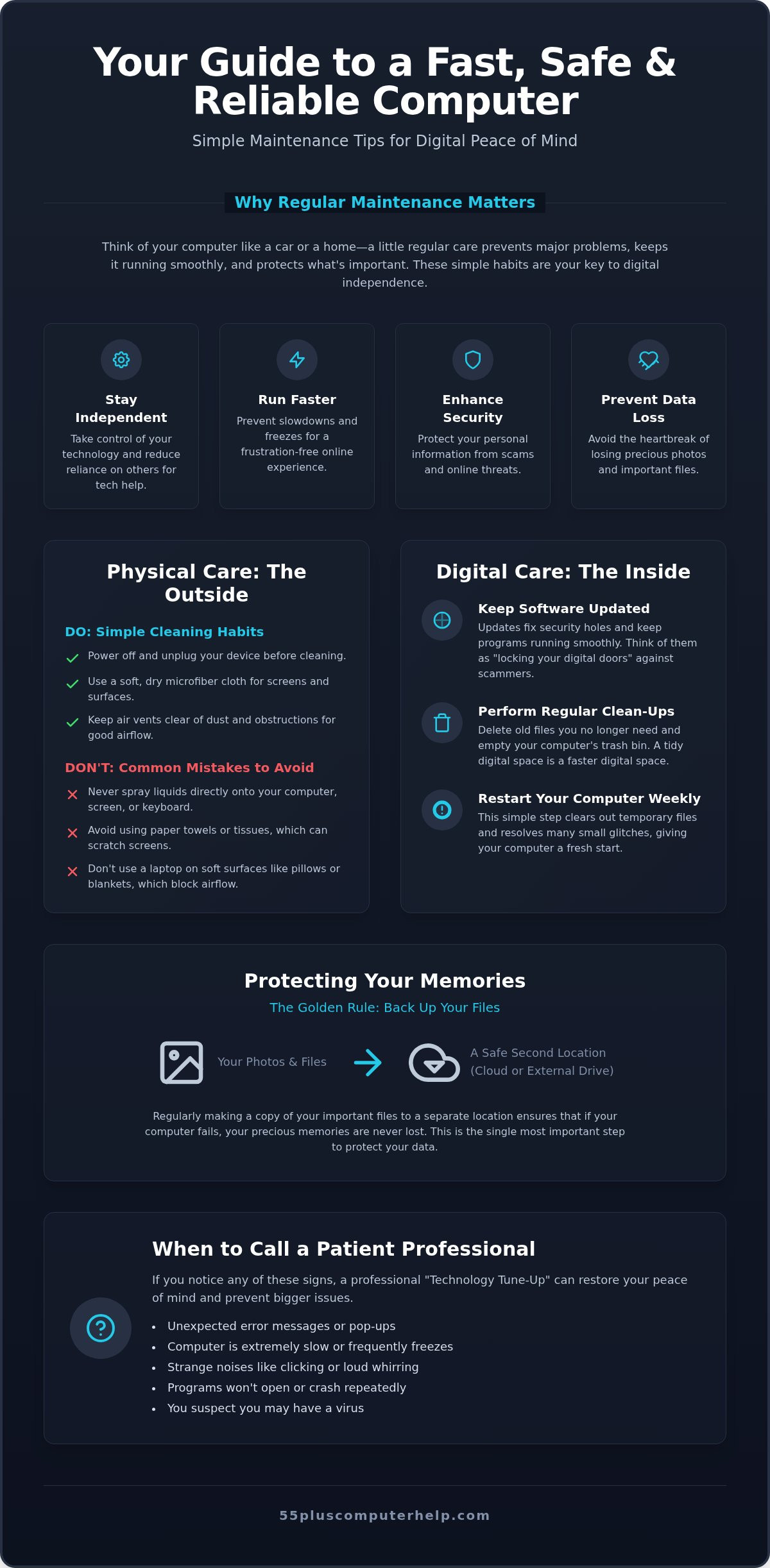
Cleaning your computer requires a gentle touch. Following these computer maintenance tips for seniors will help you keep your screen clear without causing accidental damage. First, always power off and unplug your device before you begin. This prevents any electrical issues while you work. Second, use a soft microfiber cloth to wipe away dust. Avoid paper towels or tissues, as these can leave tiny scratches on delicate screens. Finally, never spray cleaning liquids directly onto your screen or keyboard. Instead, lightly dampen your cloth first. This prevents moisture from seeping into the sensitive parts of your machine.
Managing Your Workspace and Cords
A tidy workspace is a safe workspace. Cords and cables often become a tangled mess under desks, which creates a tripping hazard. You can use simple plastic cable ties to bundle these wires together. This keeps the floor clear and makes it easier to clean the area. It is also helpful to label each cord with a small piece of tape. This way, you always know which plug belongs to your printer and which belongs to your monitor. Ensure your computer tower has at least four inches of space on all sides. This gap allows fresh air to circulate, which keeps your internal parts cool and reliable. These small computer maintenance tips for seniors protect both your equipment and your physical safety.
Software and Security: Simple Steps to Stay Safe Online
Your computer's software is the engine that makes everything work. Just like the physical cleaning we discussed, the software inside your machine needs regular attention. Software updates are your absolute best defense against internet threats. Many people worry that clicking "update" will change how their computer looks or make it harder to use. In reality, these updates act as invisible repairs. They fix small errors and block new ways that scammers try to get into your system. These computer maintenance tips for seniors focus on building a strong wall around your personal information.
It helps to know that there are two main types of updates. Your Operating System update fixes the "brain" of the computer, like Windows or macOS. A Web Browser update fixes the "window" you use to see the internet, like Google Chrome or Microsoft Edge. Both are equally important for your safety. You might also see extra programs called "bloatware" on your machine. These are often apps that came with the computer but you never use. Removing them is a great way to speed up your device and make your screen feel less cluttered.
Scammers often try to trick you with scary "pop-up" messages. These fake alerts might flash in bright colors or say your computer is infected with a hundred viruses. A legitimate update notification will never use high-pressure language or ask you to call a phone number. Real updates usually appear in your computer's settings menu or as a quiet notification in the corner of your screen. If you feel unsure about a message, it's always better to close it and check your official settings instead.
Automating Your Software Updates
The easiest way to stay safe is to turn on "Automatic Updates." This setting tells your computer to download and install its own repairs while you sleep. You won't have to remember to check for them yourself. Updates often include "security patches" that fix invisible holes in your system's defenses. Another vital step is to restart your computer at least once a week. A fresh start clears out the digital cobwebs and ensures all your new updates are working correctly.
Running Scans and Identifying Malware
Your security software is like a guard at the gate. You should set up a "Quick Scan" to run once a week. This short check-up looks for any suspicious files that shouldn't be there. If your computer starts running very slowly or you see strange boxes popping up, it might be a sign of a virus. Staying safe also means being careful with what you click. You can learn more about staying protected by reading our guide on identifying and avoiding email scams. These simple computer maintenance tips for seniors give you the tools to explore the internet with confidence.
Protecting Your Memories: Easy Data Backup and Organization
Your computer is a digital vault for your most precious memories. While you can always buy a new monitor or keyboard, the photos of your grandchildren's first steps or your wedding day are irreplaceable. One of the most important computer maintenance tips for seniors is learning how to protect these digital treasures. When your files are backed up, you don't have to worry about a computer failure taking your history with it. This security provides a deep sense of peace. It allows you to use your device without the fear of losing what matters most.
To keep your files truly safe, we recommend following the "3-2-1 Rule." It sounds like a technical formula, but it is quite simple to practice. You should have three copies of your important data. Two of these copies should be on different types of storage, such as your computer's hard drive and a separate portable drive. Finally, you should keep one copy in a different location, like a secure online storage service. This system ensures that even if one copy is lost, your memories remain intact. If you find this process confusing, our team provides patient Data Backup and Recovery services to set everything up for you.
Choosing Between Cloud Storage and External Drives
"The Cloud" is simply a way to store your files on a secure, remote computer over the internet. It is very useful for seniors because it happens automatically and keeps your files safe even if your physical device is damaged. On the other hand, a physical USB drive or external hard drive is something you can hold in your hand. To find the right hardware for your needs, you can check out Computech-Solutions for a variety of reliable storage devices. These are great for quick access, but they can be misplaced or fail over time. We often suggest setting up an automated backup for your "Documents" and "Pictures" folders. This way, your computer does the hard work for you while you enjoy your day.
A cluttered computer is harder to navigate and can eventually slow down your performance. You can start by deleting duplicate photos and clearing out your "Downloads" folder once a month. Think of your "Recycle Bin" as a trash can inside your house. The files aren't truly gone until you empty the bin, so you can usually recover something if you delete it by mistake. Creating a simple filing system, such as folders labeled by year or specific family events, makes finding specific memories much faster. These computer maintenance tips for seniors turn a messy screen into an organized digital library that is a joy to use.
When to Call a Patient Professional for a Technology Tune-Up
Taking care of your own device is a wonderful way to maintain your digital independence. By following the computer maintenance tips for seniors we've discussed, you're already ahead of most users. However, even the most diligent person may run into a problem that feels too complex to handle alone. Recognizing the limits of DIY care is just as important as knowing how to clean your screen or update your browser. A professional check-up can catch hidden issues that aren't obvious to the naked eye, ensuring your computer stays reliable for the long term.
At 55 Plus Computer Help LLC, we view technical support as a supportive partnership. We provide patient, jargon-free assistance that focuses on your comfort and understanding. Our goal isn't just to fix a problem but to transform your frustration into a sense of accomplishment. We specialize exclusively in helping users aged 55 and older, so we understand the unique challenges you face. Whether you need a simple Technology Tune-Up or a deeper look at your system, we're here to help you feel secure in your digital world.
Signs You Need Expert Assistance
Some computer problems require a specialized set of tools or deeper technical knowledge. You should consider calling a patient mentor if you experience any of the following red flags:
- The "Blue Screen": If your computer suddenly displays a bright blue screen with white text and restarts, it's often a sign of a deeper system error.
- Recurring Error Messages: Seeing the same warning box every time you turn on your machine suggests a program isn't loading correctly.
- Persistent Slowness: If your computer still feels sluggish after you've cleaned your hardware and updated your software, there may be a hidden background issue.
- Scam Suspicion: If you think you may've clicked on a malicious link or shared information with a suspicious caller, a professional can ensure your machine is clean.
The Benefits of Personalized Tech Training
While online videos can be helpful, they often move too fast or use confusing language. Personalized lessons are different because they move at your pace. A patient mentor can answer your specific questions and show you exactly how to use your own equipment. There's a big difference between a service that "fixes it for you" and a mentor who "teaches you how." Learning these computer maintenance tips for seniors through hands-on guidance builds long-term confidence. It makes technology feel like a friendly tool rather than a source of anxiety. Ready for a technology tune-up? Schedule your personalized session today!
Take Control of Your Digital World Today
You now have the tools to keep your computer running smoothly and safely. Simple habits like clearing away dust and allowing for proper airflow protect your machine from overheating. Staying current with software updates builds a strong wall against online threats. Most importantly, organizing your files and using a reliable backup system ensures your precious photos are always protected. These computer maintenance tips for seniors are designed to give you the independence you deserve.
Sometimes, a little extra support makes all the difference. We provide specialized tech support exclusively for those aged 55 and older. Our patient mentors speak your language and avoid confusing technical jargon. Whether you prefer in-home assistance or remote support, we're here to help you feel confident and secure.
Get Patient, Expert Help with Your Computer Maintenance
Technology doesn't have to be intimidating. With a few small steps and a bit of practice, you can enjoy a fast, reliable computer that connects you to the people you love. You've got this, and we're always here if you need a hand.
Frequently Asked Questions
How often should I restart my computer for maintenance?
You should restart your computer at least once every seven days. This simple habit clears out temporary files and allows your device to finish installing important security updates. Think of it as a fresh start for your machine's brain. It helps prevent the slow performance that often leads to frustration. Regular restarts are one of the most effective computer maintenance tips for seniors to keep everything running quickly and reliably.
Is it safe to leave my computer on all the time?
It is safe to leave your computer on occasionally, but using "Sleep" or "Hibernate" mode is much better for the hardware. These modes save energy and reduce wear on internal parts while keeping your work ready. However, you should still shut it down or restart it weekly. Leaving a computer on indefinitely can lead to software glitches and unnecessary heat buildup, which might shorten the life of your device over time.
How do I know if a "System Update" notification is real or a scam?
A real update notification will never use high-pressure language or threaten that your files are in danger. Legitimate updates usually appear in your computer's official settings menu or as a small icon in the taskbar. If you see a large, flashing pop-up while browsing the web, it is likely a scam. Always close your browser and check your Windows Update or App Store settings to see if a real update is waiting.
What is the best way to clean my computer screen without scratching it?
The best way to clean your screen is with a dry, clean microfiber cloth. These soft cloths are designed to pick up dust without scratching delicate surfaces. Never use paper towels, tissues, or old rags, as these can leave permanent marks. If there are stubborn fingerprints, you can lightly dampen the cloth with a tiny bit of water. Avoid spraying any liquids directly onto the glass to prevent moisture from getting inside.
Do I really need a separate antivirus program if I have Windows or Mac?
Modern Windows and Mac computers come with strong built-in protection that is very effective. For many users, these standard tools are enough if you practice safe browsing habits. However, a separate antivirus program can provide an extra layer of defense against complex scams and identity theft. If you feel anxious about online safety, adding a trusted security program offers extra peace of mind and more frequent scans for your personal security.
Why is my computer fan making a loud noise?
A loud fan usually means your computer is trying to cool itself down. This often happens because dust has settled inside the vents, making the fan work harder to push air through. It can also happen if you are running too many programs at once. If the noise is constant, it might be time for a physical cleaning. Using computer maintenance tips for seniors like keeping your workspace dust-free will help keep your fans quiet.
What should I do if my computer gets very hot during use?
A loud fan usually means your computer is trying to cool itself down. This often happens because dust has settled inside the vents, making the fan work harder to push air through. It can also happen if you are running too many programs at once. If the noise is constant, it might be time for a physical cleaning. You can find out more about professional deep cleaning and hardware restoration as a way to resolve persistent overheating. Using computer maintenance tips for seniors like keeping your workspace dust-free will help keep your fans quiet.
It is very difficult to delete something permanently by mistake if you use your computer's built-in safety features. Most files you delete go straight to the Recycle Bin or Trash first. You can easily drag them back out if you change your mind. To be completely safe, always keep a recent backup of your photos and documents. Having a backup means you can explore your computer with confidence and without the fear of making a permanent mistake.


