
Imagine waking up to a notification that your granddaughter just had her first dance recital, but the photo is blurry or buried in a long text thread. You want to see those special moments clearly without feeling like you need a technical degree. Finding the easiest way to share photos with family should be a joy, not a source of frustration. It is about staying connected to your children and grandchildren while keeping your digital life private and secure.
Many seniors feel left out of family updates because the apps seem too complicated. You're not alone if you worry about accidentally sharing a private photo publicly. You deserve to feel confident and independent when you use your phone or tablet. This guide will help you discover the simplest methods to view and organize your family memories in 2026. We will explore user-friendly options like FamilyAlbum and Google Photos that work across different devices. You'll learn how to manage your digital world with ease and total peace of mind.
Key Takeaways
- Understand why modern photo sharing feels different from traditional albums and how to simplify the process.
- Discover how using the tools already on your phone or tablet is the easiest way to share photos with family.
- Learn the critical differences between private digital albums and public social media to keep your family’s moments secure.
- Follow a clear, step-by-step guide to setting up a shared family hub that works for everyone, regardless of their device.
- Gain the confidence to manage your own digital life with personalized support that focuses on your comfort and skill level.
Why Sharing Photos Feels Complicated in 2026
For decades, we kept our memories in physical albums. You could flip through pages and touch the glossy prints. Today, those memories live in "the cloud," which creates a gap for many people. It feels like the rules changed overnight. Modern sharing is no longer just about sending an occasional email. It is about a real-time connection where you see a photo the moment it is taken. Finding the easiest way to share photos with family means bridging this gap without feeling overwhelmed.
To make this simple, you need a "Photo Hub." This is a secure digital space where your family members can all contribute pictures in one spot. Instead of searching through old messages, everything stays organized in this central location. Understanding what photo sharing is helps you see that it's just a modern way to keep the family together. The goal is to find a method that fits into your daily life as naturally as checking the mail.
The Challenge of Different Devices
It's often hard when your kids use iPhones but you prefer a tablet or a computer. These devices don't always talk to each other easily. We have all felt the frustration of "Can you resend that?" text messages that disappear into a long conversation. It's helpful to remember that "The Cloud" isn't a mysterious place. It's simply a secure storage locker on the internet. Once you have the right key, you can see your photos from any device you own. This removes the worry of using the "wrong" kind of phone.
Identifying Your Comfort Zone
Your comfort level with technology is the best guide for choosing a tool. Do you prefer a large computer screen, or do you like the portable feel of a handheld tablet? Your current device choice usually dictates the easiest way to share photos with family for your specific situation. We define digital literacy as the ability to navigate these tools with confidence and independence. You don't need to be an expert to stay connected. You just need to feel secure in the choices you make. By picking a platform that matches your favorite device, you can manage your digital life with total self-assurance.
Comparing the Most Popular Ways to Share Memories
Choosing the easiest way to share photos with family often depends on the device you already own. You don't need to learn a whole new system if your current one works well. We look for three things in a photo service: how easy it is to view pictures, what it costs, and how much "work" you have to do to keep it running. Most families find success by sticking to the tools built into their phones or by using one dedicated app that everyone agrees on.
Apple Shared Albums for iPhone and iPad
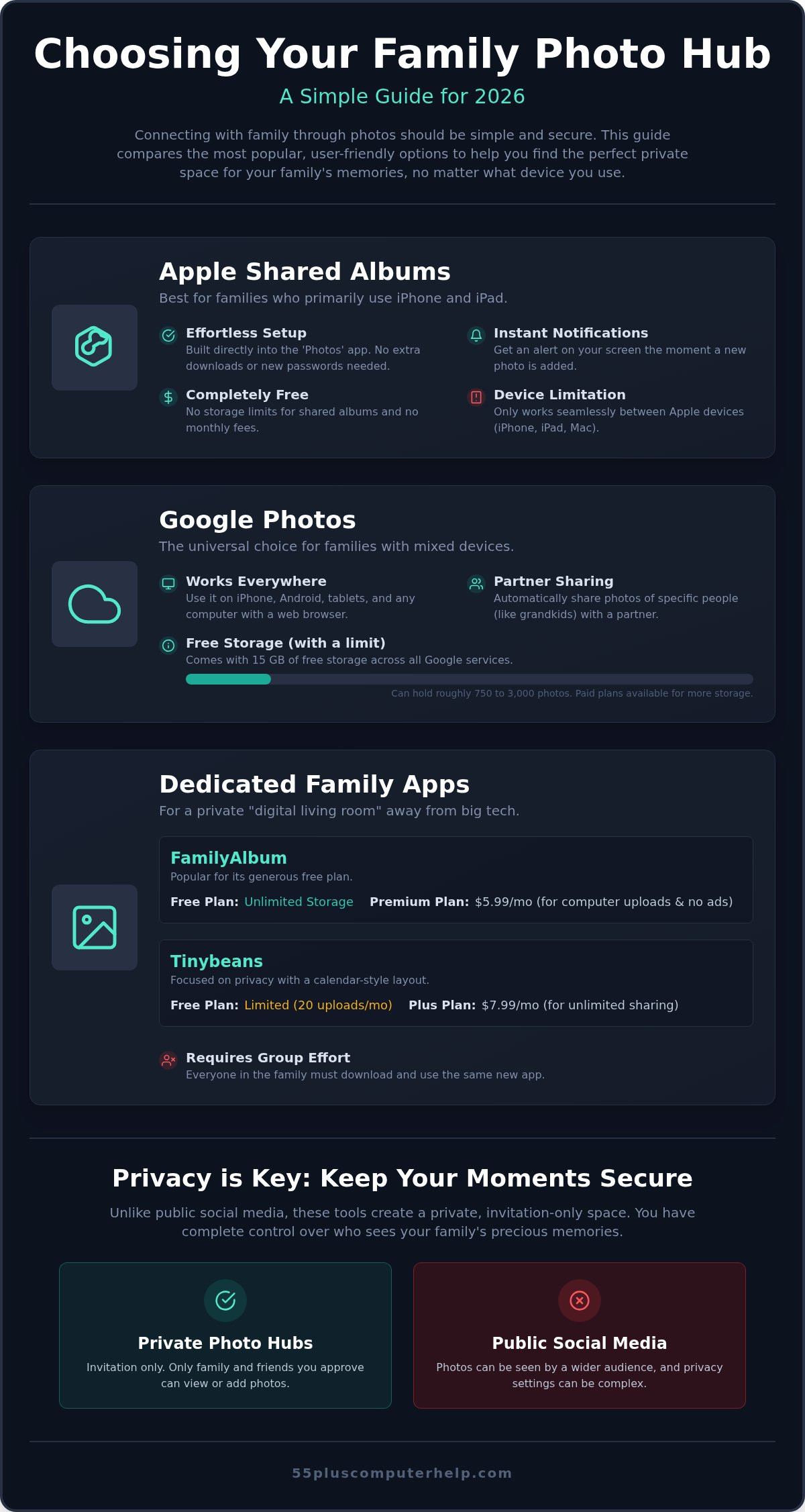
If you use an iPhone or iPad, you already have a powerful tool at your fingertips. Apple Shared Albums live directly inside your "Photos" app. You don't have to download anything extra or remember a new password. One of the best parts is the notification system. When your daughter adds a photo of the grandkids, a small alert pops up on your screen. You can tap it and see the memory instantly. For many, this is the least confusing path because it uses the icons you see every day. If you find these settings a bit tricky to find, a little smartphone and tablet training can help you feel much more comfortable.
Google Photos for Universal Access
Google Photos is a very versatile option. It works on iPhones, Android phones, and even your home computer. This is a great choice if you prefer viewing photos on a large desktop monitor rather than a small phone screen. Google provides 15 GB of free storage, which can hold roughly 750 to 3,000 photos. A unique feature is "Partner Sharing." This can be set up to automatically send you any photo that includes a specific person, such as your grandchild. It saves you from having to ask "Can you send me that?" every time a new picture is taken.
Dedicated Family Apps
Some families prefer a private "digital living room" away from big tech companies. Apps like FamilyAlbum and Tinybeans are designed specifically for this.
- FamilyAlbum: This app is very popular because its free plan offers unlimited storage. If you want to upload from a computer or remove ads, the Premium plan is $5.99 per month.
- Tinybeans: This service focuses heavily on privacy. The free version is limited to 20 uploads a month, while the Tinybeans+ plan is $7.99 per month for unlimited sharing.
Choosing a Method Based on Privacy and Security
Privacy is often the biggest concern when you start sharing memories online. You want to see your grandkids, but you don't want the whole world seeing them too. The easiest way to share photos with family is through a method that keeps your pictures private by default. Unlike a physical album on your coffee table, digital photos can travel far if you aren't careful. Understanding the difference between public and private spaces is the first step toward true peace of mind.
A private digital album is like an invitation-only party. Only the people you specifically choose can enter and view the pictures. Public platforms are different. They are designed for broad sharing, which can lead to your family's personal moments being seen by strangers or used by advertisers. Choosing a secure, private hub ensures your family business stays within the family.
Avoiding the Social Media Trap
Many people use Facebook or Instagram because they seem convenient. However, these platforms often engage in data mining. This means they track your activity to show you ads. When you post a photo on a public wall, you lose control over who sees it or where it goes. Encrypted sharing through services like Apple or Google is much safer. It protects your data from unwanted eyes. While you stay connected, it is also important to keep your devices clean. Learning about virus and malware removal helps you browse and share with total confidence.
You should also be wary of suspicious links. Scammers sometimes send fake "photo sharing" texts to trick you. A real invitation from a family member will usually come through an app you already recognize. It will never ask for your bank details or social security number just to view a picture. If a link feels strange, trust your instincts. It's always okay to call your family and ask if they actually sent it.
The Peace of Mind of Automated Backups
What happens to your memories if you lose your phone or drop your tablet? Without a backup, those photos could be gone forever. Automated syncing creates a digital insurance policy for your life's precious moments. It automatically saves a copy of every photo to your secure online storage locker. This happens quietly in the background while you go about your day. You can easily check if your photos are being saved by looking for a "Backup Complete" message or a small green checkmark in your photo app. This simple step ensures that your memories are always safe, even if your device fails.
Setting Up Your Family Photo Hub Step-by-Step
Setting up your digital photo space doesn't have to be a chore. Many guides assume you already know how to navigate an app store or create an account. We will take it slow. Finding the easiest way to share photos with family starts with a simple, clear plan. By following these steps, you can move from feeling overwhelmed to feeling in control of your digital life.
- Step 1: Choose your primary device. Decide if you prefer using your computer, a handheld tablet, or your smartphone. Pick the screen that feels most comfortable for your eyes and hands.
- Step 2: Select one platform. Talk to your family and agree on one service, such as Apple Photos or Google Photos. Sticking to one place keeps things simple for everyone.
- Step 3: Create a dedicated "Family Album." Open your chosen app and look for a button that says "New Album" or "Shared Album." Give it a clear name like "Grandkids 2026."
- Step 4: Practice uploading together. Don't try to do everything at once. Pick one favorite photo and practice uploading it. Doing this once builds the confidence you need to do it again.
- Step 5: Set up notifications. Ensure your alerts are turned on. This way, a small message will let you know the moment a new memory arrives.
Organizing Your Best Pictures
You don't need to manage thousands of photos at once. Start with your "Favorites." Most apps have a small heart icon you can tap to mark your best shots. This makes them easy to find later. You can also create folders for specific events, such as birthdays or holidays. Use simple names like "Easter 2026" or "Summer Garden." These naming habits help you find exactly what you are looking for without any stress.
Inviting Family Members Safely
Sending an invitation is the final bridge to connection. You can usually send a secure link via email or a text message. It is helpful to tell your family exactly how you would like to receive photos. Let them know you prefer they add pictures to your new hub rather than sending them in scattered texts. For more help with digital communication, see our guide on email setup and troubleshooting. This ensures your primary way of talking to loved ones stays clear and functional.
If you feel stuck during any of these steps, remember that a patient mentor can make all the difference. We offer personalized smartphone and tablet training to help you master these tools at your own pace. You deserve to enjoy your family photos without the technical headaches.
Getting Personalized Help to Connect with Your Family
Sometimes, even the best written guide isn't enough. That is perfectly okay. Reading about technology is very different from actually pressing the buttons on your own screen. You might feel a bit of anxiety when a window pops up that you didn't expect. This is where the value of a patient mentor comes in. Instead of listening to "computer-speak" that sounds like a foreign language, you can learn from someone who uses everyday words. We believe that technology should serve you, not the other way around.
55 Plus Computer Help was created to turn tech frustration into family connection. We understand that your goal isn't to become a computer scientist. You just want to see your grandchildren's smiles. Taking the first step toward digital independence is much easier when you have a friendly expert by your side. We act as a translator for specialized concepts. This makes finding the easiest way to share photos with family feel like a natural part of your day rather than a chore.
One-on-One Lessons for Photo Management
We offer tailored sessions that focus only on what you want to learn. If you only care about sharing photos and nothing else, that is exactly what we will practice. You can build your skills in the comfort of your own home, using your own Wi-Fi and your own devices. This removes the stress of learning in a cold, clinical classroom. You get to learn on the tablet or phone you use every single morning.
- Practice uploading and organizing photos at your own pace until it feels like second nature.
- Learn how to create albums for specific family events like birthdays or holidays.
- Gain the confidence to manage your digital life without feeling overwhelmed.
Remote and Onsite Support for Seniors
Sometimes you just need a quick fix to get back on track. Maybe you can't find an album you created last week, or an invitation from your son simply won't open. We provide both onsite and remote assistance to solve these small hurdles quickly and calmly. There is a great sense of security in knowing a trusted expert is just a phone call away. Our smartphone and tablet training empowers seniors to stay connected with their loved ones through every life milestone. Since 2014, we have provided specialized support that respects your comfort as much as the technical solution. You can finally move from a sense of confusion to a genuine feeling of accomplishment and independence.
Stay Connected with Your Family Memories
Sharing life's precious moments shouldn't feel like a technical chore. By choosing the right platform for your specific device and prioritizing private digital albums, you can stay connected with your loved ones safely. Setting up a dedicated family hub is the easiest way to share photos with family while keeping your personal data secure. You deserve to see every smile and milestone without the stress of "the cloud" getting in the way of your joy.
If you still feel a bit unsure about where to start, remember that you don't have to do this alone. At 55 Plus Computer Help, we provide expert tech support tailored specifically for seniors. Our team has been trusted by families since 2014 to deliver patient, one-on-one training sessions in the comfort of your own home. We can help you organize your pictures and invite your family so you never miss another update. Get Patient, In-Home Help Sharing Your Family Photos Today. You have all the tools you need to stay close to those who matter most.
Frequently Asked Questions
What is the safest way to share photos without using social media?
The safest way to share photos is through private digital albums like Apple Shared Albums or Google Photos. These services keep your memories away from public eyes and advertisers. Unlike social media, you choose exactly who sees each picture. This is often the easiest way to share photos with family while maintaining your privacy. You don't have to worry about strangers viewing your family moments or your data being used for marketing.
Do I need to pay for extra storage to share photos with my family?
You don't always need to pay for extra storage. Most services provide a free amount to get you started. For example, Google Photos gives you 15 GB of free space, which can hold between 750 and 3,000 photos depending on their quality. Apple provides 5 GB for free to iCloud users. If you share mostly photos and fewer videos, these free plans often last for a very long time before an upgrade is needed.
Can I see photos on my computer if my kids sent them from an iPhone?
Yes, you can easily see photos on your computer even if they were sent from an iPhone. While iPhones use Apple's specific system, your kids can send you a link that opens in any internet browser on your PC. Alternatively, using Google Photos allows everyone to view the same album regardless of the device they use. This ensures you never feel left out of family updates just because you prefer a larger computer screen.
How do I know if a photo sharing link is safe to click?
A safe sharing link usually comes from a contact you recognize and points to a well-known service like iCloud, Google, or FamilyAlbum. You should never click links that ask for your password or personal information before showing the photo. If a text message looks strange or comes from an unknown number, it is best to ignore it. You can always call your family member to verify they actually sent you a new memory.
What happens to my photos if I get a new tablet or computer?
Your photos remain safe in your digital storage locker even if you replace your hardware. When you get a new tablet or computer, you simply log in with your email and password to see everything again. This is the beauty of modern "cloud" storage. You don't have to worry about transferring files manually or losing memories if a device breaks. Your family hub stays exactly where you left it, ready for you to enjoy.
Is there a way to automatically see new photos of my grandkids?
You can use "Partner Sharing" in Google Photos or turn on notifications for Apple Shared Albums to see new pictures automatically. These features send a small alert to your screen the moment a family member adds a new photo. Setting this up is the easiest way to share photos with family without having to check for updates constantly. It brings the grandkids to your screen without you having to lift a finger to search.
Can someone help me set up a photo sharing app in my home?
Yes, our team at 55 Plus Computer Help provides personalized support for this exact task. We offer patient, one-on-one training in your home or remotely to help you set up and manage your photo apps. We walk you through each step at your own pace until you feel confident. You don't have to struggle with confusing manuals. A friendly mentor will ensure your family hub is working perfectly so you stay connected.
What is the difference between iCloud and Google Photos for seniors?
iCloud is built specifically for Apple devices like iPhones and iPads, making it very simple for those users. Google Photos is more versatile because it works on Android, Apple, and Windows computers. For seniors, the choice usually depends on which device you use most often. If you have an iPhone, iCloud is often more convenient. If your family uses many different types of phones, Google Photos provides a great middle ground for everyone.


