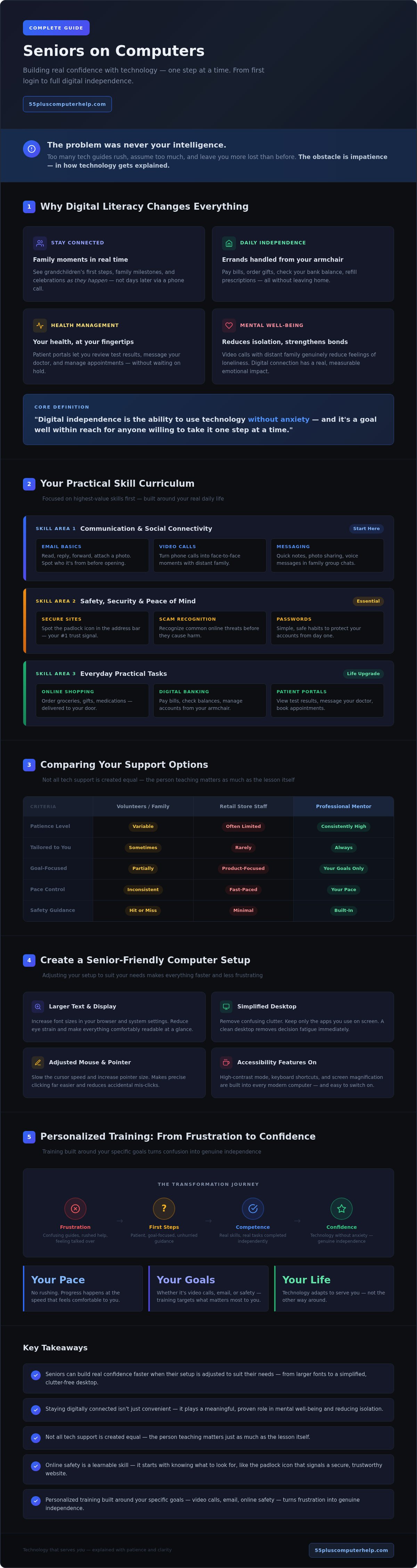
What if the thing standing between you and a video call with your grandchildren isn't your ability, but simply the way technology has been explained to you? For so many seniors on computers for the first time, or returning after a frustrating experience, the problem was never intelligence. It was impatience. Too many tech guides rush through the steps, assume too much, and leave you feeling more lost than before you started.
That feeling is completely understandable. Technology moves fast, and it can seem like everyone else already knows the rules to a game nobody bothered to teach you. The worry of clicking the wrong thing, the fear of a scam, the frustration of asking for help only to be talked over, these are real and valid concerns that millions of older adults share every single day.
This guide was written specifically for you. By the time you finish reading, you'll have a clear, calm path forward for using your computer with confidence, staying safe online, and doing the things that matter most, like connecting with the people you love. Let's take it one step at a time.
Key Takeaways
- Seniors on computers can build real confidence faster when their setup is adjusted to suit their needs, from larger fonts to a simplified desktop free of confusing clutter.
- Staying digitally connected isn't just convenient, it plays a meaningful role in mental well-being, and this guide shows you exactly how to get there.
- Not all tech support is created equal, and you'll discover why the person teaching matters just as much as the lesson itself.
- Learning to spot a secure website and recognize common online threats is a skill anyone can develop, and it starts with knowing what to look for.
- Personalized training built around your specific goals, whether that's video calls, email, or online safety, can turn frustration into genuine independence.
The Benefits of Digital Literacy for Seniors in 2026
Digital literacy simply means being able to navigate the digital world safely and with purpose. It's not about becoming a tech expert. It's about having enough confidence and skill to do the things that genuinely matter to you, whether that's checking in with family, refilling a prescription, or paying a bill from the comfort of your armchair.
Reframing Technology as a Tool for Freedom
It's completely fair to feel like everything changed too fast. One decade you're writing checks and flipping through a phone book, and the next, everyone expects you to log in, tap here, and verify there. That frustration is real, and it makes sense. But here's the honest truth: when technology is set up correctly and explained well, it actually removes chores rather than adding them.
Think about what used to require a trip out of the house. Paying a utility bill. Ordering a birthday gift. Checking your bank balance. All of those tasks can now be handled in minutes, without leaving your front door. Digital independence is the ability to use technology without anxiety, and it's a goal that's well within reach for anyone willing to take it one step at a time.
Staying Connected in a Digital-First World
For many older adults, the most powerful reason to get comfortable with a computer has nothing to do with bills or banking. It's about the people they love. Families today share their lives digitally. Photos of a grandchild's first steps, a daughter's new home, a son's birthday celebration; these moments land in shared albums and group chats, often before anyone has had the chance to make a phone call.
Having a digital presence means you're part of those moments. You don't just hear about them later. You see them as they happen. For seniors on computers for the first time, that experience of watching a grandchild grow up through shared photos and video calls is often the moment everything clicks into place.
Technology also bridges real physical distance. When family members live across the country or even overseas, a video call turns a phone conversation into something that feels far closer to being in the same room. That kind of connection has a genuine impact on emotional well-being, reducing feelings of isolation and keeping relationships strong across the miles.
Beyond connection, the practical benefits are just as meaningful. Patient portals let you review test results, message your doctor, and manage appointments without waiting on hold. Online pharmacy services can deliver medications directly to your door. And for seniors on computers who want to maintain their independence, skills like online grocery shopping and digital banking put daily life firmly back in their own hands.
Mastering Essential Digital Skills for Modern Life
Knowing why technology matters is a great starting point. But knowing what to actually learn first is where most guides fall short. Rather than handing you a long list of everything a computer can do, this section focuses on the skills that deliver the most value, fastest. Think of it as a sensible curriculum, built around your real daily life.
Communication and Social Connectivity
Email remains the backbone of digital communication, and for good reason. It's reliable, it keeps a written record of every conversation, and it works across every device. A well-organized inbox isn't complicated once you understand the basic structure: incoming messages, sent messages, and a few simple folders to keep things tidy. The key habits to build early are recognizing who a message is from before you open it, knowing how to reply versus forward, and understanding how to add an attachment like a photo.
For a thorough walkthrough of getting started, Email Setup and Troubleshooting for Seniors covers the full process in plain, unhurried language, from creating your first account to solving the common hiccups that catch people off guard.
Tablets and smartphones add another layer of convenience for quick check-ins. A short message to say good morning, a photo shared in a family group chat, a voice note when typing feels like too much effort. These small moments of connection are easy once you're comfortable with the basics, and they make a real difference to the people on the other end.
Safety, Security, and Peace of Mind
For seniors on computers, online safety isn't about fear. It's about knowing a few reliable signals that tell you a website is trustworthy. The most important one is the small padlock icon you'll see in the address bar of your browser, usually alongside a web address that begins with https://. That "s" stands for secure. If either of those is missing on a site asking for personal details, close the tab.
Passwords are another area worth getting right. Many people keep a handwritten notebook of their passwords, and while that's a reasonable start, a lost notebook creates real problems. A password manager app stores your login details securely and fills them in automatically, so you only need to remember one single master password. It's genuinely simpler than it sounds.
Before any of these habits can protect you properly, your computer itself needs to be clean. Professional virus and malware removal is the essential first step to making sure your machine is a safe foundation to build on.
Finally, don't overlook software updates. When your computer prompts you to install an update, it's almost always patching a known security gap. Keeping your system current is one of the simplest things you can do to stay protected, and it costs nothing but a few minutes of patience.
If you'd like a trusted hand guiding you through any of these steps, the team at 55 Plus Computer Help specializes in teaching these exact skills at a pace that works for you.
Comparing Support Options: Volunteers, Retailers, and Professional Mentors
Not all tech help is created equal. When seniors on computers need support, the source of that help matters just as much as the help itself. Three options come up most often: a willing family member, a volunteer program, or a big-box retailer. Each has its place, but each also has real limitations worth understanding before you commit your time and trust.
The Grandkid Method is probably the most common starting point. A grandchild sits down, takes the mouse, and fixes the problem in thirty seconds flat. The trouble is, thirty seconds isn't teaching. It's performing. Most young people who grew up with technology genuinely don't know how to slow down enough to explain it, not because they don't care, but because the steps feel as automatic to them as tying a shoelace. You're left watching, slightly lost, and reluctant to ask them to do it again.
Volunteer programs offer something more structured, and they deserve credit for that. Organizations that connect student volunteers with older adults provide a genuine service, particularly for basic questions. The limitation is consistency. Volunteers rotate, availability changes, and the depth of their technical knowledge varies widely. If your situation moves beyond simple questions into something like a virus infection or a complex email setup, a volunteer may not have the skills to see it through.
Big-box retailers present a different problem entirely. The environment is loud, the staff are busy, and the conversation tends to focus on the device rather than the person holding it. You might leave with a working computer and still have no idea how to use it. That's not a criticism of the individuals working there. It's simply not what that model is built to do.
Why One-on-One Mentorship Works Best
Learning in your own home, on your own equipment, changes everything. There's no pressure to keep up with a group, no unfamiliar keyboard to adjust to, and no need to remember what you learned long enough to get home and try it. A dedicated mentor works at your pace, answers the same question as many times as it takes, and builds the lesson around what you actually want to do. Having one consistent point of contact also means you're not re-explaining your situation every time you need help.
The Long-Term Value of Professional Training
Professional support from a service like 55 Plus Computer Help, which has specialized exclusively in the 55+ demographic since 2014, is built around a simple idea: teaching, not just fixing. When a mentor travels to your home, sets up your computer correctly, and walks you through each step in plain language, the goal is your independence. That means fewer emergency calls down the road, more confidence in your daily use, and a foundation of real skills rather than a temporary patch. That kind of investment pays for itself quickly.
How to Create a Senior-Friendly Computer Setup
A computer that's been properly set up for you feels completely different from one that hasn't. The text is easier to read, the cursor is easier to find, and the screen isn't cluttered with icons you never asked for and don't recognize. Getting there doesn't require buying a new machine. In most cases, a few thoughtful adjustments to your existing computer are all it takes.
Start with the visual basics. Increasing your font size makes reading emails and websites far less tiring on the eyes. On Windows, you'll find this under Display Settings. On a Mac, it lives in System Settings under Displays. While you're there, turn up the cursor size too. The standard cursor is surprisingly small, and a larger one is much easier to track across the screen. Brightness is worth adjusting as well. A screen that's too dim in a well-lit room causes unnecessary strain.
The desktop itself deserves attention. Many computers arrive loaded with software the manufacturer has pre-installed, programs you didn't choose and likely don't need. This "bloatware" fills your screen with unfamiliar icons and can slow your machine down. Clearing it away leaves you with a clean, calm workspace where the things you actually use are easy to find.
Accessibility Settings You Can Change Today
Both Windows and Mac include built-in tools designed specifically for users who want more visual or audio support. The Magnifier tool on Windows enlarges any part of your screen on demand. Mac has a similar feature called Zoom. The Narrator on Windows and VoiceOver on Mac can read text aloud, which is genuinely useful when small print is the problem. Adjusting mouse sensitivity is another quick win, particularly for anyone who finds the cursor moving too fast or who experiences occasional hand tremors. Slowing it down gives you more control with less effort. High-contrast themes and Dark Mode are also worth exploring; both reduce eye strain during longer sessions.
The Physical Workspace: Ergonomics and Comfort
For seniors on computers who plan to spend real time online, the physical setup matters as much as the software. A chair that supports your lower back and a desk at the right height prevent the kind of aches that make you want to close the laptop after twenty minutes. A larger monitor, typically 24 inches or more, is almost always easier on aging eyes than a compact laptop screen. A comfortable, full-sized mouse with a satisfying click is far easier to use than a small trackpad.
Hardware essentials worth considering include:
- A larger monitor positioned at eye level to reduce neck strain
- A wireless mouse with adjustable sensitivity and a comfortable grip
- A reliable printer for documents, prescriptions, and photos
- Automatic cloud backups so family photos and important files are never lost if something goes wrong
That last point is worth pausing on. Automated backups run quietly in the background and require nothing from you once they're set up. Your photos, documents, and saved files are copied to a secure location automatically. It's one of the most valuable things you can do, and it costs very little peace of mind once it's in place.
Getting all of these pieces right at once, the settings, the workspace, the hardware, and the backups, is exactly where professional help pays off. If you'd like someone to come to your home and set everything up correctly from the start, book a computer setup session with 55 Plus Computer Help and have it done properly the first time.
Personalized Training: Transforming Tech Frustration into Confidence
There's a meaningful difference between having your computer fixed and actually understanding what was done. One leaves you dependent. The other leaves you capable. That distinction sits at the heart of everything 55 Plus Computer Help does. Since 2014, the focus has never been on rushing through a repair and heading out the door. It's been on making sure you walk away knowing something new.
That philosophy shapes every session. Lessons are built around your specific goals, not a generic checklist. Some seniors on computers want to set up a Facebook account to follow their grandchildren's sports games. Others want to build a digital photo album, manage their medical appointments through an online patient portal, or simply feel safer knowing how to spot a suspicious email. Whatever your goal is, the lesson starts there.
Onsite support removes one of the biggest barriers people face when seeking help. There's no need to unplug your computer, load it into the car, and try to explain the problem to a stranger in a loud store. Your mentor comes to you, works on your actual machine, in your actual home. That familiar environment makes a real difference. You're more relaxed, more willing to ask questions, and far more likely to remember what you've learned.
Remote assistance fills the gap for smaller, software-based questions that don't require a home visit. When a specific setting isn't behaving or you can't remember how to attach a photo to an email, a remote session connects you with help quickly, without the wait.
What to Expect in Your First Personalized Lesson
Your first session begins with a calm, honest conversation. Where are you right now? What feels confusing? What do you most want to be able to do? There's no quiz and no judgment. From that starting point, your mentor shapes a lesson that's genuinely useful to you, not a rehearsed script.
Crucially, you do the clicking. Your mentor guides, explains, and encourages, but your hands stay on the mouse. That hands-on practice is what builds real memory and real confidence. No question is too basic. Asking the same question twice is completely fine. The pace is yours to set.
Taking the First Step Toward Digital Mastery
Getting started is straightforward. You can choose an onsite visit or a remote session depending on what suits you best. Either way, you'll have a consistent, trusted point of contact who specializes exclusively in helping people 55 and older, not a rotating roster of generalist technicians who don't know your situation.
That kind of specialized, relationship-based support is genuinely rare. It's also exactly what turns hesitation into habit, and habit into independence. Book your personalized senior computer lesson today and take the first step toward using technology on your own terms.
Your Path to Digital Confidence Starts Here
Technology doesn't have to feel like a barrier. With the right setup, the right skills, and the right support behind you, seniors on computers can move from hesitation to genuine independence faster than most people expect. A properly adjusted workspace makes daily use comfortable. Understanding a few core safety habits keeps you protected. And learning at your own pace, on your own terms, builds confidence that actually sticks.
The biggest shift happens when help is built around teaching rather than just fixing. That's the difference between needing someone every time something goes wrong and knowing how to handle it yourself.
55 Plus Computer Help has specialized exclusively in the 55+ community since 2014, offering both onsite and remote support designed around your goals, not a generic script. Whether you want to video call family, manage your health appointments online, or simply feel safer clicking around, the support is there when you need it.
You've already taken the first step by reading this far. Empower yourself with patient, personalized tech training today and discover just how capable you already are.
Frequently Asked Questions
Is it ever too late for a senior to learn how to use a computer?
It's never too late. The ability to learn new skills doesn't disappear with age; what changes is how the information needs to be delivered. When lessons are patient, practical, and built around goals that actually matter to you, progress happens faster than most people expect. The biggest obstacle isn't age. It's usually a previous experience where someone explained things too quickly or assumed too much.
What is the best type of computer for a senior who is a beginner?
For most beginners, a laptop or desktop running Windows or macOS is the most practical choice. Both systems have well-developed accessibility settings, wide software support, and large keyboard options that make daily use more comfortable. Chromebooks are worth considering if your needs are mostly web-based, like email and video calls, since they're simple and tend to stay secure with minimal maintenance. A larger screen, ideally 24 inches or more, makes a genuine difference for comfort.
How can I tell if an email is a scam or a legitimate message?
Start by looking at the sender's actual email address, not just the display name. Scammers often use addresses that look almost right but contain small misspellings or odd domain names. Legitimate organizations don't ask for passwords, Social Security numbers, or payment details by email. If a message creates urgency, threatens consequences, or offers something that sounds too good to be true, treat it with suspicion and don't click any links before verifying the source.
Do I need to take my computer to a shop for virus removal?
No. Professional virus and malware removal can be handled at your home, which is often the better option for seniors on computers. Taking a machine into a shop means handing it to a stranger in an unfamiliar environment, with no way to watch what's being done. An onsite visit means the work happens in front of you, on your own equipment, with a clear explanation of what was found and what was fixed. Remote removal is also possible for many infections, depending on the severity.
What is the difference between onsite and remote technical support?
Onsite support means a technician comes directly to your home. It's the right choice for physical setup tasks, hardware questions, or anything that benefits from hands-on teaching in your own space. Remote support connects a technician to your computer over the internet, allowing them to see your screen and guide you through a fix without leaving the house. Remote sessions work well for software questions, settings adjustments, and quick troubleshooting when an in-person visit isn't necessary.
How many lessons does it usually take to feel confident on a computer?
There's no fixed number, because confidence grows differently for everyone depending on your starting point and your goals. Many people notice a meaningful shift after just two or three focused sessions built around tasks they actually want to do. The key is consistency and having a patient mentor who builds on what you already know rather than starting from scratch each time. Short, regular sessions tend to produce better results than one long, overwhelming sitting.
Can you help me set up a new tablet or smartphone as well?
Yes. Smartphone and tablet training is one of the core services offered by 55 Plus Computer Help. Whether you've just unboxed a new device or you've had one for a while but never felt fully comfortable with it, a personalized session can walk you through the setup, the basics of navigation, and the specific apps that are most useful to you. Seniors on computers often find that learning their phone and their computer together makes both devices feel much more manageable.
Why is my Wi-Fi so slow, and can a tech expert fix it at my home?
Slow Wi-Fi usually comes down to a handful of common causes: the router's location in the home, the age of the equipment, too many devices sharing the same connection, or settings that haven't been optimized. Internet and Wi-Fi troubleshooting is a service 55 Plus Computer Help offers onsite, which means a technician can assess your specific setup, identify what's causing the slowdown, and make practical adjustments without you needing to call your internet provider and navigate a lengthy phone menu.


