Did you know that 72% of adults over the age of 50 are now using Facebook to stay in touch? It's the most popular way to see your grandchildren's latest photos or hear about a neighbor's vacation. However, learning facebook for seniors can feel a bit overwhelming when the app changes every few months. You might worry about clicking the wrong button or accidentally sharing something private. It's completely normal to feel a little nervous about "breaking" your account, especially with new 2026 features like AI Mode and MuseSpark changing how the search bar works.
We understand that you just want to connect with your loved ones without the headache of technical jargon. You deserve to feel secure and capable every time you log in. This guide will show you how to use the newest updates with confidence. You'll learn how to view family updates safely and how to spot the latest scams, including those tricky AI voice clones. We'll walk through the 2026 privacy settings together so you can enjoy your digital community with total peace of mind.
Key Takeaways
- Learn how to join private family groups so you can see photos and updates from your loved ones every day.
- Understand the 2026 notification system so you always know when a friend or family member reaches out to you.
- Discover how to use facebook for seniors safely by locking your profile to "Friends Only" and identifying common scams.
- Find out how to create a secure password that is easy for you to remember but hard for others to guess.
- Explore why personalized, one-on-one training helps you feel more confident than watching fast-paced online videos.
What is Facebook and Why is it Important for Seniors Today?
Facebook is much more than just a website or a smartphone app. You can think of it as a digital community center. It's a place where you share memories, see photos, and stay informed about the people you love. Looking back at the History of Facebook shows how it grew from a small college network into a vital tool for families. Today, it's the primary way people stay connected across long distances.
In 2026, the platform has shifted its focus toward "Micro-Communities." This means the experience is less about talking to the whole world and more about private family groups. Using facebook for seniors allows you to join these small, secure circles. You can share stories and life updates with only the people you choose. This change makes the platform feel much smaller and more personal than it did in previous years.
The Emotional Benefits of Staying Connected
Staying socially active is essential for your mental well-being. It keeps your mind sharp and helps you feel involved in the lives of your relatives. You can see your grandchildren's milestones in real-time. Whether it's a first day of school or a graduation photo, you won't miss those precious moments. Facebook also makes it easy to find old friends. You can use search tools to reconnect with people from high school or college. Many users also find joy in local interest groups. You can join a community of people who share your love for gardening, knitting, or travel.
Facebook vs. Other Social Media: Why it Fits Seniors Best
Many other social media platforms move very fast. Apps like TikTok focus on quick videos that can feel loud or confusing. Facebook is different. It's designed for a steadier pace that prioritizes reading and viewing at your own speed. The platform also offers robust privacy controls specifically built for family sharing. You have more power to decide who sees your posts. Another big advantage is the integration with Facebook Messenger. This tool allows you to make high-quality video calls directly from your computer or tablet. It makes facebook for seniors a reliable and all-in-one solution for modern communication.
A Step-by-Step Guide to Setting Up Your Account Safely
Starting your journey with facebook for seniors begins with a solid foundation. You want your account to be a private space for you and your family. Using a reputable guide to navigating Facebook can help you understand the layout before you begin. The first step is choosing a secure email address. This email acts as your digital key. If you ever forget your password, you'll use this email to get back into your account. Keep your login information in a safe, physical place like a notebook at home. Don't share your password with anyone, even if they claim to be from technical support.
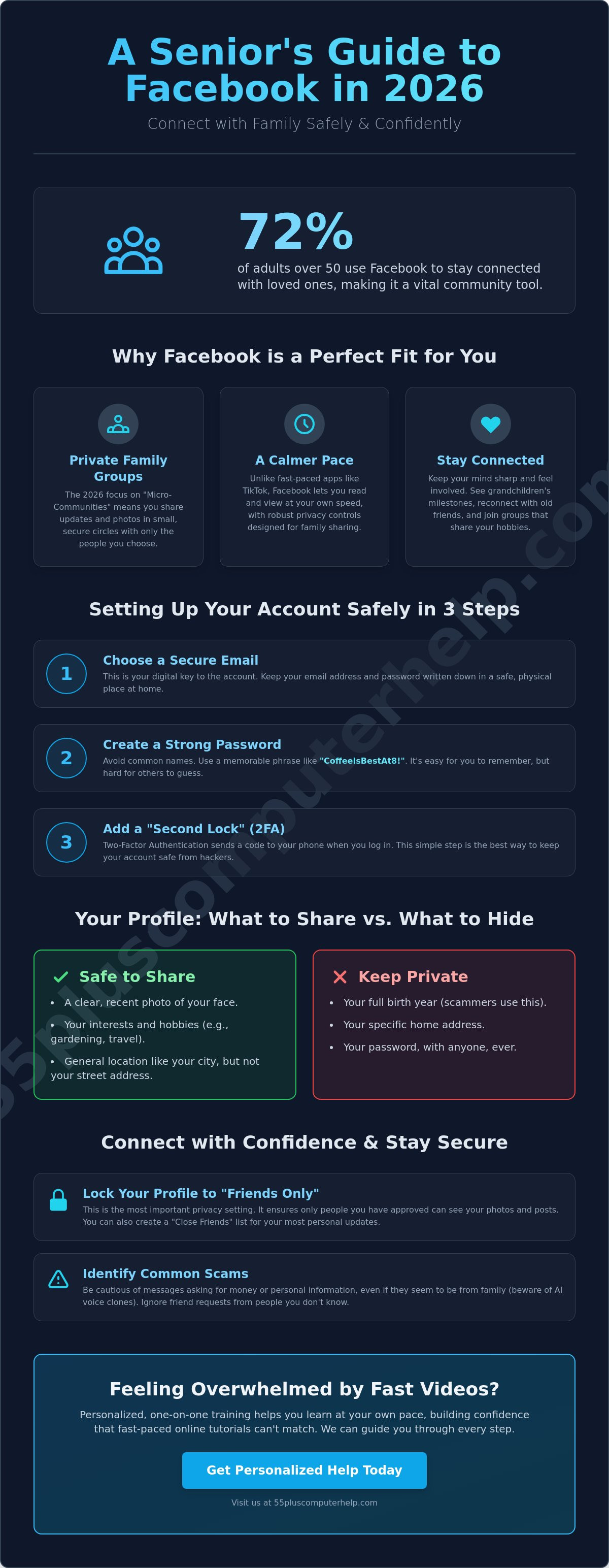
Next, you need a strong password. Avoid using common things like your pet's name or your street address. Instead, try a short sentence that only you know. For example, "CoffeeIsBestAt8!" is very strong and easy to remember. Security standards in 2026 also recommend two-factor authentication. This sounds technical, but it's like having a second lock on your front door. When you log in, Facebook sends a short code to your phone. You type that code in to prove it's really you. This simple step keeps hackers away from your personal photos and messages.
Your First Profile: What to Share and What to Hide
When you fill out your profile, less is often more. You should never post your full birth year or your home address publicly. Scammers can use this information to guess your identity. Pick a profile picture that makes you feel confident. A clear photo of your face helps your friends and family know they found the right person. It doesn't have to be a professional portrait; a simple photo from your garden works perfectly. You can write a short "About Me" section. Focus on your interests like birdwatching or traveling to share your personality safely.
Finding and Adding Your Family Members
The search bar at the top of the screen is a powerful tool. You can type in the names of your children, grandchildren, or old friends. When you find them, you can send a "Friend Request." Always look at their profile picture first to make sure it's the right person. If you receive a request from someone you don't know, it's perfectly okay to ignore it. Once you have a few friends, you can organize them into a "Close Friends" list. This ensures that your most personal updates only go to your inner circle. If these steps feel a bit intimidating, our smartphone and tablet training can guide you through the process at your own pace.
Navigating the 2026 Facebook Interface with Confidence
The look of Facebook changes every few years. This can make you feel like the ground is shifting under your feet. In 2026, the platform has introduced a "Simplified View" setting. This feature makes the text larger and the buttons easier to find. It's designed to reduce clutter so you can focus on what matters. When you first log in, you'll see your "Home" feed. Think of this as your digital morning newspaper. It shows you a mix of photos and stories from all your friends. Your personal "Profile" page is different. It's your own digital scrapbook where only your photos and life updates live.
Keeping track of your family's activity is easy once you master the notification bell. This little icon sits at the top of your screen. When someone likes your photo or leaves a comment, a small red number will appear there. It's like a doorbell that lets you know a friend is visiting your page. Interacting with these posts is the heart of facebook for seniors. You can click the "Like" thumb to show you've seen a post. If something really makes you smile, you can press and hold that button to choose the "Love" heart instead. Writing a comment is just like sending a short note in a card. It's a wonderful way to let your grandchildren know you're thinking of them.
Using Facebook Messenger for Private Conversations
Sometimes you want to have a conversation that isn't visible to everyone else. Facebook Messenger is a separate area for these private chats. You can send a quick "hello" or share a private joke with a sibling. It also allows you to start a video call with just one click. This lets you see your loved ones' faces clearly from your tablet or computer. If you have trouble logging in, it might be related to your email account. You can find help with our guide to email setup and troubleshooting for seniors to ensure your social logins work perfectly every time.
Sharing Your Own Memories: Photos and Posts
Sharing your own life is very rewarding. You can upload photos from your smartphone or computer by clicking the "Photo" button. Facebook will guide you through picking a picture from your files. Once the photo is ready, you can "tag" family members. This just means you're adding their name to the post so they get an alert to come look at it. Before you click "Share," always check the privacy button. It usually looks like a small globe or two people. Make sure it's set to "Friends" so that only people you know can see your memories. This simple check gives you total control over who enters your digital living room.
Privacy and Security: Avoiding Scams and Staying Safe
Feeling safe is the most important part of enjoying your time online. While the internet offers wonderful ways to connect, it also requires a bit of caution. In 2025, the FBI reported that seniors lost over $7.7 billion to internet crimes. This is a 37% increase from the previous year. These numbers can feel scary, but you can protect yourself by learning a few simple habits. Using facebook for seniors safely means knowing how to spot a trick before it happens. You are in control of your digital home, and you have the right to decide who gets to visit.
One common trick in 2026 is the "Grandparent Scam." Scammers now use AI technology to clone voices. They might send a message or even make a call that sounds exactly like your grandchild in distress. They often ask for money or gift cards immediately. If you ever see a message like this on Facebook, stop and take a breath. Do not send money. Instead, call your family member directly on their known phone number to verify the story. Another simple step is to check for "Sponsored" posts. These are advertisements that appear in your feed. They look like regular posts, but they have a small "Sponsored" label at the top. Real updates from your family will always have their name and profile picture without that label.
You can lock your digital front door by setting your privacy to "Friends Only." This ensures that strangers cannot see your photos or read your posts. If someone you don't know sends you a message that feels "off," you have the power to "Block" or "Unfriend" them. This removes them from your view entirely. It's a healthy way to keep your environment positive and secure.
The Golden Rule of Social Media Safety
Never click on links in private messages that ask for personal information. Even if the message looks like it's from a friend, their account might have been compromised. If you're worried that your computer has already been targeted, professional virus and malware removal can clean your system. This helps keep your social media accounts and your personal files much safer from future attacks.
Managing Your Digital Footprint
Your digital footprint is the trail of information you leave behind. It's a good idea to review your privacy settings every few months. You should also turn off location tracking in your Facebook settings. This keeps your daily movements private so people don't know when you're away from home. You can also manage which outside apps have access to your Facebook data. Keeping these settings tight ensures your information stays where it belongs. If you want help locking down your account, we offer professional computer setup and security support to give you total peace of mind.
Master Facebook with Personalized Training
Learning a new skill should feel like a conversation with a friend. Many people try to learn by watching fast-paced online videos. These videos often skip steps or use confusing words that make you feel more lost. With 1-on-1 mentorship, the pace is entirely up to you. If you need to see a step five times, we will show it to you five times. This personalized approach is the best way to master facebook for seniors because it focuses on your specific goals. You don't have to worry about a video moving too fast or a teacher who doesn't understand your concerns. We stay with you until you feel a sense of accomplishment and security.
We believe that there are no silly questions about technology. Everyone starts somewhere. Our patient, jargon-free approach means we explain things in plain English. You won't hear us using complicated tech terms that don't make sense. Instead, we focus on the practical actions you want to take. You get to learn on your own computer or tablet in the comfort of your own home. This makes the experience much more relaxing and effective. Using your own device ensures that everything looks exactly the same when our session is over. You will gain the self-assurance needed to stay connected without fear of making a mistake.
Customizing Your Facebook Experience
We help you set up the exact privacy levels you feel comfortable with so you always feel in control of your account. Our trainers walk you through your very first post and your first video call until you feel completely ready to do it on your own. We take the time to ensure you know how to find the notification bell and how to respond to your family. Since 2014, we have remained committed to empowering seniors by making technology accessible and easy to understand.
Get Started Today
Booking a session is a simple and stress-free process. You can choose a remote lesson or an onsite visit depending on what makes you feel most comfortable. During your first personalized technology lesson, we will sit down and listen to what you want to achieve. We will then create a step-by-step plan just for you. There is no pressure and no rush. We can also help with other needs like smartphone and tablet training or email setup and troubleshooting. You can Book Your Personalized Facebook Lesson Today to start connecting with your family with confidence.
Step Into Your Digital Community with Confidence
You now have the tools to stay close to your family through every milestone. By locking your account to "Friends Only" and recognizing the signs of modern scams, you can enjoy the best parts of social media without the worry. Mastering facebook for seniors is not about learning every technical detail. It's about feeling comfortable enough to see a photo, leave a comment, and share a smile with a loved one. Technology should bring you closer to people; it should never make you feel isolated or overwhelmed.
We know that digital updates move fast. Our team has specialized in senior IT support since 2014. We provide patient, jargon-free mentors who sit by your side and answer every question you have. You don't have to navigate these changes alone. Whether you want to perfect your privacy settings or start your first video call, we are here to help you feel empowered on your own device. There are no silly questions when you are learning something new.
Schedule Your Patient, One-on-One Facebook Training today. You have a world of family memories waiting for you. We are ready to help you reach them with total peace of mind.
Frequently Asked Questions
Is Facebook free for seniors to use in 2026?
Yes, Facebook is free to join and use. Meta makes money through advertisements rather than charging membership fees. You will never be asked to pay a subscription to see your family photos or message your friends. If you see a message asking for payment to use the site, it's a scam and should be ignored. You can enjoy connecting with your loved ones without worrying about a monthly bill.
Can my grandchildren see what I post if I don't have their account names?
No, they generally won't see your private posts unless you are "Friends" on the platform. You need to find their profile and send a friend request first. Once they accept, your updates will appear in their feed. If your profile is set to "Public," anyone can see your posts. We recommend keeping your settings private so only people you know can see your memories.
What should I do if I receive a friend request from someone I'm already friends with?
You should ignore the request and contact your friend through a phone call or a separate message. This is often a sign of a "cloned" account where a scammer uses your friend's name and photo to trick you. Accepting it could give a stranger access to your personal information. It's a common challenge when learning facebook for seniors, so always double-check before clicking accept. Safety is always more important than a quick click.
How do I stop seeing political ads or annoying posts on my feed?
You can hide specific posts or adjust your ad preferences in the settings menu. If a certain person posts things you don't like, you can "Follow" them less often or "Snooze" them for 30 days. Facebook also has a "Hide Ad" option on every advertisement. This helps the system learn what you enjoy seeing so your feed stays positive and relevant to your interests.
Is it safe to use Facebook on my iPad or smartphone?
Yes, it's very safe to use the official Facebook app on your mobile devices. In fact, many people find the tablet version easier to read because you can zoom in on photos. Just make sure you download the app from the official Apple App Store or Google Play Store. Keeping your device software updated will also protect your account from security risks and keep your information secure.
What happens if I forget my Facebook password?
You can use the "Forgot Password" link on the login screen to reset it. Facebook will send a special code to your registered email address or your mobile phone. You simply enter that code to create a new password. This is why it's so important to keep your email access active. If you need help with this, we offer specific training for facebook for seniors to guide you through the recovery process.
How can I tell if a Facebook message is a scam?
A scam message usually creates a sense of urgency or asks for money and personal details. Look for poor spelling or unusual requests, even if the message seems to come from a friend. Scammers often use the "Grandparent Scam" or fake prizes to trick people. If a message feels "off" or too good to be true, it almost certainly is. Always call your relative to verify their story.
Do I need to download a special app to use Facebook?
No, you can use Facebook through any internet browser like Safari or Google Chrome. However, downloading the official Facebook app on your smartphone or tablet often provides a smoother experience. The app is designed for touchscreens and makes it much easier to upload photos or make video calls to your family. It's a great way to stay connected while you're relaxing on the couch.


