
Imagine sitting down to see new photos of your family, but your computer takes so long to load that you give up before the first picture appears. It’s a common frustration that makes technology feel like a chore rather than a way to stay connected. You might worry that clicking the wrong button will delete your precious memories or that "cleaning" the system requires a degree in engineering. You aren't alone in feeling this way. This guide shows you how to clean up and speed up an old computer using gentle, safe steps that won't put your files at risk.
Whether you're using the latest Windows 11 update from May 2026 or the new macOS 26.5 Tahoe, a few simple habits can make your machine feel brand new. We'll help you understand the difference between a simple slow-down and actual malware without using confusing jargon. You'll learn how to clear out digital clutter, handle small physical cables with ease, and gain the confidence to perform basic maintenance. We will also help you identify exactly when it's safe to click and when it's smarter to call for a helping hand.
Key Takeaways
- Understand how "digital clutter" and invisible background tasks slow down your daily experience.
- Learn a safe way to physically clean your machine to prevent dust from causing performance-draining heat.
- Discover how to clean up and speed up an old computer by removing "furniture" you no longer need in the form of unused apps.
- Find out how simple software updates act as a vital tune-up for your computer’s speed and security.
- Know exactly when to stop and call for a friendly expert to help with software installation or virus removal.
Understanding Why Your Computer Feels Sluggish Over Time
Think of your computer like a house you have lived in for many years. When you first moved in, the rooms were empty and easy to walk through. Over time, you probably added furniture, stored boxes in the attic, and hung pictures on the walls. A computer works the same way. Every photo you save and every program you install adds a little more weight to the system. Knowing how to clean up and speed up an old computer can help you clear out this weight and make your device feel fresh again. System bloat is the accumulation of unnecessary files and programs that take up space and slow your progress. It is a natural part of owning a device. You haven't done anything wrong; you have simply been using your technology to live your life.
Sometimes, your computer feels slow because of invisible workers called background tasks. These are programs that start running the moment you turn the machine on, even if you never opened them yourself. They sit in the corner of your computer's "mind," taking up energy that should be used for the things you actually want to do. When you combine these tasks with modern software updates, older machines can struggle. New updates for Windows 11 or macOS 26.5 Tahoe are often built for the newest models. While these updates are a key part of regular computer maintenance, they can sometimes ask an older computer to do more than it was originally designed for. Learning how to clean up and speed up an old computer starts with understanding these hidden pressures.
The Difference Between Hardware Age and Software Clutter
To understand your computer, imagine it is a car. The hardware, like the processor and memory, is the engine. The software and files are the passengers. If you put twenty people in a small car, the engine will struggle to go uphill. That is a software clog. However, if the car is very old, it simply might not go as fast as a brand new one. That is a hardware limit. Most of the time, your computer is just carrying too many passengers and needs a lighter load to run well again.
Common Signs Your Computer Needs a Digital Spring Cleaning
You don't need to be a technician to know when your system is struggling. Look for these simple signs:
- Slow boot-up times: If it takes more than two or three minutes to reach your desktop after turning the power on, your computer is likely overwhelmed.
- The "Whirring" sound: If you hear your computer's fans spinning loudly, it is trying to stay cool while working too hard.
- Delayed responses: You might click an icon or type a sentence and wait several seconds before anything happens on the screen.
If you notice these things, it's time to tidy up your digital space and give your machine some room to breathe.
Step 1: Giving Your Computer a Safe Physical Cleaning
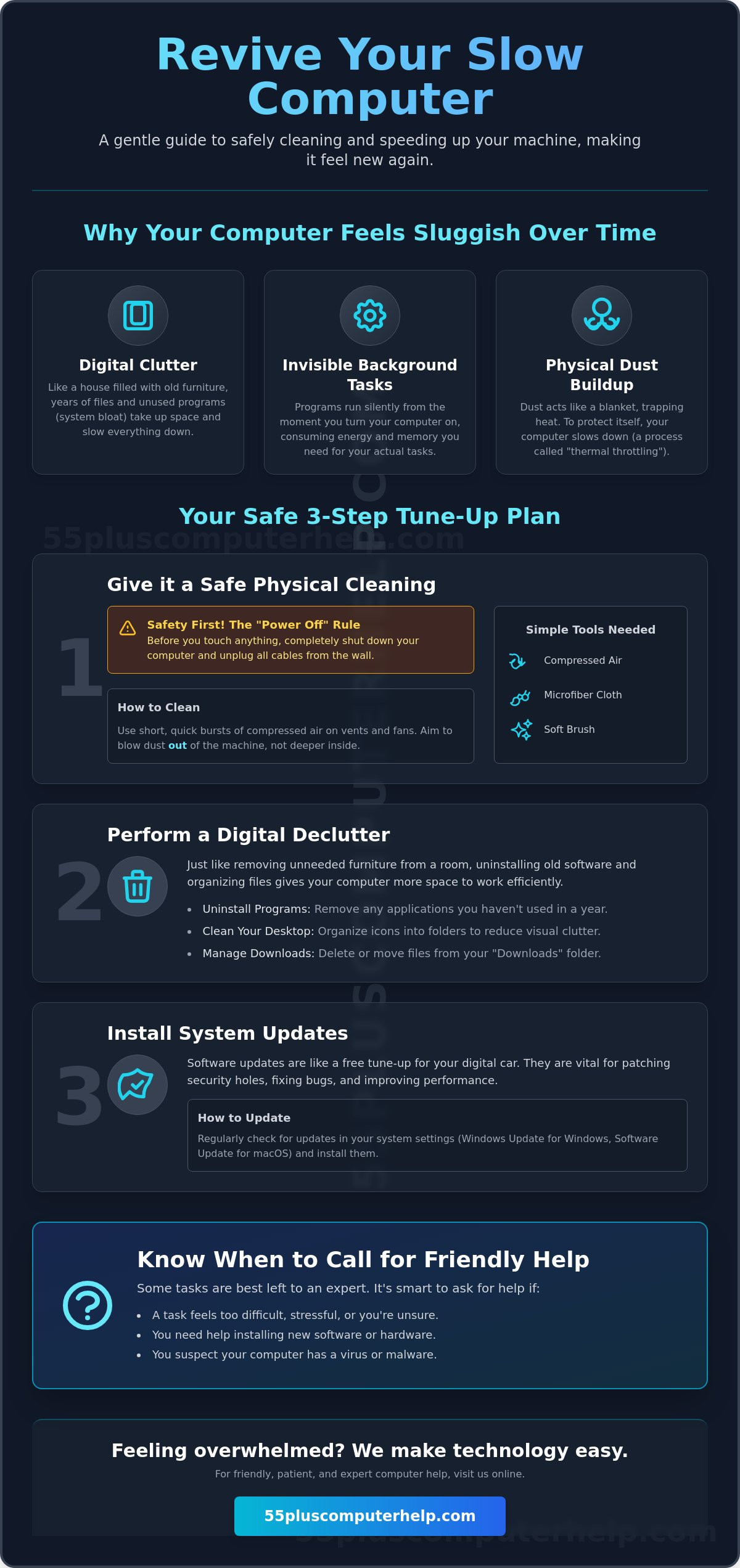
Dust is the silent enemy of technology. Over time, tiny particles of dust and pet hair settle inside your computer. This buildup acts like a thick, heavy blanket that traps heat. When a computer gets too hot, it protects itself by slowing down. This process is called thermal throttling. It is one of the most common reasons a machine feels sluggish. Learning how to clean up and speed up an old computer begins with clearing out this physical clutter so your machine can breathe again. A cool computer is a fast computer.
Safety is the most important part of this process. Before you start, you must follow the "Power Off" rule. Shut down your computer completely and unplug it from the wall. If you use a laptop, unplug the charging cable as well. If you have trouble seeing small ports or have limited mobility in your hands, use a bright desk lamp or a magnifying glass to help you see where the cables connect. Having the right tools makes the job much easier for everyone. You only need a few simple items:
- A can of compressed air: This helps blow dust out of hard-to-reach places.
- A microfiber cloth: These are soft and won't scratch your screen or case.
- A soft-bristled brush: A clean makeup brush or a small paintbrush works perfectly for dusting between keys.
When you use compressed air, always use short, quick bursts. Aim the nozzle at the vents on the side or back of your computer. You want to blow the dust out of the machine rather than deeper into it. If you are cleaning a desktop tower, check the back where the large fans are located. Keeping these pathways clear is a great way to speed up your computer without touching a single file. If this physical task feels difficult or stressful, our computer setup experts can help you arrange your workspace and ensure your machine is clean and safe.
Cleaning Your Keyboard and Screen the Right Way
Modern screens are very sensitive. Never use household glass cleaners or harsh chemicals, as they can strip away protective coatings. Instead, use a microfiber cloth that is slightly damp with plain water. For your keyboard, turn it upside down over a trash can and give it a gentle shake to remove crumbs. Use your soft brush to sweep away any remaining debris between the keys. This keeps your typing smooth and prevents keys from sticking.
Improving Airflow Around Your Workspace
Where you put your computer matters just as much as how clean it is. Many people enjoy using a laptop on a bed or a plush sofa. Unfortunately, soft surfaces block the vents on the bottom of the machine, causing it to overheat almost instantly. Always use a hard, flat surface like a desk or a kitchen table. If you have a desktop tower, make sure it isn't squeezed into a tight corner. Leave at least several inches of open space around all sides so the fans can move air freely.
Step 2: Digital Decluttering and Managing Your Files
After your computer is physically clean and cool, it's time to look at what is stored inside. Think of your computer's storage space like a living room. If you keep every piece of furniture you have ever owned, eventually you won't have room to walk. Uninstalling programs is simply moving out the "furniture" you no longer use. This creates more space for your computer to think. In fact, keeping at least 15-20% of your hard drive empty can provide a noticeable boost in speed. Learning how to clean up and speed up an old computer is often as simple as making sure your digital "rooms" aren't too crowded.
To see what is currently taking up space, you can look at your "Apps" or "Programs" list. This is a master list of everything installed on your machine. You might find "Trialware" or "Bloatware" here. These are programs that came with the computer when you bought it, like game trials or expired security software. They often run in the background and use up energy without providing any benefit. While you are looking through your files, keep in mind that some slowness comes from hidden sources. If you suspect your machine is acting strangely, our Virus and Malware Removal guide offers a safe way to deal with hidden digital threats.
Identifying Which Programs Are Safe to Remove
It is natural to feel nervous about deleting things. You don't want to break something important. A great rule to follow is: "If you don't recognize it, look it up." You can type the name of the program into a search engine to see what it does. Most of the time, items like old games, travel toolbars, or photo editors you haven't opened in years are perfectly safe to remove. One of the most common fears is losing family photos or letters. Don't worry. Removing a program does not delete your personal documents or pictures. It only removes the tool itself, not the work you created with it.
Tidying Your Downloads and Trash Bin
Your "Downloads" folder often becomes a graveyard for old files. Every time you open an email attachment or save a document from the internet, a copy lands here. These files can pile up quickly. Take a moment to look through this folder and delete anything you don't need. Once you have deleted files, remember to empty your "Recycle Bin" or "Trash." Files sitting in the bin still take up space on your hard drive. They aren't truly gone until you empty the bin. If your computer is full of thousands of photos, consider moving them to an external drive or a cloud storage service. This keeps your memories safe while giving your computer the breathing room it needs to stay fast.
Step 3: Improving Performance with Simple System Updates
Think of a system update as a gentle tune-up for your computer's brain. Just like a car needs an oil change to keep the engine running smoothly, your computer needs regular updates to fix small errors and improve its overall speed. Many people worry that an update will change everything or delete their files. In reality, these updates are designed to make your machine more efficient. Learning how to clean up and speed up an old computer often involves simply letting the software manufacturers provide these helpful improvements. It is a safe and effective way to keep your technology current.
Beyond the main system, you should also pay attention to your internet browser. Whether you use Google Chrome, Microsoft Edge, or Safari, these programs need updates to load websites quickly. These updates often include security patches. These patches act like new locks on your digital doors, keeping you safe from modern scams and hackers. Keeping your browser and operating system current is one of the best ways to protect your information. To keep your primary way of talking to family secure, you can also look at our Email Setup and Troubleshooting guide. This ensures your communication tools are as fast and safe as the rest of your machine.
How to Check for Updates Safely
Checking for updates is a straightforward process. On a Windows computer, click the Start button, then go to Settings, and select Update and Security. If you use a Mac, click the Apple icon and choose System Settings. It is a good idea to start these updates in the evening. This allows the computer to work while you are away so it doesn't disturb your day. Once the update finishes, your computer will likely ask to restart. This is a vital step. A restart clears out temporary data and gives the system a fresh start. If the thought of managing these settings feels overwhelming, we can help with software installation and updates to ensure everything is running perfectly.
Stopping Programs from Starting Automatically
Startup programs are applications that launch the moment you turn on your computer. Sometimes, programs like Spotify or Skype invite themselves to start running immediately. This makes your boot-up time much longer because the computer is trying to do too many things at once. You can see this list by using the Task Manager on Windows or the Users and Groups menu on a Mac. Look for items you don't need the second you turn on the machine. Disabling these uninvited guests will help your computer reach the desktop much faster. It gives your machine a clear path to focus on what you actually want to do.
When to Seek Professional Help for a Faster Computer
Learning how to clean up and speed up an old computer is a rewarding project that builds your confidence. However, there are moments when digital maintenance becomes more stressful than helpful. If you've followed the earlier steps and your computer still feels stuck, it might be time to call in a trusted expert. Technology should make your life easier, not harder. You never need to feel embarrassed about asking for a helping hand. Professional assistance from 55 Plus Computer Help LLC ensures that no personal data is lost during the cleanup process. This gives you the security of knowing your family history and documents are in safe hands.
Some issues are simply too complex to solve with basic housekeeping. While clearing out files and dusting vents helps many machines, older hardware can sometimes face internal failures that require a specialist's eye. Recognizing the point where DIY steps stop being helpful and start being frustrating is key to a happy relationship with your device. A tech mentor can identify hidden problems that aren't obvious to the average user. This saves you hours of trial and error and lets you get back to enjoying your time online.
Signs You Need a Hands-On Tech Expert
There are a few clear signals that your computer needs more than just a simple cleaning. If you experience any of these, it's a good idea to reach out for support:
- System Freezes: The computer stops responding completely or shows a Blue Screen error message.
- Security Concerns: You suspect you have a virus but don't feel comfortable running removal software on your own.
- Hardware Questions: You want to improve speed by adding more RAM but don't want to open the computer case yourself.
- Persistent Slowness: The machine remains slow even after you've emptied the trash and performed all system updates.
The 55 Plus Computer Help LLC Approach: Support and Education
Our onsite support focuses entirely on your comfort and specific needs. At 55 Plus Computer Help LLC, we don't just fix the problem and leave. We act as your patient tech mentor, showing you exactly how to keep your machine running well for the long term. This educational approach turns a repair visit into a chance to learn new skills at your own pace. Whether you need help with virus and malware removal or a complete computer setup, we're here to help. You can schedule a patient, in-home computer cleanup session today to get your machine back to its best performance.
Enjoying a Faster and Smoother Computer Experience
A fast computer lets you focus on what really matters, like sharing photos with family or reading the news without delay. You now have the knowledge to keep your machine cool and clear out the digital clutter that slows you down. By managing your startup programs and staying current with system updates, you can feel confident in your ability to maintain your technology. Learning how to clean up and speed up an old computer is a wonderful step toward digital independence and peace of mind.
If these steps still feel a bit daunting, you don't have to handle them alone. We have been serving seniors since 2014 with patient, jargon-free instruction that puts your comfort first. As malware and virus removal specialists, we make sure your device is both quick and safe. Let us help you speed up your computer with a patient, in-home visit. We are here to support you every step of the way. You deserve technology that works reliably so you can stay connected to the world around you.
Frequently Asked Questions
Is it safe to delete files I don’t recognize?
No, you should not delete files if you don't recognize them. Many of these files are essential parts that help your computer's operating system run correctly. If you are unsure about a specific file, it is best to leave it alone or search for its name online. Deleting the wrong item can cause programs to stop working. If your screen is cluttered, focus on moving your own documents and photos into folders instead.
Will speeding up my computer delete my photos or emails?
No, the steps used to improve speed do not target your personal memories or messages. Cleaning your computer involves removing unused programs and temporary files that the system no longer needs. Your photos, letters, and emails stay exactly where you left them. For extra peace of mind, we always recommend a regular data backup. This ensures your most precious files are safe while you perform your digital maintenance.
How often should I restart my computer to keep it fast?
You should aim to restart your computer at least once every few days. Many people simply close the lid of their laptop, which only puts it to sleep. A full restart is different because it clears out the computer's temporary memory and stops any invisible tasks that are stuck. This simple habit is a key part of how to clean up and speed up an old computer without any extra cost.
Can a virus make my computer run slowly?
Yes, viruses and malware are common reasons for a sudden drop in speed. These malicious programs run quietly in the background, using up your computer's energy to perform tasks you didn't ask for. They can make simple actions feel like they take forever. If your machine is acting strangely or showing unexpected pop-up messages, professional virus and malware removal can often restore the speed you used to enjoy.
What is the "Cloud," and can it help my computer run better?
The Cloud is simply a secure way to store your files on the internet rather than on your computer's physical hard drive. By moving large photo collections or old videos to services like OneDrive or iCloud, you free up valuable space on your machine. When your hard drive has more empty space, it can find and open files much faster. It is like moving boxes from a cramped hallway into a rental storage unit.
Is it worth fixing an 8-year-old computer, or should I buy a new one?
It depends on how much the repair costs compared to a new machine. A general rule is that if the repair costs more than half the price of a comparable new computer, it may be time to replace it. However, many older machines can be saved with simple software updates and physical cleaning. Since raw processing power has grown more slowly in recent years, an older computer can often still meet your daily needs perfectly.
Does having too many icons on my desktop slow down the computer?
Yes, having dozens of icons on your desktop can cause a slight delay when you start your computer. Every time you turn the machine on or return to the main screen, the computer has to draw each of those icons one by one. You can help your computer by organizing those files into a few labeled folders. This makes your workspace look tidier and gives your machine one less task to worry about during boot-up.
Why does my internet feel slow even after I cleaned my computer?
Internet speed and computer speed are two different things. How to clean up and speed up an old computer focuses on making the machine itself work faster. If websites still load slowly, the issue might be with your Wi-Fi signal or your internet service provider. You might need to move your router to a more central location or check your cables. We can assist with internet and Wi-Fi troubleshooting to help you find the cause.


