
Did you know that 86% of people in the United States now express growing concern about their digital privacy? It's completely normal to feel a bit uneasy when ads for items you just searched for start following you around the internet. You might also notice that your computer or tablet feels a little sluggish after months of use. These are common frustrations, but there is a very simple way to fix them. Learning how to clear browser history and cookies is one of the best things you can do to reclaim your privacy and speed up your device.
We understand that technology can feel overwhelming, especially with all the different versions of Chrome, Edge, and Safari out there. You don't have to be a tech expert to keep your information safe. This guide provides patient, step-by-step instructions to help you tidy up your digital footprint without any fear of making a mistake. We will show you exactly where to click so you can enjoy a faster, cleaner, and more private browsing experience today.
Key Takeaways
- Understand the difference between browser history and cookies so you can manage your digital footprint with confidence.
- See how removing digital clutter can protect your privacy from unwanted ads and make your computer feel faster.
- Follow our easy guide on how to clear browser history and cookies without the fear of clicking the wrong button.
- Learn the "password trap" secret to ensure you keep your login information safe while cleaning your browser.
- Discover how a patient mentor can help you maintain your computer through personalized training and support.
What Are Browser History and Cookies?
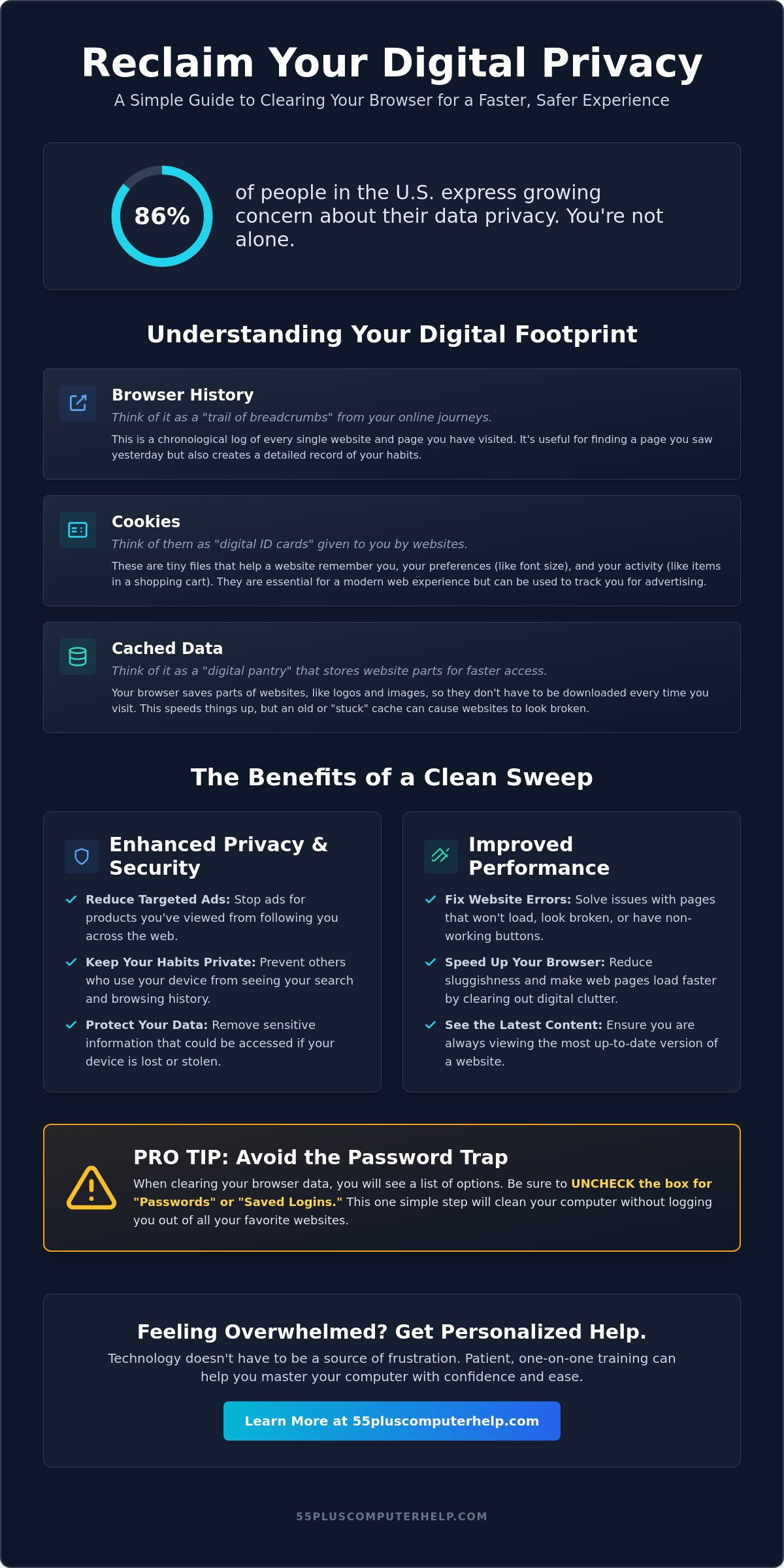
Before we look at how to clear browser history and cookies, it's helpful to understand what these things actually are. When you use the internet, your computer keeps a record of what you do. You might wonder, What is a web browser? Simply put, it's the program you use to visit websites, like Chrome, Edge, or Safari. As you browse, this program saves a list of every page you visit. Think of your browser history as a trail of breadcrumbs. It shows exactly where you have been recently. This is helpful if you want to find a recipe or an article you read yesterday, but it also creates a digital record of your private habits.
Cookies are a bit different. Instead of a list of places, think of a cookie as a digital ID card. When you visit a website, it might give your browser a tiny "memory" file. This file helps the site remember who you are. It might keep your shopping cart full or remember that you prefer to read the news in a larger font. These files are a normal part of how the modern internet works. They aren't harmful on their own. However, they can pile up over time like a stack of old newspapers in the corner of a room. When you have thousands of these tiny files, your computer has to work harder to sort through them.
The Difference Between History and Cookies
It's easy to get these two mixed up. History is purely about the past. It's a chronological log of your activity. Cookies are more about your current preferences and identity. While history tells your computer where you have been, cookies tell a website how to treat you when you arrive. Both of these take up a small amount of space on your device. If you haven't cleaned them out in years, they can start to slow things down. Learning how to clear browser history and cookies helps keep your computer running smoothly by removing this digital clutter.
What is the 'Cache' and Why Does it Matter?
You might also hear a word called "cache." This is another type of storage your browser uses. The cache saves parts of websites, like large images or logos, so the page loads faster the next time you visit. It's like keeping your favorite spices on the counter instead of in the pantry. Sometimes, the cache gets "stuck" with old information. This can cause a website to display errors or look broken. Clearing the cache is like dusting a shelf so you can see the books clearly again. It gives your browser a fresh start and helps it display the most current version of a website.
Why You Should Clear Your Browser Data Regularly
Cleaning your digital trail is a lot like tidying up your home. You don't do it because the house is broken. You do it to keep things organized and comfortable. Knowing how to clear browser history and cookies is a simple way to maintain your digital space. When you visit websites, your computer collects files that can eventually get in the way. By clearing this data, you ensure that your computer stays responsive and your personal information remains your own.
One of the most noticeable benefits is the reduction of targeted ads. Have you ever looked at a pair of shoes online only to see those same shoes on every other website you visit? This happens because cookies are tracking your interests. While this is common, it can feel like your privacy is being invaded. In fact, research from 2026 shows that 86% of people in the U.S. have grown more concerned about their data privacy. Clearing your data helps stop these ads from following you around the web.
Privacy and Security Benefits
Privacy is about more than just ads. If you share a tablet or computer with your spouse or grandchildren, you might not want every search you've made to be visible. Clearing your history keeps your browsing habits private. It also provides a layer of safety if your device is ever lost or stolen. A stranger wouldn't be able to see your recent activity or the sites you use most often. Scammers also use old data to target people with specific pop-up messages. You can find a helpful step-by-step guide to clearing browser data to help you get started with these security habits.
Boosting Your Computer's Performance
Your computer's speed is another great reason to stay on top of this task. Over time, the clutter of old files can make your browser feel sluggish. This is especially true for older computers that don't have as much storage space. Sometimes, a website might not load correctly because your browser is trying to use an old, saved version of the page. This is a common issue that we address during internet and Wi-Fi troubleshooting sessions. Clearing your data forces the browser to download the most recent version of a page. This often fixes buttons that won't click or pages that look scrambled.
Regular maintenance helps in several ways:
- It fixes pages that won't load or look broken.
- It speeds up the time it takes to open a new website.
- It ensures you see the most current news and weather updates.
Once you understand how to clear browser history and cookies, you'll find that your time online is much more pleasant and secure.
Step-by-Step: How to Clear History on Your Devices
Every computer and tablet is a little bit different. However, most programs use very similar symbols to help you find what you need. When you are looking for your settings, keep an eye out for three small dots or a gear icon in the top right corner of your screen. These are the "keys" to your browser's control center. Learning how to clear browser history and cookies on your specific device is a great skill that helps you stay in control of your technology.
If you find that moving the mouse is difficult, there's a helpful trick for computer users. You can hold down the Ctrl, Shift, and Delete keys all at the same time. This usually jumps you straight to the cleaning menu. This shortcut works in almost every major browser and saves you from having to hunt through several menus. It's a small tip that makes the process much faster and easier on your hands. We want you to feel confident that you can't "break" anything by simply cleaning out these old files.
Clearing Data in Google Chrome and Microsoft Edge
Google Chrome and Microsoft Edge are the most common programs used on desktop computers and laptops today. To start your cleaning, look at the very top right corner of your browser window. In Chrome, you'll see three vertical dots. In Edge, those dots are horizontal. Click those dots to open a menu. From there, follow these simple steps:
- Hover your mouse over the word History and then click History again in the small menu that pops up.
- On the left side of the new screen, click the words Clear browsing data.
- A box will appear in the middle of your screen. Look for the "Time range" setting and change it to All time. This ensures you remove all the old clutter, not just the items from the last hour.
- Check the boxes for "Browsing history" and "Cookies and other site data," then click the blue Clear data button.
Clearing History on an iPad or iPhone (Safari)
If you prefer using an Apple iPad or iPhone, the process is slightly different. You won't find the cleaning buttons inside the Safari app itself. Instead, you need to use the main Settings app. This is the silver icon on your home screen that looks like a set of turning gears. Using this app helps you manage the privacy risks of browser cookies on your mobile devices. It's a vital step for keeping your portable gadgets secure.
Once you open Settings, scroll down the long list on the left side until you see the blue compass icon for Safari. Tap it once. On the right side of the screen, scroll down until you see the words Clear History and Website Data written in blue or red text. Tap that button, and a small box will pop up asking you to confirm. Tap the confirmation button, and your iPad will be fresh and ready for your next session. It's a quick habit that makes your tablet feel brand new again.
The Password Trap: What Not to Clear
One of the biggest worries many people have is losing their saved passwords. It is a very common fear. You might have dozens of passwords saved for your email, Facebook, or favorite shopping sites. If you follow the steps for how to clear browser history and cookies, you might worry that those passwords will vanish. The good news is that you are in total control of what stays and what goes. Your computer only deletes what you tell it to delete.
When you open the cleaning menu we discussed earlier, you will see a list of checkboxes. Each box represents a different type of digital clutter. Most of the time, your browser will automatically check the boxes for "Browsing history" and "Cookies." This is exactly what we want. However, you should look further down the list for a box labeled "Passwords" or "Autofill form data." Keeping these boxes empty ensures your life stays easy while your computer stays clean.
How to Keep Your Saved Passwords Safe
Before you click that final "Clear" or "Remove" button, take a slow breath and look closely at the list. We recommend leaving the "Passwords" box unchecked every single time. This allows your computer to remember your logins so you don't have to type them in again tomorrow. It is also helpful to know that your bookmarks are never affected. Your list of favorite websites will stay exactly where it is. If you ever feel stuck or worried about your account security, our email setup and troubleshooting service can help you get everything organized safely.
What to Expect After Clearing Your Cookies
Once you finish the cleaning process, things might look a tiny bit different the next time you go online. This is perfectly normal. Since you have removed your "digital ID cards," some websites won't recognize you immediately. You might need to log back into your email or your bank one time. After you log in once, the website will give you a fresh, new cookie, and it will remember you again. You should also expect to see those "Accept Cookies" banners on websites again. This is a standard privacy feature and is safe to click.
If you accidentally delete a password and don't have it written down, try not to panic. Almost every website has a "Forgot Password" link. Clicking this will send a reset link to your email. We understand that these small changes can feel like a lot to handle at once. Learning how to clear browser history and cookies is a journey, and it's okay to take it one step at a time. Your "frequently visited" list might be empty for a few days, but it will quickly fill back up with the sites you love most.
Getting Extra Help with Your Computer Maintenance
You've taken a great first step by learning how to tidy up your digital footprint. Knowing how to clear browser history and cookies is a valuable skill that keeps your computer running better. However, we also know that technology can sometimes be stubborn. If you've followed these steps and your device still feels slow, it might be time to look for a little extra support. Asking for help isn't a sign of defeat. It's a smart way to ensure your computer stays safe and reliable.
Sometimes, a simple cleaning isn't enough to fix deeper issues. A professional can look under the hood of your computer to find hidden problems that a basic browser cleaning might miss. This kind of "tune-up" can remove old software that you no longer need. It also gives you the peace of mind that comes with knowing everything is set up correctly. Our goal is to help you feel empowered so you can use the internet with total confidence and security every day.
When to Call a Professional
There are a few specific signs that your computer needs more than just a quick cleaning. If your browser is still very slow after you clear your data, there might be a deeper setting that needs adjustment. You should also watch out for strange pop-up windows that appear even when you aren't visiting a website. These can be signs of unwanted programs that have found their way onto your device. For more information on this, you can read our Virus and Malware Removal: A Patient Guide. We specialize in identifying these issues and removing them gently without losing your important files.
Personalized Training for Your Peace of Mind
Learning how to clear browser history and cookies is just the beginning of what you can master. Many seniors find that having a friendly expert sit down with them makes a world of difference. A patient mentor can walk you through the process at your own pace. We can answer your specific questions without using confusing tech talk or rushing you. This personal touch helps transform frustration into a real sense of accomplishment.
We can also help with other common tasks, such as Email Setup and Troubleshooting. Staying connected with family and friends should be easy and stress-free. Whether you need help with your printer or want to learn how to use a new tablet, we are here to support you. You deserve to have technology that works for you, not against you. Contact 55 Plus Computer Help LLC for patient, in-home technology assistance.
Enjoy a Faster, Safer Internet Today
You now have the tools to manage your digital footprint with confidence. By understanding how to clear browser history and cookies, you can protect your personal information and keep your computer running like new. Remember to look closely at those checkboxes so your passwords stay safe while the digital clutter disappears. These small habits make a big difference in how your device feels and performs every day.
If you ever feel overwhelmed or run into a technical problem that won't go away, you don't have to face it alone. 55 Plus Computer Help LLC has been serving seniors since 2014 with patient, jargon-free mentoring. Our local experts specialize in virus removal and device setup right in your own home. We believe technology should be a source of joy, not a source of stress. Book a patient, in-home tech support session today to get your computer back in top shape. You've worked hard to learn these new skills, and we're here to support your digital independence every step of the way.
Frequently Asked Questions
Will clearing my history delete my bookmarks or favorites?
No, clearing your history will not delete your bookmarks or favorites. Your bookmarks are saved in a separate list so you can always find your favorite sites again. Clearing your history only removes the record of pages you have visited in the past. It's a safe way to tidy up your digital space without losing the links you have carefully saved over time. You can keep your bookmarks forever while still cleaning out the digital clutter.
How often should I clear my cookies and browser history?
Most people find that clearing their data once every three months is a helpful habit. You don't need to do it every day or even every week. Doing it a few times a year keeps your browser running efficiently and protects your privacy. If you notice your computer feels sluggish or you see too many targeted ads, you might want to do it sooner. It's a simple part of regular computer maintenance that helps you stay in control.
Why do websites keep asking me to 'Accept Cookies' every time I visit?
Websites ask you to accept cookies because you have removed the tiny file that remembers your previous choice. When you learn how to clear browser history and cookies, you are giving your browser a fresh start. Since the website no longer has your "ID card," it must ask for your permission again. This is a normal privacy feature required by many laws to ensure you know how your data is being used by the site.
Can clearing my history help fix a slow internet connection?
Clearing your history won't speed up your actual Wi-Fi signal, but it can make your browser feel much faster. Sometimes a browser gets bogged down by too many old and unnecessary files. When you remove this clutter, pages often load more quickly and buttons respond better. If your internet is still slow after cleaning, you might need help with internet and Wi-Fi troubleshooting to check your router or modem for other issues.
Is it safe to clear my cache, or will I lose my photos?
It is perfectly safe to clear your cache, and it will not delete the personal photos saved on your computer. The cache only stores temporary images from websites you have visited. These are just copies the browser uses to load pages faster the next time you visit. Your precious family photos and documents are stored in different folders on your hard drive. Clearing the cache only removes the temporary website "snapshots" that are no longer needed.
What happens if I forget my password after I clear my cookies?
If you forget a password after clearing your cookies, you can almost always use the "Forgot Password" link on the website's login page. This process will send a reset link to your email address. To avoid this frustration, we recommend leaving the "Passwords" box unchecked when you are learning how to clear browser history and cookies. This way, your computer remembers your login details while still cleaning up other unnecessary data that slows you down.
Does clearing my history also delete my emails?
No, clearing your browsing history will never delete your emails. Your messages are stored safely on the servers of your email provider, like Google or Yahoo. Clearing your history only removes the list of websites you have visited on your specific device. You can log back into your email account at any time and find all your messages exactly where you left them. It's a safe process that won't affect your important communications or saved messages.
Can I clear my history on just one website instead of all of them?
Yes, you can choose to delete your history for just one specific website if you prefer. When you open your history list, you will see a small checkbox next to every page you have visited. You can check the box for a single site and click the "Delete" button. This is a great option if you want to keep most of your history but remove a specific search or a site you visited by mistake during your session.


