
Imagine you just received a beautiful digital photo of your granddaughter, and you'd love to tuck a physical copy into a frame on your mantel. Instead of a simple click, you're faced with a tangle of wires or a tiny printer screen filled with confusing abbreviations. It's completely normal to feel a bit nervous about pressing the wrong button or accidentally breaking a setting. We believe technology should bring you closer to your family, not cause a headache or make you feel overwhelmed.
We understand that terms like SSID or WPS often sound like a foreign language. That's why this guide shows you exactly how to connect a printer to wifi using patient, jargon-free instructions. You don't need to be a computer expert to get this right. We'll walk through the most secure, modern methods available in 2026, ensuring your personal information stays safe while your desk stays clutter-free. By the time we're done, you'll feel a genuine sense of accomplishment as you print your own photos and boarding passes wirelessly and with total confidence.
Key Takeaways
- Discover why gathering your network name and password before you start creates a calm and successful setup experience.
- Learn exactly how to connect a printer to wifi using clear, secure methods that prioritize your digital safety and peace of mind.
- Master a few simple troubleshooting tricks, like the "power cycle," to fix common connection issues without any frustration.
- Find out how to keep your printer linked to your computer so you can enjoy a wire-free desk and print whenever you need.
Understanding Wireless Printing: Why It Is Worth the Effort
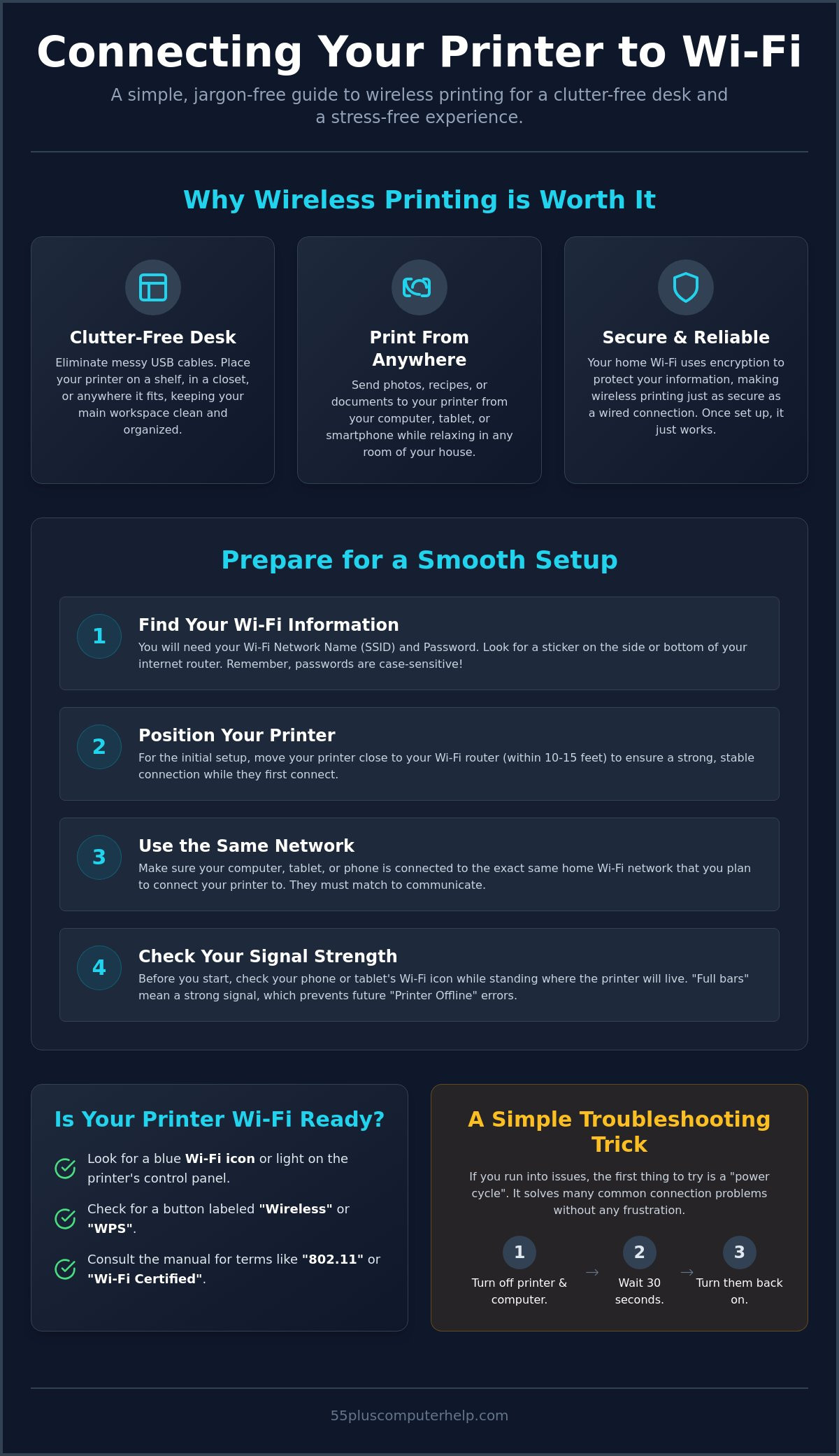
Wireless printing sounds like magic. It is actually a very practical way to make your home more organized. Think of it as sending your documents through the air using your home network. You don't need a physical cord connecting your computer to the printer anymore. This small change gives you a lot of freedom. You can keep your printer in a guest room, a closet, or on a sturdy shelf across the room. This keeps your main desk clear of clutter and extra wires. It also means you can print from any room in the house as long as your Wi-Fi signal reaches there.
Learning how to connect a printer to wifi is a great way to gain more control over your home technology. Once you finish the setup, the device remembers your network settings. You won't have to repeat the steps every time you want to print a recipe or a photo. Most printers built after 2015 come with this feature ready to use. It is a reliable way to simplify your life and clear away those messy cables. If you ever run into a software snag, remember that remote support is available for quick printer fixes. This ensures you stay connected without the stress.
Wireless vs. Wired: What Is the Difference?
A wired connection requires a USB cable. This cable limits you to sitting right next to the printer. Wireless printing uses your home Wi-Fi signal instead. This allows you to print from your tablet or smartphone while you sit on the couch. Some devices use Wi-Fi Direct to talk to each other without needing a router. Wireless printing is just as secure as using a cable. Your home network uses encryption to protect your information.
How to Tell if Your Printer is Wi-Fi Ready
Look at your printer's control panel for a blue Wi-Fi icon or a "Wireless" button. Check your manual for terms like "802.11" or "Wi-Fi Certified." These mean the printer can talk to your router. If these terms feel confusing, don't worry. We can help you identify your specific model during a personalized technology training session. Knowing your equipment is the first step toward digital independence. Understanding how to connect a printer to wifi starts with knowing what your machine can do.
Preparing for a Smooth Setup: What You Need Before You Start
Setting up a printer is much easier when you have everything ready before you begin. Most technical frustration happens because a small detail is missing. Before you start learning how to connect a printer to wifi, take a moment to clear a small workspace. Having a tidy area helps you stay calm and focused. You should also move your printer close to your internet router for this initial process. Placing it within 10 to 15 feet ensures a strong connection while the devices talk to each other for the first time.
You also need to make sure your computer or tablet is turned on. It must be connected to the same home network you plan to use for your printer. If your computer is on one network and the printer is on another, they won't be able to find each other. This is a common hurdle that is very easy to avoid. If you want to see how manufacturers describe this process, you can look at HP's complete printer setup guide for extra technical details.
Finding Your Wi-Fi Password
The most important pieces of information are your Wi-Fi network name and your password. Your network name is often called an SSID. If you don't know your password, check the side or bottom of your internet router. There is usually a sticker with a long string of letters and numbers. Sometimes a family member might have written it on a card or in a notebook. Remember that these passwords are case-sensitive. This means capital letters and lowercase letters must be entered exactly as they appear for how to connect a printer to wifi to work correctly.
Checking Your Internet Signal Strength
A weak signal is often the reason a printer stops working later on. Check your smartphone or tablet while standing next to your printer location. If you see "full bars" for your Wi-Fi, you are in a good spot. If the signal is weak, your printer might show a "Printer Offline" message even after a successful setup. We often find that Wi-Fi troubleshooting can fix these dead spots in your home. Getting the signal right now prevents headaches in the future. If you ever feel overwhelmed by these steps, a quick call for professional assistance can help you regain your digital independence.
Three Easy Ways to Connect Your Printer to Your Wi-Fi Network
There is more than one path to success when you are learning how to connect a printer to wifi. Every home setup is a little different, so having options helps you stay in control. We recommend trying the Setup Wizard first. It is the most common method and works well for most modern machines. If one way feels confusing, you can simply stop and try another. Technology should work for you, not the other way around.
Method 1: The On-Screen Setup Wizard
Most modern printers have a small display screen. You can use this screen to talk directly to your router. First, navigate to the "Settings" or "Network" menu on the printer. Look for an option called "Wireless Setup Wizard." Once you select it, the printer will search for all nearby signals. Choose your home network name from the list. You will then need to enter your password. Use the on-screen keyboard or number pad carefully. This is often the most reliable way to complete your guide on how to connect a printer to wifi because you can see every step clearly.
Method 2: The WPS Button Trick
This method is often called the "one-touch" connection. Locate the WPS button on your router. It usually looks like two arrows forming a circle. Press the Wi-Fi button on your printer until the light starts flashing. You must then press the WPS button on your router within two minutes. The two devices will find each other and link up automatically. It is a very fast process. However, some tech experts in 2026 suggest checking if your router has this enabled, as some newer models turn it off to keep your network extra secure. If the light stops flashing without connecting, just move back to the Setup Wizard method.
Method 3: Connecting via Your Computer
If your printer doesn't have a screen, you can use your computer as a helper. You might need to insert a software disk or download the latest driver from the manufacturer's website. Drivers are simply the translator between devices. You can use a temporary USB cable to connect the printer to your computer during this step. Follow the prompts on your computer screen to "Add a New Printer." The software will send your Wi-Fi details to the printer through the cable. Once the connection is solid, you can unplug the cable and enjoy your clutter-free desk.
Troubleshooting Common Connection Hurdles Without the Frustration
It is completely normal to feel a bit frustrated when a "Success" message doesn't appear right away. Sometimes the simplest fix is the most effective one. We often recommend a "Power Cycle" to clear out small technical glitches. This means turning off your printer, your router, and your computer. Wait about thirty seconds before turning them back on one by one. This brief rest allows the devices to refresh their settings and find each other again. It is a very common solution that fixes many initial setup issues.
Another hurdle involves your network name. You must verify that your computer and printer are on the exact same Wi-Fi name. If your router has a "Guest" network, one of your devices might have accidentally joined that instead. Also, check your laptop for a setting called "Airplane Mode." This feature shuts off all wireless signals to save power or for travel. If it was turned on by mistake, your computer won't be able to talk to the printer at all. Simply clicking the small airplane icon to turn it off can solve the problem instantly.
In some cases, hidden issues like viruses or malware can block your network settings. These digital pests can interfere with how your computer connects to other devices in your home. Keeping your system clean is a vital part of your digital independence. If you've tried the basic steps and still feel stuck, don't worry. Learning how to connect a printer to wifi is a journey, and we are here to help you reach the finish line with patience and care.
Why Does My Printer Say "Offline"?
Printers often enter a "Deep Sleep" mode to save energy when they aren't being used. Pressing the power button once is usually enough to wake it up. You should also check your computer's print queue. Look for a setting called "Use Printer Offline." If there is a checkmark next to it, click it to uncheck it. This simple change tells your computer to start looking for the printer on the network again. Sometimes your router might change the printer's digital address, which can also cause this message.
Solving Password Rejection Issues
Passwords can be tricky to type on tiny printer screens. Double-check for characters that look alike, such as the letter "O" and the number "0." You should also ensure you aren't accidentally using your email login password by mistake. These are two different keys for two different locks. If the printer keeps rejecting the password, try moving it even closer to the router just for this step. A strong signal makes the handshake between devices much easier as you learn how to connect a printer to wifi. If these hurdles still feel like a mountain, let us help you over it with our professional printer setup assistance.
Keeping Your Printer Connected and When to Call for a Helping Hand
Congratulations on reaching this stage. Once you successfully learn how to connect a printer to wifi, the goal is to make sure that connection stays solid. We recommend printing a "Network Configuration Page" right away. You can usually find this option in the "Reports" or "Network" menu on your printer screen. This page lists your printer's digital address and specific network settings. Keep this paper in a kitchen drawer or a safe file folder. If your computer ever loses touch with the printer, this document will be a very helpful map for you or a technician.
It is also a good idea to leave your internet router in its current spot. Moving your router even a few feet can sometimes break the invisible link to your printer. Modern machines also require regular software updates to stay secure. Manufacturers release these updates to protect your home network from security holes. It is helpful to know that Microsoft plans to stop distributing certain third-party printer software through Windows Update on July 1, 2027. Keeping your printer's specific app updated ensures you won't have any surprises when that date arrives.
Sometimes, older hardware simply cannot keep up with modern technology. If your printer was made before 2015, it might struggle to talk to a brand-new router. If you find that the connection drops every single day, it might be time to consider a newer, Wi-Fi certified model. This change can provide the digital independence and peace of mind you deserve.
Simple Maintenance Tips for Seniors
Maintaining your device is just as important as the initial setup. A few small habits can prevent most common printing problems:
- Print at least one page every week. This simple act keeps the ink nozzles from drying out and prevents clogs.
- Dust the outside of your printer with a soft cloth. Dust can block sensors and cause paper jams or "General Error" messages.
- Keep a spare set of ink cartridges and a ream of paper nearby. Having supplies ready prevents frustration when you have an important letter to send.
When Professional Help is the Best Choice
Technology can be stubborn even when you follow every instruction. If you have tried the steps for how to connect a printer to wifi twice and still feel stuck, please do not let it ruin your afternoon. There is no reason to feel overwhelmed or defeated. Professional assistance is a great way to ensure your printer, scanner, and fax features are all working in harmony with your computer and tablet.
We believe that technology should be an educational and empowering experience. Book a patient, in-home printer setup session today and let us handle the technical details for you. Our goal is to transform your frustration into a sense of accomplishment and security. We are ready to help you get back to what matters most, like printing beautiful photos of your family or staying organized with your travel plans.
Enjoying Your New Wireless Freedom
You now have the tools to move your printer into a convenient spot and clear away those messy cables forever. By preparing your network password and following the step-by-step wizard, you've taken a big leap in your digital journey. Mastering how to connect a printer to wifi is a wonderful technical accomplishment. It makes printing family photos and travel documents much easier and more enjoyable. Remember to keep your network configuration page in a safe drawer so you always have your settings ready for the future.
If the setup steps still feel a bit daunting, you don't have to do it alone. We've provided patient tech support specifically for seniors for over 10 years. Our team has deep expertise in all major brands, including HP, Epson, and Canon. We believe in being helpful and honest, so we offer transparent hourly rates with no hidden fees. Let us take the stress out of technology; schedule your in-home printer setup today! You deserve to feel confident and independent with your home devices. We look forward to helping you make technology work exactly the way you want.
Frequently Asked Questions
Why won’t my printer find my Wi-Fi network name?
Your printer might be too far from the router or your router is using a frequency the printer cannot see. Many older printers only work with a 2.4 GHz signal. If your router is only broadcasting a 5 GHz signal, the printer won't find it. Try moving the printer within 10 feet of the router for the initial search to ensure a strong connection. This usually helps the network name appear on your screen.
Do I need a computer to connect my printer to the internet?
You don't need a computer to learn how to connect a printer to wifi if your device has a built-in display screen. You can use the Wireless Setup Wizard directly on the printer's control panel. This allows the printer to talk to your router on its own. You only need a computer if your printer lacks a screen and requires a temporary cable for the initial setup process.
What is a WPS button and where do I find it on my router?
The WPS button is a small physical button on your router that acts as a shortcut for connecting new devices. It often has a symbol with two arrows forming a circle. While it seems easy, many experts in 2026 suggest avoiding it because it is less secure than other methods. You can usually find it on the back or side of the router if you decide to use it.
Can I connect my iPad or iPhone to my wireless printer?
Yes, you can print directly from your iPad or iPhone using a feature called AirPrint. Most wireless printers support this technology, including over 10,000 models certified by the Mopria Alliance as of April 2026. As long as your phone and printer share the same Wi-Fi network, you can simply tap the Share icon and select Print. This is a great way to print photos without turning on a computer.
Why does my printer keep disconnecting from the Wi-Fi every few days?
This often happens because the Wi-Fi signal is too weak or your router changed the printer's digital address. If the printer is behind a thick wall or inside a heavy cabinet, the signal might drop occasionally. Moving the printer closer to the router usually provides a more stable link. Sometimes a quick power cycle of the router fixes these recurring connection drops and helps the devices find each other again.
Is it better to use a USB cable or Wi-Fi for my home printer?
Wi-Fi is usually better because it allows you to print from multiple devices like tablets and smartphones. It also keeps your desk clear of extra wires and clutter. A USB cable is very reliable but limits you to printing from just one computer. Most seniors prefer the freedom of wireless printing once they understand the initial setup steps and feel confident with their home network.
What should I do if I lost my Wi-Fi password?
You can usually find your default password on a white or silver sticker attached to your internet router. It is often labeled as Security Key or Password. If you or a family member changed it, you might need to check your computer's network settings to reveal the saved password. We can help you find this information during a training session if the sticker is missing or hard to read.
Can a virus stop my printer from connecting to the Wi-Fi?
Yes, certain types of malware can interfere with your computer's ability to talk to other devices on your home network. A virus might change your security settings or block the printer software from working correctly. Keeping your computer clean with regular scans ensures that your wireless connection stays reliable. Knowing how to connect a printer to wifi is much easier when your computer is healthy and free of digital pests.


