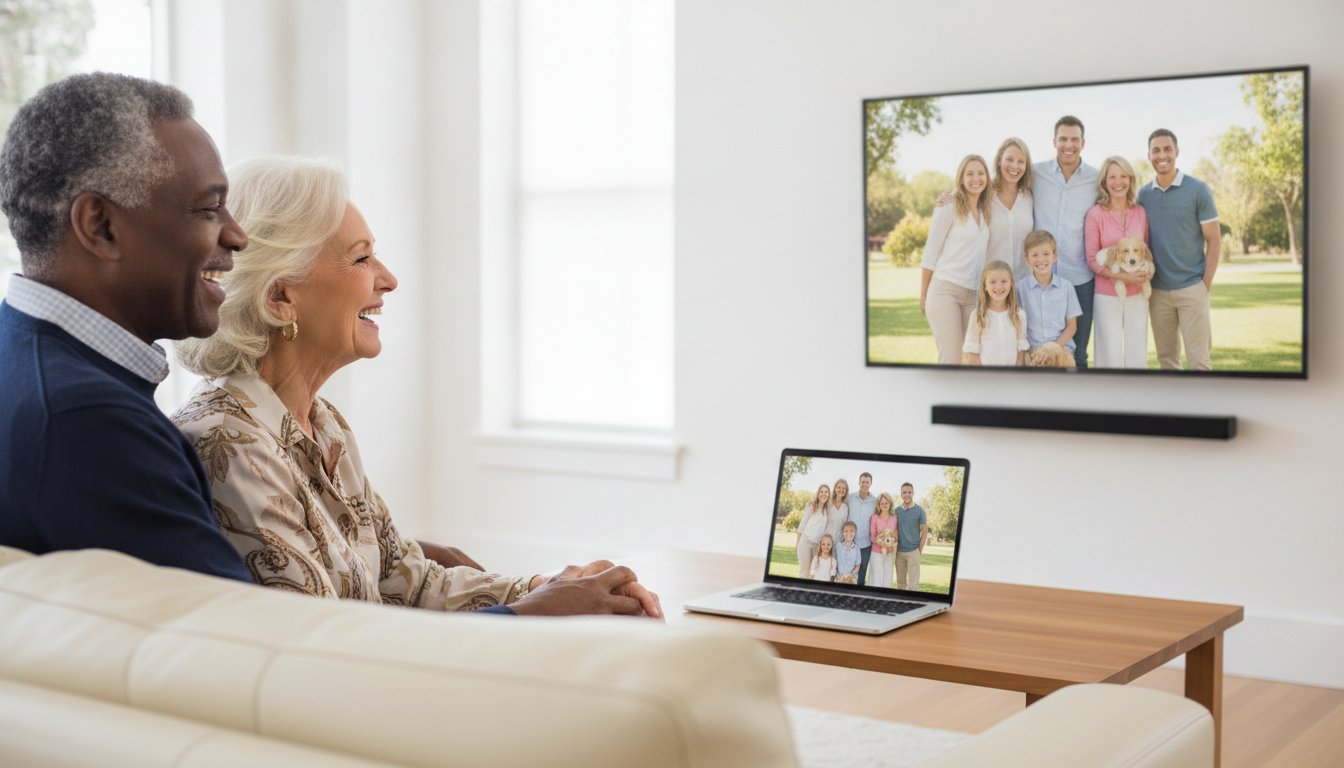
Imagine sitting in your favorite armchair, eager to see new photos of your grandchildren, but you find yourself squinting at a small laptop screen. You want to know how to connect a laptop to a tv wirelessly so you can enjoy those memories in high detail, but the fear of "breaking" a setting often gets in the way. It's a common frustration that can make modern technology feel more like a chore than a helpful tool.
We believe your home tech should support your comfort and your independence. You deserve to watch movies and browse the web without straining your eyes or wrestling with a mess of tangled cables. This guide provides simple, jargon-free instructions to help you see your computer screen on the big TV with ease. We will explore reliable methods like using built-in Windows features and popular devices like Roku or Apple TV. By the end of this article, you'll feel empowered to use your television as a digital bridge for everything you love.
Key Takeaways
- Enjoy family photos and movies on a large screen to reduce eye strain and see every detail clearly.
- Discover how to connect a laptop to a tv wirelessly using a simple shortcut built right into your Windows computer.
- Learn how small devices like a Roku or Fire Stick can act as a bridge between your computer and your television.
- Find out why checking your Wi-Fi and TV input settings is the quickest way to fix common connection hurdles.
- Understand how a patient mentor can help you master these steps in your own home so you feel confident and independent.
Why Connect Your Laptop to Your TV? The Benefits for Seniors
Many seniors feel that their laptop screen is just too small for daily use. It's often hard to see the fine details in a family photo or read the small text on a news website. Learning how to connect a laptop to a tv wirelessly changes that experience completely. It turns your living room television into a giant window for your digital life. You get to see everything you love in a format that's much easier on your eyes and much more enjoyable to use.
Better Visibility and Comfort
Eye strain is a real concern as we get older. A typical laptop screen is only about 13 or 15 inches wide. When you move that content to a 55-inch TV, the difference is immediate. You won't have to lean forward or squint to see what's happening on the screen. This setup also helps your physical posture. Instead of sitting hunched over a desk in a hard chair, you can lean back in your favorite armchair. It makes browsing the internet or checking your email a truly relaxing experience. If you enjoy sharing things with a spouse, sitting together on the couch to look at the same big screen is much more pleasant than crowding around a tiny computer.
Staying Connected with Family
The most heartwarming reason to use your TV is to see your family. Looking at photos of your grandkids on Facebook is great, but seeing them "life-sized" on your TV is even better. It feels like they're right there in the room with you. Video calls also become much more natural. When you use Zoom or Skype on your television, you can see everyone's faces clearly without having to hold a heavy tablet or laptop in your lap. You can just relax and enjoy the conversation.
You might worry that this sounds too complicated or requires special skills. The good news is that most modern computers use Miracast technology to send the signal through the air. You don't have to worry about messy cables or tripping hazards in your living room. Knowing how to connect a laptop to a tv wirelessly gives you the freedom to enjoy your technology on your own terms. It helps you stay independent and connected to the people you love most. If you ever feel stuck, remember that these tasks can become second nature with just a little bit of patient practice.
The Easiest Way: Using the Windows Cast Feature
Many seniors find that the simplest way to get their computer screen onto a larger display is by using a built-in feature of Windows. You don't need any extra equipment if your TV is relatively new. This method is often called "casting." Learning how to connect a laptop to a tv wirelessly starts with finding a specific set of keys on your keyboard.
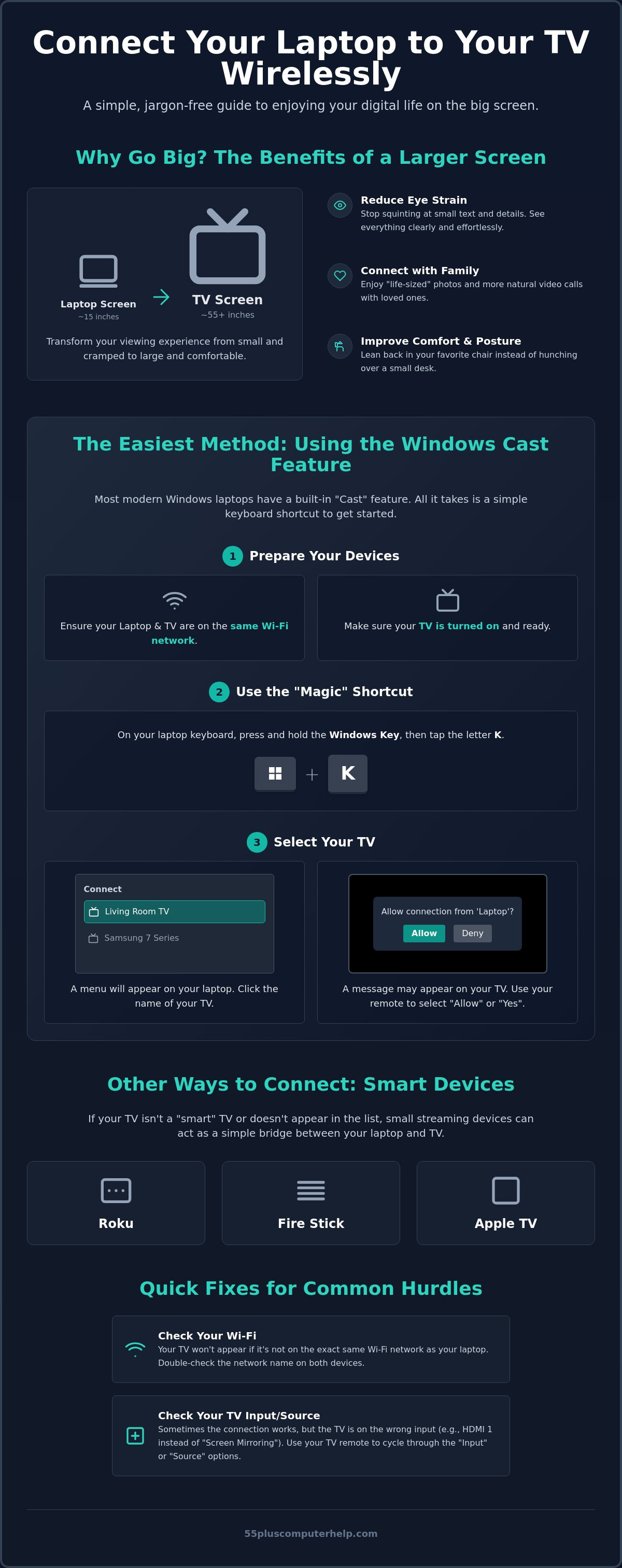
The "Magic Button" is actually a combination of two keys. Look for the Windows key, which has a small flag icon on it. It's usually located on the bottom left of your keyboard, tucked between the "Ctrl" and "Alt" keys. While holding that key down, tap the letter "K." This shortcut opens a special menu on the right side of your laptop screen. It's a quick way to see which devices are nearby and ready to help.
Step 1: Preparing Your Devices
Before you use that shortcut, you need to make sure your devices are ready to talk to each other. Both your laptop and your TV must be connected to the same Wi-Fi network. Wi-Fi is like an invisible cord connecting your home. If your laptop is using one network and your TV is using another, they won't be able to find each other. Make sure your TV is turned on. Most modern smart TVs are "discoverable" automatically. This means they're already waiting for a signal from your computer.
Step 2: Sending the Signal
Once you press the Windows key and the letter K, a list of available devices will appear on your laptop. You might see names like "Living Room TV" or "Samsung 7 Series." Click on the name that matches your television. Your laptop will then try to send its image through the air. You can find more technical details in HP's guide to connecting your laptop if you want to see how different brands handle this process.
A message might pop up on your TV screen asking if you want to allow the connection. Use your TV remote to select "Yes" or "Allow." Within a few seconds, your laptop screen should appear right there on the big TV. If the list of devices doesn't show your TV right away, give it a moment to scan. Technology sometimes needs a few seconds to wake up. If you find these steps a bit overwhelming, a patient tech mentor can walk you through the process in person until you feel completely comfortable.
This method is part of understanding how to connect a laptop to a tv wirelessly without buying any new gadgets. It's a built-in tool designed to make your life easier. Once you see your grandkids' photos or a favorite movie on that large screen, you'll see why this feature is so helpful. It's about making your technology work for you, not the other way around.
Connecting via Smart TV Devices (Roku, Fire Stick, and Apple TV)
Sometimes the built-in Windows features don't work perfectly with every television. If your TV is a few years old, you might use a small "helper" device to bridge the gap. These gadgets, such as a Roku, Amazon Fire Stick, or Apple TV, plug into the back of your television. They often provide a much more stable connection than the TV's own software. Learning how to connect a laptop to a tv wirelessly using these devices is a great way to ensure a smooth, frustration-free experience.
Roku and Amazon Fire Stick
Roku is a very popular choice, used by nearly 40% of streaming households in the U.S. If you have a Roku Streaming Stick 4K+ or a 2026 Roku Ultra, the process is quite simple. You'll need to check your "Screen Mirroring" settings. Using your Roku remote, go to the "Settings" menu, select "System," and then click on "Screen Mirroring." It's usually best to choose "Always allow" or "Prompt" so you stay in control. When your laptop sends the signal, a request will pop up on your TV. Just select "Allow" with your remote. The Amazon Fire TV Stick 4K Max (2025 model) works in a similar way, acting as a reliable receiver for your laptop's signal.
Google Chromecast and Apple AirPlay
Google Chromecast is another excellent "helper" that costs about $49. If you use the Google Chrome browser on your laptop, you can "cast" a single tab or a specific video. This is helpful if you want to keep your private emails on your laptop while showing a YouTube video on the TV. For those who use a Mac or an iPad, Apple AirPlay is the standard tool. Modern TVs often have AirPlay built-in, or you can use an Apple TV 4K. You just look for the AirPlay icon, which looks like a small square with a triangle at the bottom. You can then choose to mirror your whole screen or just one photo. This gives you total control over what your friends and family see on the large display.
Using these dedicated devices makes the technology feel more reliable. You won't have to deal with as much lag or "frozen" screens. If you ever feel stuck during the process, remember that a patient expert can help you with smart home device setup. Having someone show you the steps in person can make these tasks feel like second nature. It's all about making your home technology work for your comfort and enjoyment. Knowing how to connect a laptop to a tv wirelessly is just the first step toward a more connected and independent digital life.
Simple Fixes for No Connection
If you're still having trouble, check these small settings on your laptop:
- Check Airplane Mode: Make sure this is turned off. If it's on, your laptop stops sending all wireless signals.
- Turn on Bluetooth: While many connections use Wi-Fi, some TVs need Bluetooth to "shake hands" with your laptop first.
- Check the Mute Button: If you can see the picture but can't hear anything, check the volume on both the TV and your laptop.
Addressing Security and Privacy
You might worry about privacy when sharing your screen. Most modern TVs allow you to set a PIN. This means a code will appear on your TV screen that you must type into your laptop. This ensures that only you can share your screen. If your computer seems to be acting strangely or running very slowly, it might be helpful to read our guide on Virus and Malware Removal: A Patient Guide to Securing Your Computer. Keeping your computer clean helps all your wireless connections run smoothly.
Mastering how to connect a laptop to a tv wirelessly takes a bit of practice. If you find these steps are still giving you trouble, we are here to help. You can get professional internet and Wi-Fi troubleshootingGet Patient, In-Home Help with Your Technology
Learning a new skill like how to connect a laptop to a tv wirelessly can feel like a big mountain to climb. Technical manuals are often written in a way that feels cold or confusing. They use words that don't make sense to anyone except a computer programmer. We believe that technology should be a bridge to your family, not a source of stress. That's why having a patient mentor by your side makes all the difference. You don't have to struggle alone with a manual that doesn't explain the "why" behind the steps. Having a real person there to answer your questions in real time turns frustration into a sense of accomplishment.
Personalized Lessons in Your Own Home
We come directly to you. This means we work with your specific TV, your specific laptop, and your specific Wi-Fi network. There is no guesswork involved. We focus on empowerment, which means we teach you to master the steps yourself. Our goal is to make these tasks feel like second nature so you can enjoy your favorite shows whenever you want. While we are there, we can also look at other ways to keep you connected, such as Email Setup and Troubleshooting for Seniors. It's about building your digital skills in a safe, supportive environment at a pace that works for you.
A Safety Net for All Your Devices
We don't just fix problems; we translate specialized concepts into everyday language. Since 55 Plus Computer Help was founded in 2014, we've specialized in the unique challenges faced by the 55+ community. We know that a calm demeanor and a friendly face go a long way in reducing tech anxiety. Whether you need help with printers, tablets, or smartphones, we're here to act as your trusted local expert. We provide a safety net so you never have to worry about "breaking" a setting or getting lost in a confusing menu again. Our approach is neighborly and focused on your comfort as much as the technical solution.
Moving from a place of frustration to a place of confidence is a wonderful feeling. You deserve to feel tech-independent and secure in your digital life. If you're still unsure about how to connect a laptop to a tv wirelessly, let us help you bridge that gap. We provide the interpersonal skills and technical knowledge to ensure you feel in control every step of the way. Schedule your patient technology lesson today!
Enjoy Your Digital Memories on the Big Screen
You now have the knowledge to bring your favorite photos and movies to life on your living room television. We've explored the simple Windows shortcut for a quick connection and the benefits of using a dedicated helper like a Roku for extra stability. Understanding how to connect a laptop to a tv wirelessly is a wonderful way to reduce eye strain and stay closely connected to your family. It's about making your home technology serve your comfort and your independence.
If you still feel a bit hesitant about trying these steps on your own, you don't have to worry. We've specialized in providing patient, jargon-free mentoring for seniors since 2014. Whether you prefer in-home or remote assistance, our team is here to ensure your devices work perfectly for you. You can get patient, in-home tech help from 55 Plus Computer Help to make these new skills feel like second nature. You're capable of mastering your digital world, and we're honored to support you on that journey.
Frequently Asked Questions
Do I need a special cable to connect my laptop to my TV wirelessly?
No, you don't need any physical cables for a wireless connection. The signal travels through your home's Wi-Fi network instead of a wire. This eliminates messy cords and tripping hazards in your living room. It's a clean and simple way to share your screen without needing to buy extra hardware.
Why is my TV not showing up on my laptop’s list of devices?
The most common reason is that your devices aren't on the same Wi-Fi network. Check your laptop settings and your TV settings to ensure they both use the exact same home network. If one is on a "guest" network and the other is on your main network, they won't be able to see each other.
Can I connect a very old laptop to a new Smart TV?
You can often connect older laptops by using a dedicated streaming device like a Roku or Chromecast. While a laptop from ten years ago might not have built-in features, these small plug-in helpers bridge the gap. This is a great way to learn how to connect a laptop to a tv wirelessly without buying a new computer.
Will connecting wirelessly make my internet slower?
Connecting your laptop to your TV usually won't slow down your internet for other tasks. The two devices talk directly to each other through your router. You might notice a small delay if you're downloading a very large file at the same time, but for normal browsing, it works perfectly.
How do I get the sound to play through the TV instead of the laptop?
The sound should switch to your TV automatically once the connection is made. If it doesn't, click the small speaker icon on the bottom right of your laptop screen. You can then select your TV from the list of playback devices. This ensures you get the full benefit of your television's larger speakers.
Is it safe to connect wirelessly, or can neighbors see my screen?
It's very safe because your home Wi-Fi network is private and password-protected. Your neighbors cannot see what's on your TV unless they have your Wi-Fi password and are inside your home. Most systems also ask you to "Allow" the connection on the TV screen before anything actually appears.
What is the "Windows Key" and where can I find it on my keyboard?
The Windows key is the button with the small flag icon on it. It's almost always located on the bottom row of your keyboard, just to the left of the spacebar. Pressing this key along with the letter "K" is the fastest way to start learning how to connect a laptop to a tv wirelessly.
Do I need a Smart TV to connect my laptop wirelessly?
You don't necessarily need a Smart TV as long as your television has an HDMI port. You can plug a device like an Amazon Fire Stick or a Roku into that port to give an older TV wireless capabilities. This allows almost any television to receive the wireless signal from your laptop with ease.


