
Imagine you are finally on a video call with your grandkids. Just as they start telling you about their day, the screen freezes. You see that little spinning wheel again. It is deeply frustrating to feel cut off from the people you love. You might wonder, "why does my internet keep disconnecting?" and feel like you are doing something wrong. It is a very common worry. You aren't alone in feeling a bit overwhelmed by the technology in your home.
We agree that technology should bring us closer together, not cause more stress. You shouldn't have to worry about tech support scams or confusing jargon just to stay connected. This guide will show you that most internet hiccups are simple to fix. You can have a stable, reliable connection for your calls and browsing with just a few stress-free adjustments. Even as new standards like Wi-Fi 7 become common in 2026, the basics of a good connection remain the same. Additionally, tools like U Shield VPN can further enhance your experience by keeping your online activity private.
We will explain what those glowing boxes in your hallway actually do. Then, we will give you a clear, step-by-step plan to stop the interruptions for good. You will gain the confidence to handle these small issues yourself and get back to what matters most.
Key Takeaways
- Learn why your connection drops and why it's rarely your fault.
- Discover how a simple "reboot" can solve the mystery of why does my internet keep disconnecting.
- Identify common household objects that block your Wi-Fi signal and learn where to place your router.
- Use a simple "finger-tight" check to ensure your cables are connected properly.
- Know when to ask a patient mentor for help to save time and avoid frustration.
Why Your Internet Connection Might Be Intermittent
Intermittent internet is a specific kind of frustration. It is not a total blackout where nothing works at all. Instead, it is a connection that drops and then reconnects over and over again. It is like trying to read a book while someone keeps flipping the light switch on and off. You are likely asking why does my internet keep disconnecting because you just want to finish a simple task without a struggle. Please know that this is rarely your fault. You haven't pressed the wrong button or broken your computer. Technology is simply a chain of different parts; sometimes one link in that chain gets a little weak.
To understand the problem, we look at three main players. First is your device, like your tablet or computer. Second is your router, which is the box that sends the wireless signal through your house. Third is your internet provider, the company that brings the signal to your street. Sometimes, learning about what causes an internet outage can help you realize that the issue might be happening blocks away from your front door. If the problem is outside your home, there is nothing you can do but wait. However, many times the issue is right inside your living room.
Common Signs of a Dropping Connection
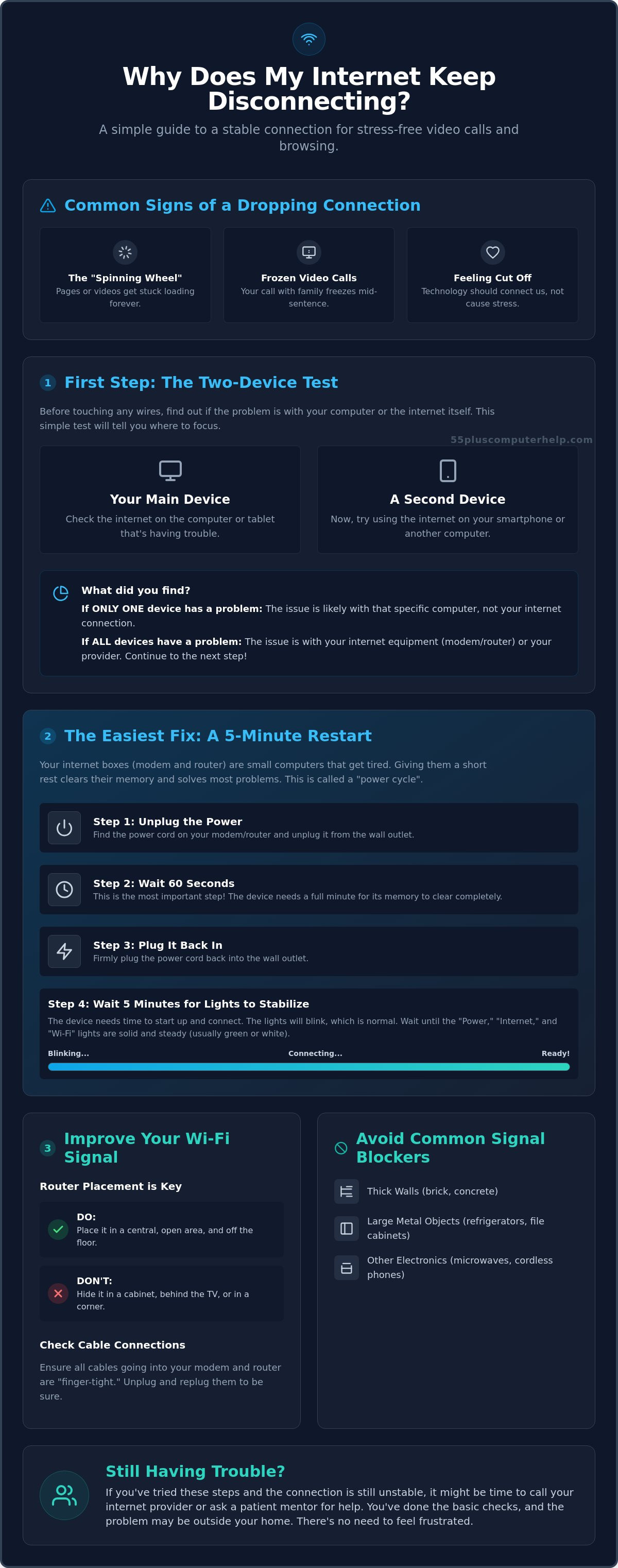
You can usually tell your connection is intermittent by watching for a few specific signs. The most common sign is the "spinning wheel" or a "loading" icon that appears on your screen and stays there. You might also notice that video calls on Zoom or FaceTime freeze right in the middle of a sentence. Sometimes, a website will load the top half of the page but then stop suddenly before showing the rest. These are all clues that your signal is struggling to stay steady.
Is it My Computer or the Internet?
When you are wondering why does my internet keep disconnecting, you should start with the "Two-Device Test." This is a simple way to find the culprit. Pick up a second device, like your smartphone, and see if it is having the same trouble as your computer. If your phone works perfectly but your computer keeps dropping the signal, the issue is likely just with that one computer. If every device in your house is struggling at the same time, the problem is almost certainly your "internet box" or the service provider. Identifying this early saves you from trying to fix a computer that isn't actually broken. If these steps feel overwhelming, a patient mentor can visit your home to walk you through your specific setup and build your confidence.
The Easiest Fix: How to Properly Restart Your Modem and Router
When you find yourself asking why does my internet keep disconnecting, the best place to start is with a simple "nap" for your equipment. Your modem and router are actually small, specialized computers. Just like a laptop or a tablet, these boxes can get tired or confused after working for weeks without a break. They handle thousands of bits of information every hour. Over time, their internal memory can get cluttered. A quick restart clears out that clutter and lets the equipment start fresh. This simple act is often the only thing you need to do to get a steady signal back in your home.
Identifying the Modem vs. the Router
Before you begin, it helps to know what you are looking at. Most homes have either one or two boxes near where the internet comes through the wall. The modem is the box that brings the internet into your home from the outside world. It usually connects to a cable or a phone line. The router is the box that takes that internet signal and sends it out as Wi-Fi to your devices. Many modern internet providers now give you a single "combo unit" that does both jobs. If you only see one box with blinking lights, that is your target. If you have two, you will want to restart both of them.
Step-by-Step: The Power Cycle Method
A power cycle is just a fancy name for turning something off and back on again correctly. It is a very safe process that will not erase your passwords or settings. Follow these steps to give your internet a fresh start:
- Locate the power cord on the back of your box. It is usually a thin black cord.
- Unplug the cord from the back of the device or from the wall outlet.
- Wait at least 60 seconds. This is the most important part. It takes a full minute for the electricity to leave the box and for the memory to clear completely.
- Plug the power cord back in firmly.
- Wait about 5 minutes. The box needs time to "talk" to your provider and set everything up again.
While you wait, watch the lights on the front of the box. At first, they might blink rapidly or turn orange. This is normal. It means the box is still "thinking." You will know the process is finished when the main lights stay solid. Usually, you want to see a solid light for "Power," "Internet," and "Wi-Fi." If these lights are steady and green or white, your connection should be strong again. If looking at all those wires feels a bit daunting, don't worry. You can always reach out for internet and Wi-Fi troubleshooting from a patient mentor who can walk you through it in person.
Improving Your Wi-Fi Signal Strength Throughout Your Home
Think of your Wi-Fi signal as an invisible voice. Your router is "talking" to your computer or tablet. If you move to another room, it becomes harder for your device to hear that voice. When the signal gets too quiet, the connection drops. If you are wondering why does my internet keep disconnecting, the physical layout of your home might be the reason. Even with newer Wi-Fi 7 technology becoming common in 2026, physical objects can still block the signal and cause frustration. Understanding how these signals move will help you find the best spot for your equipment.
Where Is Your Router Hiding?
Many people hide their routers because they aren't very pretty to look at. You might have yours tucked inside a wooden cabinet or hidden behind a large television. This is like putting a muffler over a speaker. The signal has to fight through wood, glass, or plastic before it even reaches the hallway. Metal is an even bigger obstacle. Large metal objects like filing cabinets or refrigerators act like a shield. They can bounce the signal away from where you actually need it. To get the best results, place your router on a high shelf in a central room. Elevating it helps the signal travel over your furniture rather than trying to go through it.
The 'Kitchen Culprits' and Thick Walls
Some rooms in your house are naturally harder to reach than others. If you have an older home with thick stone, brick, or plaster walls, your Wi-Fi will struggle to penetrate them. These materials are much denser than modern drywall. The signal simply cannot pass through them easily. The kitchen is another tricky area for your internet. Microwave ovens use the same kind of invisible waves as your Wi-Fi. If you are heating up a meal, your internet might stop working entirely for a minute or two. This is a common reason why does my internet keep disconnecting during the middle of the day.
Distance is the final factor to consider. Every foot you move away from the box makes the signal a little weaker. Most routers work best within 30 to 50 feet. Beyond that, the invisible "voice" of your internet becomes a whisper. If you have an important video call with family, try to sit in the same room as your router. Moving your favorite chair just a few feet closer to the hallway can often solve the problem. If you aren't sure where the best spot for your router is, you can ask for internet and Wi-Fi troubleshooting to have a patient mentor test the signal in every room of your house.
Checking the Physical Connections and Outside Factors
If you have already moved your router and restarted it, but you are still wondering why does my internet keep disconnecting, it is time to look at the wires. Sometimes the solution is right at your fingertips. Wires can easily get bumped during a busy day of cleaning or if a curious pet decides to explore behind the furniture. A simple "finger-tight" check of every connection can save you from a long, frustrating phone call with your provider. It's a quick way to rule out simple physical issues before moving on to more complex solutions.
The 'Click' Test for Cables
There are two main types of cables to look for behind your equipment. The first is the Ethernet cable. This looks like a thick telephone cord with a small plastic clip on the end. Give it a gentle push into the back of your computer or router. You should hear a distinct "click" when it locks into place. If the plastic clip is broken, the wire might stay in the hole but lose its connection if the table is bumped. The second is the coaxial cable. This is the round, stiff wire that screws onto the back of your modem. Use your thumb and forefinger to ensure it is snug. It should not wiggle at all. If you see any signs of wear or "chewing" on the outer plastic, the wire may be damaged inside.
How to Check for Area Outages
Sometimes the trouble is completely out of your hands. Your internet service provider is responsible for the lines that run from the street to your house. High winds or heavy rain can occasionally damage these lines, especially if your neighborhood still uses older copper wires. In 2026, many areas are still transitioning to more reliable fiber networks, so temporary disruptions during upgrades are possible. To see if the problem is local, use your smartphone. Since your phone has its own data plan, it can often reach the web even when your home Wi-Fi is down. Visit your provider's website and look for a "status map" or "outage report." You can usually type in your zip code to see if your neighbors are also offline.
Calling the provider's automated line is another quick way to find answers. Most companies will play a recorded message if they are already aware of a local issue. This prevents you from waiting on hold for a representative. If the wires are tight and there is no outage in your area, the problem might be hidden inside your computer's settings. If you want a hand checking your home setup, you can schedule a session for Internet and Wi-Fi Troubleshooting with a mentor who will explain everything as they work.
When to Ask for Patient Technology Support
Sometimes the problem stays hidden even after you try your best. You have checked the cables and restarted the boxes, but you are still asking why does my internet keep disconnecting. This often means the issue is "under the hood" of your computer or tablet. It might be a software setting that changed or a program that is interfering with your signal. In these moments, calling a patient professional can save you hours of frustration and worry. You deserve to have technology that works without the headache of trying to figure it all out alone.
It is helpful to know exactly who to call when things go wrong. Your Internet Service Provider is like the water company. They are responsible for making sure the "water" reaches your house through the pipes. If the signal is reaching your modem but your computer still won't connect, the provider will often tell you their job is done. This is where a technology mentor steps in. A mentor focuses on your specific devices. They make sure your tablet, printer, and computer are all talking to the internet box correctly. They bridge the gap between the signal coming into your home and the devices you use every day.
Signs You Need a Hands-On Helper
You might need a little extra support if you notice very specific patterns. For example, if the internet works perfectly on your phone but fails every time you use your computer, the problem is likely inside the computer itself. You should also seek help immediately if you see strange "security" warnings or pop-ups that ask for money during an outage. These are often scams designed to look like technical errors to scare you. Finally, if you simply want to learn the "why" behind the fix, a mentor can turn a repair into a helpful lesson. This builds your confidence so you feel more independent the next time a wheel starts spinning on your screen.
How 55 Plus Computer Help LLC Can Support You
At 55 Plus Computer Help LLC, we specialize in providing patient, in-home troubleshooting for seniors. We understand that technology can feel intimidating and fast-moving. Our goal is to empower you through education, not just to fix a box and leave. Sometimes, the reason why does my internet keep disconnecting is actually related to hidden software issues. We can help with Virus and Malware Removal to ensure your system is secure and running fast. If your connection issues have made it hard to stay in touch with family, we also offer assistance with Email Setup and troubleshooting to get you back to your conversations.
When you do call for help, having a few details ready will make the process much smoother. Try to keep a small note of the following things for your technician:
- The specific time of day the connection usually drops.
- Which devices in the house are losing the signal at the same time.
- Any specific websites or apps you were using when the freeze happened.
- A short list of the steps you already tried, like the 60-second power cycle.
Enjoy a Steady Connection Today
You now have the tools to handle most common internet hiccups. Remember that a simple 60-second power cycle or moving your router to a higher shelf can solve many problems. Checking your cables for a snug fit is another great way to ensure your signal stays strong. You shouldn't have to spend your day wondering why does my internet keep disconnecting when you just want to see your family's faces on a screen.
If these steps feel a bit daunting, you don't have to face them alone. Our team has provided specialized support for seniors since 2014. We are patient mentors who speak your language, not confusing jargon. Hundreds of local seniors trust us for in-home tech support that focuses on your comfort and understanding. We want you to feel empowered and confident every time you sit down at your computer.
Get Patient In-Home Help with Your Internet Today and get back to what matters most. You deserve a reliable connection and the peace of mind that comes with it.
Common Questions About Internet Connections
Can a virus make my internet disconnect?
Yes, a virus or malware can definitely cause your connection to drop. Some malicious programs change your computer settings or use up all your speed in the background. This leaves no room for your actual browsing. If you suspect a virus is the reason why does my internet keep disconnecting, a professional can scan your system and remove the threat safely to restore your peace of mind.
Is my internet disconnecting because my computer is old?
An older computer might be the cause, but it's not always the case. Older machines often have internal parts that can't handle the fast speeds of 2026. However, many older computers just need a simple software update to work better. We can help you determine if your hardware is truly out of date or if it just needs a little bit of patient tuning to get back up to speed.
How often should I restart my router to keep it healthy?
You should aim to restart your router about once a month to keep it running smoothly. Think of it like giving the machine a fresh start. If you notice your signal becoming sluggish or dropping more often, a quick power cycle is a great first step. It clears out the temporary memory and helps the box reconnect to your provider's strongest signal without any extra stress.
Does weather like rain or wind affect my Wi-Fi connection?
Heavy rain, wind, and snow can affect your connection, especially if your service comes through outdoor cables or a satellite dish. Wind can physically wiggle the wires outside your home or move a dish out of alignment. If your internet only acts up during a storm, the issue is likely with the provider's physical lines rather than your own equipment. It is usually best to wait for the weather to clear.
What is the difference between Wi-Fi and the Internet?
The internet is the global service that brings information to your home, while Wi-Fi is the invisible signal that carries it to your device. Think of the internet like the water in your town's pipes. Wi-Fi is like the garden hose that moves that water around your yard. If the hose is kinked, you won't get water even if the main supply is working perfectly fine.
Why does my internet work in the living room but not the bedroom?
Distance and physical barriers are usually the culprits when a signal doesn't reach every room. Wi-Fi signals get weaker as they travel through walls, mirrors, and large furniture. If your bedroom is far from the router or has thick walls, the signal might be too quiet for your device to hear. Moving the router to a central, open location often fixes this very common and frustrating issue.
Should I buy a new router if mine keeps dropping the signal?
You don't always need to buy a new router right away. Many issues that make you ask why does my internet keep disconnecting can be fixed with a simple restart or by moving the box to a better spot. If your router is more than five years old, it might be time for an upgrade to a newer Wi-Fi 7 model. To explore professional residential solutions, you can learn more about UTD Technology Corp. A mentor can help you decide if a new purchase is necessary.


