
Imagine you sit down to read an email from a friend, but the letters look like tiny ants crawling across the glass. You lean forward and squint until your eyes ache, wondering why everything has to be so small. You are not alone in this frustration. A 2024 AARP survey found that 68% of adults over age 50 feel technology is not designed with their needs in mind. It's common to feel stuck or even a little worried that you might break something if you click the wrong button.
We believe technology should work for you, not the other way around. You shouldn't have to deal with headaches or strain just to use your device. This guide will teach you exactly how to make text bigger on my computer screen so you can enjoy a clear and comfortable view. We'll walk through the simple steps for the latest systems, including Windows 11 and macOS 26.5 Tahoe. You'll also learn quick shortcuts for your favorite web browsers to help you regain your independence and confidence online.
Key Takeaways
- Learn how scaling makes every icon and button larger at once so you don't have to squint at small menus.
- Follow clear, step-by-step instructions for how to make text bigger on my computer screen using the latest Windows and Mac settings.
- Use simple keyboard shortcuts and your mouse scroll wheel to zoom in on websites or emails in just a few seconds.
- Understand how changing your display resolution can reduce eye strain and make your daily computer use much more comfortable.
- Discover how personalized training can help you master these settings and build long-term confidence with your technology.
Understanding the Best Ways to Improve Screen Readability
Improving how you see your screen is the first step toward a better computer experience. Many people think they just need to find out how to make text bigger on my computer screen; however, true readability involves a few different options. When you understand these choices, you can create a view that feels tailor-made for your eyes. This makes using your device much more enjoyable and less of a chore.
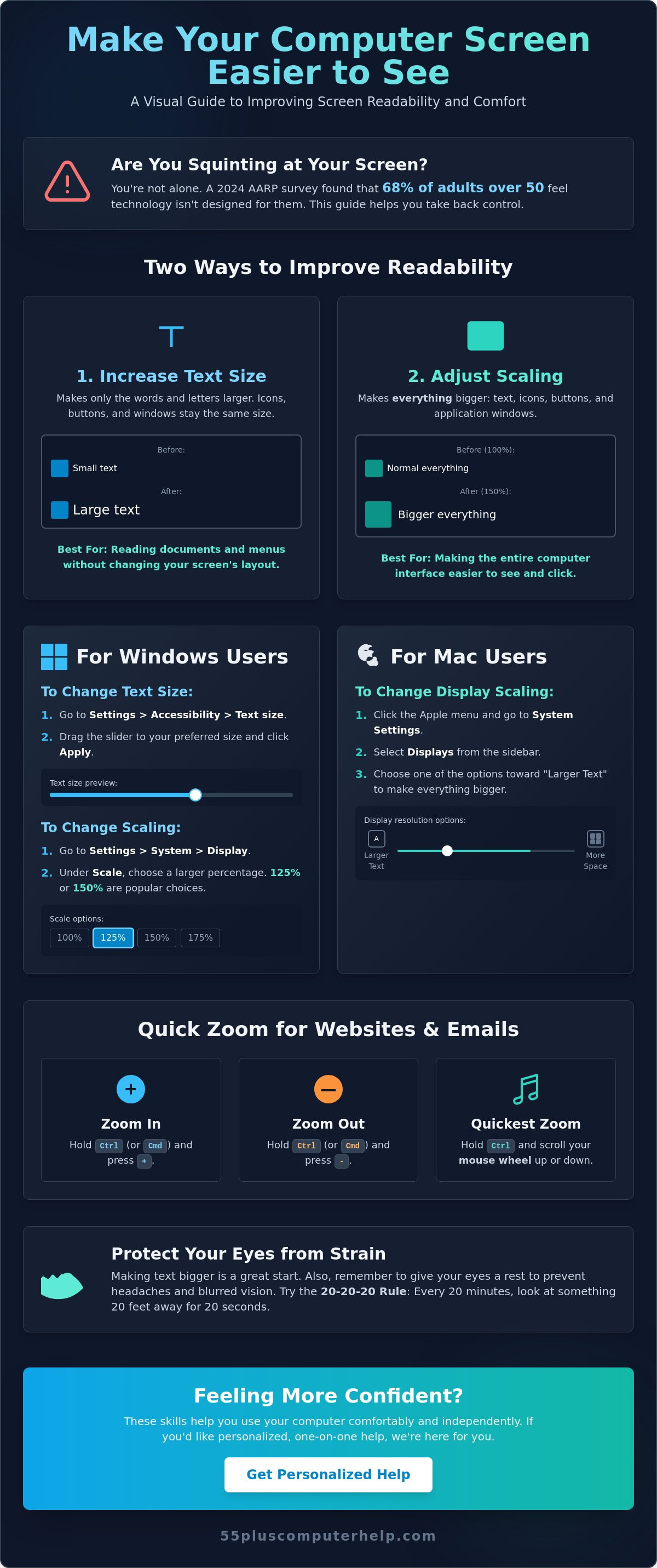
There are two main ways to change what you see. The first is adjusting the Text Size. This setting specifically increases the height and width of the letters you read in menus and documents. The second is called Scaling. Scaling makes everything on the screen larger at the same time. This includes buttons, icons, taskbars, and pictures. It is a great way to make the entire computer feel more accessible.
You might feel a bit nervous about changing these settings. Please know that these adjustments are completely safe. You won't break your computer by trying them out. Every change you make is easily reversible. If you don't like how something looks, you can simply move the slider back to where it started. You are in total control of your device.
Making Text Larger vs. Making Everything Larger
Choosing between larger text and full scaling depends on your specific needs. If you find that you can see icons and buttons clearly but struggle to read the names underneath them, changing only the text size is often the best choice. This keeps your screen layout tidy and organized without moving things around too much.
Think of it like a book. Changing the text size is like buying a large print version of your favorite novel. The book is the same size, but the letters are easier to see. Scaling is more like using a magnifying glass over the entire page. Everything gets bigger, which is very helpful if you have low vision or find small icons hard to click. Both methods are effective, but scaling is often better if you find yourself leaning in close to see where to click.
Why Your Screen Comfort Matters for Your Health
Taking care of your eyes is just as important as learning the technical steps. When you struggle to read small print, you might develop what experts call computer vision syndrome. This often leads to dry eyes, blurred vision, and frequent headaches. Adjusting your settings helps prevent this physical discomfort and keeps you feeling your best while you browse the web or email family.
Even after you learn how to make text bigger on my computer screen, remember to give your eyes a rest. Try to look away from the screen every 20 minutes to focus on something in the distance. Good lighting also makes a huge difference. Avoid sitting in a dark room with a bright screen, as the high contrast can cause extra strain. A soft lamp nearby can make your reading experience much more pleasant and sustainable.
How to Make Text Bigger on a Windows Computer
Windows computers offer several built-in tools to help you see more clearly. Whether you use the newest Windows 11 or the familiar Windows 10, the steps are very similar. You don't need to be a technical expert to make these changes. It is a simple process. Most people find that once they learn how to make text bigger on my computer screen, their daily tasks become much easier to complete.
Using the Windows Text Size Slider
This is the most direct way to increase the size of the words you see. For Windows 11 users, click the Start button and select the gear icon to open Settings. From there, click on Accessibility and then Text size. You will see a slider that you can move to the right. As you move it, a preview box shows you exactly how the text will look. If you use Windows 10, you will click Ease of Access instead of Accessibility, but the steps are just as easy to follow.
Once you find a size that feels comfortable, click the Apply button. It is normal for your screen to flicker or turn blue for a brief second. Do not worry. This is just the computer refreshing itself to show the new settings. If you ever feel overwhelmed by these menus, our team provides computer setup assistance to make sure your device is perfectly adjusted for your needs from day one.
Adjusting Overall Scaling for Apps and Icons
Sometimes, making only the text larger isn't enough. You might also want your icons and buttons to be bigger. To do this, go to Settings, select System, and then click Display. Look for the Scale dropdown menu. Most seniors find that setting this to 125% or 150% is the "sweet spot" for comfort. It makes everything on the screen appear larger and easier to click. Give it a try.
Be aware that if you set the scaling too high, some windows might look slightly blurry or cut off. If that happens, just choose a lower percentage. While Windows is very user-friendly, different systems handle these settings in their own way. For example, if you also own an Apple device, you can Make Text and Icons Bigger on a Mac using their specific accessibility tools.
If you only need a quick boost for a moment, try the Magnifier tool. You can find it by typing "Magnifier" into your search bar. This acts like a digital magnifying glass that follows your mouse cursor. It is perfect for reading tiny serial numbers or small labels on a map without changing your permanent settings.
Adjusting Text and Icon Size on an Apple Mac
If you use an Apple computer, you might wonder if the steps to change your view are different from a Windows PC. They are just as straightforward. Apple's macOS is designed with clarity and ease of use in mind. Many people search for how to make text bigger on my computer screen when they first switch to a Mac. You will find that the settings are organized in a very helpful way to reduce eye strain.
The center of these changes is the Apple menu. This is the small apple icon located in the very top left corner of your screen. From there, you will select System Settings. If you have an older Mac, this menu might be called System Preferences. This is the place where you manage everything on your device, from your internet connection to how your desktop looks.
One term you will see in these menus is "Display Resolution." Think of this as the level of detail on your screen. A high resolution makes everything look very sharp, but it also makes items very small. A lower resolution makes everything look larger and easier to see. It is like looking at a photograph up close versus stepping back to see the whole picture. MacOS makes it easy to choose the right balance for your vision without needing to understand technical jargon.
Changing Display Scaling for Better Visibility
To get started with scaling, open the Apple Menu and go to System Settings, then click Display. In the latest macOS 26.5 Tahoe, you will see several thumbnail images that show different text sizes. Select the one labeled "Larger Text." This change happens instantly. It makes everything from the top menu bar to the dock at the bottom much easier to see. It is a wonderful way to improve your overall comfort while reading or browsing.
Increasing Text Size in Specific Mac Apps
Sometimes you only need a boost in a specific program like Mail or Notes. Most Mac apps have a "View" menu at the very top of the screen. Inside that menu, you can usually find options to "Make Text Bigger" or "Zoom In." You can also make your sidebar icons larger in the general settings. This helps you navigate your folders without struggling to see the small icons. If you find yourself asking how to make text bigger on my computer screen while reading your emails, these app-specific settings are a perfect solution. Remember, these changes are fully reversible. You can always go back to the original size if you want to try a different look.
If you want your desktop icons to be bigger, simply right-click on your background wallpaper and select "Show View Options." There is a slider specifically for icon size. For a temporary boost, you can use the "Zoom" feature found in the Accessibility section of System Settings. This acts like a digital magnifying glass that you can turn on and off whenever you need to see a small detail more clearly.
Quick Ways to Zoom In on Websites and Emails
Sometimes you don't want to change your entire system. You might just need a quick way to read a specific news article or those lovely emails from family. While changing your overall settings is great for long-term comfort, these quick tricks help you in the moment. Learning how to make text bigger on my computer screen is even easier when you use these simple browser shortcuts. They work on almost every website you visit.
If you prefer using a mouse, there is a very intuitive trick you can try. Hold down the Ctrl key on your keyboard and gently roll the scroll wheel on your mouse forward. You will see the website grow larger right before your eyes. Rolling the wheel backward makes it smaller again. This is one of the fastest ways to adjust your view without clicking through any menus.
Using Keyboard Shortcuts for Instant Zoom
Keyboard shortcuts are like magic buttons for your screen. To grow the text, hold down the Ctrl key (or Command on a Mac) and tap the + (plus) key. You can tap it multiple times to keep increasing the size. If the text becomes too large and starts to look cluttered, hold Ctrl and tap the - (minus) key to shrink it back down.
Many people worry about getting "stuck" in a zoomed-in view. If your screen looks strange and you want to go back to normal, there is a secret reset button. Simply hold Ctrl and tap the 0 (zero) key. This instantly returns the page to its original size. It is a wonderful safety net to remember if you ever feel like you've made things too big. If you find yourself struggling to navigate your inbox even with these tricks, our email setup and troubleshooting service can help you get everything organized and easy to read.
Setting a Default Zoom Level in Your Web Browser
You can also tell your computer to always show websites at a larger size. This saves you from having to adjust every single page you open. In Google Chrome or Microsoft Edge, click the three dots in the top-right corner of the window. Look for the Zoom section. You can click the plus sign to set it to 110% or 120% permanently. This small change makes a big difference for your daily browsing.
Safari users on a Mac can do this too. Click on Safari in the top menu bar and select Settings. Under the Websites tab, you can choose Page Zoom and set a default level for all sites. Once you set this, you won't have to search for how to make text bigger on my computer screen every time you want to read the news. It stays exactly where you like it, giving you a consistent and comfortable experience every time you go online.
Getting Personalized Help to Make Your Technology Work for You
Reading a guide is a great first step toward a better screen experience. However, many people find that one-on-one help is much more effective. Every person has a unique way of seeing. A setting that works for your neighbor might not feel right for you. Getting personalized assistance ensures that your device is adjusted perfectly for your specific vision and comfort level. This is about more than just knowing how to make text bigger on my computer screen. It is about making your entire digital life feel manageable and fun again.
A professional can also look at the overall health of your machine while helping with your settings. A slow or cluttered computer often has hidden issues that make the screen behave strangely. Getting expert help ensures your computer is free of viruses and running at its best. When your software is updated and your screen is clear, you can focus on connecting with loved ones instead of fighting with a confusing device. You deserve a computer that responds quickly and looks exactly how you want it to look.
Why Personalized Lessons Make Technology Easier
Lessons move at your own pace. You never have to feel rushed or embarrassed to ask a question twice. We focus on the specific tasks you actually want to do. Perhaps you want to see photos of your grandkids more clearly. Or maybe you want to read your favorite news site without getting a headache. When training happens in the comfort of your own home on your own equipment, you build real confidence. You learn on the exact keys and screen you use every day. This hands-on approach helps the information stick so you can use your computer independently.
How 55 Plus Computer Help LLC Can Assist You
We specialize in helping seniors navigate their devices with patience and care. We understand the anxiety that comes with new updates or tiny fonts. Our goal is to transform that frustration into a sense of accomplishment and security. 55 Plus Computer Help LLC takes pride in being a trusted neighbor you can rely on. We offer a wide range of services to help you stay connected, including:
- Computer Setup: We get your new machine ready and easy to see from day one.
- Smartphone and Tablet Training: Learn to use your mobile devices with confidence.
- Printer Setup: Get your documents and photos onto paper without the hassle.
- Email Setup and Troubleshooting: Stay in touch with family and friends easily.
- Internet and Wi-Fi Troubleshooting: Ensure you have a strong, reliable connection.
If you are still wondering how to make text bigger on my computer screen, we are here to walk you through it step by step. Contact 55 Plus Computer Help LLC today to schedule a session. We will make sure your technology is a joy to use and perfectly suited to your needs.
Enjoy a Clearer View Today
You now have the knowledge to transform your computer into a tool that is easy on your eyes. By adjusting your system settings and mastering quick shortcuts, you can reduce eye strain and browse with ease. You don't have to settle for small icons or tiny fonts anymore. You are in control of how to make text bigger on my computer screen so that every email and news article is clear and readable.
If you would like additional support, we are here to help. Since 2014, 55 Plus Computer Help LLC has provided patient, expert guidance tailored to the needs of seniors. Our mentors offer in-home or remote assistance to ensure your device is perfectly adjusted for your comfort. We take the time to answer every question, helping you build the confidence to use your technology independently.
Schedule your personalized computer lesson today! Let 55 Plus Computer Help LLC help you make your screen a joy to use. You deserve a technology experience that is simple, comfortable, and stress-free.
Frequently Asked Questions
How do I make the font bigger on just one specific website?
You can use the zoom feature in your web browser to change the size of just one page. Hold the Ctrl key and tap the plus key to grow the text. This only affects the website you are currently viewing. It won't change your other computer settings or how your desktop looks. It's a quick way to read a single article comfortably.
Can I make the mouse pointer bigger too?
Yes, you can easily increase the size and color of your mouse pointer in your settings. In Windows, go to Settings and then Accessibility to find the Mouse Pointer options. Mac users can find this in System Settings under Accessibility and then Display. A larger pointer makes it much easier to see exactly where you are clicking on the screen.
Why does my screen look blurry after I made the text larger?
Your screen might look blurry if the scaling percentage is set too high for a specific program. Some older software was not designed to be stretched to very large sizes. Try lowering your scaling setting by one level to see if the image becomes sharper. This often fixes the blurriness while still keeping the text large enough to read without strain.
Is there a way to make the taskbar at the bottom of the screen bigger?
The best way to make your taskbar larger is to use the Scaling setting mentioned earlier in this guide. When you increase the scale to 125% or 150%, the taskbar and all its icons will grow along with everything else. This is the most effective method for Windows and Mac users to see their bottom menu and clock more clearly.
Will making text bigger affect how my pictures look?
Increasing only the text size will not change how your photos look. However, if you use scaling to make everything larger, your pictures will also appear bigger on the screen. This is helpful if you want to see more detail in family photos. It's a great way to learn how to make text bigger on my computer screen while also enjoying larger images.
What should I do if I accidentally made the screen way too big and can't find the settings?
If your web browser is too large, hold the Ctrl key and tap the zero key to reset it instantly. If your whole computer screen is too big, try to move your mouse to the edges to scroll and find the Settings menu again. You can also restart your computer. This often helps you find your way back to the main menu so you can adjust the size.
Does making text bigger use more of my computer's battery?
Making text larger does not use any extra battery power. Your computer uses the same amount of energy whether the letters are small or large. You can comfortably adjust your settings to learn how to make text bigger on my computer screen without worrying about your battery. Your laptop will still last just as long during your daily tasks.
Can I change the color of the text to make it easier to read?
You can change the text color by using High Contrast or Color Filters in your accessibility settings. This is very helpful if you find black text on a bright white background hard to read. These themes allow you to choose color combinations that provide the best clarity. It's a simple way to customize your computer for your specific vision needs.


