
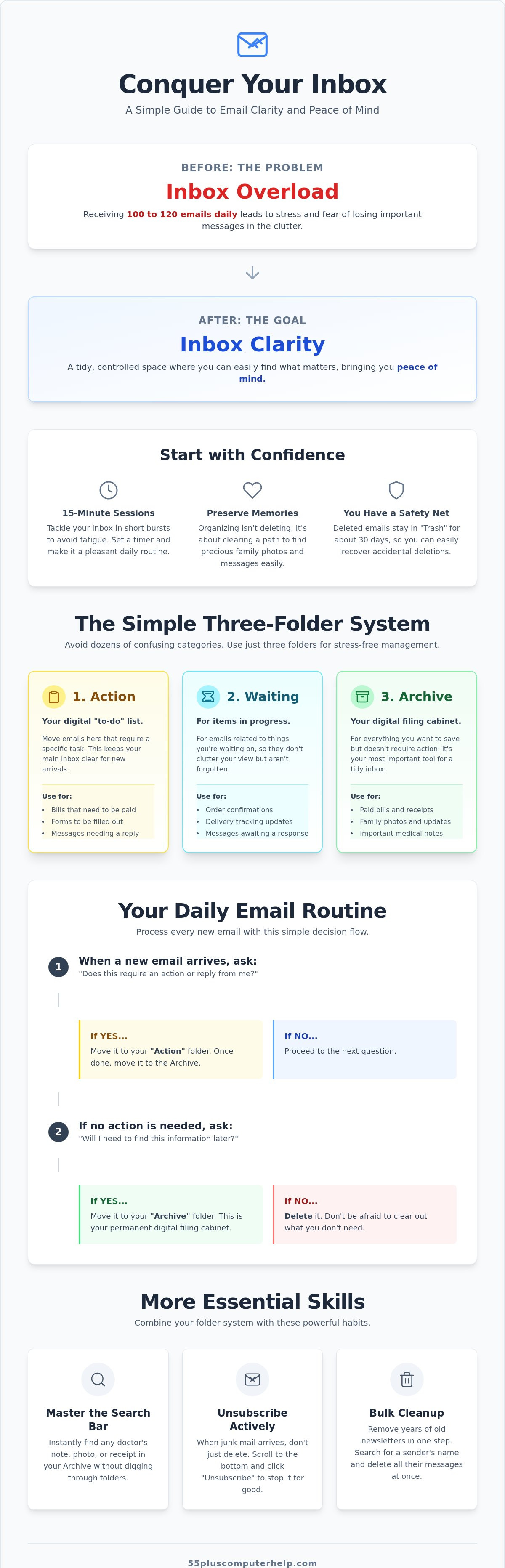
Imagine you are looking for a precious photo of your grandson's graduation, but you have to wade through hundreds of advertisements first. It feels like trying to find a single letter in a room full of loose papers. Most of us feel overwhelmed by the 100 to 120 emails that the average person receives every day. You might worry about accidentally deleting an important medical note or a family message while trying to clear the clutter. It's a common frustration, and you don't have to feel tech-shamed for wanting a simpler way to manage it all.
This guide will show you exactly how to organize your email inbox using a patient, step-by-step approach. You'll learn how to transform your digital space into a tidy area where family memories are easy to find. We will explore a simple three-folder system and show you how to stop junk mail before it starts. By the end of this article, you will have the confidence to keep what matters and toss what doesn't. This will give you the peace of mind you deserve.
Key Takeaways
- Learn a simple three-folder system to keep your important family messages separate from the daily clutter.
- Discover how to organize your email inbox by removing years of old newsletters with a single, easy step.
- Master the search bar to find specific notes from your doctor or photos from your grandkids in seconds.
- Establish a stress-free habit for unsubscribing from junk mail to keep your digital space clear every day.
- Explore how personalized, one-on-one training can help you feel confident and in control of your digital life.
Why Your Email Inbox Feels Overwhelming (and How to Start Fresh)
Feeling frustrated by a busy inbox is a very common experience. It is not a sign that you are "bad at tech." It is simply a result of how digital communication has changed over the years. In the early days, email was like a simple letter-box for personal notes from friends and family. Today, it has become a marketing hub where companies send dozens of advertisements every day. This creates a constant state of Why Your Inbox Feels Overwhelming, which is a real psychological stressor.
We often hear the term "Inbox Zero" in the news. This idea suggests you should have an empty inbox at the end of every day. For most people, that goal is stressful and unnecessary. Instead, we should aim for "Inbox Clarity." This means your inbox is a tidy space where you can see your important messages without being distracted by junk. You want to feel in control when you open your computer or tablet.
The best part is that modern email systems are very forgiving. If you accidentally click the wrong button or delete something by mistake, you can almost always get it back. Most providers keep deleted items in a "Trash" or "Bin" folder for 30 days before they disappear forever. You have a safety net. This knowledge should give you the confidence to explore your settings and start fresh.
The Emotional Hurdle of Digital Clutter
Many of us hold onto old emails because we fear missing an important family update. A message from a grandchild or a photo from an old friend feels like a digital keepsake. It is hard to let go of things that feel like memories. However, when you learn how to organize your email inbox, you aren't throwing away those memories. You are clearing the path so you can actually find them. Think of organizing as a kind gift to your future self. When your inbox is tidy, those precious family updates will shine instead of being buried under old newsletters.
Preparing Your Mindset for a Tidy Inbox
Don't try to fix everything in one afternoon. This leads to fatigue. Instead, try working in 15-minute micro-sessions. Set a timer on your kitchen stove and stop when it rings. You can make this a pleasant part of your day by having a cup of tea or your favorite coffee while you work. If your current settings feel confusing, remember that email setup and troubleshooting for seniors is the best foundation for success. Once your account is running smoothly, learning how to organize your email inbox becomes a much easier and more enjoyable task.
The Simple Three-Folder System for Senior-Friendly Management
Many people try to create a separate folder for every person or topic in their life. You might have one folder for "Water Bill" and another for "Electric Bill." While this seems organized, having too many categories actually makes things harder to find. It creates a "where did I put that?" moment every time you try to file a message. When you are learning how to organize your email inbox, a simpler approach is much more effective for your peace of mind.
The Three-Folder System is the most sustainable way for seniors to categorize mail manually because it removes the guesswork of where a message belongs. Instead of dozens of categories, you only have three main options. This keeps your screen clean and your mind at ease. If you feel like you need a hand setting these up for the first time, a bit of personalized email training can make the process very smooth.
The "Action" Folder: Things to Do
Think of the "Action" folder as your digital "to-do" list. This is the place for bills that need to be paid, medical forms that need to be filled out, or messages from family that require a reply. When a new email arrives that needs your attention, move it here immediately. This keeps your main inbox focused only on brand new arrivals that you haven't seen yet.
Once you finish the task, such as paying a bill, you move the email out of this folder. To do this on a tablet, you usually press and hold the message and then select the "Move" icon. On a computer, you can simply click and drag the email into the "Action" folder on the left side of your screen. It is a very satisfying way to see your daily chores getting done.
The "Waiting" and "Archive" Folders
The "Waiting" folder is for things that are currently in progress. If you ordered a new book and are waiting for the delivery date, put that confirmation email here. If you sent a question to your doctor and are waiting for a call back, this is the spot for it. It keeps these "pending" items from cluttering up your daily view while ensuring you don't forget about them.
The "Archive" folder is your most important tool. Use this for everything you want to keep but do not need to see every day. This includes old photos, tax receipts, or sweet notes from friends. It is important to remember that "Archive" is like a digital filing cabinet, not a trash can. Your messages are safe and sound, but they are tucked away neatly. This is the secret to how to organize your email inbox without the fear of losing anything important.
Folders vs. Search: Finding the Best Way to Locate Messages
Choosing between using folders and using the search bar is a personal preference. Some people love seeing a row of labeled files, much like a physical filing cabinet. Others prefer to type a name and let the computer do the work. When you are learning how to organize your email inbox, you don't have to choose just one method. A hybrid approach often works best for seniors. This means you use a few important folders for visual comfort while relying on the search bar for everything else. It is a common misconception that an email must be in a specific folder to be found. As long as you haven't permanently deleted the message, your email system can find it in seconds, no matter where it is hiding.
When to Use Folders for Visual Organization
Folders provide a sense of order that many people find very reassuring. They are best used for high-priority categories that you need to check often. You might choose to have folders for "Medical," "Taxes," or "Home Insurance." This gives these important life documents a permanent, visible home. If your email provider allows it, you can even color-code these folders to make them stand out. For example, you could make your medical folder a bright red or blue. There is a deep sense of satisfaction in seeing a clean main screen where your important items are neatly tucked into their labeled homes. It makes the digital world feel much more manageable and less like a chaotic pile of papers.
The Magic of the Search Bar
The search bar is like a personal assistant for your messages. It is usually located at the very top of your email screen. You can type in a person's name, such as "Grandkids," or a specific topic like "Doctor." The computer will immediately show you every message that contains those words. This works across all your folders, including the "Archive" folder we discussed earlier. This is the true secret to how to organize your email inbox without the stress of perfect filing. You don't have to remember exactly which folder you used three years ago. A simple tip to remember is: "If you can’t see it, search it." This tool is especially helpful for finding family photos or old messages that might have slipped out of your daily view. It is a fast, safe, and predictable way to stay in control of your information.
By combining these two tools, you create a system that feels both safe and efficient. You have the visual comfort of your most important folders, but you also have the speed of search for everything else. This balance helps reduce the fear of "losing" an email in a complex system. You are always just a few keystrokes away from whatever you need.
A Step-by-Step Guide to Cleaning Up Your Current Inbox
Cleaning a messy inbox can feel like cleaning out a crowded garage. You might see thousands of messages and feel like you will never finish. The good news is that you don't have to do it all at once. If you want to know how to organize your email inbox without the stress, the secret is taking small, manageable steps every day. You will be surprised at how quickly things tidy up when you have a simple plan to follow.
The "One-Click" Unsubscribe Trick
Most promotional emails have a tiny "Unsubscribe" link at the very bottom. It is often hidden in small, grey text. Clicking this link is much better than just hitting delete. It tells the company to stop sending you mail forever. This is a very safe and effective way to reduce the amount of junk you see every morning. Try to unsubscribe from just one junk email every single day. Within a month, your inbox will feel much quieter and more peaceful.
You must be careful, though. Only click these links in emails from stores or brands you already know and trust. If you receive an email from a person or company you don't recognize, do not click any links inside it. Instead, use the "Report Spam" button. This helps your email provider learn what to block, which keeps your account safer over time. Staying safe is a big part of managing your digital life. In fact, virus and malware removal often starts with learning how to recognize suspicious emails before you even open them.
Dealing with the "Backlog" of Old Emails
If you have a backlog of messages from years ago, don't feel pressured to delete them one by one. That can be very tiring and leads to mistakes. Instead, pick a specific date, such as the start of last year. You can use the "Mass Select" feature to highlight every message older than that date. Once they are selected, move them into a new folder called "Old Mail" or "Archive."
This simple trick clears your view immediately without actually deleting anything. You still have your records, but they aren't cluttering your daily workspace. Clearing your view reduces tech-anxiety right away. It allows you to focus on the messages that matter right now, like photos from your family or notes from your doctor. If you would like a patient mentor to show you these features on your own screen, 55 Plus Computer Help LLC provides personalized technology training that is tailored to your needs. Mastering how to organize your email inbox is much easier when you have a friendly expert by your side.
How Personalized Training Can Help You Master Your Email for Good
Reading about the three-folder system or the search bar is a wonderful start. However, seeing these steps performed on your own screen makes the process much clearer. Having a patient mentor sit with you can turn a confusing task into a simple one. Whether you prefer in-home help or a remote session, a mentor provides the support you need to feel confident. You don't have to guess where a button is or worry about making a mistake. Instead, you can learn how to organize your email inbox with someone who understands your pace and your specific concerns.
Every email provider looks a little bit different. Gmail has its own set of icons, while Outlook or Apple Mail might use different terms. A custom-tailored lesson focuses exactly on the software you use every day. We don't waste time on technical jargon or features that you will never use. We focus on building a system that fits your lifestyle. This personalized approach ensures you gain the independence to manage your messages without needing to ask for help every time a new email arrives.
Why One-on-One Learning Beats a YouTube Video
YouTube videos can be helpful, but they are often too fast. They don't wait for you to find the right icon on your screen. A tutor can answer "Why?" and "What if?" in real-time. This is very important when you are worried about accidentally deleting a family photo or a medical record. We pace every lesson to your comfort level. We also focus on your specific devices. If you use a laptop for writing and a tablet for reading, we show you how both work together. This "learning by doing" method builds real confidence. It's a much more effective way to master how to organize your email inbox than watching a pre-recorded video.
Take the First Step Toward a Stress-Free Inbox
It's never too late to become tech-savvy and independent. You deserve to feel proud of your digital skills and at peace when you look at your screen. We invite you to reach out for a friendly, no-pressure chat about your goals. At 55 Plus Computer Help LLC, we are here to empower you, not just fix a temporary problem. We want to help you turn your computer or tablet into a tool that brings you joy rather than frustration. Schedule a personalized technology training session today and see how easy it can be to take control of your digital world.
Enjoy the Peace of a Tidy Inbox
Managing your digital life doesn't have to be a source of constant stress. By using the folder systems and search habits we discussed, you can keep your important family messages front and center. You now have a clear plan for how to organize your email inbox by clearing out junk and safely archiving old files. These small steps lead to a much more manageable and enjoyable experience every time you open your device. It is a wonderful feeling to know exactly where your important messages are kept without the fear of losing them.
If you would like a helping hand, we are here for you. Since 2014, 55 Plus Computer Help LLC has provided patient mentors who specialize in helping seniors. We offer reassuring, jargon-free instruction that is always tailored to your specific pace and comfort level. Whether you need an onsite visit at your home or remote assistance over the internet, we can help you feel empowered and independent. Get Patient, One-on-One Help Organizing Your Email today. You have the tools to succeed, and a clear, quiet inbox is well within your reach.
Frequently Asked Questions
Is it safe to delete old emails, or will I lose them forever?
It is safe to delete messages, but they are gone forever once you empty your "Trash" or "Bin" folder. Most email providers like Gmail or Outlook hold deleted items for 30 days before permanently removing them. If you are worried about losing a precious memory, use the "Archive" button instead. This hides the email from your main view but keeps it safe in your storage for the future.
What is the difference between "Delete" and "Archive" in Gmail or Outlook?
"Delete" moves a message to a temporary trash folder where it stays for a short time before being erased. "Archive" simply moves the message out of your main inbox and into an "All Mail" or "Archive" folder. Think of deleting as throwing a paper in the kitchen bin, while archiving is like putting it in a filing cabinet. Archiving is a great way to learn how to organize your email inbox without the fear of losing anything.
How do I stop getting so much junk mail and advertisements?
You can stop most advertisements by clicking the "Unsubscribe" link at the very bottom of the message. If you don't recognize the sender, use the "Report Spam" or "Junk" button instead. This teaches your email system to block similar messages in the future. Over time, your inbox will become much quieter as you actively tell the system what you don't want to see. It is a slow but very effective process.
Will my computer run faster if I organize my email inbox?
Organizing your email won't usually make your whole computer run faster, but it can make your email program or app much more responsive. A cluttered inbox with thousands of messages takes more time to load and search. By tidying up, you reduce the work your computer has to do every time you check your mail. This creates a smoother experience and helps you feel more in control of your daily technology tasks.
How can I make sure I never miss an email from my grandkids?
You can ensure family messages stand out by adding your grandkids' email addresses to your "Contacts" or "Safe Senders" list. Some programs also have a "VIP" or "Star" feature that highlights their messages with a special icon. This tells your email provider that these people are important. Their notes will always go to your main inbox instead of being accidentally filtered into a junk folder by the computer.
What should I do if I accidentally delete an important message?
Don't panic if you click the wrong button. You should look in your "Trash" or "Bin" folder immediately to find the message. Most systems keep these items for 30 days. Once you find the email, you can select it and click "Move to Inbox" or "Restore." If you need help finding a lost message, a patient mentor can show you exactly where to look on your specific device to get it back safely.
Can I organize my email on my iPad the same way as my computer?
Yes, you can use the same folder systems on your iPad as you do on your laptop. The buttons might look a little different or be in a different spot, but the actions are the same. If you move an email into a folder on your computer, it will also move on your iPad automatically. This is a key part of how to organize your email inbox so your messages stay tidy across all your devices.
Is there a limit to how many emails I can keep in my inbox?
Most free email accounts, like Gmail, give you about 15 gigabytes of storage space. This is enough for thousands of text emails, but large photos and videos can fill it up faster. If you reach your limit, you will stop receiving new messages until you clear some space. Archiving doesn't save space, so you may eventually need to delete old newsletters or large attachments to keep your account active and healthy.


