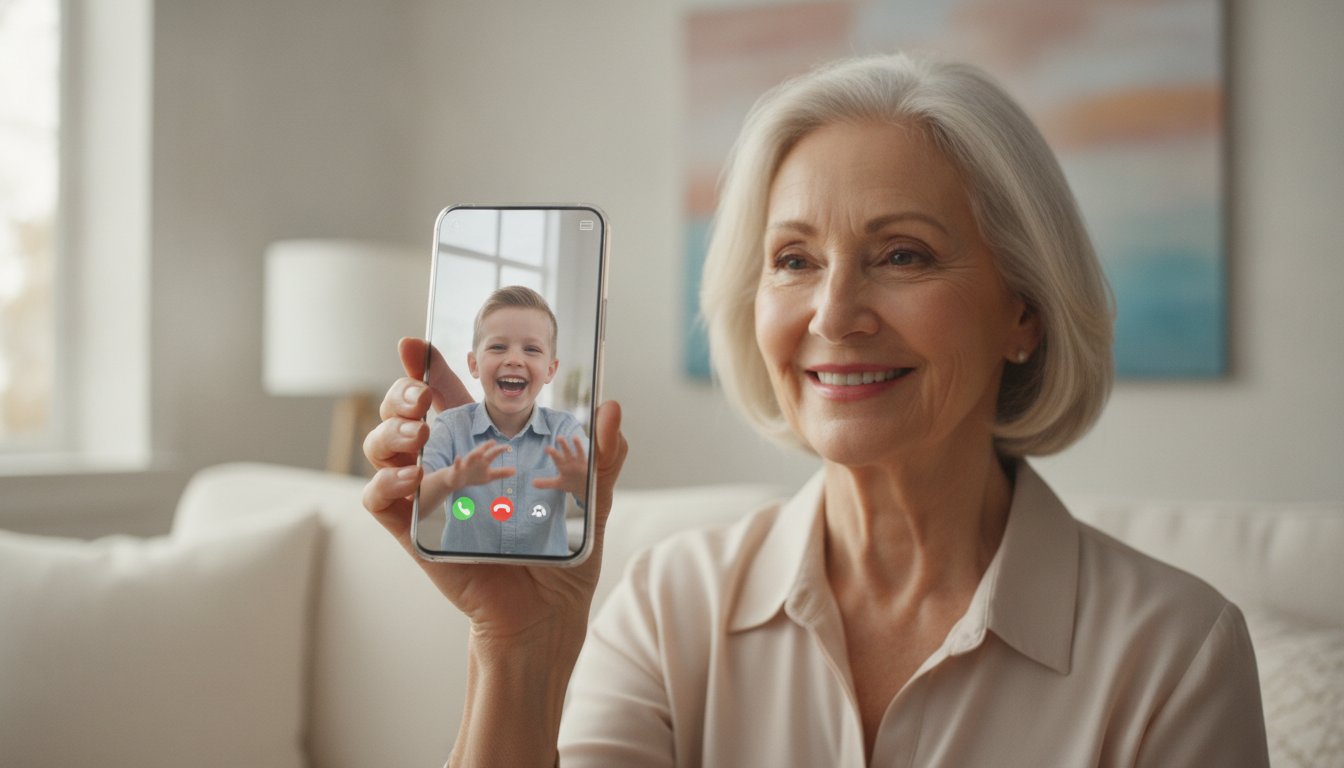
Imagine you are trying to see a new photo of your grandson, but the screen is too dim and the text is too small to read. You might even worry that one wrong swipe will delete your precious memories forever. Learning the iphone basics for seniors shouldn't be a source of anxiety or frustration. You aren't alone if you feel a bit nervous about privacy or confusing gestures. It's common to feel like technology moves too fast to keep up.
We agree that technology should serve you, not confuse you. You deserve to feel secure and independent whenever you pick up your phone. This guide promises to teach you the essential skills you need to stay connected with your family and navigate your device with total confidence. We'll show you how to master four core habits that make using your iPhone simple. You'll learn how to use the latest accessibility tools in iOS 26 to make your screen easier to read and how to safely share life's best moments with the people you love most.
Key Takeaways
- Master the three essential gestures and physical buttons to move through your iPhone screens with ease.
- Learn how to use FaceTime and the Favorites list to stay in touch with your family whenever you want.
- Capture and share clear photos of special moments by learning the simple "point and shoot" method.
- Discover how to customize iphone basics for seniors, such as increasing text size so everything is easy to read.
- Find out why patient, one-on-one training helps you learn at your own pace without feeling rushed by family.
Getting Started: Understanding Your iPhone Navigation and Gestures
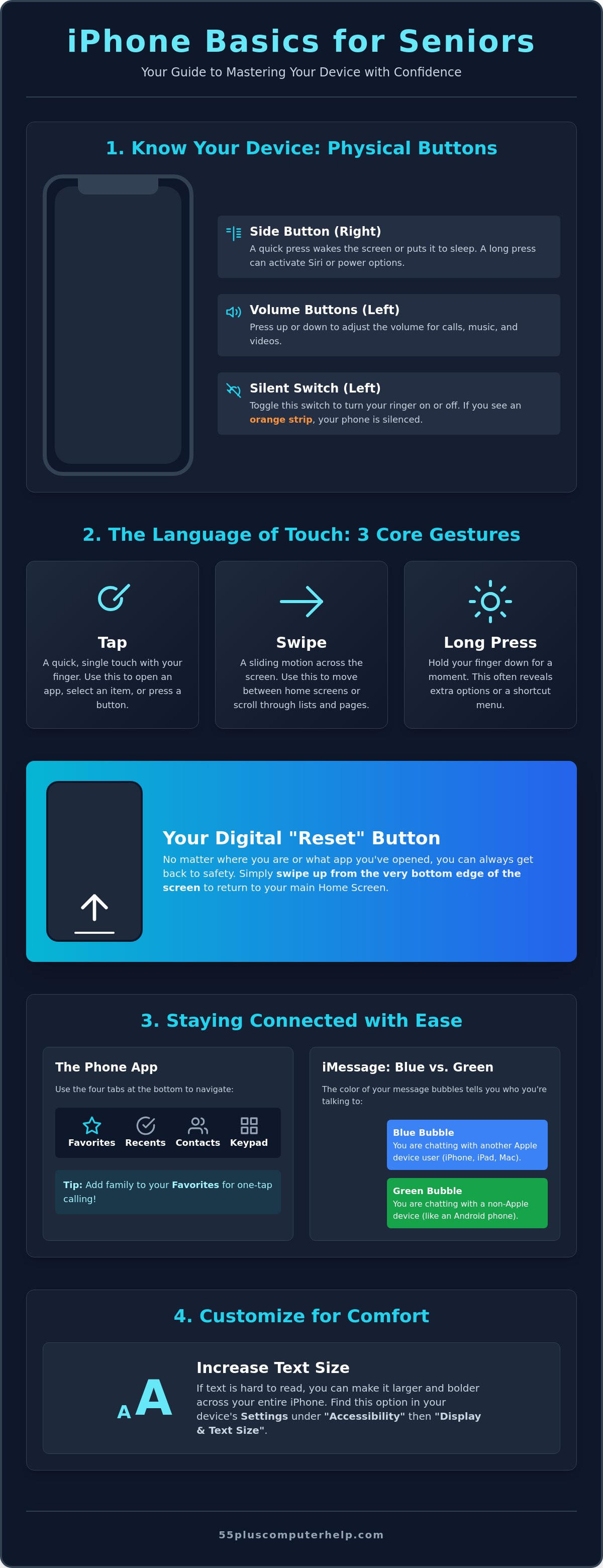
Starting your journey with a new device begins with the physical object in your hand. Many people feel hesitant because they don't want to press the wrong thing; however, your iPhone is built to be durable and helpful. Learning the iphone basics for seniors starts with identifying the few buttons on the outside of your device. On the right side, you'll find the Side Button. This button wakes the screen or puts it to sleep. On the left side, you have your Volume buttons and a small Silent Switch that toggles your ringer on or off. If you see a small orange strip on that switch, it means your phone is silenced.
You can wake up your phone simply by picking it up. This feature is called Raise to Wake. If that doesn't work, a quick press of the Side Button does the trick. Once the screen is lit, you use three main gestures to get around. A "tap" is a quick touch to select something, like pressing a button. A "swipe" is a sliding motion; it feels like you are turning the page of a physical book. Finally, a "long press" involves holding your finger down for a second. This often reveals extra options, similar to right-clicking on a computer. If these gestures feel difficult at first, understanding AssistiveTouch can provide a helpful on-screen menu to make these actions much easier.
The most important concept to remember is the "Home" gesture. On modern iPhones, you return to your main screen by swiping up from the very bottom edge of the display. Think of this as your "reset" button. No matter where you are or what you might have opened by accident, swiping up always brings you back to safety. You cannot break the phone by exploring, so feel free to practice these movements at your own pace.
The Secret to the Home Screen
Think of an "app" as a single tool in a digital toolbox. One app is for your mail, another is for your photos, and another is for your phone calls. The Home Screen is where all these tools live. At the very bottom of your screen, you'll see a row of icons that stay put even when you move between pages. This is called the "Dock." It is best to keep your most important tools here, such as your phone and messages. If you have many apps, you can navigate between multiple screens by swiping your finger left or right across the middle of the display.
Unlocking with Confidence
The Lock Screen is the digital front door of your device. To get inside, your iPhone needs to know it's really you. Depending on your specific model, you might use Face ID, which looks at your face, or Touch ID, which reads your fingerprint. If the phone doesn't recognize you because of low light or a hat, don't be concerned. You can always use your numeric Passcode as a reliable backup. Entering those numbers will unlock the phone every time. Mastering these iphone basics for seniors ensures you always feel in control of your digital home.
Staying Connected: Phone Calls, Texting, and FaceTime
The main reason most people want a smartphone is to stay in touch. Your iPhone makes this easy and reliable. Start by finding the Phone app on your home screen. It looks like a green square with a white telephone icon. At the bottom of this app, you will see four main sections. These are Favorites, Recents, Contacts, and the Keypad. Recents shows you a list of who called you lately. The Keypad allows you to dial a number manually, just like an older telephone.
You should set up your Favorites list for the people you call most often. This list saves you from searching through dozens of names every time you want to talk. To add someone, find their name in your contacts and tap "Add to Favorites." This is a key part of mastering iphone basics for seniors. If you ever feel stuck on a specific button, the Official iPhone User Guide is a wonderful resource for checking every detail.
Managing Your Contacts
Your Contacts list is your digital address book. To add a new person, tap the plus (+) sign in the top right corner of the screen. Type their first name, last name, and phone number. If a friend gets a new number, find their existing name and tap "Edit" to update it. We recommend adding a photo to your most important contacts. When that person calls, their face will appear on your screen. This visual cue makes it much easier to identify callers at a glance.
The Joy of iMessage
Texting is a quick way to send a note without making a full call. Open the green Messages app to begin. You will see that some message bubbles are blue and others are green. A blue bubble means you are chatting with another iPhone user. A green bubble means they have a different type of phone, like an Android. Both work perfectly for sending text. However, blue bubbles allow you to use "Tapbacks."
To use a Tapback, double-tap a message your loved one sent you. You can quickly send a "heart" or a "thumbs up" to show you liked their message. You can also share photos of your day. Tap the plus sign next to the text box to send a picture of your pet or a recent meal. Learning these features should be an educational experience, not a chore. If you would like a patient teacher to show you these steps in person, our smartphone and tablet training is designed just for your needs.
FaceTime is another excellent tool for connection. It allows you to have video calls so you can see your family face-to-face. Simply find a contact and tap the FaceTime icon. This feature uses your internet connection to bring your loved ones right onto your screen. Learning these iphone basics for seniors helps you feel closer to family who live far away.
Capturing and Sharing Memories with the Camera
One of the best parts of owning an iPhone is having a high-quality camera in your pocket at all times. You don't even need to unlock your phone to take a quick picture. Just swipe your finger from right to left on the Lock Screen. The camera will open instantly. This is a helpful part of iphone basics for seniors because it ensures you never miss a fleeting moment, like a grandchild's first steps or a beautiful sunset.
To take a clear photo, hold the phone with both hands to keep it steady. Tap the screen where you want the focus to be. A small yellow box will appear on the object you touched. Once you see that box, tap the large white circle at the bottom of the screen to snap the picture. If you want to take a "selfie" to see your own face, look for the icon that has two arrows in a circle. Tapping this switches between the front camera and the back camera.
After you take your pictures, you can find them in the Photos app. This app looks like a colorful flower icon. Inside, you can navigate your library by years, months, and days. This keeps your memories organized so you don't have to scroll through thousands of images to find one specific event. Mastering these iphone basics for seniors makes it much easier to enjoy your collection of memories later.
Taking Better Pictures
You can use the zoom feature to see far away objects more clearly. Spread two fingers apart on the screen to zoom in, or pinch them together to zoom out. However, be careful not to zoom in too far. If you do, the photo might look grainy. If your pictures ever look foggy or hazy, use a soft, dry cloth to wipe the glass lens on the back of the phone. Fingerprints are often the secret cause of blurry images. You should also check your flash settings. The lightning bolt icon in the corner allows you to turn the flash on, off, or set it to auto. Auto is usually the best choice for most situations.
Sharing Your Photo Library
Sharing your photos is a wonderful way to keep friends and family updated. You can send a picture through email if your friend doesn't use a smartphone. For more help with digital messages, you can read our Email Setup and Troubleshooting guide. You can also create a Shared Album. This special folder allows your family to post new pictures of the grandkids directly to your device for you to see. If you want to dive deeper into these skills with others, you might enjoy Senior Planet's technology classes. These communities provide a supportive space to learn alongside your peers.
Customizing Your iPhone for Comfort and Security
Your iPhone should adapt to your needs; it should not be a struggle to use. Many people find the default settings difficult to see or hear. You can change this quickly in your Settings menu. Go to Display & Brightness to turn on Bold Text and increase the Text Size. This is a fundamental part of iphone basics for seniors. Making these changes ensures that your messages and emails are comfortable to read without straining your eyes.
You should also adjust your ringer settings so you never miss a call from a loved one. In the Sounds & Haptics menu, you can set a volume level that works for you. Privacy is another vital area. Your phone protects your information by asking for permission before an app can see your location. You can review these choices anytime in the Privacy & Security section. Finally, we recommend setting up your Medical ID in the Health app. This feature allows emergency responders to see your health needs and contact your family even if your phone is locked.
Visual and Hearing Accessibility
The Magnifier tool helps you read physical menus or small print on medicine bottles. You can find this in your Accessibility settings. If you have trouble hearing the ringer, you can turn on "LED Flash for Alerts." This setting makes the camera light on the back of your phone blink when you have an incoming call. Another helpful feature is "Speak Selection." When this is on, your iPhone can read long articles or text out loud to you. This is a wonderful way to enjoy digital content without tired eyes.
Staying Safe from Scams
Staying safe is a top priority for everyone. If you receive a call from a number you do not know, you can block it easily. Tap the small "i" icon next to the number in your Recents list and select Block this Caller. Remember the most important rule for your digital safety. Apple will never call you to ask for your password or your bank information. If someone asks for these details, hang up immediately.
If you want to learn more about protecting your devices, our Virus and Malware Removal guide provides deeper insights into digital security. Mastering iphone basics for seniors includes knowing how to spot these red flags. If you would like a patient mentor to help you set up these security features, our smartphone and tablet training offers the personalized support you deserve.
Why Personalized Training is the Key to iPhone Mastery
Many seniors start their journey by asking family members for help. While your children and grandchildren love you, they are often not the best teachers. They grew up with these devices and move through screens at a speed that's hard to follow. They might even take the phone out of your hand to fix something quickly. This solves the immediate issue, but it doesn't help you learn how to do it yourself next time. You're left feeling just as confused as before.
Professional training focuses on your specific goals. We don't use a generic manual that covers every single feature. Instead, we sit with you and focus on the tasks that matter most to your life. Whether you want to see your grandkids on FaceTime or organize the photos we discussed earlier, we move at your pace. This "Learn by Doing" approach is essential for mastering iphone basics for seniors. It helps you build muscle memory. When you perform the actions yourself with a patient mentor nearby, you gain the confidence to repeat them later.
We believe in empowerment rather than just repair. Our goal is to help you move from saying "I can't do this" to "I just did it." This transformation is the most rewarding part of the educational experience. You deserve to feel independent and secure with your technology. Learning iphone basics for seniors should be a source of pride, not a cause for frustration.
The 55 Plus Computer Help LLC Difference
Since 2014, we've specialized in helping users aged 55 and older. We understand that technical support can feel cold or clinical. Our tutors intentionally avoid computer jargon. We speak in plain, everyday language so you always feel comfortable. We offer our Smartphone and Tablet Training in the comfort of your own home or through remote sessions. This means you can learn in the environment where you actually use your phone. Our tailored curriculum means we only teach the things you actually want to use. We value your time and your comfort as much as the technical solution.
Ready to Become an iPhone Pro?
Your journey with your iPhone doesn't have to be a source of stress. You've already learned how to navigate screens, stay connected with family, and capture memories. It's never too late to master a new skill. With the right support, you can go from unboxing your device to using it with total confidence every day. If you're ready to stop feeling overwhelmed and start feeling empowered, we're here to help. You can book a personalized lesson with a trusted local expert today. Let's work together to make your iPhone a tool for joy and connection.
Your Path to Confident Connection
You now have the tools to turn your device from a mystery into a reliable companion. By mastering navigation, staying in touch through FaceTime, and capturing clear memories, you've taken the first steps toward independence. These iphone basics for seniors are about more than just technology; they're about keeping you connected to the people and moments that matter most. You deserve to feel comfortable every time you pick up your phone.
Learning is always more effective with a patient mentor. 55 Plus Computer Help LLC has provided dedicated tech support for adults 55 and older since 2014. With over 10 years of experience, we offer both in-home and remote assistance nationwide to ensure you learn in a way that feels safe and supportive. We focus on your specific needs, turning technical frustration into a sense of genuine accomplishment and security.
You don't have to struggle with small text or confusing gestures on your own. You can Book Your Personalized iPhone Lesson Today to gain the confidence you deserve. It is never too late to master a new skill and enjoy the many benefits of your device. We look forward to helping you become an iPhone pro at your own pace.
Frequently Asked Questions
How do I make the text larger on my iPhone screen?
You can make the text larger by going to the Settings app, tapping "Accessibility," and then choosing "Display & Text Size." From there, select "Larger Text" and slide the button at the bottom to the right. This is one of the most helpful iphone basics for seniors because it reduces eye strain. You can also turn on "Bold Text" in the same menu to make every letter stand out more clearly.
What is the difference between an iPhone and an iPad?
The primary difference is that an iPhone is a pocket-sized phone used for calls, while an iPad is a larger tablet designed for reading and watching videos. Both devices use the same software, so the gestures you learn on one will work on the other. If you enjoy the iphone basics for seniors we have discussed, you'll find that using an iPad feels very familiar and comfortable.
Is it possible to "break" my iPhone by pressing the wrong button?
You cannot break your iPhone's internal systems simply by pressing the wrong button or tapping the wrong icon. If you ever feel lost or open an app by mistake, just swipe up from the bottom edge of the screen to return home. This action is like a "reset" button that brings you back to safety. Your device is designed to be explored, so feel free to practice without fear.
How do I stop my iPhone from ringing during a movie or at church?
To quickly silence your phone, flip the small switch on the left side of the device so the orange color shows. This silences all incoming calls and alerts instantly. You can also swipe down from the top right corner to open the Control Center and tap the crescent moon icon. This turns on "Do Not Disturb," which keeps the phone quiet until you are ready to listen again.
Do I need an Apple ID to use my iPhone?
You do need an Apple ID to get the most out of your device. It acts as your digital account for downloading apps, using FaceTime, and saving your photos securely in the cloud. While you can make basic calls without one, having an Apple ID allows you to stay connected with family across all your devices. We recommend writing your password down in a safe, private place at home.
How do I update my iPhone to the latest software version safely?
To update your phone safely, plug it into a charger and connect to your home Wi-Fi. Go to Settings, tap "General," and then select "Software Update." If an update is available, your phone will guide you through the installation process. Keeping your software current is vital because it provides the latest security protections against scams and ensures your apps continue to run smoothly and reliably.
What should I do if I forget my iPhone passcode?
If you forget your passcode, you'll need to reset your phone using your Apple ID credentials or a computer. This is a security measure to protect your private information if the phone is ever lost. Because this process can be complex, it's best to use a passcode that is easy for you to remember but hard for others to guess. We can help you set up these security basics during a personalized lesson.
Can I use my iPhone to see my grandkids if they live in another state?
You can absolutely see your grandkids using the FaceTime app, no matter how many states away they live. FaceTime allows for high-quality video calls over the internet. Simply find your grandchild in your Contacts list and tap the "Video" button under their name. It's a wonderful way to feel like you're in the same room together, and it doesn't cost anything extra if you're using Wi-Fi.


