
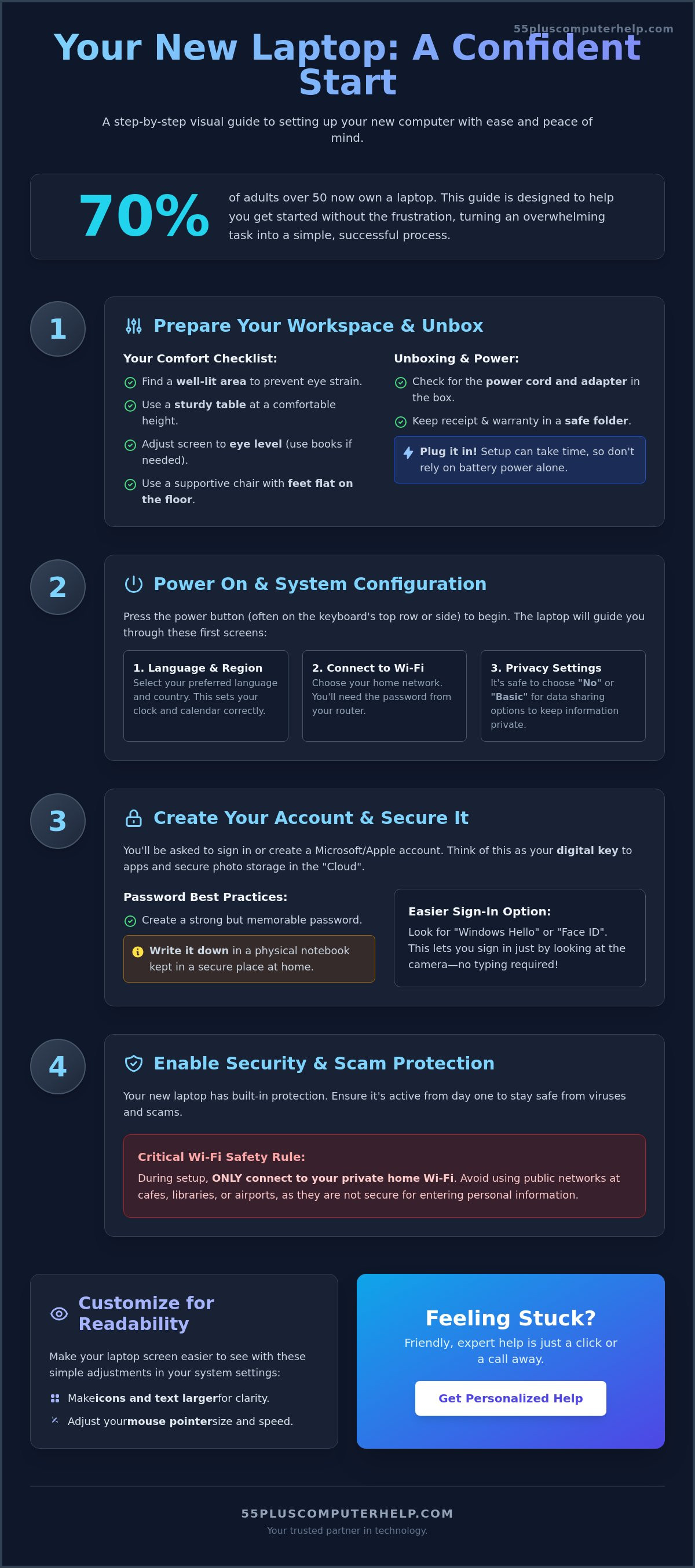
Did you know that 70% of adults over 50 now own a laptop? While having the world at your fingertips is exciting, staring at a brand-new, unboxed machine can feel a bit overwhelming. It's completely normal to feel a flash of anxiety when you see those first setup screens. You might worry about clicking the wrong button or missing a step while learning how to set up a new laptop for the first time. We understand these frustrations. We believe technology should work for you, not the other way around.
This guide is here to help you configure your device with total confidence and peace of mind. You don't need to be a tech expert to get things running perfectly. We've designed this process to be slow, steady, and easy to follow. We will walk through everything from the physical unboxing to adjusting your screen text so it's large and easy to read. You'll also learn how to stay safe from modern internet scams and viruses. By the time we're finished, you will have a secure, personalized computer ready for video calls and sharing photos with your grandkids.
Key Takeaways
- Prepare a comfortable workspace with a sturdy table and bright lighting to prevent eye strain and physical fatigue.
- Learn exactly how to set up a new laptop for the first time by following a simple, step-by-step path from the power button to the final screen.
- Protect your personal information immediately by enabling built-in security features and setting up simple safeguards against scams.
- Adjust your settings to make text and icons larger, ensuring your screen is easy to read and your mouse is easy to track.
- Gain the confidence to recognize when a task is a simple software adjustment or when it is time to call a friendly expert for help.
Unboxing and Preparing Your Workspace for Success
Laptop setup is the process of preparing your device for daily use. It includes finding the right physical placement and completing the software configuration. Before you begin learning how to set up a new laptop for the first time, take a moment to understand your new tool. You might find it helpful to read about What is a Personal Computer? to learn about the basic parts and how they work together. This foundation helps you feel more in control as you start the process.
Choosing the right spot to work is just as important as the computer itself. Pick a well-lit area with a sturdy table. Good lighting helps you see the keys clearly and prevents eye strain. A solid table ensures the device stays still while you type. This simple step helps you avoid neck pain and keeps you comfortable while you explore your new machine. You want an environment that feels calm and supportive as you take these first steps.
Safe Unboxing and Component Check
When you're ready to open the box, do it slowly. Remove the laptop gently from its protective sleeve. This prevents any accidental scratches on the screen or the outer case. Once the laptop is on the table, check the box for all the components. You should find a power cord and a small box called a power adapter. Verify that you have the correct adapter for your specific model by checking the labels. It's also a great idea to keep your receipt and warranty information in a safe, labeled folder. You won't need them today, but they're good to have for future reference.
Creating a Comfortable Computing Environment
Setting up your workspace correctly makes a big difference in how much you enjoy your computer. Position the screen at eye level. This stops you from leaning forward or straining your back. If the laptop is too low, you can use a few sturdy books to lift it up. Make sure your chair provides enough support for 30 to 60 minutes of use. Your feet should rest flat on the floor. Place your mouse and keyboard at a height where your wrists can remain flat. Keeping your wrists straight helps prevent soreness and makes typing much easier.
Finally, plug the laptop into a power outlet immediately. Setup can take some time. You don't want the battery to run out in the middle of an important task. Having a steady power source gives you the peace of mind to move through the steps at your own pace. Learning how to set up a new laptop for the first time is much easier when you aren't worried about the screen going dark unexpectedly.
The Initial Power On and System Configuration
Pressing the power button for the first time is an exciting moment. This button is usually located on the top row of your keyboard or on the side of the laptop frame. Once you press it, the screen will glow and the manufacturer's logo will appear. The computer will then guide you through several screens. You will start by selecting your language and region. This simple step ensures your clock and calendar show the correct local time. Following these basic prompts is a major part of learning how to set up a new laptop for the first time.
During the setup, you will see several screens about privacy. These screens ask if you want to share your location or typing data with the manufacturer. You can choose "No" or "Basic" for most of these options. This keeps your personal information more private. If you feel unsure about these choices, you can always find personalized computer setup help to walk you through each toggle button with a friendly expert.
Understanding Accounts and Passwords
The computer will ask you to create or sign in to a Microsoft or Apple account. Think of this as a digital key. This account allows you to download apps and safely store your family photos in a digital vault called the "Cloud." The Cloud is simply a secure way to save your files on the internet instead of only on your laptop. This means your precious memories are safe even if your device is lost or damaged.
Security is vital, but remembering complex codes can be hard. We recommend writing your new password down in a physical notebook kept in a secure location in your home. You might also see an option for "Windows Hello" or facial recognition. This feature lets you sign in just by looking at the camera. It is a wonderful choice if you want to avoid typing a password every time you use the computer.
Connecting to the Internet Safely
Your laptop needs to talk to the internet to finish its configuration. To do this, you must identify your Wi-Fi name and password. You can usually find this information on a sticker attached to your router or modem. Type the password carefully into the box on your screen. It is best to avoid using public Wi-Fi at a cafe or library during this sensitive phase. Your private home network is much more secure for entering account details.
Once you are connected, your laptop will likely download "Day One" updates. These are essential software improvements released after the laptop left the factory. This part of how to set up a new laptop for the first time requires a little patience. The computer might restart once or twice on its own. This is normal behavior. It shows the system is working hard to keep your new device safe and up to date.
Essential Security and Scam Protection
Security is often the biggest worry for people learning how to set up a new laptop for the first time. You don't need to buy expensive software immediately to stay safe. Most modern laptops come with built-in protection like Windows Defender. This tool works silently in the background to stop threats. Make sure it's enabled during your initial setup to give you immediate protection. It's a reliable guard that watches over your files without slowing down your computer.
Scammers often use fear to get your attention. They might show a flashing red box on your screen saying your computer is infected. Legitimate system updates don't use high-pressure language. They also never ask you to call a phone number to fix a problem. If a message feels scary or rushed, it's likely a scam. It's smart to have a plan for virus and malware removal before you ever need it. Knowing who to call can turn a scary moment into a minor, manageable fix.
You should also set up "Two-Factor Authentication" for your important accounts. This is a long name for a very simple idea. It just means the computer will send a short code to your phone to make sure it's really you trying to log in. It acts like a second lock on your front door. Even if someone guesses your password, they can't get in without that second code from your phone. It's one of the best ways to prevent account theft.
Protecting Your Personal Information
On your first day, avoid saving your credit card numbers directly in the web browser. It's safer to type them in each time until you're more comfortable with your new system. We also recommend using the "Cloud" for your family photos. As we mentioned earlier, this keeps your memories safe if the physical laptop has an issue. Learning about email setup and troubleshooting for seniors is another great step. This helps you spot "phishing" scams, which are fake emails designed to look like they're from your bank or a friend.
Managing Software Updates
Software updates are like "digital vitamins." They keep your system healthy and strong against new threats. You don't have to manage these manually every day. You can configure your laptop to install security updates automatically overnight. This way, your computer stays protected while you sleep. Don't forget to check your web browser too. Whether you use Edge or Chrome, keeping the browser updated ensures you have the latest safety features while browsing. This is a vital part of knowing how to set up a new laptop for the first time.
Customizing Your Laptop for Ease of Use
Once the technical parts are finished, it's time to make the computer comfortable for your eyes and hands. This is the most rewarding part of learning how to set up a new laptop for the first time. Many people find that the default text on a new screen is much too small. You can fix this by adjusting the "Scaling" settings in your display menu. Increasing this number to 125% or 150% makes every word and icon larger and clearer. It turns a straining experience into a pleasant one.
You can also change your mouse pointer to better suit your needs. By default, it's a tiny white arrow that's easy to lose on a bright background. We suggest making the pointer larger and picking a bright, high-contrast color like yellow or lime green. This small change helps you track the pointer across the screen without squinting. If you want help making these personal adjustments, you can book a personalized computer training session to master your new device with a patient guide.
Personalizing your digital space helps you feel at home. Set your desktop background to a photo that makes you feel happy, such as a picture of your family or a favorite vacation spot. We also recommend organizing your "Taskbar" at the bottom of the screen. Keep only the programs you use every day, like your internet browser and email. A clean screen reduces confusion and helps you focus on what's important.
Vision and Hearing Adjustments
Modern screens produce blue light that can be tiring for your eyes. Enable the "Night Light" mode to give the screen a warmer tone. It's much gentler, especially if you enjoy using your laptop in the evening. You should also check your volume and notification sounds. Adjust them so they're clear enough to hear but not so loud that they startle you. If you ever find a website with tiny print that won't get bigger, use the "Magnifier" tool. It works like a digital magnifying glass for your screen, allowing you to zoom in on specific details with ease.
Cleaning Up the Desktop
Your new laptop might come with many icons you don't actually need. These pre-installed programs are often called "bloatware." You can safely remove these shortcuts to keep your desktop tidy and easy to navigate. We suggest creating a "Grandkids" or "Family" folder right on your main screen. This gives you one-click access to all your shared digital photos. Finally, pin your most-used apps to the bottom of the screen. This ensures you never have to "hunt" for your email or the internet. This level of organization is a vital part of how to set up a new laptop for the first time.
Getting Expert Help and Next Steps
Learning how to set up a new laptop for the first time is a big achievement. It's completely normal if you feel a little tired or frustrated after working through these steps. Technical tasks can be mentally draining. If you find yourself clicking the same button repeatedly or feeling a sense of anxiety, it's time to take a break. Step away from the screen and have a cup of tea. A fresh perspective often makes the solution much clearer when you return.
It's helpful to understand what kind of problem you might be facing. Software issues are usually about how the programs on your screen behave. This might include a confusing menu or an app that won't open correctly. Physical hardware problems involve the actual machine, like a keyboard that doesn't type or a screen that flickers. While you can often fix software settings yourself, hardware issues might require talking to the store where you bought the laptop. Knowing the difference helps you decide on your next step.
When to Call a Professional
Sometimes, the best way to move forward is to ask for a helping hand. If your laptop freezes repeatedly while you are learning how to set up a new laptop for the first time, you should seek help. This could be a sign of a system error that needs a steady hand to fix. You might also want professional assistance if you need to transfer years of family photos and documents from a very old computer. A professional setup ensures your printer and home Wi-Fi are configured correctly the first time. This saves you from hours of troubleshooting and gives you immediate peace of mind.
Building Your Digital Confidence
Confidence comes with practice, not just reading. Start with one simple task that brings you joy, like sending an email to a friend or looking at photos of your grandkids. Don't worry about the more complex features yet. If you spend just 15 minutes a day using your computer, you will start to build "muscle memory." This means your fingers will start to remember where the keys and buttons are without you having to think about it. Every small win is a step toward independence.
You don't have to go on this journey alone. You deserve to feel empowered and safe while using your technology. If you want to learn at your own pace with someone who understands your specific needs, you can schedule a personalized technology training session. Having a patient mentor by your side can turn confusion into a sense of real accomplishment. You have the tools now. With a little time and the right support, you will be a confident computer user who enjoys every click.
Embrace Your New Digital Independence
You have taken the important first steps toward mastering your new technology. By preparing a comfortable workspace and adjusting your screen for better visibility, you've already made the computer work for you. Understanding the difference between real updates and scam pop-ups keeps you safe while you explore. Learning how to set up a new laptop for the first time is a journey that requires patience, but it opens up a world of connection with your family and friends.
If you still feel a bit unsure, you don't have to do this alone. We have provided specialized support for seniors since 2014. Whether you need in-home help or remote assistance available nationwide, we offer patient, one-on-one training tailored to your specific skill level. You can Get Patient, In-Home Help Setting Up Your New Laptop to get started. We are here to transform your technical frustration into a sense of security and accomplishment. You have the tools, and soon, you'll have the confidence to use them every single day.
Common Questions About Laptop Setup
Do I need to buy an antivirus program right away for my new laptop?
You don't need to purchase an antivirus program immediately. Most new laptops come with built-in protection like Windows Defender or Apple's XProtect already active. These tools provide strong security against common viruses and malware from the moment you turn on the device. While you can add extra software later, the included features are sufficient for your first few days. Focus on browsing safely as your primary defense.
How long does it typically take to set up a new laptop for the first time?
It typically takes between 30 and 60 minutes to learn how to set up a new laptop for the first time. This timeframe includes unboxing, connecting to Wi-Fi, and creating your user account. However, your internet speed affects how long the "Day One" updates take to download. It's best to set aside an hour of quiet time so you don't feel rushed or overwhelmed during the configuration process.
Can I use my new laptop while it is still downloading updates?
You can use your laptop while it downloads updates in the background. However, you might notice that the computer feels a bit slower than usual during this period. Some updates also require the machine to restart to finish the installation. It's often better to let the computer finish its main updates first. This ensures everything is running smoothly before you start browsing the web or looking at family photos.
What should I do if I forget the password I just created during setup?
If you forget your new password, look for a "Forgot my password" link on the sign-in screen. The system will guide you through a reset process using the secondary email or phone number you provided during setup. This is why we recommend writing your password in a physical notebook right away. If you get stuck, a patient expert can help you regain access to your laptop without losing any of your files.
Is it safe to leave my new laptop plugged into the charger all the time?
It's generally safe to leave your new laptop plugged into the charger. Modern batteries are designed to stop charging once they reach 100%. This prevents the battery from overcharging or getting too hot. However, it's a good habit to unplug the laptop and use it on battery power once or twice a week. This keeps the battery healthy and ensures your laptop remains reliable for many years of use.
How do I move my old photos and documents to my new laptop?
You can move your old photos and documents using a small USB "thumb drive" or a cloud service like OneDrive. Simply copy the files from your old machine onto the drive, then plug it into your new laptop to move them over. If you have thousands of photos, this task can feel daunting. A professional can help you transfer everything safely so no precious family memories are lost during the move.
What is bloatware and should I delete it from my new computer?
Bloatware refers to the extra programs that come pre-installed on your laptop by the manufacturer. These often include trial versions of games or software you might never use. You can safely delete these icons from your desktop to keep things tidy. Removing them doesn't hurt the computer. In fact, it often makes the laptop run a little faster by freeing up space for the apps you actually enjoy using.
Can I set up a new laptop without a Microsoft or Apple account?
It is very difficult to how to set up a new laptop for the first time without a Microsoft or Apple account. These companies design the systems to require an account for essential features like security updates and app downloads. While there are technical ways to skip this step, we don't recommend it for most seniors. Having an account makes it much easier to recover your files if you ever have trouble with your new machine.


