Imagine sitting down at your bright new desk, turning on your fast machine, and suddenly realizing that twenty years of family holiday photos are still stuck on your old, dusty computer. It is a common fear that often stops people from learning how to transfer files from an old computer to a new one. You might feel worried about hitting the wrong button or feel overwhelmed by confusing terms like "the cloud" and "SSDs." We understand that these technical changes can feel intimidating, but you don't have to face them alone.
You deserve to know that your precious memories and important documents are safe. In this guide, you'll learn the most reliable ways to move your data without any technical headaches. We'll explain how to use external drives or modern cloud services. We will show you a "Visual-First" method that focuses on your digital legacy rather than complex computer code. By the end of this article, you'll have a clear plan to take control of your digital life and start using your new machine with total confidence.
Key Takeaways
- Adopt a "Safety-First" mindset to ensure your precious family photos and documents remain protected throughout the entire move.
- Compare the benefits of physical external drives against cloud services to find the most comfortable and reliable tool for your needs.
- Learn the safest ways how to transfer files from an old computer to a new one by using the simple "Copy and Paste" method.
- Identify which items, like software programs and passwords, require a fresh setup on your new machine instead of a direct move.
- Understand when it's helpful to reach out for professional computer setup or data recovery support to make your transition completely seamless.
Preparing for a Stress-Free File Transfer
Moving to a new computer is a big step. It is about more than just technology; it is about moving your digital life. Before we look at the steps, it is helpful to understand the basics. What is file transfer? At its heart, it is the process of moving your information from one storage system to another so you can keep using it. Taking the time to organize now makes learning how to transfer files from an old computer to a new one much simpler.
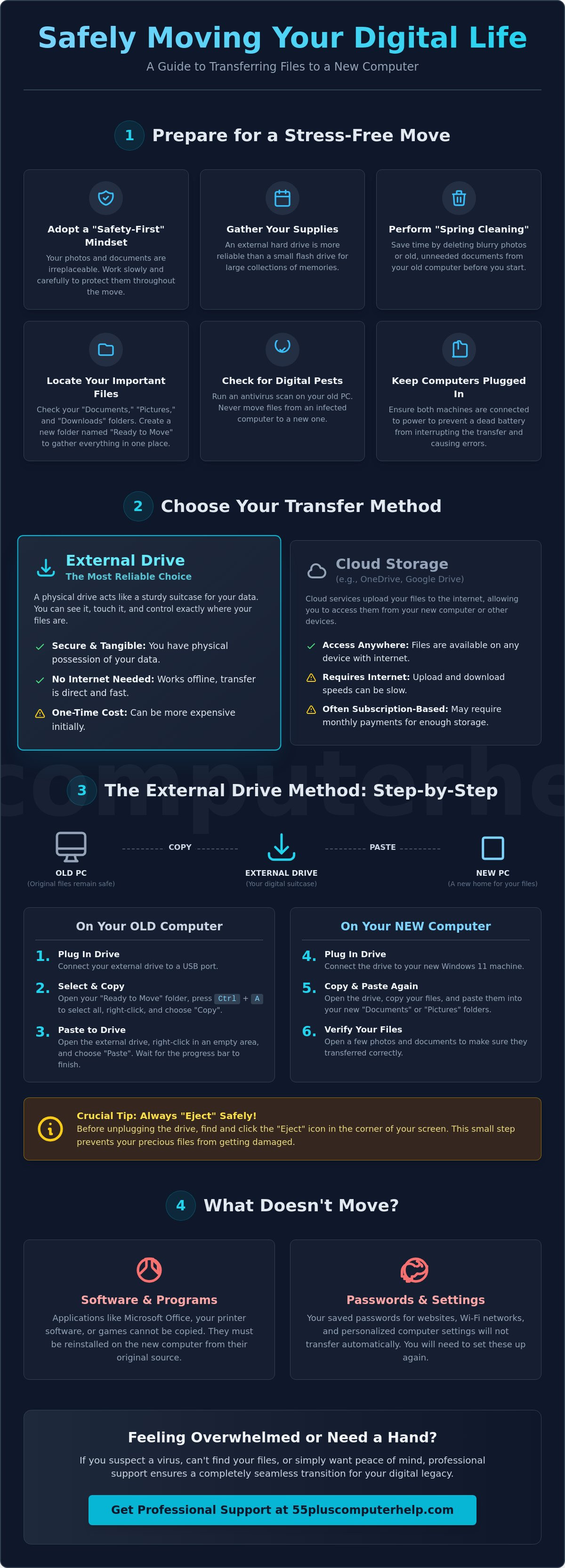
A "Safety-First" mindset is your most valuable tool. Your photos and letters are irreplaceable, so we move slowly to keep them safe. You will need to gather your supplies first. Many people choose a flash drive because they are small, but an external hard drive is often a more reliable choice for large collections of photos. Be aware that external drive prices have risen about 46 percent since the start of 2026. Even with this cost increase, having a physical backup of your memories provides great peace of mind.
Next, perform some "Spring Cleaning" on your old machine. There is no need to move blurry photos or old documents you no longer need. Deleting these items now saves time during the move. Finally, ensure both your old and new computers are plugged into a power outlet. You do not want a battery to die in the middle of the process. This simple step prevents data errors and keeps the transition smooth.
Locating Your Most Important Memories
Most of your treasures live in specific spots. You should check your "Documents," "Pictures," and "Downloads" folders first. Sometimes, photos can hide in folders created by old cameras or printers. To stay organized, create a new folder on your desktop and name it "Ready to Move." You can drag your favorite files into this folder as you find them. This gives you a clear view of exactly what is going to your new home.
Checking for Digital Pests Before the Move
You should never move files from a computer that might be sick. If your old computer has been running very slowly or showing strange pop-up ads, it might have a virus. Moving files from an infected machine can bring those same problems to your brand new computer. Run a quick security scan using your antivirus software before you start. If you find a problem, you may need professional virus and malware removal to clean the files before they are safe to touch your new machine.
The External Drive Method: The Most Reliable Choice
Many people prefer a physical tool because they can see it and touch it. It feels more secure than sending your precious memories into the "cloud." When you are learning how to transfer files from an old computer to a new one, a physical drive acts like a sturdy suitcase for your data. It is tangible and easy to control. While Transferring Data to a New Computer, you will use two main techniques. "Drag and Drop" is like picking up a photo and moving it to a new table. "Copy and Paste" is like making a photocopy and placing it in a new folder. We recommend copy and paste because it keeps the original file safe on your old machine if anything goes wrong.
Step-by-Step: Moving Files to Your External Drive
Find the USB port on your old computer. It is usually a small, rectangular slot on the side or back. Once you plug in your drive, open your "Ready to Move" folder. Press the "Ctrl" key and the "A" key at the same time to select everything. Right-click and choose "Copy." Open your external drive folder, right-click in the empty space, and choose "Paste." A progress bar will show you the move. If you have a large collection, like a 6TB WD My Passport can hold, this may take some time. Don't rush it. Patience is a virtue here.
Step-by-Step: Moving Files to Your New Computer
Now, plug your drive into your new Windows 11 machine. Open the drive and select your files again. Move them into your new "Pictures" or "Documents" folders to keep things tidy. If a message says a file already exists, it usually means you have a duplicate. It is usually safe to skip these. Once you finish, open a few photos to make sure they look right. This verifies your work was successful. If you find this process a bit stressful, you might consider professional Data Backup and Recovery to ensure every memory is moved perfectly.
Always remember to "eject" your drive before unplugging it. Look for a tiny icon shaped like a silver plug in the bottom right corner of your screen. Click it and select "Eject." This tells the computer to stop talking to the drive. This small step prevents your files from getting scrambled or damaged. Taking this extra moment protects your hard work and your history.
Using the Cloud: OneDrive and Google Drive Explained
If an external drive is like a suitcase, the cloud is like an invisible cable. It uses your internet connection to move your information from one place to another. You don't have to plug anything in or carry a physical device between rooms. This is a very modern way to learn how to transfer files from an old computer to a new one. It feels like magic when a photo you saved on your old machine suddenly appears on your new screen. According to Intel's guide to transferring files, using the internet is one of the most popular ways to stay organized today.
Microsoft OneDrive is already built into your Windows computer. It is very convenient, but it has some rules you should know. As of June 2026, Microsoft has retired its standalone business plans for OneDrive. Most personal users now use Microsoft 365 Basic, which gives you 100GB of space. This is plenty for thousands of documents, but it can fill up quickly if you have many high-quality videos. We often suggest using the cloud as a "second copy." It is great for looking at files on different devices, but it can be a little confusing if you try to use it for your very first move without a backup plan.
Setting Up Your Microsoft Account for Success
To make this work, you must use the exact same email address on both computers. This tells the internet that you are the same person. If you can't remember your password or feel stuck, you might need email setup and troubleshooting for seniors to get back on track. Look for a tiny blue cloud icon in the bottom corner of your screen. If you see a little circle spinning, it means your files are "syncing" or traveling through the air. When you see a green checkmark, your files are finished and safe on your new machine.
Using Google Drive as an Alternative
Many seniors prefer Google Drive because it makes sharing family photos very simple. Google gives you 15GB of space for free. If you need more, a 100GB plan costs about €19.99 per year as of May 2026. You can simply click a big "Upload" button and choose the folders you want to move. Once they are uploaded, you can see your files from your computer, your tablet, or even your smartphone. It is a wonderful way to keep your memories close at hand no matter where you are.
What Doesn't Move: Managing Your Expectations
It is very exciting to see your photos arrive on your new machine. However, learning how to transfer files from an old computer to a new one involves understanding that some things simply cannot travel. Unlike a photo or a letter, you cannot copy a program like Microsoft Word or a card game. These tools are built into the internal system of your old computer. If you try to drag them over, they simply will not work. You must treat your programs like new furniture that needs to be delivered and set up fresh in your new home.
Your printer also needs a new introduction. Even if you use the same cable, your new computer needs a handshake with the printer to understand how it works. This process ensures everything prints clearly without errors. Your passwords are another item that stays behind. For safety reasons, computers do not share your saved passwords during a move. You will need to enter them one by one on your new machine to prove you are the rightful owner. If you are moving from an older Mac, keep in mind that macOS 27, released in June 2026, has officially ended support for Intel-based computers. This is a good reason to make sure your new machine is ready for the future.
Reinstalling Your Favorite Programs
Before you turn off the old machine for the last time, look for your product keys. These are the long strings of numbers and letters that prove you paid for your software. Most modern programs now use an email login instead. You will need to visit the official website for tools like your web browser or office software to download a clean version. Once installed, your very first task should be checking for software updates. This ensures your programs have the latest security features. If this feels like too much to handle at once, our team can help with a complete computer setup to get everything working just the way you like it.
Setting Up Your Digital Identity
The small things often matter the most for your daily comfort. Your "Favorites" or "Bookmarks" in browsers like Edge or Chrome are the shortcuts to your favorite news sites or recipes. You can move these by signing into your browser account, but it may take a few tries to get it right. Because you will need to sign in again to every website, this is a great time to check your physical password notebook. Keeping a written record in a safe place in your home is a reliable way to stay in control of your digital life. Taking these slow, methodical steps will help you feel right at home on your new computer.
Professional Support for a Seamless Transition
Sometimes, even with a clear guide, the task feels heavy. You might worry about losing a folder of photos or getting stuck on a screen you don't recognize. This is when a "Patient Mentor" can make all the difference. Instead of struggling alone, you can work with someone who understands your pace. We believe that technology should serve you, not the other way around. Learning how to transfer files from an old computer to a new one is a significant milestone in your digital journey. Having a professional by your side ensures that every memory moves safely. It transforms a stressful afternoon into a successful learning experience.
Remote technical support is a wonderful modern tool. It allows a helper to see your screen and guide your hand without ever coming into your home. It is private, secure, and very efficient. You don't have to pack up your computer or drive to a store. We can sit with you virtually and walk through the "Copy and Paste" steps together. This way, you aren't just getting the job done. You are also gaining the skills to handle your files independently in the future. You get to watch the process happen on your own screen, which builds your confidence for next time.
How 55 Plus Computer Help Makes It Easy
Our approach is built on patience and one-on-one training. We don't just move the files; we teach you where they are going. During the move, we can perform a thorough check for digital pests to ensure your new machine stays healthy. If you need help with Data Backup and Recovery, we handle your information with the highest level of care. Our goal is to make your new Windows 11 setup feel familiar and friendly. We can also assist with Virus and Malware Removal if your old machine was acting strange before the move. This ensures your new digital home is clean and organized from day one.
Getting Started with Your New PC Today
We focus on your comfort as much as the technical solution. If you feel overwhelmed by the process of how to transfer files from an old computer to a new one, scheduling a remote session is simple. We can help you with Computer Setup or even Email Setup and Troubleshooting so you can stay connected with family. You are in control of your technology. We are simply here to provide the map. With a little bit of support, you will be using your fast new computer with total confidence and a sense of pride. Your memories are safe, and your new machine is ready for you to enjoy.
Enjoy Your New Digital Home
You now have the knowledge to move your digital life safely and securely. Remember to start with your most important memories first to ensure they are protected. Whether you choose a physical drive or a modern cloud service, the key is to move at a pace that feels comfortable for you. Learning how to transfer files from an old computer to a new one is a wonderful way to gain independence with your technology. You deserve to feel in control of your documents and photos without any unnecessary stress.
Since 2014, our team has helped seniors across the country feel confident with their devices. We specialize in data backup and recovery for beginners and offer patient, one-on-one remote support nationwide. If you ever feel stuck or worried about a specific folder, we can sit with you virtually to ensure everything arrives perfectly on your new machine. Get Patient, Professional Help Moving to Your New Computer today. You have worked hard to build your collection of memories. Now it is time to enjoy them on your fast, new machine. You can do this, and we are here if you need a friendly hand.
Common Questions About Moving Your Files
Can I use a simple USB flash drive to move all my files?
Yes, you can use a flash drive if your collection of files is small. Most flash drives hold between 32GB and 128GB of data. This is usually enough for thousands of documents but might be too small for a large library of family videos. If you have a very large collection, an external hard drive is a more reliable and spacious choice.
Will my old printer work with my new computer automatically?
Your printer will not work automatically. You must perform a fresh printer setup on your new machine. This involves installing the correct software so the new computer knows how to talk to the printer. It is a new handshake between two devices that haven't met yet, and it ensures your photos print perfectly.
Do I need to buy a special 'transfer cable' to move my data?
You don't need to buy a special cable. While some stores sell them, using a physical drive or a cloud service is often a more helpful way how to transfer files from an old computer to a new one. These cables can be expensive and often require confusing software that makes the task harder than it needs to be for most people.
What happens to my old computer after I move the files?
Your old computer stays exactly as it was. When you move files, you are actually making a copy of them. The original photos and documents remain safe on the old machine. We suggest keeping your old computer for at least 30 days to make sure you didn't miss any folders before you decide to recycle it.
Can I move my paid programs like Microsoft Office to the new PC?
You cannot move the programs themselves by copying them. You must install a fresh version of Microsoft Office or other paid tools on your new machine. You will need your original login email or a product key to prove you own the software. This ensures your programs run fast and stay updated with the latest security features.
How long does it typically take to move 10 years of photos?
The time depends on the total size of your photo collection. A decade of memories might take anywhere from one to three hours to copy to an external drive. It is a methodical process that shouldn't be rushed. We recommend starting the move and letting the computer work while you enjoy a cup of tea.
Is it safe to move files if my old computer has a virus?
It is not safe to move files if you suspect your old computer is infected. You should always clean the old machine first. Moving infected files can bring "digital pests" to your brand new computer immediately. Professional virus and malware removal is the best way to ensure your files are clean before they touch your new system.
Will my email messages move to the new computer automatically?
Most modern email will appear as soon as you sign in. If you use a service like Gmail or Outlook.com, your messages are stored on the internet and will show up on any device. However, if you use an older email program, you might need specific email setup and troubleshooting to see your saved folders and contacts on the new screen.


