
Last Tuesday, Martha sat down to write an email to her grandson when a bright red bubble appeared on her App Store icon. She felt a familiar pang of worry, wondering if clicking it might delete her photos or if she still knew the right password to make it go away. It is completely normal to feel a bit of "update anxiety" when your computer asks for changes. Learning how to update apps on a mac computer is actually a simple act of digital housekeeping that keeps your personal information safe.
You likely want a computer that just works without crashing or showing confusing error messages. We understand that forgotten passwords and the fear of losing data can make these tasks feel daunting. This guide will show you the safe way to keep your apps current, including the latest security fixes found in macOS Tahoe 26.5.2. We will look at the App Store, explain how to handle other software, and give you the confidence to manage your own device with ease.
Last month, a local senior named Robert worried that a sudden update notice meant his Mac was broken. It is a common fear, and it's completely understandable to feel a bit of hesitation when your computer asks to change its settings. We believe that technology should serve you, not cause you stress. This guide will teach you the simple and safe steps for how to update apps on a mac computer so you can stay secure and skip the technical headaches. You will learn why these digital tune-ups are so important for keeping your private information safe, especially with the latest macOS Tahoe 26.5.2 security updates.
We will walk you through using the App Store and show you how to handle software downloaded directly from the internet. You will also discover how to set up automatic updates, which allows your Mac to take care of itself while you enjoy your day. We'll even cover what to do if an update seems to get stuck or shows a confusing error message. By the end of this article, you will have the confidence to manage your own device and ensure your apps never crash when you need them most.
Understanding Why App Updates are Essential for Your Mac
Think of an app update as a friendly tune-up for your software. Just like a car needs an occasional oil change to stay reliable, your apps need regular care from the people who created them. These updates arrive to keep your digital tools running smoothly and safely. Many people feel a bit of hesitation when a notification pops up, fearing that an update might erase their precious family photos or important documents. You can rest easy knowing that updating an app changes the program itself, not your personal files. Your memories and letters remain exactly where you left them.
Learning how to update apps on a mac computer is one of the best ways to maintain a healthy device. Most of these improvements happen through the Mac App Store, which serves as a central hub for your software. By keeping everything current, you ensure that your Mac remains a helpful companion rather than a source of frustration. Regular updates provide three main benefits: they seal security gaps, fix annoying glitches, and sometimes even add helpful new features for you to enjoy.
Security: Your First Line of Defense
Security is your most important defense against online trouble. Hackers often look for "holes" or weak spots in older versions of software to try and gain access to your computer. A security patch is a digital band-aid for your computer that seals these holes before they can be exploited. Keeping your software current is a vital part of virus and malware removal and prevention. Many people only realize they need professional help after an outdated app allows a problem to enter their system. Staying up to date with the latest versions, such as the security fixes in macOS Tahoe 26.5.2, keeps your private information behind a locked door.
Performance and Compatibility
Updates also help your apps "play nice" with your computer. As Apple updates your Mac system, your apps must change too so they stay compatible. If an app is outdated, it might "crash" or close suddenly while you are in the middle of a task. These updates often include "bug fixes," which are simple repairs for small mistakes in the software's code. Beyond fixing errors, updates can make your apps run faster and use less battery power. This means your Mac stays cooler and your battery lasts longer during the day. When you understand how to update apps on a mac computer, you are giving your device the tools it needs to work at its very best.
How to Update Apps Using the Mac App Store
The App Store is your main destination for keeping your computer healthy and functional. You can find it by looking for an icon that is a blue circle with a white "A" made of sticks. It usually sits in the bar of icons at the bottom of your screen called the Dock. If it isn't there, you can click the silver rocket ship icon to open your Launchpad and find it among your other programs. Understanding how to update apps on a mac computer starts with this one simple tool.
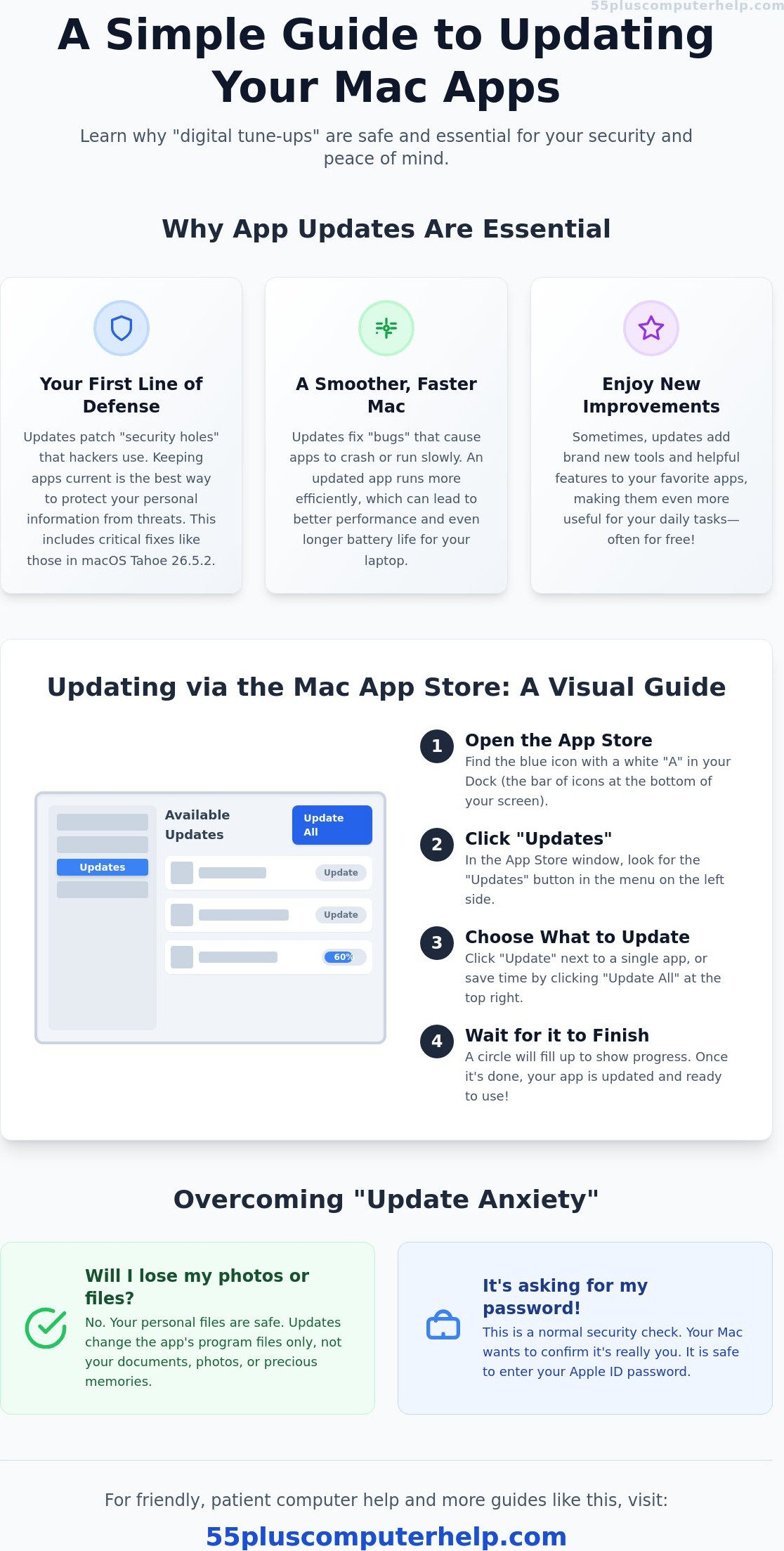
Once you open the App Store, look at the sidebar on the left side of the window. There's a button labeled "Updates." Clicking this will show you a list of every app that has a "tune-up" ready to install. You might see just one app or a long list of them. If you have plenty of time, you can click "Update All" in the top right corner. You can also find more details in Apple's official guide which explains these steps for different versions of the system. Knowing how to update apps on a mac computer gives you the power to keep your device secure and your tools working perfectly.
Step-by-Step App Store Instructions
Follow these simple steps to finish your updates:
- Click the small Apple icon in the very top-left corner of your screen and select "App Store."
- Look for the "Updates" button in the sidebar on the left side of the window.
- Click the "Update" button next to an individual app, or choose "Update All" at the top.
- A small circle will begin to fill with blue. This is your progress bar. Wait for it to finish before you close the window.
What to Do if Asked for a Password
Sometimes, your Mac will ask for your Apple ID password before it starts an update. This can feel a bit startling, but it's a standard security measure. Apple wants to make sure that you are the one making changes to your computer. Your Apple ID is usually your primary email address. If you can't remember the password, check your personal notebook or wherever you keep your important records. It isn't a "trick" or a sign of a virus. It's simply your computer's way of keeping your account safe. If you find this part frustrating, our team provides patient Software Installation and Updates assistance to help you through the process.
Updating Third-Party Apps Not Found in the App Store
Many people assume that the App Store handles every single program on their computer. It's a common misunderstanding that can lead to some apps becoming very outdated without you even realizing it. You likely use several tools that come directly from a company's website instead of the official store. These are known as "third-party apps." Common examples include Zoom for video calls with your family, Google Chrome for browsing the web, or Adobe Acrobat for reading digital documents. Because these apps didn't come from the App Store, they won't appear in that helpful update list we discussed in the previous section.
Learning how to update apps on a mac computer that aren't in the official store is a vital skill for your digital independence. Most of these programs have their own built-in system to look for improvements. While some tech-focused websites discuss alternative update methods like using complex command lines, we recommend sticking to the simple menus provided within the apps. This is the safest way to ensure your software stays secure without needing to learn any complicated technical jargon. It keeps you in control of your device in a way that feels comfortable and manageable.
The "Check for Updates" Method
If you want to update a program like Zoom or Adobe, start by opening the app as you normally would. Once it is open, look at the very top of your screen. You will see the name of the app in bold letters right next to the small Apple icon. Click that name to open a dropdown menu. In most cases, you'll see an option that says "Check for Updates." Clicking this will tell the app to reach out to its creators and see if a newer version exists. If one is found, a window will pop up to guide you through the installation. It's a very calm and methodical process that won't harm your personal files or photos.
Web Browser Updates (Chrome and Edge)
Web browsers like Google Chrome or Microsoft Edge are a little different. They are designed to be very helpful and often download updates in the background while you work. However, they usually need you to "relaunch" or restart the browser to finish the job. If you see a colored button labeled "Update" in the top-right corner of your browser window, it means a tune-up is ready. Keeping your browser current is a critical step for safe email usage. An updated browser acts like a digital shield. It protects you from scammers and malicious websites that might try to steal your personal information while you are reading your messages. Knowing how to update apps on a mac computer ensures your window to the internet stays clear and safe.
Managing Automatic Updates to Save Time and Stress
Automation is like having a helpful assistant who visits your home at night to tidy up. You don't have to remember every single step of how to update apps on a mac computer because your device can handle the work itself. This feature is designed to save you time and reduce the stress of seeing those red notification bubbles. Most of these tasks happen while you aren't even using your computer; so you won't be interrupted during your morning coffee or a call with a friend. It provides peace of mind knowing your digital tools are always ready for you.
A common worry is that the computer might start a big update right when you need to send an important email. Apple has designed these systems to be very polite. They typically wait for "down time" when the computer is plugged into power and not in active use. By turning on these features, you ensure that your Mac stays secure with the latest macOS Tahoe 26.5.2 protections without having to check the settings every day. It's a simple way to take the technical headaches out of your weekly routine.
How to Enable Automatic App Store Updates
You can tell your App Store to handle its own "tune-ups" with just a few clicks. First, open the App Store by clicking the blue icon with the white "A." Once it is open, look at the very top of your screen and click on the words "App Store" next to the Apple icon. Choose "Settings" from the list that appears. You will see a box that says "Automatic Updates." Click that box to put a checkmark inside it. This tells your Mac to download and install new versions of your apps as soon as they are ready. This setting specifically covers the programs you downloaded through the store.
Configuring System-Wide Updates
To keep your entire computer running smoothly, you should also check your System Settings. Click the Apple icon in the top-left corner and select "System Settings." On older Macs, this might be called "System Preferences." Look for the "General" tab and then click on "Software Update." You will see an option for "Automatic Updates" with a small "i" icon next to it. Click that icon to see more choices. We recommend making sure the switch for "Install Security Responses and system files" is turned on. This is your best defense against modern digital threats. If you find these menus confusing, our team can guide you through Software Installation and Updates to make sure everything is set up correctly for your needs.
Overcoming Common Update Challenges and When to Ask for Help
Sometimes technology doesn't behave exactly as we expect. You might follow every step for how to update apps on a mac computer only to find that the progress bar has stopped moving halfway through. You might also see a message that says an error occurred or that the update failed to download. These moments can feel frustrating, but they don't mean your computer is broken or that you have made a mistake. Most update hurdles are simple glitches that can be solved with a few calm, patient steps.
Common signs of a "stuck" update include a progress circle that hasn't moved in over an hour or a window that won't close. If you encounter these issues, it's a good idea to step away for a moment and then try a few safe "first-aid" actions. Knowing how to update apps on a mac computer also means knowing how to reset the process when things get caught in a loop. Most of the time, your Mac just needs a quick reminder of what it was supposed to do.
Simple Fixes for Update Problems
If an update isn't finishing, your first step should be to restart your Mac. Click the Apple icon and select "Restart." This simple action clears out temporary digital cobwebs and often allows the update to finish correctly. You should also check your Wi-Fi connection. A weak or unstable internet signal can pause a download without telling you why. Ensure you are close to your router for the best results. Finally, check your storage space. Updates need "room to move" on your hard drive to install properly. If your computer is very full, it might not have enough space to unpack the new software files.
When to Call a Professional
There are times when a "do-it-yourself" approach isn't quite enough. If you see constant "Disk Full" errors that won't go away, or if you find yourself completely locked out by a forgotten Apple ID password, it might be time for expert help. Seeking assistance is a smart way to maintain your digital independence and keep your tools in top shape. 55 Plus Computer Help offers patient, in-home or remote assistance for these exact situations. We can help you clear out old files, recover passwords, and ensure your computer is running the latest security features without any stress. You deserve a computer that works for you, and we are here to make sure that happens.
Take Control of Your Digital World Today
Keeping your apps current is one of the easiest ways to ensure your Mac stays secure and reliable. You now know that these updates are simply digital tune-ups that protect your privacy and fix small errors before they cause trouble. Whether you choose to use the App Store manually or set up automatic updates to save time, you have the tools to manage your device with confidence. Learning how to update apps on a mac computer is a wonderful step toward maintaining your digital independence.
If you still feel a bit of "update anxiety" or have a password that won't cooperate, you don't have to handle it alone. Since 2014, 55 Plus Computer Help has provided specialized tech support specifically for seniors. Our patient mentors speak your language instead of using confusing technical jargon. We offer both onsite and remote troubleshooting to help you clear up any challenges. Get Patient, One-on-One Help with Your Mac Updates today. You have worked hard to learn these new skills, and we are here to support your journey every step of the way.
Frequently Asked Questions
Will updating my apps delete my photos or documents?
No, updating your apps will not delete your personal files like photos, letters, or documents. An update only changes the program code, which are the instructions that tell the app how to work. Think of it like painting the outside of a house; the furniture inside stays exactly where it is. Your memories and records are safe. This process is a normal part of keeping your computer running smoothly and securely.
How do I know if an app update is safe to install?
Updates from the official App Store are very safe because Apple reviews them for security before they are released. For third-party apps like Zoom or Google Chrome, these improvements come directly from the companies that made them. As long as you downloaded the app from a trusted source, the update is a safe way to keep your computer healthy. These "tune-ups" are designed to protect your privacy and fix small errors.
Why does my Mac keep asking for my Apple ID password to update?
Your Mac asks for your Apple ID password to verify that you are the person making changes. This is a standard security feature to prevent unauthorized people from changing your settings. It is not a trick or a sign of a virus. If you find this step frustrating, learning how to update apps on a mac computer with automatic settings can help. This allows your computer to handle the work while you are away from the screen.
Can I still use my computer while apps are updating in the background?
Yes, you can continue to use your Mac while updates happen in the background. You might notice that your computer runs slightly slower for a few minutes while it works on the installation. If you are updating a specific app you are currently using, the computer will ask you to close that program for a moment. Once the update finishes, you can open it again and get back to your task without any trouble.
What is the difference between a "Software Update" and an "App Update"?
A "Software Update" changes the main operating system of your whole computer, such as moving to the latest version of macOS Tahoe 26.5.2. An "App Update" only changes one specific program, like your email or a game. Both are important for security, but Software Updates are much larger and usually require you to restart your computer. App updates are smaller and happen more frequently to keep your favorite tools working correctly.
Is it okay to skip an update if I am busy?
It is okay to skip an update for a day or two if you are busy with an important task. However, you shouldn't ignore them forever. Many updates contain "security patches" that act like digital band-aids to keep hackers out of your system. If you wait too long, your computer becomes more vulnerable to modern digital threats. Setting aside a few minutes each week for this housekeeping is a great way to stay safe and secure.
Why are some apps not showing up in the App Store update list?
Some apps don't show up in the App Store list because they were downloaded directly from a website. Programs like Google Chrome or Zoom have their own way of checking for improvements. To keep these current, you often need to open the app and look for a "Check for Updates" option in the top menu. This is a normal part of how to update apps on a mac computer when using software from different creators.
What should I do if an update seems to be taking forever?
If an update seems stuck, first check your Wi-Fi connection to ensure it hasn't dropped. You can also try restarting your Mac to clear any temporary glitches. Sometimes, an update is just very large and needs more time to download. If the progress bar hasn't moved for several hours, it might be time to ask for professional help. We can help you clear the blockage safely and ensure your computer stays current and secure.


