
That persistent pop-up message on your screen might feel like a nuisance, but it's actually a "digital vitamin" for your computer. Learning how to update software on a windows pc doesn't have to be a stressful experience. It's completely normal to feel a bit of hesitation when a window suddenly appears asking you to change things. You might worry about losing your precious family photos or getting lost in a maze of confusing tech jargon like "OS," "Patch," or "Version." We understand that feeling of uncertainty. You're right to be careful. The FBI reported that tech support scams cost seniors over $1 billion in 2025, so knowing what to trust is your best defense.
This guide will show you exactly how to manage your computer with simple, clear instructions that keep your files safe and your mind at ease. You'll learn how to handle the latest Windows 11 version 26H2 updates and keep your browser secure. We'll walk through the exact steps to build your digital confidence. You'll learn which messages you can trust and which you should ignore. By the end of this article, you'll know how to keep your computer running smoothly and stay one step ahead of the hackers.
Key Takeaways
- Think of software updates as a simple "digital tune-up" that keeps your computer running smoothly and safely.
- Master the clear, step-by-step process for how to update software on a windows pc using familiar landmarks like the Start menu.
- Learn the difference between system updates and app updates so you know exactly where to find the newest features.
- Gain peace of mind by understanding why most updates happen "under the hood" without changing your familiar desktop layout.
- Discover how a patient mentor can help you build the confidence to manage your computer updates independently.
What Are Software Updates and Why Do They Matter?
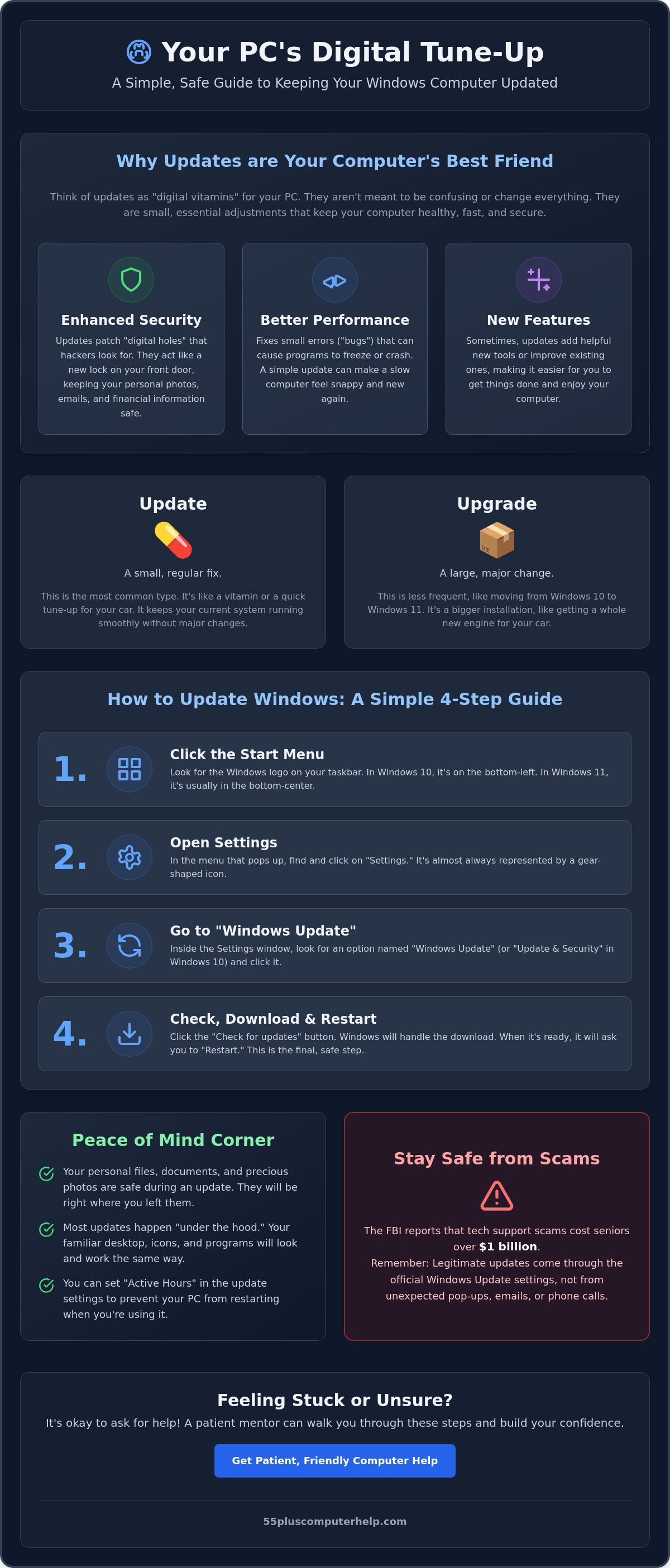
Think of a software update as a digital tune-up for your computer. Just like you change the oil in your car to prevent engine trouble, your PC needs regular care to keep it running at its best. Many people feel nervous when they see a notification about an update. It's common to worry that your files might disappear or that the computer will suddenly look completely different. We want to reassure you that most updates happen safely in the background. They're designed to protect your information, not take it away. Understanding What is Windows Update? helps you see that these changes are usually small, helpful adjustments.
Learning how to update software on a windows pc is one of the best ways to keep your digital life organized. When you understand how to update software on a windows pc, you take control of your own security. There are three main reasons why these updates are so important for your daily use:
- Security: They fix "holes" that could let bad actors in.
- Bug Fixes: They repair small errors that cause programs to crash or freeze.
- New Features: They often add helpful new tools to make your tasks easier and more enjoyable.
The Vital Link Between Updates and Online Safety
Hackers are always looking for "unlocked doors" in older versions of software. An update acts like a sturdy new lock for those doors. It keeps your personal photos, emails, and bank details tucked away safely where they belong. This process is a key part of virus and malware removal and prevention. By keeping your system current, you make it much harder for anyone to bother you or your computer. It's a simple step that provides a lot of peace of mind.
Performance Benefits: Making Your PC Faster
Have you ever noticed your computer starting to feel slow or "sticky"? Sometimes programs might take a long time to open. A successful update can fix these issues. It cleans up the internal paths the computer uses to think. Your computer might even feel brand new again after the process finishes. It's helpful to know the difference between an "Update" and an "Upgrade." An update is a small fix or a "vitamin" for your current system. An upgrade is a much larger change, like moving to a completely new version of Windows. Most of the time, you'll just be handling those small, helpful updates that keep things running smoothly.
How to Run Windows Updates Step-by-Step
Updating your computer is a straightforward task that you can handle with confidence. To begin, look for the Start menu. This is the small Windows logo located in the corner of your screen. When you click it, a menu will pop up. Look for the "Settings" icon, which looks like a small gear. This gear is a common landmark on your computer. It is the place where you can adjust how your PC behaves. Once you are in the Settings menu, look for the section labeled "Windows Update."
Within this menu, you will see a button that says "Check for updates." Clicking this button tells your computer to look for any new "digital vitamins" it might need. For more details on this specific screen, you can refer to this official guide from Microsoft. Your computer will do the heavy lifting for you. It will search for, download, and prepare the updates. Learning how to update software on a windows pc is a simple process once you know where to look. You can continue to use your computer while it downloads these files. Feel free to write an email or browse the web. Your PC will let you know when it is ready for the final step.
Windows 10 vs. Windows 11: Finding the Right Menu
If you use Windows 10, your Start button is in the very bottom-left corner. If you have Windows 11, that logo is usually centered at the bottom of your screen. The Settings gear might look slightly different, but it always performs the same job. Both versions follow the same basic logic. You are simply looking for the control center of your machine. If you ever feel stuck, patient technical support can help you find your way around these menus.
After the download finishes, your computer may ask to "Restart." This is the final step where the computer "installs" the new parts it just downloaded. It's like letting the computer take a quick nap so it can wake up refreshed. Don't worry about your files. They will be right where you left them when the computer turns back on.
Setting "Active Hours" So Your PC Doesn’t Restart Unexpectedly
You might worry that your computer will restart right in the middle of a video call. You can prevent this by using "Active Hours." This feature tells your computer when you are usually busy. It is like putting a "Do Not Disturb" sign on your door. You can set these hours in the Windows Update menu. Part of knowing how to update software on a windows pc includes setting these boundaries for your computer. This ensures that updates only happen when you aren't using the machine, such as late at night or early in the morning.
Updating Your Favorite Programs and Apps
The steps for how to update software on a windows pc often focus on the main system, but your individual apps need care too. Windows Update handles the "brain" of your computer. However, it does not always check every program you use daily. You might have apps for games, video calls, or photo sharing that require a separate check. It is helpful to think of these as the different tools in your kitchen. You keep the kitchen clean, but you also need to sharpen each knife individually to keep things working well.
Sometimes a program like Zoom or Skype will ask to update the moment you open it. This is usually very safe. These apps check for a new version to make sure your video calls stay clear and secure. If you are ever unsure about a pop-up, remember that learning how to update software on a windows pc means knowing when to pause. If a message appears while you are just browsing a random website, ignore it. If it appears right when you start a trusted program you use often, it is likely a helpful update ready for installation.
Using the Microsoft Store for Easy App Updates
The Microsoft Store is a safe and simple way to keep many of your apps current. You can find it by looking for the icon that looks like a colorful shopping bag on your taskbar. Once you open the Store, look for the "Library" icon in the bottom-left corner. Clicking this will show you a list of your apps. You will see a button that says "Get updates." When you click it, the computer will automatically find the newest versions for you. This is the safest way to get new software because Microsoft checks these apps for safety before they ever reach your screen.
Updating Your Internet Browser Safely
Keeping your internet browser updated is one of the most important things you can do for your safety. This is especially true when you are working on email setup and troubleshooting for seniors. A secure browser keeps your personal messages private and your passwords safe. As of June 26, 2026, the current stable version of Microsoft Edge is 149.0.4022.98. If you use Google Chrome, the latest version was released on June 25, 2026, as version 149.0.7827.196. This specific Chrome update addressed 18 security vulnerabilities, which shows why checking for updates is so vital.
To check your version manually, click the three dots in the top corner of the browser. Look for "Help" and then click "About." This action will trigger a search for any missing updates. Most browsers also update themselves automatically whenever you close them for the day.
Overcoming Common Update Worries and Scam Pop-ups
The biggest fear many people have is that an update will scramble their computer. You spend time getting your desktop icons exactly where you want them. It is natural to worry that a "digital tune-up" might move your favorite folders or change your background picture. We want to put your mind at ease. Most updates happen "under the hood." This means the changes affect the internal code that keeps you safe. They rarely change how your computer looks or where your files are stored. Think of it like a plumber fixing a leaky pipe behind your kitchen wall. Your kitchen looks exactly the same afterward, but the water runs much better.
Sometimes, an update might seem to "get stuck" at 99 percent. This can feel very frustrating. You might wonder if the computer has frozen or if you did something wrong. Usually, the computer is just performing a final, deep check of the new files. It is best to be patient and leave the computer alone for a while. Do not turn the power off while an update is in progress. If the screen stays the same for more than an hour, you may need a little extra assistance. If you ever feel stuck or worried during this process, we provide patient software installation and updates help to guide you through it.
Is This a Real Update or a Scam?
Scammers often use fake pop-up windows to trick you. They want you to think your computer is in danger. A real Windows update will almost always happen through the Settings menu we discussed earlier. It will not appear as a flashy ad while you are reading the news or checking Facebook. If a window suddenly appears and tells you to call a phone number, close it immediately. This is a common trick. Microsoft will never put a phone number in an update alert. If a website claims "Your drivers are out of date," ignore it. These are often traps designed to install unwanted programs. When in doubt, close your internet browser and check your official Settings menu instead.
What to Do if an Update Changes Something You Use
On rare occasions, a program might seem to vanish after an update. Don't panic. Your programs are likely still there. You can use the "Search" bar at the bottom of your screen to find them. Just type the name of the program, like "Word" or "Email," and it should appear in the list. If an update causes a real problem, Windows has a special "Undo" button. This is called System Restore. It allows you to roll back the clock to a time before the update happened. Learning these small tricks helps you build your "tech muscle." Each time you solve a small change, you become more independent and confident in how to update software on a windows pc.
Getting Patient Help with Your Software and Updates
Even with a clear guide, technology can feel like a lot to handle alone. You don't have to navigate these menus by yourself. 55 Plus Computer Help LLC acts as a patient partner for all your technical tasks. We understand that a flashing screen or a long download bar can cause real worry. Our goal is to sit beside you and make the entire process clear. When you have a mentor by your side, those confusing messages start to make sense. You can take your time, ask questions, and move at a pace that feels comfortable for you. We focus on the person, not just the machine.
Having a professional look at your machine provides a layer of safety that a written guide cannot always match. We can check for hidden issues that might slow down your system or cause errors. Sometimes, a computer needs more than just a standard update to run its best. We can verify that the "under the hood" changes we discussed earlier actually took place. We welcome every question you have. No detail is too small and no concern is silly. We are here to listen and help you feel secure. Whether you are curious about a specific pop-up or want to know more about how to update software on a windows pc, we are ready to help.
In-Home and Remote Support for Your Peace of Mind
We offer different ways to get the support you need. Remote support allows us to see your screen and answer quick questions while you stay comfortable in your favorite chair. This is perfect for those moments when a new message appears and you just need a quick "yes" or "no" from a pro. For more complex tasks, an in-home visit is often the best choice. We specialize in software installation and updates for your specific needs. During a visit, we can ensure your "Automatic Updates" are set up correctly. This means you won't have to worry about how to update software on a windows pc every single week. We handle the technical settings so you can enjoy your computer without the stress.
Empowering You to Master Your Technology
Our main mission is to give you the skills to handle your technology with total confidence. We believe that everyone can learn these steps with the right mentor. We remember what it's like to be a beginner. One-on-one lessons transform that feeling of "I can't do this" into a proud "I've got this." You deserve a computer that works for you, not against you. We focus on building your independence so you feel like the master of your own digital world. We provide a safe space to practice without any fear of making a mistake. Ready for a computer that just works? Contact 55 Plus Computer Help LLC today.
Taking Control of Your Digital World
You now have the knowledge to keep your computer healthy and secure. By identifying the real "Settings" gear and knowing where to find app updates, you have taken a major step toward digital independence. You can now distinguish between a helpful system prompt and a suspicious website pop-up. Learning how to update software on a windows pc is about more than just clicking buttons; it is about protecting your privacy and ensuring your machine stays reliable for years to come.
If you still feel a bit hesitant, you don't have to manage these tasks alone. 55 Plus Computer Help LLC has provided specialized support for seniors since 2014. We offer patient, jargon-free technical training and A+ rated personalized service tailored to your specific needs. Let a patient expert handle your updates and tech questions—Book a session with 55 Plus Computer Help LLC!
Technology changes quickly, but your ability to adapt is stronger than you think. With the right steps and a trusted partner, you can enjoy all the benefits of a modern PC without the frustration. You've done the hard work of learning the basics; now it's time to enjoy a computer that runs smoothly and safely every day.
Frequently Asked Questions
Is it safe to leave my computer on overnight to update?
Yes, it's perfectly safe to leave your computer on overnight to finish its work. In fact, this is often the best way to handle updates because it won't interrupt your daily tasks. Just make sure your laptop is plugged into a power outlet so the battery doesn't run out. Your PC will finish the installation and be ready for you to use the next morning.
Will I lose my photos or documents if I update Windows?
You won't lose your photos, documents, or personal files during a standard update. These updates only change the internal code that makes the computer run. Your precious memories and important papers remain exactly where you left them. While it's always a smart habit to keep a backup, updates are built to keep your information safe and sound.
How long does a typical Windows update take to finish?
Most updates take between 5 and 20 minutes to complete. Some very small fixes, like the 174KB packages for Windows 11, happen almost instantly. Larger changes might take up to an hour depending on your internet speed. It's best to start these when you don't need the computer for a little while so you don't feel rushed.
What should I do if my computer says "Update Failed"?
If you see an "Update Failed" message, the first step is to restart your computer. Often, a simple reboot clears the error and allows the process to work on the second try. Check that your internet connection is steady. If the message keeps appearing, it might be time to ask a patient mentor to look at the system for you.
Do I have to pay for Windows updates?
No, you never have to pay for official Windows updates. Microsoft provides these security fixes and feature improvements for free to all users. If a pop-up window ever asks you for a credit card or payment to "update your drivers," it's a scam. Learning how to update software on a windows pc through the official Settings menu ensures you stay safe and never pay unnecessary fees.
Why does my computer want to update so often?
Your computer updates often because new security threats are discovered every single day. Software companies release "digital vitamins" frequently to stay ahead of hackers. For example, Microsoft Edge is moving to a 2-week release cycle starting in August 2026. These frequent checks ensure your personal information remains locked away from bad actors who try to find new ways into old software.
Can I still use my computer while it is downloading an update?
You can definitely continue using your computer while an update is downloading in the background. You might notice that your internet feels a tiny bit slower, but you can still read emails or browse the web. The only time you must stop using the PC is when it asks to "Restart." This final installation step usually only takes a few minutes.
What is the difference between Windows 10 and Windows 11 updates?
Windows 10 and Windows 11 updates work in very similar ways, but the menus look a bit different. Windows 11 has a more centered look and often uses smaller files to make updates faster. Regardless of which version you have, the logic for how to update software on a windows pc remains the same. You always look for the gear icon in your Settings to find the latest protection.


