
Have you ever stared at your new tablet and worried that one wrong tap might delete your precious family photos forever? You aren't alone in that feeling. Learning how to use a tablet for beginners shouldn't feel like a high-stakes guessing game. It's completely normal to feel frustrated by small icons or confusing words like "syncing" and "the cloud." We understand that you want to stay connected without the constant fear of making a mistake. You deserve to feel comfortable and in control of your own technology.
Our goal is to transform that hesitation into a sense of accomplishment. This guide provides simple, step-by-step instructions designed specifically for seniors who want to master their devices with confidence. We'll walk you through the basics of the touchscreen, show you how to browse the internet safely, and help you set up video calls with your family. You'll also learn how to enjoy digital books and games independently. This ensures your tablet becomes a helpful companion in your daily life rather than a source of stress.
Key Takeaways
- Learn the simple differences between types of tablets so you can feel confident with the device in your hands.
- Discover how to use a tablet for beginners by mastering basic gestures like taps and swipes without the fear of deleting important files.
- Understand how to set up Wi-Fi and email to stay connected with your family through video calls and digital messages.
- Gain peace of mind by learning how to protect your privacy and identify common internet scams or fake alerts.
- Explore how personalized, one-on-one training can help you gain lasting independence at your own pace.
Understanding Your Tablet: Hardware and Basic Anatomy
A tablet is a portable computer that fits comfortably in your hands. It doesn't have a physical keyboard or a heavy mouse. Instead, you use a touchscreen to tell the device what to do. This direct approach makes learning how to use a tablet for beginners much more intuitive than using a traditional desktop computer. You can think of it as a digital window that you control with your fingertips.
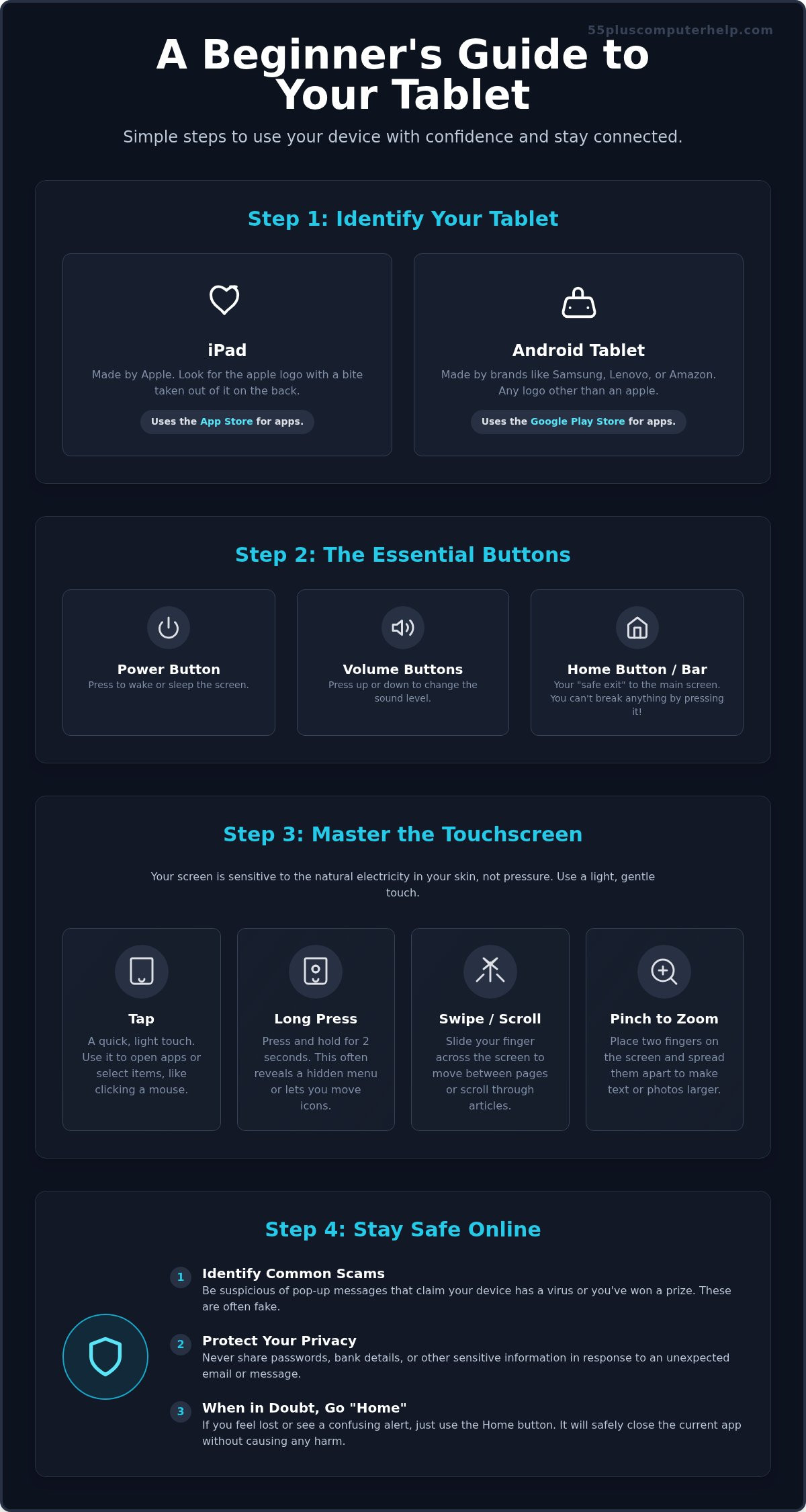
Most tablets share a similar layout. You'll find a power button on one of the edges. Pressing this button quickly will wake the screen up or put it to sleep. Next to it, you'll see a long button for volume. Press the top half to turn the sound up and the bottom half to turn it down. These simple physical controls are your first steps toward independence.
Is it an iPad or an Android?
Identifying your device is the first step toward feeling confident. Turn your tablet over and look at the back. If you see a logo of an apple with a small bite taken out of it, you have an iPad. This device is made by a company called Apple. If you see a different name like Samsung, Lenovo, or Amazon, you're using an Android tablet.
Knowing which one you have is very helpful. It tells you where to go when you want to find new things to do. iPads use a program called the App Store to find games or news. Android tablets usually use the Google Play Store. While they look slightly different, they both work in very similar ways. Once you know your brand, you can find the right help for your specific model.
The Purpose of the "Home" Button
Many people worry about getting stuck inside an app or a website. You can think of the Home button as your digital emergency exit. On some tablets, this is a physical round button at the bottom of the screen. On newer models, it might be a thin white line that you swipe upward with your finger. This action is the most important tool in your toolkit.
Pressing this button or performing the swipe will always take you back to your main screen. It's a safe harbor. Best of all, using the Home button will never delete your photos, emails, or messages. It simply closes the current window so you can start over. If you ever feel lost or overwhelmed, just go Home. You can't break the software by returning to the start.
Your tablet runs on a rechargeable battery. To keep it working well, you should plug it in whenever the battery gets low. It's always best to use the specific cable and wall block that came with your device. Different chargers provide different amounts of power. Using the correct one ensures your tablet stays healthy and charges as quickly as possible. Keeping your device charged means it'll be ready whenever you want to see a new photo or check the weather. Mastering these physical basics is the first step in learning how to use a tablet for beginners with total peace of mind.
Mastering the Touchscreen: Taps, Swipes, and Gestures
Learning how to use a tablet for beginners is mostly about getting comfortable with your hands. Unlike a computer with a mouse, your tablet responds directly to your touch. This makes the experience feel much more personal. However, it does take a little bit of practice to get the movements just right. You don't need to be an expert on day one. Be patient with yourself as you learn these new skills.
The two most common movements are the tap and the long press. A tap is a quick, light touch on the screen. It is just like clicking a mouse to open a program. A long press is different. You place your finger on an item and hold it there for two seconds. This often opens a secret menu or allows you to move an icon to a new spot on the screen. If you tap when you meant to long press, simply go back and try again.
Swiping is how you move through your digital world. To see the next photo in an album, place your finger on the right side of the screen and slide it to the left. To read a long news article, slide your finger from the bottom of the screen toward the top. This is called scrolling. If the text on a website is too small to read, use the "pinch to zoom" trick. Place two fingers on the screen and spread them apart. The words will grow larger instantly. Once you master these gestures, the process of how to use a tablet for beginners becomes much more enjoyable.
The "Gentle Touch" Technique
Your tablet screen is very sensitive. It does not respond to the force of your press. Instead, it reacts to the natural electricity in your skin. You only need a very light touch. If you find the screen is not responding, check to see if your fingers are very dry or if your palm is resting on the glass. A clean screen always works best. If you have shaky hands or find the glass slippery, a stylus is a wonderful tool. It looks like a pen with a soft tip and provides much better control for clicking small buttons.
Navigating with Icons
Icons are small pictures that act as shortcuts to your favorite things. Learning these symbols is like learning a simple new language.
- The Back Arrow: This looks like an arrow pointing to the left. It takes you back to the page you just saw.
- The Magnifying Glass: This is the search icon. Tap it when you want to find a specific name or look up information on the internet.
- The Gear: This symbol represents your settings. This is where you go to change your volume or make your text larger.
Mastering these gestures is the key to independence. If you ever feel like you need a patient hand to guide you through these movements, our smartphone and tablet training is designed just for you. We can help you practice these steps at your own pace until they feel like second nature.
Connecting to Your World: Wi-Fi and Communication
Your tablet is a powerful tool, but it needs a connection to the world to reach its full potential. Think of Wi-Fi as the fuel that makes your apps run. Without it, you can't send emails, check the weather, or see new photos of your family. Learning how to use a tablet for beginners involves mastering this connection so you can stay in touch with the people who matter most. It's the bridge that brings your loved ones right into your living room.
Once you're connected, a new world of communication opens up. One of the most rewarding parts of owning a tablet is the video call. Apps like FaceTime, Zoom, or Google Meet allow you to see your grandkids in real time. It feels like they're sitting right in the room with you. You can also view high-quality photos they send instantly. Instead of waiting for physical prints in the mail, you can see their adventures as they happen. This connection helps you stay involved in every family milestone.
Connecting to Wi-Fi Safely
To get started, you need to find your home network. This is often a name found on a sticker on your internet router or box. Open your "Settings" app and tap on the Wi-Fi option. You'll see a list of nearby network names. Tap on your specific home network and prepare to enter your password. Be very careful with capital letters and numbers. The tablet sees a capital "B" and a lowercase "b" as two different things. Once you're connected, your tablet will usually remember the password for next time.
Be cautious when you're away from home. Public Wi-Fi at coffee shops or airports is convenient, but it's less secure than your home network. It's best to avoid checking your bank account or entering private information while using these shared connections. Stick to your safe home connection for your most important tasks.
Setting Up Your Email
Email is a wonderful way to receive digital letters and photos. You can choose from popular services like Gmail, Outlook, or iCloud. If you already have an account, you can simply sign in. If you're starting from scratch, we recommend looking into email setup and troubleshooting for seniors to ensure your account is configured correctly. This will make your daily check-ins much smoother.
Inside your email app, you'll primarily use two areas. Your "Inbox" is where all your new messages arrive. Your "Sent" folder keeps a record of everything you've mailed to others. This simple system makes it easy to keep track of your conversations. Mastering these basics is a major milestone in learning how to use a tablet for beginners with total confidence.
Staying Safe: Protecting Your Information and Privacy
Safety is often the biggest concern when learning how to use a tablet for beginners. You might worry about hackers or accidentally sharing private details with strangers. These feelings are completely normal and very common. The good news is that your tablet has built-in features designed specifically to keep you safe. By following a few simple habits, you can explore the digital world with total peace of mind. You are in control of your device, and you have the power to keep it secure.
Your first line of defense is a passcode. This is a short series of numbers that unlocks your screen. Many modern tablets also offer "Fingerprint ID" or "Face ID." These features use your unique touch or your face to unlock the device instantly. It's much easier than remembering a long password every time you want to check your email. Using these tools ensures that only you can access your personal photos and messages. It acts like a digital key to your home.
Another essential habit is keeping your software updated. You'll occasionally see a message asking to "Install Update." While it might seem like a chore, these updates are very important for your security. They act like a digital lock on your front door. Companies release these updates to fix security holes that hackers might try to use. Always tap "Install" when your tablet suggests an update. This keeps your device running smoothly and safely.
Identifying Common Scams
Scammers often try to create a sense of urgency to trick you. It's important to remember that your tablet will never "call you" to say it has a virus. If you receive a phone call from someone claiming to be from a big tech company, hang up immediately. Real technology companies do not monitor your device and call your home phone. Also, never share your passwords or bank details over the phone with someone who called you unexpectedly.
Sometimes a scary message might pop up on your screen while you're browsing the internet. It might say your tablet is infected and give you a phone number to call. This is almost always a "fake" alert. If your screen seems to freeze or won't let you close the window, don't panic. Just turn the tablet off completely. Wait a minute and turn it back on. The message will usually be gone. For more specialized help, you can read our guide on virus and malware removal to learn more about staying secure.
Privacy Settings Made Simple
Privacy is about controlling who sees your information. You can decide which apps are allowed to see your location. For example, a weather app needs your location to tell you the local forecast, but a simple game usually doesn't. You can find these choices in your "Settings" menu under "Privacy." We also recommend setting your tablet to "Lock" automatically after a minute or two of not being used. This keeps your information safe even if you set the device down and walk away.
Always use the "Verify" step before clicking on something new. If a message looks strange or asks you to "Allow" a new program you don't recognize, stop and think. You can always ask a trusted friend or family member for their opinion. Gaining independence doesn't mean you have to do everything alone. If you're ever worried that something isn't right, our virus and malware removal experts are here to help you secure your device and restore your confidence.
Taking the Next Step: Personalized Help and Training
Learning how to use a tablet for beginners is a journey that doesn't have to happen all at once. You've already taken a wonderful first step by reading this guide and understanding the basics of your device. However, many people find that having a patient hand to guide them makes the process much faster. Everyone learns at their own pace. There's no reason to feel rushed or overwhelmed when you're exploring something new. A patient mentor can help you turn that initial hesitation into lasting confidence.
Generic videos or thick manuals can often feel cold and confusing. They might use technical words that don't make sense, or they might move through steps too quickly for you to follow. One-on-one training is different because it's a conversation. You can stop and ask a question the moment you feel stuck. Having someone sit with you removes the fear of making a mistake. It transforms technology from a source of stress into a tool for your own independence and joy.
Personalized Lessons for Seniors
Custom training focuses entirely on the things you actually want to do. You might be interested in digital scrapbooking to preserve your family memories. Or perhaps you simply want to learn how to install a specific game to play with your friends. A mentor tailors every lesson to your specific interests and goals. This approach ensures that you aren't wasting time on features you'll never use. You'll find that those "small" questions you were worried about are actually the keys to unlocking your tablet's potential.
This type of support also covers the practical side of owning a device. An expert can help you with your initial setup, ensuring your email is working and your favorite apps are ready to go. They can also assist with troubleshooting if something doesn't seem to be working right. Instead of feeling frustrated, you'll feel a sense of accomplishment as you master each new skill. You deserve to enjoy your tablet without any of the guesswork.
How to Get Expert Assistance
You can choose the style of help that works best for your lifestyle. Onsite support is a great choice if you prefer a friendly expert to visit your home. They can help you with your specific home Wi-Fi or show you how to connect your tablet to your printer. Remote support is another wonderful option. This allows a mentor to guide you through the screen while you stay in your most comfortable chair. Both methods are designed to be calm, steady, and very easy to follow.
Scheduling a session is a simple process that respects your time. You don't have to navigate a complex phone system or wait in a crowded store. We're here to provide the specialized expertise you need to feel secure. If you're ready to take the next step in your digital journey, you can Get patient, personalized tablet training today. Mastering how to use a tablet for beginners is much easier when you have a trusted local expert by your side to answer every question with a smile.
Start Your Digital Journey with Confidence
You now have the foundational tools to begin your journey with modern technology. From identifying your tablet's physical buttons to mastering the gentle gestures of the touchscreen, you've made incredible progress today. You've also learned how to stay connected with your family safely while avoiding common internet scams. Learning how to use a tablet for beginners is not about memorizing every single menu; it's about gaining the freedom to explore your digital world independently and with peace of mind.
If you'd like a patient mentor to guide you through these steps at your own pace, we're here to help. Since 2014, we've provided specialized, senior-focused support that skips the confusing tech jargon in favor of clear, helpful instructions. Whether you prefer in-home assistance or remote training, we'll ensure you feel comfortable and secure with every tap and swipe. You can Book a Patient Tech Mentor for Tablet Training today to turn your frustration into a lasting sense of accomplishment. You have the ability to master this new device, and we're honored to support your independence.
Frequently Asked Questions
Can I break my tablet by pressing the wrong button?
No, you cannot break your tablet's software just by tapping the wrong part of the screen. These devices are designed to be resilient and user-friendly. If you ever feel lost or stuck in a confusing menu, you can always use the Home button or gesture to return to your main screen and start over. Learning how to use a tablet for beginners involves making small mistakes and simply trying again.
Is it okay to leave my tablet plugged in and charging overnight?
Yes, it is perfectly safe to leave your tablet charging while you sleep. Modern devices use smart batteries that automatically stop taking in power once they reach 100 percent. To keep your battery healthy, just make sure you use the original cable and wall block that came with your device. This ensures the tablet receives the correct amount of power throughout the night.
Do I need to pay for every app I download?
No, many of the most popular apps for news, games, and weather are completely free to download. When you visit the App Store or Google Play Store, look for buttons that say "Get" or "Install." If an app costs money, the price will be clearly listed on that button before you click it. You'll always know if a purchase is required before any money is spent.
Why does my tablet screen keep turning off so quickly?
This happens because of a battery-saving feature called "Auto-Lock" or "Screen Timeout." Your tablet turns the screen off to save power when it thinks you aren't actively using it. You can easily change this in your Settings menu under the "Display" section. Most people find that setting the timer to two or five minutes provides a much better experience when learning how to use a tablet for beginners.
What should I do if my tablet "freezes" and won’t respond?
If your tablet stops responding to your touch, you should perform a simple restart. Hold down the physical power button on the edge of the device for about ten seconds until the screen goes dark. Once it turns back on, the system will have refreshed itself. This simple step fixes most minor technical glitches and won't delete any of your personal information or photos.
How do I make the text on the screen larger so it is easier to read?
You can make the text larger by visiting your tablet's Settings menu and looking for "Display" or "Accessibility." Inside those menus, find the option for "Text Size" or "Font Size." You can slide a bar to the right to make the words on your screen grow bigger instantly. This makes reading emails and news articles much more comfortable for your eyes.
Can I use my tablet without an internet connection?
Yes, you can use your tablet for many tasks even when you don't have an internet connection. You can still take photos, read digital books you've already downloaded, or play certain games. However, you'll need to connect to Wi-Fi if you want to send emails, browse the web, or make video calls to your family members. The device remains a useful tool even when you're offline.
How do I take a picture with my tablet and send it to someone?
Open your "Camera" app and tap the large white circle to take a photo. To send it, open the photo in your gallery and look for the "Share" icon, which often looks like a square with an arrow pointing up. Select your email or messaging app from the list and choose the person you want to receive it. This is a wonderful way to share special moments with your grandkids instantly.


