
Imagine sitting in your favorite chair and seeing your granddaughter's bright smile as she tells you about her school day, all from the comfort of your own living room. Learning how to video call family on a laptop shouldn't feel like a chore or a source of stress. While research from 2026 shows that 46% of adults over the age of 50 already use video chatting to stay connected, it is perfectly normal to feel a little hesitant if you haven't tried it yourself yet. You might feel isolated from your loved ones or simply confused by the endless choice between apps like Zoom, Skype, or Google Meet.
We understand that technology can sometimes feel like it wasn't built with your needs in mind. It's frustrating when a microphone doesn't work or a button seems to disappear. This guide is designed to change that by providing a clear and steady path to success. You will learn exactly how to set up your computer and connect with your children and grandchildren, even if you don't consider yourself a tech expert. We will walk through choosing the best app for your needs, checking your hardware, and making your very first call with confidence.
Key Takeaways
- Identify the three essential pieces of equipment you need to ensure your family can see and hear you perfectly.
- Learn how to video call family on a laptop by comparing the most popular and senior-friendly apps available today.
- Discover how to avoid the "can you hear me?" trap by mastering one simple button on your screen.
- Follow a clear, two-step process to join your first call using the invitation link sent to your email.
- Find out how practicing with a patient mentor can help you feel more comfortable and independent with your technology.
Preparing Your Laptop for a Family Video Call
A video call is a wonderful way to use your laptop's camera and the internet to see and hear your family in real-time. It feels almost like they are right there in the room with you. Many people find that learning how to video call family on a laptop is much more enjoyable than using a small smartphone. The larger screen makes it easier to see your grandchildren's expressions or look at a new drawing they want to show you. It's a great way to stay connected without needing to travel.
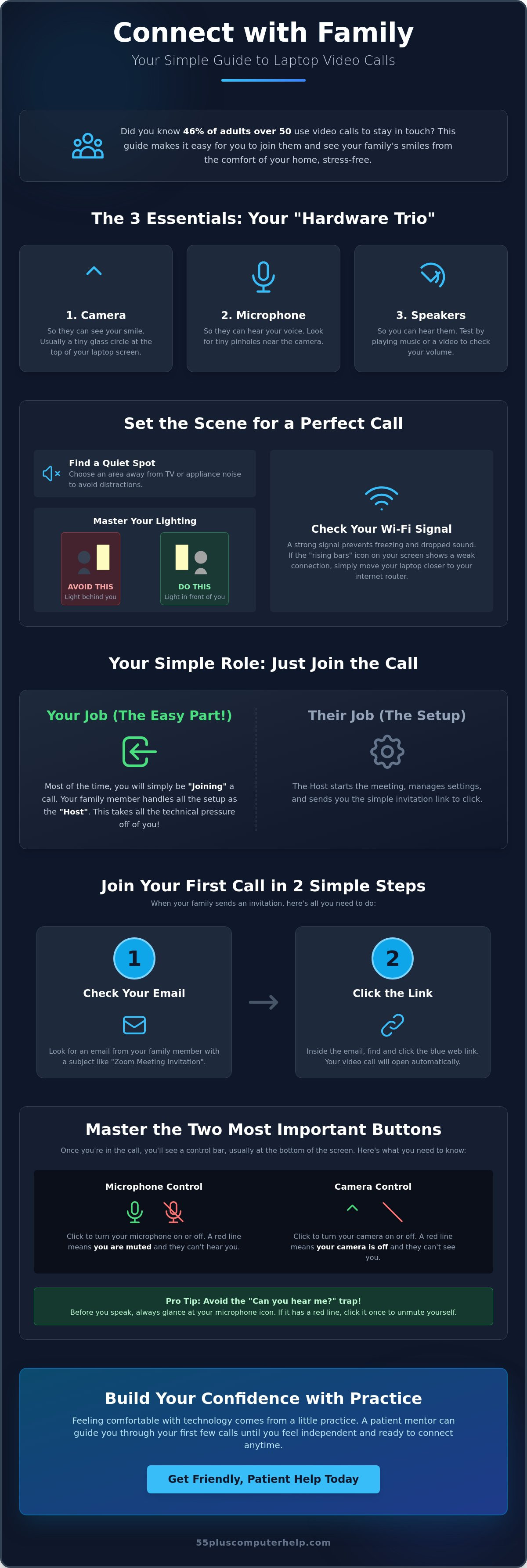
To get started, you need three main things to work together. We call this the "Hardware Trio." This includes your camera so they can see you, a microphone so they can hear you, and speakers so you can hear them. If one of these parts isn't ready, the call can feel a bit frustrating. Taking a few minutes to prepare helps ensure your visit stays focused on your family rather than the technology. It's all about creating a sense of security and comfort before you even dial.
Choosing the right spot in your home also makes a big difference. Try to find a quiet area where you won't be interrupted by a television or a humming appliance. Lighting is also key. If you sit with a bright window behind you, your face will look like a dark shadow. Instead, try to have the light shining toward your face. This makes it much easier for your family to see your smile. Once you've found your spot, you're ready to look at how to video call family on a laptop with confidence.
Locating Your Camera and Microphone
Most modern laptops have everything you need built right in. Look at the very top of your laptop screen. You should see a tiny glass circle. This is your camera lens. It's very small, often about the size of a pencil eraser. Nearby, you might see one or two tiny pinholes. These are your microphones. They are designed to pick up your voice while you speak naturally. To test your speakers, try playing a short video or a song on your computer. If you can hear the sound clearly, your speakers are ready for your call. If you don't hear anything, you might need to check your volume settings.
Checking Your Internet Connection
Your internet connection, often called Wi-Fi, acts as the fuel for your video call. Without a steady signal, the picture might freeze or the sound might cut out. You can usually check your signal strength by looking at the small icon in the bottom corner of your screen that looks like a set of rising bars. If you see only one bar, your connection might be weak. A simple way to fix this is to move your laptop closer to your internet router. This often provides a much stronger and more reliable connection for your visit. Before you decide which program to use, you can look at a comparison of video call software to see the different options available. If your connection remains spotty, you might need professional help with internet and Wi-Fi troubleshooting to ensure a smooth experience.
Choosing the Best Video Call App for Your Needs
There are many ways to connect with your loved ones, which can sometimes feel overwhelming. You might wonder why there are so many different options when you just want to see a familiar face. Most people choose an app based on what their family already uses. If your daughter uses Zoom for her work meetings, she will likely want to use it with you too. Learning how to video call family on a laptop is much easier when you follow their lead. This makes the process feel like a shared family activity rather than a technical puzzle you have to solve alone.
It helps to understand the difference between "joining" a call and "hosting" one. Most of the time, your children or grandchildren will "host" the call. This means they do the setup work and send you an invitation. Your job is simply to "join" by clicking a link. This takes most of the technical pressure off your shoulders. If you are curious about the different steps involved for various devices, you can read more about how to make a video call across multiple platforms. Knowing that someone else is handling the "heavy lifting" can help you feel much more relaxed.
Zoom: The Modern Standard
Zoom has become a very popular choice for large family reunions. It is excellent for seeing many faces on your screen at the same time. When you join a Zoom call, you might see a message saying you are in a "waiting room." This is just a digital lobby. The person hosting the call will see you are there and let you in when they are ready. For personal use, Zoom is free. However, group meetings with three or more people are limited to 40 minutes on the free plan. If you are just talking to one person, your call can last as long as you like.
Skype and Google Meet: The Built-in Options
Skype is a reliable choice that many computer users have trusted for years. It is simple to use and very steady. Google Meet is another excellent option because it works with the Google or Gmail account you might already have. This is a very convenient way to learn how to video call family on a laptop without needing to create new usernames or passwords. If you struggle to remember your login details or need help with Email Setup and Troubleshooting for Seniors, getting that sorted first will make your video calls much smoother.
Picking the right tool is the first step toward a great conversation. If you feel stuck during the process, our team can help with software installation and updates to get your chosen app running perfectly. We want you to feel confident and ready before your next family chat starts.
The Hardware Check: Avoiding 'Can You Hear Me?' Frustrations
Nothing ruins a good story like a technical glitch. We've all been there. You start talking about your week, but your family members are just pointing at their ears and shaking their heads. This "can you hear me?" loop is the most common hurdle when learning how to video call family on a laptop for the first time. It's often a very simple fix. Usually, it just means one small setting needs a quick click. Taking a moment to check your equipment before the call starts will help you feel much more relaxed and ready to chat.
The biggest culprit is almost always the "Mute" button. This button acts like a digital gag. It's there to help you stay quiet if there is loud noise in your house, but it's easy to click by mistake. If your family says they can't hear you, don't panic. You haven't broken anything. You just need to look for a small icon that looks like a microphone. Sometimes, using a pair of simple plug-in headphones can make the whole experience much better. Headphones help you hear your grandkids more clearly. They also prevent that annoying echo that sometimes happens when sound from the speakers goes back into the microphone.
Your surroundings matter just as much as your computer. You are the star of the show, so you want to make sure you're easy to see. A cluttered background can be distracting for your family. Try to sit in front of a plain wall or a tidy bookshelf. This keeps the focus on your face and your conversation. When you know how to video call family on a laptop with a clear picture and crisp sound, the technology disappears and the connection feels real.
Mastering the Microphone and Camera Icons
Look closely at the bottom of your video call screen. You will see two very important pictures. One looks like a microphone and the other looks like a small video camera. If you see a bright red line through either of these, it means they are turned off. A red line through the microphone means you are muted. A red line through the camera means your screen is dark. Simply click the icon to remove the line. In many apps like Zoom, you can even hold down your space bar to talk temporarily. It works just like a walkie-talkie.
Lighting and Positioning Tips
Finding the right angle for your laptop is a simple trick that makes a huge difference. Many people leave their laptop flat on a table, which means the camera points up at the ceiling or their chin. Try propping your laptop up on a few sturdy books. You want the camera lens to be at the same height as your eyes. This makes it look like you are looking directly at your family. Also, check your power cord. Video calls use a lot of battery. It's a good idea to keep your laptop plugged into the wall so the screen doesn't go black right in the middle of a great story.
Step-by-Step: How to Join Your First Video Call
Once you have your laptop ready and your space set up, it's time to actually start the call. This is the most exciting part because it's when you finally get to see your family. Joining a meeting for the first time might feel like a big step, but it's really just a series of small, simple clicks. Your family wants to help you succeed, and they will be waiting for you on the other side of the screen. Learning how to video call family on a laptop is much like following a recipe. If you take it one step at a time, you'll reach the finish line easily.
The process usually begins in your email inbox. Your children or grandchildren will send you a message that acts as your digital ticket to the meeting. You don't need to worry about technical codes or complicated settings. Most of the work is already done for you. Your primary job is to find that invitation and follow the path it provides. If you find that your inbox is a bit messy or you have trouble finding the message, our team can provide computer setup assistance to make your email easier to manage.
Understanding the Invitation Email
A typical invitation from Zoom or Google Meet will arrive as an email with a clear subject line. Inside, you will see a lot of text, but you only need to look for one thing. Look for a long string of blue letters and numbers. This is called a "URL" or a link. It is the doorway to your call. You might also see a "Meeting ID" or a "Passcode," but these are usually just backups. In most cases, clicking that blue link is all you need to do. For your security, only click links that come from people you know and trust, like your family members or close friends.
Navigating the 'Permission' Pop-ups
After you click the link, your laptop might show a small box at the top of the screen. This box will ask for "permission" to use your camera and microphone. This is a very good thing. It is your computer's way of protecting your privacy. It wants to make sure you actually want the camera to turn on. Look for the button that says "Allow" or "OK." If you accidentally click "Deny," the screen will stay dark and your family won't hear you. If that happens, don't worry. You can simply close the window and click the link in your email again to start fresh. This is a common part of learning how to video call family on a laptop and happens to everyone at least once.
The final steps are very simple. A box will appear asking for your name. Type your name so your family knows it's you joining the "room." Finally, you will see a big button that says "Join with Computer Audio." You must click this button to hear your family and for them to hear you. Once you click it, you are officially in the call. You can now relax and enjoy your visit.
Building Your Digital Confidence with Expert Help
It is perfectly normal to feel a bit overwhelmed the first few times you try something new on your computer. Technology moves fast, and the buttons don't always stay in the same place. Learning how to video call family on a laptop is a skill that gets easier every time you do it. Think of it like learning to drive a new car. At first, you have to think about every turn and signal. Soon, you'll find yourself clicking through the steps without even having to look at a guide. You've already taken the biggest step by deciding to learn.
Practice calls are the secret to building your confidence. Many seniors find it helpful to have a "dry run" with a patient mentor before a big family reunion or a holiday call. This allows you to test your volume and practice clicking the link in a safe, stress-free environment. When there's no pressure to perform, you can focus on understanding the "why" behind each step. This calm approach transforms frustration into a genuine sense of accomplishment and security.
Security is another topic that often causes anxiety, but you can use video software safely. Stick to well-known apps like the ones we discussed earlier. If you receive an unexpected call or a link from someone you don't recognize, simply ignore it. Your family will usually tell you ahead of time when they plan to call. By staying within your trusted circle of friends and relatives, you can enjoy your digital visits with total peace of mind.
Personalized Training for Seniors
At 55 Plus Computer Help LLC, we specialize in providing one-on-one sessions tailored specifically for your needs. We offer Smartphone and Tablet Training along with personalized computer lessons right in the comfort of your own home. This means you can learn at your own pace without feeling rushed or judged. Once you master the basics of how to video call family on a laptop, we can move on to more advanced fun. You can learn how to share photos of your garden or your pets during a call, making your conversations even more interactive and joyful.
Next Steps for Digital Independence
Mastering video calls is just the beginning of your digital journey. Once you feel comfortable seeing your family on screen, you might feel ready to explore other ways to use your laptop safely. Keeping your computer healthy is a big part of staying connected. Learn more about Virus and Malware Removal to keep your video calls private and your personal information secure. Remember, your family is only a few clicks away. With a little practice and the right support, you'll be the one sending the invitation links next time.
Ready to Connect With Your Loved Ones?
You now have the knowledge to set up your space and navigate the simple steps of joining a call. By checking your hardware and understanding how to use the invitation link in your email, you have removed the biggest hurdles to staying connected. Learning how to video call family on a laptop is a wonderful way to bridge the distance between you and your grandchildren. It turns your computer into a gateway for shared smiles and stories.
If you would like a helping hand as you get started, 55 Plus Computer Help LLC is here to support you. Since 2014, our patient, senior-focused tech mentors have helped many people gain independence with their devices. Whether you prefer in-home visits or remote assistance, we move at your pace to ensure you feel secure. Book a Patient One-on-One Lesson to Master Video Calling Today and start your next family visit with confidence.
The technology is just a tool to help you stay close to the people who matter most. With these new skills, your family is only a few clicks away. You are ready to enjoy every digital visit to the fullest.
Frequently Asked Questions
Do I need to pay for Zoom or Skype to talk to my family?
You don't need to pay a monthly fee to use the basic versions of Zoom, Skype, or Google Meet. These free plans are perfect for catching up with your children and grandchildren. If you use Zoom for a group call with three or more people, the meeting has a 40-minute time limit. One-on-one calls are usually unlimited. This makes it a very affordable way to stay in touch with everyone you love.
Why can my family see me, but I can't hear them?
This usually happens because your laptop speakers are turned down or the person on the other end is muted. First, check the volume buttons on your keyboard to make sure they aren't set to zero. If your sound is up, look at the other person's picture on the screen. If you see a small red microphone icon near their name, they need to unmute themselves. It is a very common fix that only takes a second.
Is it safe to download video calling software on my laptop?
It is safe to download this software as long as you get it directly from the official company website. Trusted names like Zoom, Microsoft, and Google provide secure programs for your computer. If you ever feel worried about your computer's health, we can help with Virus and Malware Removal to keep your system clean. Using these well-known apps is the best way to protect your privacy while learning how to video call family on a laptop.
What should I do if my video keeps freezing or lagging?
Freezing is often caused by a weak internet signal. Try moving your laptop closer to your Wi-Fi router to give it more "fuel" for the video. You should also close any other programs or websites you aren't using at the moment. If you still have trouble, you might benefit from Internet and Wi-Fi Troubleshooting to make your connection more reliable. A steady signal ensures your grandkids' faces stay clear and bright throughout your chat.
Can I use my laptop for a video call if I don't have a built-in camera?
Yes, you can still join the fun even if your laptop doesn't have a camera built into the screen. You can purchase a small device called a webcam that plugs into the side of your computer. These are very easy to set up and often provide a very high-quality picture. Once it is plugged in, your video software will recognize it automatically. This is a great solution for older laptops that are still in good working order.
How do I make the person talking appear larger on my screen?
You can change how people appear by looking for a button called "View" in the top corner of your screen. If you select "Speaker View," the person currently talking will fill most of your screen. If you prefer to see everyone at once, choose "Gallery View." This looks like a wall of small pictures. Switching between these views helps you focus on the conversation or see the whole family together in one place.
Can more than two people be on a video call at the same time?
Yes, you can definitely have several family members on the same call. Group calls are a wonderful way to host a digital birthday party or a holiday dinner. Apps like Google Meet and Zoom allow up to 100 people on their free plans. This makes it easy to see all your grandchildren at the same time. Learning how to video call family on a laptop opens up these large family gatherings to you without any travel.
What happens if I click the 'Leave Meeting' button by accident?
If you click that button by mistake, you will simply be disconnected from the conversation. It is not a permanent mistake and you won't break anything on your computer. To get back into the call, just open your email again and click the original invitation link. Your family will see you are back in the "waiting room" and let you right back in. It only takes a few seconds to reconnect and continue your story.


