
Imagine you just received an email with new photos of your grandson's graduation, but when you click to open them, the screen stays blank. It is a frustrating moment that can make you feel suddenly cut off from the people you love most. You aren't alone if those blinking lights on your router feel more like a warning sign than a helpful guide. Many people feel a bit of anxiety when they need to start internet and wi-fi troubleshooting, fearing they might accidentally break something by touching the wrong wire.
This guide is designed to take that stress away by providing simple, jargon-free steps you can follow at your own pace. You don't need to be a technical expert to get back online. We will walk through what those blinking lights actually mean and how to restore your connection safely. By the end of this article, you will have the tools to fix common issues yourself. This will help you stay connected to your family and friends with a new sense of independence and peace of mind.
Key Takeaways
- Understand why your connection drops and how to view Wi-Fi as a simple bridge to your loved ones.
- Master the "Power Cycle" technique, a safe and easy way to handle most internet and wi-fi troubleshooting without needing a technician.
- Learn the physical difference between your modem and router so you can identify your home equipment with confidence.
- Use a quick checklist to catch common mistakes, like accidentally turning on Airplane Mode, before you start to worry.
- Find out how to gain tech independence and when it's time to reach out for patient, mentor-style support.
Understanding Why Your Internet and Wi-Fi Stop Working
It is completely normal to feel a surge of frustration when your screen suddenly stops loading. You might be in the middle of a video call or reading the news when everything freezes. This moment often brings a sense of worry. You might wonder if you did something wrong or if your computer is permanently broken. Please rest assured that this is rarely the case. Most of the time, a "No Internet" message is just a temporary hiccup in the system. You cannot break the internet by clicking the wrong thing or trying to fix it yourself. Understanding a few basics makes the process of internet and wi-fi troubleshooting feel much more manageable.
Think of Wi-Fi as an invisible bridge. It connects your tablet, phone, or laptop to the wider world. When that bridge works, information flows back and forth smoothly. When it doesn't, you feel disconnected. A technical glitch is not a reflection of your skills. These systems are complex, and they fail for everyone from time to time. Learning why these pauses happen helps you transform that feeling of anxiety into a sense of accomplishment.
The Difference Between Wi-Fi and the Internet
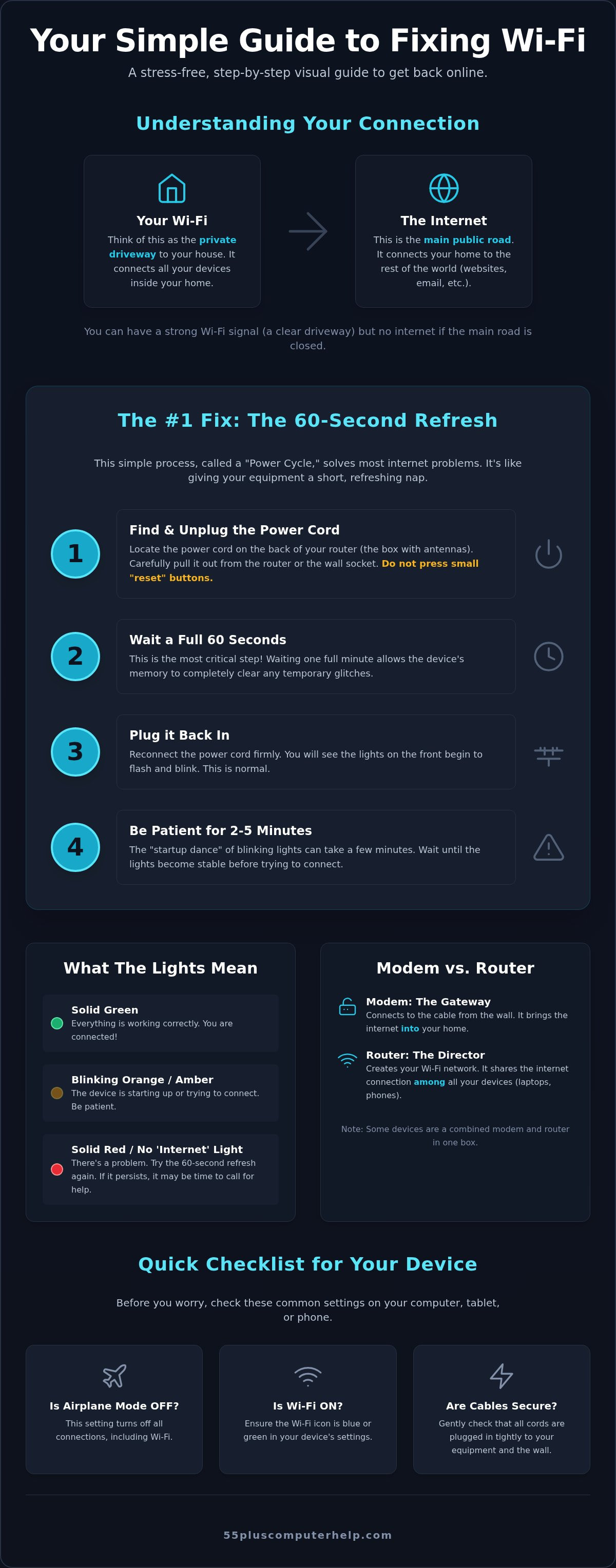
To fix a connection, it helps to know how the pieces fit together. We often use a simple analogy to explain this. Imagine your home sits at the end of a long driveway. The driveway represents your Wi-Fi. It is the private path that gets you from your front door to the main street. The street itself is the Internet. It is the vast network of roads that leads to every website and email inbox in the world.
You can have a perfectly clear driveway but still be unable to travel if the main road is closed for repairs. This explains why your device might show a strong signal icon, which looks like a "pie slice," even when nothing will load. If you see a small globe icon with a line through it, the problem is likely with the "road" rather than your "driveway." Identifying which part of the path is blocked is the first step toward a solution.
Why Connections Get 'Tired' and Need a Refresh
Your router is actually a small, specialized computer. Just like any other computer, it can get overwhelmed. It spends all day and night translating data for every device in your home. Your smartphone, tablet, and smart TV often all "talk" to the router at the same time. This constant chatter can cause the router to get stuck or confused as it tries to keep up with the demand.
External factors play a role too. Changes in the weather or neighborhood maintenance can cause a temporary loss of service. When these things happen, the router simply needs a moment to clear its memory and start fresh. It is not broken. It just needs a little help getting back on track. In the next section, we will look at the easiest way to give your equipment that much-needed refresh.
The Magic Fix: How to Restart Your Router Correctly
When you encounter a connection problem, the most effective tool in your kit is the "Power Cycle." This term sounds technical, but it is actually a very simple, physical action. You don't need to type any commands or navigate complex menus on your computer. It is the single most successful step in internet and wi-fi troubleshooting. Think of it as giving your router a short, refreshing nap so it can wake up with a clear head. This process solves the majority of temporary glitches without requiring any special tools or technical knowledge.
Step-by-Step: The 60-Second Reset
First, walk over to your router and look at the back of the device. Find the small, round cord that goes into a wall outlet or power strip. This is the power cord. Be careful not to press any small buttons labeled "Reset" that might require a pin or paperclip. Those buttons can erase your personal settings entirely. Instead, simply pull the power cord out of the back of the router or from the wall socket.
Now, you must wait. This is the most important part of the entire process. Count to 60 slowly. This minute of silence allows the tiny computer inside the router to completely lose its electrical charge and clear its temporary memory. If you plug it back in too quickly, the "hiccup" might remain in the system. After the full minute has passed, plug the cord back in. You will see a "startup dance" as the lights begin to flicker and flash. It usually takes two to three minutes for the system to fully stabilize and reconnect to the world.
What the Blinking Lights are Telling You
As the router wakes up, the lights provide a helpful status report. Most modern routers use a "Solid Green" light to signal that everything is working perfectly. If you see "Blinking Orange" or "Amber," don't worry. This usually means the device is still searching for a signal or "thinking" about the connection. It is a normal part of the startup routine and often resolves itself if you give it a few more minutes.
Look for the "Power" light first, which should stay steady. Next, look for the "Internet" or "Online" light. If this light stays red or continues to blink for more than five minutes, there might be a deeper issue with the line coming into your home. If the lights are confusing or the connection doesn't return, you can always reach out for patient internet and wi-fi troubleshooting support to help you understand what your specific device is trying to say. We can guide you through the process until those lights turn a friendly, solid green again.
Modem vs. Router: Identifying Your Home Technology
Walking over to your computer area can feel like looking at a confusing maze of wires and blinking boxes. It's hard to know what to fix if you don't know exactly what you are looking at. Most homes use two specific devices to stay connected, though many newer setups combine them into one. Identifying your equipment is a key part of internet and wi-fi troubleshooting. Once you know which box does what, you can check the physical connections with confidence.
If you have two boxes, one is the modem and the other is the router. If you only have one box, your service provider has likely given you a "Gateway." This single device handles everything in one package. Regardless of your setup, the goal remains the same. You want to ensure every wire is snug and every light is behaving as it should. This simple visual check often solves the problem before you ever need to call for help.
The Modem: Your Connection to the Outside World
The modem acts as the translator for your home. It receives a signal from your cable or phone company and turns it into data your computer can use. It's usually a slender box with a few lights on the front. On the back, you'll find a thick, stiff cable with a needle in the center and a screw-on nut. This is the "Coax" cable. In some homes, this might be a standard phone line instead, often called a DSL line.
- Check the connection: Reach behind the modem and give the screw-on nut a gentle twist to the right. It should be finger-tight to ensure a solid signal.
- The impact: If the modem is unplugged or the cable is loose, your entire house loses its connection. No device will be able to reach the internet until this box is back online.
The Router: Sharing the Connection in Your Home
While the modem brings the signal into your house, the router shares it with your devices. It is the broadcaster. You can often spot a router by the small antennas sticking out of the top or back. It might also have a series of lights that look like slices of a pie. These lights show the strength of the signal it's sending to your iPad, laptop, or smartphone.
The router connects to the modem using a wire called an "Ethernet" cable. This wire looks like a thick phone cord with a plastic clip on the end. It's very common for these to get bumped while cleaning or by a curious pet. If the clip isn't clicked firmly into place, the signal won't travel from the modem to the router. Give the cable a small push into its port. You should hear a satisfying "click" when it's secure. Checking these simple physical links is a great way to feel empowered and independent with your home technology.
A Simple Checklist for Troubleshooting Connectivity Problems
Sometimes the most frustrating tech problems have the simplest solutions. Before you assume the worst, a quick internet and wi-fi troubleshooting checklist can help you rule out common accidents. These small checks often restore your connection in seconds. This saves you from a long, stressful wait on hold with your service provider. It is all about narrowing down the possibilities until the answer becomes clear.
Rule Out the 'Accidental' Fixes
It is very easy to click the wrong icon without realizing it. One of the most common culprits is "Airplane Mode." Look for a tiny airplane icon on your computer's taskbar or in your tablet's settings. If that icon is highlighted, your device has purposely turned off its ability to talk to the internet. Simply clicking it again to turn it off can solve the problem instantly.
- Check for physical switches: Some older laptops have a tiny sliding switch on the side or front edge. If this was bumped while you were moving the computer, it can disable your connection.
- Mind the distance: Wi-Fi signals are like sound; they get quieter the further away you go. If you are in a back bedroom, try moving closer to the router to see if your signal returns.
- Check the network name: Occasionally, a device might "forget" your home network. Open your settings to ensure your specific network name is still selected and has a checkmark next to it.
Testing Other Devices
You can use a "process of elimination" to find the source of the trouble. Pick up your smartphone or a different tablet and try to open a website. If that second device works perfectly, then you know the internet in your house is actually fine. This tells you the issue is only with the first computer. This discovery is a huge relief because it means you don't have to worry about the "big" equipment in your home.
This simple test helps you focus your energy in the right place. If you find that your devices are connected but you just can't send a message, you might need Email Setup and Troubleshooting for Seniors instead. If you've gone through this checklist and still feel stuck, we are here to help. You can schedule a patient, one-on-one session with us to get your technology working smoothly again. We can even help you through a remote connection if your computer is still able to reach the web.
Finally, perform a quick "physical audit" of your wires. Check the wall plugs to make sure a vacuum cleaner or a pet didn't knock a cord loose. Ensure the cables we identified earlier are still clicked firmly into their ports. These small, manual checks are a powerful way to maintain your independence and keep your technology running reliably.
When to Ask for Patient, Professional Technology Help
Sometimes, despite your best efforts, the screen remains blank and the connection refuses to return. It is important to remember that asking for help is a sign of wisdom. It shows that you value your time and your peace of mind. While large internet companies offer technical support, their staff often read from cold, clinical scripts. They may lack the patience or the specialized understanding you deserve. You shouldn't have to navigate a faceless corporate system just to get back to your daily routine. Instead, look for a partner who acts as a trusted mentor rather than a distant technician.
Professional internet and wi-fi troubleshooting is about more than just fixing a wire. It is about restoring your confidence. At 55 Plus Computer Help LLC, we act as the friendly neighbor who happens to be an expert in technology. We understand the unique challenges that come with modern systems. Our goal is to transform your frustration into a sense of accomplishment. We want you to feel secure and independent in your own home.
Signs It Is Time to Call a Professional
There are specific moments when a DIY fix reaches its limit. If you recognize these signs, it is time to reach out for a helping hand:
- Repeated failures: You have performed the 60-second power cycle three times, but the lights still won't turn green.
- Persistent warning lights: You see a solid red light on your modem or router that does not change after a restart.
- Security concerns: Your connection seems "off," or you are worried about your privacy. In these cases, you might benefit from Virus and Malware Removal to ensure your device is truly safe to use.
How 55 Plus Computer Help LLC Supports You
We provide a safety net that is tailored to your comfort level. If the problem is physical, we offer in-home visits. We can check your wall plugs, untangle your wires, and ensure your router is in the best possible spot. This hands-on approach ensures that everything is set up correctly for the long term. If the issue is a software glitch, we can often provide remote support. This allows us to fix the problem quickly while you watch from your own chair.
The most important part of our service is the way we teach. We don't just fix the problem and leave. We explain what happened in plain, everyday language. We show you how to handle similar issues in the future. This educational experience is what sets us apart. We have been serving the community since 2014, and we take pride in being a reliable local resource for internet and wi-fi troubleshooting. You can count on 55 Plus Computer Help LLC to be patient, respectful, and thorough every step of the way.
Stay Connected with Confidence
You now have the tools to handle a sudden outage with calm and clarity. Most connection problems are just temporary hiccups that a simple 60-second power cycle can fix. By checking your physical wires and understanding the difference between your modem and router, you take control of your home technology. This independence allows you to stay focused on what matters most, like seeing photos of your family or sending important emails.
Learning the basics of internet and wi-fi troubleshooting is a wonderful way to build your technical skills. If you ever feel stuck or overwhelmed, you don't have to face the blinking lights alone. Since 2014, our patient mentors have specialized in helping seniors 55+ master their devices. We offer both in-home and remote assistance to ensure you always have a reliable safety net. Get Patient Tech Support for Your Wi-Fi Today and let us help you stay connected to the people you love. You are more capable than you think, and we are honored to be your trusted local experts.
Common Questions About Staying Connected
Why does my Wi-Fi keep disconnecting in one specific room?
Your Wi-Fi signal might be blocked by thick walls, mirrors, or large metal appliances. These objects act like a shield that prevents the signal from reaching your device. If the room is far from your router, the signal simply gets too weak to stay connected. Try moving your router to a central, open location in your home. This small change often provides a much more reliable connection and is a great first step in internet and wi-fi troubleshooting.
Do I need to buy a new router if my internet is slow?
You don't always need new hardware to fix a slow connection. Often, slowness is caused by outdated software on your current router or interference from other electronics in your home. However, if your router is more than five years old, it may not support modern speeds. We can help you determine if a refresh is needed or if simple adjustments will do the trick. You can also consult an independent expert like WiFi Therapist to ensure you are getting the most out of your current setup. This approach saves you money and unnecessary technical confusion.
What should I do if my Wi-Fi password is not working suddenly?
First, ensure that your "Caps Lock" key isn't turned on by mistake. Passwords are very sensitive to capital letters. If that doesn't work, try restarting your device and the router. Sometimes a small glitch causes the system to "forget" the correct credentials. If the problem continues, it may be time for more in-depth internet and wi-fi troubleshooting to reset your security settings safely and restore your access to the web.
Can a virus make my internet stop working?
Yes, a virus can definitely impact your connection. Some malicious software uses your internet to send out data in the background, which slows everything down to a crawl. In other cases, a virus might change your computer's internal settings so it can't find the web at all. If your internet feels sluggish or behaves strangely, it is a good idea to have a professional check for hidden infections. This ensures your personal information stays protected.
Is it safe to leave my router on all night?
It is perfectly safe to leave your router on 24 hours a day. These devices are designed to run continuously and use very little electricity. Keeping it on ensures that your smart home devices and security cameras stay connected while you sleep. You only need to turn it off when you are performing a "Power Cycle" to fix a connection issue. Leaving it on won't damage the equipment or affect your health in any way.
What is the difference between 2.4GHz and 5GHz Wi-Fi?
Think of these as two different lanes on a highway. The 2.4GHz lane is slower but travels much further and goes through walls easily. The 5GHz lane is much faster but only works well when you are close to the router. Most modern routers combine these into one name and pick the best lane for you automatically. You don't need to worry about which one to use for your daily browsing or video calls.
How do I know if my internet service provider has an outage?
The easiest way is to check your provider's official website using the data on your smartphone. Most companies have a "Status Map" that shows local outages in real time. You can also call their automated support line to hear a recorded message about known issues in your area. This helps you confirm if the problem is with the whole neighborhood or just inside your own home. It saves you the trouble of fixing things yourself.


