
In 2025, Americans aged 60 and older reported over $7.7 billion in losses to internet fraud. This statistic is alarming, and it's understandable if it makes you feel hesitant about spending time online. Our 2026 guide to internet safety for seniors is designed to replace that hesitation with confidence. You deserve to enjoy the digital world without the constant worry of being targeted by a scammer.
It's common to feel overwhelmed by technical jargon or to worry about losing your hard-earned money to a sophisticated trick. You might even feel like you're always one wrong click away from a problem. We're here to help you regain your independence. This guide provides simple, practical steps to secure your devices and protect your identity. You'll learn how to identify scams and manage your online accounts without needing to call for tech help every time.
We'll walk you through the latest security tools for 2026, including how to use password managers and recognize new AI-generated scams. By the end of this article, you'll have the skills to browse the web safely and stay connected with your family with total peace of mind.
Key Takeaways
- Learn to spot common tricks like phishing emails and fake tech support pop-ups before they cause trouble.
- Discover why long passphrases and "double locks" like two-factor authentication are your best defense for every account.
- Master the "Stop, Look, and Think" method to safely verify any digital request you receive.
- Understand how personalized training improves internet safety for seniors by turning complex tech into a comfortable hobby.
- Gain the confidence to use your devices for connecting with family and managing your life without fear.
Understanding Internet Safety: Why Digital Confidence Matters
Internet safety for seniors is often described as a long list of things you should not do. While avoiding risks is important, true safety is actually about freedom. It is the ability to use your computer or tablet without a constant feeling of worry. When you understand how to protect yourself, the web stops being a source of anxiety and becomes a helpful tool. In 2025, Americans aged 60 and older reported over $7.7 billion in losses to fraud. This is a staggering number, and it's completely normal to feel a bit hesitant about exploring online. Feeling overwhelmed by rapid changes in technology is a natural reaction, not a sign that you can't learn.
We want to help you move from being a cautious observer to an empowered user. Gaining a better Understanding Internet Fraud is the first step in this process. When you know how scammers operate, their tricks lose the power to scare you. You can start to see the internet as a bridge to the people and services you love. Digital literacy is about more than just clicking buttons; it's about reclaiming your independence and peace of mind.
The Benefits of Staying Connected Safely
AARP research shows that 90% of adults aged 50 and over own a smartphone as of 2026. These devices are now the primary way we stay in touch. When you browse with confidence, you can enjoy several key benefits:
- Family Updates: You can see new photos of your grandkids the moment they're shared.
- Video Calls: You can speak face-to-face with friends who live across the country.
- Convenience: Online banking and shopping save you trips to the store and help you manage your schedule.
- Independence: You can handle your own affairs without needing to wait for a family member to help you.
Common Myths About Seniors and Technology
One common myth is that you must be a "tech genius" to stay safe. Scammers rarely use complex programming to reach their targets. Instead, they try to trick your emotions by creating a sense of fear or urgency. Your life experience and common sense are actually your strongest defenses. Another myth is that clicking one wrong button will permanently break your computer. Modern devices are very resilient. Usually, a simple restart or clicking the "back" button fixes most mistakes. Learning internet safety for seniors is about realizing that you are in control of the machine. You have the wisdom to stay safe; you just need the right steps to apply it to the digital world.
Recognizing the Signs of Common Online Scams and Threats
Scammers are clever, but they are also lazy. They rely on a few predictable patterns because those tricks often work on people who are in a hurry. Understanding these patterns is an essential part of internet safety for seniors. Most threats share a single common goal. They want to create a sense of panic so you act before you think. If an email or pop-up makes your heart race, that is your first sign to slow down. You have the power to stop a scam just by taking a deep breath.
One of the most common threats is the "Phishing" scam. This is like a digital disguise. You might get an email that looks exactly like it's from your bank or a friend. It might ask you to "verify your account" or "click here to see a photo." In reality, it's a trap to steal your login information. Investment scams are also on the rise. In 2025, these were the most financially damaging category, causing over $3.5 billion in losses. Many of these now use artificial intelligence to create "deepfake" voices that sound just like a family member in trouble. According to this FTC guide to stopping senior scams, emotional pleas for money are a major red flag. If anyone asks you to pay for something using gift cards or wire transfers, it's a scam. Legitimate businesses will never ask for payment this way.
How to Spot a Fake Email in Seconds
You don't need to be a computer expert to catch a fake email. First, look closely at the "From" address at the top. Scammers often use addresses that look almost right, like "[email protected]" instead of the real Amazon. Second, look for generic greetings. A real bank will usually use your actual name, while a scammer might say "Dear Customer" or "Valued Member." Finally, use the "hover" trick. Place your mouse pointer over a link without clicking it. A small box will appear showing the real website address. If that address looks like a jumble of random letters, don't click it.
The Truth About Tech Support Pop-Ups
Your web browser is a window to the internet, not a doctor for your computer. It cannot "diagnose" a virus on your hard drive. If a bright red window pops up saying your computer is infected, it is a lie. These pop-ups often include a phone number and tell you to call immediately. Companies like Microsoft or Apple will never put a phone number in a pop-up warning. If your screen seems to freeze with one of these messages, don't panic. You can usually clear it by simply turning your computer off and back on. When you master these signs, internet safety for seniors becomes second nature. Our one-on-one training sessions can help you practice these skills so you feel ready for anything.
Simple Ways to Secure Your Accounts and Personal Information
Securing your digital life shouldn't feel like a chore. Many people worry about remembering dozens of complicated codes. In reality, modern internet safety for seniors is moving toward simpler, more effective methods. You don't need to be a math expert to create a strong defense. You just need to change how you think about your "keys" to the digital world. Taking these small steps today will prevent a lot of frustration later.
One of the best ways to protect yourself is by using a "double lock" known as Two-Factor Authentication. This is a cornerstone of internet safety for seniors today. Think of it like a deadbolt on your front door. Even if a thief has your key, they still can't get in without the second code sent to your phone. It's a small step that provides massive peace of mind. Similarly, keeping your tablet or computer updated is vital. These updates are like digital repairs that fix tiny holes in your security. It is also wise to be careful with public Wi-Fi. Using the internet at a coffee shop is like having a private conversation in a public park. Others might be "listening" in, so avoid checking your bank account until you are back on your home network.
Passwords vs. Passphrases: Which is Better?
For years, we were told to use random symbols and numbers. This led to frustrating codes like "P@ssw0rd123" that are hard to type and easy for computers to guess. In 2026, experts recommend using passphrases instead. A passphrase is a long string of simple, unrelated words. For example, "MyDogLovesBlueBerryTreats!" is much stronger than a short, complex password. Industry standards now suggest a minimum length of 16 characters. Length is your best friend. It's easier for you to remember and much harder for a scammer to crack.
Managing Your Passwords Without Stress
You might wonder where to keep all these new passphrases. Many people use a physical notebook kept in a safe spot at home. This is actually a very safe method. A hacker in another country cannot reach into your desk drawer. However, if you want something more convenient, consider a password manager. These are digital vaults that store and type your codes for you. Reliable options like Bitwarden or RoboForm are very affordable. Some plans start as low as $0.99 per month. If the idea of setting this up feels overwhelming, don't worry. Our Software Installation and Updates service includes helping you get these tools running smoothly. Having a patient mentor guide you through the process makes a world of difference.
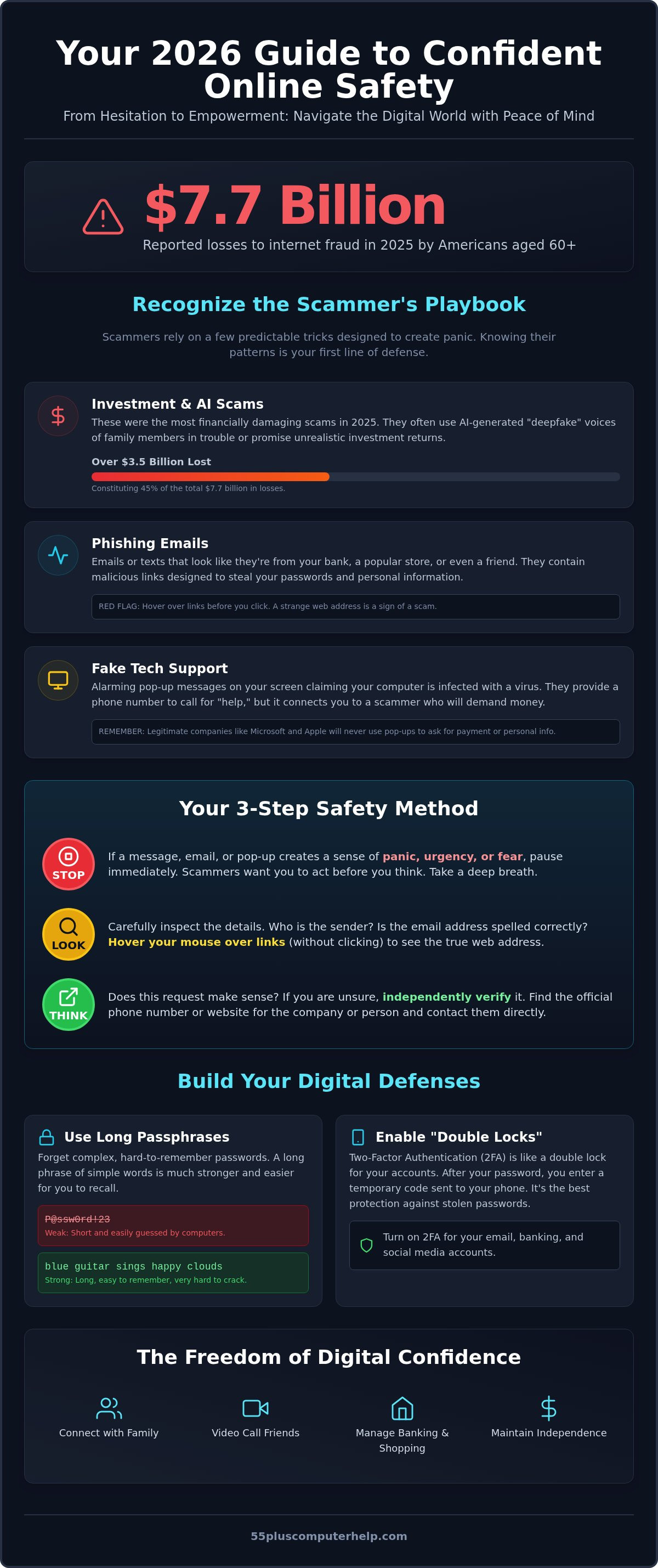
A Step-by-Step Guide to Safely Navigating Emails and Websites
Staying safe online is much easier when you have a simple plan to follow. Instead of worrying about every click, you can use a positive framework to guide your choices. This approach turns internet safety for seniors into a series of calm, manageable habits. You don't need to be a tech expert to master these steps. You just need to trust your instincts and follow a consistent routine.
Step 1: Stop and Breathe Before Clicking
Scammers rely on making you feel rushed or panicked. They might send an alert saying your account is "suspended" or your "package is delayed." These messages are designed to make you act without thinking. When you see an urgent message, take thirty seconds to just breathe. Ask yourself if you were actually expecting this email. If a message feels sudden or forces you to hurry, it is likely a trick.
Step 2: Look for Inconsistencies
Legitimate companies take great pride in how they look. If you see an email with blurry logos or several spelling mistakes, be very cautious. A blurry or pixelated logo is a red flag because legitimate companies use high-quality, professional graphics to protect their brand image. You should also check the sender's actual email address. A message from "Netflix" should come from a netflix.com address, not a random string of numbers and letters.
Step 3: Think and Verify Independently
If you aren't sure about a message, never use the links or phone numbers provided in that email. Instead, close your email program entirely. Go directly to the official website by typing the address into your browser yourself. If you need to call your bank, use the trusted number printed on the back of your physical credit card. This ensures you are speaking to a real representative and not a scammer. If you still feel unsure, consulting a trusted tech mentor is always a smart move.
When you are ready to shop online, look for the small "Padlock" icon in your browser's address bar. This icon means the website uses a secure connection to protect your details. It's generally safe to enter your credit card information on well-known websites that show this symbol. Learning these practical steps is part of our Smartphone and Tablet Training. We can help you practice these steps in a safe, supportive environment until they feel like second nature.
Building Your Skills: How Personalized Training Creates Lasting Security
Education is the most powerful tool you have to stay safe online. While security software is helpful, your own knowledge is the ultimate shield. When you understand why certain things happen on your screen, you no longer feel like a passive observer. Instead, you become an empowered user who can spot trouble before it starts. This proactive approach is the core of effective internet safety for seniors. It moves you away from the stress of needing virus and malware removal and toward a future where you use your devices with total confidence.
Many people feel that technology is "scary" because they haven't had the right teacher. A patient expert can transform your relationship with your computer. You should feel free to ask any question without judgment. In fact, those "silly" questions are often the most important ones to answer. Learning these skills turns a confusing task into a comfortable hobby. You start to enjoy the process of connecting with others because you are no longer afraid of making a mistake. You move from simply fixing problems to preventing them through your own awareness.
One-on-One Lessons Tailored to Your Pace
Group classes can often feel intimidating. The instructor might move too quickly, or you might feel hesitant to speak up. One-on-one training solves this problem by focusing entirely on your needs. You get to learn on your own computer or tablet in the comfort of your own home. This personalized attention ensures that you truly grasp each concept before moving to the next. Our training covers everything from basic email setup to advanced web browsing. You set the agenda, and we provide the patient mentorship to help you reach your goals.
Remote vs. In-Home Support: Choosing What Fits You
Everyone has different preferences for how they like to learn. Sometimes, a quick remote session is the best way to solve a specific concern. Remote screen-sharing allows a mentor to see exactly what you see and guide you through a fix in real-time. This is often the fastest way to address a security worry. Other times, you might prefer the comfort of having a mentor sit beside you in person. Having someone there to point to the screen and explain things face-to-face creates a very supportive environment. Many home service professionals use similar digital tools to manage their schedules and industry data; to see how technology aids these fields, check out Repair-CRM.
Both methods focus on your comfort and security. It's never too late to start building these skills. You can begin with a simple, no-pressure consultation to see how personalized training can help you master internet safety for seniors. We are here to help you turn frustration into a sense of accomplishment and security.
Take Control of Your Digital World
You now have the tools to spot common scams and secure your personal accounts with confidence. By using long passphrases and the "Stop, Look, and Think" method, you can enjoy the web without fear. Mastering internet safety for seniors is a rewarding journey, and you don't have to walk it alone. Since 2014, our patient mentors have specialized in helping users aged 55 and older gain independence with their technology. We understand the unique challenges you face and provide a safe space to learn at your own pace.
Whether you prefer in-home visits or remote assistance, we're here to answer every "silly" question. We focus on empowering you so that technical hurdles don't stand in the way of connecting with your family or managing your life. It's never too late to learn these skills in a supportive environment. Empower yourself with patient, one-on-one computer help today! You've already taken the first big step by reading this guide. We look forward to helping you turn that knowledge into lasting digital security and confidence.
Frequently Asked Questions
What is the most common internet scam targeting seniors today?
Investment scams are the most financially damaging internet scam targeting seniors today. In 2025, older Americans lost over $3.5 billion to these schemes. Tech support scams are the second most common, often involving fake pop-ups. Scammers frequently use artificial intelligence to make these tricks feel more personal. Staying informed about these trends is a vital part of internet safety for seniors. Knowing what to watch for helps you stay in control.
How can I tell if an email from my bank is actually a scam?
You can identify a fake bank email by looking for generic greetings like "Dear Valued Member." Real banks will almost always use your actual name. Check the sender's email address for extra letters or misspellings. You should also hover your mouse over any buttons to see the real destination. If the link looks like a jumble of random characters, delete the message immediately. When in doubt, call your bank directly.
Is it safe to use my credit card for online shopping?
It is safe to use your credit card for online shopping if you stick to well-known websites. Always look for the small padlock icon in your browser's address bar. This symbol confirms that the site encrypts your payment details. Avoid shopping while using public Wi-Fi at a library or cafe. It is much safer to complete your purchases using your private home network. Your credit card also offers better fraud protection than a debit card.
What should I do if I accidentally clicked on a suspicious link?
If you accidentally click a suspicious link, the first step is to disconnect your device from the internet. This stops a scammer from communicating with your computer. You should then run a full scan using your security software to check for hidden threats. It is also wise to change your primary account passwords from a different, safe device. If you feel unsure, a patient mentor can help you verify that your system is clean.
Do I really need a password manager, or is a notebook okay?
A physical notebook is a safe choice as long as you keep it in a secure spot at home. Hackers cannot access a paper book from the internet. However, a password manager is more convenient because it types your codes for you. Reliable options like Bitwarden or RoboForm are very affordable. Using these tools significantly improves internet safety for seniors by ensuring every account has a unique, strong passphrase. It removes the stress of remembering everything.
How can I tell if a website is secure before I enter my information?
You can tell a website is secure by checking for "https" at the start of the web address. The "s" stands for secure. Most browsers also display a padlock icon next to the URL. If you see a warning that says "Not Secure," do not enter any personal information or credit card numbers. These simple visual cues help you browse with total peace of mind. Taking a second to check the address bar protects your privacy.
Is it safe to let someone access my computer remotely for repairs?
It is only safe to allow remote access if you initiated the call to a trusted expert you already know. Never grant access to someone who calls you out of the blue or appears in a pop-up window. Legitimate companies like Microsoft will never contact you this way. If you need help, always reach out to a verified professional through their official website. This ensures you are working with a mentor who has your best interests at heart.
Why does my computer keep asking for software updates?
Your computer asks for software updates because they contain important security patches. These updates fix small "holes" that scammers might use to enter your system. Think of them as regular maintenance for your digital home. Most updates happen automatically, but it's good to check your settings occasionally. Keeping your software current is one of the easiest ways to prevent viruses. It ensures your device stays fast and reliable for all your daily tasks.


