
You finally sit down to see the latest photos of your grandkids, but your computer says you aren't connected to the internet. It's a common frustration that can make anyone feel left behind by today's fast-paced technology. Many people feel a surge of anxiety when they see a blank screen or a blinking red light on their equipment. You shouldn't have to wait on hold for an hour with an internet provider just to fix a simple connection issue.
This guide to internet troubleshooting for seniors is designed to help you take control of your home network. We promise to keep things simple and avoid confusing jargon like "IP addresses" or "bandwidth." You'll learn how to restore your connection using a calm, step-by-step process that builds your confidence and saves you from unnecessary service fees. We will cover the effective "three-step reset," explain what your equipment lights are telling you, and show you how to stay safe from common tech support scams. By the end of this article, you'll have the tools to stay connected with the people you love.
Key Takeaways
- Learn how a simple "power cycle" can clear up most common connection problems in just a few minutes.
- Use the "Two-Device Test" to determine if your internet service is down or if only one specific gadget needs attention.
- Discover how internet troubleshooting for seniors helps you manage your home network without feeling overwhelmed by technical terms.
- Understand the difference between a neighborhood outage and a home connection issue so you know exactly when to call for help.
What Is an Internet Connection? A Simple Overview
Think of the internet like the water coming into your home. It travels through a pipe from the street to your house. In this case, the "pipe" is a cable or a phone line. This is the foundation of internet troubleshooting for seniors. Once you understand how the signal flows, fixing problems becomes much easier. It's not a magical force. It's a physical service that enters your home through specific equipment.
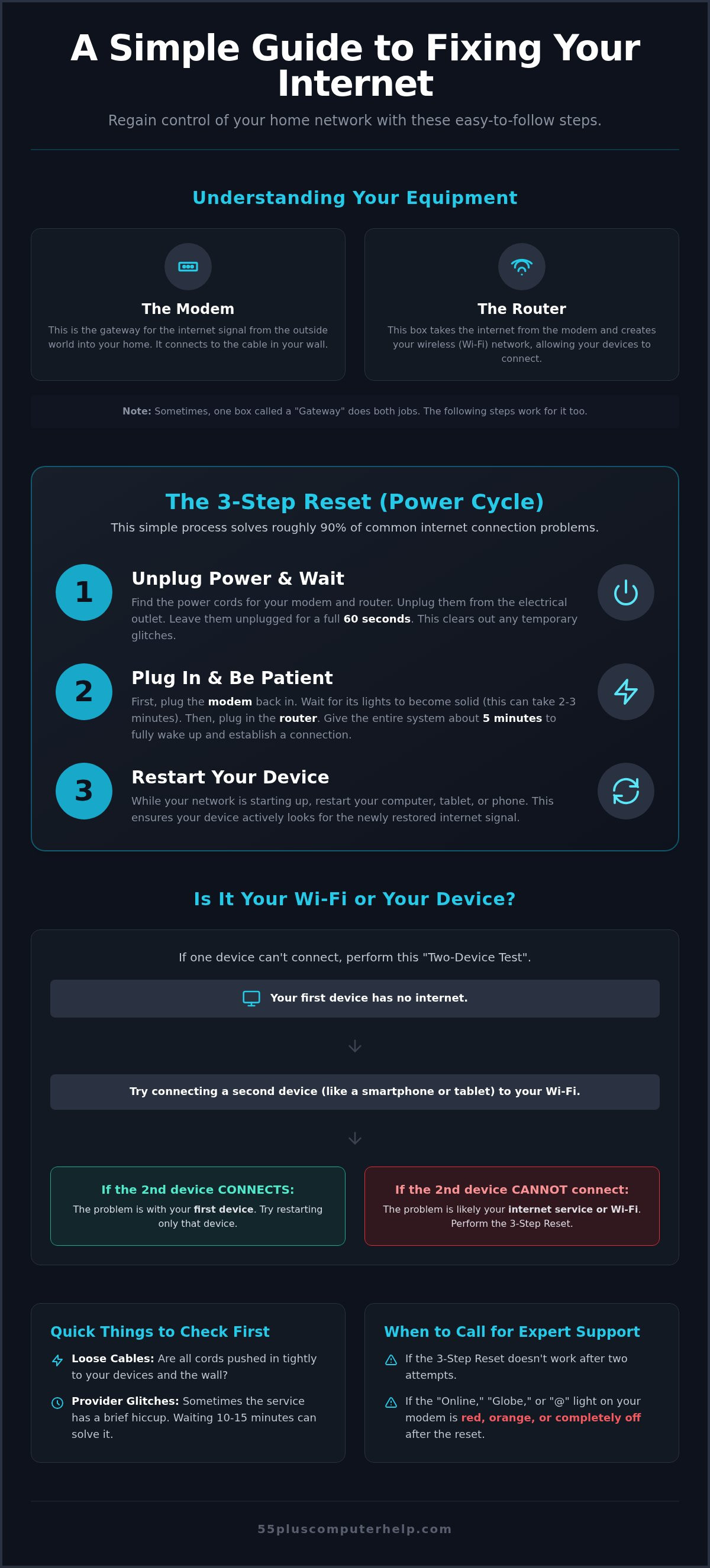
The "Modem" is the main entry point. It takes the signal from the outside world and translates it for your home. The "Router" is like a lawn sprinkler. It takes the "water" from the modem and sprays it wirelessly through the air so your tablet or phone can use it. This wireless signal is what we call "Wi-Fi." It's helpful to remember that Wi-Fi is just the delivery system. If the "water" isn't coming into the house at all, the best sprinkler in the world won't help. Understanding this distinction is the first step toward digital independence.
The Difference Between Your Modem and Router
Your modem is usually a small box provided by your internet company. It often has several small lights on the front that blink or stay steady. It connects directly to a port in your wall. Your router is the device that creates your Wi-Fi network. It might have one or two plastic antennas sticking up. Sometimes, companies provide a "gateway," which is just one box that does both jobs. Knowing which box is which helps you stay calm during the troubleshooting process. If you can tell a support person exactly which box has a red light, you'll get back online much faster.
Common Reasons Why the Internet Stops Working
Technology is amazing, but it isn't perfect. Sometimes the simplest things cause a connection to drop. You don't always need a technician to find the cause.
- Loose Cables: Dusting or a pet moving behind a desk can easily wiggle a plug loose. Always check that every cord is pushed in tight.
- Provider Glitches: Your internet company might have a tiny hiccup in their system. These often fix themselves in a few minutes.
- Tired Devices: Just like us, computers and tablets can get "tired" after being on for a long time. A quick restart often clears out the digital cobwebs.
Most problems aren't your fault. They don't require a master's degree to fix. This basic knowledge makes internet troubleshooting for seniors feel like a manageable task rather than a technical battle.
The 3-Step Reset: Fixing Most Problems Yourself
A "Power Cycle" is the most effective way to fix almost any electronic device that isn't behaving correctly. Think of it as a quick nap for your internet equipment. When you unplug your boxes, you're clearing out small errors that build up over time. It's a simple way to get back online without needing a technician. This method is the foundation of internet troubleshooting for seniors because it works on almost any system. If you see red or rapidly blinking lights on your equipment, this reset is usually exactly what the hardware needs to fix itself.
Step 1: Unplug the Power
First, look at the back of your modem and your router. You'll see a thin cord that leads to a wall outlet. Follow these steps carefully to ensure the memory clears properly:
- Pull the power cord out of the wall or the back of the device.
- Check that all other cables are pushed in tightly while you wait.
- Wait for a full 60 seconds before doing anything else.
This minute of silence lets the electricity drain away and clears the device's temporary memory. It might feel like a long time, but patience is a vital part of internet troubleshooting for seniors. Use a kitchen timer if it helps you keep track of the time. This pause ensures that the "brain" of the device is completely empty before it starts up again.
Step 2: Plug Back in and Wait
Now, plug your modem back into the power first. This is the box that connects to the wall. Watch the lights. They will blink for a while as the device talks to the service provider. Once the main lights stay solid, plug in your router. This is the box that sends the Wi-Fi signal. Give the system about five minutes to fully wake up. Your boxes need time to set up your home network again. You might hear a faint click or see the lights change colors. This is normal and means the equipment is working correctly.
Step 3: Restart Your Computer or Tablet
While your boxes are starting up, go ahead and restart your computer, smartphone, or tablet. This ensures that your device starts looking for the internet signal at the same time the signal becomes available. This simple three-step process solves roughly 90% of daily connection issues. If you still feel stuck after trying this, you can always reach out to 55 Plus Computer Help LLC for patient tech support to guide you through the next steps. Taking these actions yourself builds a great sense of digital independence and helps you avoid those long wait times on the phone.
Is It the Wi-Fi or Your Device? How to Tell
One of the most confusing parts of internet troubleshooting for seniors is knowing where the problem actually lives. Sometimes your computer won't load a page, but the internet service itself is perfectly healthy. To find the culprit, you can use the "Two-Device Test." This simple check helps you decide if you need to fix your connection or just fix your computer. It is a gentle process of elimination that saves you time and energy.
Testing with a Second Device
Pick up your smartphone or tablet while your computer is struggling. Try to open a news site or check your weather app. If your phone works normally, your home internet is active and strong. This means the trouble is limited to your computer. You might just need to restart that one machine. Sometimes, a device feels slow because of hidden software issues. If your computer is the only thing acting up, you might benefit from Virus and Malware Removal to get it back up to speed. This helps ensure your device is clean and running efficiently.
Checking Your Signal Strength
Look for the small icon that looks like a folding fan on your screen. This symbol shows your Wi-Fi signal strength. If you only see one or two bars, you're likely too far from your router. Wi-Fi signals are invisible, but physical objects can still block them. Dense materials like brick walls, large mirrors, and metal filing cabinets act like shields. They stop the signal from reaching your favorite chair.
You might have "dead zones" in your house where the signal simply can't reach. If your internet works in the kitchen but fails in the bedroom, try moving your router to a more central location. Keeping the router out in the open rather than tucked in a cabinet makes a big difference. Several common household items can block your connection:
- Large Mirrors: The silver backing in mirrors reflects Wi-Fi signals away from your device.
- Metal Appliances: Refrigerators and ovens are like solid walls to a wireless signal.
- Water: Large fish tanks can actually absorb the signal before it reaches you.
For more information on how different connection types work in a home, you can consult the FCC Broadband Guide. This resource explains how speeds vary based on your setup. Learning these small differences is a key part of internet troubleshooting for seniors. It saves you the frustration of calling your provider when the solution is as simple as moving a few feet closer to the hallway. You don't need to be a tech expert to master these checks. You just need a little bit of patience and a second device to test with.
Simple Fixes for Common Connection Hurdles
Sometimes the hardware is working fine, but a single setting on your computer creates a hurdle. This is a common part of internet troubleshooting for seniors. You might just need to give your device a "fresh start" with your specific network. The "Forget Network" trick tells your computer to wipe its memory of your Wi-Fi and start over from scratch. It's like re-introducing two friends who have had a misunderstanding. Once you "forget" the network in your settings, you can select it again and enter your password for a clean connection.
Managing Your Wi-Fi Passwords
Most routers have a sticker on the side or bottom. This sticker lists the "Security Key" or "Password" that came with the device. If you've changed it to something else, it's very helpful to write it down in a physical notebook. Keep this notebook in a safe place near your computer desk. If your tablet suddenly asks for the password again, type it in slowly. Remember that capital letters, symbols, and numbers must be exact. Even one small mistake will prevent the device from connecting to your home network.
Checking for 'Airplane Mode'
Have you ever noticed a small airplane icon on your screen or keyboard? This is "Airplane Mode." It's a single switch that turns off all wireless communication to save battery or follow flight rules. If you accidentally bump this key or click the icon, your internet will stop instantly. Look for the airplane symbol in your tablet's settings or on the top row of your laptop keyboard. Ensure this mode is turned OFF so your device can "talk" to your router again. It's a very common reason for a sudden loss of signal.
Clearing Your Browser's Path
Your browser, like Google Chrome or Safari, collects digital clutter called "cache" and "cookies." Over time, this clutter can make websites load slowly or not at all. Think of it like old newspapers piling up in a hallway. A simple refresh of the page often helps clear a temporary glitch. If you find that your internet works for browsing but your messages aren't sending, you might need Email Setup and Troubleshooting for Seniors. This guide focuses on the specific settings that keep your inbox running smoothly.
If these small hurdles still feel overwhelming, you can schedule internet and Wi-Fi troubleshooting with a patient mentor who understands your needs. We can help you organize your passwords and clear out the digital clutter that slows you down. Learning these small fixes is a great way to maintain your digital independence without the stress of doing it all alone.
When to Call for Expert Technical Support
Sometimes, your best efforts at internet troubleshooting for seniors might not solve the problem. This is perfectly okay. Not every issue can be fixed by unplugging a cord or checking a password. Some problems happen outside of your home. Other times, the settings are just too complex to manage alone. Recognizing when to call for help saves you hours of frustration. It also prevents you from feeling defeated by your technology. Sometimes the issue is a physical break in the line outside your home. Storms or even yard work can damage the cables that bring the signal to your door. In these cases, no amount of restarting will help. You need the provider to send a technician to fix the physical wire.
Contacting Your Internet Service Provider (ISP)
Your provider is responsible for the line that brings the internet to your house. If the "Internet" light on your modem is red or completely dark, the signal might be blocked before it even reaches you. You can use your smartphone’s cellular data to check the provider’s website for neighborhood outages. Most companies have a map that shows if your street is affected. Before you call them, have your account number and the color of the lights on your modem ready. This helps the technician understand the situation quickly. If they confirm there is no outage, the problem is likely inside your home.
How 55 Plus Computer Help LLC Can Assist
If the provider says your signal is fine but you still can't connect, you might need a patient mentor. Many seniors feel that big companies are too fast or use too much jargon. 55 Plus Computer Help LLC takes a different approach that focuses on your comfort and your understanding. Our goal is to make sure your equipment is set up right the first time. This avoids future headaches and service fees. Having a professional set up your network provides a strong foundation. It ensures your signal reaches every room without those annoying "dead zones" we mentioned earlier.
We offer two ways to help you stay connected and confident:
- Remote Support: We can often connect to your screen and fix small glitches while you watch.
- Onsite Visits: We can come to your home for complex setups or hardware issues.
Technical support should be an educational experience, not just a repair. We want you to feel a sense of accomplishment and digital independence. When we work together, you'll learn tips to handle internet troubleshooting for seniors more confidently in the future. Having a trusted local expert by your side makes the digital world feel much smaller and safer. 55 Plus Computer Help LLC is here to transform your frustration into security.
Take Control of Your Digital World
You now have the tools to handle common connection issues with confidence. Remember that most problems disappear with the simple checks we've discussed today. These steps for internet troubleshooting for seniors are designed to keep you connected to your family and hobbies while avoiding long wait times on the phone. You can feel a great sense of accomplishment by solving these hurdles yourself.
If a problem feels too complex or you simply want a professional to set things up correctly, 55 Plus Computer Help LLC is here to help. Since 2014, we've provided patient tech support tailored specifically for your needs. We offer onsite and remote assistance without using confusing jargon. You can Get Patient, In-Home Tech Support from 55 Plus Computer Help LLC to restore your peace of mind. Technology is a wonderful way to stay in touch, and you don't have to manage it all alone. You've got this, and we're just a call away if you need a mentor by your side.
Frequently Asked Questions
Why does my internet work on my phone but not my computer?
This usually means your internet service is working perfectly, but your computer has a specific setting issue. It could be a simple glitch that a quick restart will fix. Sometimes, the computer's Wi-Fi switch is accidentally turned off. Since your phone is connected, you know the router is sending a strong signal. This is a common step in internet troubleshooting for seniors to identify which device needs a little extra help today.
How often should I restart my internet router?
You should restart your router about once a month to keep it running smoothly. This clears out small errors and refreshes the connection with your provider. You don't need to do it every day unless you notice your speeds are dropping. Think of it like a quick reset for the device's brain. If you find yourself restarting it every single day, the equipment might be getting old. A monthly refresh is usually enough for most homes.
What is the difference between a modem and a router?
A modem brings the internet signal into your home from the street. A router takes that signal and sends it wirelessly to your devices like tablets and phones. You can think of the modem as the main water pipe and the router as the sprinkler. Some modern boxes combine both functions into one unit. Knowing the difference helps you explain problems more clearly when you call for technical support or a patient mentor who can help.
Is it safe to leave my Wi-Fi on all night?
Yes, it is perfectly safe to leave your Wi-Fi on all night. These devices are designed to stay on constantly and use very little electricity. Leaving it on ensures your devices can perform automatic updates while you sleep. This helps keep your software current and secure for the next day. If you are worried about security, ensure you have a strong password. You don't need to turn it off to protect the physical hardware.
Why is my internet so slow in the bedroom but fast in the living room?
This is likely due to the distance from your router or physical obstacles in your home. Wi-Fi signals get weaker as they travel through walls, mirrors, and large furniture. If your router is in the living room, the signal has to fight through barriers to reach the bedroom. You can try moving the router to a central location. This simple change often solves many common issues without needing to buy any expensive new equipment.
Can a virus make my internet stop working?
Yes, a virus or malware can definitely interfere with your internet connection. Some malicious software uses your connection to send data secretly, which makes your browsing feel very slow. Other viruses might change your settings so you can't connect at all. This is a specialized part of internet troubleshooting for seniors that might require a patient mentor. Keeping your security software updated is the best way to prevent this sudden and confusing frustration.
Do I need to buy a new router every year?
No, you don't need to buy a new router every year. Most high-quality routers will last between three and five years before they start to feel outdated. Technology changes, but a good router can handle daily tasks for a long time. You might consider an upgrade if you notice your signal dropping frequently or if you buy many new smart devices. For most people, a router that is a few years old still works perfectly.
What should I do if I forgot my Wi-Fi password?
You can usually find the original password on a sticker attached to the side or bottom of your router. It might be labeled as the Security Key or WPA Key. If you changed the password and forgot it, check your physical notebook where you keep important information. If all else fails, you can reset the router to its factory settings. This will return the password to the original one printed on the router's sticker for you to use.


