Last Tuesday, Mary sat at her computer, staring at a login screen she had seen a hundred times. She couldn't remember her password, and the familiar knot of frustration began to tighten in her chest. You've likely felt that same tech headache when trying to keep track of dozens of different codes and logins. It's very tempting to click that little box that asks to remember your details. However, you might find yourself asking: is it safe to save passwords in my browser, or am I leaving my front door unlocked for scammers?
We understand that identity theft is a real worry. Technical talk about encryption often feels like a foreign language. Recent reports from May 2026 show that even popular tools like Microsoft Edge and Google Chrome have faced security flaws that put saved data at risk. In this guide, we'll give you a clear answer on whether you should trust your browser with your secrets. You'll learn the real risks of info-stealer malware and see simple steps to improve your security. Our goal is to help you feel confident managing your logins without the stress.
Key Takeaways
- Learn why browsers offer to remember your logins and how to balance that convenience with your personal security.
- Discover why the most common threat to your information is often someone having physical access to your unlocked computer or tablet.
- Get a straightforward answer to the question, "is it safe to save passwords in my browser" and see how it compares to professional security tools.
- Follow easy, step-by-step instructions to add a master password to your settings for an immediate layer of protection.
- See how our patient computer setup and software training services can help you master these tools without the technical frustration.
Understanding Why Your Browser Asks to Save Passwords
Every time you sign into a new website, a small box likely pops up at the top of your screen. It asks if you want the computer to remember your details. This feature exists to make your time online much smoother and faster. Most people wonder, is it safe to save passwords in my browser, especially when they have so many different accounts to manage. These built-in tools are called password managers. A browser password manager is a digital notebook that lives inside your internet software.
When you use browsers like Google Chrome, Microsoft Edge, or Apple Safari, you are using more than just a window to the internet. These programs include specialized helpers designed to store your login names and passwords. This means you don't have to type long strings of characters every time you want to check your email or look at your bank statement. If you are curious about the history of these tools, you can read more about what is a password manager to see how they have changed over the years.
How Your Browser Remembers You
When you click the 'Save' button, your browser does a bit of clerical work. It records the exact website address along with the username and password you just typed. The next time you visit that same page, the browser recognizes where you are. It automatically fills in the login boxes for you. This feature is a great way to solve the problem of forgetting complex codes. Many seniors find this helpful because it removes the need to keep a physical book of passwords next to the computer. It reduces the stress of password fatigue and lets you get straight to what you want to do.
The Difference Between 'Saving' and 'Syncing'
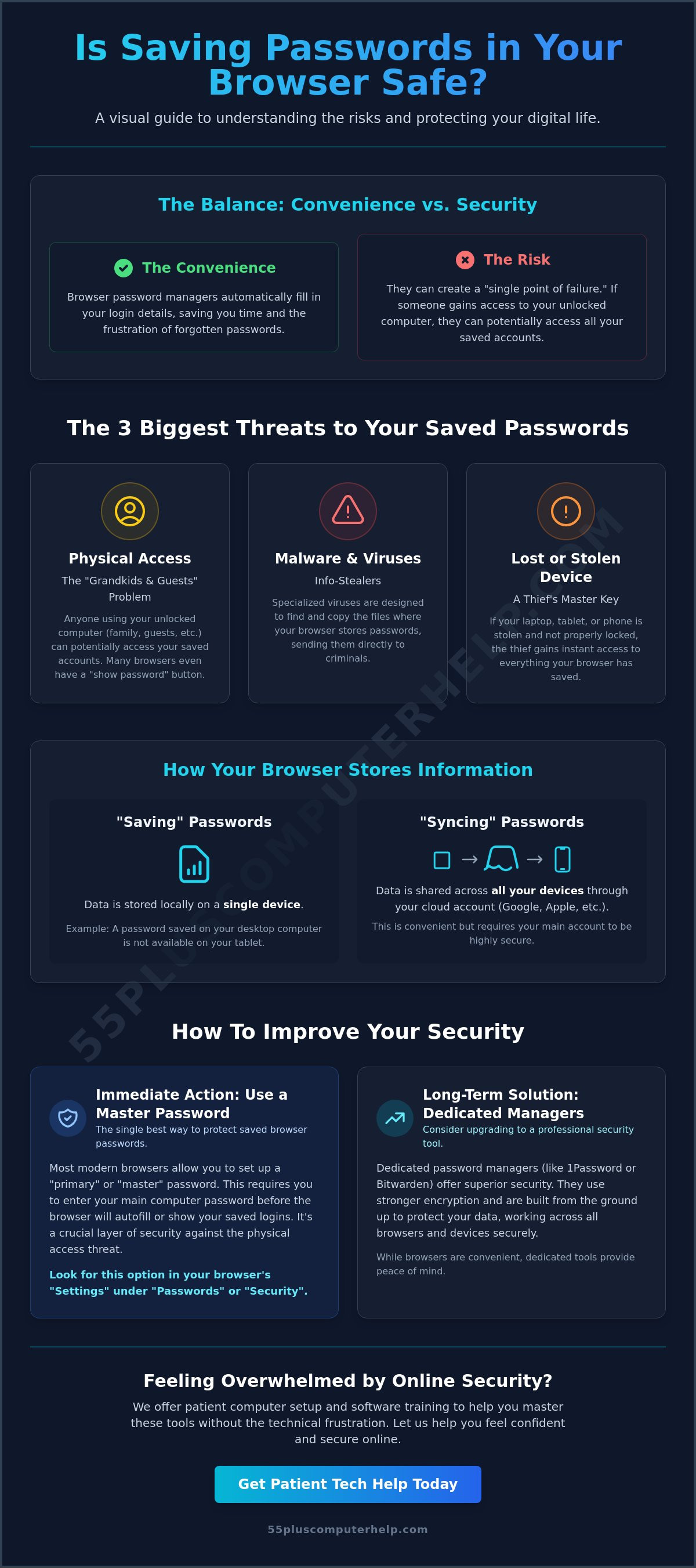
It's helpful to know that there are two ways your browser handles this information. Simply 'saving' a password usually keeps that data on the specific laptop or computer you are using right now. If you save a password on your desktop, your tablet won't know it yet. This is a very local way to keep things. It stays put on that one piece of equipment.
'Syncing' is a bit different. This feature sends your saved passwords to your other devices, like an iPad or a smartphone. If you save a password in Chrome on your computer, it will appear in Chrome on your phone too. To make this work, you must be signed into a personal account, such as a Google, Apple, or Microsoft account. While this adds a lot of convenience, it's one of the main reasons people ask is it safe to save passwords in my browser. It connects your devices together, which is helpful but requires a little extra care to ensure your main account is secure.
The Real Risks of Storing Passwords in Your Browser
Many people ask is it safe to save passwords in my browser because they worry about hackers in far-off countries. While that is a valid concern, the most immediate danger often comes from within your own home or neighborhood. If your computer does not have a lock screen, anyone who sits down at your desk can access your personal information. Modern browsers are safer than they used to be, but they still act as a "one-stop shop" for thieves who want to find all your secrets in one place.
The 'Grandkids and Guests' Problem
It is common for family members to share a computer or tablet. Perhaps your grandkids want to play a game, or a guest needs to check their flight status. If your browser has saved your logins, these visitors could accidentally sign into your email or bank account. Even worse, browser settings often allow a user to click a small "eye" icon to see your passwords in plain text. A shared family computer is one of the least secure places to keep your sensitive data. If you are worried about who might be seeing your information, getting professional computer setup assistance can help you create separate accounts for guests.
Malware and the 'Master Key' Concept
Beyond physical visitors, there are digital threats to consider. Certain viruses, often called "info-stealers," are designed specifically to scrape or steal browser password files. Dedicated thieves know exactly where browsers hide this information on your hard drive. Experts have identified specific risks of storing passwords in your browser, including how easily these files can be copied by malware. If a thief gets into your main computer account, they essentially have a master key to every account you have ever saved.
What Happens if Your Device is Lost or Stolen?
Physical theft is another major concern for seniors who travel with their devices. If a laptop or tablet is stolen, the thief has immediate access to your digital life. Without a strong master password protecting the browser, your email, bank, and social media accounts are an open book. It is important to remember that browser security is only as strong as the password you use to log into your computer. If you don't have a login password on your device, your saved credentials have no protection at all.
So, when you ask is it safe to save passwords in my browser, the answer depends on how you protect your physical machine. If you live in a busy home or travel often, the risks are much higher. The convenience of a "one-click" login creates a significant opening for trouble if you are not careful. We recommend looking at your security from the outside in, starting with the very first screen you see when you turn on your computer.
Browser Managers vs. Dedicated Password Managers
When you decide how to manage your digital life, you might feel torn between the convenience of your browser and the safety of a specialized app. We often hear from seniors who want to know: is it safe to save passwords in my browser when there are other options available? While browsers like Chrome or Safari are very handy, they are designed first and foremost to help you browse the web. Dedicated password managers, such as Bitwarden or 1Password, are separate apps built with a single goal: keeping your data locked away from prying eyes.
The main difference lies in what these tools prioritize. Browsers prioritize making things easy for you. They want to reduce the number of clicks it takes to get to your favorite sites. Dedicated apps prioritize making things safe. A dedicated manager requires a Master Password that only you know. Without this one secret code, no one can see any of your other passwords. This is a much higher level of protection than a browser, which often lets anyone who can open the program see your saved details. If you are looking for a checklist on securing your browser's saved passwords, you will find that experts often suggest moving your most sensitive data to these specialized apps.
Why 'Dedicated' is Usually Safer
Dedicated managers use very strong encryption. Think of this as a high-tech vault that is much harder for a thief to crack than a simple desk drawer. Most of these apps use Zero-Knowledge security. This means the company that makes the app has no way to see your passwords. Only you hold the key. These apps also act as a helpful coach. They can scan your list and tell you if a password is too weak or if you've used the same one for five different websites. This makes it much easier to stay safe without having to be a tech expert. If you need help with software installation to get one of these tools running, a patient expert can walk you through it.
The Convenience of Cross-Platform Use
One of the best parts of a dedicated manager is that it follows you everywhere. If you save a login on your computer, it is instantly available on your smartphone or tablet. You aren't stuck using just one browser. You can switch from Chrome to Safari or Edge and your passwords will always be there waiting for you. These apps also let you store more than just logins. You can keep secure notes, like the combination to a physical safe, or your credit card information for easier shopping. While it is convenient, asking is it safe to save passwords in my browser is the first step toward a more secure digital life. Using a separate app ensures your information is protected no matter which device you use.
How to Secure Your Saved Passwords Right Now
You might already have dozens of passwords stored in your computer. While you consider whether is it safe to save passwords in my browser for the long term, you can take action today to make your current setup much stronger. Securing your digital life does not have to happen all at once. You can start with a few simple steps to protect your most sensitive information while keeping the convenience you enjoy.
The first step is to turn on a Primary Password or Master Password if your browser offers it. This feature acts like a physical lock on your digital notebook. When this is active, the browser will ask for one specific code before it fills in any of your saved logins. This prevents a guest or a grandchild from accidentally accessing your accounts. It is a simple way to add a layer of protection without needing to learn an entirely new system.
A Simple Security Audit for Your Browser
You should begin by checking exactly what your computer has remembered. Open your browser settings and look for the section labeled Passwords or Autofill. You will see a list of every website and username the browser has stored. Review this list carefully. Look for sensitive sites like your bank, medical portals, or your primary email. If you find these in the list, it is best to delete them. You should also remove passwords for any accounts you have closed or no longer use. Cleaning out this list reduces the amount of data a thief could find.
The 'Middle Ground' Strategy
If you aren't ready to use a separate app yet, you can use a middle ground approach. Only allow the browser to remember passwords for low-risk websites. These might include news sites, hobby forums, or recipe blogs. Never save passwords for your bank, your primary email, or government websites like Social Security. Keeping these high-stakes logins out of the browser is a smart way to stay safe. If you worry that your device might already have a virus, you can read our guide on Virus and Malware Removal to learn how to keep your computer clean.
Setting Up Multi-Factor Authentication
Multi-Factor Authentication, or MFA, is one of the best tools available today. It adds a second step to your login process. Usually, this is a short code sent to your smartphone. Even if someone manages to steal your saved browser password, they cannot get into your account without that second code from your phone. This is a vital safety net for your digital home base. You can find more tips on protecting your accounts in our article about Email Setup and Troubleshooting. If these steps feel overwhelming, we offer patient smartphone and tablet training to help you master these security tools at your own pace.
How We Help Seniors Navigate Online Security Safely
After learning about the risks and benefits, you may still find yourself wondering: is it safe to save passwords in my browser? Every person has a different level of comfort with technology. We are here to help you find the balance that works best for your life. Our team provides patient, one-on-one support to create a password system that is both secure and easy to use. We don't just fix things. We teach you how they work so you can feel in control of your digital life.
We focus on building your confidence rather than just checking off a list of technical tasks. If you feel overwhelmed by talk of hackers or data breaches, we can help calm those anxieties. Our approach is neighborly and supportive. We believe that everyone deserves to use the internet without fear. By the time we finish our session, you will have a clear system in place that protects your personal information and simplifies your daily routine.
Personalized Security Training
We sit down with you to look at how you currently manage your logins. If you have a notebook full of handwritten codes or a long list saved in your browser, we can help you organize them safely. Our experts explain technical ideas in plain English. We take the mystery out of terms like "The Cloud" or "Encryption." Our goal is to make you feel independent. You should be able to check your email or shop online without worrying about who might be watching. We offer smartphone and tablet training that focuses on your specific needs and your own pace.
In-Home or Remote Support
Our experts can visit your home to ensure your devices are properly secured. We look at your computer setup to make sure your main login is protected and your settings are correct. If you decide that browser storage is too risky for your most important accounts, we can help you move your information to a more secure tool. This is often done through software installation and updates where we set up a dedicated manager for you. We can even help you with email setup and troubleshooting to ensure your primary accounts are locked tight.
Whether you want us sitting next to you in your living room or helping you over the phone, we are here to support you. We want to transform your frustration into a sense of accomplishment. You don't have to face technical changes alone. We specialize in the unique challenges faced by seniors. When you ask is it safe to save passwords in my browser, we give you a clear answer and the tools to act on it. Reach out to us today for a friendly, stress-free technology check-up. Let us help you keep your digital life safe and simple.
Taking the Next Step Toward Digital Peace of Mind
Managing your online life doesn't have to be a source of constant worry. You now have a better understanding of the trade-off between convenience and security. While you might still wonder is it safe to save passwords in my browser, you can now use the middle-ground strategies we discussed to protect your most important information. Small changes, like setting a master password or removing sensitive bank logins from your autofill list, provide immediate peace of mind. You have the power to stay secure while still enjoying the benefits of the internet.
Since 2014, our team has specialized in helping seniors navigate these changes with ease. We provide patient, one-on-one in-home training to ensure your equipment is set up correctly and your data is safe. From expert virus and malware protection to personalized smartphone lessons, we focus on your comfort and independence. You can master your technology without the headache. We are here to act as your trusted local experts whenever you need a helping hand.
Get Personalized Help Securing Your Passwords Today
You deserve to feel confident and safe every time you sign in. We look forward to helping you achieve that sense of accomplishment and security in your digital home.
Frequently Asked Questions
Is Google Chrome's password manager safe to use for my bank account?
It is generally better to avoid saving banking details in any browser. When you ask is it safe to save passwords in my browser for your bank, the answer is usually no. Your financial accounts need the highest level of protection. You should type those passwords manually or use a dedicated security app to keep your money safe. This keeps your sensitive financial data separate from your casual web browsing.
What happens if I forget the Master Password to my password manager?
If you lose your master password, you will likely lose access to your entire vault forever. Most secure managers do not have a way to reset this code for you. This is part of how they keep your data private from everyone else. We recommend writing your master password on a piece of paper. Keep it in a very safe place, such as a fireproof box or a locked drawer.
Can hackers steal my passwords if my computer is turned off?
Hackers cannot access the files on your physical computer while it is powered down. However, if your browser syncs your passwords to the cloud, they could still target your Google or Apple account from a different device. This is why it is so important to protect your main accounts with a very strong password. Turning off your machine is a good habit, but it is only one part of staying safe.
How do I see the passwords I have already saved in my browser?
You can find your saved list in the browser settings menu under a section called Passwords or Autofill. To see the actual characters of a password, your computer will usually ask you to enter your main login code. This is a great way to audit what you have stored. You can see which accounts are old and delete any information that you no longer need to keep.
Is it better to write my passwords in a notebook or save them in my browser?
Many seniors wonder is it safe to save passwords in my browser compared to using a paper notebook. A notebook is safe from remote hackers, but a guest or thief in your home could find it easily. Browser saving is convenient but comes with digital risks. We often suggest a dedicated manager as the best choice. It gives you the security of a vault with the convenience of a computer.
Does Apple's 'iCloud Keychain' work the same way as Chrome's password saver?
Yes, it functions in a very similar way but it is built into the Apple system. It syncs your logins across your iPhone, iPad, and Mac computer. Many experts consider it slightly more secure than a standard browser. This is because it often requires your fingerprint, face scan, or device passcode before it will fill in a password for you. It is a helpful tool for those who stay within the Apple family.
What should I do if I think my saved passwords have been stolen?
You should change your primary email password immediately and turn on Multi-Factor Authentication. Your email is the gateway to most of your other accounts. After that, work through your bank and credit card logins to update them. If you suspect your computer has a virus, you should seek professional virus and malware removal to ensure the thief is no longer watching your screen.
Are free password managers as safe as the ones you pay for?
Most reputable free password managers are just as safe as the versions you pay for. They use the same high-level encryption to protect your data from thieves. When you pay for a service, you are usually buying extra features like more storage or help for your whole family. The core security remains very strong even on the free plans. We can help you with software installation and updates to get one of these tools running.


