
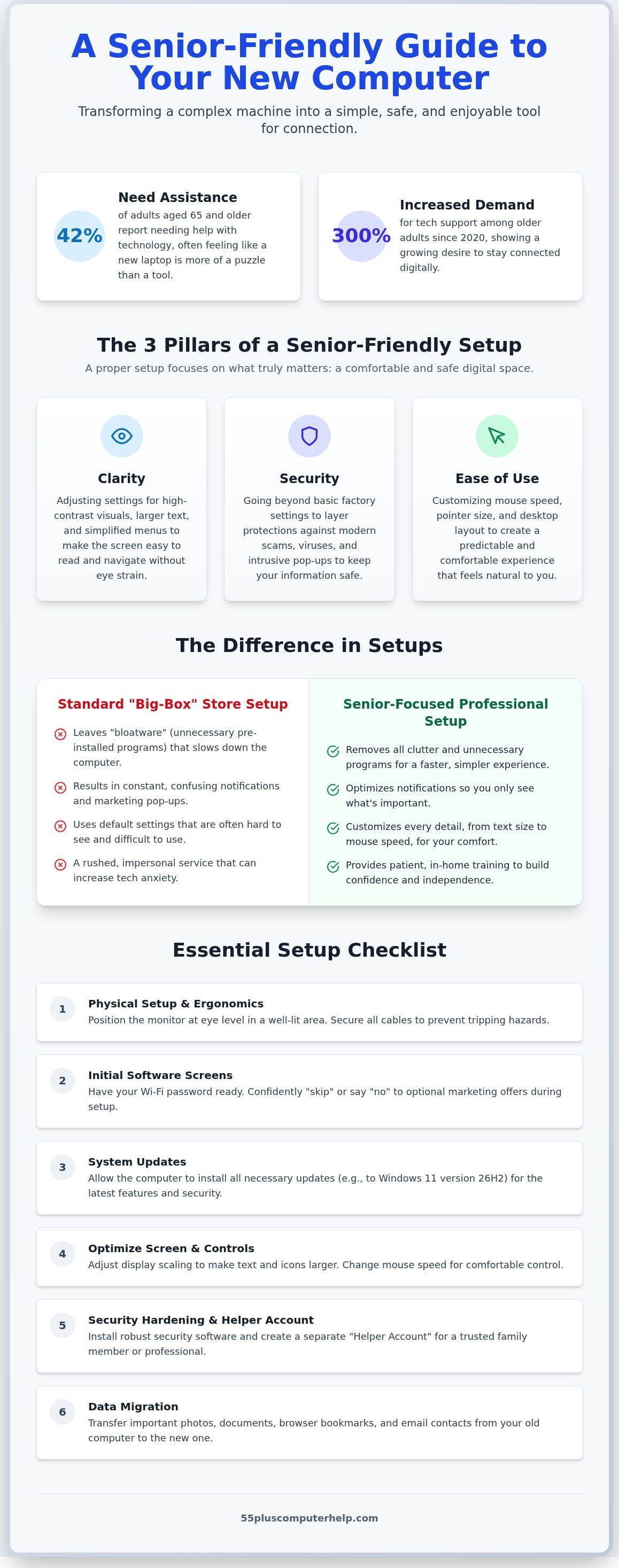
42% of adults aged 65 and older report needing assistance with technology. When you open a brand new laptop, it often feels more like a puzzle than a tool for connection. You might see tiny text that strains your eyes or confusing screens asking for account details you don't have yet. It's natural to worry about clicking the wrong icon and accidentally inviting a virus. A proper new computer setup for seniors shouldn't feel like a chore or a risk.
We know how it feels to want to stay connected but feel held back by complicated settings. This guide will show you how to transform a complex machine into a simple, safe, and enjoyable tool. You'll learn how to make your screen easy to read and your system secure. We'll look at how to use the latest 2026 accessibility features, update to Windows 11 version 26H2, and set up your video chats so you can talk to your family without any stress.
Key Takeaways
- Transform a confusing "first-run" screen into a personalized desktop that is easy to see and simple to navigate.
- Ensure your new computer setup for seniors includes adjusting display scaling and mouse sensitivity for a more comfortable experience.
- Protect your personal information by layering security settings that go beyond basic factory protections to stop modern scams.
- Gain digital independence by learning how to use your specific machine through patient, in-home training rather than a rushed store service.
What is a Senior-Friendly New Computer Setup?
A new computer setup for seniors is more than just connecting power cords or attaching a mouse. It's about creating a digital space that feels comfortable and safe. Many people think "setup" just means getting to the desktop screen. For us, it means tailoring every setting to match your specific needs. We focus on three main pillars: clarity, security, and ease of use. By reducing digital "noise," you can focus on what really matters. You want to see photos of your grandkids, read the news, and enjoy your hobbies without constant pop-ups getting in the way.
The demand for tech support among older adults has seen a 300% increase since 2020. This shows that more people are looking for ways to stay connected. When we look at computer accessibility features, we see that modern systems have many tools to help. However, these tools are often hidden deep in menus. A senior-friendly setup brings these helpful features to the surface so you don't have to hunt for them. This approach provides immediate peace of mind. You won't feel like you're fighting the machine. Instead, the computer becomes a helpful companion that responds exactly how you expect it to.
The Difference Between a Standard Setup and a Senior-Focused Setup
A standard setup from a big-box store often leaves your computer cluttered. These stores usually leave "bloatware" on the machine. These are pre-installed programs and constant notifications that cause confusion and slow down your system. A senior-focused setup removes this clutter entirely. We prioritize high-contrast visuals and simplified menus that make sense to you. A patient mentor takes the time to sit with you. We make sure you feel confident with the physical buttons and the mouse before we even talk about the internet. This personal touch reduces the anxiety that often comes with new technology. It transforms a cold technical process into a warm, supportive learning experience.
Why Customization is Key to Digital Independence
True independence comes from knowing your way around your own machine. Every person has different needs. You might need larger text to help with vision or a slower mouse speed for better control. Customizing these details prevents the frustration that leads many to give up on technology. Setting up the computer right the first time creates a foundation for success. When your desktop layout is organized specifically for your interests, you'll feel empowered to explore. You won't have to worry about clicking the "wrong" thing. A customized setup ensures the environment is safe, predictable, and easy to navigate every time you turn it on.
Essential Steps for Unboxing and Initial Configuration
Opening the box is the first milestone in your digital journey. It marks the start of a more connected life. Take your time with this process. There is no rush to finish everything in one sitting. A successful new computer setup for seniors begins with a calm environment and a clear workspace. Set aside an hour where you won't be interrupted so you can focus on each step with confidence.
Physical Setup and Ergonomics
Choose a well-lit area for your new desk. Natural light helps reduce eye strain and makes it easier to see the letters on your keyboard. Position your monitor so the top of the screen is at eye level. This prevents neck pain during long chats with family. Safety is just as important as comfort. Ensure all power cables are tucked behind the desk or secured with ties. Loose cords on the floor are tripping hazards that are easy to overlook. Finally, plug in your printer and run a test page. Seeing that first piece of paper print successfully is a great way to build early momentum.
Navigating the Initial Software Screens
When you first turn the machine on, you will meet the "First Run" experience. The computer will ask you to connect to Wi-Fi. Have your network name and password written down in large, clear print before you start. You'll also need to create or sign in to a Microsoft or Apple account. These screens often include many "opt-in" boxes for marketing and extra services. It is perfectly okay to say "no" or "skip" to these offers. Your goal is to reach the desktop, not to sign up for newsletters.
Once you reach the main screen, the system will likely want to run updates. As of August 2026, the latest version is Windows 11 version 26H2. It's vital to let these updates finish. If you feel overwhelmed by these initial screens, our team provides professional computer setup to handle the technical details for you. We also recommend creating a "Helper Account." This is a secondary user profile that allows a trusted family member or a professional to help you troubleshoot issues without needing your private password.
Data Migration: Moving Your Old Files
Your old computer likely holds years of precious memories. Moving family photos and important documents to the new machine is a top priority. Use a high-quality USB drive or a secure cloud service to transfer these files. Don't forget your web browser bookmarks and email contacts. These small details make the new computer feel like home. Always verify that your files open correctly on the new system before you stop using the old one. This double-check ensures that nothing valuable is left behind during the transition.
Optimizing Your Screen and Controls for Maximum Comfort
A computer is only useful if you can see what is on the screen without squinting. Most factory settings are designed for younger eyes, which means text is often too small and menus are cramped. Part of a proper new computer setup for seniors involves tailoring these visual settings to your specific comfort level. When your screen is clear and your mouse is easy to control, you'll feel much more confident using your new device every day.
Visual Accessibility Tweaks
The most effective change you can make is adjusting the "Scale and Layout" settings. In both Windows and macOS, you can increase the magnification to 150% or even 200%. This makes every icon, button, and word significantly larger. You won't have to lean forward to read your morning news or view family photos. As of 2026, Apple has introduced advanced "Apple Intelligence" features that include improved Magnifier capabilities. These tools use the computer's camera and screen to help you see fine details more clearly.
Dark Mode is another helpful tool for reducing eye strain. It changes bright white backgrounds to a soft gray or black, which reduces glare. If you prefer high contrast, you can choose themes that use bold yellow or white text on a black background. Email is often where seniors spend the most time, so it's important to get it right. You can find more tips on this in our guide to email setup and troubleshooting for seniors. Setting up large-font previews in your inbox ensures you can read messages at a glance.
Keyboard and Mouse Customization
The mouse cursor is often a tiny white arrow that is easy to lose on a busy screen. You can solve this by making the cursor "extra large" and changing its color to a bright green or yellow. This makes it stand out against any background. Many users also find that the mouse moves too quickly. By slowing down the "tracking speed" in your settings, you prevent the cursor from jumping across the screen when you move your hand slightly. This gives you much better control when clicking on small buttons.
If you find it difficult to hold down two buttons at once, such as when you want to print a document, you can turn on "Sticky Keys." This feature allows you to press buttons one at a time instead of all at once. For those who find standard keys hard to see, a large-print physical keyboard is a wonderful addition to your desk. These keyboards feature high-contrast letters that are much easier to identify. Finally, remember to "pin" your favorite apps like your web browser or photo gallery to the taskbar at the bottom of the screen. This allows for one-click access so you don't have to hunt through menus to find what you need.
Hardening Your New PC Against Scams and Viruses
Your new computer is a window to the world. It is also a target for people who want to cause trouble. A standard new computer setup for seniors often stops once you reach the desktop. However, true security requires adding a few extra layers of protection. In 2026, a CNET survey found that 54% of laptop owners encountered potential malware in the last year. This shows that being proactive is the best way to stay safe.
Modern computers come with built-in protection like Windows Defender. While this is helpful, many users choose third-party options for added peace of mind. Leading recommendations for 2026 include Bitdefender Antivirus Plus and Norton 360 Deluxe. These programs act like a digital security guard. They watch for threats while you browse. The most important rule to remember is the "Golden Rule" of the internet. If an unexpected pop-up or email link appears, do not click it. If you didn't ask for the information, it is likely a trap.
Setting Up a Security Perimeter
We start by ensuring your computer's firewall is active. This acts as a shield between your machine and the internet. We also set your web browser to "Strict" privacy mode. This prevents websites from tracking your every move. Installing a reputable ad-blocker is another essential step. It removes confusing "click-bait" ads that can lead to dangerous sites. If you ever feel your system has been compromised, our guide to virus and malware removal offers a clear path back to safety.
Recognizing Digital Scams
Scammers often use fear to get what they want. You might see a bright red screen saying your computer is infected. It might even give you a number to call. Remember that Microsoft and Apple will never call you out of the blue. These are "Tech Support Scams" designed to steal your money. We also teach you to look for red flags in emails, such as misspelled names or urgent threats about your bank account. To add an extra lock to your accounts, we help you set up Two-Factor Authentication (2FA). This sends a code to your phone so only you can access your private information.
Automated Backups for Peace of Mind
A backup is your ultimate safety net. If your computer fails or you accidentally delete a precious photo, a backup saves the day. We recommend using an external hard drive or a secure cloud service. We set these systems to run automatically so you don't have to remember to do it. It's a good habit to test your backup once a month to ensure your files are safe. If you want to ensure your system is fully protected from day one, you can schedule a professional virus protection setup with our team. We'll handle the technical details so you can enjoy your new computer without fear.
Why Professional In-Home Setup is the Best Choice for Independence
Many people believe that buying a computer at a big box store is the end of their journey. These stores often offer technical support, but the experience is usually rushed and impersonal. You might find yourself standing at a loud service counter while a busy technician speaks in confusing jargon. A professional in-home session is the complete opposite. It is a calm, personalized experience that happens in the comfort of your own living room. This approach ensures your new computer setup for seniors is tailored to your specific home environment and your unique pace of learning.
The Value of a Patient Mentor
A specialized technician acts as a patient mentor rather than just a repair person. We understand the language and pace needed to make technology feel accessible. Instead of just "fixing" things, we explain how they work in plain English. This builds a foundation of trust. You aren't just getting a working machine; you are building a relationship with a local expert who knows your specific setup. This transformation is powerful. It turns a source of anxiety into a tool for empowerment. When you understand the "why" behind a setting, you gain the confidence to use your computer without fear.
What to Expect from a Professional Setup Session
A professional session is methodical and thorough. We follow a comprehensive checklist that starts with unboxing and ends with your first successful email sent to a loved one. We don't just leave once the screen is on. We spend one-on-one time training you on the three things you want to do most. This might be video chatting with grandchildren, organizing digital photos, or reading your favorite magazines online. We also help you create a physical "security summary." This is a safe, paper-based record of your new passwords and security settings. Keeping this in a private, physical location in your home provides an extra layer of safety that digital-only systems cannot match.
Taking the Next Step Toward Digital Confidence
Setting up the hardware is only the beginning. True digital independence comes from ongoing learning. Our sessions often lead to further training in social media, photo sharing, or mastering video calls. There is a great sense of freedom in knowing that a reliable expert is just a phone call away. You don't have to rely on busy family members or struggle through confusing manuals alone. We are here to ensure your technology serves you, not the other way around. Let us help you get started with a stress-free new computer setup so you can focus on staying connected with the people who matter most.
Embrace Your New Digital World with Confidence
A new computer represents a wonderful opportunity to stay connected with your family and explore your interests. We've covered how a proper new computer setup for seniors involves more than just plugging in cables. It's about making the text easy to read and ensuring your system is safe from the latest scams. By taking these steps, you transform a complicated machine into a friendly tool that responds to your needs.
You don't have to tackle this process alone. Since 2014, we've specialized in helping seniors 55 and older master their technology through a patient, mentor-based approach. We believe that everyone deserves to feel independent and secure while using their devices. If you want to skip the frustration and start enjoying your machine today, we're here to support you. Get patient, professional help with your new computer setup and see how simple technology can be. You have the wisdom to learn new things. We have the patience to guide you every step of the way.
Frequently Asked Questions
How long does it typically take to set up a new computer for a senior?
A complete new computer setup for seniors typically takes between 90 minutes and three hours. This time varies based on how many family photos or documents you need to transfer from your old machine. We also spend time during this session to ensure you're comfortable with the physical buttons and basic navigation. Our goal isn't just to finish the task but to make sure you feel confident using your new tool before we leave.
Do I need to buy extra antivirus software for my new Windows or Mac computer?
Modern computers come with built-in security, but adding a specialized layer is often safer. In 2026, scams have become more sophisticated. We often recommend reputable third-party software like Bitdefender or Norton 360 to provide extra peace of mind. These programs act as a dedicated guard for your personal information. They catch threats that basic factory settings might miss, ensuring your online banking and private emails stay private and secure.
Can you help me move all my old photos and emails to the new machine?
We certainly can help you move your precious memories and important contacts. Moving files is a vital part of a new computer setup for seniors. We use secure methods to transfer your photo galleries, document folders, and browser bookmarks to your new system. We don't consider the job done until we verify that every single file opens correctly. This ensures you can pick up exactly where you left off without losing any history.
Is it better to get a laptop or a desktop computer for home use?
The choice between a laptop or a desktop depends on how you plan to use it. Laptops are wonderful if you want to use your computer in different rooms or take it when you travel. However, desktop computers often allow for much larger monitors and more comfortable keyboards. If you struggle with vision or prefer a dedicated workspace, a desktop might be the better choice. We can help you set up either option to be ergonomic.
What should I do if a screen pops up saying my new computer has a virus?
If you see a sudden pop-up warning about a virus, do not click any buttons on that screen. These are almost always "tech support scams" designed to trick you into calling a fake number. The best thing to do is close your web browser immediately or restart your computer. If you're worried that something did get through, we offer specialized virus and malware removal services to scan your system and give you a clean bill of health.
Do I need to have an internet connection ready before the setup technician arrives?
Having your Wi-Fi network name and password ready is very helpful. An active internet connection allows us to run essential system updates, such as the latest Windows 11 version 26H2. It also lets us set up your email accounts and test your printer connection during the initial visit. If you don't have your password handy or are having trouble with your router, we can assist with internet and Wi-Fi troubleshooting as part of our session.
How can I make the text on my screen larger so I do not have to squint?
You can easily increase the size of everything on your screen through the "Scale and Layout" settings. We typically adjust this to 150% or 200% magnification so that icons and text are large and clear. This prevents eye strain and makes it much easier to read news articles or view family photos. We also make the mouse cursor larger and brighter so you never lose track of where you are pointing on the screen.
Will a professional technician show me how to use the computer after it is set up?
Our patient technicians provide personalized technology training after every setup. We don't just plug in the cords and walk away. We sit with you to show you how to perform the tasks that matter most to you. This might include sending an email, joining a video call, or organizing your files. We act as a mentor to ensure you feel empowered and independent with your new technology from the very first day.


