
Imagine unboxing a sleek new laptop, only to feel a wave of anxiety instead of excitement as those complicated registration screens appear. It's a common feeling for many who worry that one wrong click might break the expensive device or lose years of precious family photos. You aren't alone in feeling frustrated by technical jargon or the fear of a botched new computer setup for seniors. It's perfectly normal to want your technology to work for you, rather than feeling like you're working for it.
This guide will show you how a professional, personalized approach can turn that confusing box into a powerful tool for independence and connection. You'll learn how to create a setup that's safe, simple, and ready for that first video call with your grandkids. We'll walk through the essentials of moving your data safely, organizing large icons for easy navigation, and customizing menus so they actually make sense. By the end of this article, you'll have a clear path toward a computer that's truly ready to go.
Key Takeaways
- Understand the difference between a standard factory setup and a personalized, senior-friendly configuration that prioritizes clarity and ease of use.
- Learn how to gather your legacy information and prepare your workspace for a stress-free new computer setup for seniors.
- Discover why a patient mentor approach is more effective than DIY methods for building long-term digital independence and confidence.
- Identify the key visual adjustments and software clean-up steps that make a new device immediately easier to navigate.
- Explore how a professional setup creates a secure environment to protect your photos and personal data from future security threats.
What is a Professional New Computer Setup for Seniors?
A professional new computer setup for seniors is a patient process that tailors a new device to a senior's specific needs and comfort level. This service goes far beyond simply taking a machine out of its box. It is a comprehensive approach that includes unboxing, connecting all hardware, configuring software, and providing a personalized orientation. We want your new tool to feel like a helpful companion rather than a source of stress.
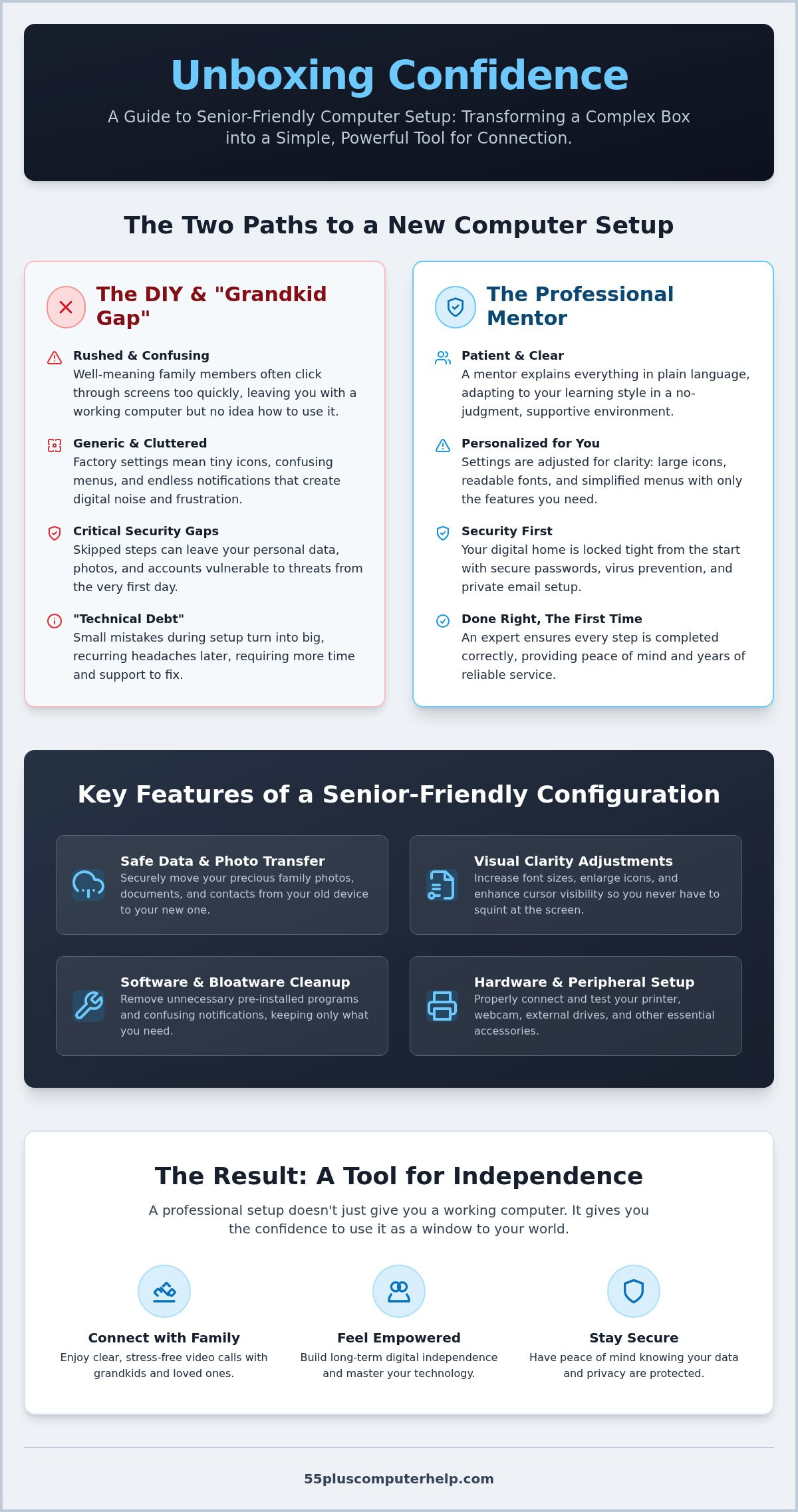
There is a significant difference between a "factory" setup and a configuration designed specifically for you. When you buy a computer from a store, it's set up for a generic user. This often results in tiny icons, cluttered menus, and endless notifications that serve no purpose. A senior-friendly configuration strips away the noise. It prioritizes clarity and makes the features you actually need easy to find. We also prioritize safety from the start. A professional setup includes a critical focus on virus and malware removal and prevention. We ensure your digital home is locked tight before you ever enter your first password.
Beyond Just Plugging It In
Setting up technology involves more than just power cords. We configure the operating system for maximum readability. This means adjusting font sizes and cursor visibility so you don't have to squint at the screen. For those interested in the technical standards of these adjustments, you can review this comprehensive guide to computer accessibility. Our process also includes:
- Connecting essential peripherals like printers, webcams, and external backup drives.
- Ensuring a secure Wi-Fi connection to protect your personal information.
- Testing internet speeds to confirm your connection is reliable for video calls.
The Human Element of Tech Installation
The first hour you spend with a new device often determines your long-term confidence. If that hour is confusing, it's easy to feel like you'll never master the machine. This is where a tech mentor makes a difference. We explain what every cord does and what every button means in plain language. We don't use industry jargon that leaves you feeling excluded.
We set a pace that respects your existing knowledge and learning style. Everyone learns differently, and we adapt our approach to your specific needs. By the time we finish the setup, you won't just have a working computer. You'll have the confidence to use it. This supportive environment transforms a complex system into a simple, helpful tool for your daily life.
Professional Setup vs. DIY: Why Personalized Support Matters
Many people turn to their children or grandchildren when they need a new computer setup for seniors. It's a kind gesture, but it often leads to more frustration than clarity. This is what we call the "Grandkid Gap." Younger generations grew up with technology and often move through screens at lightning speed. They might click through five different settings before you've had a chance to ask what the first one did. You're left with a working computer but no idea how to actually use it.
Choosing a professional setup saves you time and prevents "technical debt." This happens when small mistakes during the initial configuration turn into big headaches later. An expert ensures every step is completed correctly the first time. We've seen every possible technical hurdle and know how to clear them quickly. This objective support gives you peace of mind that your device is ready for years of reliable service.
Avoiding the 'Fast-Talker' Family Trap
Professional mentors don't just know technology; they know how to teach it. We use plain language instead of confusing jargon. If we mention "the cloud" or "syncing," we explain exactly what those terms mean for your photos and files. We create a "no-judgment" zone where every question is a good one. You won't feel rushed or like you're a burden to a busy relative. Learning from an expert allows you to focus on the machine without the emotional weight of family dynamics. It's a supportive environment designed to build your confidence from the very first click.
Security and Privacy in a Private Setting
DIY setups often skip critical security steps to save time. This can lead to forgotten passwords or accounts that aren't properly protected. A professional setup ensures your accounts are created safely from the start. We help you manage passwords securely so you never feel locked out of your own life. This includes professional email setup and troubleshooting to ensure your private messages stay private.
We also follow international standards for digital inclusion, such as the guidelines for Web Accessibility for Older Users. This ensures your computer isn't just secure, but also easy to navigate. Working with a vetted, local professional is much safer than letting an anonymous store clerk handle your sensitive data. If you're ready to start your digital journey with a trusted partner, our team offers personalized technology support tailored to your pace.
Key Features of a Senior-Friendly Computer Configuration
A successful new computer setup for seniors makes the technology feel invisible. You should be able to focus on your family and hobbies, not the machine. We start by optimizing the visual settings for maximum readability. We increase the font size so text is easy to read. We make the cursor larger and brighter so you never lose it on the screen. We also adjust the screen brightness to reduce eye strain. These small changes make a huge difference in how you feel when using your device.
Next, we simplify the desktop. New computers often come with "bloatware," which are pre-installed apps you will likely never use. We remove these distractions to keep your workspace clean. We then pin your essential apps, like Email and Zoom, directly to the taskbar. This ensures your most important tools are always visible and just one click away. To protect your memories, we set up automated data backup and recovery. This keeps your family photos and documents safe without you having to remember to save them manually. We also add robust security layers, such as ad-blockers and anti-virus software, to create a safe browsing environment from day one.
Accessibility and Ease of Use
Physical comfort is just as important as visual clarity during a new computer setup for seniors. We customize your mouse and keyboard settings to match your specific needs. For example, we can slow down the double-click speed or make the keys more responsive if you have arthritis. If typing feels like a chore, we can set up voice-to-text tools. This allows you to dictate emails or search the web using just your voice. You can find more specific tips on these features in Microsoft's guide to senior-friendly tech. We also organize your Start menu by placing the tools you use every day right at the top. This makes your computer feel intuitive rather than intimidating.
Digital Safety and Maintenance Basics
We want your computer to stay healthy and fast for a long time. We configure automatic software updates so your system stays secure while you sleep. You won't have to worry about confusing pop-up windows asking for permission to update. During your setup session, we provide a brief, patient introduction to recognizing common internet and email scams. Knowing what to look for is your best defense against bad actors. Finally, we set up remote support tools. If you ever run into a problem later, a trusted mentor can securely log in and help you from afar. This ensures you are never truly stuck and always have a way to get help when you need it.
How to Prepare for Your New Computer Setup Session
Getting ready for your session is a great way to feel in control from the start. A little preparation helps us focus on your goals rather than hunting for missing cables. The most important step is gathering your "Legacy" information. This includes any old email addresses and the passwords you currently use. Write these down on a piece of paper so they are ready when we begin the new computer setup for seniors. Having this information at your fingertips prevents frustration during the account creation process.
You should also find your internet service provider (ISP) information. Sometimes a new device needs a little help connecting to the web for the first time. Having your account details or the router password nearby ensures we can troubleshoot any connection issues immediately. This keeps the process moving forward smoothly without unnecessary delays.
Next, choose a workspace that makes you feel comfortable. A clean, well-lit table is best. Make sure there is a power outlet within reach and that the spot has a strong Wi-Fi signal. If your router is in a different room, we might need to move closer for the initial configuration. A clear space allows us to lay out the hardware and see every connection clearly.
Creating Your Setup 'Wish List'
Think about the three most important things you want to do with your new computer. Maybe you want to see your grandkids on video, or perhaps you need to access online banking. Don't worry about using technical terms. Just describe what you want the computer to do in your own words. If you have other devices, like a printer or a smartphone that needs syncing, add them to your list. We want to make sure every part of your technology works together perfectly during your new computer setup for seniors.
Organizing Your Workspace and Credentials
Keep all your hardware in one place before your mentor arrives or the remote session begins. This includes the computer itself, the monitor, the mouse, and all the cables that came in the box. It also helps to have a dedicated physical notebook. You can use this to record your new passwords and any "how-to" notes we discuss during the session. Writing things down in your own handwriting often makes them easier to remember later.
Since the setup and training process usually takes between one and two hours, ensure you have a comfortable chair. We want this to be an enjoyable educational experience, not a physical strain. If you are ready to turn your new device into a helpful tool, you can schedule your personalized setup session today and let us handle the technical details for you.
Why 55 Plus Computer Help is Your Trusted Technology Partner
Since 2014, 55 Plus Computer Help LLC has focused exclusively on the unique needs of the senior community. We understand that technology changes quickly, and it's easy to feel left behind. Our team doesn't just speak the language of computers; we speak your language. We avoid the cold, clinical jargon used by corporate support desks. Instead, we provide a warm and welcoming environment where you can learn at your own pace. A new computer setup for seniors should be a celebration of new possibilities, not a source of technical dread.
Our "Patient Mentor" approach is what sets us apart from standard repair services. We don't just sit down and fix the settings while you watch in silence. We empower you to use your device with confidence. We explain the "why" behind every step, ensuring you feel in control of your digital life. Whether we are unboxing a new desktop or configuring a tablet, our goal is your long-term independence. We want you to feel a sense of accomplishment every time you turn on your machine.
We offer flexible support options to fit your specific situation. We provide onsite help for the physical aspects of a new computer setup for seniors, such as connecting printers and organizing cables. If you have a quick question later, our remote support tools allow us to help you instantly without a home visit. Our pricing is always transparent and based on simple hourly fees. You won't find hidden contracts, fine print, or high-pressure sales tactics here. We believe in local accountability and building trust through honest, reliable service.
A Trusted Mentor in Your Digital Journey
Working with a mature professional makes a world of difference. Our mentors understand the specific challenges that come with modern technology, from small fonts to confusing touchscreens. We are committed to your dignity. We never make you feel "out of touch" for asking a question. We view our service as the start of a long-term relationship. We are here for the initial setup, but we are also here for the ongoing training and troubleshooting that keeps you connected to what matters most.
Taking the First Step Toward Confidence
A professional setup session is an investment in your peace of mind. It pays for itself by reducing frustration and preventing expensive security mistakes. You don't have to struggle with complex manuals or wait for a busy relative to call you back. You can join the thousands of seniors who have moved from feeling tech-anxious to feeling tech-savvy. Ready to get your new computer running perfectly? Schedule your personalized setup session today and start your journey with a partner you can trust.
Start Your New Digital Chapter with Confidence
A new computer setup for seniors doesn't have to be a source of stress. By focusing on accessibility and security from the very first hour, you turn a complex machine into a helpful tool for connection. You've learned how gathering your passwords and setting clear goals can prepare you for a successful session. Most importantly, you now know that you don't have to navigate this journey alone.
Since 2014, our patient, in-home mentors have specialized in speaking your language. We don't just fix settings; we empower you to master technology at your own pace. This personalized approach ensures your device is safe, simple, and ready for you to enjoy. Schedule Your Personalized Computer Setup with 55 Plus Computer Help today to begin with a trusted partner by your side.
You deserve to feel independent and secure in the digital world. We look forward to helping you make your new computer work exactly the way you need it to.
Frequently Asked Questions
What is included in a professional new computer setup for seniors?
A professional new computer setup for seniors includes unboxing your device, connecting all hardware, and configuring the software to meet your needs. We focus on making the screen readable by adjusting font sizes and removing unnecessary apps. Our mentors also spend time teaching you the basics so you feel empowered to use your new tool immediately. We ensure your desktop is clean and your most important apps are easy to find.
How long does it typically take to set up a new computer and provide basic training?
Most sessions take about one to two hours. This timeframe covers the technical work and a personalized orientation session. We don't rush the process because your comfort is our priority. You'll have plenty of time to ask questions and practice using your new menus while your mentor is right there to help. This steady pace ensures you feel confident before we finish.
Can you transfer my old photos and files to my new computer?
We can safely move your photos, documents, and other important files from your old machine. Protecting your memories is a vital part of a new computer setup for seniors. We organize these files on your new desktop so they are easy to find and back up. This transition ensures you don't lose years of family history and makes your new computer feel like home.
Do I need to buy anti-virus software before my setup session?
You don't need to buy any software before we arrive. We'll look at the built-in security features of your computer and decide if extra protection is necessary. We can install ad-blockers and anti-virus tools during the session to keep your data safe. Our focus is on creating a secure environment that protects you from internet scams and keeps your personal information private.
Can you help me set up my printer and Wi-Fi at the same time?
Yes, we help you connect your printer and set up your Wi-Fi connection. We ensure your signal is strong and your printer is ready to handle your documents. Our mentors also check that your internet speed is fast enough for video calls with your family. This comprehensive approach means your entire workspace is ready to go at once without any extra frustration.
Is it better to have someone come to my home or do it remotely?
Onsite support is excellent for physical setup and connecting devices like routers or printers. It allows us to ensure your workspace is comfortable and well-lit. Remote support is a convenient choice for software updates or training sessions once your hardware is already in place. Both methods provide the same patient and supportive guidance you expect from a trusted technology mentor.
Will I get a list of my new passwords after the session is over?
We encourage you to write down all your new passwords in a physical notebook during the session. We'll walk you through the account creation process and make sure you have a clear record of every credential. This practice helps you maintain your independence and ensures you never feel locked out. Having a written record in your own handwriting makes it much easier to remember.
Can you help me set up my new iPad or tablet along with my computer?
We are happy to assist with your iPad or tablet setup alongside your computer. We can even sync your accounts so your messages and photos stay updated across all your devices. This unified approach makes it much easier to stay connected with your grandkids and friends. We provide the same patient training for tablets as we do for your desktop computer to build your confidence.


