
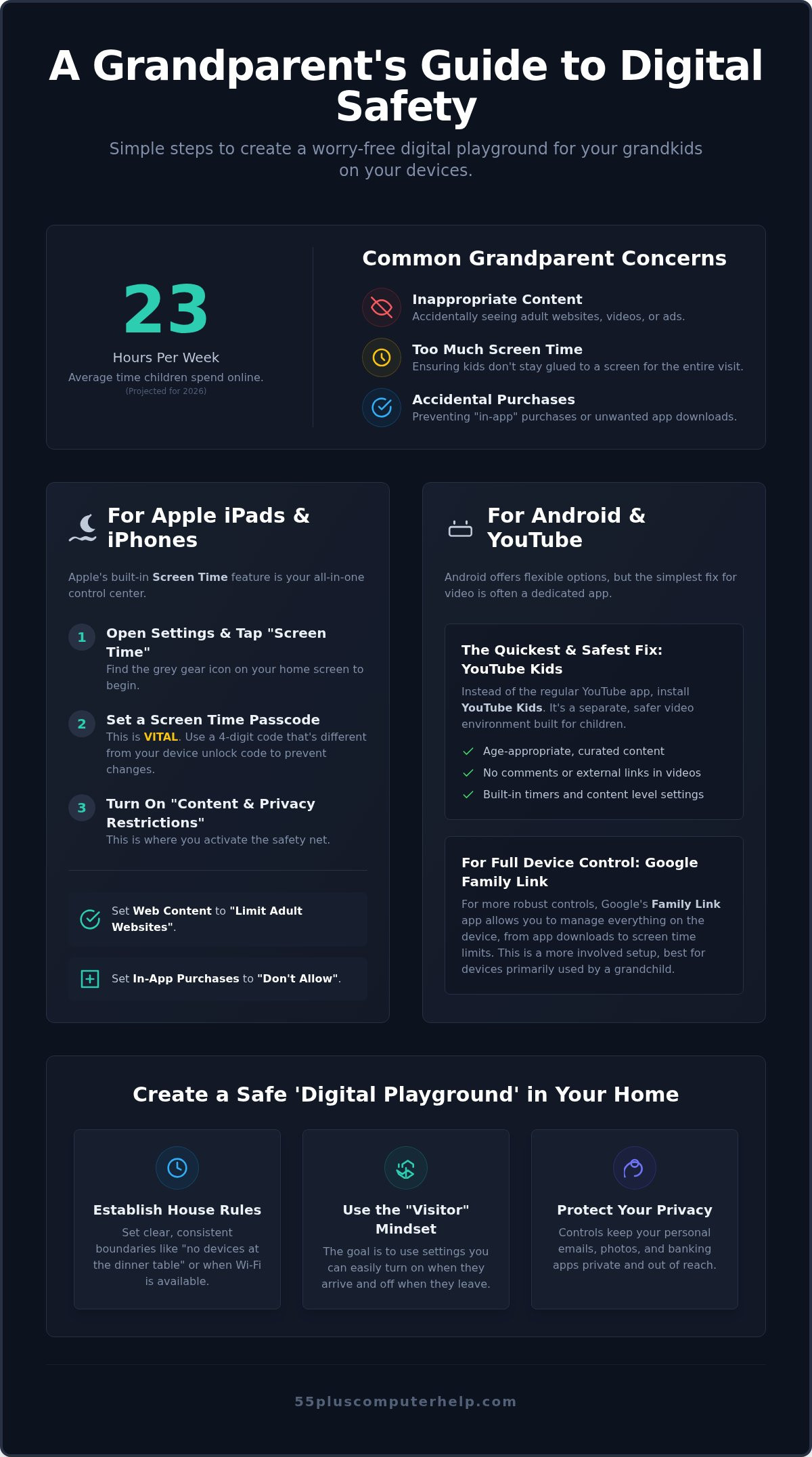
Last weekend, Martha felt a familiar knot in her stomach when her ten-year-old grandson asked to use her tablet. She wanted to say yes, but she worried about him accidentally seeing something inappropriate or changing her settings. It is a common concern for many seniors who want to be the "fun" grandparent without compromising safety. Learning how to set up parental controls for grandkids is the best way to replace that anxiety with confidence. With children now spending an average of 23 hours a week online as of 2026, having a plan is more important than ever.
You likely feel that technology moves too fast to keep up with, and that is okay. We believe that you should feel in control of your own devices. This guide will show you how to create a secure digital environment on any smartphone or tablet without any technical frustration. We will cover the latest 2026 updates for Apple and Android, including how to set simple time limits and filter content. You will learn how to turn these safety features on for a visit and off again once the grandkids head home, keeping your digital life simple and secure.
Key Takeaways
- Understand that parental controls are simple tools to keep your grandkids safe while they explore the digital world on your devices.
- Learn exactly how to set up parental controls for grandkids on Apple and Android devices using built-in settings like Screen Time and Family Link.
- Discover why using specialized apps like YouTube Kids can prevent accidental exposure to inappropriate videos or ads.
- Establish clear, consistent boundaries at your home so everyone knows where and when devices can be used safely.
- See how a patient technology mentor can help you personalize these settings so you feel confident and in control during every visit.
What Are Parental Controls and Why Do Grandparents Need Them?
If you feel a bit overwhelmed by the digital world, you are not alone. You might wonder, What are parental controls? Put simply, these are digital tools that help you manage what a child can see and do while using a smartphone, tablet, or computer. When you learn how to set up parental controls for grandkids, you are building a digital safety net. This ensures that their time on your device is fun, age-appropriate, and free from surprises. It turns a source of anxiety into a tool for connection.
Most technical guides focus on parents who manage devices every single day. As a grandparent, your needs are different. You likely have a "visitor" mindset. You want your iPad to work normally for you most of the week, but you want it to be safe the moment your grandkids walk through the door. The benefit of these settings is peace of mind. You can allow them to explore while you feel confident they won't stumble onto mature content or online scams.
Common Concerns for Grandparents
Many of the seniors we help share the same worries. You don't want a grandchild accidentally spending money in an app store or making "in-app" purchases while playing a game. You also want to make sure the kids don't stay glued to the screen for hours on end. Setting these controls automatically blocks inappropriate websites and search results. This means you can enjoy your visit without having to hover over their shoulder every second to see what they are doing.
The Difference Between Controls on Your Device vs. Their Device
There is a big difference between handing a child your personal phone and letting them use their own device. If they use your tablet, you can set up a "guest" experience. This keeps your personal emails and banking apps private and out of reach. If they bring their own device from home, you can still set rules for your house, such as specific times the Wi-Fi is available. When you understand how to set up parental controls for grandkids, you can choose the simplest method for your specific situation. Keeping things uncomplicated is usually the best path for occasional visits. You want settings that are easy to turn on when they arrive and just as easy to turn off when they leave.
How to Set Up Parental Controls on Apple iPads and iPhones
If you own an iPad or iPhone, your grandkids will likely want to use it for games or videos. Apple makes it very easy to manage these visits through a feature called Screen Time. This is the central hub where you control everything from which apps they can open to how long they can play. Learning how to set up parental controls for grandkids on these devices starts with the grey Settings icon on your home screen. Once you open Settings, you will see Screen Time listed on the left side. It is a powerful tool that helps you stay in charge of your device.
Before you change any settings, you must create a Screen Time Passcode. This is a four-digit code that is separate from the one you use to unlock your phone. It ensures that your grandkids cannot change the rules you have set. Pick a number that is easy for you to remember but hard for a child to guess. According to this FTC guide to parental controls, using a passcode is a vital first step in creating a safer digital environment. If you ever feel stuck during this process, a patient technology mentor can help you set this up during a quick training session.
Step-by-Step: Restricting Content on an iPad
Once you are in the Screen Time menu, tap on "Content & Privacy Restrictions." You will need to toggle the switch at the top to "On" to see all the options. From there, select "Content Restrictions" and then "Web Content." We recommend choosing "Limit Adult Websites." This automatically blocks millions of inappropriate pages. If your device is updated to the Fall 2026 version of iOS 27, you can even use the new "Ask to Browse" feature. This sends a request to your device whenever your grandchild wants to visit a new website in Safari. It gives you total control over what they see.
Preventing Accidental Purchases and Downloads
One of the biggest concerns for grandparents is the "bill shock" of accidental purchases. You can prevent this by tapping "iTunes & App Store Purchases" within the Screen Time menu. Set both "Installing Apps" and "In-app Purchases" to "Don't Allow." This simple change means the kids cannot download new games or buy extra "coins" in a game without you knowing. You should also select "Always Require" under the password section. This adds an extra layer of security for every single download. These small steps ensure that your visit remains focused on fun rather than unexpected credit card charges.
Protecting Grandkids on Android Devices and YouTube
If you use a Samsung, Google Pixel, or any other Android device, you have access to a very helpful tool called Google Family Link. This app is the best way to manage your grandchild’s digital safety when they use your phone or tablet. As of August 2026, devices updating to Android 17 have these controls built directly into the main settings menu. This makes it easier than ever to schedule "downtime" or set app limits. While we previously discussed parental controls for iPhone and iPad, Android offers a similarly reassuring experience that keeps you in the driver’s seat.
The simplest "grandparent hack" for Android is a feature called App Pinning. This allows you to "pin" a single app, like a digital coloring book or a specific game, so the child cannot leave that screen. They won't be able to accidentally open your emails or look at your private photos. It is a wonderful way to say "yes" to a quick game while keeping your own data private. Learning how to set up parental controls for grandkids doesn't have to be a chore; sometimes the simplest tools are the most effective for a short visit.
Safe Browsing with Google Chrome
If your grandkids use your computer to browse the web, you should check your Google Chrome settings. By signing into your Google account, you can sync safety settings across all your devices. We highly recommend enabling a feature called SafeSearch. SafeSearch is a tool that filters explicit content from Google search results. This ensures that even if a child types in a confusing word, they won't see inappropriate images or text. It provides a clean, safe environment for them to satisfy their curiosity.
Managing YouTube for Different Age Groups
YouTube is incredibly popular, but the standard version can sometimes show videos that aren't right for young children. The YouTube Kids app is a much safer choice because it only shows curated, age-appropriate content. You can set the app to "Preschool," "Younger," or "Older" based on your grandchild’s age. For extra safety, you can turn off the "Search" function entirely. This limits them to videos that have been pre-approved by the platform. As of early 2026, you can even set daily time limits on the YouTube Shorts feed. This is a great way to prevent kids from scrolling through short videos for hours on end. Knowing how to set up parental controls for grandkids on YouTube gives you the confidence to let them watch their favorite shows while you enjoy your time together.
Creating a Safe 'Digital Playground' at Your House
Setting up the technical side is only half the battle. Your home should be a place where grandkids feel safe to explore but also understand the limits. Think of yourself as a digital mentor. You are not just a "tech police officer" looking to catch them doing something wrong. Instead, you are there to guide them through a complex world. Learning how to set up parental controls for grandkids works best when it is paired with clear, kind communication. When kids know the rules, they feel more secure and respected.
Establishing Your House Rules
Consistency is key during visits. You do not have to follow the exact rules they have at home, but your house should have its own clear standards. Creating these boundaries helps children transition into "grandma and grandpa’s house" mode. It also makes your job much easier when the devices come out.
- Designate a "charging station." Choose a spot in a common area, like the kitchen counter or a living room side table. This ensures devices stay in plain sight and do not disappear into bedrooms at night.
- Set "tech-free" zones. Meals, family walks, and board game nights are great opportunities to put the screens away. This teaches kids that while technology is fun, it is not the most important part of their visit.
- Explain the "why." Tell your grandkids that these settings exist to keep them safe from inappropriate content or mean people online. Most children respond well when they understand the goal is protection rather than punishment.
Recognizing Red Flags
Even with the best settings, kids might occasionally see something that upsets them. Watch for changes in their mood after they use a tablet. If they seem suddenly quiet, angry, or anxious, they might have encountered something inappropriate or confusing. Pay close attention if they mention a "new friend" they met in a game like Roblox. Remind them that people online are strangers, even if they seem nice in a game. Cyberbullying can also happen in the comments of videos or within game chats. If a child seems distressed after an online session, it is time to talk.
Encourage an "open door" policy. Let them know they can come to you if they see something scary or if someone is being mean to them online. Promise them they will not get in trouble for telling the truth. This trust is more powerful than any software setting. If you want help explaining these concepts to your family, our personalized technology training can give you the words and the tools to lead with confidence. Understanding how to set up parental controls for grandkids is about building a relationship, not just a barrier.
How 55 Plus Computer Help Makes Tech Safety Simple
Reading a guide is a great first step. However, we know that actually tapping the buttons on your own device can still feel intimidating. You might worry about "breaking" something or getting lost in a menu. Since 2014, 55 Plus Computer Help LLC has specialized in making technology accessible for seniors. We believe that you should feel confident and empowered when your family visits. If you still feel a bit nervous about how to set up parental controls for grandkids, you don't have to do it alone.
Our approach is built on patience and understanding. We are not just tech support; we are mentors. We can sit with you in your own home and walk through every setting at your pace. This personalized training ensures that you understand the "why" behind every choice. We can also provide remote support for those times when a grandchild is arriving in an hour and you need a quick refresher. Our goal is to transform your frustration into a sense of accomplishment and security.
Expert Assistance Tailored for Seniors
We come directly to you. This means you do not have to worry about unhooking your computer or lugging your tablet to a crowded, noisy store. Retail support centers are often fast-paced and use confusing jargon that makes you feel left behind. We do the opposite. We explain every setting in plain English so you feel in control of your digital life. While we help with your grandkids' safety, we can also perform virus and malware removal to keep your entire family safe from online threats. We can even help you secure your private email and social media accounts while we are there.
Booking Your Peace-of-Mind Session
Scheduling a one-on-one lesson is simple and stress-free. It is a good idea to book your session a week or two before a holiday or a planned visit. This gives you plenty of time to practice using the new settings. To get the most out of your training, have your devices and any passwords ready. We also suggest keeping a small list of questions on your notepad. We can walk you through how to set up parental controls for grandkids while also checking your other apps. For example, we offer email setup and troubleshooting for seniors to help you stay in touch with your loved ones long after the visit ends. Your peace of mind is our priority.
Enjoy Every Moment of Your Next Grandchild Visit
You now know that parental controls are simple tools for safety, not just restrictions. You have the basic steps for both Apple and Android devices. You also understand how to set house rules that protect your grandkids while keeping your own private data secure. Knowing how to set up parental controls for grandkids gives you the freedom to focus on making memories instead of worrying about the screen.
If you'd like a patient expert to walk you through these steps in your own home, we're here to help. We've provided trusted, jargon-free technical support to seniors since 2014. You can Get Patient, In-Home Help Setting Up Your Grandkids' Safety Controls today to ensure your next visit is stress-free. Our services are designed to make you feel confident and in control.
Technology shouldn't be a barrier between you and your grandchildren. With a few simple settings, you can create a safe digital space that everyone can enjoy together.
Frequently Asked Questions
Is it possible to set parental controls on a device I already use?
Yes, you can set these controls on your personal tablet or smartphone at any time. Both Apple and Android have built-in settings that allow you to toggle safety features on and off without needing a separate device. This is the most common way seniors learn how to set up parental controls for grandkids. It ensures your device remains yours while being safe for them during a visit.
Will parental controls slow down my computer or iPad?
No, standard parental controls do not slow down your device's performance. These settings are part of the operating system and use very little memory or processing power. You won't notice a difference in speed when browsing your own emails or news sites. The controls simply act as a filter for specific content rather than a heavy program running in the background of your system.
Can my grandkids bypass the parental controls I set up?
It is very difficult for them to bypass these settings if you use a strong Screen Time or Family Link passcode. Make sure your passcode is unique and not the same as your main lock screen code. Children are often tech-savvy, but they cannot change restrictions without that specific four-digit number. Keep your passcode private to maintain a secure digital playground for your family.
What is the best way to block YouTube completely on my phone?
You can block YouTube by using the "Allowed Apps" or "App Limits" section in your device settings. On an iPhone, you can set the limit for YouTube to one minute or remove it from the home screen entirely. For Android, you can disable the app in your main settings menu. This is a great solution if you prefer they only play offline games during their visit.
Do I need to pay for a special app to set up parental controls?
No, you do not need to pay for extra software for basic protection. Apple and Google provide powerful tools for free within their existing systems. While some third-party apps offer more detailed reports, the built-in settings are usually more than enough for occasional visits. Learning how to set up parental controls for grandkids using these free tools is often the simplest and most reliable path for most seniors.
Can I turn the parental controls off easily once the grandkids leave?
Yes, you can turn these settings off in just a few taps. Once your grandkids head home, you simply return to the Screen Time or Family Link menu and toggle the restrictions to "Off." Your device will immediately return to its normal state. This flexibility allows you to enjoy your personal settings during the week and switch to "grandparent mode" only when you actually need it.
How do I prevent my grandkids from seeing my private emails or photos?
The best way to protect your privacy is to use "App Limits" or a feature called "Guided Access." On an iPad, Guided Access locks the device into a single game or app. This prevents a child from swiping away to look at your photos or private messages. It is a very simple way to keep your personal life private while they enjoy their favorite games.
What should I do if my grandchild accidentally makes a purchase on my device?
You should contact Apple or Google support immediately to request a refund. Both companies have specific processes for accidental purchases made by children. To prevent this from happening again, make sure to set your "App Store Purchases" to "Don't Allow" in your parental control settings. This simple step saves you from the stress of unexpected charges on your next credit card bill.


