
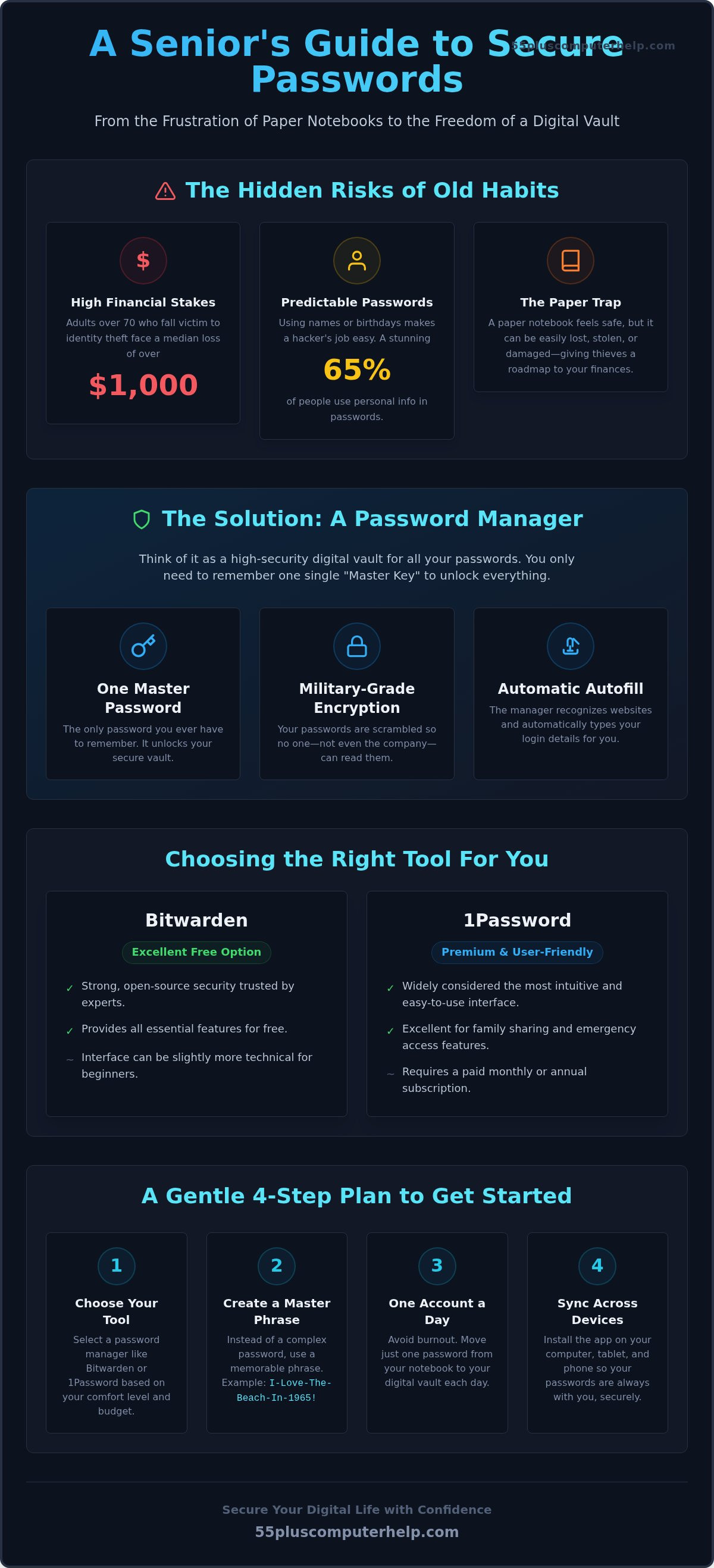
Did you know that adults over 70 who fall victim to identity theft face a median loss of over $1,000? It's a sobering number that highlights why password management for seniors is more important than ever. You likely feel the weight of this risk every time you log into your bank or check on family through social media. It's exhausting to keep track of dozens of different codes. That little notebook by the computer might not feel as safe as it used to. You aren't alone in feeling a bit anxious about how to stay protected without getting lost in technical jargon.
We understand that "incorrect password" messages are incredibly frustrating. You want to enjoy your time online, not spend it resetting accounts. This guide is here to help you discover how to safely organize your digital life and never forget a login again. We'll provide a patient, step-by-step look at password managers. These tools act like a secure digital keychain for your computer. You'll learn how to pick a simple tool, set it up with confidence, and even create a plan for emergency access so your family can help if needed.
Key Takeaways
- Learn why paper notebooks and simple passwords are risky and how to move toward a safer digital life.
- Discover how password management for seniors simplifies your day by using a "digital vault" to store and type your logins automatically.
- Explore the differences between popular tools like Bitwarden and 1Password to choose the best fit for your needs.
- Master a stress-free transition plan that uses the "one-account-a-day" rule to prevent technical burnout.
- Find out how a patient mentor can help you set up your security correctly and restore your digital independence.
The Problem with the 'Paper Notebook' and Simple Passwords
It is completely normal to feel overwhelmed by the sheer number of modern accounts you need today. Between banking, social media, and medical portals, the list of logins feels endless. Many people try to cope by using "easy-to-remember" passwords like a grandchild's name or a birth year. While these are easy to type, they are also the primary targets for hackers. In fact, 65% of Americans admit to using predictable patterns or personal information in their passwords. This makes a hacker's job much easier.
You might rely on a paper notebook tucked away in a desk drawer to keep track of it all. This feels safe because it is physical, but it carries a hidden trap. If that notebook is lost, stolen, or damaged by a simple coffee spill, you lose access to your entire digital life. Even worse, if someone enters your home, that notebook is a roadmap to your finances. Understanding password management for seniors starts with realizing that physical paper is often more fragile than a secure digital vault.
Another major risk is a tactic called "credential stuffing." Hackers know that many people use the same password for every site. If a small, unimportant website gets hacked, the thief will take your email and password and try them on your bank account or your primary email. One small leak can open every door. Proper password management for seniors prevents this by ensuring every single account has its own unique, complex code.
Why Your Brain Wasn't Built for 50 Passwords
Trying to remember dozens of different combinations is a heavy "memory tax." This constant worry can steal the joy from using technology. You might find yourself stuck in "password reset" loops, where you spend twenty minutes just trying to get into your email. This is the biggest cause of digital frustration. To fix this, we move away from short, "strong" passwords that are hard to remember. Instead, we use long "passphrases." A passphrase is a string of random words that is easy for you to visualize but nearly impossible for a computer to guess.
Modern Risks: Why Security Matters More Now
The digital world has changed. In 2026, scammers are using AI tools to create incredibly realistic phishing emails. These messages look perfect and are designed to trick you into giving up your login details. If your security is weak, you are at a higher risk for needing virus and malware removal. Think of a password manager like a high-quality deadbolt for your digital home. It keeps the bad actors out so you can enjoy your independence with total peace of mind.
What is a Password Manager and How Does it Work?
Think of a password manager as a high-security digital vault. Inside this vault, you store all the unique keys for your online accounts. The best part is that you only need one single "Master Key" to open the vault. This is the heart of password management for seniors. Once the vault is open, the software takes over the heavy lifting for you.
A feature called "Autofill" is where the magic happens. When you visit a website like your bank or a shopping site, the manager recognizes where you are. It automatically types your long, complex password into the login box. You don't have to squint at a notebook or hunt for your glasses to read tiny handwriting. It is fast, accurate, and removes the stress of typing errors.
You might wonder about safety. A common fear is, "What if the password manager company gets hacked?" These tools use "Encryption" to protect you. This means your passwords are scrambled into a mess of random characters. Only your Master Password can unscramble them. Even the company that makes the software cannot see your data. This level of security is why research on seniors' password habits shows that understanding these tools is the first step toward digital independence.
The Magic of the Master Password
You don't need a string of random numbers for your Master Password. Instead, we recommend a "Master Phrase." Pick a favorite song lyric, a quote, or a vivid memory. For example, "I-Love-The-Beach-In-1965!" is much easier to remember than a jumble of symbols. You only ever need to remember this one phrase. We suggest writing it down once and keeping it in a very safe "Emergency Only" location, like a fireproof box. If you find this step intimidating, a patient technology mentor can help you create a secure phrase that you won't forget.
Syncing Across Devices: Computer, Tablet, and Phone
Your digital keychain follows you wherever you go. If you save a password on your desktop computer, it automatically updates on your iPad and smartphone. This happens through the cloud, which acts like an invisible bridge between your gadgets. This synchronization makes future tasks like email setup and troubleshooting much simpler. When you get a new device, you won't have to start from scratch. Your vault will already have everything ready for you.
Comparing the Best Password Managers for Seniors
Choosing the right tool for password management for seniors doesn't have to be confusing. You might see lists of ten or twenty different apps online. This often leads to a feeling of "analysis paralysis." To keep things simple, we recommend focusing on the "Big Three": Bitwarden, 1Password, and the built-in managers from Apple or Google. Each has its own strengths depending on your comfort level with technology.
There are two main types of managers to consider. "Browser-based" managers live inside programs like Chrome or Safari. "Standalone" managers are separate apps that work across your entire computer and phone. Visibility is a major factor here. You should look for an interface that offers large print or high contrast settings. This makes it much easier to read your account details without straining your eyes.
Option 1: Built-in Browser Managers (The 'Training Wheels')
If you use Google Chrome or Apple Safari, you already have a basic manager ready to go. These are often the easiest place to start. They are completely free and require nothing to install. When you log into a site, the browser asks to save your password. It's very straightforward. However, there are limits. These passwords usually only work inside that specific browser. If you switch from your computer to a tablet, it can be harder to get your logins to follow you. This option is best for beginners who primarily use one device for all their browsing.
Option 2: Dedicated Apps like Bitwarden or 1Password
For more digital independence, dedicated apps are the gold standard. Bitwarden is known for being a great value, while 1Password offers excellent support. These apps work across every device you own. They can also store "secure notes" for things like your Wi-Fi password or the combination to a physical safe. If you aren't sure which one to pick, a patient technology mentor can sit with you to look at the interfaces together.
One of the most important features for families is "Emergency Access." This allows you to designate a trusted child or executor who can request access to your vault if something happens to you. There is usually a waiting period you set, such as seven days, so you can deny the request if it's not an emergency. These services often have a small cost. For example, as of August 2026, a 1Password individual plan is $3.99 per month. Dashlane is another popular choice at $4.99 per month. If you want to include your spouse or children, "Family" plans are a great deal. NordPass offers a family plan for six users at just $2.79 per month when billed for two years.
A Gentle 4-Step Plan to Move from Paper to Digital
Transitioning from a paper notebook to a digital vault is a journey. It is okay if you have twenty years of notes to sort through. You can take this process one small step at a time. This methodical approach is the secret to successful password management for seniors. You don't need to be a computer expert to get started. You just need a clear path forward.
The first step is to choose your "Vault" and set your Master Phrase. This is the perfect time to work with a patient mentor who can ensure your settings are correct from the start. Once your vault is ready, use the "One-Account-A-Day" rule. Do not try to move fifty passwords in a single afternoon. That leads to burnout and frustration. As you move each account, take the third step: update your old, weak passwords. Let the software create a new, unhackable code for you. Finally, practice using "Autofill" until it feels like second nature. It will soon be as easy as turning a key in a physical lock.
The 'One-Account-A-Day' Strategy
Trying to digitize your entire life in one sitting is exhausting. We suggest starting with your most important accounts first. Your primary email and your main bank account should be at the top of your list. These are the foundations of your digital life. If you encounter an account where you've already forgotten the password, don't panic. Simply use the "Forgot Password" link on the website. Once you reset it, your new password manager will capture and save the correct one immediately. This slow pace keeps you in control and prevents technology from feeling like a chore.
Setting Up Your Digital Legacy
Modern password managers include a vital feature called an "Emergency Contact." This allows you to choose a trusted child or executor who can request access to your vault if you are unable to manage it yourself. It ensures your family can access precious photos, family history, and important financial accounts when the time comes. Having this plan in place provides immense peace of mind for both you and your loved ones. You are not just organizing your logins; you are protecting your legacy. If you want help setting up these safety features correctly, our team offers personalized technology training to walk you through every step of the process.
Building Digital Confidence with a Patient Mentor
Starting out with something new like a password manager can feel like a big mountain to climb. You might feel that you are "just not good with computers." This is a very common feeling. However, you don't have to climb this mountain alone. Having a "tech neighbor" or a patient mentor makes the entire setup process stress-free. Instead of struggling with a manual, you have someone right there to answer your questions in real time.
Choosing to get help is a sign of wisdom, not weakness. It shows that you value your security and your time. One of the greatest benefits of personalized technology training is that the lesson moves at your pace. There is no pressure to rush. We focus on your specific needs and your specific devices. This individual attention helps you move from feeling uncertain to feeling completely digitally secure.
What to Expect in a Setup Session
When you sit down with a mentor, you can expect a calm and jargon-free environment. We don't use "geek speak" that leaves you feeling confused. Your questions are always encouraged. If you want to know why a certain step is needed, we will explain it simply.
During the session, you will get hands-on practice with your own tablet, computer, or phone. We will walk through the steps of password management for seniors together. We also perform a gentle security audit. This means we look at your most important accounts, like your email and banking, to ensure they are locked tight. By the end of the hour, you will feel a sense of accomplishment rather than exhaustion.
Your Path to Independent Computing
Digital Independence is the ability to navigate the web and use your devices without fear or frustration. It is about feeling in control of your digital life. When you have a secure foundation, you can enjoy the internet the way it was intended. You can shop, connect with friends, and manage your health with confidence.
Investing time in proper password management for seniors creates a safe environment for years to come. You won't have to worry about the next "incorrect password" message or a data breach. You will have the tools and the knowledge to handle your accounts safely. If you are ready to take this step, you can schedule your patient tech support session today. We are here to help you every step of the way.
Your Journey to Digital Peace of Mind
Organizing your online life doesn't have to be a source of anxiety. By moving away from fragile paper notebooks and adopting a secure digital vault, you protect your finances and your family legacy. You've learned that a single master phrase can replace dozens of confusing codes. Following a gentle, step-by-step plan ensures you stay in control without feeling overwhelmed. Effective password management for seniors is the foundation of true digital independence.
We've helped people just like you since 2014. 55 Plus Computer Help LLC specializes in providing patient, jargon-free one-on-one training tailored specifically for your needs. Whether you prefer onsite help in your home or remote support from your favorite chair, we make the process comfortable and clear. You don't have to navigate these technical changes alone. Take control of your digital security with patient help from 55 Plus Computer Help LLC today. You deserve to use your tablet, computer, and phone with total confidence and a calm mind.
Frequently Asked Questions
What happens if I forget my Master Password?
If you forget your master password, you will need to use your emergency recovery kit or your designated emergency contact. Most password manager companies don't have a "reset" button for your master key because they don't know what it is. This is why we help you create a recovery plan during your setup. Writing your master phrase down once and keeping it in a physical safe is a smart backup.
Are password managers safe if the company gets hacked?
Your data remains safe even if the company is hacked because of a technology called zero-knowledge encryption. This means the company only stores scrambled characters that make no sense without your master key. Since only you have that key, a hacker cannot read your actual passwords. This is a core part of secure password management for seniors. It ensures your information stays private during a security breach.
Can I still use my paper notebook as a backup?
You should only use a paper notebook to back up your master password and your account recovery key. Keeping a full list of every single account in a notebook is still a major risk if it is lost or stolen. Store this single piece of paper in a fireproof safe or a locked desk drawer. This provides a physical safety net without creating the security gaps of a traditional password book.
Is it better to use a free or a paid password manager?
Paid managers are often better for seniors because they include priority support and family sharing features. As of August 2026, a 1Password individual plan is $3.99 per month, while a NordPass family plan is $2.79 per month when billed for two years. These small monthly costs provide professional help and the ability to share logins safely with your children or spouse. Free versions are a good start but often have limits.
How do I get my passwords from my computer to my iPhone?
Your passwords move between your computer and your iPhone automatically through a process called syncing. You just need to install the manager app on your phone and log in with your master password. The cloud keeps everything updated in real time. This is a major benefit of modern password management for seniors. It means you never have to type a long, complex code on a tiny phone screen again.
Do I have to change all my old passwords immediately?
You do not need to change all your passwords at once. We recommend following the "one-account-a-day" rule to prevent feeling overwhelmed. Start with your most sensitive accounts like your primary email and your main bank. Slowly updating your old codes prevents technology fatigue. It allows you to build your digital confidence one small success at a time. Your manager will help you create better codes as you go.
Can I share my passwords with my spouse or children?
Yes, you can safely share passwords with your spouse or children using a Family Plan. This is much safer than writing codes on a sticky note or sending them in a text message. You can create a shared "vault" for household bills or streaming services. This keeps everyone in the family organized and secure without compromising your private logins. It is a great way to help each other stay connected.
What is Two-Factor Authentication and do I need it?
Two-Factor Authentication is a second layer of security that confirms your identity. Think of it like a second lock on your front door. After you type your password, the website might send a code to your phone. It is highly recommended for your most important accounts like your bank. It stops hackers even if they somehow guess your password. We can help you set this up during your training.


