
Did you know that 40% of people over the age of 65 face usability barriers when they go online? It's often because modern technology isn't built with your comfort in mind. When you're setting up a new computer for seniors, the factory settings can feel like they're working against you. Between the tiny text that's hard to read and those constant, confusing pop-up notifications, it's easy to feel overwhelmed before you even open your first email.
We understand that you just want a tool that works without the fear of clicking a scam or catching a virus. You deserve a setup that feels like a helpful companion rather than a source of frustration. This guide will show you how to transform a complicated machine into a simple, safe, and friendly tool designed specifically for your needs. We'll walk through making icons easier to see, silencing unnecessary alerts, and installing the right security to keep your personal information private. You'll soon have the confidence to check your messages and see photos of your grandkids without worry.
Key Takeaways
- Choose a well-lit, comfortable space to prevent eye strain and keep your important receipts organized.
- Make your screen much easier to see by adjusting the size of text and your mouse pointer.
- Our guide to setting up a new computer for seniors helps you build a secure foundation with simple passwords and active protection.
- Clear away confusing trial software and unneeded icons to create a peaceful, easy-to-use desktop.
- Build your confidence by learning the "Undo" command and practicing for just a few minutes each day to remove the fear of making mistakes.
Preparing Your Workspace and Unboxing Your New Device
Setting up a new computer for seniors begins with a comfortable workspace. Most technical guides start with software settings, but your physical comfort is the real foundation for success. Choose a well-lit area of your home, preferably near a window or under a bright lamp. Good lighting prevents eye strain and helps you see the small ports where cables connect. Pick a sturdy chair that supports your back so you can sit upright without feeling tired or stiff while you explore your new device.
When you start unboxing, move slowly and keep everything organized. Keep all packaging, plastic wraps, and receipts in a safe place for at least 30 days. If the computer has a defect or doesn't meet your needs, having the original box makes the return process much simpler. Lay out all the components on your table. You'll usually find a power cord, a monitor cable for desktops, and perhaps a mouse. Checking for these items now prevents frustration later when you're in the middle of the setup process.
Your physical posture affects how much you enjoy your new technology. Position the monitor so the top of the screen is at or slightly below eye level. This prevents you from tilting your head back or hunching over, which often leads to neck and back discomfort. While you're arranging your desk, remember that modern computer accessibility features can help bridge the gap between hardware and software. These tools make the physical act of seeing and interacting with the screen feel much more natural and less intimidating.
The Essential Physical Setup Checklist
Safety is a priority when setting up a new computer for seniors. Always plug your device into a surge protector instead of directly into the wall. This small device guards your expensive electronics against sudden power spikes during storms. You should also prepare your digital keys ahead of time. Write your Wi-Fi password down in large, clear print on a dedicated card. It's much easier to read your own handwriting than the tiny, faded text found on the bottom of a router. If you're using a laptop, consider connecting a physical mouse. Many users find that a traditional mouse is easier to control than a sensitive trackpad, which can often lead to accidental clicks.
Creating a Distraction-Free Environment
A clean workspace leads to a clear mind. Start by removing any thin plastic film from the screen and the cooling vents. These films protect the computer during shipping, but they can cause the machine to overheat if they aren't removed. Check the height of your keyboard. Your wrists should stay flat and relaxed while you type. If your desk is too high, it might cause tension in your shoulders. Finally, keep a dedicated notebook nearby. This notebook acts as your personal tech diary where you can write down new tips or steps. Having a physical place to record what you learn builds muscle memory and reduces the fear of forgetting how a certain feature works.
Customizing Your Screen for Maximum Readability
Once your physical workspace is ready, it's time to make the screen easy on your eyes. Most factory settings use tiny text and small icons that are difficult to see. When you're setting up a new computer for seniors, your first stop should be the "Scale and Layout" menu in your display settings. Changing this to 125% or 150% makes every word and button larger without losing clarity. It acts like a digital magnifying glass for your entire system. This simple change reduces the strain on your eyes and makes navigation feel much more natural.
Visibility is about more than just size. It's also about how the light affects your comfort. If the white background of the screen feels too piercing, you can enable the "Night Light" feature. This adds a warm tint to the display that reduces fatigue, especially if you enjoy browsing in the evening. You should also configure your taskbar to stay visible at all times. Having your favorite apps pinned at the bottom of the screen ensures you never "lose" your programs when you close a window. These small adjustments transform a confusing display into a clear and predictable workspace.
Making Text and Icons Easier to See
If standard colors look washed out or blurry, a high-contrast theme can help. These themes use bold, distinct colors to help you tell the difference between buttons and backgrounds. You should also adjust the brightness to match the lighting in your room. A screen that's too dim or too bright causes unnecessary squinting. Clear visibility is also your first line of defense against online tricks. When you can see every detail clearly, it's much easier to follow best practices for Cyber Safety for Seniors. Being able to read every word on a website helps you stay in control of your personal information.
Simplifying Mouse and Keyboard Interaction
The mouse pointer is often too small and easy to lose on a large screen. You can increase its size and change its color to a bright yellow or purple so it stands out against any background. Another helpful tip for setting up a new computer for seniors is slowing down the "double-click speed." If your fingers don't move as quickly as they used to, this setting gives you more time between clicks so the computer understands your intent. We also recommend disabling "Sticky Keys." This feature often pops up by accident and causes confusing notifications that can be frustrating to dismiss. If these settings feel a bit technical, our team provides personalized computer setup assistance to get everything just right for your comfort.
Finally, turn on "Touch Feedback." This setting creates a small visual circle on the screen every time you click. It's a simple way to confirm that the computer registered your action. These small changes take the guesswork out of using technology. They turn a frustrating experience into one where you feel confident and capable.
Building a Secure and Safe Digital Foundation
Security is the most important part of setting up a new computer for seniors. It provides the peace of mind you need to explore your new device without worry. Your computer comes with a built-in security center that acts as a digital shield. Open your settings and verify that the firewall is active. This feature acts like a locked front door for your home. It keeps unauthorized visitors from reaching your personal files. You should also turn on automatic updates. These updates are like regular maintenance for your car. They fix small security holes before anyone can use them to cause trouble.
Creating a recovery drive is another smart step for your digital safety. Think of this as a spare key to your house. You'll need a small USB thumb drive for this task. Your computer has a simple tool that walks you through saving a copy of the system files. If the machine ever has a major error and won't start, this drive helps you fix the problem. It ensures that your cherished photos and important documents stay protected even if something goes wrong with the software.
Protecting Against Viruses and Malware
Prevention is always better than a cure. We believe that professional virus and malware removal is much easier to avoid if you have the right tools from day one. One of the most common tricks is the "system warning" pop-up. These windows look official and often use scary language to get your attention. If a box appears in your web browser telling you to call a number or download a fix, close it immediately. We also recommend installing a simple ad-blocker. This tool hides deceptive advertisements that try to trick you into clicking things you don't need. It makes your internet experience much cleaner and safer.
Managing Passwords Without the Stress
Passwords don't have to be a headache. If your new computer has a fingerprint reader or a camera that recognizes your face, you should use it. This is called biometric sign-in. It's a very secure way to log in without needing to remember a long code. For your other accounts, it's perfectly okay to use a physical password book. Keep this book in a safe, private spot in your home. It's a reliable way to keep your information organized without the stress of forgetting a login. When setting up a new computer for seniors, you can also use the "Save Password" feature in your browser. This is safe to use on your private home computer as long as you have a main password to turn the machine on. If you have many accounts, you might discuss the benefits of a simple password manager with a trusted helper to keep everything in one place.
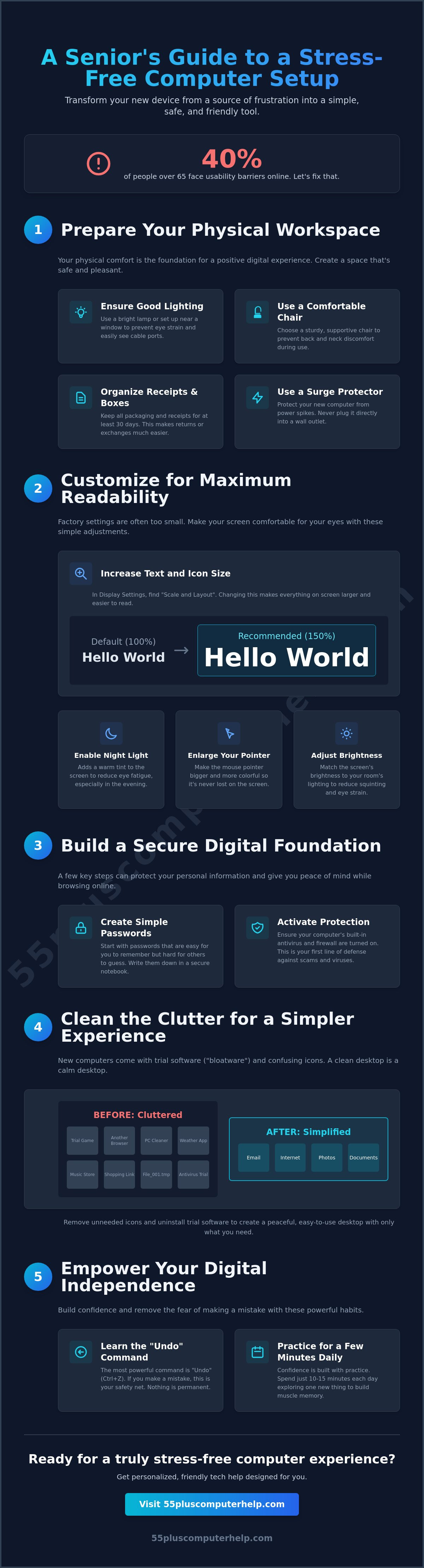
Cleaning the Clutter for a Simpler Experience
A new computer often feels crowded the moment you turn it on. Manufacturers frequently fill the screen with icons and programs you may never use. When you're setting up a new computer for seniors, your goal is to remove this "visual noise." Start by looking at the taskbar, which is the long bar at the bottom of your screen. Right-click on any icons you don't recognize and select "Unpin from taskbar." This doesn't delete the program. It simply hides it so you can focus on the tools you actually need, like your internet browser or your email.
Many new machines also come with "bloatware." These are trial versions of games or security software that the manufacturer included as an advertisement. These programs often send confusing alerts asking you to buy a subscription. You can safely uninstall these trial apps through your settings menu. Removing them makes your computer run faster and prevents unnecessary distractions. If you feel unsure about which programs are safe to remove, our team can assist you with software installation and updates to ensure your system stays lean and helpful.
You should also look at your startup programs. These are apps that begin running the very second you turn on the computer. If too many programs start at once, the machine will feel slow and sluggish. By disabling non-essential startup items, you help your computer reach the home screen much faster. Finally, aim for a clean desktop. Try to keep only 3 to 5 essential shortcuts on your main screen. A tidy digital space reduces anxiety and makes it much easier to find exactly what you're looking for.
Reducing Notification Fatigue
Notifications are the little boxes that pop up in the corner of your screen to give you news or updates. They can be very startling and interrupt your train of thought. You can turn off "Tips and Suggestions" in your system settings to stop the computer from sending you unprompted advice. It's also helpful to silence social media alerts. If you want a truly peaceful experience, configure "Focus Mode." This feature allows you to set quiet times during the day when no alerts will bother you at all.
Organizing Essential Apps and Files
Once the clutter is gone, you can organize what truly matters. We recommend creating a "Grandkids" folder directly on your desktop. This gives you a single, easy place to find every photo your family sends you. You should also pin your web browser and your email app to the very beginning of your taskbar so they're always in the same spot. To find everything else, remember this one simple rule: The Start button is the colorful square icon in the bottom-left corner that acts as the gateway to every tool on your computer. Keeping these essential items in predictable places builds your confidence every time you sit down to use your machine.
Beyond Setup: Empowering Your Digital Independence
Setting up a new computer for seniors is just the first step in a very rewarding journey. The real goal is feeling independent and capable every time you sit down at your desk. Like any new skill, your comfort with technology grows through consistent, gentle practice. We recommend scheduling a 15-minute practice session every single day. This short window of time helps you build muscle memory without feeling tired or overwhelmed. During these sessions, focus on one specific goal at a time. You might spend one day learning how to send your first email to a friend. The next day, you could practice looking up a favorite recipe online. By taking these small, manageable steps, the computer quickly becomes a friendly tool rather than a source of stress.
One of the biggest hurdles for many users is the fear of "breaking" something or making a mistake you can't fix. You can significantly reduce this anxiety by learning the "Undo" command. By holding down the "Ctrl" key and pressing "Z," you can reverse almost any action you just took. If you accidentally delete a sentence or move a file to the wrong folder, Ctrl+Z acts like a magic eraser. Knowing this safety net exists gives you the freedom to explore your settings with much more confidence. It removes the pressure of being perfect and allows you to learn through exploration.
Building Confidence Step-by-Step
You don't need to master every feature in a single afternoon. We recommend reading The Senior with a Computer to help you master technology at your own pace. Start with very basic actions, like practicing how to open and close windows until the movement feels like second nature. Each time you succeed, take a moment to celebrate that win. Whether you successfully connected to a Zoom call or finally organized your desktop, these small victories build the foundation for your long-term success. You're proving to yourself that you can handle these new tools with ease.
Knowing When to Ask for Professional Help
Even with regular practice, you might encounter a hurdle that feels a bit too high to jump alone. It's helpful to recognize the difference between a minor glitch and a serious software issue. A glitch is often fixed by simply restarting the computer and trying again. A serious issue might involve a program that won't open at all or a confusing error message that keeps appearing. In these moments, remember that asking for help is the sign of a smart, proactive learner. You can seek personalized computer lessons to master specific tasks like photo management or organizing your files. Having a "Tech Buddy" or a professional service on standby ensures that a small problem doesn't stop your progress. You've done the hard work of setting up a new computer for seniors, and now you have the support you need to enjoy every minute of it.
Enjoy the Freedom of Your New Computer
You now have the essential tools to turn a complex machine into a helpful companion. By focusing on clear visibility and a strong security foundation, you've removed the biggest barriers to enjoying your technology. Setting up a new computer for seniors is about more than just plugging in cables; it's about creating a space where you feel safe to explore, connect with family, and stay informed. You've learned how to silence confusing alerts and how to use the "Undo" command to stay in control of every click.
If you ever feel stuck or want a friendly expert by your side, we're here to help. We've been serving seniors since 2014 with patient, one-on-one mentorship. Our mission is to empower you to stay independent and connected in our digital world. You don't have to handle technical hurdles alone. Get Patient, In-Home Tech Help Today and let us guide you through every step of your journey. We'll make sure your technology works for you, not against you.
You've already taken the first big step toward mastering your new device. Keep practicing for a few minutes each day, stay curious, and enjoy every new discovery you make with your family and friends.
Frequently Asked Questions
Is Windows or Mac better for a senior who is new to computers?
The best choice is usually the one that your family or close friends already use. If your "Tech Buddy" uses a Mac, you should probably get a Mac so they can help you more easily. Windows computers are often more affordable and familiar to those who used them in a professional setting. Macs are known for being very consistent and having fewer technical glitches over time.
How do I make the text on my new computer screen larger?
You can make text larger by visiting the "Display Settings" in your system menu. Look for a setting called "Scale" or "Change the size of text, apps, and other items." Most people find that setting this to 125% or 150% provides the best balance of clarity and comfort. This change happens immediately and makes every menu and website much easier to read without squinting.
Do I really need to buy extra antivirus software for a new computer?
You don't necessarily need to buy extra software because modern computers come with excellent built-in protection. Both Windows and Mac have security centers that run quietly in the background to block threats. While setting up a new computer for seniors, we often find that the free built-in tools are less confusing than paid versions that send constant, scary sales notifications.
What is the easiest way to transfer my old photos to a new computer?
The easiest way to move photos is to use a physical USB thumb drive. You simply plug the drive into your old computer, copy the "Pictures" folder, and then plug it into your new machine to paste them. This method is often faster and more reliable than trying to move thousands of large files through the internet or a cloud service. It keeps your memories safe during the move.
How can I prevent my computer from showing so many confusing pop-ups?
You can stop most pop-ups by installing a reputable ad-blocker in your web browser. These small tools hide deceptive advertisements and "system warnings" that try to trick you. You should also go into your computer's notification settings and turn off "Tips and Suggestions." This keeps the screen quiet and allows you to focus on your actual tasks without any startling interruptions.
Can I set up a new computer by myself if I am not tech-savvy?
Yes, you can handle the basic setup by following a patient, step-by-step guide. Modern computers are designed to walk you through the initial steps with clear voice prompts and simple questions. However, setting up a new computer for seniors often goes smoother with a mentor to help with technical details like Wi-Fi security and printer connections. Having someone nearby can reduce any initial anxiety.
What should I do if I forget my new computer password?
You should use the "Reset Password" link on the login screen if you get stuck. This process usually involves sending a code to your email or answering a few security questions you chose during setup. To prevent this from happening again, we recommend writing your password in a physical notebook. Keep this book in a secure, private location inside your home where you can easily find it.
Why is my new computer asking me to "Update" so frequently?
Your computer asks for updates because it is constantly learning how to protect you from new digital threats. These updates are like small repairs that keep the system running smoothly and safely. It's best to allow the computer to install these updates overnight so they don't interrupt your daily activities. Regular updates are the best way to keep your personal information secure and private.


