
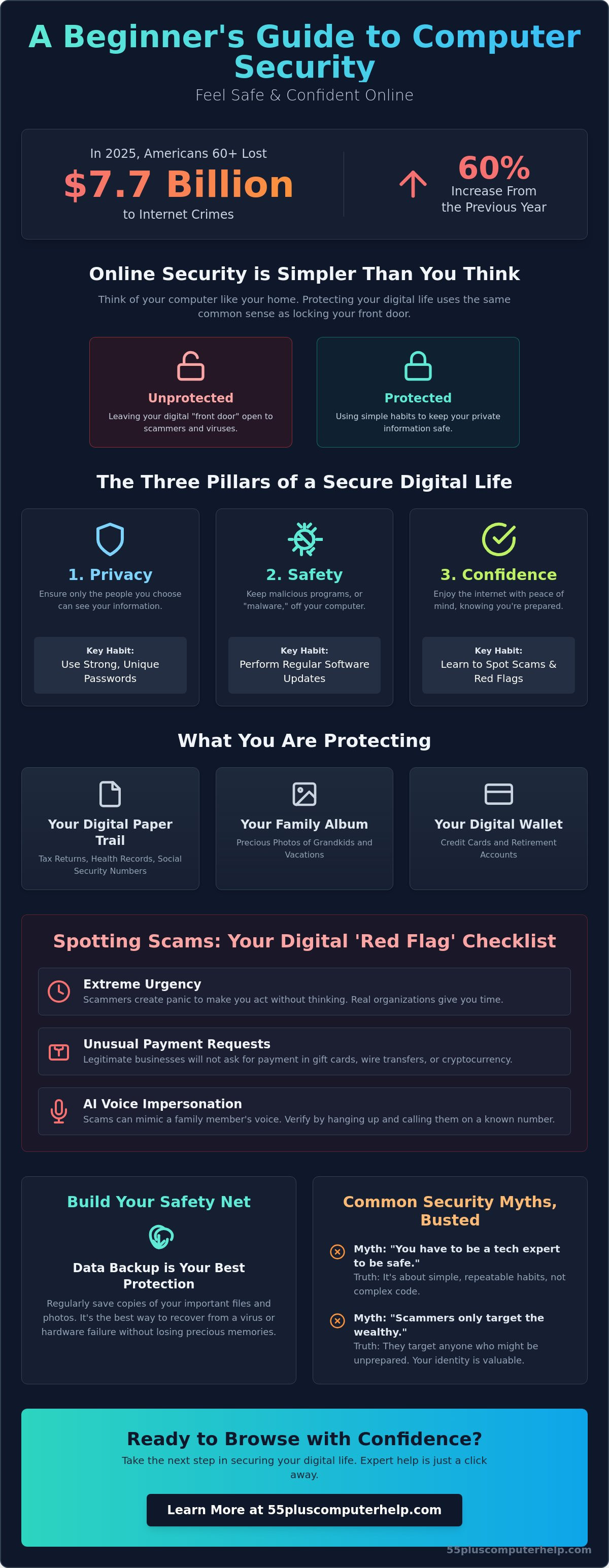
In 2025, Americans aged 60 and over reported losing $7.7 billion to internet crimes. This was a 60% increase from the previous year. This beginner's guide to computer security is here to help you feel safe despite those worrying numbers. It is completely natural to feel nervous when you hear confusing technical terms like encryption and malware. You might even feel like you are too old to keep up with how quickly technology changes. We understand that feeling, and we want you to know that you are not alone.
Staying safe online is not a technical skill you must master. Instead, it is a set of simple, protective habits that keep your digital home secure. You can learn how to protect your personal information and enjoy the internet with confidence using stress-free routines. We will help you move past the fear of scams and the confusion of technical jargon. Our goal is to help you feel empowered every time you log on.
We will walk through how to spot a fake email, how to handle new AI-driven scams, and how to create a safe browsing experience. By the end, you will have the peace of mind you deserve while you use social media or check your bank account. Let's start building your confidence one step at a time.
This article provides a simple path to feeling confident and secure while you use your computer. You will discover:
- How computer security works just like locking your front door to keep your personal details private.
- Why this beginner's guide to computer security helps you protect your identity from modern scams.
- The simple habits of using strong passwords and regular software updates to stay safe online.
- How to spot red flags like messages that create panic or ask for payment in gift cards.
- Why a data backup is the best safety net to protect your photos and files from being lost.
What is Computer Security? (And Why It’s Simpler Than You Think)
Think of your computer like your home. You wouldn't leave your front door wide open while you went to the grocery store. You wouldn't hand your house keys to a stranger on the street. Computer security is simply the digital version of those same smart habits. It is the practice of keeping your personal photos, private emails, and bank details away from people who shouldn't see them. This beginner's guide to computer security will show you that protecting yourself is mostly about using the "locks" you already have.
Many people believe that security is something you only worry about after a virus hits. In reality, good security is about prevention. It is much easier to lock a door than it is to track down a stolen television. By setting up small defenses now, you stop problems before they start. The best part is that technology in 2026 is smarter than ever. Modern systems are designed to help you stay safe automatically. Much of the heavy lifting happens in the background while you enjoy your time online.
The Three 'Digital Locks' You Already Know
You don't need to learn a new language to stay safe. You just need to focus on three simple goals. First is Privacy. This means making sure only the people you choose can see your information. Second is Safety. This involves keeping "bad programs," often called malware, off your device. Finally, there is Confidence. This is the peace of mind that comes from knowing your computer will work correctly when you need it. To explore the technical roots of these ideas, you can read more about What is Computer Security? on Wikipedia.
Common Myths That Make Security Sound Scary
One of the biggest hurdles for seniors is the belief that you must be a "techie" to be safe. That is a myth. Most online safety comes down to common sense and simple habits. You don't need to understand how an engine works to drive a car safely; you just need to know how to use the brakes and follow the signs. This beginner's guide to computer security focuses on those practical moves rather than complex code.
Another common myth is that hackers only go after big companies or very wealthy people. Scammers actually look for anyone who might be unprepared. Your personal identity and your trust are valuable assets. By learning a few basic steps, you make yourself a much harder target. You are never too old to learn these habits. They are much easier to master than you might think, and they will help you browse with total peace of mind.
Why Personal Security Matters for Seniors in 2026
Many people think a computer is just a tool for checking the weather or reading news. In reality, your device is the gateway to your entire life. It holds your identity, your history, and your connections to the people you love. This beginner's guide to computer security is important because it protects more than just your bank account. It protects your peace of mind and your daily independence.
Scammers often target seniors because they value politeness and trust. These are wonderful qualities to have in a neighbor or a friend. However, criminals try to use your kindness against you. They hope you will be too polite to hang up the phone or too trusting to question a strange email. Learning a few simple habits helps you keep your guard up without losing your friendly spirit. It is about being prepared so you can enjoy the internet without worry.
Identifying What You Are Protecting
It helps to know exactly what is at stake when you go online. First, there is your "Digital Paper Trail." This includes your tax returns, health records, and social security numbers. Second, you have your "Family Album." These are the precious digital photos of grandkids and vacations stored on your hard drive. Finally, there is your "Digital Wallet." This gives access to your credit cards and retirement accounts. If you ever feel overwhelmed by these risks, you can find excellent resources for Building Your Safety Net through official government training programs.
How Modern Scams Have Changed
In 2026, scams look and sound very different than they did a few years ago. We have moved past the old emails from "Nigerian Princes" asking for help. Today, scammers use sophisticated AI to mimic the voices of family members in distress. They might call you sounding exactly like a grandchild who needs money for an emergency. These criminals rely on fear to bypass your logic and make you act quickly.
The biggest weapon a scammer uses is a sense of "extreme urgency." They want you to feel panicked so you don't take the time to think or call a friend for advice. Good security habits prevent the massive headache of having to change all your passwords or call your bank to stop a fraudulent payment. If you need help making sure your device is ready for these challenges, our team offers specialized computer setup services to get you started on the right foot. Protecting your device today ensures that your family's data and your precious memories stay exactly where they belong.
The Three Pillars of a Secure Home Computer
Building a secure computer is like building a house on a solid foundation. You need three main pillars to keep everything standing. These are passwords, software updates, and antivirus software. When you have these in place, virus and malware removal becomes a much simpler task. Think of these pillars as your personal defense team working for you every day. This beginner's guide to computer security will show you how to set them up without any stress or confusion.
Passwords Without the Memory Games
Your password is the master key to your digital life. Many people use "123456" or a pet's name because they're easy to remember. Unfortunately, these are also very easy for computers to guess. Instead, try using a passphrase. This is a long sentence like "MyDogLovesWalkingInThePark2026." It's easy for you to picture but very hard for a stranger to crack. In 2026, you can also use a password manager. This is a helpful program that remembers all your keys for you. You only have to remember one master password to unlock the rest of your accounts.
Updates: Your Computer's Way of Healing Itself
Have you ever seen a little box pop up saying an update is available? It's tempting to click "remind me later." However, these updates are actually your computer's repair crew. Hackers look for small "holes" or weaknesses in your software to get inside. An update is simply a patch that fills those holes. You can usually find a setting to "Auto-Update" your computer. This allows your device to heal itself while you sleep. It's one of the easiest ways to stay safe without doing any extra work at all.
Antivirus: Your First Line of Defense
Antivirus software acts like a security guard for your computer. It constantly scans your files for "digital germs" before they can cause any trouble. You don't need to run three different programs at once. In fact, having too many can make your computer slow and confused. One reliable program is all you need. Many computers come with Microsoft Defender for free, which works well for basic needs. Paid options like Norton or Bitdefender often offer extra features like identity monitoring. Staying informed about Spotting Scams through the FTC can help you decide which level of protection feels right for your home.
Spotting Scams: Your Digital 'Red Flag' Checklist
Having the right tools is a great start. But even with a strong lock on your door, you still check the peephole before opening it. This part of our beginner's guide to computer security focuses on how to spot a scam before it reaches your wallet. Scammers are clever, but they usually follow the same predictable patterns. If you know what to look for, you can stop them in their tracks. Use this simple checklist whenever a message or a phone call feels a little bit off.
- Check 1: Does the message create a sense of 'extreme urgency' or panic? Scammers want you to act before you have time to think. They might say your bank account is closed or your social security number is suspended.
- Check 2: Is the sender asking for payment via gift cards or wire transfers? No legitimate business or government agency will ever ask you to pay a bill with a gift card. If they do, it is a scam.
- Check 3: Are there strange spelling errors or 'off' looking logos? Look closely at the sender's email address. A real email from a big company won't come from a messy string of random letters and numbers.
- Check 4: Is a stranger asking for 'Remote Access' to your computer? Never let someone you don't know take control of your screen. This is like giving a stranger the keys to your filing cabinet.
- Check 5: Does the offer sound 'too good to be true'? Unexpected lottery wins or "free" money offers are always traps. If you didn't enter a contest, you didn't win it.
The 'Pause and Think' Method
Criminals hope that a sense of panic will make you act quickly. If an email feels scary, the best thing you can do is close it. You don't have to respond right away. If you are worried about your bank account, call the bank directly using a number from your physical bank card. Never click a link in an email you weren't expecting. For more tips on keeping your inbox clean, see our guide on email setup and troubleshooting. Taking a five-minute break to clear your head can save you hours of stress later.
The Rise of 'Tech Support' Scams
You might see a loud pop-up window saying your computer is infected with a virus. These are designed to look official, but they are just advertisements meant to frighten you. Real companies like Microsoft or Apple will never call you out of the blue to tell you about a problem. If you accidentally clicked a suspicious link, don't worry. It happens to the best of us. Simply shut down your computer and reach out to a trusted expert. If you want to make sure your device is clean and safe, we provide professional virus and malware removal to give you a fresh start and total peace of mind.
Building Your Safety Net: Backups and Expert Support
Mistakes happen to everyone. You might accidentally delete a folder of photos or click a link you should have ignored. This is why the final part of our beginner's guide to computer security focuses on your safety net. A backup is simply a second copy of your important files stored in a separate, safe place. If your computer ever breaks or gets a virus, a backup ensures you lose nothing. It is the ultimate "undo button" for your digital life. You don't have to be a technical genius to set this up. Modern tools are designed to handle the work for you automatically.
Two Simple Ways to Back Up Your Life
There are two main ways to keep your files safe. First, you can use Cloud Backups. This means your files are stored on secure internet servers like iCloud or OneDrive. It happens quietly in the background while you work. Second, you can use Physical Backups. This involves a small device called an "External Drive" that you plug into your computer. It acts like a physical vault for your data. In 2026, the gold standard for safety is having one of each. If the internet is down, you have your physical drive. If you lose your drive, your files are still safe in the cloud. We can help with data backup and recovery to make sure your precious memories are never at risk.
When to Call in a Professional
Sometimes, your computer might start acting strange. You might notice the fan running very loud, or the system feeling much slower than usual. Perhaps you see weird pop-ups even after you close your browser. These are signs that it's time to ask for help. There is great value in having a tech mentor who speaks your language instead of using confusing jargon. You don't have to struggle through technical problems alone. Whether you need a one-on-one lesson or help with software installation and updates, a patient professional can ensure your security is set up correctly from the start.
Your Next Step Toward Peace of Mind
You have learned a lot today. This beginner's guide to computer security is just the start of your journey. You don't have to do everything at once. Choose one small habit to start today, such as checking for software updates or creating a new passphrase for your email. It is perfectly okay to take things slow and ask questions along the way. Building confidence takes time, and every small step makes you much safer than you were yesterday.
Ready for a safer computer experience? Contact 55 Plus Computer Help LLC for a patient, in-home security check-up. We are here to support you and make technology feel simple again.
Take Control of Your Digital World
You now have the tools to stay safe while you explore everything the internet offers in 2026. Real security is built on simple habits like using long passphrases and letting your computer update itself. By staying calm and spotting red flags, you can enjoy your time online without the fear of scams. This beginner's guide to computer security is your foundation for a more confident and independent digital life.
You don't have to handle these technical steps by yourself. Since 2014, we've specialized in helping seniors master their devices with patient, jargon-free instruction. We offer both in-home and remote support options to fit your needs perfectly. Our goal is to make sure your computer is a source of joy rather than stress. Empower your digital life with a patient tech mentor; schedule your home visit today!
The digital world belongs to you just as much as anyone else. With your new safety net in place, you can focus on what really matters, like video chatting with grandkids or sharing photos with friends. You've got this, and we're here to help whenever you need us.
Frequently Asked Questions
Is it safe to do my banking on a home computer?
Yes, banking at home is safe if you use your private network. Always look for the padlock icon in your browser address bar. This confirms the connection is private. This beginner's guide to computer security recommends avoiding public networks for any financial work. Using your own Wi-Fi at home adds a strong layer of protection that public spaces simply cannot match.
Do I really need to pay for antivirus software if my computer came with one?
You don't always need to pay for extra software. Microsoft Defender is built into Windows and provides excellent protection for free. It works quietly in the background to keep you safe. You might choose a paid version if you want extra help with things like identity theft monitoring. For most home users, the free built-in tools are a great starting point for staying secure.
What should I do if I think I've already been scammed?
Call your bank or credit card company right away to protect your money. They can stop fraudulent charges and issue you new cards. You should also change your important passwords. Please remember that falling for a scam is nothing to be ashamed of. These criminals use very clever tricks to bypass our logic. Taking quick action is the best way to minimize the headache and move forward.
How often should I change my computer passwords?
You only need to change your passwords if you think they've been stolen. Modern security experts suggest creating one very strong passphrase instead of changing weak passwords often. Changing them too frequently often leads to people choosing simple, easy-to-guess words. Focus on making each password long and unique for every site you visit. This habit provides much better protection than a schedule of frequent changes.
Are Apple computers (Macs) safer than Windows PCs?
Both types of computers are safe if you use them carefully. Macs are often seen as more secure because they have fewer users for hackers to target. However, most modern threats come from fake emails and phone calls that don't care what computer you use. This beginner's guide to computer security teaches you habits that work for any device. Your own awareness is always your most powerful defense.
What is 'Two-Factor Authentication' and should I use it?
Two-Factor Authentication is a second lock for your digital accounts. When you log in, the site sends a special code to your phone. You must enter this code to get inside. This ensures that even if someone steals your password, they still can't access your information. It's a simple and highly effective way to keep your email and bank accounts much safer from strangers.
Can someone really see me through my computer camera?
It's very rare for someone to access your camera without your permission. Most computers have a small green or white light that glows when the camera is on. If you want to feel completely safe, you can buy a small plastic slider to cover the lens. You can also just use a piece of tape. This is a simple, non-technical way to ensure your privacy is always protected.
Is it safe to use the 'Free Wi-Fi' at a coffee shop or library?
Public Wi-Fi is fine for reading news, but you shouldn't use it for private tasks. These networks aren't as secure as your home connection. Other people on the same network might be able to see what you're doing. Save your banking, shopping, and password entries for when you're back at home. This simple rule keeps your most sensitive information out of the wrong hands.


