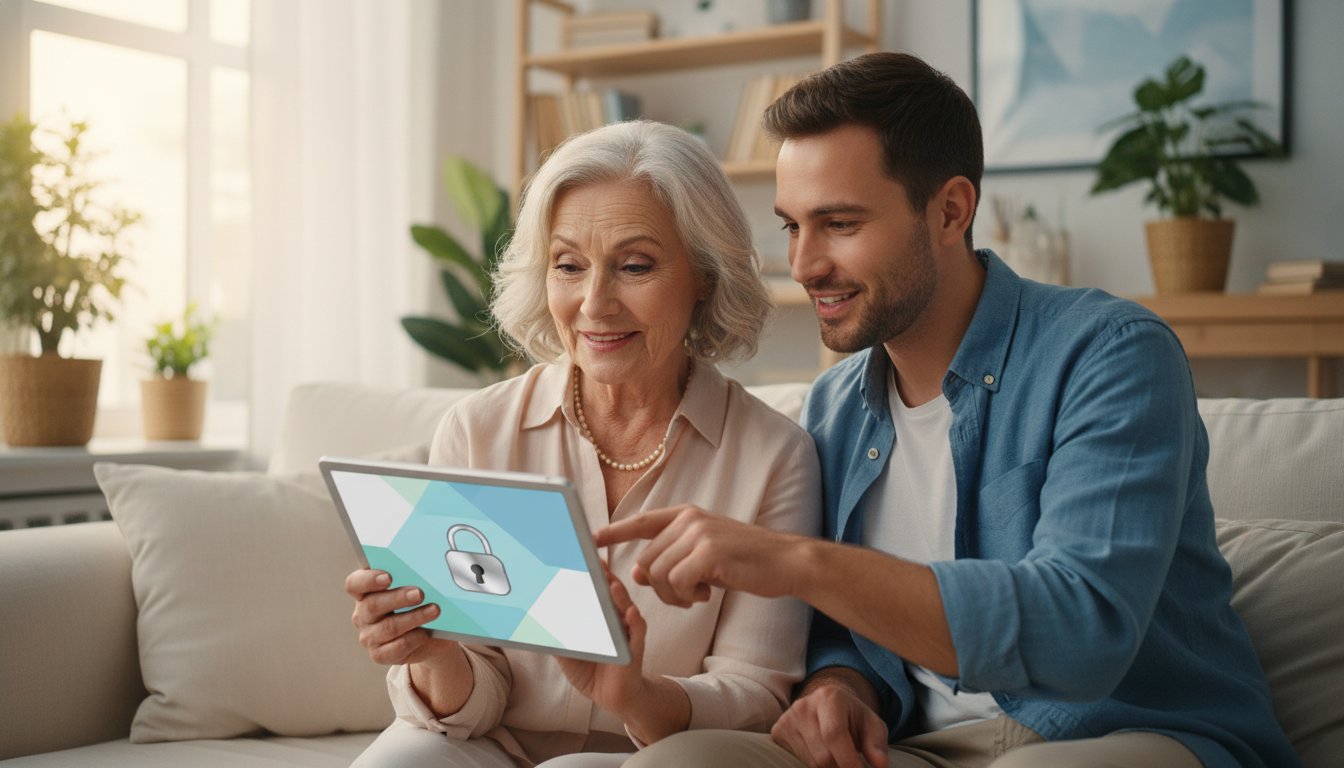
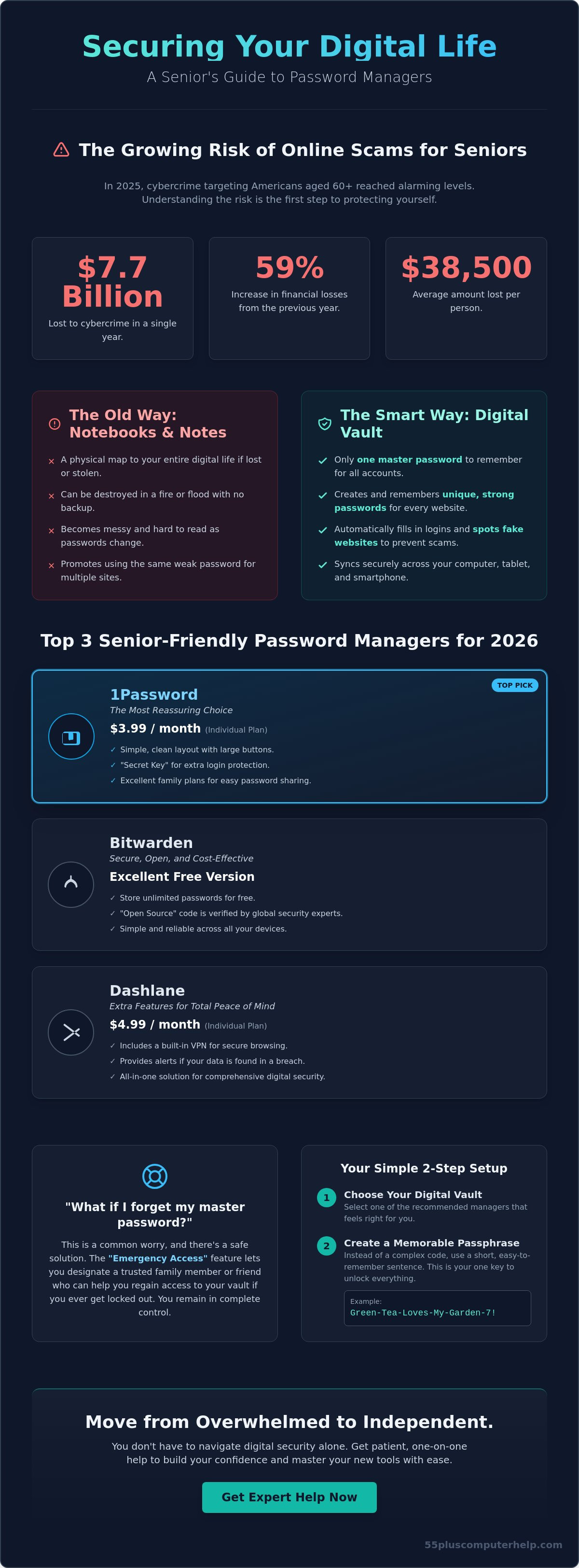
In 2025, Americans aged 60 and older lost approximately $7.7 billion to cybercrime. This was a 59% increase from the year before, with the average person losing about $38,500. It's natural to feel a bit anxious about your online safety when you see numbers like that. You might worry about forgetting a complex code or feel frustrated when you're locked out of an important account. We understand that technology often moves too fast, and the fear of being hacked can feel heavy.
The good news is that you can protect yourself without becoming a computer expert. Finding the best password manager for seniors is about choosing a tool that offers reassurance and a simple path to recovery. This guide will show you how to simplify your digital life and secure your accounts with ease. We will look at the most user-friendly systems for 2026 that work across your computer and tablet, helping you stay independent and safe in the digital world.
Key Takeaways
- Learn why a "digital vault" is the safest way to store your login details and eliminate the risk of using the same password for every website.
- Discover our top three choices for the best password manager for seniors, selected specifically for their simple menus and helpful recovery options.
- Find out how "Emergency Access" features allow a trusted family member to help you if you ever worry about forgetting your master password.
- Follow a gentle, two-step process to set up your first secure vault on your computer using a memorable passphrase instead of a complicated code.
- Understand how working with a patient mentor can help you move from feeling overwhelmed to feeling completely independent with your digital accounts.
Why Seniors Need a Password Manager in 2026
Many people ask, What is a password manager? Think of it as a secure digital vault. It lives on your computer or phone and remembers every single login for you. This means you only have to remember one "master" password to unlock the vault. In 2026, choosing the best password manager for seniors is a vital step toward staying independent online. Using the same password for every website is a hidden danger. If a hacker gets into one account, they can suddenly access your bank, your social media, and your personal files. A digital vault prevents this by creating a unique, strong code for every site you visit.
These tools also help protect you from virus and malware attacks. Criminals often create fake websites that look exactly like your bank or a popular shopping site. A password manager is smart enough to spot the difference. If you land on a fake site, the manager won't fill in your details because it knows the web address isn't the real one. This simple feature can save you from a major financial scam before it even starts.
The Risks of Password Books and Sticky Notes
Keeping a physical notebook by the computer is a common habit. It feels safe because it's right there in your hand. However, paper has its own risks. You can't back up a notebook if there's a fire or if it gets lost during a move. If someone enters your home, that book is a map to your entire life. Written passwords are also very hard to update. When a website asks you to change a code, you have to cross out the old one and write a new one. This often leads to a messy book that is hard to read, which causes even more stress when you're trying to log in.
How a Password Manager Simplifies Your Daily Routine
A digital vault removes the "forgot password" dance. You won't have to wait for reset emails or call customer service because you're locked out. The best password manager for seniors will automatically fill in your details for your email setup, banking apps, and social media pages. It works the same way on your computer, tablet, and smartphone. If you save a new password on your laptop, it's instantly ready to use on your iPad. This system gives you peace of mind and makes using your favorite websites much more enjoyable.
Comparing the Top 3 Senior-Friendly Password Managers
Choosing the right tool can feel like a big decision. Many people get stuck because there are dozens of options available. To keep things simple, we have narrowed the list down to the three most reliable choices for 2026. We picked these based on how easy they are to see, how well they help you if you get stuck, and how they protect your information. Recent research on seniors and password managers shows that ease of use is the most important factor. If a tool is too complicated, people simply won't use it. That is why we believe 1Password is often the best password manager for seniors who want a clean, professional experience.
1Password: The Most Reassuring Choice
1Password is widely considered the gold standard for simplicity. It features large buttons and a very clean layout that is easy on the eyes. As of March 2026, the individual plan is $3.99 per month when billed annually. One of its best features is the "Secret Key." This is an extra code that stays on your devices to make sure only you can open your vault. For families, the $5.99 monthly plan is excellent. It allows you to share specific passwords, like the Netflix login or home Wi-Fi code, with your children or spouse. This makes it easy for a trusted family member to help you manage your accounts if you ever feel overwhelmed.
Bitwarden: Secure, Open, and Cost-Effective
Bitwarden is a wonderful choice if you are looking for a high-quality free version. While other companies have limited their free plans, Bitwarden still allows you to store unlimited passwords. It uses simple browser extensions that pop up and offer to fill in your passwords automatically. Bitwarden is "Open Source," which means the software code is public. This allows security experts from around the world to check it constantly for flaws. It is a very transparent and trustworthy system for those who want top-tier security without a monthly fee. It works perfectly across your computer and your smartphone.
Dashlane: Extra Features for Total Peace of Mind
Dashlane is another strong contender, especially for those who want extra tools in one package. It costs $4.99 per month when billed annually. This price includes a built-in VPN, which helps keep your internet connection private when you are using Wi-Fi at a library or coffee shop. Dashlane is very proactive. It will scan the internet and alert you if any of your personal information has been leaked in a data breach. If you feel unsure about which of these tools is right for your computer, we can provide software installation and updates to help you get everything set up correctly. Having a patient expert walk you through the first login can make all the difference in your confidence.
Solving the Fear: What if I Forget My Master Password?
The most common concern we hear from our clients is the fear of being locked out. It's a valid worry. If you move all your passwords into one digital vault, you might feel like you're putting all your eggs in one basket. According to a January 2026 survey by Astra Security, 65% of people still don't trust password managers. Most of that doubt comes from the fear of forgetting that one "Master Password" and losing access to everything. We want to reassure you that modern technology has built-in safety nets to prevent this from happening. The best password manager for seniors is one that provides a clear and gentle path for recovery.
Think of your master password as the front door key to your home. In the past, if you lost that key, you were in trouble. Today, these digital vaults offer several ways to create a "spare key" for emergencies. These features are designed to give you peace of mind while keeping your information strictly private. You don't have to be a tech expert to set these up. With a few simple steps, you can ensure that you or a loved one can always get back into your accounts.
Emergency Access and Family Recovery
One of the most helpful features available in 2026 is called Emergency Access. This allows you to pick a trusted person, like a child or a spouse, to be your backup. If you ever forget your password, that person can request access to your vault. To keep you safe, you can set a "waiting period" of several days. If you're just on vacation and someone tries to get in, you'll get a notification and can say "no." However, if you truly are locked out and don't respond, your trusted contact will be granted entry after the timer runs out.
Most services also offer a printable "Recovery Kit." This is a single sheet of paper with a unique emergency code. We recommend printing this out and keeping it in a secure place, such as a fireproof safe or a bank deposit box. This is much safer than a messy notebook because it's a single, encrypted key that only works with your specific account. It also helps you create a "Digital Legacy" plan, so your family isn't left guessing how to handle your accounts in the future.
Biometric Login: Using Your Fingerprint or Face
You can also make logging in much easier by using biometrics. This is just a fancy word for using your fingerprint or your face to unlock your device. Most modern tablets and smartphones have this feature built in. It's much faster than typing a long password every day. Once you set it up, you can open your password vault with a simple touch or a glance. This reduces the number of times you actually have to type your Master Password, which means there's less chance of getting frustrated with typos. It's a secure, simple way to stay independent online.
How to Safely Set Up Your First Password Manager
Setting up your first digital vault can feel like a big project. You might worry about doing it wrong or losing your current information. We recommend taking a slow and steady approach. To find the best password manager for seniors, you need a system that fits your pace. Start with your main computer. This is usually where you do your banking or check your email. Once you feel comfortable there, you can add the app to your tablet or phone later.
Your next step is to create a Master Password. We suggest using a "passphrase" rather than a complicated code. A passphrase is a short sentence that is easy for you to remember but hard for a computer to guess. For example, "MyBlueHouseOnTheHill" is very secure. It is also much easier to type if you have any trouble with finger dexterity. After your vault is ready, install the browser extension. This is a small helper that sits at the top of your internet screen. It handles "Autofill" for you. When you visit a site, the helper will offer to type your details automatically.
Pick your three most important accounts to start. Banking, your primary email, and a favorite shopping site are good choices. Practice logging in and out of these three sites a few times. Once you see the "Autofill" feature work, your confidence will grow. You'll quickly see how much stress this removes from your daily routine.
Starting Small to Avoid Overwhelm
Moving every single password in one day is a recipe for frustration. You don't have to do it all at once. Focus on your high-stakes accounts first. As you browse the web naturally, your manager will ask if you want to save new passwords. Simply click "yes." This allows the software to build your vault over time without any extra effort. This "capture" method is why many people consider these tools the best password manager for seniors who want to avoid manual data entry.
Understanding Two-Factor Authentication (2FA)
You might hear the term Two-Factor Authentication, or 2FA. This is just a second layer of safety. It's like having a deadbolt and a door handle lock on your house. Usually, the website will send a short code to your phone via text message. You type that code in after your password. This makes your accounts nearly unhackable because a criminal would need your password and your physical phone to get in. If this step feels a bit technical, don't worry. We can provide a patient tech support session to walk you through the setup in the comfort of your own home.
Getting Patient, One-on-One Help with Your Digital Security
Reading about the best password manager for seniors is a great first step toward a safer digital life. However, there is a significant difference between reading a guide and actually doing the setup yourself. For many, the transition from a paper notebook to a digital vault feels like a leap into the unknown. You might worry that one wrong click will delete your information or lock you out forever. This is where having a patient mentor makes all the difference. We don't just fix problems; we teach you how to master your own devices in a way that feels safe and supportive.
At 55 Plus Computer Help, we provide in-home or remote tech support sessions designed specifically for your needs. We understand that everyone learns at a different pace. Our experts are local professionals who possess the interpersonal skills to teach effectively. We avoid cold, technical jargon and instead use everyday language that makes sense. Whether you're struggling with a specific step or just want someone there for reassurance, we're here to help you move from frustration to a sense of accomplishment.
Personalized Technology Training
Our training is not a one-size-fits-all program. We offer custom lessons tailored to your specific skill level. If you're comfortable on a computer but struggle with your tablet, we focus our time there. We can walk you through the process of installing the best password manager for seniors and then show you how it works on all your different devices. This hands-on approach ensures that you feel in control of your digital security. By the end of a session, the tools that once felt overwhelming will feel like a natural part of your daily routine.
Empowering Your Digital Independence
The true value of digital security is the independence it brings. When you know your accounts are secure and your passwords are managed, you can explore the internet with peace of mind. You won't have to wait for a busy family member to help you log into your bank or reset an email password. This proactive education also helps you stay safe from sophisticated scams and malware. We believe that technology should be a tool for connection and joy, not a source of anxiety. Gaining these skills allows you to navigate the modern world with total self-assurance.
If you're ready to take the next step, we're ready to guide you. You don't have to tackle digital security alone. Schedule a patient tech session today! and let us help you build a simple system that works for you.
Take Control of Your Online Safety Today
You now have a clear path to move away from messy notebooks and the constant stress of forgotten logins. By choosing the best password manager for seniors, you are protecting your bank accounts and personal details from modern digital threats. These tools provide a secure vault that remembers everything for you. Features like emergency access ensure that you or a trusted family member can always reach your information when it matters most.
Since 2014, we have provided specialized technology support for seniors. We offer patient, jargon-free training to make sure your setup is perfect. Our experts provide in-home or remote assistance to help you build your digital confidence at your own pace. You don't have to feel overwhelmed by new software or complex settings. We are here to guide you every step of the way.
Get Patient, Expert Help Setting Up Your Password Manager. You deserve to feel safe and independent every time you go online.
Frequently Asked Questions
Is it really safe to store all my passwords in one place?
Storing your passwords in a digital vault is much safer than using a single password for every site or writing them down. These tools use high-level encryption to protect your data. If someone tries to look at your vault without your master key, they will only see a jumbled mess of letters and numbers. It is a proven way to keep your information private while ensuring you never lose access to your accounts.
What is the easiest password manager for someone who is not tech-savvy?
1Password is widely regarded as the best password manager for seniors due to its simple and clean interface. It features large buttons and very clear menus that are easy to navigate. The software does a great job of guiding you through each step without using confusing technical terms. This makes it a perfect choice for anyone who wants a straightforward experience that doesn't feel overwhelming or complicated.
Are free password managers as secure as the ones you pay for?
Reputable free password managers like Bitwarden provide the same strong security as paid versions. The main difference is usually the extra features you receive. Paid plans often include more storage for documents or advanced family sharing options. However, the core technology that keeps your passwords safe is identical. You can trust a high-quality free service to protect your data just as well as a subscription-based one.
What happens if the password manager company gets hacked?
Even if a company's servers are hacked, your personal passwords remain secure. This is because these companies use "zero-knowledge" security. They don't store your master password or the key to your vault on their systems. A hacker would only see encrypted data that is impossible to read without your specific key. Your information stays under your control and remains private even during a major security event.
Can my family members access my passwords if something happens to me?
You can allow family members to access your vault by setting up an Emergency Access feature. This is a built-in safety net that lets you designate a trusted person as a backup contact. If you are unable to log in, they can request access after a waiting period you choose. Most systems also offer family plans that allow you to share specific logins for banking or household bills with your spouse or children.
Do I need a separate password manager for my iPad and my Windows computer?
You only need one account to use your password manager on every device you own. The software is designed to sync your information automatically. If you save a new password on your Windows computer, it will be ready to use on your iPad or smartphone instantly. This creates a seamless experience that allows you to log in easily whether you are at your desk or sitting on the couch.
How do I create a master password that I actually remember?
The best way to create a memorable master password is to use a long passphrase. Instead of a random string of characters, pick four or five common words that have a special meaning to you. For example, "GreenTreesBlueSkySummer" is very hard for a computer to guess but easy for you to type. This method provides top-tier security without the frustration of trying to memorize a complex code of symbols and numbers.
Will a password manager work if I do not have an internet connection?
You can still access your saved passwords even if you don't have an internet connection. Most managers store an encrypted copy of your vault directly on your device. This means you can look up a code or log into a local app while you are traveling or during a Wi-Fi outage. Any changes you make while offline will simply sync up automatically once you are back on the internet.


