
Imagine you are sitting down to enjoy a quiet afternoon browsing the news or looking at photos of your grandchildren. Suddenly, a bright box appears on your screen with a loud alert and a confusing string of letters. It is natural to feel a sudden rush of anxiety. We know that understanding computer error messages can feel overwhelming, but these technical hiccups are almost never your fault.
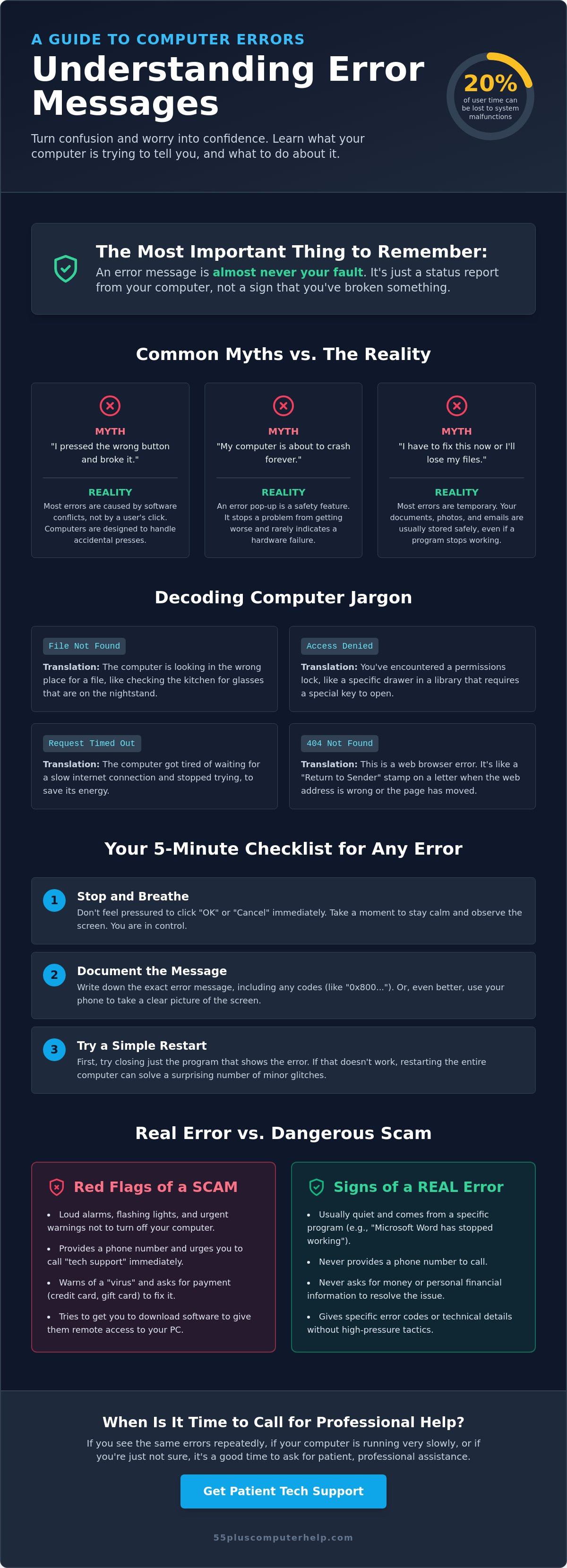
You are certainly not alone in your frustration. Research shows that computer users often waste up to 20% of their time dealing with system malfunctions. We want to help you turn that worry into a sense of security. These messages are simply the computer's way of asking for a little bit of assistance. They are not a sign that you have broken your machine or done something wrong.
This guide will help you stay calm and decode those mystery boxes with ease. We will show you how to tell the difference between a legitimate system alert and a dangerous scam. You will learn a clear, simple process to resolve minor issues on your own. By the end of this article, you will have the tools to use your technology with total confidence and peace of mind.
Key Takeaways
- Learn why error messages are just status reports from your software and not a result of a mistake you made.
- Discover how to translate technical jargon into plain English so you can feel more in control of your technology.
- Master a simple five-minute checklist for handling common issues, including the best ways to document the problem.
- Gain confidence in understanding computer error messages by learning how to spot the red flags of common tech support scams.
- Identify the specific "chronic" signs that indicate it is time to reach out for patient, professional assistance.
What Computer Error Messages Are (And Why They Are Not Your Fault)
When a bright red box or a sudden warning sound appears on your screen, it's natural to feel a rush of concern. You might wonder if you clicked the wrong thing or if you've accidentally damaged your expensive machine. Please take a deep breath and remember this: it's almost never your fault. Most of the time, the computer is just telling you that it hit a small snag while trying to finish a task you gave it.
To get started, it helps to ask: What is an error message? At its heart, an error message is simply a status report from your software. It's a way for a program to communicate that it has run into a situation it doesn't know how to handle. This usually happens because of software conflicts or minor glitches behind the scenes. It rarely means your computer is physically broken or that you have lost your important files forever.
The best thing you can do when a message appears is to stop and breathe. Don't feel pressured to click "OK" or "Cancel" right away. Take a moment to look at the screen without any rush. By staying calm, you keep yourself in control of the situation. You're not a technician, and you don't need to be one to handle these little interruptions with grace.
The Purpose of the Pop-Up
Software programs are complex, and they have specific rules they must follow. When a program reaches a limit or can't find a file it needs, it sends a pop-up to let you know. You might see strange codes like "404" or "0x800" on your screen. These aren't meant to confuse you; they are shorthand notes that help technicians identify the specific problem. Think of it this way: an error message is a digital road sign for your software that points out a temporary detour.
Common Myths About Errors
There are a few common worries that many people share, but they are usually not true. Let's clear up these myths so you can feel more at ease:
- Myth: "I pressed the wrong button." In reality, modern computers are designed to handle accidental clicks. Most errors are caused by two programs trying to do the same thing at once, not by your hand on the mouse.
- Myth: "My computer is about to explode or crash forever." A pop-up is a safety feature. It's the computer's way of stopping a problem before it gets worse. It doesn't mean your hardware is failing.
- Myth: "I have to fix this immediately or I will lose my files." Most errors are temporary. Your photos, emails, and documents are usually tucked away safely, even if a program stops working for a moment.
By understanding computer error messages as simple status reports, you can take the fear out of your daily technology use. You are the one in charge, and these messages are just small bumps in the road.
Decoding the Language of Your Computer
Computer messages often sound like they are shouting at you. They use harsh words that can feel final or scary. In reality, your computer is just using a different language to describe a simple situation. Understanding computer error messages starts with a bit of translation. Once you know what the computer is actually saying, the mystery disappears. You can then move forward without the weight of worry on your shoulders.
Let's look at some common phrases you might see. When you see "File Not Found," don't panic. It doesn't mean your document is gone forever. It simply means the computer is looking in the wrong folder. It is like searching for your glasses in the kitchen when they are sitting on the nightstand. You just need to point the computer in the right direction. Another common message is "Access Denied." This sounds like a personal ban, but it is just a simple permissions lock. Think of it like a locked cabinet in a library. You have the right to be in the building, but you might need a specific key to open that one drawer.
Similarly, "Timed Out" just means the computer got tired of waiting for a slow internet connection. It stopped trying so it could save its energy for other tasks. Even the famous "Blue Screen" is not a sign of permanent death. It is actually a safety reboot. Your computer noticed a small conflict and decided to restart to protect your data. It is the digital version of taking a quick nap to clear your head. If these messages happen frequently, our team can help with Internet and Wi-Fi Troubleshooting to keep your connection steady and reliable.
Internet and Browser Errors
When you browse the web, you might see "404 Not Found." This happens when a website address has a typo or a page has moved. It is just like a "Return to Sender" stamp on a letter. You might also see "Connection Not Private" warnings. These are safety alerts that help you stay safe while spotting tech support scams online. If you run into trouble while trying to reach your inbox, our Email Setup and Troubleshooting guide offers specific steps to help you stay connected with friends and family.
Windows and Mac System Warnings
Your operating system has its own way of talking to you. "Update Failed" is a common one. It usually happens because your internet flickered or the computer was busy with another task. You can usually just try again later. "Low Disk Space" is a friendly reminder that your digital filing cabinet is getting full. It is often a sign that your collection of beautiful family photos has grown quite large. Finally, "Program Not Responding" is a request for patience. The software is thinking very hard. Give it a minute or two to finish its work before you try to close it.
The Five-Minute Fix Checklist for Common Errors
When an error pops up, you don't have to call for help right away. Most of the time, you can resolve the issue yourself in just a few minutes. Understanding computer error messages becomes much simpler when you follow a steady, step-by-step process. This checklist is designed to help you stay in control and fix minor glitches without any stress. It is like having a toolkit for your digital life.
- Step 1: Document the message. Before you click anything, write down the exact wording. You can also take a photo of the screen with your smartphone. This ensures you have the information if you need to ask for help later.
- Step 2: Close and reopen. Sometimes a program just needs a fresh start. Click the "X" in the corner to close the software. Wait a few seconds, then open it again to see if the error has cleared.
- Step 3: Perform a full restart. This is the "Magic Fix" for almost every computer trouble. It resets the system and clears out any digital cobwebs.
- Step 4: Check the physical connections. Look behind your computer or at the side of your laptop. A loose power cord or an unplugged internet cable is often the hidden culprit behind a scary warning box.
- Step 5: Search for the code. If you feel comfortable, you can type the error code into a search engine. This often reveals that many other people have had the same exact problem and found a simple solution.
The Power of the Restart
There is a good reason why experts always suggest "turning it off and on again." A full restart fixes approximately 90% of minor system errors. When your computer is running, it fills up its "short-term memory" with thousands of tiny instructions. Over time, these instructions can get tangled. A restart wipes that memory clean and lets the computer start fresh. Keep in mind that putting your computer to "Sleep" is not the same as a "Restart." Sleep keeps the current clutter in place, while a restart clears it away entirely.
Documenting the Problem
If the error doesn't go away, having a record of it is very helpful. Using your smartphone to capture a photo is the easiest way to show a helper exactly what you see. When you look at the message, pay close attention to the specific numbers or capitalized words. These are the parts that matter most to a technician. You might even consider starting a "Tech Diary." By writing down when and why an error happens, you can see if it is a one-time fluke or a recurring issue. If you notice a pattern of strange alerts, it might be time to look into Virus and Malware Removal to ensure your system is clean and safe.
Real Errors vs. Tech Support Scams: Staying Safe
One of the most important parts of understanding computer error messages is knowing when a message is actually a trick. Real system errors are usually quiet and helpful. They stay inside a small box and wait for you to read them. Scams are different. They often use loud noises, flashing lights, and scary language to make you panic. If a message makes you feel like you must act in the next few minutes, it is almost certainly a scam.
Scammers want to create a sense of urgency so you don't have time to think. In 2025, seniors lost over $1 billion to tech support fraud, making it one of the costliest types of elder fraud. These criminals often pretend to be from well-known companies like Microsoft or Apple. However, these companies will never put a phone number in a pop-up alert and ask you to call it. If you see a phone number on a warning screen, do not dial it. Simply seeing the message does not mean your computer is infected, but calling the number gives the scammer a chance to trick you.
If your screen seems frozen and you cannot click away, don't worry. You can safely close a stubborn browser window by using a few simple keys. On a Windows PC, press the Ctrl, Alt, and Delete keys at the same time to open the Task Manager. On a Mac, press Command, Option, and Escape. This allows you to force the program to close. If you are worried that a scammer may have already reached your files, we provide expert Virus and Malware Removal to make your computer feel safe again.
Anatomy of a Fake Error
Fake errors often have very specific red flags. They use high-pressure sentences like "Your data will be deleted in 5 minutes" or "Your bank details are being stolen." Real computers don't talk this way. You might also notice poor spelling or strange grammar that a professional company would never use. Another common trick is the "Full Screen" mode. Scammers hide your taskbar and exit buttons to make you feel trapped. If you can't see your start menu, try pressing the "Esc" key on your keyboard to shrink the window back down.
What to Do if You Clicked a Fake Error
If you accidentally clicked a link or feel like something is wrong, take these immediate steps to protect yourself. First, unplug your internet router or turn off your Wi-Fi. This cuts the connection between your computer and the scammer. Next, turn off the power to your computer entirely. Most importantly, never give remote access to anyone who calls you out of the blue. For a deeper look at keeping your system secure, read our Virus and Malware Removal guide. A professional security check-up can give you the confidence that your personal information is truly protected.
When to Call for Patient Professional Help
Even with a solid checklist, technology sometimes needs a more specialized touch. You have already learned how to stay calm and try basic steps like the "Magic Fix" restart. However, if a problem persists, there is no reason to let it ruin your afternoon. Understanding computer error messages also means knowing when a situation requires a patient expert to step in. Recognizing these signs early can save you hours of frustration and protect your peace of mind.
One major sign that you need help is the "chronic" error. This is a message that disappears after a restart but pops back up a few minutes later. If you see the same alert every time you open your email or try to print a photo, the underlying cause hasn't been resolved yet. Another critical situation is when an error prevents you from reaching your desktop at all. If your computer stays on a black or blue screen and won't show your icons, it is time to call a professional. These issues are often related to Computer Setup or system files that need a gentle, expert hand to realign.
At 55 Plus Computer Help LLC, we provide a safe and judgment-free environment for all your technical questions. We believe that technology should work for you, not the other way around. Our goal is to transform your technical worries into a sense of accomplishment and security. We are here to support you through every step of the process with patience and clarity.
Knowing Your Limits
It is perfectly okay to stop your own troubleshooting before you feel overwhelmed. You don't have to be a computer scientist to enjoy your digital life. Many people make the mistake of following unverified "fixes" found on random internet forums. These suggestions can sometimes be outdated or even harmful to your specific system. By delegating the task to a trusted mentor, you empower yourself to spend your time on things you actually enjoy. Knowing when to ask for help is a sign of wisdom, not a lack of skill.
How We Help You Master Your Machine
Our approach is different from a typical repair shop. We don't just fix the error and walk away; we take the time to teach you what the message meant in the first place. Whether you need Software Installation and Updates or help with Data Backup and Recovery, we explain the process in plain language. We offer both remote and in-home support depending on what is most comfortable for you. Every session is an opportunity for Smartphone and Tablet Training or general computer coaching. We promise that by the time we are finished, you will feel more confident and in control of your machine than ever before.
Embrace Your Digital Independence
You now have the tools to handle those surprising pop-ups with a calm and steady hand. Remember that these messages are just your computer's way of asking for a little bit of assistance. They are never a reflection of your skills or your value. By following our simple checklist and staying alert for scam red flags, you can navigate your devices with total peace of mind. Truly understanding computer error messages means knowing that you are the one in charge of the machine, not the other way around.
Since 2014, our team has provided patient, mentor-style technical support to help seniors feel secure and confident. We offer a judgment-free learning environment where your comfort is our top priority. If a recurring glitch is still causing you stress or frustration, don't feel like you have to solve it alone. We are here to provide the clarity and support you deserve. Get Patient, Expert Help with Your Computer Errors and get back to enjoying your digital life today. You have worked hard to stay connected, and we are proud to be your trusted local partners in technology.
Frequently Asked Questions
Is it safe to just click the "X" on an error message?
Yes, clicking the "X" in the top corner is a safe way to dismiss most standard system alerts. This action tells the computer that you have seen the message and want to move on with your work. If the message was just a one-time glitch, it will simply disappear. If the "X" does not work, you can use the force-quit methods mentioned earlier in this guide to close the window safely.
Why does my computer make a loud beep when an error appears?
The loud beep is simply an auditory alert designed to grab your attention. Computers use these sounds to let you know that a program needs you to make a choice or that it cannot finish a task. It does not mean your hardware is breaking or that you have done something wrong. You can think of it as a digital "excuse me" from your software.
Can an error message mean my computer has a virus?
While some error messages can be related to viruses, most are just simple software conflicts. Real system alerts usually describe a specific technical problem rather than threatening you. However, scammers often create fake error messages to trick you into thinking you have a virus. If a message asks for money or remote access, it is a scam, not a real system error.
What should I do if my screen freezes on an error message?
If your screen freezes, the best first step is to wait for a full minute to see if the computer catches up. If it stays stuck, you can use a keyboard shortcut to force the program to close. For Windows users, this is Ctrl, Alt, and Delete. For Mac users, it is Command, Option, and Escape. If these shortcuts don't work, holding down the physical power button for ten seconds will safely turn the machine off.
Do I need to pay for a "PC Cleaner" that says I have 1,000 errors?
No, you should never pay for these types of services. These "PC Cleaners" often use exaggerated numbers to scare you into buying software you don't need. A healthy computer naturally has thousands of tiny log entries that these programs falsely label as "errors." Your computer already has built-in tools to keep itself clean and running smoothly without extra costs.
How can I prevent error messages from happening in the first place?
The best way to prevent errors is to keep your software updated and give your computer regular breaks. Installing updates ensures that your programs have the latest fixes for known glitches. Also, try to close programs you aren't using to keep your system's memory clear. Understanding computer error messages as a normal part of maintenance helps you stay ahead of potential issues before they become frustrating.
Why do error messages use such confusing numbers and letters?
These strings of characters are specific codes that act like a map for technicians. While they look like gibberish to most people, they tell a professional exactly where the software hit a snag. You don't need to memorize them. Just having a photo of the code is enough to help an expert find a solution quickly. it's much more efficient than trying to describe the problem in plain words.
Will an error message delete my saved photos or emails?
It is very rare for a standard error message to affect your saved files. Most errors only impact the program you are currently using, such as a web browser or a word processor. Your photos and emails are stored in a separate part of the computer's memory. Unless the error specifically mentions a "hard drive failure," your precious memories and messages are tucked away safely.


