
Did you know that the Federal Trade Commission reported that people lost over $12.5 billion to fraud in 2024? This is a staggering number that can make anyone feel a bit nervous about clicking the wrong link. You might find yourself staring at your screen, wondering if a deal is too good to be true or if a bank alert is actually real. Knowing what to do when a website seems suspicious is the best way to protect your savings and your peace of mind.
It's completely normal to feel a bit uneasy when a new window pops up or a site looks a little off. You aren't alone in wanting to stay safe without feeling like you need a computer science degree to stay out of trouble. We've created this guide to help you use the internet with total confidence. You'll learn how to spot red flags and verify sites using simple, stress-free steps designed specifically for your needs. We'll walk through a clear checklist you can use every time you're unsure, and we'll show you exactly who to call if you ever feel like you've made a mistake.
Key Takeaways
- Don't let scammers rush you. Learn to spot the emotional tricks they use to make you feel scared or pressured.
- Master the simple "hover technique" to see where a link really leads before you click your mouse.
- Use free, easy tools to check a website's safety without actually visiting the page.
- Know exactly what to do when a website seems suspicious so you can stay in control of your digital life.
- Find out how to stay calm and recover quickly if you have already clicked on something that feels wrong.
Understanding Why a Website Might Feel Off or Suspicious
A suspicious website is essentially a digital trap. These sites are designed by people who want to trick you into sharing your private information, like your home address or credit card numbers. They often look very much like the real sites you use for banking or shopping. Knowing what to do when a website seems suspicious starts with understanding that these sites are built to manipulate your feelings. They want you to stop thinking clearly and start reacting out of fear or excitement.
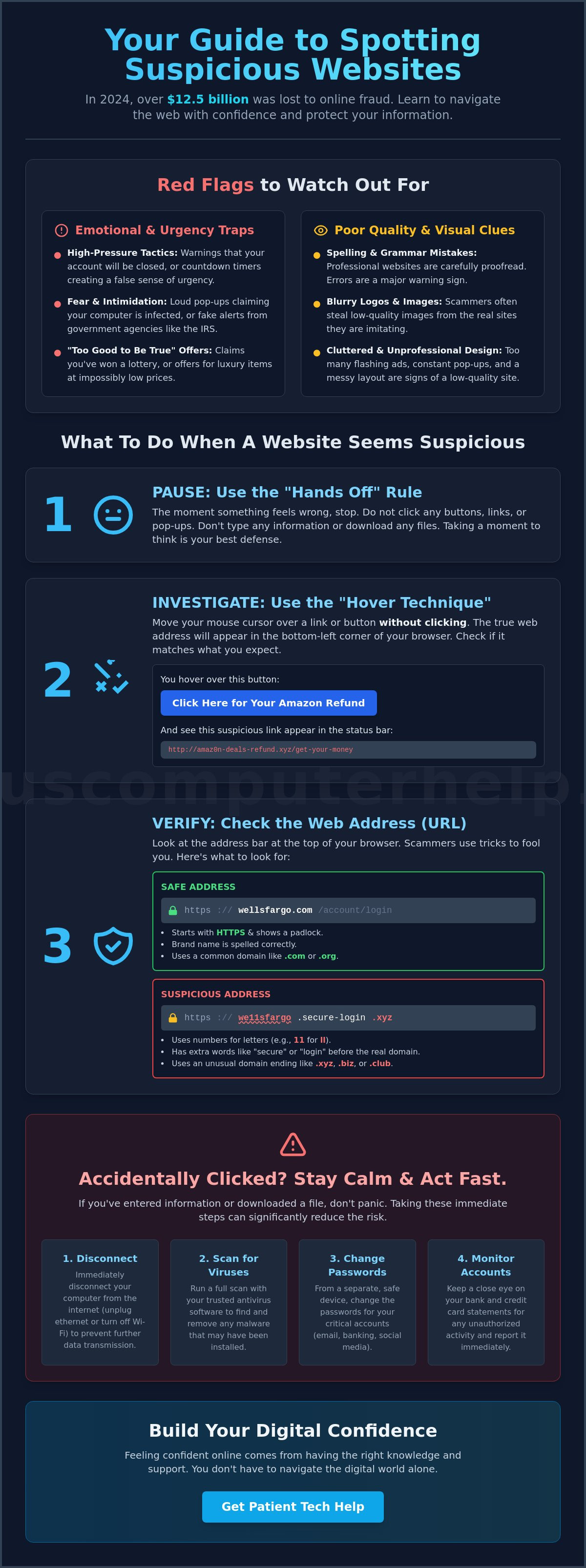
The most common trick is called the urgency trap. Scammers want you to feel like you are in a rush. They might use a timer that counts down or tell you that your account will be closed if you don't click a button immediately. This pressure is intentional. It is meant to make you skip the step of verifying if the site is real. You can learn more about these risks in this comprehensive guide to Internet safety. It provides a helpful overview of how to stay protected while browsing the web.
Another big clue is the "too good to be true" rule. If a website claims you have won a huge prize or offers a luxury item for a tiny fraction of its normal price, be very careful. These are usually baits to get you to enter your payment details. It's always okay to trust your digital gut. If a site feels strange or makes you feel uncomfortable, it's better to close the window and walk away. You don't have to stay on a page that makes you feel uneasy.
Common Emotional Red Flags
Scammers love to use sound and movement to grab your attention. You might see a window pop up with a loud buzzing sound or a flashing red warning. These alerts often claim your computer is "infected" or that you are in legal trouble. Remember that real organizations like the IRS or Social Security will never use these tactics. They don't send scary pop-ups to your computer. If a site uses fear to get you to act, it isn't a site you should trust.
Visual Clues of a Fake Website
Professional companies take great pride in how their websites look. Fake sites are often put together quickly and cheaply. Look closely at the logos and images. Are they blurry or stretched? Do you see spelling mistakes or sentences that don't quite make sense? These are signs of a low-quality imitation. A site that is cluttered with too many flashing buttons or constant pop-up windows is another sign of trouble. If the website looks messy and unprofessional, it probably is. Learning what to do when a website seems suspicious means taking a moment to look at these small details before you share any information.
Immediate Steps to Take Before You Click Anything
If you find yourself on a page that makes you uneasy, the most important rule is the "Hands Off" rule. Stop moving your mouse. Don't click any buttons. Don't type your name or password. Don't download any files that pop up. This pause gives you time to think. It's the most effective way to stay safe. Scammers rely on fast clicks. By slowing down, you take away their power. Knowing what to do when a website seems suspicious often comes down to verifying where a link actually goes before you commit to it.
The Hover Technique Explained
The hover technique is moving your mouse over a link without clicking to see the destination URL in the bottom corner of your screen. This small step reveals the truth behind a button. For example, a button might say "Click here for your Amazon refund," but when you hover, the address in the corner might look like "amaz0n-deals.net." Notice the zero instead of the letter "o." This is a classic trick. If you are using a tablet or a smartphone, you cannot hover easily. In those cases, it is much safer to close the app and go to the official website yourself rather than tapping any link.
Verifying the Web Address (URL)
Always look at the very top of your browser in the address bar. You want to see a small padlock symbol and the letters "HTTPS." The "S" stands for "Secure." This means your connection is private. However, even secure sites can be fakes. You must look at the spelling of the brand name carefully. Scammers often use strange endings for their web addresses. While most major companies use ".com" or ".org," fake sites might use ".xyz" or ".biz." According to official government advice on fake websites, many scammers even try to mimic government agencies to steal your data.
If a suspicious email arrives, never click the "Unsubscribe" link. This often just confirms to the scammer that your email address is active. Instead, mark it as spam and delete it. If a scary pop-up appears on your screen, don't click "OK" or "Cancel" within the window. Close the entire browser tab by clicking the small "X" at the very top of your screen. If you ever feel overwhelmed by these steps, getting some personalized technology training can help you feel much more relaxed. Learning these habits takes a little practice, but it makes you much harder to fool. Taking these steps is the best way to handle what to do when a website seems suspicious without putting your information at risk.
Simple Tools to Check a Website Safely
You don't have to guess if a site is safe. Staying off the site while you check it is the smartest move you can make. Several free tools allow you to peek behind the curtain without putting your computer at risk. Learning what to do when a website seems suspicious often involves using these simple digital shields to protect your information and your peace of mind.
Using Free Safety Checkers
Google provides a wonderful service called the Google Transparency Report. To use it, right-click the link you are worried about and select "Copy link address." Then, visit the Transparency Report page and paste that address into the search bar. Google will show you if the site has a history of spreading viruses or stealing data. Another helpful tool is VirusTotal. This site gathers reports from many different security companies at once. It's like getting a dozen expert opinions in one second. If a checker says "Unknown" or "Not enough data," you should proceed with extreme caution. Scammers often create new sites every day to stay ahead of the law. If there isn't enough information to prove a site is safe, it's best to stay away.
The Power of a Quick Search
Sometimes the best tool is a simple search. Open Google or Bing and type the name of the website followed by the word "scam" or "review." You might find forums where other people have shared their warnings. You can also check the Better Business Bureau website to see if a company is legitimate. Be sure to ignore any glowing reviews that are posted directly on the suspicious site itself. Scammers often write their own fake testimonials to look trustworthy. For more advice on spotting these tricks, you can read this guide on How to Recognize and Avoid Phishing Scams from the Federal Trade Commission. This resource is a great way to learn about the emotional tricks people use to get your data.
Your web browser is also working to keep you safe. Browsers like Chrome, Edge, and Safari have built-in lists of dangerous websites. If you see a bright red screen with a warning that says "Dangerous Site," please listen to it. This isn't a mistake or a computer glitch. It means the browser has already verified that the site is harmful to users. Close the tab immediately and don't try to bypass the warning. Using these tools gives you a clear plan for what to do when a website seems suspicious. You can take control of your safety without feeling overwhelmed by technical details.
What to Do If You Have Already Interacted with a Suspicious Site
First, please take a deep breath and stay calm. Making a mistake online happens to everyone, including people who work with computers every day. Scammers spend their whole lives perfecting these tricks. If you clicked a link or shared some information, you aren't "bad" at technology. You simply encountered a professional trickster. Knowing what to do when a website seems suspicious after the fact is about taking quick, steady action to protect your privacy.
Steps for Accidental Downloads
If a file downloaded to your computer after you clicked something, do not open it. Opening the file is what usually triggers the problem. Instead, follow these simple steps to remove it:
- Open your "Downloads" folder. You can usually find this by clicking the little folder icon at the bottom of your screen.
- Look for the file you just downloaded. It is often at the very top of the list.
- Right-click on the file and select "Delete" or move it to the Trash.
- Go to your Recycle Bin or Trash on your desktop. Right-click it and choose "Empty."
Once the file is gone, you can run a scan with your security software. This provides peace of mind that your system is still clean. If you're worried that something stayed behind, you can always get help from a patient tech mentor to double-check your device.
Protecting Your Accounts and Identity
If you entered a password on a site that felt wrong, you should change that password immediately. Go to the real, official website of that service to make the change. It is very helpful to use a unique password for every site you visit. This way, if a scammer gets one password, they can't get into your other accounts. You might also want to look into virus and malware removal if your computer starts acting strangely or showing lots of ads. This deep cleaning process can remove any hidden threats.
Setting up Two-Factor Authentication (2FA) is another excellent safety net. This sends a code to your phone whenever you log in. Even if a scammer has your password, they can't get in without that code. If you shared any credit card or banking details, call your bank right away. They are used to these calls and can help you secure your money. They can stop unauthorized charges before they cause any real trouble. Taking these steps is the best way to handle what to do when a website seems suspicious and move forward with your day.
How Patient Tech Mentoring Builds Your Digital Confidence
Learning about internet safety from a generic video can be frustrating. These videos often move too fast or use technical words that don't make sense. Personalized mentoring changes that experience. It's about having a real person by your side who listens to your specific concerns. You can stop the lesson whenever you want to ask a question. This approach replaces anxiety with a sense of accomplishment. You aren't just following a list of rules. You are building the skills to navigate the web on your own terms.
Personalized Lessons for Safety
Practicing safety techniques like the hover technique is much easier with a tutor. We can look at your actual computer and practice identifying red flags together. This helps you understand what to do when a website seems suspicious without any of the risks. 55 Plus Computer Help LLC also focuses on your computer's health by ensuring your security settings are up to date. A great place to start is with your inbox. Proper email setup and troubleshooting for seniors ensures that many dangerous links are filtered out before you ever see them.
Your Safety Net Across the US
Having a trusted expert available across the country gives you a reliable safety net. You don't have to worry about a faceless corporation that doesn't understand your needs. We provide hands-on help, either remotely or in-home where available, in an environment where you feel safe. We explain everything in plain English, focusing on why certain sites are dangerous and how you can avoid them. This accountability means we care about your success and your safety. We are mentors helping you stay connected securely.
The goal of our training is to help you reach a state of safe independence. You shouldn't feel like the internet is a place full of traps you can't escape. With a little practice, you will know exactly what to do when a website seems suspicious. You will have a simple checklist to follow and the confidence to use it. If you ever feel unsure, you know exactly who to call for help. You can schedule a patient, one-on-one lesson today to start your journey toward digital confidence.
Browse the Web with Peace of Mind
Staying safe online is a journey that gets easier with every click. You now have the tools to spot emotional tricks and verify links before you commit to them. By trusting your instincts and using simple techniques like hovering over URLs, you can protect your information and your computer. Knowing what to do when a website seems suspicious is the first step toward true digital independence. Even if you make a mistake, you can always recover by staying calm and following the simple steps we shared. You don't have to face these challenges alone.
We have spent over 10 years helping seniors navigate technology with a patient, jargon-free teaching style. Whether you prefer in-home visits or remote support, we are here to provide a supportive safety net for your digital life. Get patient, personalized tech help today and start exploring the internet with total confidence. You've worked hard for your peace of mind, and we are honored to help you keep it secure. You've got this.
Frequently Asked Questions
Is it safe to just look at a suspicious website?
Looking at a website is usually safe because modern browsers have strong security features built in. Problems usually start only if you click a button, download a file, or enter your personal information. If you feel uneasy, the best choice is to close the tab immediately. This prevents you from accidentally interacting with any hidden traps on the page.
What happens if I accidentally clicked a link but didn’t type anything?
If you clicked a link but didn't share any data, you are likely safe. Most scams need you to type in a password or download a file to cause real harm. To be extra careful, you can run a quick scan with your security software. This is a great way to handle the situation and learn what to do when a website seems suspicious without feeling overwhelmed.
Does the padlock symbol in the address bar mean a site is 100% safe?
No, the padlock symbol does not mean a site is completely safe. It only means that the connection between your computer and the website is private. Scammers can easily get a padlock for their fake websites too. You still need to check the spelling of the web address and look for other red flags like blurry logos or strange phrasing.
How can I tell if an email from my bank is real or a scam?
The safest way to tell if a bank email is real is to call your bank using the number on the back of your debit card. Real banks won't ask you to provide your password or social security number through an email link. You can also check the sender's email address by tapping on their name. If it looks like a string of random letters and numbers, it's likely a scam.
Can my computer get a virus just from opening a webpage?
It is very rare to get a virus just by opening a page, but it is not impossible. This is why keeping your browser and computer software updated is so important. These updates fix security holes that scammers try to use. If you stay on well-known websites and keep your software current, your risk of an infection is very low.
What should I do if a website asks for my phone number to "verify" my account?
You should be very cautious if a site you didn't expect to visit asks for your phone number. Scammers use your number to send fake text messages or to try and take over your accounts. If you are on a site you trust and you started the login process, it might be a real security step. If the request pops up out of nowhere, close the page immediately.
Are pop-up ads always a sign of a suspicious website?
Pop-up ads are not always a sign of a scam, but they are often used by suspicious websites to grab your attention. Many legitimate news sites use them for advertisements. However, if a site has dozens of flashing windows that you can't easily close, that is a major red flag. Knowing what to do when a website seems suspicious involves recognizing when a site's layout feels messy or aggressive.
How do I report a website that I know is a scam?
You can report scam websites to the Federal Trade Commission or the FBI's Internet Crime Complaint Center. Most browsers also have a simple way to report a site directly. For example, in Microsoft Edge, you can click the three dots in the corner and find the "Help and feedback" section. Reporting these sites helps protect other people in your community from falling for the same tricks.


