
You are in the middle of typing a message to a friend when suddenly, the screen stops moving. You click the mouse and tap the keys, but your computer doesn't react at all. It's a common moment that can make anyone feel a surge of panic. You might worry that you've broken something expensive or that your precious photos and documents are gone forever.
We understand how stressful this feels. It's completely natural to feel frustrated when a device you rely on stops working as it should. However, most of the time, your computer isn't actually broken; it's just temporarily overwhelmed. Learning what to do when your computer freezes will help you stay calm and fix the problem without losing your hard work.
In this guide, we'll walk through simple, patient steps to unfreeze your screen. We will show you how to check for unresponsive programs and how to restart your system safely. You'll gain the confidence to handle these little tech hiccups on your own, knowing your data is safe and sound.
Key Takeaways
- Understand that a frozen screen is often just a temporary pause, not a sign of a broken device.
- Learn the "Three-Minute Rule" to give your computer the time it needs to catch up and fix itself.
- Discover exactly what to do when your computer freezes using the safe "Control-Alt-Delete" method to regain control.
- Find out how simple habits, like closing unused programs and installing updates, can keep your computer running smoothly.
- Recognize the signs that tell you when a recurring freeze might need a friendly expert's attention.
First, Take a Deep Breath: Why Computers Freeze
It is a quiet afternoon, and you are just trying to read an article or send an email. Suddenly, the screen stops moving. You click the mouse and tap the keys, but nothing happens. It feels like the machine has developed a mind of its own. Please know that this happens to everyone. Even the most expensive new computers get "stuck" sometimes. It isn't your fault, and you haven't done anything wrong.
Most people worry that a freeze means their computer is broken for good. They fear their precious photos and documents have vanished into thin air. In reality, your files are almost always safe. A freeze is usually just a temporary software conflict. This means two parts of the computer's internal system are trying to talk at the same time and got confused. To better understand the technical side, you can read more about what is a computer freeze on Wikipedia. Understanding the cause helps take the mystery and fear out of the situation. When you know what to do when your computer freezes, you can handle it with a calm and steady mind.
Think of your computer like a busy kitchen. If too many orders come in at once, the chef might need a moment to catch up. The kitchen isn't closed; it is just very busy. Your computer is doing the same thing. It hasn't suffered a permanent hardware failure. It is simply having a moment where the software stops communicating. Knowing what to do when your computer freezes helps you stay in control while the "chef" catches up.
Common Reasons for a Frozen Screen
Computers are powerful, but they have their limits. Sometimes we ask them to do too much at once. Here are a few common reasons your screen might stop moving:
- Too many programs or tabs are open. Each open window uses a bit of the computer's memory. If you have twenty websites open at once, the computer might get overwhelmed.
- A specific program has stopped responding. Sometimes one specific app gets a "hiccup" and stops listening to your mouse clicks.
- Background updates are running. Your computer might be trying to install a new security feature while you are working. This uses a lot of power and can cause a temporary pause.
The Difference Between a Slow Computer and a Frozen One
It helps to know if your device is truly stuck or just thinking. If you see a spinning colorful wheel or a little hourglass, that is actually a good sign. It means the computer knows it has a task to do and is working hard to finish it. A truly frozen computer won't show any movement at all. The clock in the corner might even stop ticking. A computer freeze is a temporary pause in software communication. If you wait a few minutes, the computer might finish its task and start moving again on its own.
The Patience Test: Steps to Try Before You Restart
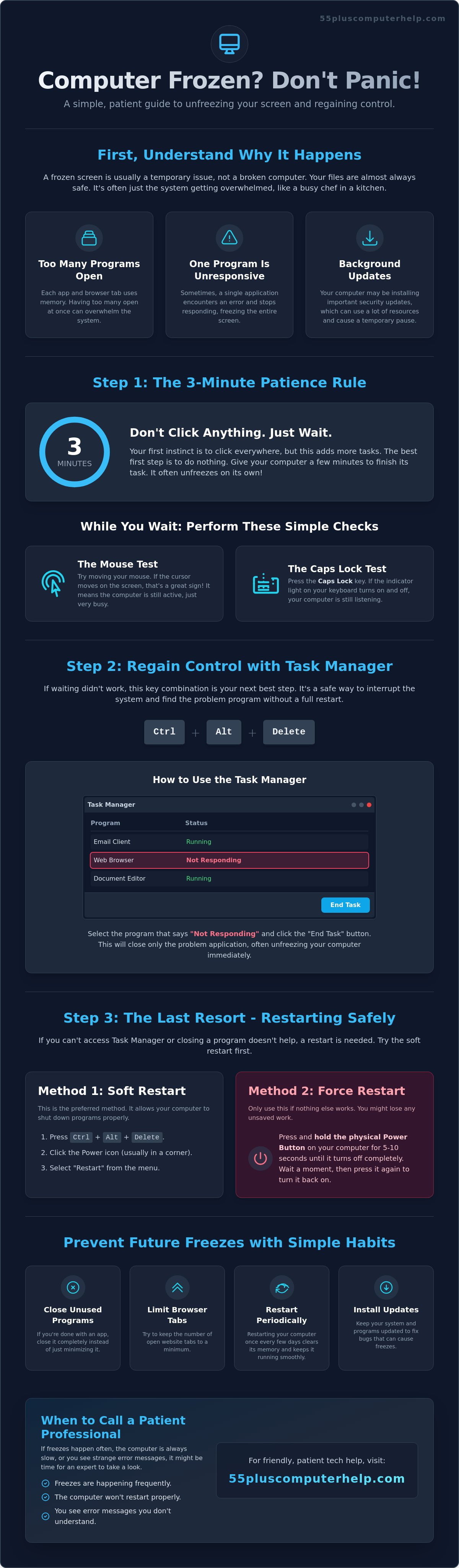
When your screen stops moving, your first instinct might be to click every button on your desk. This is a very common reaction. You want to fix the problem quickly so you can get back to your work. However, the best thing you can do is actually nothing at all for a few moments. We call this the Three-Minute Rule. Set a timer or watch the clock on the wall. Give your computer three full minutes to sort itself out. It is often just catching its breath.
While you wait, you can perform a few simple checks to see how "stuck" the system really is. First, try moving your mouse around in a large circle. If the little arrow on the screen moves, your computer is still active and just very busy. If the arrow does not move, try the Caps Lock test. Press the Caps Lock key on your keyboard once or twice. Look for a tiny light on the keyboard that turns on and off. If that light changes, your keyboard is still communicating with the computer. This is a great sign that your machine is still thinking. Learning what to do when your computer freezes starts with these quiet observations. You can also read manufacturer tips to prevent future computer freezes by keeping your system's workload light.
Why Waiting Often Works
Computers sometimes get overwhelmed by too many requests at once. It is like a person trying to listen to three people talking at the same time. The system needs a moment to finish one task before it can start the next. During these three minutes, the computer often fixes the error in the background. If the screen suddenly starts moving again, you have saved yourself the trouble of a full restart. If you find these moments happen often, you might benefit from personalized computer setup to make sure your machine is running at its best.
Simple Keyboard Tricks for Seniors
If waiting doesn't work, you can try a few gentle keyboard taps. Press the "Esc" or Escape key in the top left corner. This key tells the computer to cancel whatever it is currently trying to do. You can also hold down the "Alt" key and tap the "Tab" key. This helps you switch away from a program that might be causing the trouble. Another trick is to press the Windows key, which is the one with the four little squares. If the Start menu pops up, your computer is waking up. These small steps are often enough to get things moving again without any stress. Knowing what to do when your computer freezes helps you stay calm and in control of your technology.
How to Safely Restart a Frozen Computer
If your screen is still stuck after your three-minute wait, it's time for a more direct approach. Don't feel nervous about taking these steps. They are safe for your machine and won't cause any permanent damage. Knowing what to do when your computer freezes gives you the power to fix the problem yourself without waiting for help. We will start with a special keyboard shortcut that acts like a "reset" for your software.
Press the Control, Alt, and Delete keys all at the same time. This often brings up a blue screen with a few options. Look for the words "Task Manager" and click on them. This opens a small window that shows every program currently running on your computer. It's a very helpful tool that lets you see exactly what is happening inside your machine's "brain."
Using the Task Manager Like a Pro
Think of the Task Manager as a list of chores your computer is doing. If one chore is taking too long or has become stuck, the computer will often label it as "Not Responding." This is the culprit causing your screen to lock up. Click on that program name once to highlight it. Then, click the button in the corner that says "End Task." This tells the computer to stop trying to run that specific program immediately. Often, your screen will come back to life the moment that stuck program closes.
If closing one program doesn't help, try to restart the whole system. If your mouse is working, click the Start button in the corner of your screen. Select the Power icon and then click "Restart." This is called a "graceful" restart. It is the best way to reboot because it lets the computer put all its files away neatly before it turns off. If you can't click the Start button, you may need to move to your last resort.
The Power Button: Your Last Resort
Sometimes, your mouse and keyboard won't respond to any commands at all. In this case, you must use the physical power button on your computer case or laptop. Many seniors worry that this will "break" the computer, but it is a safe and built-in feature for exactly this situation. Hold the button down firmly. Don't just tap it; you must hold it for 5 to 10 seconds. Keep holding until the screen goes completely black and the humming sound of the computer stops.
Once the computer is off, wait for 30 seconds before pressing the button again to turn it back on. This brief pause lets the internal memory clear itself out completely. When your computer starts up again, it will feel fresh and ready to work. Understanding what to do when your computer freezes ensures you never have to feel stuck or frustrated for long.
Simple Ways to Prevent Future Freezes
Once you have mastered what to do when your computer freezes, the next step is prevention. You can take a few simple actions to keep your system running smoothly every day. These habits are like light housekeeping for your digital home. They don't take much time, but they make a world of difference in how your computer feels and responds. You don't need to be a technical expert to keep your machine happy and healthy.
One of the best habits you can form is closing programs when you are finished with them. Every open window and every browser tab uses a small portion of your computer's memory. If you leave your email, a word document, and ten news websites open at once, the computer has to work much harder. Eventually, it may run out of memory and get stuck. Closing these items when you are done lets your machine focus its energy on the task you are currently doing.
Digital Housekeeping for a Smoother Experience
A cluttered desktop can also slow down your experience. Try to keep only the most important shortcuts on your main screen. Storing hundreds of files right on the desktop forces the computer to load all of them every time you turn it on. Move your photos and documents into their specific folders to give your system a break. It is also vital to keep an eye on your security. If your computer feels sluggish or crashes often, you may need to look into virus and malware removal. Hidden programs can run in the background without your permission, taking up resources and causing the very freezes you want to avoid.
The Power of a Fresh Start
Many people simply close the lid of their laptop or press the power button once to put the computer to "Sleep." While this is convenient, it isn't the same as a full "Shut Down." Sleep mode keeps your programs open in a low-power state. Over time, small errors can build up in the system's memory. A full shut down at the end of the day allows the computer to completely turn off and rest. Daily restarts clear out temporary digital clutter that causes freezes. This simple reset ensures that when you turn the machine back on, it starts with a clean slate.
Regular maintenance is key to a stress-free experience. If you find that your computer still feels a bit slow or confusing, we are here to help. Our patient experts provide software installation and updates to ensure your device has the latest tools it needs to run perfectly. We can also help you organize your files so you can find what you need without the clutter.
When to Call a Patient Professional for Help
If you have followed our steps and your screen still locks up, please don't feel discouraged. Sometimes a problem is more stubborn than a simple restart can fix. If you find yourself constantly searching for what to do when your computer freezes every single day, it's a sign that your system needs a more thorough check. You don't have to struggle with technology alone. A patient expert can look at your settings and find the root cause. This saves you hours of frustration and gives you back the use of your machine.
Many seniors feel like they are a burden when they ask for tech help at big-box stores. Those environments are often loud, rushed, and filled with confusing jargon. You deserve a different experience. A trusted mentor can sit with you and explain things in plain English. This approach doesn't just fix the current issue; it builds your confidence for the future. You'll learn that most tech problems have simple solutions once you have the right guidance and support from someone who understands your specific concerns.
Signs You Need Technical Support
While most freezes are minor software hiccups, some signs indicate a deeper conflict that requires specialized tools. You should reach out for a professional opinion if you experience any of the following recurring issues:
- The "Blue Screen of Death." This is a bright blue screen with white text that appears suddenly. It means the system has encountered an error it can't resolve on its own.
- Strange noises. If you hear loud clicking, grinding, or whirring sounds coming from your computer tower or laptop, it's a signal that an internal component may be struggling.
- Immediate freezes. If the computer stops responding the moment you turn it on, there's likely a conflict in your startup settings that needs to be cleared.
How 55 Plus Computer Help LLC Can Support You
We believe technology should be a tool for connection, not a source of anxiety. Our team at 55 Plus Computer Help LLC provides specialized support designed specifically for the needs of seniors. We avoid technical talk and focus on clear, helpful instructions that empower you to use your devices with ease. For those living in the Denver area, we offer friendly in-home visits to troubleshoot your setup in person. If you're located elsewhere, we provide secure remote support. This allows us to view your screen and fix issues while you watch from the comfort of your own home.
Our mission is to help you feel connected through email and other digital tools safely. Beyond just fixing a frozen screen, we offer personalized lessons to master your devices. We can guide you through what to do when your computer freezes so you feel prepared instead of overwhelmed. Whether you need help with a new printer or want to learn how to video chat with family, we are here to be your patient tech partners for the long term.
Move Forward with Digital Confidence
A frozen screen doesn't have to ruin your afternoon. By using the Three-Minute Rule and knowing how to safely restart your system, you can resolve most issues on your own. Remember that your data is almost always safe and your computer is simply taking a moment to catch up. Simple daily habits, like closing extra tabs and performing a full shut down at night, will help keep your machine running smoothly for years to come.
Now that you know what to do when your computer freezes, you can approach your device with newfound peace of mind. If you ever feel stuck or simply want to learn more about your machine, our team is here for you. Since 2014, we have provided specialized support and training for users aged 55 and older. We offer friendly onsite help in the Denver area and patient remote support for clients across the country. You deserve technology that works for you, not against you.
Get Patient, In-Home Tech Support for Seniors and start feeling empowered today. We are ready to help you navigate your digital world with ease, patience, and security.
Frequently Asked Questions
Is it bad to turn off my computer by holding the power button?
No, it is a safe and built-in feature designed for exactly these moments. Holding the power button does not damage your hardware; it simply cuts the power so the system can reset. While it is better to use the on-screen menu when possible, this manual method is a perfectly fine last resort when the screen stops responding to your commands.
Will I lose my photos or files if my computer freezes?
Your saved photos and documents are almost never lost during a freeze. These files are stored on your computer's long-term storage drive, which remains safe even when the screen stops moving. You might lose the last few words you typed in an unsaved email, but everything you saved before the freeze happened will still be there when you turn the machine back on.
Why does my computer freeze when I have too many tabs open?
Every website tab you open uses a small amount of your computer's short-term memory. If you open twenty or thirty tabs at once, the system can run out of "breathing room" to process new information. It is like a desk covered in too much paperwork; eventually, you can't find the space to move your pen. Closing unused tabs helps your computer stay fast and responsive.
Can a virus cause my computer to freeze up completely?
Yes, hidden malicious software can drain your computer's energy by running secret tasks in the background. This often leads to frequent lockups or a screen that won't move at all. If your device gets stuck often, we can help with professional virus and malware removal. Cleaning out these hidden problems restores your security and helps your machine run much more smoothly.
What is the "Control-Alt-Delete" trick everyone talks about?
This keyboard combination is a special command that tells the computer to stop everything and show a priority menu. It allows you to open the Task Manager so you can close one stuck program without turning off the whole machine. Knowing this shortcut is a vital part of learning what to do when your computer freezes because it gives you back control in just a few seconds.
How long should I wait before I decide the computer is truly frozen?
We recommend waiting for three full minutes before you take any action. Computers often encounter small internal errors and fix them automatically if you give them a moment to catch up. If the screen and mouse are still completely unresponsive after those three minutes have passed, you can be confident the system is truly stuck and proceed with a safe restart.
Does a frozen computer mean I need to buy a new one?
Usually, a freeze is a software issue that can be fixed without buying a new device. Most computers just need a little maintenance or a clean slate to work perfectly again. We can often perform software installation and updates that clear out old errors. This simple process can make your current computer feel like it is brand new without the high cost of a replacement.
What should I do if my mouse stops moving along with the screen?
If your mouse is stuck, use your keyboard to see if the computer is still "awake." Press the Caps Lock key and look for a tiny light on your keyboard to turn on and off. If the light doesn't change, the system is likely fully stuck. In this case, you should use the physical power button to restart. Knowing what to do when your computer freezes even without a mouse helps you stay calm.


