
You are right in the middle of writing an email to a friend or scrolling through photos of your grandkids when suddenly, the mouse stops moving. Everything on the screen stays perfectly still. No matter which buttons you click, nothing happens. It's a common moment that can make anyone feel a bit of anxiety. You might find yourself asking, "why does my computer keep freezing, and did I do something to break it?" Please know that you aren't alone. In most cases, your precious files and photos are perfectly safe.
We understand how overwhelming technology feels when it doesn't behave. It's normal to worry about scams or losing your important documents. This guide is here to help you understand the most common reasons for these digital traffic jams. We provide you with safe, easy steps to get your computer running smoothly again. We will look at recent software issues, such as the Windows 11 update from July 2026 that caused trouble for many Dell users, and show you how to handle a freeze without the stress. You'll learn how to troubleshoot with confidence and know exactly who to call if you need a friendly, patient hand.
Key Takeaways
- Understand that a screen freeze is often just a "digital traffic jam" and rarely means you have lost your precious photos or documents.
- Learn how your computer’s "workspace" can get crowded and how to close hidden programs that are using up too much energy.
- Discover the answer to "why does my computer keep freezing" by checking for common software conflicts or background malware.
- Master the "Patience Rule" and a simple three-key shortcut to safely restart your system without any stress.
- Identify the clear signs that show it is time to call a trusted, patient professional for a friendly helping hand.
Understanding Why Your Computer Freezes: It's Not Your Fault
It happens to the best of us. You are typing a letter or looking at a website, and suddenly, the computer stops listening. This experience is often called a computer hang. Think of it like a digital traffic jam. The "brain" of your computer has simply become overwhelmed by too many instructions arriving at the same time. When you wonder, "why does my computer keep freezing," it's helpful to remember that this is a normal part of how technology works. It rarely means you did something wrong or that you broke the machine. Modern systems are complex, and sometimes they just get a bit tangled up in their own thoughts.
One of the biggest worries we hear from our neighbors is the fear of losing precious memories. Please take a deep breath and know that your photos and documents are usually perfectly safe. A freeze is a temporary problem with the software, not a permanent deletion of your files. Even if the screen is stuck, the information stored on your hard drive remains right where you left it. Think of it like a book that has fallen shut. The story is still there; you just need to find your page again once the system is running smoothly.
The Difference Between a Slow Computer and a Frozen One
Sometimes your computer is just taking a moment to think. This is often called "lag." Imagine you are waiting for a slow elevator. You press the button and nothing happens immediately, but eventually, the doors open. If your mouse moves but things take a long time to respond, that is a minor hiccup. A total freeze is different. That is when the elevator doors are stuck shut and no buttons work at all. In those cases, the computer is truly locked up and needs a fresh start. Knowing which one you're facing helps you decide whether to wait a minute or take action to restart.
Why Your Computer Needs a 'Brain Break' Sometimes
Computers can try to do too many things at once. Just like a person trying to carry too many heavy grocery bags, the computer might drop everything if it gets overloaded. It might be trying to run a background update, check your email, and show you a video all at the same time. When this happens, the system gets confused. Giving it a "brain break" by restarting is often the best solution. It clears out the confusion and gives the machine a clean slate to start over. Instead of clicking the mouse many times in frustration, try to stay calm. Extra clicks only add more "traffic" to the jam. Taking a moment to breathe allows the computer to catch up or prepares you to restart it safely.
Common Culprits: From Too Many Tabs to Overheating
Why does my computer keep freezing? Often, it's a matter of space. Think of your computer's memory, or RAM, like a physical desk. If you have too many papers, books, and coffee cups on your desk, you run out of room to work. The computer is the same way. When its digital workspace gets too crowded, it simply stops moving until it can find a place to put everything. This is a very common reason for a system to lock up, and it doesn't mean your computer is broken.
The 'Too Many Programs' Trap
We all do it. You open a news article, then a recipe, then your email. Pretty soon, you have 20 internet tabs open. This is like having 20 people in your living room all trying to talk to you at once. It's hard to focus on just one conversation. Some programs even start up secretly the moment you turn your computer on. They run in the background and use up energy without you knowing. A simple tip is to close anything you aren't using right now. If you aren't sure which ones are safe to close, personalized training can help you feel more in control of your screen.
When Your Computer Gets Too Hot
When you ask yourself why does my computer keep freezing, the answer might actually be sitting on your lap. Heat is a major reason for a lock-up. Computer parts create warmth as they work. If that heat can't escape, the parts will slow down or stop to protect themselves from damage. Dust is often the main villain here. It acts like a thick blanket inside your computer tower or laptop. Airflow is also vital. If you use a laptop on a soft pillow or blanket, you might be blocking the vents that let it breathe. To keep things cool, try these steps:
- Use your laptop on a flat, hard surface like a table.
- Keep your computer tower in an open area rather than a cramped cabinet.
- Ensure there is a few inches of space behind the computer for air to circulate.
You can check this yourself with a simple "hand test." Gently touch the bottom of your laptop or the side of your computer case. If it feels unusually warm or hot to the touch, it probably needs more air. Sometimes the issue isn't physical. Outdated software can act like an old paper map that no longer shows the new roads. When your computer tries to follow these old directions, it gets lost and stuck. Viruses and Malware can also sneak in and steal your computer's focus. This makes it freeze while it tries to handle those unwanted guests instead of your actual tasks.
The Role of Viruses and Malware in System Freezes
It is very common to feel a sense of worry when your screen suddenly locks up. Many people immediately wonder if they have been hacked. This is a scary thought, but please know that a freeze is rarely a sign of a live person inside your computer. Instead, it is usually caused by hidden software that is being a bit greedy with your computer's energy. Malware and viruses can run in the background and steal the focus of your machine. When the computer tries to handle its normal tasks and these hidden ones at the same time, it can simply stop responding. This is one of the main reasons why does my computer keep freezing.
Keeping your security software updated is your best defense against these issues. Think of these updates like a new lock for your front door. As hackers find new ways to be bothersome, companies release updates to keep them out. In July 2026, Microsoft released a significant security update that patched 570 different vulnerabilities. Staying current with these updates helps ensure your computer stays focused on the things you actually want to do. It keeps those unwanted digital guests from taking over your system's resources.
Signs Your Freeze Might Be Security Related
There are a few clues that a security issue might be causing your trouble. You should watch for strange windows that appear out of nowhere. Sometimes these windows will not close no matter how many times you click the little "X" in the corner. You might also notice that the computer only seems to freeze when you are browsing the internet. If you want to learn more about keeping your system safe, you can read our Virus and Malware Removal guide. It offers more detailed tips on how to protect your digital life.
Avoiding the 'Fake Support' Trap
One of the most important things to remember is how to handle "scareware." This is a type of pop-up that looks like a serious warning. It might use bright colors or even make a loud noise to get your attention. These messages often include a phone number and tell you to call immediately for help. These are always scams. A real technology company like Microsoft or Apple will never ask you to call them through a pop-up window. If one of these messages appears and your mouse won't move, don't be afraid to simply turn the power off. Holding down the physical power button on your computer is a safe way to end the trick and start over with a clean slate. You haven't lost anything by doing this, and it protects you from the scammer's trap.
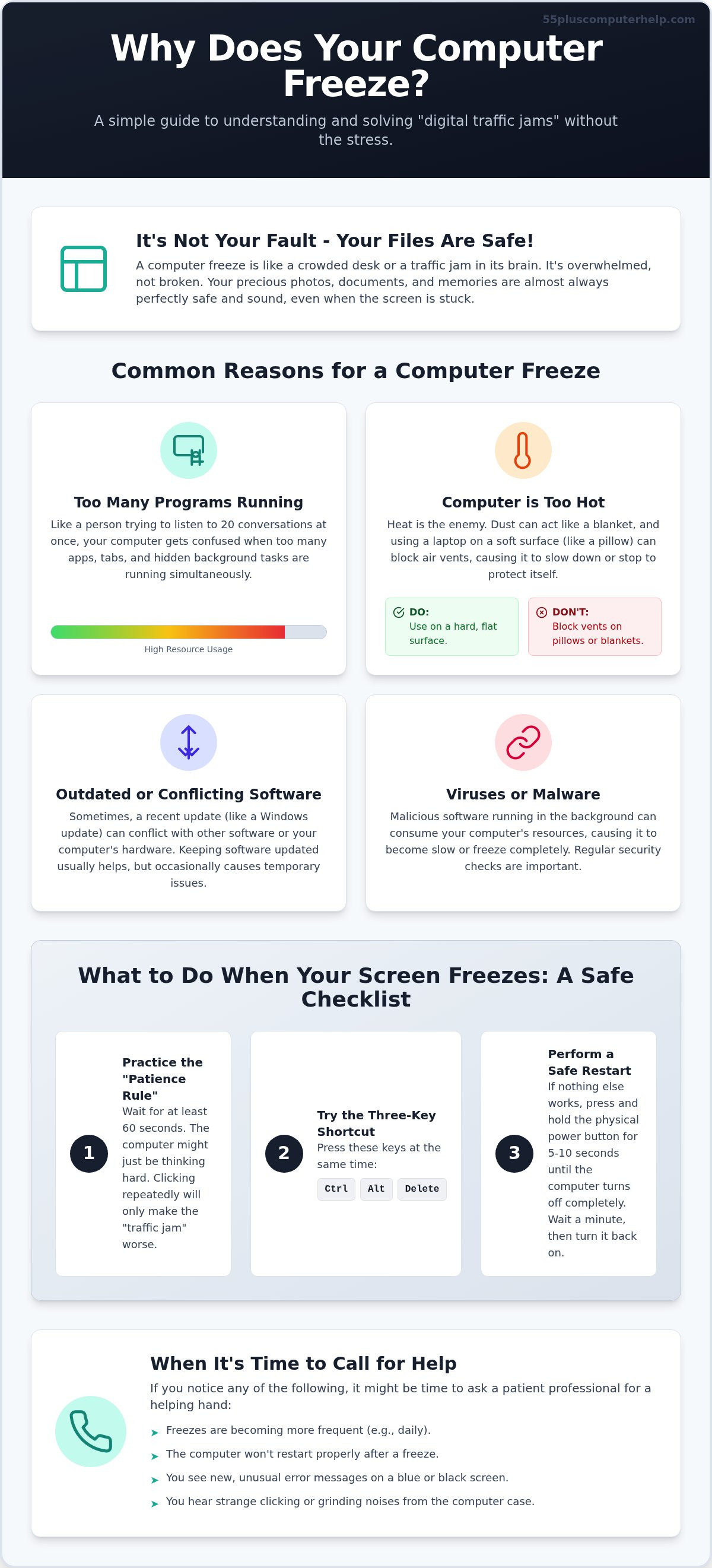
What to Do When Your Screen Stops Moving: A Safe Checklist
When your screen stops moving, it's natural to feel a bit of panic. You might find yourself clicking the mouse over and over or tapping keys with more force. Try to resist that urge. When you wonder why does my computer keep freezing, the best thing you can do is stay calm. Extra clicks actually add more work for the computer to handle, which can make the "traffic jam" even worse. Instead, follow this simple checklist to regain control safely.
Start with the Mouse Test. Try to move your mouse cursor across the screen. If the little arrow moves, the whole computer isn't stuck. It might just be one slow program or a single website that is having a hard time. Next, use the Patience Rule. Give the computer exactly 60 seconds to finish what it's doing. Set a timer or watch the clock. Sometimes the computer is simply busy finishing a large update or saving a file. If you wait one full minute, it might clear the jam on its own without you needing to do anything at all.
If a minute passes and the screen is still stuck, it's time for the Magic Key Combo. Press and hold the Ctrl, Alt, and Delete keys all at the same time. This is like tapping the computer on the shoulder to see if it can still hear you. If a new menu appears on your screen, your computer is still working. If these steps feel a bit overwhelming, our team can provide remote troubleshooting assistance to walk you through the process over the phone.
Using the Task Manager Safely
If the Magic Key Combo works, you will see an option for the Task Manager. Think of this as the "Principal's Office" for misbehaving programs. It shows you a list of everything currently running on your machine. Look for any program that has the words "Not Responding" next to it. You can click on that program and then click the "End Task" button. This is a very safe way to close a stuck window. It tells the computer to stop trying to run that one specific program so it can focus on everything else again.
The 'Hard Restart' as a Last Resort
Sometimes, the computer is so stuck that it can't even "hear" the Magic Key Combo. If nothing happens after you press those keys, you may need a "Hard Restart." This is your last resort, but it's safe for your hardware. Find the physical power button on your computer tower or laptop. Press and hold it down for 10 full seconds. The screen will go black and the lights will turn off. Wait a moment, then press the button again to turn it back on. Your computer might be slow for a few minutes while it gets organized, but this gives it the clean slate it needs to work properly again.
When to Call for a Patient Professional's Help
Sometimes, the simple steps aren't quite enough to solve the problem. If you have tried the patience rule and the magic key combo but still find yourself asking "why does my computer keep freezing," it might be time to call in a friendly expert. You don't have to spend your afternoon feeling frustrated or worried. If your computer locks up every single time you turn it on, that is a clear sign of a deeper issue; in these cases, We Fix PC Laptop provides expert diagnostic and repair services to restore your machine. It is perfectly okay to want a helping hand so you can get back to your digital life with peace of mind.
Choosing to get help is also about protecting what matters most to you. If you are worried about losing your precious photos or important documents, a professional can ensure your data is safe before making any changes. We treat your computer with the same care we would give our own. Our goal is to transform that feeling of anxiety into a sense of accomplishment and security. Having a trusted person to call makes all the difference when technology stops behaving.
Remote Support vs. In-Home Assistance
Many freezing issues can be solved without anyone ever stepping foot in your house. We offer remote support for quick fixes. This allows you to sit in your favorite chair and watch the repair happen right on your screen. It is a great way to watch and learn as we work. However, some problems need a physical visit. If your computer is getting too hot because of dust or poor airflow, an in-home visit is often better. Our support is tailored specifically for the 55+ community. We move at your pace and explain every step in plain English.
Turning a Problem into a Lesson
We believe that every technical problem is a chance to learn something new. We don't just fix the freeze; we show you how to prevent it from happening again. This empowers you to handle small hiccups on your own in the future. For example, if your screen locks up while you are checking your messages, we can help with Email Setup and Troubleshooting. This ensures your inbox is running smoothly and safely so you can stay connected with family.
You deserve to enjoy your technology without the stress of constant interruptions. "Why does my computer keep freezing" shouldn't be a question that ruins your day. You don't have to struggle alone with these complex systems. Reach out for patient, expert help today and let us help you get back to the things you enjoy.
Regain Your Digital Peace of Mind
You now know that a frozen screen is often just a temporary "digital traffic jam." Whether it is a crowded workspace or a hidden update, these moments don't have to be scary. Remember to use the "Patience Rule" and give your computer a minute to think before trying the magic key combo. Your precious photos and documents are safe, and most issues have a very simple fix. You are now better prepared to handle these hiccups with a calm and steady hand.
If you still find yourself asking "why does my computer keep freezing" after trying these steps, please know that help is just a phone call away. Our team specializes in supporting seniors with patience and clarity. We offer both remote assistance and in-person visits to fit your specific needs. Our patient mentors don't just fix the problem; we teach you how to handle it for next time so you feel more independent.
Get Patient, Professional Computer Help Today and get back to your digital life with confidence. You deserve to enjoy your technology without the stress. We are here to support you every step of the way.
Frequently Asked Questions
Is it bad for my computer to turn it off using the power button?
It is safe to use the power button when your computer is completely stuck. While we usually use the "Shut Down" menu, a frozen screen means the normal way won't work. Holding the button for 10 seconds is a standard way to clear a lock-up. It does not damage the physical parts of your machine. It simply cuts the power so you can start fresh with a clean slate.
Can a full hard drive cause my computer to freeze?
Yes, a full hard drive is a common reason for a system to stop responding. Your computer needs a little bit of "elbow room" to move files around while it performs tasks. If your storage is nearly full, the computer has nowhere to put temporary files. This can lead to a total freeze. Keeping at least 10% of your drive empty helps your machine stay fast and responsive.
Why does my computer only freeze when I'm checking my email?
This often happens if your email program is trying to load a very large attachment or a complex advertisement. If you use a website for your email, having too many other tabs open can also cause a conflict. It creates a specific "digital traffic jam" in your browser. We can help you look at your settings to make sure your email is set up to run smoothly without those frustrating pauses.
Will I lose my photos if I have to restart my frozen computer?
You will not lose your saved photos or documents if you have to restart. A freeze only affects the work you are doing at that exact second. Anything you have already saved to your folders is tucked away safely on your hard drive. Think of it like a light turning off in a room. The furniture is still there; you just need to flip the switch back on to see it.
How do I know if my computer is freezing because of a virus?
You might suspect a virus if you see strange pop-up windows that refuse to close. If you are asking "why does my computer keep freezing" and also notice your internet browser taking you to websites you didn't click on, it is time for a check-up. Most malware runs in the background and steals your computer's energy. This leaves no room for your actual tasks, which leads to a lock-up.
Can an old printer cause my computer to lock up?
An old printer can definitely cause your computer to lock up. When you click "Print," your computer tries to talk to the printer. If the printer has old software or a bad connection, the computer might wait forever for an answer. This "waiting" looks like a freeze to you. Updating your printer software or checking the cables can often solve this specific type of frustration.
How often should I restart my computer to prevent freezing?
Restarting your computer once a day is a wonderful habit to start. It gives your machine a chance to clear out small errors and finish background updates. Think of it like a person getting a good night's sleep. It refreshes the system and prevents many of the common reasons why does my computer keep freezing. If you leave it on for weeks, small problems can pile up into a big freeze.
Is it worth fixing an old computer that keeps freezing, or should I buy a new one?
A good rule for 2026 is to look at the cost of the repair. If fixing the problem costs more than 30% or 40% of the price of a new computer, it might be time to replace it. This is especially true for computers that are over 5 years old. Sometimes, a new machine is the best way to get the reliability and peace of mind you deserve for your digital life.
If you decide that a repair is the right path forward, you can discover First Help Tech to explore professional options for fixing your laptop or PC.


