
You're finally settled in for a video call with your grandkids when the screen suddenly freezes. A small spinning circle appears, and you find yourself asking the same frustrating question: why does my wifi keep disconnecting? It's a common struggle that often happens at the worst possible moment. You might feel a bit of anxiety about pressing the wrong button or worry that you're being left behind by fast-changing technology.
We understand how draining it is to deal with automated phone menus just to get a simple answer. You deserve a stable connection for your emails and calls without the stress of breaking something. This guide will help you understand the simple reasons behind these drops and show you how to fix them using plain language. We'll look at where your router sits, how to perform a safe reset, and when it makes sense to call a friendly professional for help. You can gain the confidence to handle these minor tech issues and get back to what matters most.
Key Takeaways
- Learn why connection drops are usually caused by weak signals rather than a broken device.
- Discover how your router's location and common household items like mirrors can block your internet signal.
- See how simple restarts and software updates help your computer and router talk to each other clearly.
- Follow a step-by-step guide to find out why does my wifi keep disconnecting and learn how to stabilize your signal.
- Gain the confidence to know when you can solve a problem yourself and when it is best to call a patient expert.
Understanding Why Your Wi-Fi Connection Drops
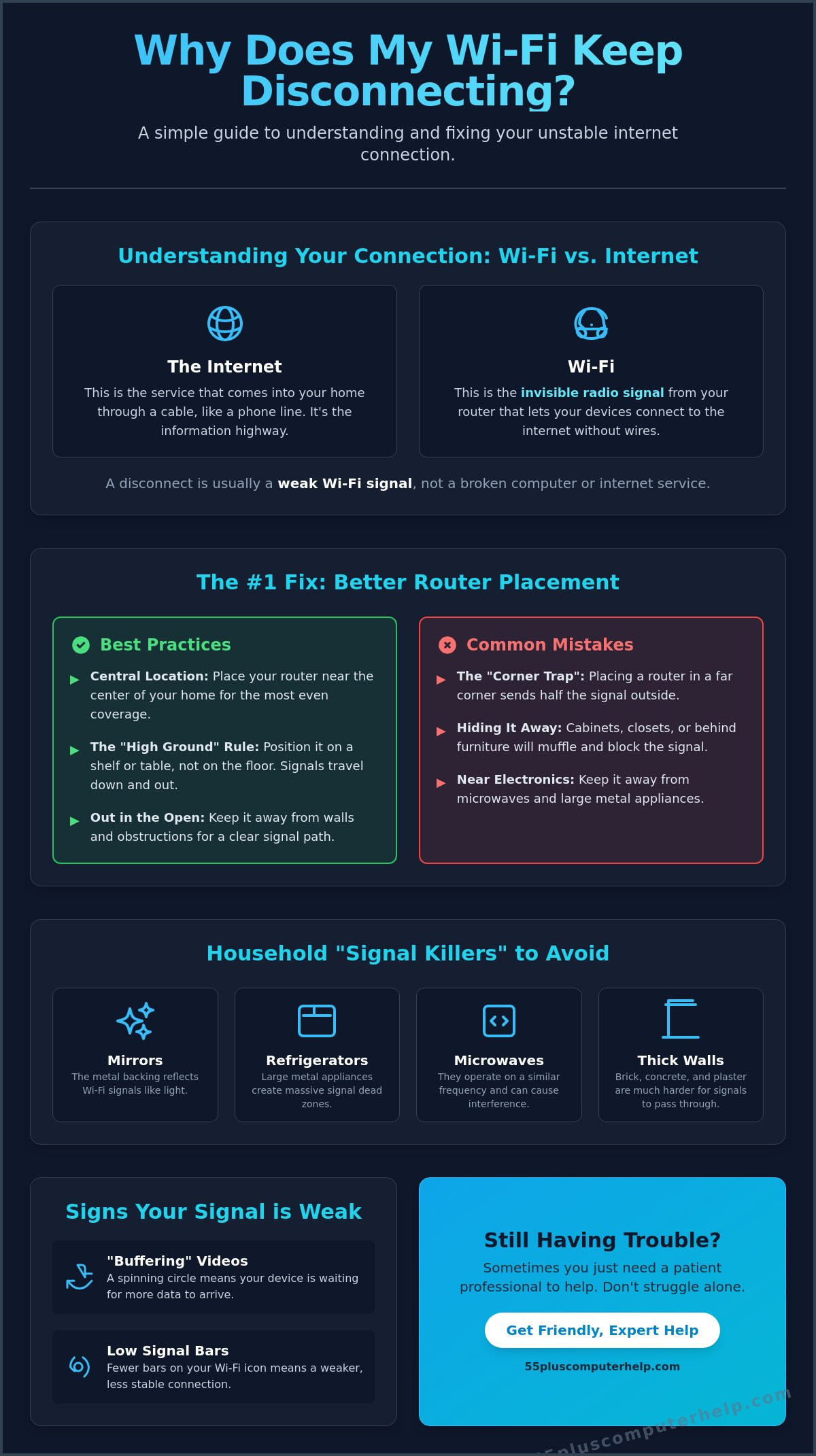
To understand What is Wi-Fi?, it helps to think of it as an invisible radio signal traveling through your home. Just like a favorite music station on a car radio, this signal can be crystal clear in one room and fuzzy in another. When you find yourself asking "why does my wifi keep disconnecting," it's usually because this invisible signal has become too weak to reach your device. It's rarely a sign that you've broken your computer or tablet. Instead, it's often just a physical hurdle that the signal can't quite jump over.
Losing your connection during a weekly video call with your family is incredibly frustrating. You might feel a sense of panic or worry as the screen freezes and the audio cuts out. Please know that this isn't your fault. Wi-Fi interference is the disruption of signals by household objects or other electronics.
The Difference Between No Internet and No Wi-Fi
Many people use the terms "internet" and "Wi-Fi" to mean the same thing. They are actually two different parts of a team. Think of your Wi-Fi router like the base of an old-fashioned cordless phone. The internet is the service coming through the wire in the wall, much like a traditional phone line. The Wi-Fi is the wireless link between that base and your handset. Sometimes the "phone line" is working fine, but you've walked too far from the base. If your device says it's connected to Wi-Fi but you still can't open a website, your router is working, but the internet service itself might be down. Staying connected to a strong signal is vital because it keeps all your home devices talking to each other properly.
Signs Your Connection Is Weakening
Your devices usually try to warn you before they give up entirely. You might see a "buffering" circle spinning in the middle of a video. This means your computer is waiting for more of that invisible signal to arrive. The small "bars" icon on your screen is another helpful clue. If you only see one or two bars, your connection is struggling to stay alive. A weak signal makes every online task harder. It can even cause issues with email setup and troubleshooting for seniors. When the signal gets too low, your device might simply stop trying. This is often the real reason why does my wifi keep disconnecting when you move from room to room.
Think of your Wi-Fi router as a small, glowing lamp. If you place that lamp inside a dark cabinet or behind a heavy armchair, the light won't reach the rest of the room. Your internet signal works in much the same way. When you wonder why does my wifi keep disconnecting, the first thing to check is where your router is hiding. These signals are physical waves that need a clear path to reach your tablet or laptop. Moving your router is a safe, simple DIY task that doesn't require any technical knowledge or fear of breaking your equipment. Distance is often the silent reason for a dropping connection. As you move further from the router, the signal thins out until it eventually snaps. If you find your internet works in the living room but fails in the bedroom, you've likely hit the "Distance Rule." Understanding the common reasons for internet outages can help you identify these invisible walls before you assume your computer is broken. Even with a modern Wi-Fi 7 router, which is the standard as of 2026, physical distance still degrades your speed and stability.Router Placement for the Best Signal
Keeping your router out in the open is always better than tucking it away. Many people hide their equipment in cabinets to keep things tidy, but wood and glass act like mufflers for your signal. Try to follow the "High Ground" rule by placing the router on a sturdy shelf or a mantle. Signals tend to travel downward and outward, so a higher starting point provides much better coverage across your home. You should also avoid the "Corner Trap." Placing a router in a far corner of the house sends half of your signal into the yard instead of your living space. A central location is usually best for a stable home network.
Household Interference You Might Not Suspect
Certain items in your home are known signal killers. Mirrors are particularly troublesome because the metal backing reflects Wi-Fi waves away from your device. Large appliances like refrigerators and ovens also create massive blocks because of their dense metal frames. You might notice your connection drops every time you use the microwave. This happens because many household electronics "clog" the airwaves, creating a digital traffic jam. Thick walls made of brick or plaster are also much harder for signals to penetrate than modern drywall. If you feel unsure about where to place your equipment, a friendly expert can help with internet and Wi-Fi troubleshooting to ensure every room has a strong signal.
Software and Device Glitches: When Your Computer Gets Confused
Sometimes your home is perfectly arranged, but you still find yourself asking why does my wifi keep disconnecting. In these moments, the problem might not be an "invisible wall" or a physical block. Instead, your computer or tablet might simply be getting a little confused. Just like we can feel overwhelmed after a long day of work, your electronic devices can get tired after running for days or weeks without a break. They might need a simple moment to pause and clear their thoughts so they can remember how to stay connected to your router.
There are also sneaky settings that can cause your connection to drop without warning. For example, many laptops and tablets have "Power Saving" modes. These modes try to help your battery last longer by turning off parts of the device that aren't being used. Sometimes, your computer decides to turn off its Wi-Fi receiver to save energy, even while you're still using it. This can make it feel like your internet is broken when your device is actually just trying to be a bit too helpful.
The Magic of the "Restart"
Turning your computer off and on again is one of the most effective fixes in the world of technology. It sounds too simple to work, but it clears out small errors and "digital dust" that build up over time. It's important to know the difference between restarting your computer and "rebooting" your router. Restarting your computer refreshes your personal device. Rebooting your router refreshes the signal for your whole house. If you decide to unplug your equipment, please use the 30-second rule. Unplug the power cord from the wall, count slowly to thirty, and then plug it back in. This gives the device enough time to fully rest before it starts up again.
Software Updates and Their Importance
Your computer needs to speak the same language as your router to stay connected. Software updates often include "Network Drivers," which act as the translators for your device. If these drivers are out of date, your computer might struggle to understand the signals your router is sending. This is one of the common reasons for internet outages that happen right inside your own home. You might think of a software update as a regular check-up for your computer's health. If you ignore update prompts on your tablet or smartphone, you might be missing out on vital fixes. Sometimes, "mysterious" connection drops are actually caused by hidden bugs or digital clutter. In these cases, professional virus and malware removal can clear the path and help your device stay connected more reliably.
Simple Steps to Fix Your Wi-Fi Today
Dealing with technology shouldn't feel like a chore. If you've spent the afternoon wondering why does my wifi keep disconnecting, you might feel ready to give up. Please take a deep breath and remember that it's okay to feel frustrated. You don't need to be a computer expert to solve these problems. Sometimes, taking a short break and coming back with a fresh pair of eyes is the best first step. We suggest keeping a small notepad nearby. Writing down what you've already tried helps you see patterns and makes it much easier if you decide to ask for help later.
You don't always need to buy expensive new equipment to get a stable connection. Many online forums suggest spending hundreds of dollars on complex systems, but simple checks often do the trick for free. By following a methodical path, you can rule out the easy fixes before moving on to more complex solutions. This approach keeps you in control and helps build your confidence with your home technology.
The 5-Minute Connection Checklist
- Step 1: Check the physical wires. Look at the back of your router and ensure every cord is pushed in firmly. Sometimes a cable can wiggle loose while you are cleaning or moving furniture.
- Step 2: Toggle your Wi-Fi switch. On your tablet or computer, find the Wi-Fi setting and turn it off. Wait ten seconds, then turn it back on. This forces the device to look for the signal again.
- Step 3: Move closer to the router. If your connection returns when you are in the same room as the router, you know the problem is likely a physical block or distance issue.
- Step 4: Restart the specific device. If your phone stays connected but your laptop drops out, the laptop is the one that needs a quick restart to clear its memory.
When to Call Your Internet Service Provider (ISP)
Sometimes the problem isn't inside your home at all. If every device in your house loses connection at the same time, the issue might be with the physical line coming from the street. This is a common reason why does my wifi keep disconnecting during stormy weather or local construction. When you call your provider, tell the representative exactly which lights are blinking on your modem. You should specifically ask them to "test the signal to the modem" from their end. This helps them see if the service reaching your house is strong and steady. If you find these phone calls overwhelming, we can help you through the process with our internet and Wi-Fi troubleshooting service to ensure your provider is giving you the connection you pay for.
When to Call a Patient Professional for Help
Sometimes, you follow all the steps and still find yourself asking why does my wifi keep disconnecting. It's perfectly normal to reach a point where a problem feels too complex to handle alone. Technology changes quickly, and your home network is a busy system with many moving parts. Recognizing when you need a little extra support is a sign of wisdom, not a lack of ability. Asking for a helping hand is a smart way to regain your independence and ensure your digital life stays on track.
Bringing in a professional allows for a full look at your "digital home" setup. An expert doesn't just fix a single error; they look at how your router, your computer, and your smart devices all work together. This holistic view often reveals hidden issues that a quick DIY check might miss. You deserve a home where the technology supports your lifestyle rather than causing constant stress. We want you to feel a sense of accomplishment and security every time you sit down at your desk.
Why In-Home Support Makes a Difference
There is immense value in having someone visit your home to see your specific layout. Every house is different, and an expert can spot if a heavy mirror or a brick wall is the reason why does my wifi keep disconnecting in your favorite chair. You won't have to worry about unplugging everything or transporting a heavy computer to a cold repair shop. Instead, you can stay in your own comfortable environment. You can ask questions in plain English and get clear answers while the work is being done right in front of you. This personalized approach ensures the solution fits your specific home and habits.
Beyond Fixing: Learning Your Devices
A visit from a patient mentor is more than just a repair service. These troubleshooting sessions often turn into valuable mini-lessons that help you feel more confident in the future. We can show you how to perform your own "check-ups" and explain what those blinking lights on your router actually mean. The goal is to set up your home so it "just works" for your specific needs, whether that's video calling family or managing your emails. You can schedule a patient Wi-Fi check-up with 55 Plus Computer Help to get your connection back to normal. We are here to listen, teach, and ensure you stay connected to the people and information that matter most.
Regain Your Connection and Your Peace of Mind
You now have a better understanding of the invisible signals moving through your home. By checking for physical blocks and keeping your software updated, you can solve many of the common reasons why does my wifi keep disconnecting. These small steps help you maintain your independence and keep your digital life running smoothly. You should never feel like you are breaking the computer by trying these safe and simple fixes. We want you to feel empowered every time you sit down to use your tablet or laptop.
Our team has been trusted by seniors since 2014 to provide reliable and empathetic support. We offer patient mentors who speak plain English and specialize in technology for users aged 55 and over. We believe that technical support should be an educational and empowering experience rather than a cold or clinical one. If you would like a professional to look at your entire setup and provide personalized training, we are here for you. Get Patient, In-Home Wi-Fi Help Today and start enjoying a connection that stays strong when you need it most. You have the right to feel secure and capable with every device you own.
Frequently Asked Questions
Why does my Wi-Fi work on my phone but not on my computer?
Your computer might have an older Wi-Fi receiver or a software setting that is getting in the way. Since your phone is still connected, you know the signal is reaching the room. This usually means the computer needs a simple update or a restart to find the signal again. It is a common situation that doesn't mean your computer is broken.
How often should I restart my Wi-Fi router?
Restarting your router once a month is a healthy habit for your home network. This simple act clears out small errors that build up over time. If you find yourself asking why does my wifi keep disconnecting, a quick power reset is the best place to start. It gives the equipment a fresh start without changing any of your saved settings.
Do I need a new router if mine is more than five years old?
Most experts recommend replacing your router every three to five years. Technology has improved significantly, with Wi-Fi 7 now being the mainstream standard in 2026. An older router might struggle to keep up with modern tablets and smart TVs. Upgrading can provide a much steadier connection and better security for your personal information.
Can a virus cause my Wi-Fi to keep disconnecting?
Yes, a hidden virus can definitely cause connection issues. Some malware works in the background and uses your internet to send data without you knowing. This digital clutter can overwhelm your connection and cause it to drop. Running a professional scan can help clean your system and make your Wi-Fi feel fast and reliable again.
What is the difference between a modem and a router?
Think of the modem as the front door that lets the internet into your house. The router is like the hallway that directs that internet to different rooms. The modem connects to the service provider's line outside. The router creates the wireless signal that your phone and laptop use. Many providers now give you one box that does both jobs.
Why does my internet get slower in the evening?
Evening slowdowns usually happen because of network congestion. Just like a highway gets busy during rush hour, the internet lines in your neighborhood get crowded when everyone comes home and starts streaming movies. This is a service provider issue rather than a problem with your own equipment. It is a very common experience in many residential areas.
Is it safe to use my neighbor’s Wi-Fi if mine goes out?
Using a neighbor's Wi-Fi can be risky for your privacy. You cannot be sure how secure their network is or who else might be connected to it. It is best to avoid checking your email or banking while on a shared connection. Staying on your own private network is the safest way to protect your personal data from prying eyes.
How can I make my Wi-Fi signal reach the back bedroom?
The best first step is to place your router on a high shelf in a central part of your home. If the signal still doesn't reach, you might need a mesh system. These systems use small nodes to pass the signal from room to room like a relay race. This helps the connection move through thick walls and reach those far corners of your house.


